


How to Fix Mixed Content Errors in WordPress (2026 Guide)
 Joella Dunn
Joella Dunn
Joella Dunn
 John Turner
John Turner
John Turner
You installed an SSL certificate on your WordPress site, expecting to see that reassuring green padlock in the browser bar.
But instead? Your site still shows “Not Secure.”
The culprit is almost always a mixed content error.
Your site is now loading over a secure HTTPS connection, but somewhere in your pages, there are still resources trying to load over the old insecure HTTP protocol. Your browser sees this as a security risk and throws up a warning.
In this post, I’ll walk you through several proven methods to find and fix these errors. Let’s get your site fully secure!
Here are the key takeaways:
- Mixed content errors happen when your HTTPS site tries to load HTTP resources, triggering browser security warnings
- The root cause is old http:// URLs hidden in your database, theme files, widgets, or third-party scripts
- Always create a full backup before making any changes to your database or site files
- You can fix these errors with a plugin like Really Simple Security (quick solution), by updating WordPress settings, through a database search-and-replace, or by finding hardcoded URLs in files
- Prevent future issues by using consistent HTTPS URLs, testing new themes/plugins, and writing relative URLs in your code
Table of Contents
What Is a Mixed Content Error?
A mixed content error happens when your webpage loads over HTTPS, but it’s also trying to pull in resources (like images, scripts, or stylesheets) over an insecure HTTP connection. Your browser sees the mismatch and flags it as a security problem.
Browsers handle mixed content in two different ways, depending on what type of resource is being loaded.
Passive Mixed Content includes things like images, videos, and audio files. These can’t really change how your page behaves, so browsers will usually load them anyway. But you’ll still see a security warning in the address bar.
Active Mixed Content is the more serious issue. This includes JavaScript files, stylesheets, and iframes—resources that can actually alter your page or steal data.
Browsers often block these, which means parts of your site might not work at all. Your layout could break, forms might stop submitting, or features could simply vanish.
The result? Your visitors see a broken, insecure site. Not exactly the impression you want to make.
What Causes Mixed Content Errors?
The main cause of mixed content errors is simple: when you switched your site to HTTPS, not every URL in your WordPress database and files got updated.
Your site is now serving pages over https://, but buried somewhere in your content or code, there are still old http:// links pointing to your own resources.
These old URLs love to hide in predictable places:
- In your post and page content: Maybe you inserted an image two years ago, and WordPress saved it with an http:// URL. That link is still sitting in your database.
- Hardcoded into theme files: Some themes have image paths or stylesheet references written directly into their PHP, CSS, or JavaScript files.
- Inside widgets: Text widgets are notorious for this. If you manually added HTML or image links, they might still use the old protocol.
- Third-party scripts: Embedding tools like ad networks, analytics code, or social media feeds can pull in HTTP resources even when your site is secure.
- Background images in CSS: A background image defined in a stylesheet with an http:// URL will trigger the error, and it’s not always obvious where to find it.
You can’t always see where these links are just by looking at your site. You may need to dig into the code or use the right tools to hunt them down.
How to Fix Mixed Content Errors in WordPress
Here’s a quick summary of the proven methods to eliminate mixed content errors:
- Method 1: Use a plugin like Really Simple Security to automatically rewrite HTTP URLs to HTTPS on the fly (fastest option)
- Method 2: Update your WordPress Address and Site Address URLs in Settings » General to ensure both use HTTPS
- Method 3: Run a database search-and-replace with Search & Replace Everything to permanently fix all HTTP URLs in your content
- Method 4: Track down hardcoded HTTP URLs in theme or plugin files using browser Developer Tools and replace them manually
Before You Start: Create a Full Website Backup
You’re about to modify your database or edit files that control how your site works. If something goes wrong (and it can), you need a way to undo everything instantly.
A backup is your one-click escape hatch.
I always recommend using a plugin like Duplicator to create a complete backup before touching anything. It captures both your files and your database in one package, so if you break something, you can restore your site exactly as it was.

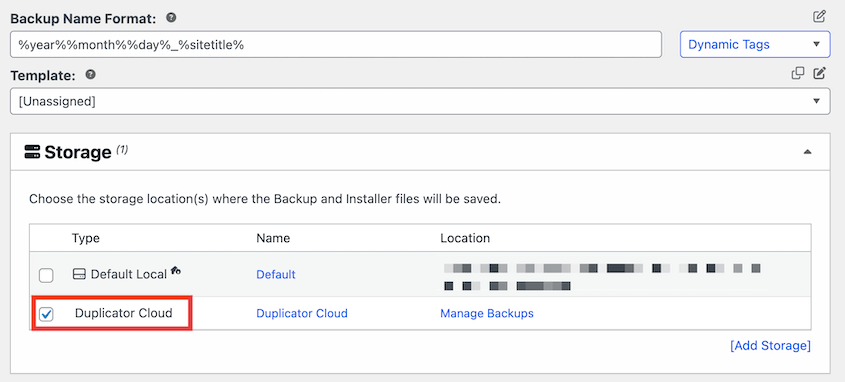
Create a new backup and select the Full Site preset. This will compile all of your site files and database tables in a single zip file.

I would also pick a cloud storage location (like Duplicator Cloud) to store the backup. You can save the backup locally, but you could lose this data if there’s a large-scale error.
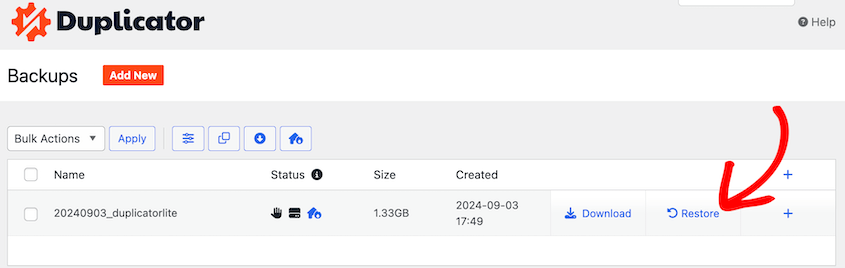
After Duplicator builds a copy of your site, it’ll send your data to the cloud. If you ever need to restore it, use the one-click Restore button.
Method 1: Fix Mixed Content Errors with a Plugin
If you’re not comfortable editing databases or code, a plugin offers the fastest path to a secure site. Really Simple Security (formerly Really Simple SSL) is the plugin most people reach for first.
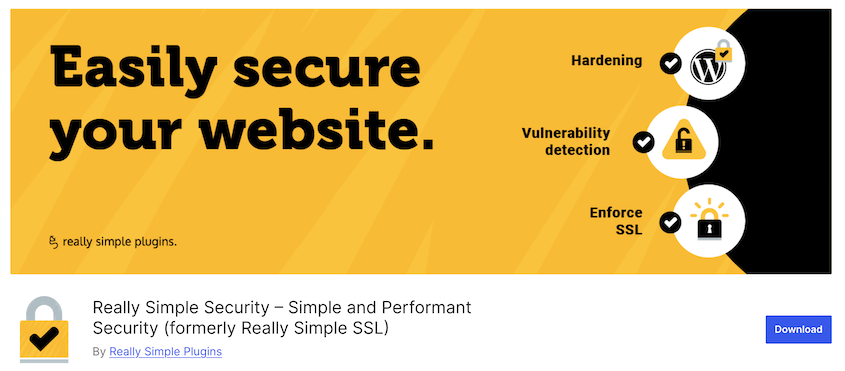
The plugin doesn’t actually change the URLs in your database. Instead, it intercepts your pages before they’re sent to the browser and rewrites any http:// links to https:// on the fly.
Install it, activate it, and go to Security » Settings. Click on the SSL tab and turn on the Mixed Content Fixer.
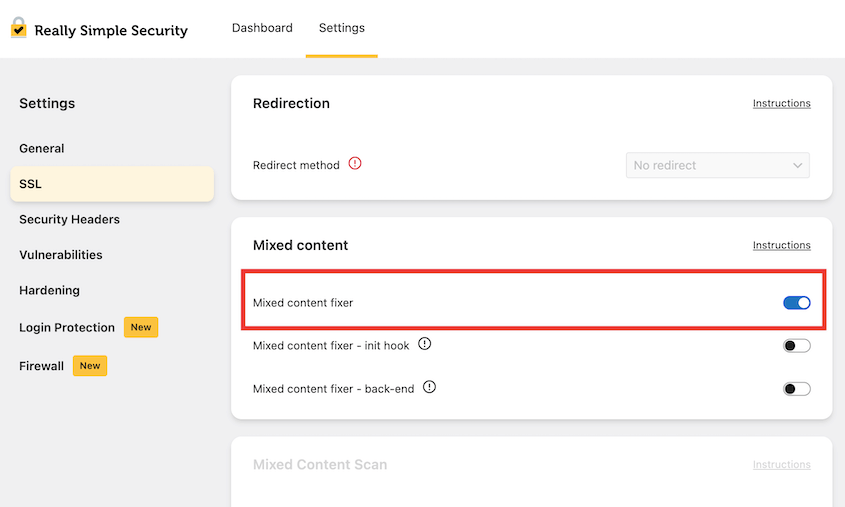
The mixed content warnings usually disappear within seconds.
But there’s a trade-off. The insecure URLs are still in your database; you’re just masking them. The plugin also adds a tiny bit of processing overhead every time a page loads.
For many sites, that’s perfectly fine. It works, it’s simple, and you’re done in two minutes. If you want a more permanent solution, keep reading.
Method 2: Updating URLs in WordPress Settings
Start here because it takes less than a minute and solves one of the most common configuration issues.
Go to Settings » General in your WordPress dashboard.
Look at the WordPress Address (URL) and Site Address (URL) fields. Both of these should start with https://, not http://.
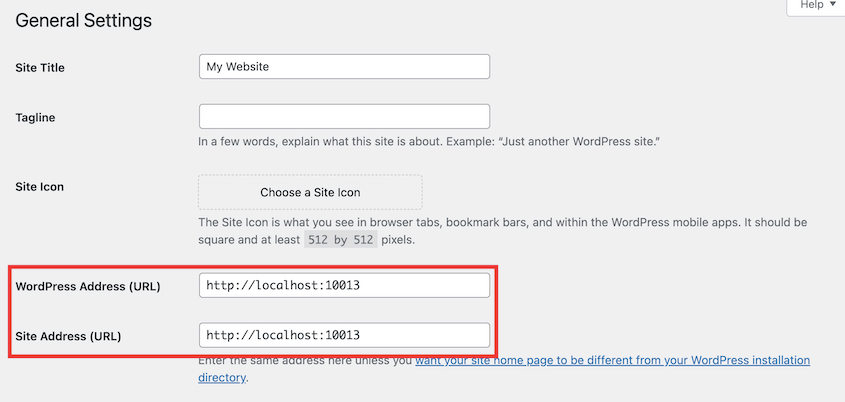
If they don’t, update them and click Save Changes.
Here’s the catch: You’re only fixing how WordPress refers to itself. The URLs already embedded in your posts, pages, or theme files remain untouched.
So if you’re still seeing mixed content errors after making this change, you’ll need to move on to the next method.
Method 3: Manually Find and Replace URLs in Your Database
When you need a permanent fix, nothing beats a proper database update. It replaces every http:// reference with https:// right where the data lives.
But there’s a critical warning here: Never run a simple find-and-replace SQL query directly on your database. WordPress stores some data in a serialized format, and a basic search-and-replace will break it.
You need a tool that’s serialization-aware. Search & Replace Everything by WPCode is my preferred plugin for this job.
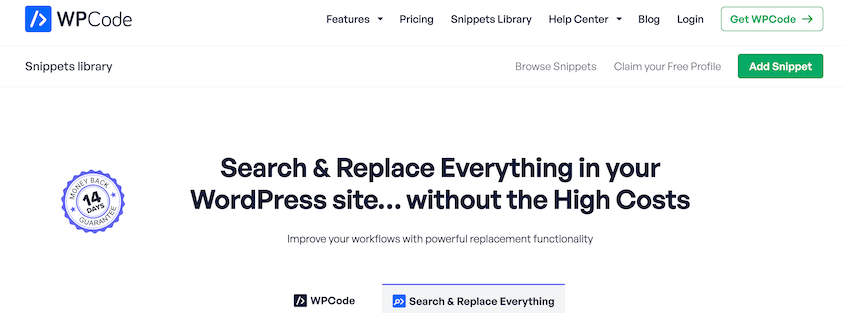
Go to Code Snippets » Search & Replace.
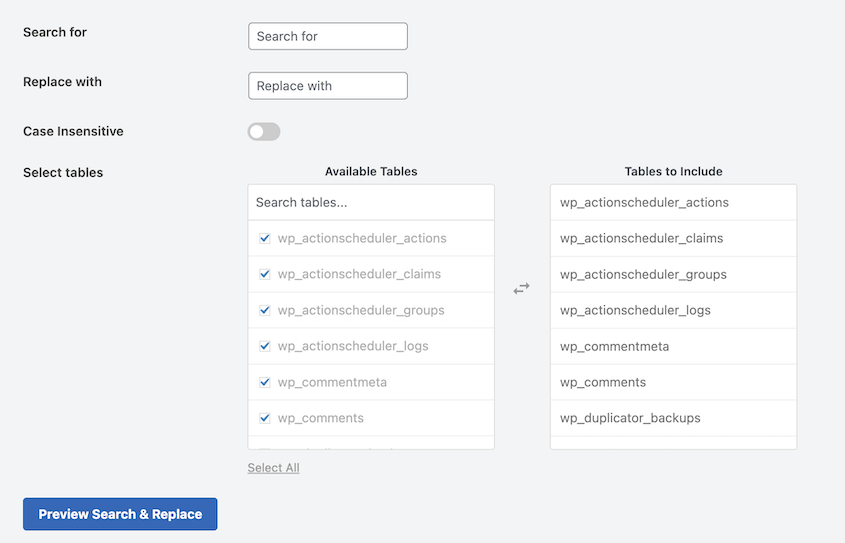
In the Search for field, enter your old URL: http://yourwebsite.com
In the Replace with field, enter your new URL: https://yourwebsite.com
Select all tables for a complete sweep. Pay special attention to wp_posts and wp_postmeta, as those usually contain the bulk of your content URLs.
Run the replacement. Most mixed content issues disappear after this database update because you’ve fixed the URLs where they actually live.
Method 4: Finding Hardcoded URLs in Theme/Plugin Files
Sometimes, even after a database fix, you’ll still see mixed content errors. That means the problem is hardcoded directly into a theme or plugin file.
The best way to track these down is with your browser’s Developer Tools.
Right-click anywhere on your site and select Inspect (or press F12). Then click on the Console tab. If there are mixed content errors, they’ll be listed right there, usually with the exact file path causing the problem.
Once you’ve identified the file, you need to edit it. Use an FTP client or your hosting control panel’s File Manager to locate the file. Open it, search for the http:// URL, and replace it with https://.
Better yet, use a relative URL like /wp-content/themes/yourtheme/style.css instead of an absolute URL. Relative paths automatically use whatever protocol the page is on, so you won’t run into this issue again.
How to Prevent Mixed Content Errors
Once you’ve fixed the problem, you don’t want it coming back. A few simple habits will keep your site secure going forward.
- Be consistent with your URLs.
Whenever you’re adding new images, embedding media, or linking to internal pages, make sure you’re using https://. It sounds obvious, but it’s easy to slip up when you’re copying and pasting links or working quickly.
- Test new plugins and themes before going live.
If you have a staging site, use it. Install the new plugin or theme there first, then open your browser’s console and check for mixed content warnings. Catching issues before they hit your live site saves you a lot of headaches.
- Write relative URLs in your theme files.
When you’re customizing a theme or adding custom code, avoid hardcoding full URLs like https://yoursite.com/wp-content/image.jpg. Instead, use relative paths like /wp-content/image.jpg.
The browser will automatically use whatever protocol the page is on, so you’ll never have to update these links again.
- Set up a Content Security Policy.
If you’re comfortable with more advanced configurations, a CSP header can act as a safety net. You can configure it to automatically upgrade insecure requests to HTTPS, so even if an old HTTP link slips through, the browser will load it securely anyway.
Frequently Asked Questions (FAQs)
How do I fix SSL issues in WordPress?
The most common SSL issue is a mixed content error. Fix it by making sure all your site’s assets load over HTTPS, either with a plugin like Really Simple Security or by running a database search-and-replace.
Why is my custom CSS not loading in WordPress?
Your browser is probably blocking the stylesheet because it’s being called over HTTP on an HTTPS page. Open your browser’s developer console to confirm, then update the stylesheet URL to use HTTPS.
What is a mixed content error in Apache?
The error isn’t actually in Apache—it’s flagged by the user’s browser. Apache is just serving the files, but the problem lives in your WordPress database or theme files, where old HTTP URLs still exist.
What’s the best SSL mixed content checker?
Your browser’s built-in Developer Tools (Console tab) is the most accurate option because it shows you exactly which resources are causing the problem. For a quick overview, you can also use an online tool like Why No Padlock.
Enjoy Your Secure WordPress Site
That green padlock isn’t just about aesthetics. It tells your visitors their connection is secure and that you take their safety seriously.
The core problem with mixed content errors is always the same: old http:// URLs hiding in your database or files. Once you track them down and update them, the issue is solved for good.
Whether you went with a quick plugin fix or did a full database replacement, your site should now load completely over HTTPS without any security warnings.
Here’s my final piece of advice: Before you perform any technical task like this (especially one that involves touching your database), make sure you have a solid backup in place.
Duplicator Pro lets you create a complete site backup in minutes. If anything goes wrong during troubleshooting, you’re just one click away from a full restore.
I’ve used it countless times when working on client sites. You know you can always roll back if something doesn’t go as planned.
Now go enjoy your secure site. You’ve earned that padlock!
While you’re here, I think you’ll like these other hand-picked WordPress resources:
- How to Clean Up a WordPress Site
- How to Fix Broken Links After a Migration
- How to Fix Redirect Chains That Are Secretly Killing Your SEO
- Your WordPress Site Could Vanish Tomorrow (Unless You Do This)
- Mastering WordPress Debugging: From Basics to Advanced Techniques
- How to Fix Your WordPress Site Not Working After a Migration




