

![[NEW] Duplicator DB Optimizer: Clean Your WordPress Database Before It Becomes a Problem](https://duplicator.com/wp-content/uploads/2026/06/Announcement-DB-Optimizer.jpg)
What Goes Wrong When You Move a WordPress Site From Local to Live
 Joella Dunn
Joella Dunn
Joella Dunn
 John Turner
John Turner
John Turner
The site is perfect on your laptop. Every page loads, every image is sharp, and the checkout works. Then, you push it to the live server, open it in a browser, and something is off.
Local and live environments are more different than they look. That gap is where most of the trouble happens.
Duplicator is a WordPress backup and migration plugin running on more than 1.5 million sites. A meaningful share of the sites running Duplicator Pro are local or development environments, close to 1 in 10. That’s a lot of people building on a laptop and pushing to a live server.
We looked at the support tickets from people pushing sites from local to live servers. The failures are consistent, and one of them shows up far more here than anywhere else in our data.
Table of Contents
- Key Findings
- Why Local and Live Are Further Apart Than They Look
- The SSL Problem Nobody Warns You About
- What Breaks on Migrations From Local to Live
- A Pre-Flight Check Before You Push Local to Live
- Frequently Asked Questions (FAQs)
- The Gap Between Your Laptop and Your Server
- Before Your Next Launch, Have a Way Back
Key Findings
Here’s what the tickets say about moving a WordPress site from local development to a live server. Every figure comes from Duplicator’s own records.
- Close to 1 in 10 sites running Duplicator Pro are local or development environments. Building locally first is common practice, not an edge case.
- Local-to-live problems make up about 1 in 8 of all migration support tickets. For a single scenario, that’s a big share.
- SSL is the signature failure of this handoff. It appears in about 1 in 5 local-to-live tickets, roughly fifteen times more often than in migration tickets generally.
- PHP version mismatches run about three times higher here than in other migrations because local tools ship modern PHP, and many live hosts lag behind.
- The most common single problem is a host limit stopping the install, not a fault in the move itself.
- Almost every failure traces back to a difference between the two environments, not to the transfer.
One caveat that shapes how to read this. These are support tickets, so they show where the local-to-live handoff breaks, not how often it breaks.
Plenty of these moves go fine and never generate a ticket. And the 1 in 10 figure describes sites running Duplicator Pro, not WordPress as a whole.
Why Local and Live Are Further Apart Than They Look
A local WordPress environment is built for private testing. A live server is built for the public internet. Those are different jobs, and the setups reflect it.
Four differences cause nearly everything in this report:
- PHP version. Local tools and live web hosts might run on different default PHP versions.
- SSL. Local runs on plain http:// or a self-signed certificate. Live expects a real one.
- File permissions. Local is permissive because you’re the only user. Live is more locked down.
- The domain. Your site knows itself as something like mysite.local. After the move, that name doesn’t exist.
Whether you use Local, MAMP, XAMPP, Docker, or a plain localhost setup, the failure modes are the same because the gap sits between the environments rather than between the tools.
The SSL Problem Nobody Warns You About
The site comes up on the live server, and the padlock is missing. Or the layout is broken because half the stylesheets refused to load. Or the browser throws a mixed content warning, and you have no idea what it’s referring to.
This is the most distinctive failure in the whole dataset. SSL problems appear in about 1 in 5 local-to-live tickets, compared to roughly 1 in 70 across migration tickets generally. That’s about fifteen times the normal rate, and the reason comes down to timing rather than the move itself.
A migration tool rewrites your site’s domain during the install. mysite.local becomes yoursite.com throughout the database, including inside serialized data. That part is handled.
The protocol is a separate question. If SSL isn’t active on your live host when you migrate, then http://yoursite.com is the site’s correct address at that moment. So that’s what gets written into the database.
Turn the certificate on afterward, and your site is now serving over HTTPS while its own database still says http://. Every asset saved during local development inherits the same problem, since none of it ever needed HTTPS.
Nothing failed. The site was moved to the address it had at the time.
The fix is mostly about doing things in the right order:
- Turn on SSL at the live host before you migrate. Most hosts issue a free certificate, usually under a section called SSL, SSL/TLS, or Security in the hosting control panel. Do this first, and the install writes https:// from the start.
- If you’ve already moved, update the site URLs. You’ll find these under Settings » General in the WordPress dashboard, in the WordPress Address and Site Address fields.
- Run a search and replace for http:// references left over from local development so old asset links match the new protocol.
- Check for mixed content. Load the live site, open your browser’s developer console, and look for warnings about insecure resources. They’ll name the exact files still loading over http://.
Handle SSL before the move, and a surprising number of problems never happen.
What Breaks on Migrations From Local to Live
SSL is the standout reason why local-to-live migrations break, but it isn’t alone. Here’s what other errors show up, the causes, and how to clear them.
| What goes wrong | Roughly how often | What’s behind it | How it gets resolved |
|---|---|---|---|
| A host limit stops the install | Most common | The live server’s PHP timeout or memory cap cutting off extraction, which your laptop never enforced | Raise max_execution_time and memory_limit on the host |
| The site isn’t secure after the move | About 1 in 5 | SSL wasn’t active on the host at move time, so the saved address is still http:// | Turn on SSL at the host before migrating, then confirm the site URLs use https:// |
| The database import fails | About 1 in 7 | Live database credentials don’t match what the host created | Enter the correct database name, user, and password during install |
| File permissions block the write | About 1 in 8 | Local is permissive, live isn’t, so ownership and write access suddenly matter | Set folders to 755 and files to 644 on the destination |
| You can’t log in once it’s live | About 1 in 9 | The saved site URL doesn’t match the live address, causing a redirect loop | Correct the WordPress Address and Site Address, then clear cookies |
| PHP errors appear on the live site | About 1 in 11 | The local tool ships newer PHP than the host runs, so functions are deprecated or missing | Match PHP versions on both ends before you move |
| A few local references survive | About 1 in 16 | URLs hardcoded in theme files, custom code, caches, or third-party services, outside the database | Search theme and custom code for the local domain, then clear all caches |
Read down the third column, and the pattern is hard to miss. Almost nothing here is caused by the transfer. It’s caused by the live server being configured differently from your laptop.
When a Host Limit Stops the Install
You start the install on the live server, it processes for a while, then it stops.
This is the most common single issue in the local-to-live tickets, and it’s a host limit rather than a broken move. The server’s PHP timeout or memory cap cuts the process off during extraction, which is the heaviest step. Local machines have no such ceiling, so a build that ran fine on your laptop can hit a wall on shared hosting.
Raise max_execution_time and memory_limit on the destination server. These live in your host’s control panel, often under PHP Options or MultiPHP INI Editor, and your host’s support can raise them quickly if you can’t find them.
This is also where the tool you use makes a difference.
A standard zip archive has to be unpacked in one continuous run. On a server with a short execution limit, that’s a problem.
If unpacking takes longer than the host allows, the process gets killed partway through, and you’re left with a half-extracted site and no clear error.
DupArchive is Duplicator’s custom backup archive format, designed to be unpacked in smaller pieces instead. It works through the site a chunk at a time, so no single run has to stretch past the host’s limit.
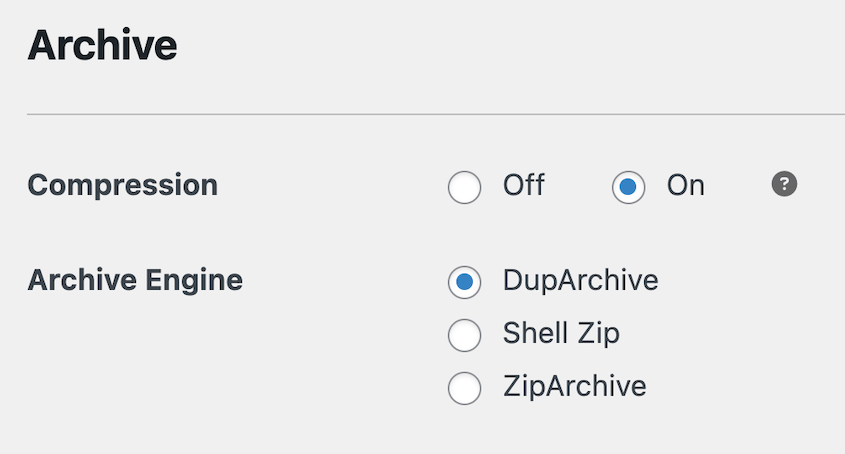
That’s what lets Duplicator handle large sites, including real migrations of 400GB, on servers that would choke on a conventional archive.
The standalone installer solves a related problem at the other end. It doesn’t need WordPress to already exist on the destination, so you can move a local build onto a completely empty server without setting anything up first.
PHP Is Newer on Your Laptop Than on Your Host
Everything works locally, then the live site throws errors on pages that use specific plugin or theme features.
This shows up about three times more often on local-to-live moves than on other migrations, and it comes down to how the tools are packaged.
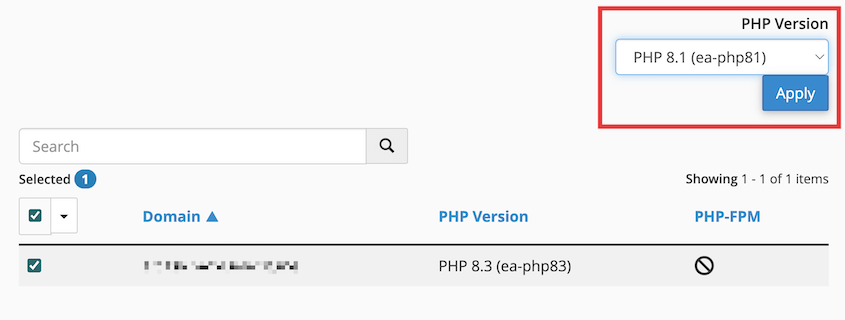
Local development environments ship with a current PHP version. Plenty of live hosts still default to something older, so functions that worked on your laptop are deprecated or missing on the server.
Check both before you move. In your local tool, the PHP version is usually shown in the site’s settings panel.
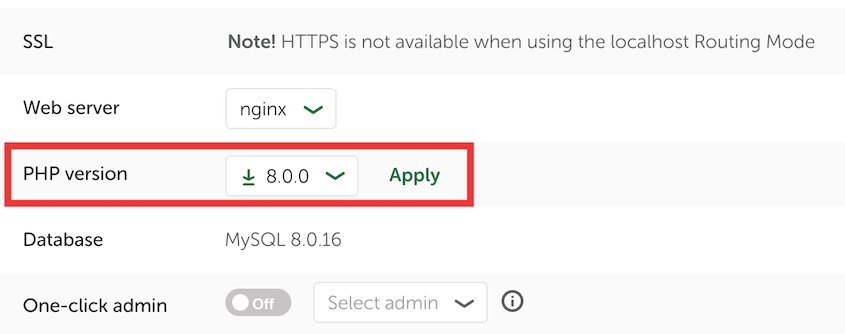
On the host, look under PHP Version, Select PHP Version, or MultiPHP Manager. Match them, and build against the version you’ll actually deploy to.
The Database Import Fails
The live site loads an error about establishing a database connection, or the install stops at the database step.
After a move, this is nearly always a credentials problem rather than a broken database. The name, user, or password doesn’t match what the live host created.
Get the database name, username, password, and host value from your live hosting account, and enter them carefully during the install step. If the site is already up and failing, those values live in wp-config.php in your site’s root folder, reachable through your host’s file manager or an FTP client.
File Permissions Don’t Carry Over
The install stops with an error saying it can’t write a file or create a folder.
Local environments are permissive because you’re the only person using them. Live servers are stricter. Ownership and write access that never mattered on your laptop start to matter here.
Set folders to 755 and files to 644 on the destination. You can change file permissions through an FTP client or your host’s file manager, both of which show a permissions or CHMOD option when you right-click a folder. Your host’s documentation will confirm the correct web server user if you’re unsure.
You Can’t Log In Once It’s Live
The move finishes, you go to log in, and the login page bounces you back or loops.
This one causes more panic than it deserves. It almost never means the move failed. The site URL stored in the database doesn’t match where the site now lives, so WordPress keeps redirecting you to an address that no longer exists.
Correct the WordPress Address and Site Address fields under Settings » General, then clear your cookies.
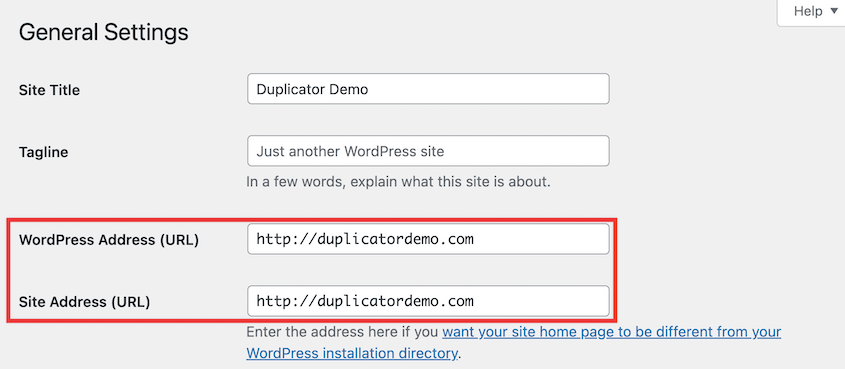
If you can’t reach the dashboard at all, you can set both values temporarily in wp-config.php.
A Few Local References Survive the Move
Most links work, but something still points at mysite.local.
The database references get rewritten during the install. What survives is everything that lives outside the database: a URL hardcoded into a theme or child theme file, a path written into custom code, a cached page, or a third-party service still pointing at your development address.
Search your theme and custom code for the local domain, clear any caching plugin and your host’s server cache, then reload. If a service like a CDN or an external form is involved, update the site address in that service too.
A Pre-Flight Check Before You Push Local to Live
You can avoid most local-to-live WordPress errors with about five minutes of prep.
- Turn on SSL at the live host. This is the single highest-value item on the list, and doing it first is what makes it work.
- Compare PHP versions on your local tool and your live host, and match them.
- Have your live database credentials in hand before you begin the install.
- Know the live URL and expect the site’s addresses to change with it.
- Have your admin login ready so a redirect loop doesn’t lock you out of your own site.
If you want the full step-by-step for the move itself, our guide on migrating a local WordPress site to a live server walks through the process. This report is about the differences between the two environments and how to close them ahead of time.
Duplicator Pro helps most on the parts that break here. The standalone installer moves a site onto a blank server, even one without WordPress installed, and DupArchive handles large local builds without choking on the extraction step.
Frequently Asked Questions (FAQs)
How do I move a WordPress site from local to a live server?
Use Duplicator to create a full backup of the local site, upload it to the live server along with the installer, then run the installer and point it at your live database and URL. The move itself is straightforward. The problems usually come from differences between the two environments, especially SSL and PHP versions.
What should I check before moving a WordPress site live?
You should check four things before moving a WordPress site live: turn on SSL at the live host, match the PHP version to your local setup, have your live database credentials ready, and know your admin login. Those cover most of the difficulties we see, and all of them take a couple of minutes to sort out beforehand.
Why is my site not secure after moving it live?
Usually because SSL wasn’t active on the host when you migrated, so the site’s saved address is http://. Turning the certificate on afterward leaves the database pointing at the old protocol. Update your site URLs to https:// under Settings » General, then run a search and replace for leftover http:// references.
Do I need to change URLs when going from local to live?
Your development domain gets written into the database throughout the build, so yes, it has to change. A migration plugin like Duplicator handles this during the install, including inside serialized data, which matters because a plain text find and replace can corrupt serialized values. What you’ll want to check by hand is anything outside the database, like URLs hardcoded in theme files.
Why can’t I log in after moving my site to a live server?
The site URL in the database doesn’t match the live address, so WordPress redirects you somewhere that no longer exists. Correct the WordPress Address and Site Address fields under Settings » General, clear your cookies, and try again. If you’re locked out entirely, set both values in wp-config.php.
The Gap Between Your Laptop and Your Server
Every problem in this report comes from the same place. Your local environment and your live server disagree about PHP, SSL, permissions, or the site’s own name. The move is where those disagreements surface all at once.
That’s worth restating plainly because it changes how you prepare. The migration isn’t the risky part. The mismatch is.
Before you build the local site, check the live host’s PHP version and turn on its SSL certificate. Develop against the environment you’re going to deploy into, and most of this report never applies to you.
Before Your Next Launch, Have a Way Back
A site that breaks on its first day live is a bad afternoon. A site that breaks with no clean copy to fall back on is much worse.
Duplicator Pro is used by more than 1.5 million WordPress professionals to back up, migrate, and recover their sites. Its standalone installer moves a local build onto a blank server, and its recovery tools get you back in if a launch goes sideways.
While you’re here, these other WordPress resources are worth a look:
- What 8,000+ Support Tickets Reveal About Why WordPress Migrations Break
- What Breaks WordPress Backups: Lessons From 1,400+ Support Tickets
- Your Complete WordPress Migration Checklist (Start to Finish)
- How to Move a WordPress Website to a New Host
- How to Restore a WordPress Site From Backup




