
[New] Duplicator’s AI Abilities Now Handle Your Entire Backup Routine
 Joella Dunn
 John Turner
Nobody builds a WordPress site because they love maintenance.
You need to consistently check that backups ran, confirm the copy made it off-site, set up schedules, and dig through a log when something fails.
It all matters. It’s also tedious, and it’s easy to forget.
Since Duplicator 5.0, you can ask an AI assistant to create a backup for you. Now we’ve expanded what it can do, so your assistant can take on much more of that routine.
Your AI assistant can now set up your backup schedule, send a copy off-site, explain a failed backup, and set a recovery point. You just ask, and get back to the work you’d rather be doing.
Table of Contents
- Set Up a Backup Schedule with One Prompt
- Find Out Why a Backup Failed
- Back Up Every Client Site the Same Way
- Make Sure Your Off-Site Storage Works Before You Need It
- Set a Recovery Point Before Your Assistant Makes Changes
- Stay in Control of What Your Assistant Can Change
- Hand Off Your Backup Routine Today
Set Up a Backup Schedule with One Prompt
Most people know they should schedule backups. Setting one up is the part that gets put off.
Now you can describe the schedule you want.
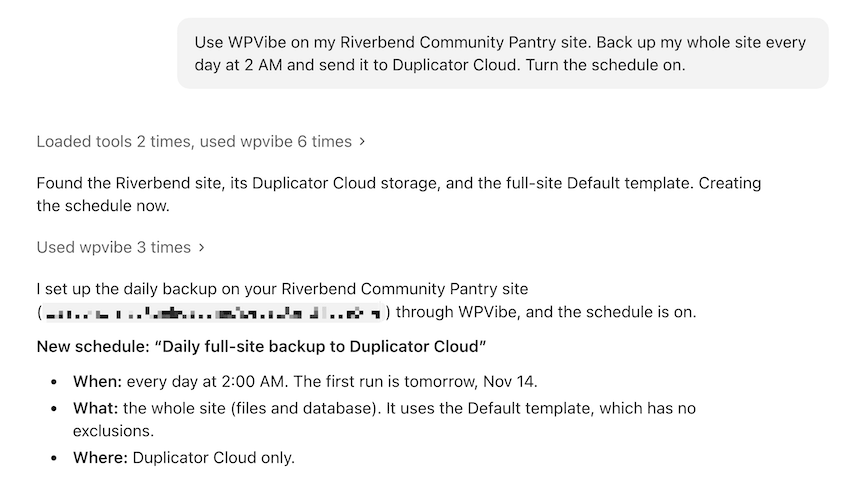
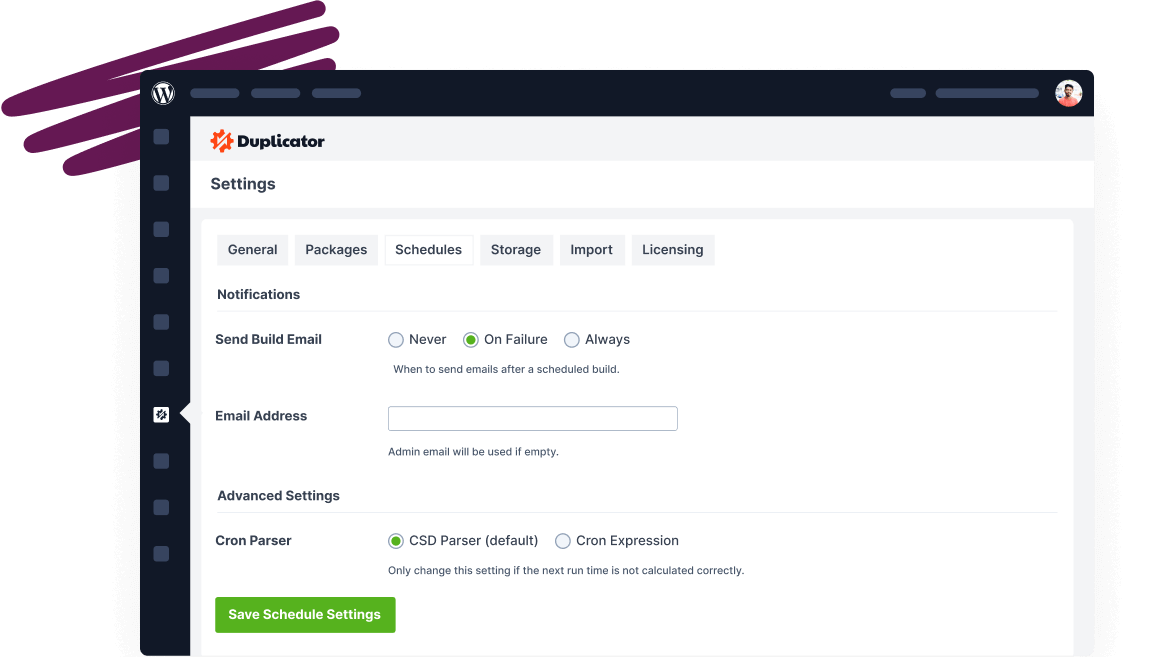
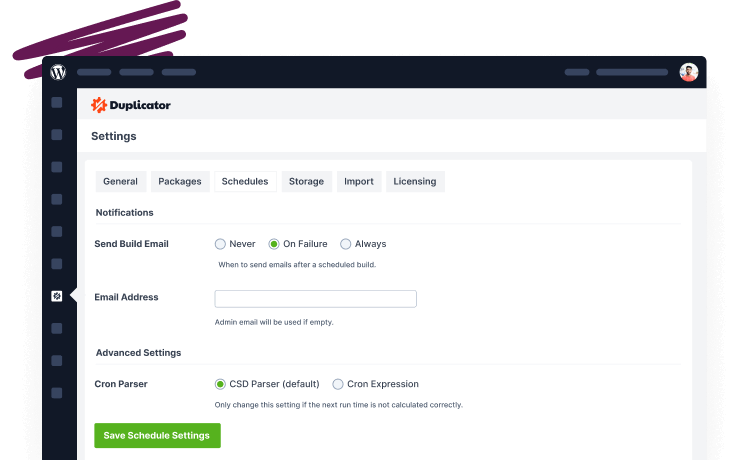
Your assistant creates the schedule and tells you when it first runs. You’ll still find it in wp-admin under Duplicator Pro » Schedule Backups.
Once your schedule is running, there’s plenty more you can hand off:
- Duplicate a schedule with a few changes. For example, ask for a copy of your daily Duplicator Cloud schedule that runs weekly and saves to Google Drive instead.
- Run a schedule now, or pause and restart it.
- Delete a schedule you no longer need (when allowed in your settings).
- Manage incremental backups: run one now, turn them on or off, check when the last one ran, and how much Duplicator Cloud space they use.
New schedules stay off unless you ask for them to be turned on, so nothing runs by surprise.
Find Out Why a Backup Failed
When a backup fails, the reason is in its build log. That log can run thousands of lines, which are difficult to read.
Your assistant can read it for you:
Why did my last backup fail?It checks the backup’s status, failure details, and build log, then explains the cause in plain language.
A few other requests come in handy when a backup goes sideways:
- Cancel a backup that’s still being created or transferred.
- Clean up temporary build files and the installer files left after a migration.
- Check AutoTune to see the test backups it ran and the settings it chose, or stop a run in progress.
- Read the activity log, or find out what happened to a specific backup.
- Purge orphaned backup files that are taking up space (when allowed in your settings).
Your assistant explains the failure. You decide the fix.
Back Up Every Client Site the Same Way
If you manage more than one site, you might want every backup built the same way. Duplicator’s templates let you save that setup.
Your assistant can create a template and use it right away:
Create a template called Client Standard that leaves out .log and .tmp files. Use it for a daily schedule to Duplicator Cloud.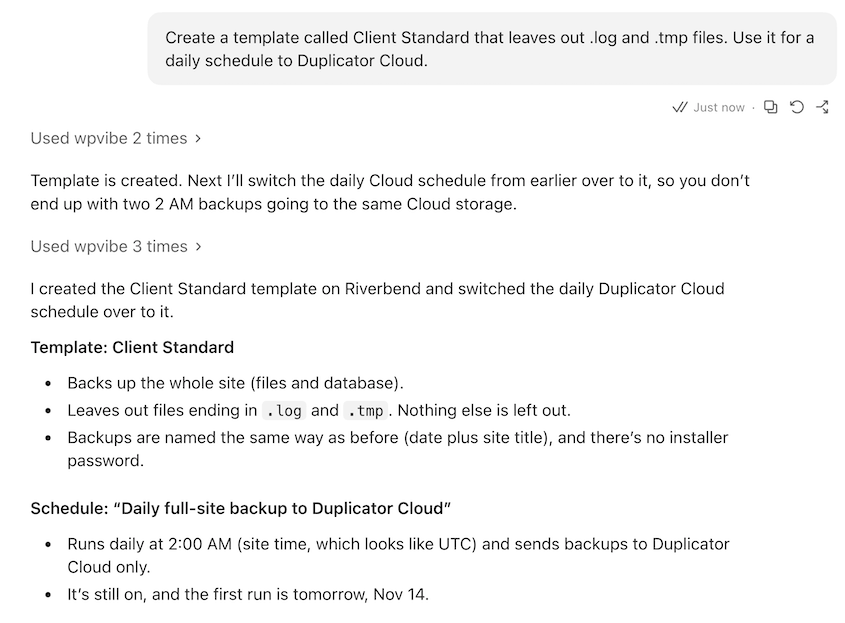
Templates are just as easy to manage once they’re set up. Try asking your assistant to:
- Create a backup from any template, with its exclusions applied.
- Duplicate a template with a few changes. For example, ask for a copy of your Client Standard template that backs up only the database.
- Review or update your templates, or delete one you don’t use (when allowed in your settings).
When you take on a new client, there’s no setup to rebuild from memory. Give your assistant the same request on their site, and every site you manage gets backed up the same way.
Make Sure Your Off-Site Storage Works Before You Need It
If a storage connection stops working, your backups can’t reach it.
Before a schedule depends on it, your assistant can make sure your storage works:
Test my Duplicator Cloud connection, then send my latest backup there.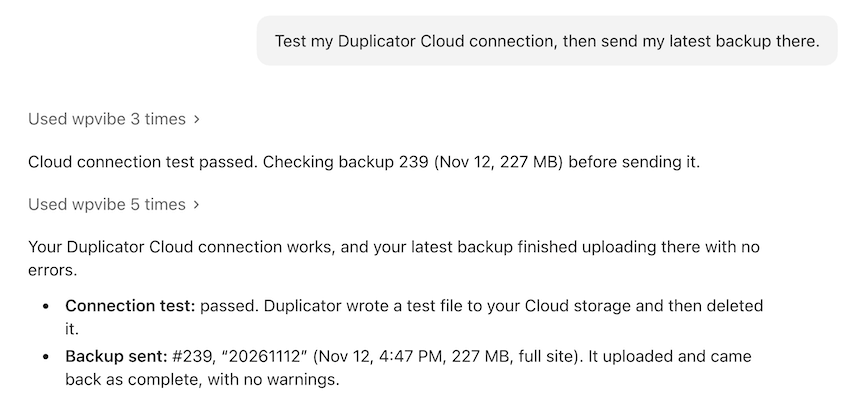
Duplicator will write a small file to your storage and delete it. Then, your assistant will copy your latest backup there, so you have an off-site copy right away.
Your assistant can also help you keep your storage tidy:
- Transfer a backup back from remote storage to your server.
- Review your storage locations, or update their names and notes.
- Delete a storage location you no longer use (when allowed in your settings).
Your assistant can’t connect new storage or see your storage passwords. You still set up connections in Duplicator Pro » Storage, so your credentials stay protected.
Set a Recovery Point Before Your Assistant Makes Changes
AI assistants work fast. Sometimes, they change more than you expected.
So before your assistant edits anything, ask:
Back up the full site and set it as my recovery point.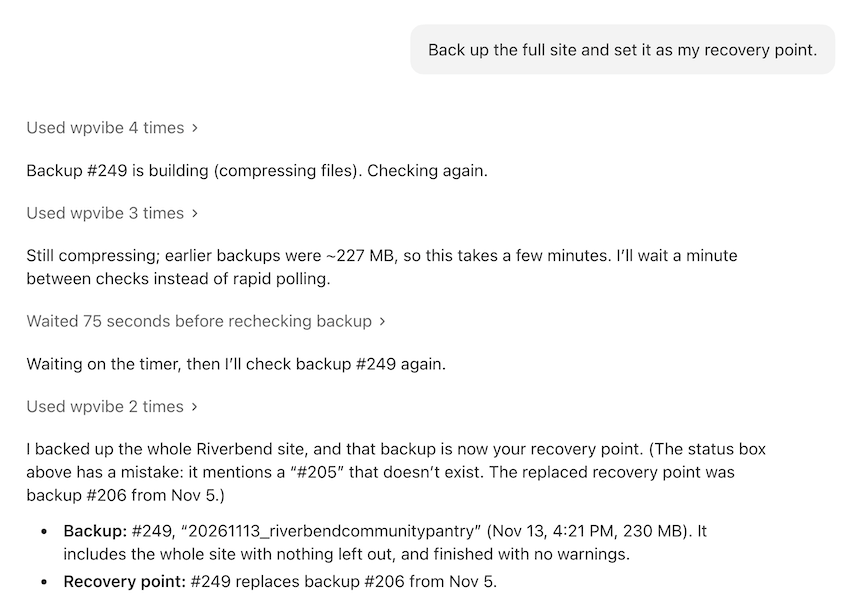
A recovery point comes with a recovery link that restores your site even when wp-admin won’t load. Find it in Duplicator Pro » Tools » Recovery and save it somewhere outside your site.
Stay in Control of What Your Assistant Can Change
You may have seen the story about an AI coding agent that deleted around 48,000 files in under two minutes. The lesson is simple. Don’t give an agent more power than the job needs, and keep a backup it can’t reach.
That’s how we built these abilities.
Your assistant can check, create, and set things up right away. Anything that deletes data or changes your Duplicator settings stays off until an administrator turns on Allow AI assistants to run unsafe actions in Duplicator Pro » Settings » General.

Your assistant can’t turn that setting on itself.
When you connect WPVibe, deleting a backup or schedule also asks for your approval. And deleting a backup only removes the copy on your server. Copies in Duplicator Cloud or other remote storage stay put.
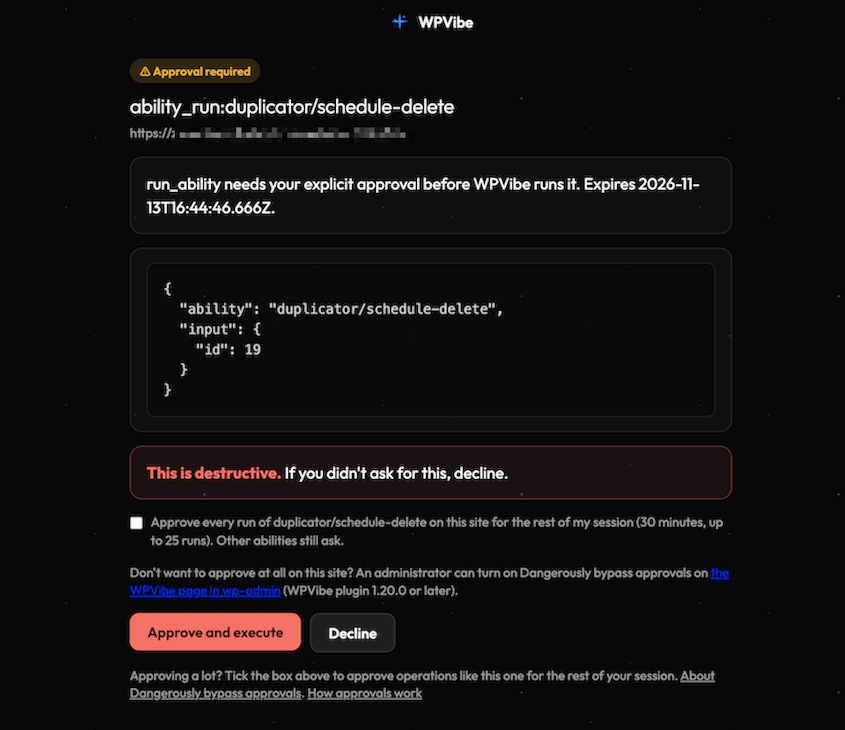
To see everything your assistant can do, go to Duplicator » Tools » AI.
Hand Off Your Backup Routine Today
You can have your AI assistant running your entire backup routine in a few minutes.
Here’s what you need:
- Duplicator 5.2 or newer.
- WordPress 6.9 or newer, which added the Abilities API these features use.
- An AI assistant connected to your site. The easiest way is WPVibe, a free plugin that works with Claude, ChatGPT, Cursor, and more.
Already connected? Update Duplicator, and your assistant should pick up the new abilities.
Then ask your first question:
Is my site backed up?You’ll know exactly where you stand in a few seconds.
You can use the free version of Duplicator to back up your website with AI. To set up automatic schedules, cloud storage, or recovery points, upgrade to Duplicator Pro!
While you’re here, check out Duplicator’s other new features:
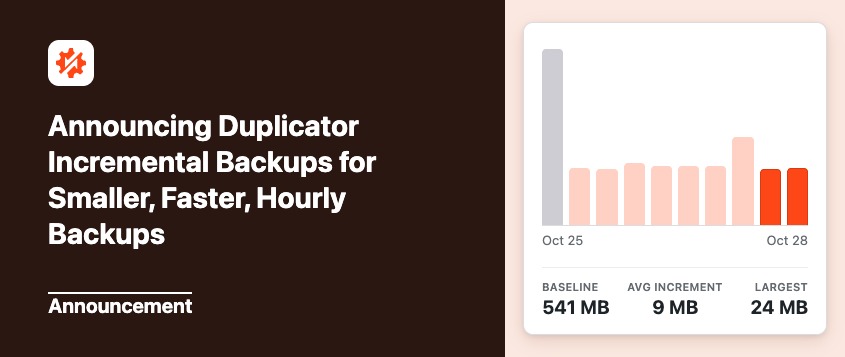
- Announcing Duplicator Incremental Backups for Smaller, Faster, Hourly Backups
- WP Crontrol 2.0: Now Maintained by Duplicator, With Pro Features Free
- Duplicator Lite Just Got Better: 1-Click Restores, Cloud Storage, and Encryption in 5.0
- [New] Introducing Duplicator 5.0: AI Backups, AutoTune, and Extra Free Features
- [NEW] Duplicator DB Optimizer: Clean Your WordPress Database Before It Becomes a Problem
- Announcing One-Click Staging and Remote Cloud Restores for Bold Changes, Zero Consequences