

Can’t Log Into WordPress After a Migration? 10 Fixes That Work
 Joella Dunn
Joella Dunn
Joella Dunn
 John Turner
John Turner
John Turner
You’ve just finished migrating your WordPress site to a new host. The files are transferred, the database is imported, and everything should be working.
Then you try to log in to your admin dashboard, and you can’t.
Maybe you’re getting a redirect loop or 404 error. Or maybe your credentials just aren’t working anymore, even though you know they’re correct.
I’ve been there. Not being able to log in is one of the most common problems WordPress users face after a migration.
Here’s what’s actually reassuring about this situation: you’re probably not looking at a catastrophic failure. In most cases, the issue is fixable, and you don’t need to be a developer to fix it.
In this guide, I’ll walk you through every possible solution. By the end, you’ll be back in your dashboard, working on your website.
Here are the key takeaways:
- Incorrect database URLs cause most post-migration login failures; fix them in wp-config.php or directly in the database
- Clear both browser cache and server-level caching before attempting any technical fixes
- A corrupted .htaccess file from your old server can prevent login; regenerate it through Settings » Permalinks
- Security and caching plugins often lock you out after migration; disable plugins to test for conflicts
- Manual migrations are error-prone; Duplicator automates URL updates and eliminates common mistakes
Table of Contents
- Common Fixes for WordPress Migration Login Errors
- Why Can’t You Log Into WordPress Admin After a Migration?
- How to Fix Login Issues After a Migration
- How to Avoid WP Admin Login Issues During a Migration
- Frequently Asked Questions (FAQs)
Common Fixes for WordPress Migration Login Errors
| Problem | Fix |
|---|---|
| Login redirects to old domain | Add WP_HOME and WP_SITEURL constants to wp-config.php |
| Wrong site URL in database | Update siteurl and home in wp_options via phpMyAdmin |
| wp-admin redirects to homepage or 404 | Rename .htaccess to .htaccess_old, then regenerate from Settings → Permalinks |
| Plugin or theme conflict | Rename /wp-content/plugins/ to plugins_old via FTP; do the same for your active theme folder |
| Forgotten or broken password | Edit user_pass in wp_users via phpMyAdmin — set the Function dropdown to MD5 |
| Corrupted core files | Delete wp-admin and wp-includes via FTP, then upload fresh copies from WordPress.org |
| Wrong file permissions | Set all folders to 755 and all files to 644 via FTP or host file manager |
| Corrupted user capabilities | In wp_usermeta, set wp_capabilities to a:1:{s:13:"administrator";b:1;} |
Why Can’t You Log Into WordPress Admin After a Migration?
When you migrate a WordPress site, you’re picking up your entire website and dropping it into a completely different environment with different file paths and often a new domain name.
WordPress stores a lot of environment-specific information in its database and configuration files. When that information suddenly doesn’t match anymore, things break.
Here are the usual suspects for your admin login not working anymore.
Incorrect URLs in the Database
WordPress stores your site’s URL in multiple places in the database. If these don’t match your new domain (or if they’re still pointing to your old domain), you’ll typically see a redirect loop or get bounced away from the login page.
A Corrupted or Incompatible .htaccess File
The .htaccess file controls how your server handles URLs and redirects. The file from your old server might not be compatible with your new one—especially if you’ve moved from Apache to Nginx, or vice versa.
Plugin or Theme Conflicts
Some plugins (especially security and caching plugins) store server-specific settings. After a migration, they could lock you out or cause fatal errors before you even see the login screen.
Wrong File Permissions
Your new server might have different permission requirements. If WordPress can’t read or write the files it needs, you’ll run into login problems.
Corrupted Core Files
Sometimes files get corrupted during the transfer process. If critical WordPress files didn’t make it over cleanly, the login system simply won’t work.
How to Fix Login Issues After a Migration
Work through these fixes in order. Start with the simplest ones first—there’s no point diving into the database if clearing your cache solves the problem.
Here’s how to fix WordPress login issues after a migration:
- General admin login fixes: Clear browser and server caches, verify credentials manually, and test password reset emails
- Fix incorrect URLs in wp-config.php: Override database values by adding WP_HOME and WP_SITEURL definitions
- Update URLs directly in the database: Edit the siteurl and home values in the wp_options table with phpMyAdmin
- Reset your .htaccess file: rename the old file and regenerate a fresh one through Settings » Permalinks
- Check for plugin conflicts: rename the plugins folder to disable all plugins and test your login
- Manually reset your admin password: update the user_pass field in the wp_users table
- Replace core WordPress files: download fresh wp-admin and wp-includes folders and upload via FTP
- Check file permissions: set folders to 755 and files to 644 on your new server
- Verify user meta data: ensure wp_capabilities in wp_usermeta contains the proper administrator role
- Enable debugging: add WP_DEBUG lines to wp-config.php to identify specific error messages
General Admin Login Fixes
Before we get into anything technical, let’s rule out the simple stuff.
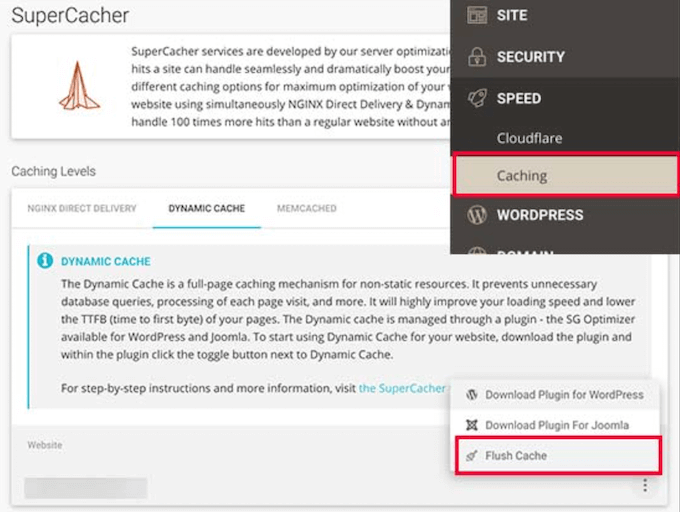
Clear your browser cache and cookies first. Then—and this is the part people forget—check if your hosting provider has server-level caching.
Hosts like Kinsta, WP Engine, and SiteGround all have their own caching systems. Log into your hosting control panel and purge the cache there too.
Verify your login credentials next. I know you’ve already tried this, but humor me.
Type your password manually instead of using autofill. Autofill can sometimes populate old credentials, especially if you’ve recently changed your domain.
Even if you’re confident about your password, click the Lost your password? link and see if you receive the reset email.
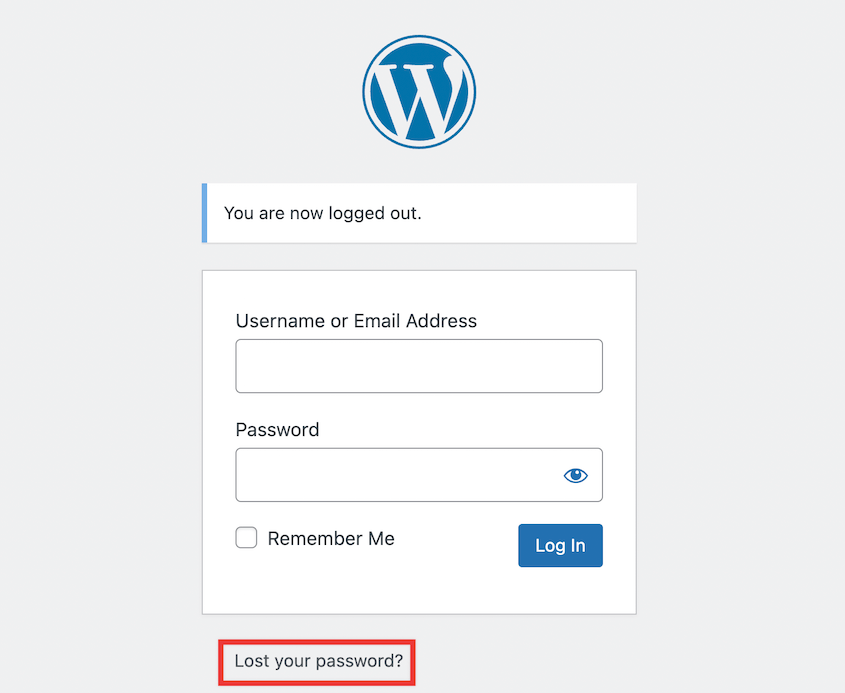
If you don’t get the email, that tells you something useful: WordPress can’t send mail from your new server. (That’s a separate issue, but at least you’ll know what you’re dealing with.)
Still locked out? Time to dig deeper.
Fix Incorrect URLs
Incorrect URLs cause most post-migration login issues.
WordPress stores your site’s URL in the database in two fields called siteurl and home.
If those still point to your old domain, WordPress will try to redirect you there every time you attempt to log in. You end up in a redirect loop, bouncing between the old URL and the new one until your browser gives up.
You have two ways to fix this.
Method 1: Fix Incorrect URLs in wp-config.php
The quickest way to get back into your dashboard is to update your wp-config.php file.
Connect to your site via FTP or your host’s File Manager. Open the wp-config.php file in your site’s root directory.
Add these two lines near the top, right after the opening <?php tag:
define( 'WP_HOME', 'https://your-new-domain.com' );

define( 'WP_SITEURL', 'https://your-new-domain.com' );
Replace your-new-domain.com with your actual domain. Make sure you’re using HTTPS if you have an SSL certificate installed (and you should).
Save the file and try logging in again.
This overrides whatever’s in the database. But here’s the thing—this is a band-aid. The incorrect URLs are still sitting in your database. For a permanent fix, you need to update the database itself.
Method 2: Fix Incorrect URLs in the Database
Log into phpMyAdmin (you’ll find this in your hosting control panel—cPanel, Plesk, or whatever your host uses). Select your WordPress database from the left sidebar.
Find the wp_options table and click on it. (If your database uses a different prefix, it might be called something like wp_abc123_options.)
Look for two rows:
- siteurl
- home
Click Edit on each one and update the option_value field to your new domain. Again, make sure you’re using the correct protocol—https or http.

Save your changes. Now try logging in.
If you added those lines to wp-config.php earlier, you can remove them now. The database has the correct values.
Reset Your .htaccess File
The .htaccess file controls URL rewriting and redirects on Apache servers. If you’ve moved to a new server (especially if the server configuration is different), your old .htaccess file might be causing problems.
The fix is simple: generate a fresh one.
Connect via FTP or file manager. Find the .htaccess file in your root directory. (If you don’t see it, make sure hidden files are visible in your FTP client.)
Rename it to something like .htaccess_old. This disables it without deleting it.
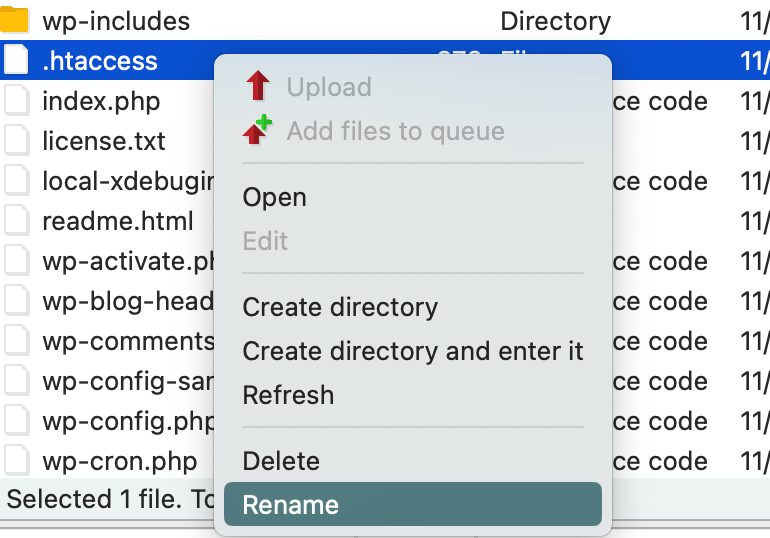
Try logging in now. If it works, you’ve confirmed that .htaccess was the problem.
To generate a new file, log into your WordPress dashboard and go to Settings » Permalinks. Don’t change anything—just scroll down and click Save Changes.
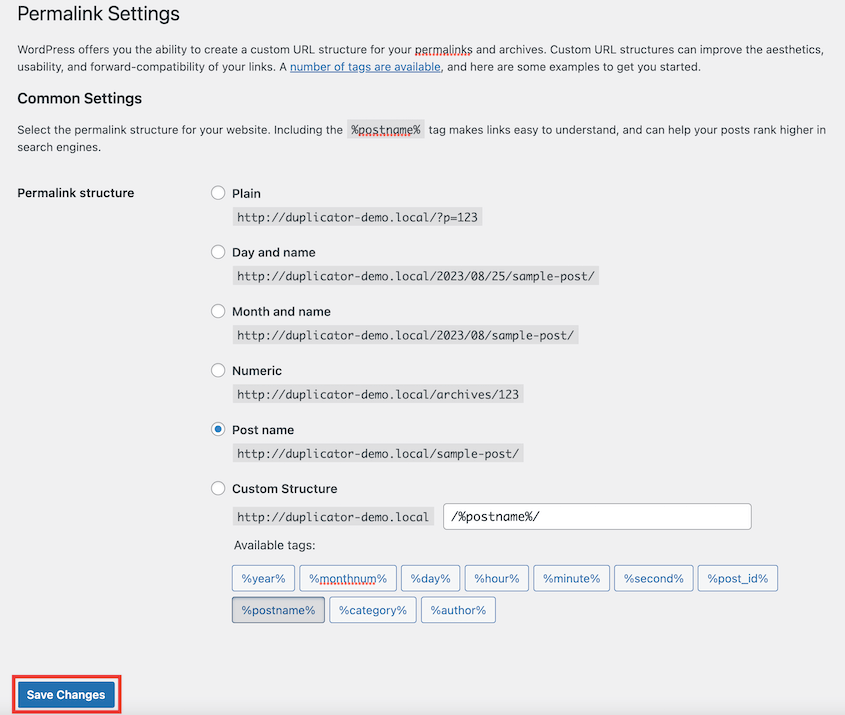
WordPress will create a fresh .htaccess file with the correct rules for your new server.
Check for Plugin and Theme Conflicts
Security plugins love to lock things down. Caching plugins love to serve stale pages. Either one can prevent you from logging in after a migration.
Here’s how to test for conflicts.
Connect via FTP and navigate to wp-content. Rename the plugins folder to something like plugins_old.
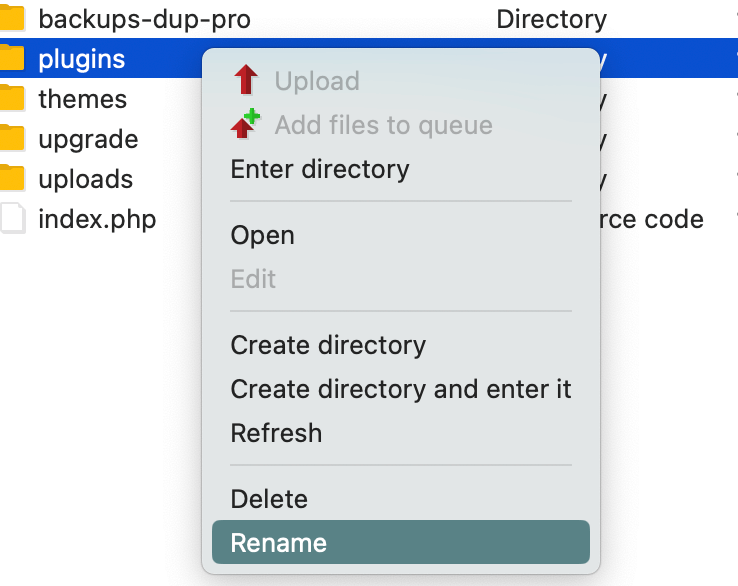
Try logging in. If it works, you know a plugin conflict was causing the problem.
Now reactivate plugins one at a time. Test your login after each one until you find the culprit.
You can do the same thing with your active theme. Rename the theme folder inside wp-content/themes. WordPress will fall back to a default theme, which should let you log in if your theme was the issue.
Manually Reset Your Admin Password
Maybe your password really did get scrambled during the migration. It happens—especially if there were character encoding issues during the database transfer.
You can reset it directly in the database.
Log into phpMyAdmin and select your WordPress database. Open the wp_users table.
Find the row for your admin user (usually the one with an ID of 1). Click Edit.
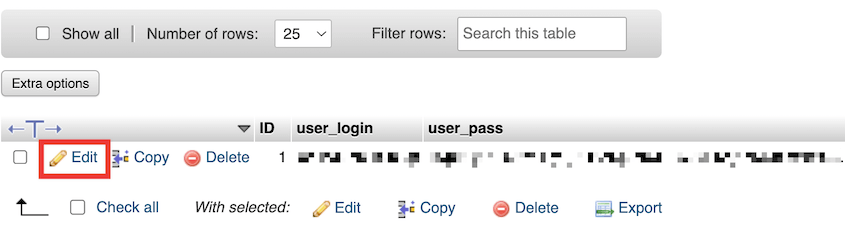
In the user_pass field, enter your new password. In the Function dropdown menu next to the password field, select MD5. This tells the database to hash your password properly.
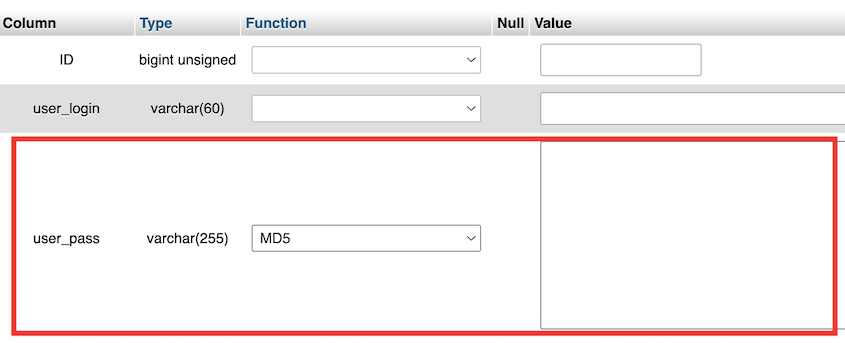
Save the changes and try logging in with your new password.
Replace Core WordPress Files
You might be dealing with broken core WordPress files. The fix is to replace them with fresh copies.
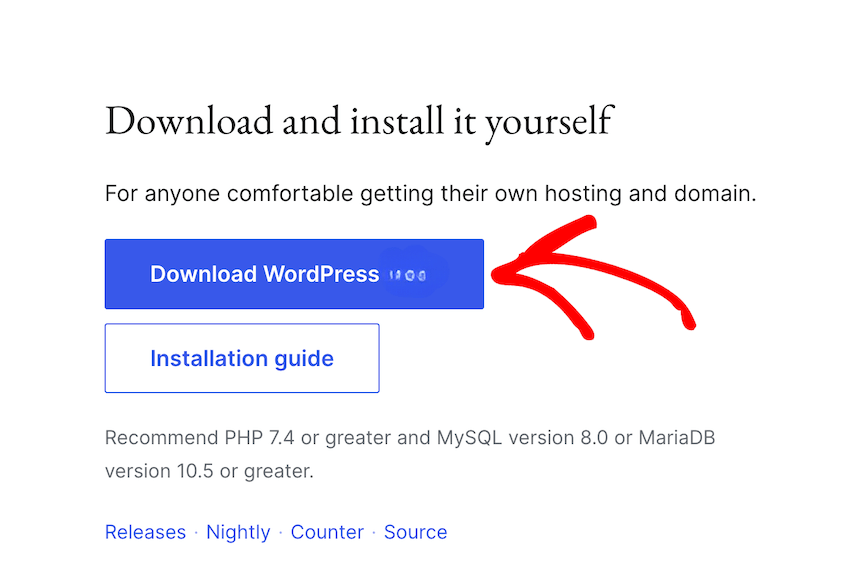
Go to wordpress.org and download the latest version of WordPress (or the same version you’re currently running). Extract the ZIP file on your computer.
Connect via FTP. Navigate to your site’s root directory.
Delete the wp-admin and wp-includes folders from your server. Upload the fresh versions from the WordPress download you just extracted.
Try logging in again.
Check File Permissions
Your new server might require different file permissions than your old one.
The standard permissions are:
- Folders: 755
- Files: 644
You can change these via your FTP client (most have a File Permissions or CHMOD option when you right-click on a file/folder) or through your host’s file manager.
Check User Meta Data
This one’s more obscure, but I’ve seen it happen. Sometimes, user role data gets scrambled during migration.
Log into phpMyAdmin and open the wp_usermeta table.
Find the row where meta_key is wp_capabilities and user_id matches your admin user ID (usually 1).
Check the meta_value field. It should contain:
a:1:{s:13:"administrator";b:1;}
If it’s empty or contains something else, edit it to match the text above.
Enable Debugging
If none of the above worked, it’s time to see what WordPress is actually complaining about.
Open wp-config.php via FTP. Add these lines:
define( 'WP_DEBUG', true );

define( 'WP_DEBUG_LOG', true );

define( 'WP_DEBUG_DISPLAY', false );
This enables debugging without displaying errors on your site (which would be a security risk).
Try logging in again. WordPress will now write any errors to a file called debug.log in the wp-content directory.
Download that file and read it. The error messages will usually point you directly to the problem—a specific plugin, a database connection issue, or a missing file.
Once you’ve identified and fixed the issue, go back and remove those debugging lines from wp-config.php. You don’t want to leave debug mode enabled on a live site.
How to Avoid WP Admin Login Issues During a Migration
So you’ve fixed the problem. You’re back in your dashboard. Everything’s working again.
But let’s be honest—that probably took longer than it should have.
Most of these login issues come down to small, manual errors. A typo in the database. Forgetting to update the URLs. Transferring a file that didn’t quite make it over intact.
When you’re doing everything by hand, these mistakes are almost inevitable. You’re juggling database exports, FTP uploads, and find-and-replace operations in phpMyAdmin—there are a dozen places where one wrong character can lock you out.
That’s why I stopped doing manual migrations years ago.
Duplicator handles all the error-prone parts automatically. It’s specifically designed to prevent migration issues.

The Duplicator installer runs a complete search-and-replace across your entire database. Every old URL gets updated to the new one—not just the siteurl and home fields, but everywhere.
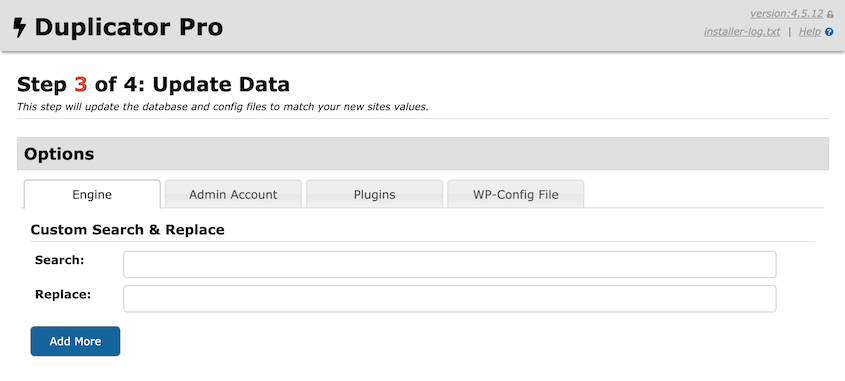
Duplicator generates a new wp-config.php file based on the database credentials you provide during installation. It also creates a fresh .htaccess file optimized for your new server environment.
When you use a dedicated migration tool, you’re not relying on your memory or a checklist. Duplicator performs a perfect migration every time, in the same order, without skipping steps. That consistency is what eliminates the human errors that cause lockouts.
I’m not saying manual migrations are impossible. But they require focus, attention to detail, and skill. Miss one step and you’re troubleshooting for hours.
Duplicator removes that uncertainty. You create a backup, upload it to your new host, run the installer, and you’re done.

The login works because all the URLs are correct, the configuration is clean, and nothing got corrupted in transit.
If you’re migrating sites regularly (or if you just want to avoid ever being locked out again), it’s worth using a tool that’s built for this specific job.
Frequently Asked Questions (FAQs)
How do I access wp-admin when there’s too many redirects?
This is almost always a siteurl or home mismatch in your database. The fastest fix is to add the correct URL definitions to your wp-config.php file. Once you’re back in, update the URLs directly in the database for a permanent solution.
Why does my wp-admin login page say Page Not Found?
Your .htaccess file is either missing or contains rules that don’t work on your new server. The quickest fix is to log into WordPress (if you can access it at all) and go to Settings » Permalinks, then click Save Changes without changing anything. This regenerates the file with the correct rules.
Why is my WordPress site not working after a migration?
The two most common causes are incorrect database credentials in your wp-config.php file or a plugin/theme causing a fatal error on the new server. Enable WP_DEBUG to see the actual error message—that’s the fastest way to identify exactly what’s breaking.
Why are WordPress links not working after a migration?
This is another .htaccess problem—your permalink structure isn’t being processed correctly. Go to Settings » Permalinks and resave your settings. WordPress will regenerate rewrite rules and your links should start working immediately.
Log Into WordPress Immediately After a Migration
Even when you know what you’re doing during a manual migration, they’re stressful.
You’re moving dozens of files, exporting databases, running find-and-replace operations, updating configuration files—and hoping you didn’t miss anything. Then you hold your breath while you try to log in, because if something went wrong, you’re looking at an hour of troubleshooting.
That’s time you don’t get back.
Duplicator Pro was built specifically to eliminate this stress. It automates the parts that cause issues—the URL replacements, configuration updates, file transfers—so you can migrate with confidence.
You’ll perform reliable, repeatable migrations that work the first time.
If you’re tired of troubleshooting, check out Duplicator Pro. It’s the difference between spending your afternoon fixing a migration and spending five minutes running an installer.
While you’re here, I think you’ll like these other WordPress resources:
- How to Fix a Slow WordPress Site After a Migration
- Your WordPress Site Could Vanish Tomorrow (Unless You Do This)
- WordPress Media Library Not Showing Images? Fix It in Under 15 Minutes
- What To Do When You’re Locked Out of WordPress
- WordPress Stuck in Maintenance Mode? Here’s How to Revive Your Site
- The Pre-Migration Checklist That Prevents Website Migration Disasters




