


How to Move a WordPress Website from a Subdomain to a Main Domain
 Joella Dunn
Joella Dunn
Joella Dunn
 John Turner
John Turner
John Turner
You’ve spent weeks building your WordPress site on a subdomain like staging.yourdomain.com. Now comes the moment you’ve been both anticipating and dreading—moving everything to your main domain.
What if something breaks? What if your images disappear or your links stop working? What if the site goes down and you can’t figure out how to fix it?
These are legitimate concerns. I’ve seen what can go wrong when you don’t have a solid plan.
But with the right approach, this process is remarkably straightforward. You don’t need to be a developer. You don’t need to manually edit database tables or wrestle with complicated SQL queries.
In this post, I’ll walk you through the entire process of moving your site from a subdomain to a main domain. By the end, your site will be live on your main domain—intact, functional, and ready for visitors.
Here are the key takeaways:
- Use the Duplicator plugin to create a complete backup of your subdomain site
- Upload the backup files to your main domain’s empty root directory
- Run the installer to automatically update all URLs and database references
- Set up 301 redirects on the subdomain to preserve SEO and guide visitors
- The entire process takes 30-60 minutes and requires no coding knowledge
Table of Contents
Why Move a Site From a Subdomain to a Main Domain?
Before we dive into the technical steps, let’s talk about why you might be doing this in the first place.
Going Live
Most WordPress developers and site owners build their sites on a subdomain first. It’s a safe space to experiment, test plugins, and fine-tune the design without affecting a live site.
Once everything looks perfect, it’s time to move that work to the main domain where your actual visitors will see it.
You might have staging.yoursite.com ready to become yoursite.com. Or maybe you built everything on temp.yoursite.com while your main domain showed a Coming Soon page.
Either way, the goal is the same: take what you’ve built and make it the face of your website.
Branding
Sometimes the move isn’t about going live—it’s about bringing everything under one roof.
Let’s say you’ve been running a blog on blog.yoursite.com. From a branding perspective, moving it to yoursite.com/blog creates a more cohesive experience.
Your visitors see one consistent domain in their address bar, and from an SEO standpoint, you’re consolidating all your content authority under a single domain instead of splitting it across multiple subdomains.
This matters more than most people realize. Search engines treat subdomains as separate entities, which means you’re essentially building SEO value in two different places rather than strengthening one primary domain.
Reorganization
Maybe you started with multiple subdomains for different purposes—one for a store, one for a knowledge base, and one for customer support.
Over time, managing multiple WordPress installations gets messy. Plugins need updating in three places. Security patches have to be applied separately. User accounts don’t sync.
Moving everything to subdirectories under your main domain (yoursite.com/shop, yoursite.com/help) simplifies your entire web presence. You’ll have one place to manage everything.
How to Move a WordPress Website From a Subdomain to a Main Domain
Now we get to the practical part—the actual migration process.
I’m going to walk you through this method because it’s the one I use myself. It’s clean, it’s repeatable, and most importantly, it works every single time.
The secret is using Duplicator to handle the complex parts automatically. You’ll create a complete backup of your subdomain site, move it to your main domain, and let the plugin handle all the database updates and URL replacements that would otherwise require careful manual editing.
Here’s how to move a website from a subdomain to a main domain:
- Step 1: Back Up the Website on the Subdomain: Install Duplicator and create a full site backup, downloading both the archive and installer.php files
- Step 2: Upload the Backup to Your Main Domain: Clear your main domain’s root directory and upload both Duplicator files, then run the installer with new database credentials
- Step 3: Confirm URL Settings are Correct: Verify wp-config.php contains the correct database details and check for any hardcoded subdomain references
- Step 4: Post-Migration Testing: Log into WordPress admin, remove installer files, regenerate permalinks, and test all site functionality
- Step 5: Set Up Redirects: Add 301 redirect code to your subdomain’s .htaccess file to permanently redirect visitors and preserve SEO value
Step 1: Back Up the Website on the Subdomain
First things first—you need a backup.
I don’t care how confident you are or how simple this migration seems. Always start with a backup. It’s your insurance policy if something unexpected happens.
You could do this manually. FTP into your server, download all your WordPress files, export your database through phpMyAdmin, and hope you don’t miss anything.
But that approach is tedious and surprisingly easy to mess up. Miss one folder or export the wrong database table, and you’re troubleshooting for hours.
This is where Duplicator becomes invaluable. It’s a backup plugin that will also help you migrate your site later in this tutorial.
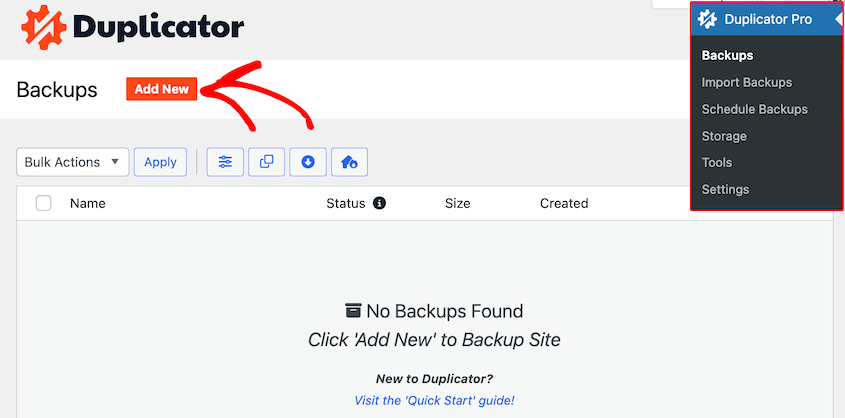
Install the Duplicator plugin from your WordPress dashboard (you’re still on the subdomain at this point). Once activated, go to Duplicator » Backups and click Add New.
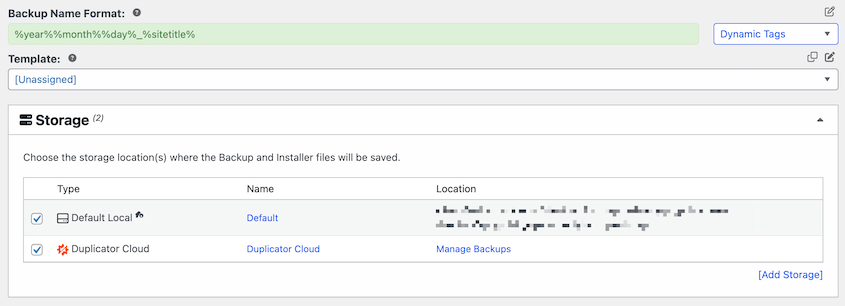
Under Storage, select Local so you can download the backup immediately. You could also select cloud storage (I recommend Duplicator Cloud) if you want an extra backup in a secure location.
Next, choose the Full Site backup preset and hit Next.

The plugin will scan your site. To continue, click Create Backup.

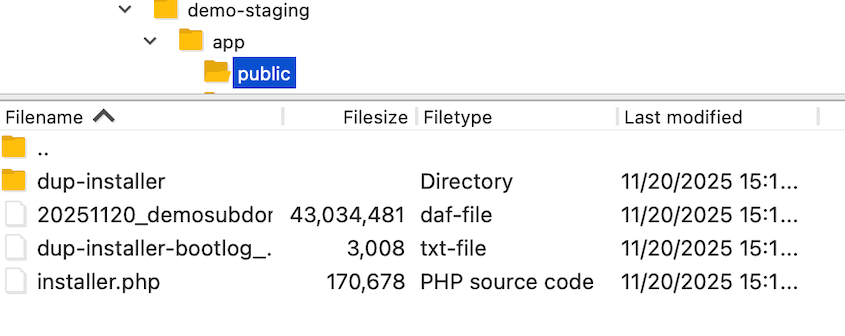
Now, Duplicator will bundle all the data on your subdomain into two files:
- An archive file: a .zip that contains all your WordPress files and data
- An installer.php file: the script that will unpack and install everything on your main domain
Download both files to your computer. You now have a complete snapshot of your subdomain site.

Step 2: Upload the Backup to Your Main Domain
Now you need to get those two backup files onto your main domain’s server.
Using FTP or cPanel, navigate to your main domain’s root directory. This is usually called public_html or www, depending on your host.
If you’re using cPanel, the File Manager is your quickest route. If you prefer FTP, FileZilla works perfectly.
Here’s the important part: this directory needs to be empty.
If there are old WordPress files sitting there from a previous installation or a placeholder site, delete them. Duplicator needs a clean slate to work properly.
Once the directory is clear, upload both Duplicator backup files.
Open your browser and go to yourdomain.com/installer.php (replace “yourdomain.com” with your actual main domain).
This immediately opens the Duplicator installer.
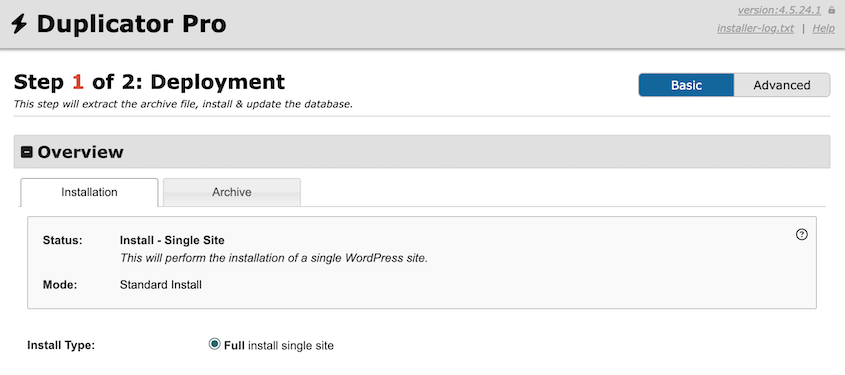
Now you’ll see a screen asking for database information. This is where you need credentials for a new, empty database on your main domain. Don’t try to use the subdomain’s database—you need fresh credentials.
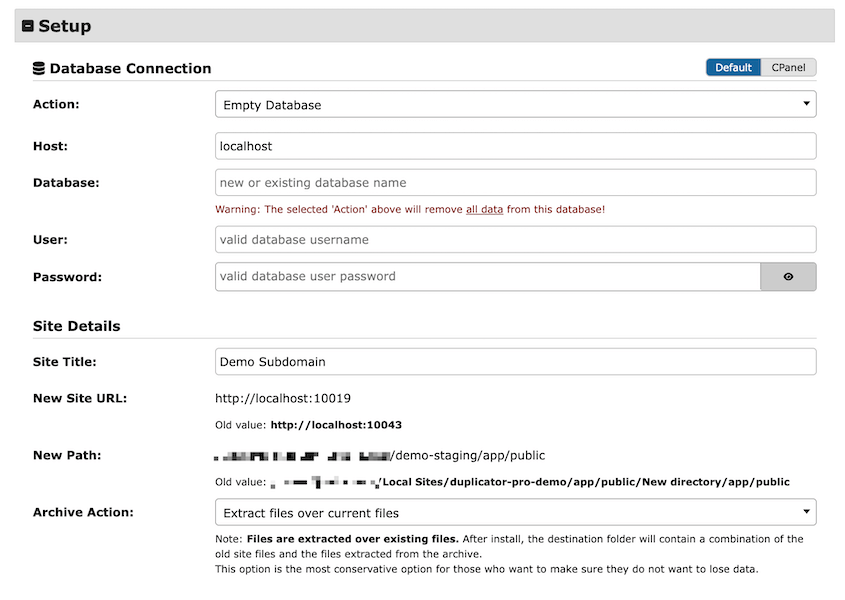
Plug those database credentials into the installer form. At the bottom, hit Validate.
Duplicator will immediately run a compatibility check. It’s looking at your server settings to make sure everything is configured properly—PHP version, file permissions, that sort of thing.
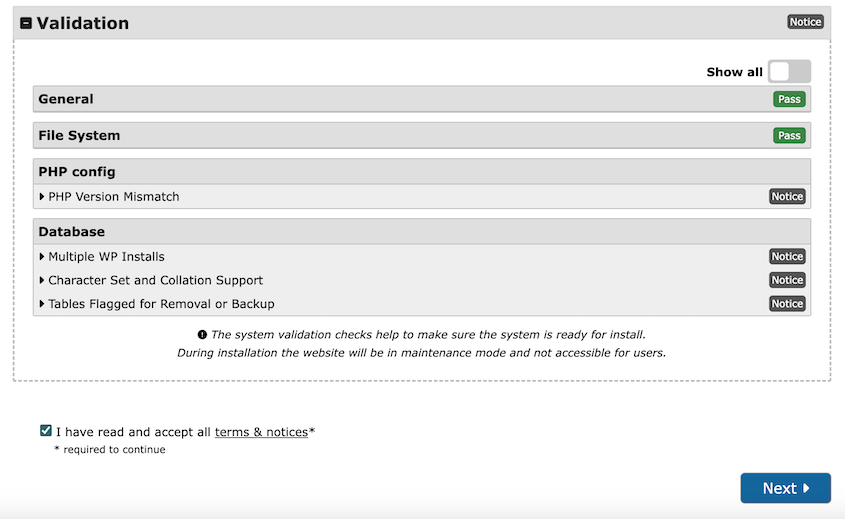
Accept the terms and notices and continue with the installation.
Confirm the installation in the pop-up window.
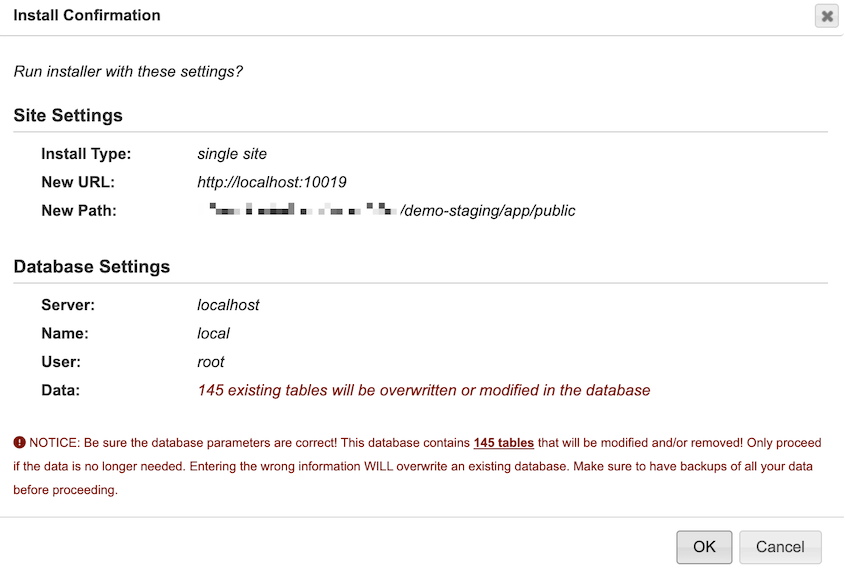
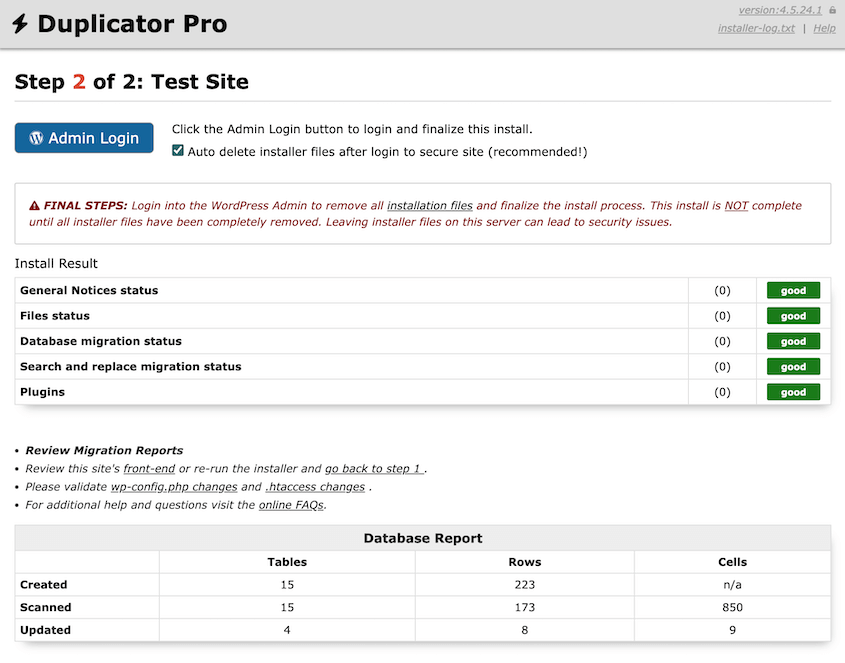
The installer will extract all your files, import your database with the updated URLs, and set up WordPress on your main domain.
When you see the success message, your site has been moved.
Step 3: Confirm URL Settings are Correct
In the migration, Duplicator will automatically detect your old subdomain URL and your new main domain URL. It runs a complete search-and-replace operation across your entire database, updating old subdomain references to the new domain.
This includes image paths, internal links, plugin settings, theme configurations—everything that needs to point to the new domain.
Doing this manually would require running careful SQL queries and praying you didn’t break anything. Duplicator handles it in seconds.
However, you should still double-check your wp-config.php file.
This is WordPress’s main configuration file, and it contains critical information about your database connection and site settings. While Duplicator handles most of the heavy lifting, it’s worth verifying that everything looks correct.
Navigate to your main domain’s root directory (where you uploaded the installer files) and open wp-config.php. You can do this through cPanel’s File Manager or your FTP client.
Look for these lines:
define('DB_NAME', 'database_name');

define('DB_USER', 'database_user');

define('DB_PASSWORD', 'database_password');

define('DB_HOST', 'localhost');
Make sure these match the new database credentials you created for your main domain.
If you entered them correctly during the Duplicator installation process, they should already be set properly. But if something went wrong or you need to make a correction, this is where you’d do it.
You should also check for any hardcoded references to your old subdomain URL. Look through the file for lines containing “subdomain.yourdomain.com”.
In most cases, Duplicator will have updated these automatically, but occasionally custom configurations or manually added code might slip through.
If you find any old subdomain references, replace them with your new main domain URL.
Save the file if you made any changes.
One more thing to look for: some WordPress configurations include specific domain definitions like this:
define('WP_HOME', 'http://subdomain.yourdomain.com');

define('WP_SITEURL', 'http://subdomain.yourdomain.com');
Update them to reflect your main domain.
Step 4: Post-Migration Testing
Don’t celebrate just yet. We need to verify everything works.
Go to yourdomain.com/wp-admin and use the same username and password you had on the subdomain. Your credentials don’t change—only the domain does.
Once you’re in, Duplicator will show you a cleanup prompt. Do not skip this step.
Those installer files sitting in your root directory are a security risk. Anyone who finds them could potentially reinstall your site or access sensitive information.
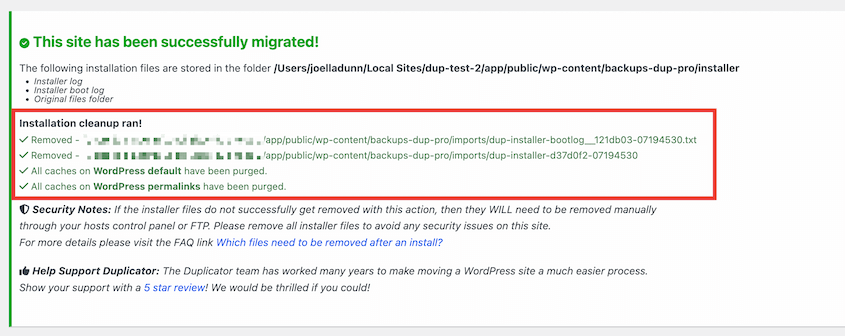
Click the button to remove the installation files. Duplicator will delete them automatically.
Next, regenerate your permalinks.
Go to Settings » Permalinks in your WordPress dashboard. Don’t change anything—just click Save Changes at the bottom of the page.
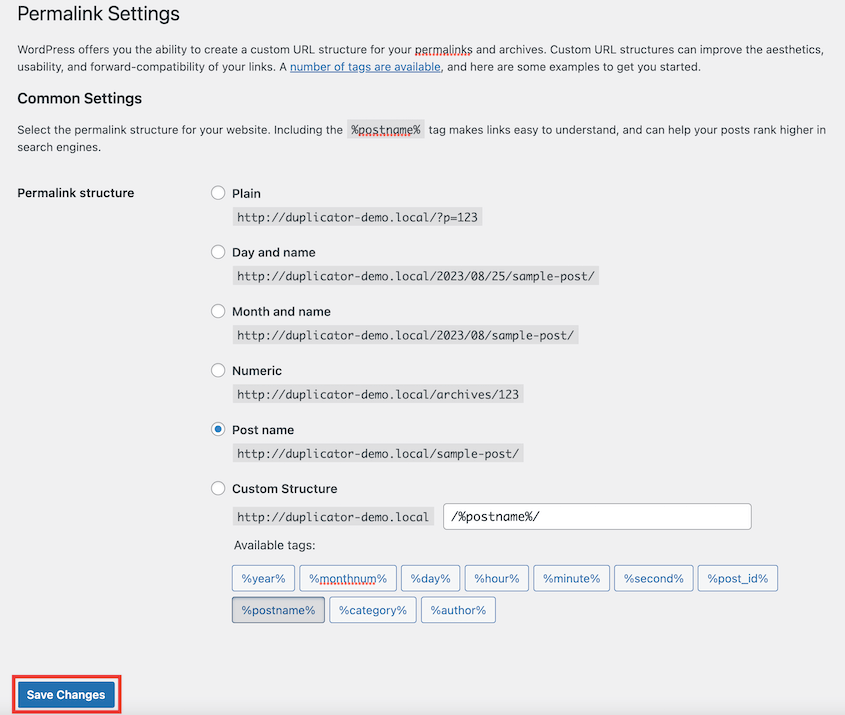
This regenerates your rewrite rules and prevents 404 errors on your posts and pages. It takes two seconds and saves you from a frustrating troubleshooting session later.
Now browse your site like a visitor would.
Click through your menu. Open a few blog posts. Check that images are loading. Test your contact forms if you have them. Make sure everything looks and functions the way it did on the subdomain.
If something seems off—maybe a plugin isn’t working correctly or a custom setting looks wrong—this is the time to catch it.
Step 5: Set Up Redirects
Your site is live on the main domain, but there’s one more step.
Anyone who bookmarked your subdomain or found it through a search engine will still try to visit subdomain.yourdomain.com.
Search engines might still have your old subdomain URLs indexed. You need to tell both browsers and search engines that the content has permanently moved.
That’s what a 301 redirect does.
You’ll need to add redirect code to the .htaccess file on your subdomain’s server (not the main domain).
Add this code:
<IfModule mod_rewrite.c>

RewriteEngine On

RewriteBase /

RewriteCond %{HTTP_HOST} ^yoursubdomain\.example\.com$ [NC]

RewriteRule ^(.*)$ "http://example.com/$1" [R=301,L]

</IfModule>
Replace “yoursubdomain.example.com” with your subdomain and “example.com” with your main domain.
Save the file.
Now when someone visits subdomain.yourdomain.com/about, they’ll automatically be sent to yourdomain.com/about. Search engines will see the 301 status code and understand that the content has permanently moved, transferring SEO value to your new URLs.
This redirect should stay in place indefinitely. There’s no downside to leaving it active.
Frequently Asked Questions (FAQs)
How do I move a subdomain to main domain with cPanel?
Create a backup of your subdomain site with Duplicator and download both backup files. Upload these to your main domain’s root directory with cPanel’s File Manager. Create a new database for the main domain in cPanel. Visit yourdomain.com/installer.php in a new browser window and follow Duplicator’s installation steps.
Duplicator handles the WordPress-specific migration work, while cPanel gives you the hosting environment tools you need.
How do I migrate a WordPress site to a new domain?
Whether you’re moving from a subdomain to a main domain, from one completely different domain to another, or even between different hosting providers, the process is identical. Use Duplicator to back up the original site, download these files, and upload them to the new root directory. Duplicator’s search-and-replace function works for any domain change.
What’s the best free plugin to migrate my WordPress site?
Duplicator has a free version that allows you to migrate your site for free. It’s has millions of active installations and handles everything you need for a standard migration. You should only upgrade if you want Duplicator Pro’s more user-friendly drag-and-drop migrations.
Are subdomains bad for SEO?
They’re not inherently bad, but they do split your SEO authority. Search engines like Google treat subdomains as separate entities from your main domain. When you publish content on blog.yoursite.com, you’re building backlinks and authority for that subdomain, not for yoursite.com. Moving everything to your main domain—either at the root or in subdirectories like yoursite.com/blog—consolidates that authority under one domain, which generally produces better SEO results over time.
How do I redirect a subdomain to a main domain?
Use a 301 redirect in your subdomain’s .htaccess file. The redirect tells search engines and browsers that your content has permanently moved to the new location. Make sure you set this up on the subdomain’s server, not the main domain. The redirect should stay active indefinitely so that any old links or bookmarks continue to work.
Your Site Is Live—Now What?
You did it!
Your WordPress site has made the journey from subdomain to main domain without breaking, losing content, and the headaches that come from trying to manually move files.
This is the same process professional developers use when launching client sites. You’ve just handled a technical migration that would cost hundreds of dollars if you hired someone to do it for you.
Duplicator made it possible by automating the complicated parts like database search-and-replace, file extraction, and URL updates.
If you find yourself needing to do more migrations in the future, or if you manage multiple WordPress sites, you might want to look at Duplicator Pro. The Pro version adds features like scheduled backups, cloud storage integrations (Duplicator Cloud, Google Drive, Dropbox, Amazon S3), and support for larger sites.
It’s especially valuable for agencies and developers who migrate sites regularly or need to maintain solid backup routines for clients.
While you’re here, I think you’ll like these other WordPress resources:
- How to Migrate a WordPress Site to a New Domain
- Migrations Without the Money: Best FREE WordPress Migration Plugins
- Migrating From HTTP to HTTPS? Honestly, It’s Way Easier Than You Think
- How to Convert WordPress Multisite to a Single Site
- How to Fix a Slow WordPress Site After a Migration
- How to Create a 301 Redirect Map for Website Migrations




