

How to Back Up a WordPress Theme Without Losing Your Design
 Joella Dunn
Joella Dunn
Joella Dunn
 John Turner
John Turner
John Turner
You’ve spent weeks perfecting your WordPress theme. Every color, font, and layout element is just right.
Then, in a blink of an eye, it’s gone. A rogue update or a server error wipes out all your hard work.
That’s why a theme backup matters. It’s the safety net for everything you changed about the way your site looks.
In this guide, we’ll show you how to back up your WordPress theme. By the end of this post, you’ll have the knowledge and confidence to protect your theme like a pro!
Table of Contents
Quick Summary: How to Back Up a WordPress Theme
Before we dive into the details, here’s a quick rundown of the five main methods we’ll cover:
Why Back Up Your WordPress Theme?
Backing up your WordPress theme is a critical step in maintaining your website. Here are the key reasons why you should make this a regular practice.
Avoid Accidental Changes
Even experienced developers can make mistakes. Misplaced code can alter your theme’s functionality or appearance. With a backup, you can quickly restore your theme to its previous state, minimizing downtime and frustration.
Save Customizations
If you’ve made custom changes to your theme, whether it’s tweaking CSS or adding new functions, these modifications are valuable. A backup ensures you don’t lose these personalized touches, which often represent hours of work and fine-tuning.
Theme Migration
When you’re setting up a new WordPress site or moving to a different host, having a backup of your theme makes the transition smoother. You can easily transfer your exact theme configuration to the new environment, maintaining consistency.
Ensure Quick Recovery
Website problems can happen for various reasons: server issues, malware, or conflicts with WordPress plugins. A recent backup of your theme allows you to quickly restore this crucial part of your site, saving you from extended periods of downtime.
How to Back Up a WordPress Theme
Now that we understand why backing up your WordPress theme is crucial, let’s dive into the practical steps.
We’ll cover five different methods, starting with the most user-friendly option: using a WordPress backup plugin.
Method 1. Use a WordPress Backup Plugin
WordPress backup plugins simplify the backup process, making it accessible to users of all technical levels. And when it comes to backups, Duplicator stands out as a reliable solution.
Duplicator is a backup and restore plugin that can handle everything from small personal blogs to complex, large-scale websites. You can use it to back up your theme or your entire website. Plus, it can help you migrate data to a new server.
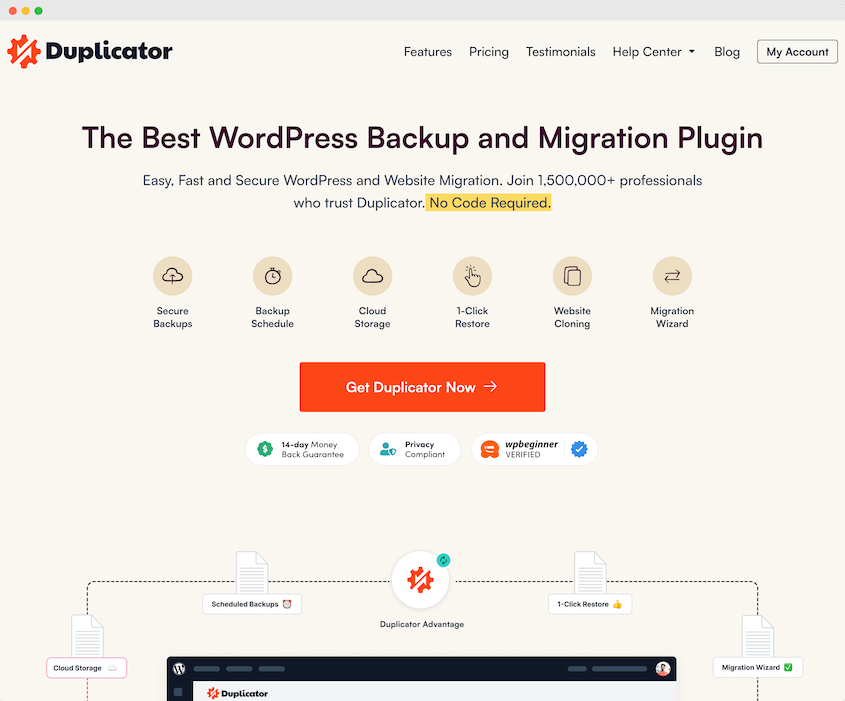
Here’s what Duplicator gives you:
- Customizable backups to help you save the right data (like your theme)
- Scheduled automatic backups
- Option to store backups in cloud services
- One-click restores and disaster recovery
- Drag-and-drop migrations
- One-click staging
- Extra free plugins: WP Media Cleanup, Activity Log, and DB Optimizer
Duplicator Lite is free, but it only saves backups to your own server. Scheduling, cloud storage, one-click restores, and drag-and-drop migrations all need a paid plan. That’s what the walkthrough below uses.
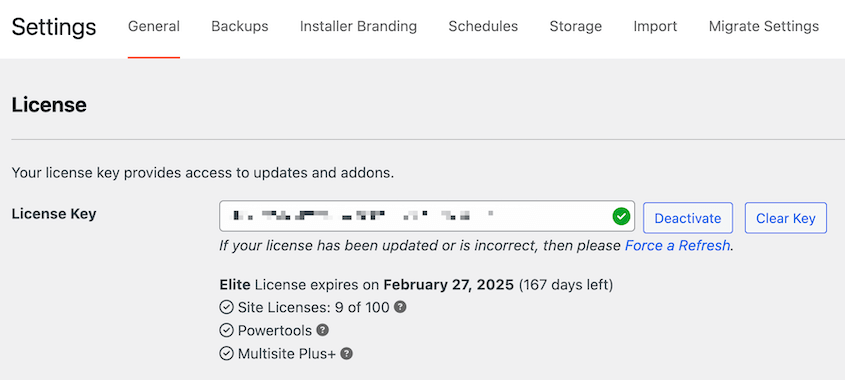
First, install Duplicator on your WordPress site. Be sure to activate your license key.
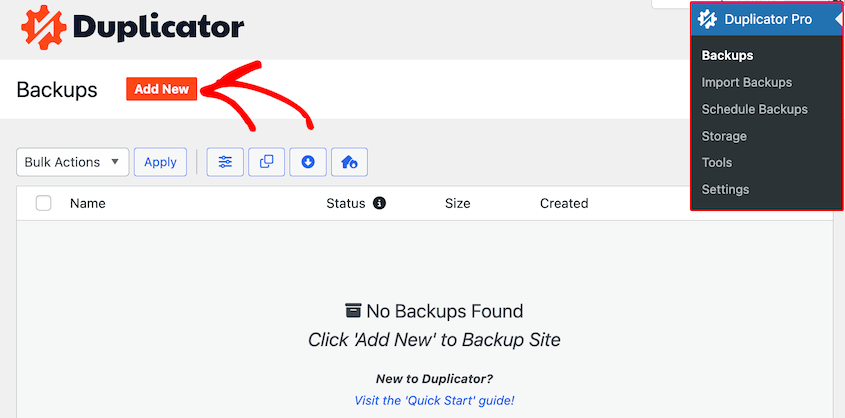
Then, go to Duplicator Pro » Backups » Add New. This starts the backup creation process.
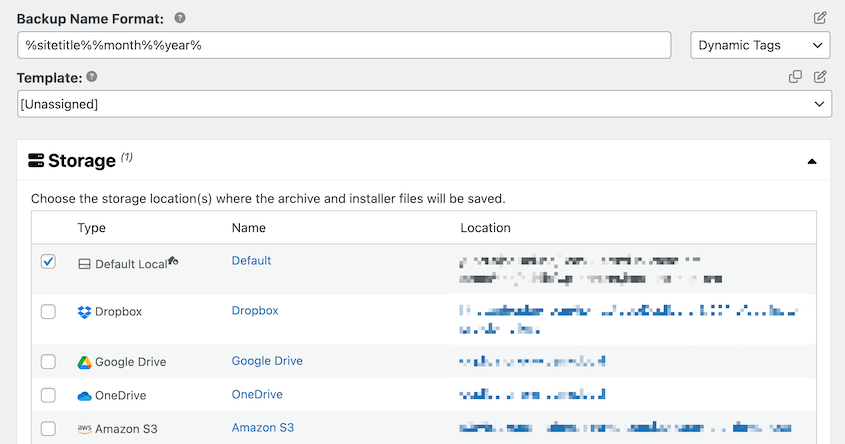
Use dynamic tags to name the backup. You can also choose a cloud storage location like Duplicator Cloud, Google Drive or Amazon S3.
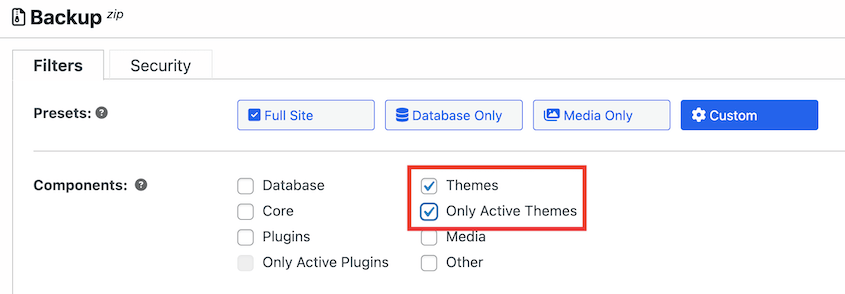
Open the Backup settings and click on Custom. If you only want to download your theme files, select Themes. This will exclude all directories except your theme folder.
If you don’t need all your installed themes, limit the backup to just your active theme.
But here’s the part most people don’t know: your theme folder is not your theme.
The files hold the code. But almost everything you changed about the way your site looks is stored in the database instead.
That covers your Customizer settings (colors, logo, layout options), the Global Styles a block theme saves from the Site Editor, your widgets and menus, and any templates built by a theme builder.
Zip up your theme folder on its own, and none of that comes with it. I recommend including the database in the backup unless you only want the raw files.
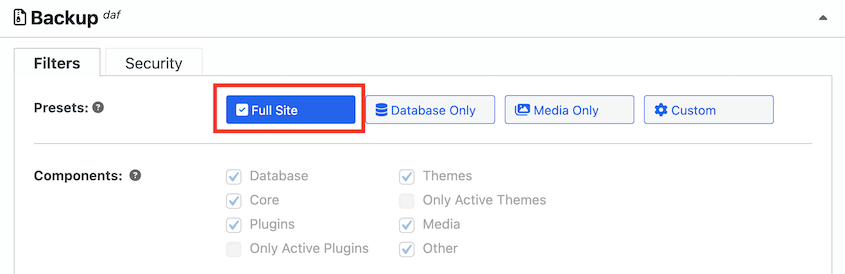
If you want to be able to restore your entire site in an emergency, create a full backup. Your theme will be included, don’t worry. A complete backup will save your layout, as well as any other important data.
Click Next and then Create Backup to finish the backup.
Once it’s complete, download both the backup files to your computer.
Method 2. Back Up Your Theme with cPanel
cPanel offers another way to back up your WordPress theme. It’s direct and doesn’t require extra plugins.
You can access your cPanel account through your hosting provider’s dashboard. Find the File Manager icon.
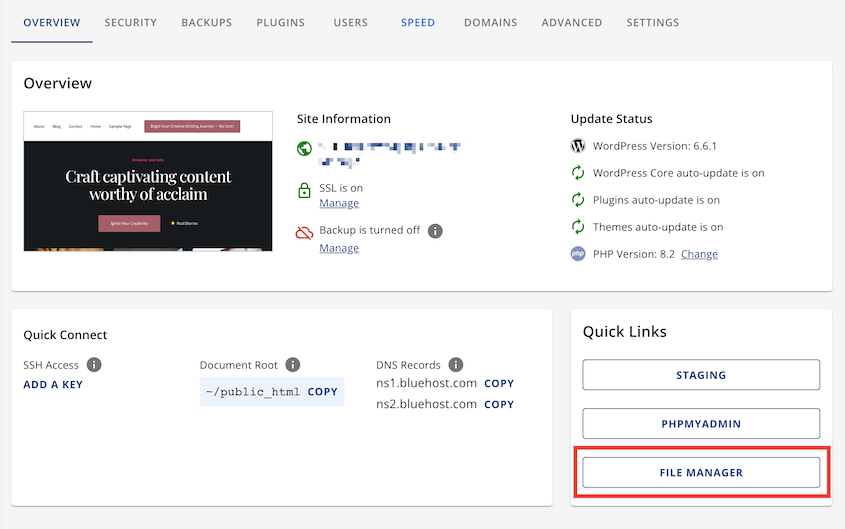
In the file manager, navigate to your WordPress installation’s directory (public_html). Then, open the wp-content folder.
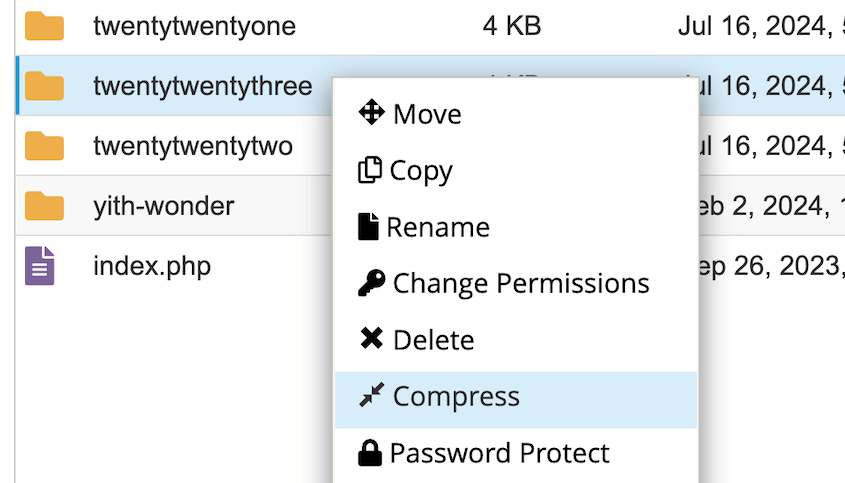
Find the themes folder and open it. Locate the folder for the theme you want to back up.
Right-click on your theme’s folder and select Compress.
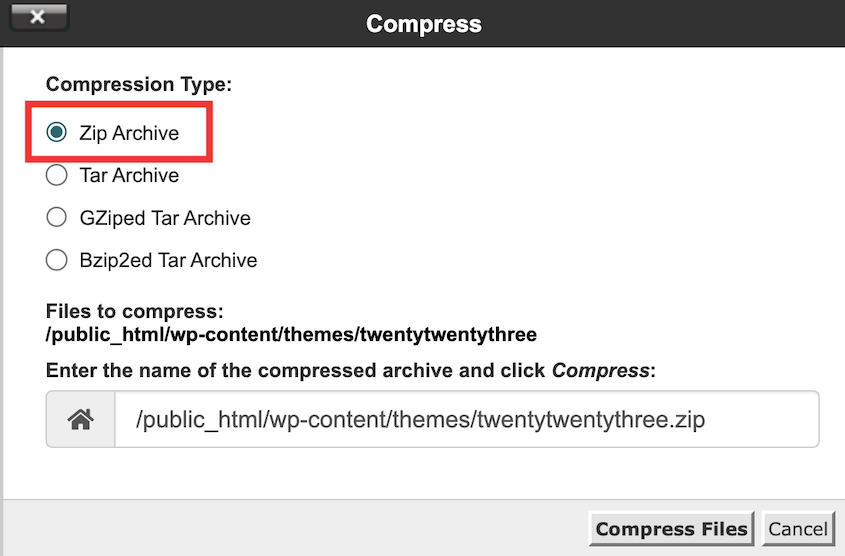
Choose Zip Archive as the compression type.
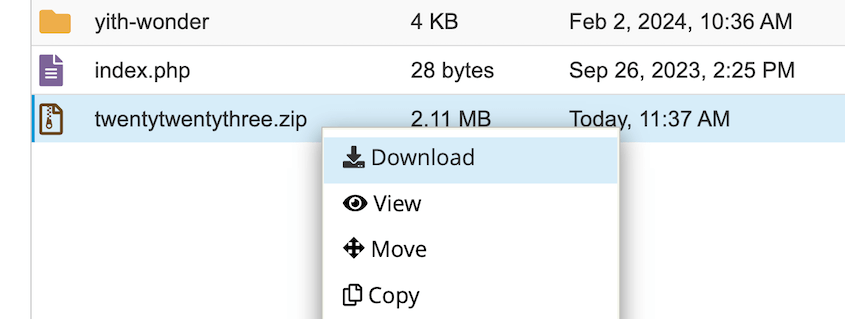
Once compressed, right-click the new ZIP file. Select Download to save it to your computer.
This method is straightforward. It gives you direct access to your files. You can see exactly what you’re backing up. It’s also quick for small themes.
It’s less convenient for large themes, though. And because it copies files only, you lose your Customizer settings, widgets, menus, and any theme builder templates. The folder restores fine, but the site won’t look the way you left it.
For a backup that includes the database, use Duplicator instead.
Method 3. Back Up Your Theme via FTP
FTP (File Transfer Protocol) provides a direct line to your website’s files. It allows you to download or upload files to your server.
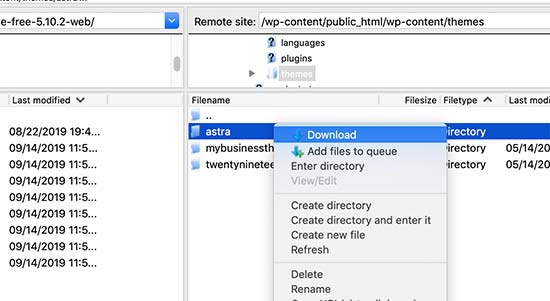
Similar to cPanel, FTP helps you back up your WordPress theme. To get started, install an FTP client like FileZilla. Connect to your site using the FTP credentials (hostname, username, password) from your hosting provider.

Navigate to /wp-content/themes/. Find your theme’s folder. Right-click and hit Download.
Method 4. Use Your Theme Editor
WordPress includes a built-in theme editor, allowing you to view and modify theme files directly from your dashboard. In a pinch, you can also use it to manually back up your theme files.
Go to Appearance » Theme File Editor. If you’re running a block theme, it sits under Tools » Theme File Editor instead. In the top-right corner, choose the theme you want to download.
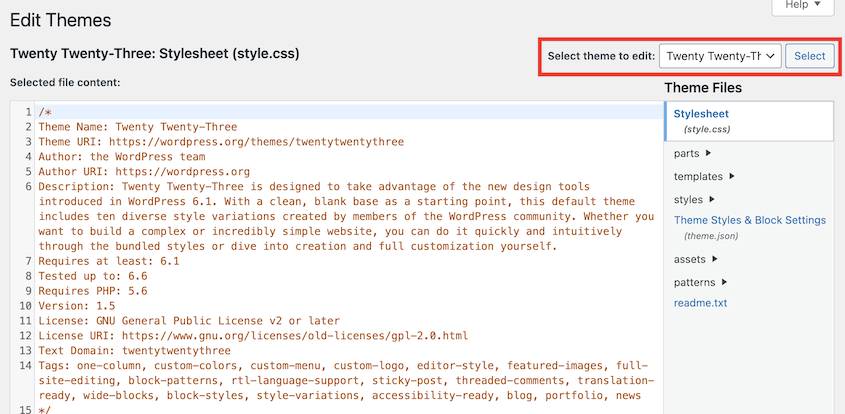
Then, copy all of the text in your style.css file. Open a text editor and paste it into a new file. Save the file as style.css.
Repeat this process for all of the files in your theme. Be sure to save each file with the correct name and extension.
One caveat: on a block theme, most of your design lives in theme.json and in the database, not in style.css. Copying files out by hand saves the code and misses the look.
This method is manual and time-consuming. It’s also prone to errors. Use it only if other methods aren’t available.
Method 5. Export Your Theme From the Site Editor
If you’re running a block theme, WordPress can export it for you. You won’t need a plugin, FTP, or hosting dashboard.
Go to Appearance » Editor. Open the options menu in the top-right corner and choose Export. WordPress builds a ZIP of the theme with your Site Editor changes written into the template files.
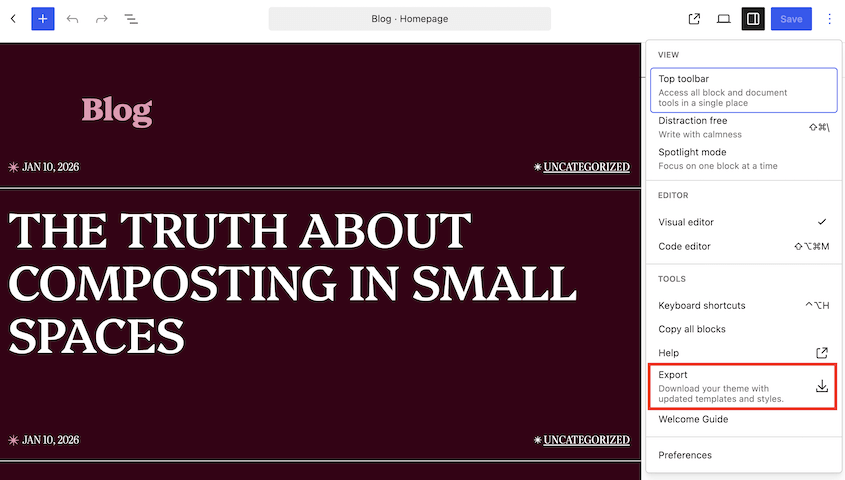
That’s the appeal, and it’s also the catch. What comes out isn’t your original theme anymore, it’s a modified copy. It’ll install and work somewhere else, but it no longer matches the theme in the WordPress directory, so it won’t take theme updates.
And anything held outside the templates, like your widgets, menus, and plugin settings, still isn’t in the file.
How Do You Restore a Theme Backup?
Backing the theme up is half the job. Here’s how to put each kind of backup back.
Duplicator offers the easiest way to restore a theme backup. Open Duplicator Pro » Backups, find the backup you want, and click Restore.
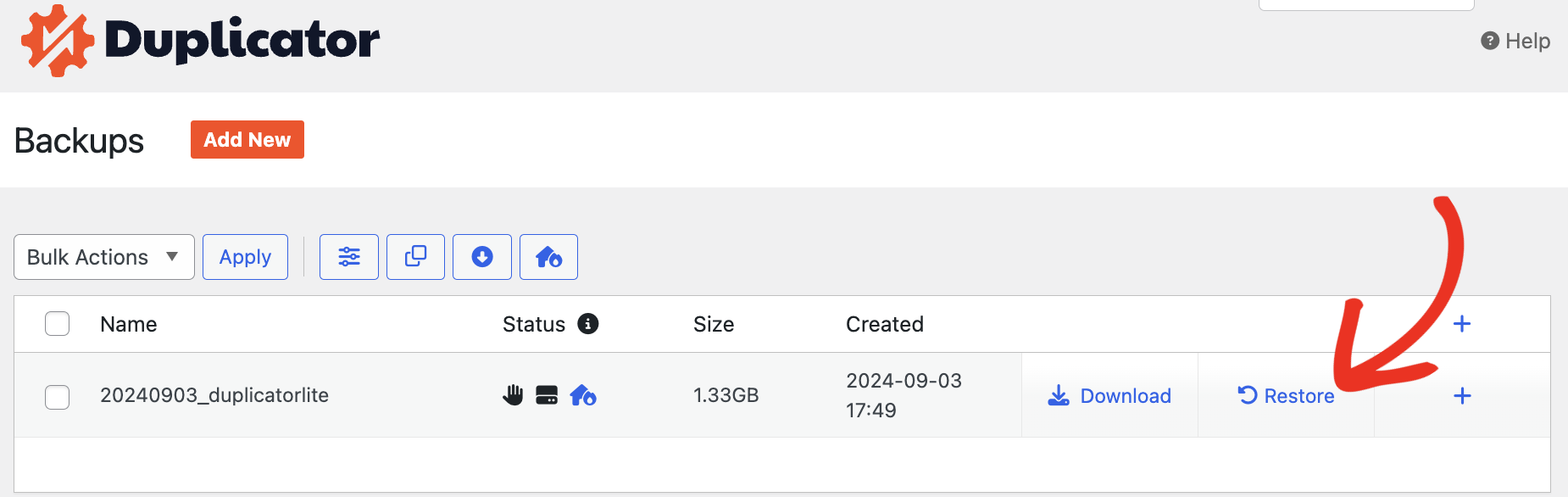
Because the backup carries the database as well as the files, your Customizer settings, Global Styles, widgets, and menus come back with the theme.
If you have a ZIP of the theme folder (from cPanel, FTP, or the Site Editor export):,go to Appearance » Themes » Add New Theme » Upload Theme, choose the ZIP, and click Install Now. Then activate it.
Your files are back at that point. Your design might not be. If the site still looks wrong after you activate the theme, that’s the database half missing, and a folder ZIP can’t give it back to you.
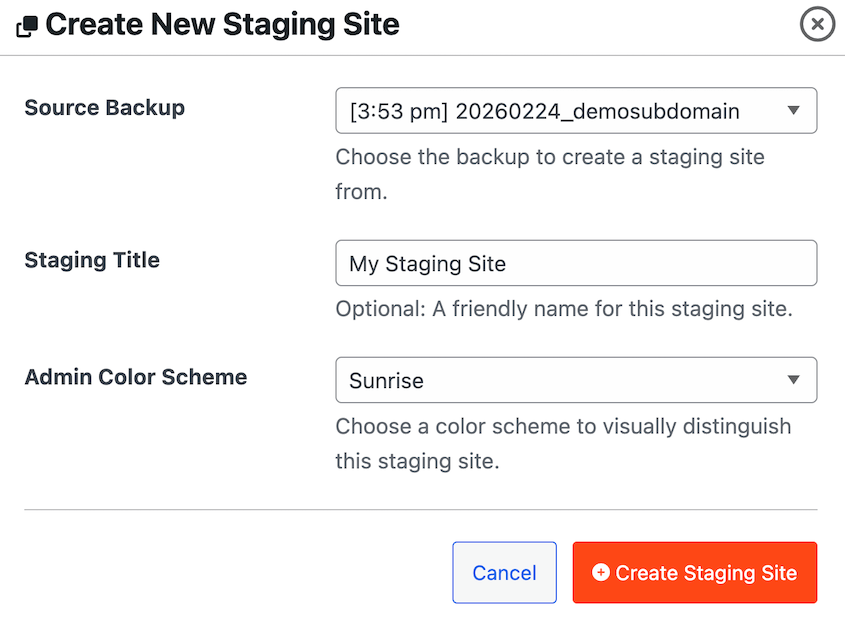
Whichever route you take, run it on a staging site first if the live site is still working. A restore overwrites what’s there now. With Duplicator, you can turn any full-site backup into a staging area for testing.
Tips For Exporting WordPress Themes
Whether you’re switching hosts, sharing your theme with someone, or simply creating an extra layer of protection, knowing how to export a WordPress theme is a smart move.
Here are a few tips to ensure the process goes smoothly.
Always create a full backup of your WordPress website before exporting any themes. This acts as a safety net in case any issues come up.
You might plan on using the theme on a different website. In this case, make sure it’s compatible with the new site’s WordPress version, PHP version, and any active plugins.
Ensure the theme folder and files have the correct permissions (typically 755 for folders and 644 for files) to avoid issues during export or import.
If possible, test the exported theme in a staging environment before deploying it on a live website. This will help you catch any potential conflicts or errors.
FAQs About WordPress Theme Backups
How do you backup a WordPress theme?
You can back up your WordPress themes using a backup plugin like Duplicator Pro, downloading the theme folder through cPanel or FTP, or manually copying theme files via the WordPress theme editor. For the most reliable and complete backup, we recommend using Duplicator Pro.
Remember that managed WordPress hosting services often include automatic backups of your entire site, including themes, plugins, and theme settings. This can be a great option for those who prefer not to handle manual backups themselves.
How do I copy an existing WordPress theme?
Copying a WordPress theme usually means duplicating it for customization while keeping the original intact. If that’s your goal, build a child theme rather than a copy, so the parent theme can still take updates. You can do this by backing up your theme with Duplicator. Feel free to import this backup into another site, because it won’t affect your original layout.
How do I get my old WordPress theme back?
If you have a backup, restore your site from the backup point where the old theme was active. If you don’t have a backup, you might be able to restore themes from the WordPress repository or contact the theme developer for assistance.
How do you change your WordPress theme without losing content?
Your posts, pages, and media live in the database and the media library, not in the theme, so switching themes never deletes them. What you can lose is the design. Customizer settings and block theme Global Styles are saved per theme, and widgets often drop out of their sidebars. Take a full backup first, then switch.
How can I back up my WordPress website for free?
Duplicator Lite is free on WordPress.org and backs up your whole site, files and database, to your own server. The cPanel, FTP, and Theme File Editor methods above are free too, but they copy files only. Off-site storage, scheduled backups, and one-click restores need a paid plan.
How do I export the entire WordPress site?
There are two routes. Tools » Export gives you a WXR file holding your posts and pages, but no themes, plugins, or settings. A backup plugin packages the files and the database together, which is what you actually need to rebuild the site somewhere else.
Conclusion
Whether you choose to use a plugin, rely on your hosting provider, or do manual exports, the most important thing is to back up your WordPress theme regularly. It’ll protect your hard work and ensure your site’s continuity.
While you’re here, I think you’ll like these extra WordPress guides:
- How to Change Your WordPress Theme
- How to Delete a Theme in WordPress
- 15 Best WordPress Themes to Build a Stunning Website
- How to Update Your WordPress Theme
- 10 Best Free WordPress Backup Tools
Don’t wait for a crisis to strike. Try out Duplicator Pro to start backing up your WordPress theme today!




