


How to Migrate Your Blogger Site to WordPress (Updated for 2026)
 Joella Dunn
Joella Dunn
Joella Dunn
 John Turner
John Turner
John Turner
If you started blogging in the 2000s or early 2010s, there’s a good chance your first site lived on Blogger.
It was free, simple, and backed by Google. You didn’t need to know what hosting meant or how to install anything. You just picked a template, wrote some posts, and hit publish.
For many people, Blogger was perfect for that exact moment in time.
But at some point, you probably wanted a sleeker design and realized Blogger’s templates all look dated. Maybe you tried adding a feature (like a contact form) and discovered that Blogger’s gadgets haven’t been updated since 2012.
That’s when most people start looking at WordPress.
It’s the standard upgrade path for anyone who’s serious about their content. On WordPress.org, you get full design control, unlimited plugins for functionality, and actual ownership of your work instead of renting space on Google’s servers.
The catch? You have to move everything over without breaking your links, losing your images, or tanking your Google rankings.
In this post, I’ll show you how to properly move your Blogger site to WordPress!
Here are the key takeaways:
- You’ll need web hosting and a domain to run self-hosted WordPress (Bluehost starts around $2.99/month)
- Export your Blogger content using RSS feeds; Google changed Blogger’s backup format to a ZIP file, so the WordPress importer method no longer works
- Match Blogger’s permalink structure exactly (/%year%/%monthnum%/%postname%.html) to preserve SEO
- Set up redirects from your old Blogger URL to your new WordPress site so visitors and search engines find you
- Manually rebuild sidebar widgets and redirect your RSS feed subscribers
- Use Duplicator to back up your site before the migration so you can revert to a clean WordPress installation in case something breaks
Table of Contents
Why Move from Blogger to WordPress?
The biggest reason to leave Blogger is that you don’t actually own anything. Google owns the platform and the servers.
If they decide your site violates their terms (even by mistake), they can suspend it. You could wake up one day and your blog is just gone.
On WordPress, you own the files and the database. If your host goes down, you can move to another one. Nobody can delete years of your work.
Then there’s the design problem.
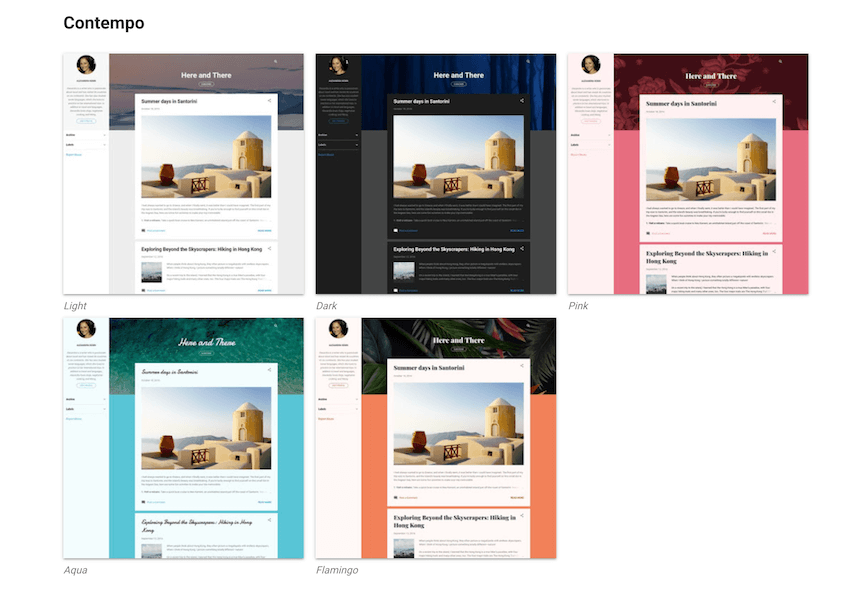
Blogger templates are rigid. You get a handful of pre-built layouts that all look like they were designed in 2008 (because most of them were). If you want to change something specific—like moving your sidebar or adjusting your header—you’re editing raw HTML and XML.
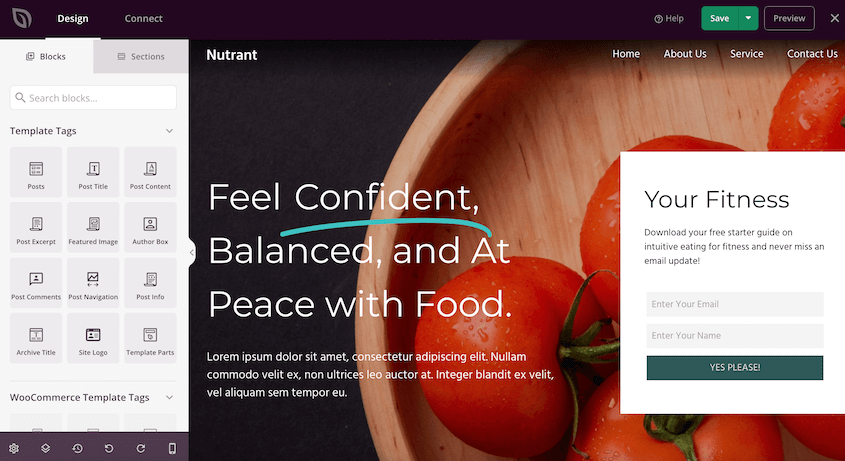
WordPress themes are built for flexibility. You can swap your entire design in five minutes without touching code. The Site Editor or a theme builder plugin lets you drag things around visually. You can customize your site until it looks just right.
Functionality is where the gap gets even wider.
Blogger has “gadgets.” They’re clunky, limited, and most of them haven’t been updated in over a decade.
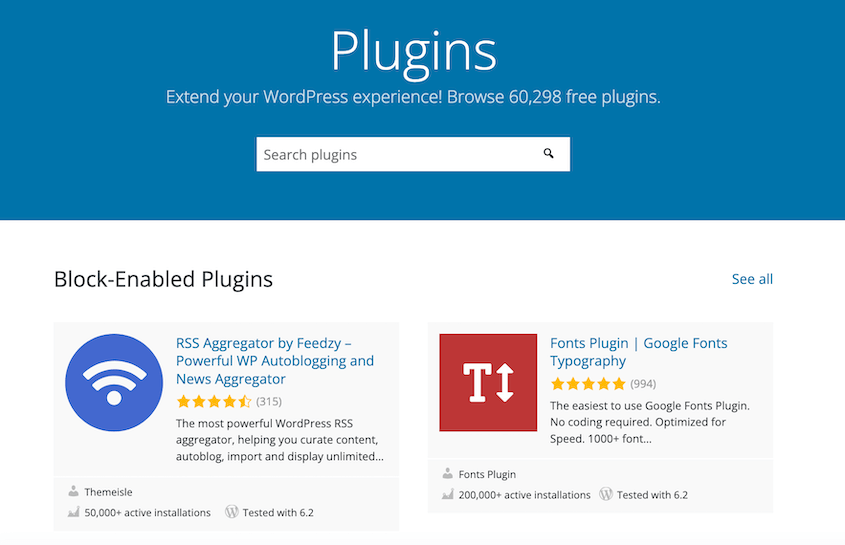
WordPress has plugins to customize your site. There are over 60,000 free ones available for you to download.
You can add e-commerce, membership sites, booking systems, SEO tools, advanced forms—basically anything. If you can think of a feature, there’s a plugin for it.
And if you’re trying to make money from your site, WordPress opens doors that Blogger can’t.
Blogger limits you to AdSense. WordPress lets you sell products, run online courses, set up paid memberships, or build an entire store. You’re not waiting for Google to approve your monetization strategy.
How to Migrate Your Blogger Site to WordPress
In a website migration, you’re not just copy-pasting text into new posts. You want to preserve your content, move your images, and keep your URLs intact, so your Google rankings don’t disappear overnight.
Here’s how to move from Blogger to WordPress:
- Step 1: Set Up Your WordPress Site: Get web hosting (like Bluehost), install WordPress, and create your first backup using Duplicator before importing anything.
- Step 2: Export Your Blogger RSS Feed: Use your Blogger RSS feed URL to import all your posts and pages with the WPeMatico plugin (Google’s ZIP backup no longer works with WordPress).
- Step 3: Set Up Permalinks: Change your WordPress permalink structure to match Blogger’s exact URL format so all your old links still work.
- Step 4: Move Other Blogger Content to WordPress: Manually rebuild your sidebar widgets and redirect your RSS feed subscribers to your new WordPress feed.
- Step 5: Set Up Redirects from Blogger to WordPress: Use a plugin like AIOSEO to automatically send visitors from your old Blogger URL to your new WordPress site.
Step 1: Set Up Your WordPress Site
Before you can move anything to WordPress, you need to set up your new site.
WordPress.org (the self-hosted version we’re talking about) doesn’t work like Blogger. You can’t just sign up and start writing. You need web hosting—basically, you’re renting server space from a company that keeps your site online 24/7.
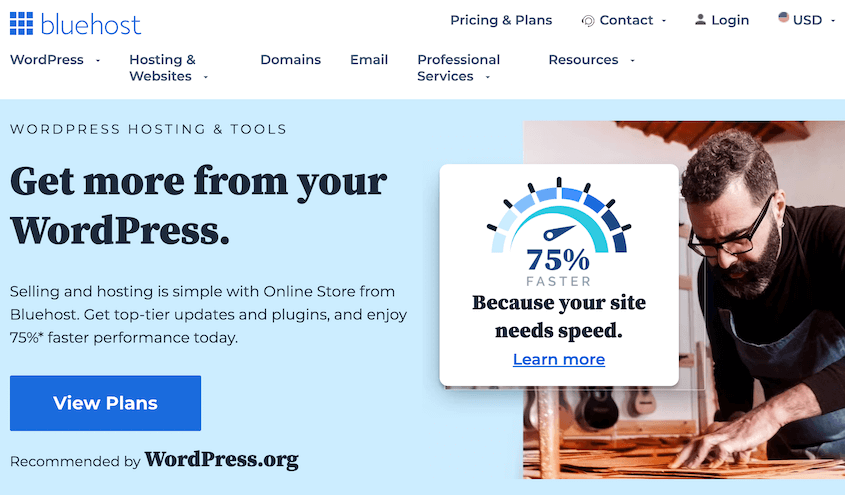
Bluehost is a solid choice here. It’s officially recommended by WordPress, and the plans start around $2.99/month. They’ll also install WordPress for you automatically when you sign up.
When you register for hosting, you’ll need to choose a domain name. This is your site’s address (like yoursite.com).
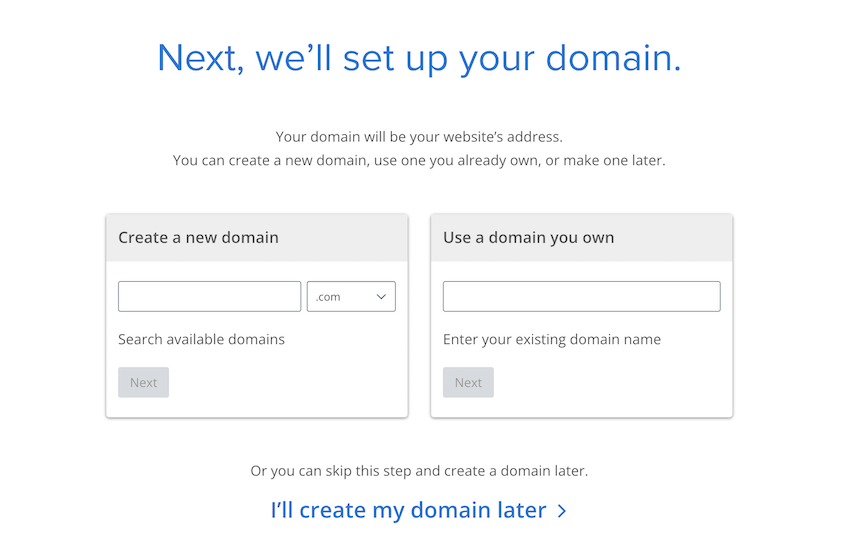
If you already own a domain from your Blogger days, you can point it to your new host. If not, most hosting companies let you register one during signup (usually free for the first year).
Once you’ve signed up and your host has installed WordPress, you’ll get login credentials to access your WordPress dashboard.
Before you do anything else, I recommend installing the Duplicator plugin.
Why right now, before doing anything else? Because you want a clean backup of your fresh WordPress install.

If something goes wrong during the import (duplicate posts, broken formatting, whatever), you can roll back to this clean slate instantly instead of manually deleting hundreds of posts.
Duplicator lets you snapshot the site in its current state, and you’ll thank yourself later if you need to restore it.

Step 2: Export Your Blogger RSS Feed
You used to be able to download a backup of your Blogger site and import it into WordPress. However, Google changed the download settings so that your backup is a ZIP file, not XML. This is no longer compatible with the WordPress import feature.
Don’t worry, there’s another way to import your Blogger posts and pages into WordPress!
First, open your Blogger site and go to Settings. Under Site feed, make sure Allow blog feed is set to Full.

Then, your RSS feed will be available at this URL: https://yourbloggersite.com/feeds/posts/default
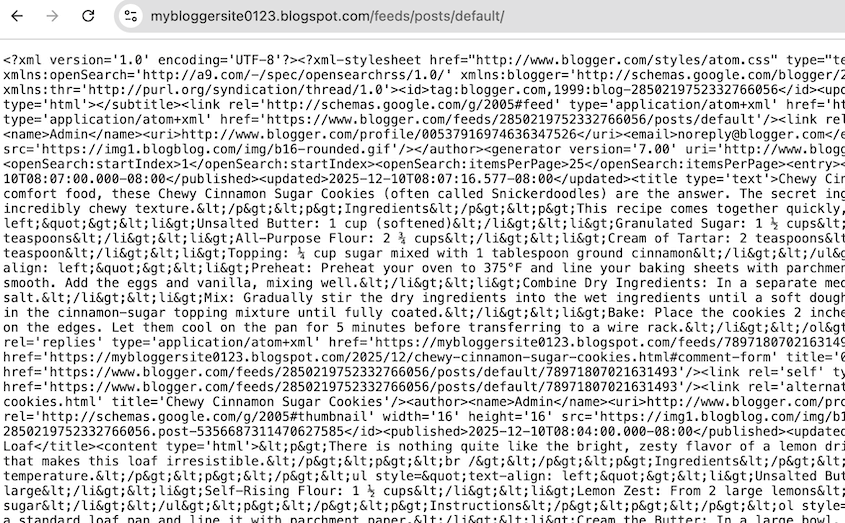
Copy this URL. You’ll need it to connect your Blogger site with WordPress.
Now go to your WordPress site and install WPeMatico RSS Feed Fetcher. This is a free plugin that will import your Blogger RSS feed.
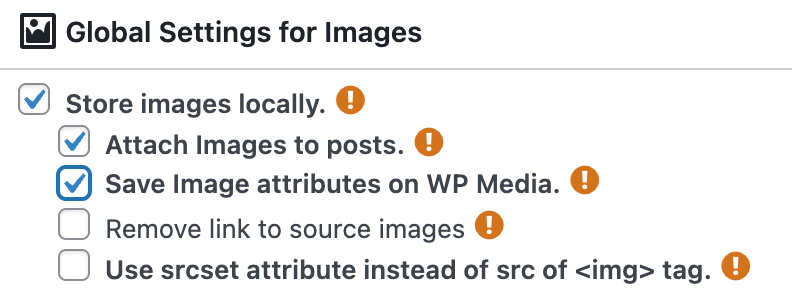
Open the WPeMatico settings first. Under the global image settings, select Store images locally, Attach images to posts, and Save image attributes on WP Media.
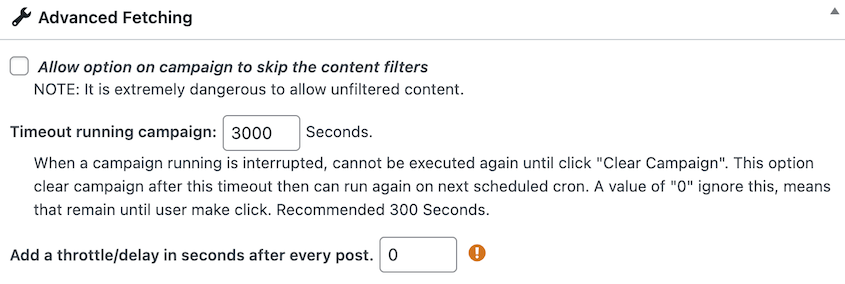
Scroll down to Advanced Fetching. If you have a lot of Blogger posts, you’ll need to increase the timeout running campaign past the default 300 seconds. Save these settings.
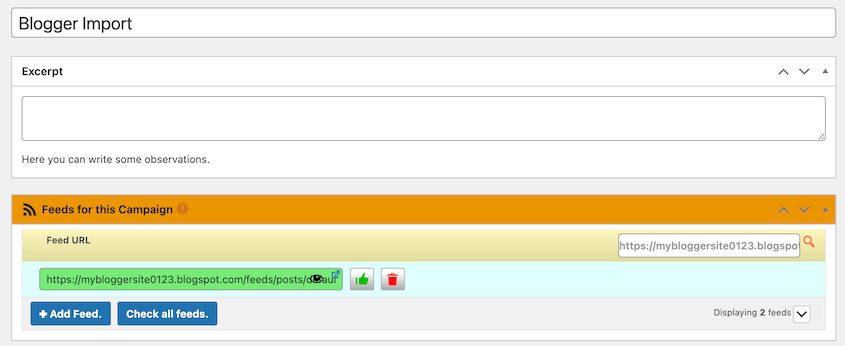
Next, add a new campaign. Name it something like Blogger Import. For the Feed URL, paste the RSS feed link you copied earlier.
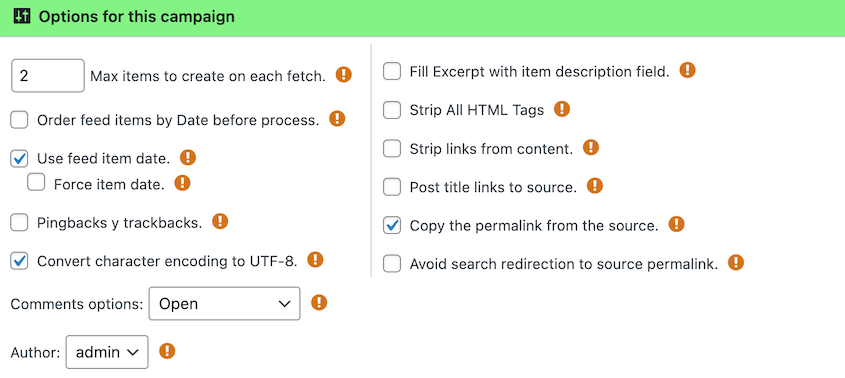
Under the options, set the Max items to create on each fetch to your total number of blog posts on Blogger.
Select these other settings:
- Use feed item date
- Convert character encoding to UTF-8
- Copy the permalinks from the source
Feel free to open the comments. You can also assign the blog posts to an author on your WordPress site.
In the top-right corner, make sure the Post type is set to Posts.
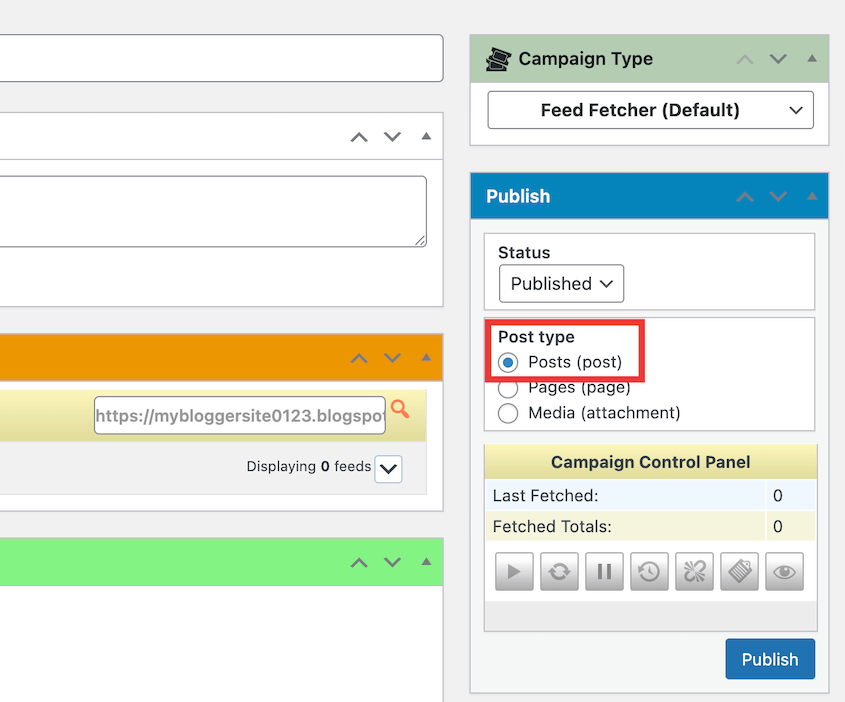
Publish the campaign. Then, click on the play button in the publish settings. This will fetch your Blogger posts.
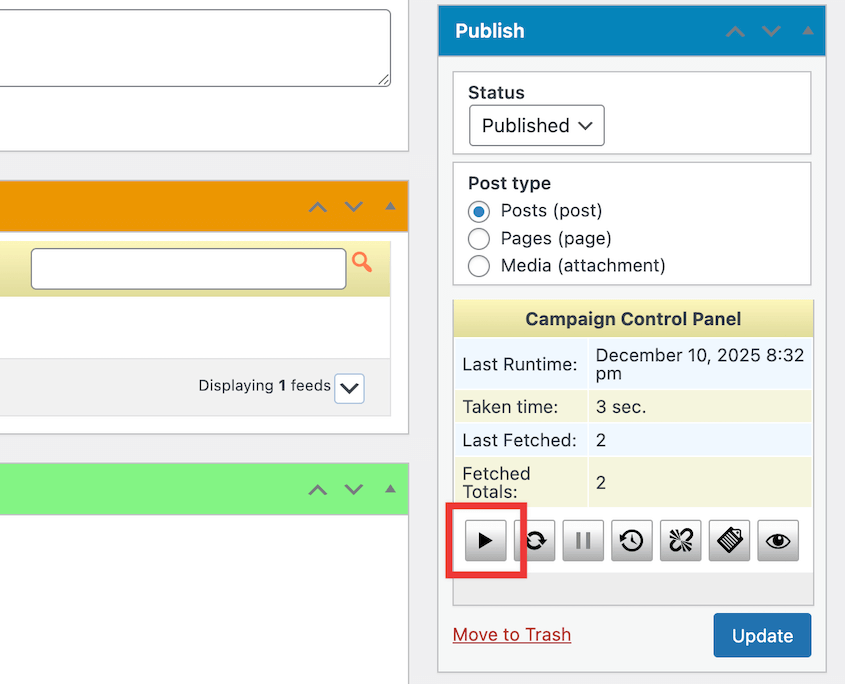
Repeat this process for your pages using this RSS feed URL: https://yourbloggersite.com/feeds/pages/default. Remember to change the post type to Pages.
Step 3: Set Up Permalinks
Blogger and WordPress use different post URL structures by default:
- Blogger: yourblog.blogspot.com/2026/12/post-name.html
- WordPress: yoursite.com/post-name/
WordPress drops the date and the .html extension. If you don’t update your permalinks, every link you’ve ever shared, every backlink someone else has made to your content, every URL Google has indexed—all of them break.
You need to match Blogger’s URL structure exactly.
Go to Settings » Permalinks in your WordPress dashboard.
You’ll see a few preset options. Scroll down to Custom Structure and select it.
In the text field, enter this:
/%year%/%monthnum%/%postname%.html
Save it.
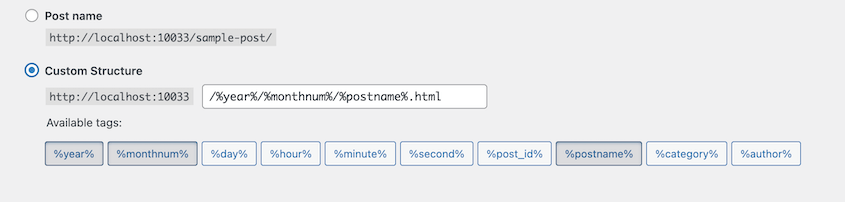
Now your WordPress URLs will match the format Blogger used. Same year, month, post name, and .html ending.
Step 4: Move Other Blogger Content to WordPresss
There’s other content on your Blogger site that didn’t come over automatically in the RSS feed import.
You won’t have sidebars on your new site. Blogger calls them gadgets, while WordPress calls them widgets or blocks, but either way, you’re rebuilding them from scratch.
Go to Appearance » Widgets (or Appearance » Editor if you’re using a block theme). Add whatever you had before, like social media links, recent posts, or search bars.
This part can be tedious, but it’s also a chance to clean house. If you had a gadget you never really used, just skip it.
Your RSS feed is another thing to handle. If people subscribed to your Blogger feed (usually yourblog.blogspot.com/feeds/posts/default), you need to redirect them to your new WordPress feed (yoursite.com/feed/).
You can do this in Blogger. Go to Settings » Site feed. Click on Post feed redirect URL.
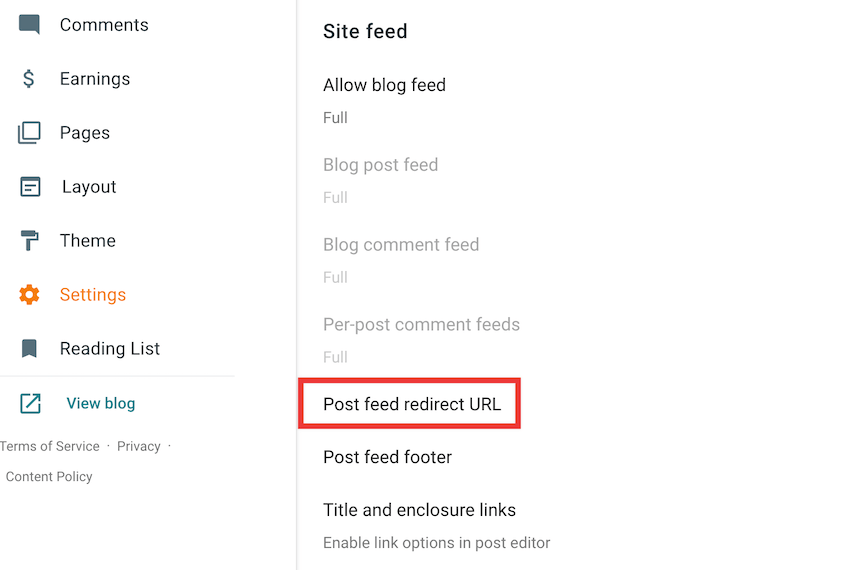
In the pop-up, add your WordPress feed URL, which looks like this: http://example.com/feed
Step 5: Set Up Redirects from Blogger to WordPress
You’ve matched your URLs, but people are still going to visit your old Blogger address. You need to send them to your new site automatically.
Many people have used the Blogger to WordPress plugin. It’s free and built specifically for this.
However, it only detects Blogger posts uploaded by the WordPress importer, and that no longer works. So, I’m going to use another redirection plugin.
AIOSEO is an SEO plugin with a redirection add-on. With the full site redirect, you can enter your old Blogger URL and new WordPress URL. Users will be redirected to the new location.
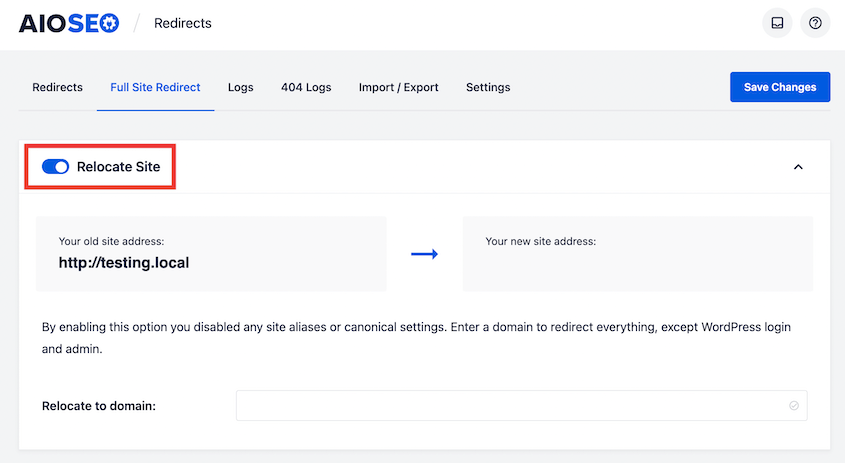
Now your audience will be redirected from Blogger to your new, functional WordPress site!
Frequently Asked Questions (FAQs)
How do I migrate from Blogger to WordPress without losing Google rankings?
It comes down to matching your permalinks and setting up redirects. If your URLs match the old structure and the redirects are working, Google treats it like you moved addresses but kept the same content. Rankings usually stay stable, though you might see a small dip for a week or two while Google re-indexes everything.
Is Google closing Blogger?
Google is not closing Blogger. Google continues to support the platform, and no official shutdown announcement exists. Blogger remains active, and users can still publish, edit, and manage blogs without disruption.
Is Blogger easier than WordPress?
For complete beginners, Blogger is easier than WordPress because Blogger uses a simpler interface, requires no hosting setup, and manages updates automatically. WordPress requires hosting and technical management, but it offers more control and customization. WordPress has a learning curve up front, but once you get past it, doing advanced things is actually easier because there are plugins and themes built for everything.
Is Google Blogger still relevant?
Blogger still serves creators who want a low-maintenance platform for writing. However, I wouldn’t recommend it to anyone running a business or trying to build a professional brand. If you move to WordPress, you’ll own your content, customize your site with free plugins and themes, and even monetize your website.
Is WordPress still good in 2026?
Yes. It powers over 40% of all websites on the internet. The Site Editor makes building pages faster and more visual than it used to be. The plugin ecosystem is massive. If anything, WordPress is more relevant now than it was five years ago because it keeps evolving while platforms like Blogger stay frozen in time.
Move to a More Flexible Blog Platform
You own your content now. If you don’t like your host, you can move to one with better performance. If you want to add a feature, install a plugin.
That control comes with responsibility, though.
You need backups. Now that you’re learning WordPress, you’re going to break things. Trust me, I’ve triggered plugin conflicts, bad updates, and other critical errors.
That’s where Duplicator Pro comes in. This plugin automatically backs up your entire site to secure cloud storage (like Duplicator Cloud, Google Drive, and Dropbox) on a schedule you set. It will protect your site hourly, daily, weekly, or monthly.
When (not if) something breaks, you won’t panic. You’ll restore the last backup with one click.
Try out Duplicator Pro today!
While you’re here, I think you’ll like these other WordPress resources:
- How to Create a WordPress Site From Scratch (Step-by-Step Guide)
- 11 WordPress Maintenance Tasks You Won’t Want to Forget
- How to Start a WordPress Blog (Step-by-Step Guide)
- How Long Does It Take to Learn WordPress?
- How to Back Up a WordPress Site




