


I Migrated My Wix Site to WordPress While Keeping It Live—Here’s the Process
 Joella Dunn
Joella Dunn
Joella Dunn
 John Turner
John Turner
John Turner
You built your site on Wix because it was easy. Point, click, done.
But now you’re feeling the limitations. Maybe you’re frustrated by the monthly fees that keep climbing. Or you’ve realized you can’t customize things the way you want. Perhaps you’ve noticed your site doesn’t rank as well in Google as you’d hoped.
WordPress offers something Wix can’t: complete control over your website. You own everything. You can install any plugin, customize any code, and switch hosts whenever you want. Plus, it’s often cheaper in the long run.
I won’t sugarcoat it—moving from Wix to WordPress takes work. There’s no magic button that does it all for you.
But it’s absolutely doable, even if you’re not technical.
In this guide, I’ll walk you through the entire process, step by step. You’ll learn how to set up WordPress, transfer your blog posts, move your pages, handle images, and set up redirects so you don’t lose search rankings.
Here are the key takeaways:
- WordPress gives you full ownership and control over your site, while Wix keeps you renting space on their platform
- WordPress saves you money long-term, with hosting starting at $3-5/month versus Wix’s $159/month top tier
- You’ll export blog posts via RSS feed, but pages and images must be moved manually
- Keep your Wix site live while building on WordPress—no downtime necessary
- Set up JavaScript redirects in Wix to preserve your search rankings after switching
- You’ll need to recreate contact forms and design elements, but you’ll gain access to thousands of themes and plugins
Table of Contents
Why Move Your Site from Wix to WordPress?
WordPress is open-source software, which means you own your site and all its content. With Wix, you’re essentially renting space on their platform. If they change their terms, raise prices, or shut down a feature you rely on, you’re stuck with it.
SEO
The SEO difference is significant. WordPress gives you control over every aspect of your site’s search optimization. You can edit meta descriptions, customize URL structures, add schema markup, and use powerful plugins like AIOSEO.
Wix has built-in SEO tools, but they’re basic compared to what WordPress offers.
Cost
Wix looks affordable at first, since you can start for free. But as you grow, you’ll need higher tiers for more storage, bandwidth, or features. Those costs add up to $159 monthly.
WordPress itself is free. You only pay for hosting, which starts around $3-$5 per month. Even with premium themes and plugins, you’ll likely spend less.
Flexibility
The WordPress plugin ecosystem is massive. There are plugins for booking systems, online stores, advanced forms, membership areas, and much more.
Wix has apps, but the selection is smaller and often more expensive.
Design flexibility matters too. Wix templates look polished, but you’re limited by their editor.
WordPress has thousands of themes (free and premium) and page builders that let you create virtually any layout you can imagine. You’re not locked into a specific design system.
Scalability
Scaling becomes easier on WordPress. As your traffic grows, you can upgrade your hosting plan or switch to a better host entirely.
You’re free to add a content delivery network, implement advanced caching, or move to managed WordPress hosting. With Wix, you’re dependent on their infrastructure and pricing tiers.
Support
Finding affordable help is simpler with WordPress. Because it powers over 40% of all websites, there’s a huge pool of developers and designers who know it well.
If you need custom work done, you’ll find plenty of freelancers at reasonable rates. Wix specialists are harder to find and often charge more.
The community support is unmatched. WordPress has forums, Facebook groups, YouTube tutorials, and countless blogs dedicated to helping users.
When you run into problems, someone has likely solved them before and documented the solution.
How to Move Your Wix Site to WordPress
Here’s a quick overview of how to move from Wix to WordPress:
- Step 1: Set up WordPress hosting (Bluehost recommended at $1.99/month) and install WordPress
- Step 2: Export your Wix blog posts via RSS feed (/feed.xml or /blog-feed.xml) and import to WordPress
- Step 3: Manually copy static pages like About and Contact from Wix to WordPress
- Step 4: Download images from Wix and re-upload to WordPress with SEO-friendly filenames
- Step 5: Choose a WordPress theme and recreate your site design with page builders like SeedProd
- Step 6: Set WordPress permalinks to the post name structure for clean, SEO-friendly URLs
- Step 7: Create JavaScript redirects to point old Wix URLs to new WordPress pages
Step 1: Set Up Your WordPress Site
Before you can move anything, you need to create your new WordPress site. This starts with choosing a web host.
I recommend Bluehost for most people making this switch. It’s officially recommended by WordPress.org, which means it meets specific performance and support standards.

Plans start around $1.99 per month for the first year, and they include one-click WordPress installation. You don’t need to be technical to get it running.
When you’re comparing web hosts, look for a few key features. An SSL certificate should be included (that’s the padlock icon in your browser). Uptime should be 99.9% or higher. And make sure they offer decent customer support.
For your domain, you have two options: register a new temporary domain to build on or register the domain you want to use long-term. Many hosts include a free domain for the first year.
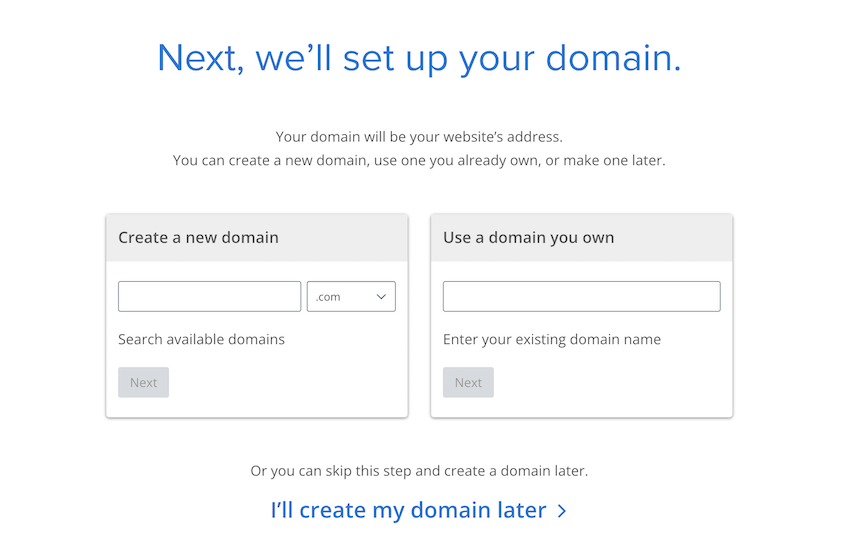
Keep your Wix site live while you build the WordPress version. This gives you time to get everything right before switching over.
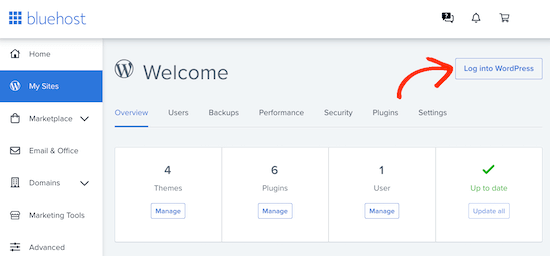
WordPress installation takes about five minutes. When it’s done, you’ll get a confirmation with your login URL. There will also be admin login buttons in your hosting dashboard.
Here’s an important step most guides skip: install Duplicator and back up your blank site right now. If something breaks during the migration, you’ll want a clean slate to restore to.
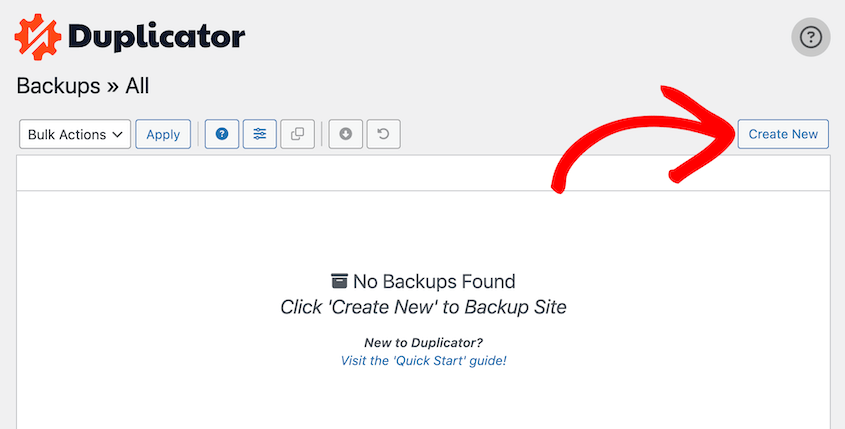
This backup is your safety net. You probably won’t need to restore it, but you’ll be glad it’s there if you do.
Step 2: Import Your Wix Blog Posts
Wix makes it possible to export your blog posts via RSS. Although it takes some time, it’s better than importing everything manually.
You’ll find your RSS feed by adding one of these extensions to your URL:
- /feed.xml
- /blog-feed.xml
You’ll see a page full of XML code. Right-click on the page and save it as an XML file.
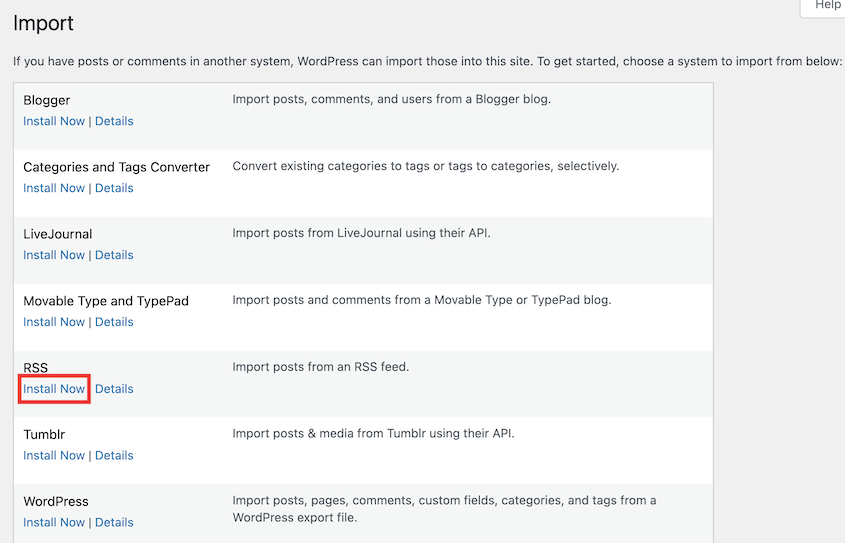
Now switch over to your WordPress dashboard. Go to Tools » Import. You’ll see a list of import options. Install the RSS option. Then click Run Importer.
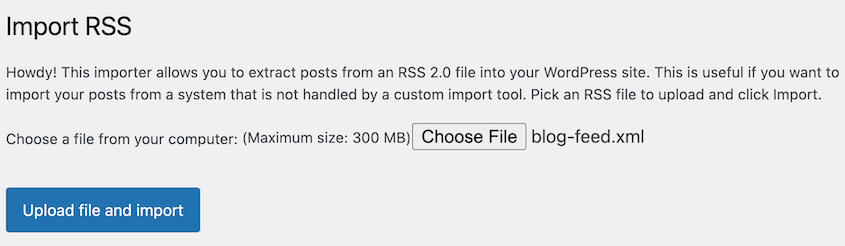
Upload the XML file you just saved from Wix. Hit Upload file and import.
When it’s done, go to Posts » All Posts in WordPress. You should see your Wix blog posts listed there. Click into a few and check them out.
The formatting will likely be messy and images might be broken. That’s normal. You’ll clean this up as you go through each post manually.
Step 3: Manually Move Wix Pages
The RSS feed only grabbed your blog posts. Your static pages didn’t come along for the ride. So, you’ll need to copy these manually.
Open your Wix site in one browser tab and your WordPress dashboard in another. In WordPress, go to Pages » Add New. In Wix, navigate to the first page you want to move.
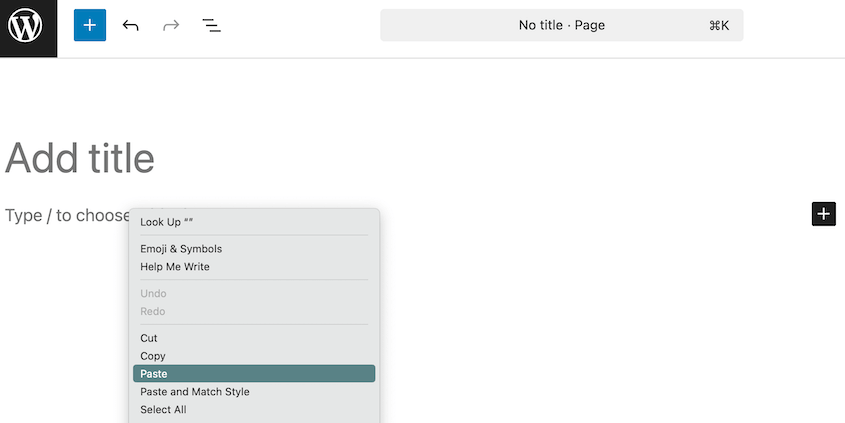
Copy the content from Wix pages—headlines, text, everything. Paste it into your new WordPress page. You’ll need to reformat it because Wix’s layout blocks don’t translate to WordPress.
If you have a lot of pages, create a simple spreadsheet to track your progress. List each Wix page and check it off as you move it. This prevents you from forgetting pages or duplicating work.
Don’t forget about hidden or draft pages. Check your Wix dashboard for pages that aren’t published yet but that you want to keep. Move those too.
Step 4: Manually Upload Wix Images
This is the most time-consuming part of the migration. Wix doesn’t export images cleanly, so you’ll need to save them individually and re-upload them to WordPress.
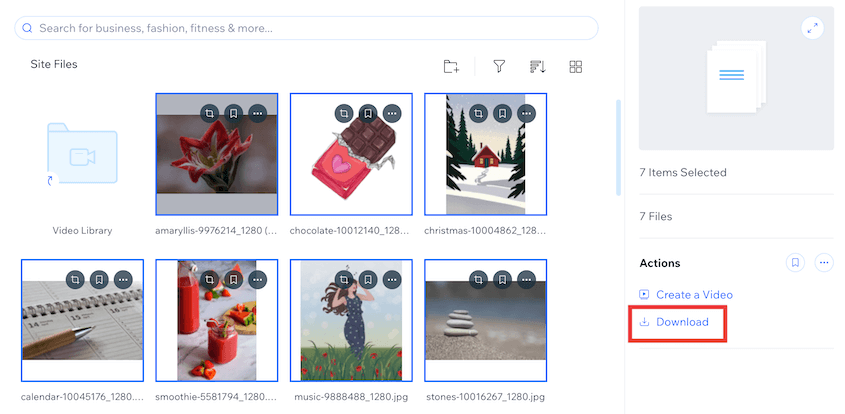
Open your media files in Wix. Select multiple images by holding down the shift button. Click on Download on the right.
Before you upload anything, rename your image files. Instead of “IMG_1234.jpg,” use descriptive names like “customer-testimonial-sarah.jpg” or “team-photo-2024.jpg.” This helps with SEO later and makes it easier to find images in your WordPress media library.
Log into WordPress and go to Media » Add Media File. You can drag and drop multiple images at once.
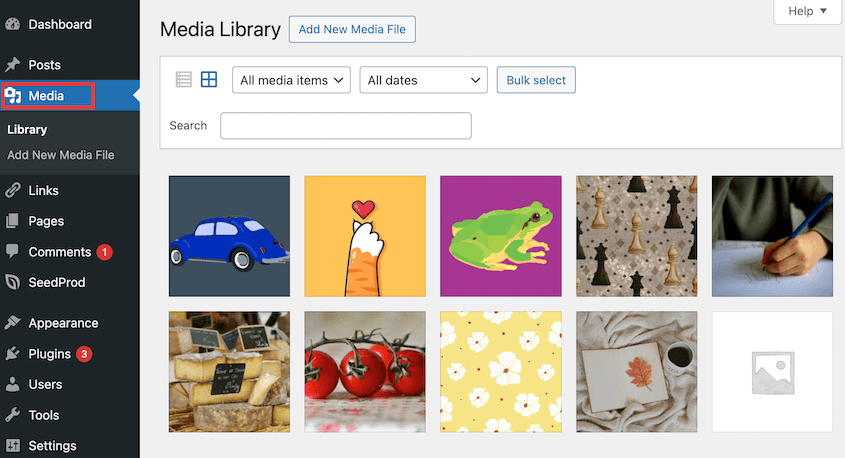
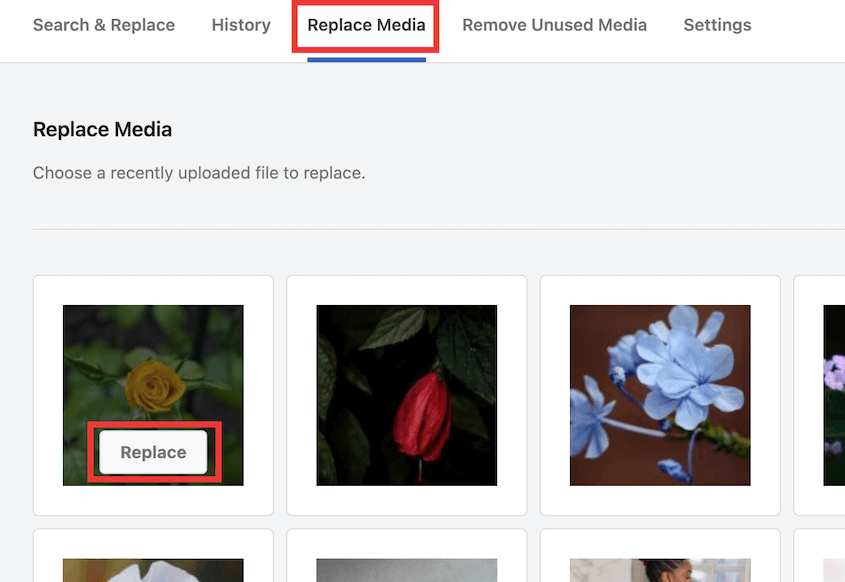
You’ll need to replace any broken image links in your posts and pages. Search & Replace Everything makes this easy.
Step 5: Design Your WordPress Site
Your content is in WordPress, but your site probably looks pretty bare bones right now. It’s time to make it look like an actual website.
You’ll want to install a theme and probably a page builder plugin. If you liked Wix’s drag-and-drop interface, SeedProd is a solid choice. It works similarly—you drag elements onto a page and customize them visually.

Or you can stick with WordPress’s block editor, which has gotten pretty powerful in recent versions. It’s not as flexible as dedicated page builders, but it’s free and built right in.
Start recreating your Wix layout. Aim for something that captures the same feel and includes all the important elements.
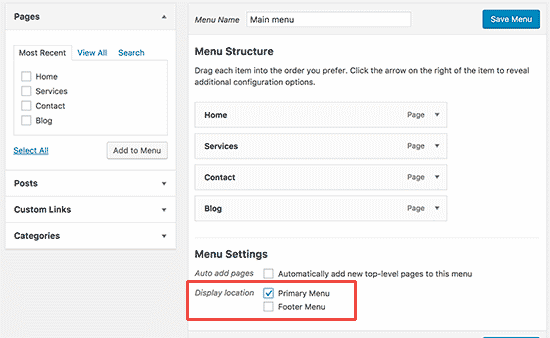
Don’t forget your navigation menus. Go to Appearance » Menus. Click Create a new menu and give it a name like Main Menu.
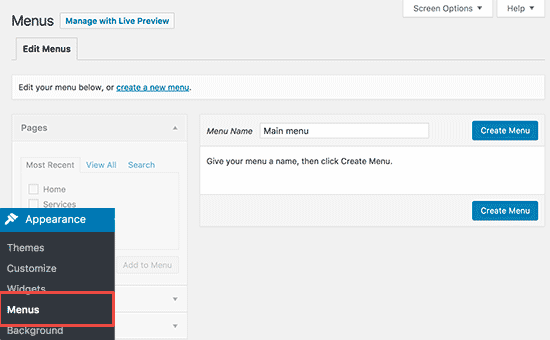
Add your pages to it by checking the boxes and clicking Add to Menu. You can drag pages up and down to reorder them. Drag a page slightly to the right to make it a sub-menu item.
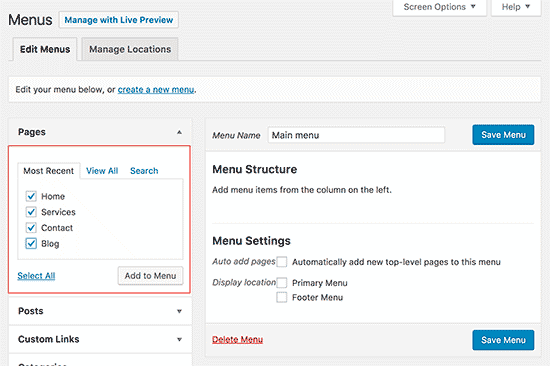
Once your menu is set up, you need to assign it to a location. Most themes have options like Primary Menu or Header Menu. Check the box for where you want this menu to appear, then save it.
Test all your links. Click through every menu item and make sure pages load correctly.
Step 6: Update WordPress Permalinks
Go to Settings » Permalinks in your WordPress dashboard. You’ll see several structure options.
Select Post name. This creates URLs based on your page and post titles, which is both user-friendly and good for SEO.
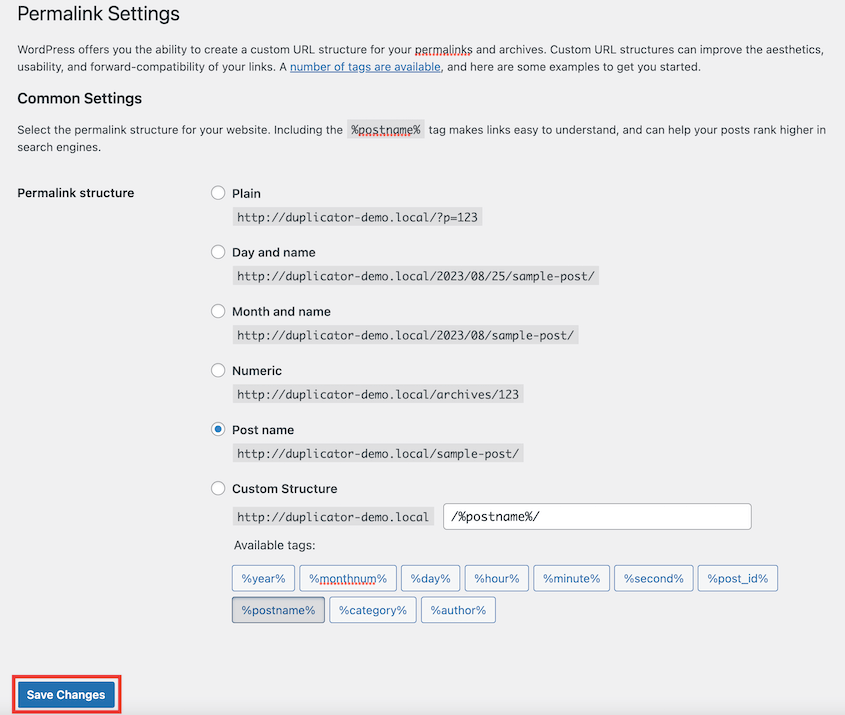
It also matches how Wix structures URLs, which will make setting up redirects easier in the next step.
Step 7: Redirect Wix to WordPress
You’ve built your WordPress site. Your content is there, your design looks good, and you’re ready to launch.
But if you just point your domain to WordPress and abandon Wix, you’ll lose search traffic. All those Wix URLs that Google has indexed will return 404 errors.
You need 301 redirects, which tell search engines “this page has permanently moved to a new location.”
Wix doesn’t give you server-level access. You can’t create traditional 301 redirects in an .htaccess file like you could on other platforms. The only option Wix allows is JavaScript-based redirects.
Copy this code and paste it into a plain text editor. Modify it with your actual URLs:
const redirects = {

"/old-about-page": "/about-us/",

"/old-contact-page": "/contact/",

"/blog/an-old-post": "/an-old-post/"

};

const currentPath = window.location.pathname;

if (redirects[currentPath]) {

window.location.href = redirects[currentPath];

}
Save this as a file called redirects.js on your computer.
Now you need to upload this file to your WordPress site. You can do this with an FTP client like FileZilla, or use your hosting control panel’s file manager.
Navigate to /wp-content/themes/your-theme-name/js/. If there’s no /js/ folder, create one.
Upload your redirects.js file there.
Next, you need to tell WordPress to load this script on every page. You could edit your functions.php file, but I recommend a safer option like WPCode.
Add this code:
function wpb_wixjs () {

wp_enqueue_script( 'wixredirect', get_stylesheet_directory_uri() . '/js/redirects.js', array(), '1.0.0', true);

}

add_action('wp_enqueue_scripts', 'wpb_wixjs');
This code tells WordPress to load your redirect script on every page of your site. When someone visits an old Wix URL, the script checks if that path is in your redirect list. If it is, it automatically sends them to the new WordPress URL.
Visit one of your old Wix URLs and make sure it redirects to the correct WordPress page. If it doesn’t work, double-check that your file path is correct and that you saved everything properly.
Frequently Asked Questions (FAQs)
How do I transfer a domain from Wix to WordPress?
You don’t need to transfer your domain immediately—just point it to your WordPress host by updating DNS settings. If you want to fully transfer it, unlock the domain in Wix, get your authorization code (EPP code), and initiate the transfer with your new registrar. The process takes 5-7 days, and Wix charges a fee if your domain is less than 60 days old.
Is there a Wix to WordPress plugin?
No official plugin exists because Wix doesn’t provide the necessary API access. The manual method outlined in this guide is free, takes just a few hours, and gives you clean results.
How long does it take to move from Wix to WordPress?
For a typical small business site with 20-30 pages and 50 blog posts, expect 6-8 hours of work. Sites with hundreds of images or complex layouts will take longer. You can spread the work over a weekend—one day for content migration, another for design and testing.
Can I keep my Wix site live during the migration?
Absolutely, and you should. Build your WordPress site on your new hosting while your Wix site stays live. This gives you time to get everything right without downtime. Only switch your domain over once your WordPress site is tested and ready to go.
Will my Wix contact forms work on WordPress?
No, Wix forms won’t transfer over. You’ll need to recreate them using a WordPress form plugin like WPForms. This takes a few minutes per form and gives you more customization options than Wix provided.
Take the First Step Toward WordPress
Moving from Wix to WordPress isn’t a quick afternoon project. There’s copying, uploading, formatting, and testing involved.
But the payoff is worth it.
You’ll have more control over your site than you’ve ever had. You’ll spend less money in the long run. Your SEO will likely improve once you have access to better tools and more flexibility. And you’ll never feel locked into a platform again.
The WordPress community is massive and helpful. If you get stuck on something, search for it—someone has probably written a tutorial or answered it in a forum. The WordPress.org support forums, YouTube, and countless blogs are full of free help.
Once your site is up and running, protect your hard work with regular backups. Duplicator Pro makes this easy with automatic backups, cloud storage, and one-click site restoration if anything ever goes wrong.
After all the effort you’ve put into this migration, the last thing you want is to lose it all to a hosting issue or hack. Try out Duplicator today!
While you’re here, I think you’ll like these related WordPress guides:
- How to Update WordPress
- 11 WordPress Maintenance Tasks You Won’t Want to Forget
- How to Start a WordPress Blog
- How to Back Up a WordPress Site
- How to Create a WordPress Staging Site (For Safe Testing)
- How to Undo Changes in WordPress
- WordPress Migration Plugins That Actually Work in 2026




