

Modified Core Files? How to Restore WordPress Core Files Safely
 Joella Dunn
Joella Dunn
Joella Dunn
 John Turner
John Turner
John Turner
You’re looking at a white screen where your homepage used to be. Maybe it’s a 500 error instead, or a security plugin alert telling you that core WordPress files were modified.
I’ve replaced core files on sites I broke myself and on sites that showed up already broken. Whatever brought you here, the fix is the same, and it’s less destructive than it sounds.
Restoring WordPress core files means swapping WordPress’s own program files (the ones in wp-admin, wp-includes, and your root directory) for clean copies from WordPress.org. Your posts, pages, media, themes, plugins, and settings don’t move. They live somewhere else entirely.
Two things go wrong when people attempt this on their own.
The first is deleting wp-content along with the core folders, which turns a 20-minute repair into a full rebuild. The second is grabbing the newest version of WordPress when the site is running something older, which forces a major version jump onto a site that’s already unstable.
In this post, I’ll show you how to confirm core files are the problem before you delete anything, three ways to replace them, and what to do when replacing them isn’t the real fix.
Quick takeaways:
- Verify before you delete anything:
wp core verify-checksumsanswers in one command whether core files are the problem, and a clean pass means you’d be replacing files that were never broken. - Match your version instead of grabbing the latest: installing the newest WordPress on an older site forces an unplanned major upgrade and a database schema change onto a site that’s already unstable.
- You have three routes: the Re-install version X.X.X button if you can log in, one WP-CLI command if you have SSH, and a manual FTP swap if you have neither.
- Delete the core folders rather than overwriting them: overwriting leaves attacker-added files sitting inside wp-admin and wp-includes because nothing in the official build replaces a file that isn’t part of it.
- Clean core files don’t clean a hacked site: backdoors in wp-content/uploads, malicious mu-plugins, and injected database rows all survive, which is the point where a full restore beats a file-by-file repair.
Table of Contents
- Which Files Are WordPress Core Files?
- Which WordPress Files Should You Not Replace?
- When Do You Need to Restore WordPress Core Files?
- What You Need Before You Start
- How to Restore WordPress Core Files
- What If Replacing Core Files Doesn't Fix the Problem?
- Troubleshooting: Common Errors After Restoring Core Files
- Frequently Asked Questions (FAQs)
- Clean Core Files Are the Baseline: Here's What to Do Next
- Stop Repairing WordPress Sites by Hand
Which Files Are WordPress Core Files?
Before you delete anything, you need to know which folders count as core WordPress files and which ones are yours. Getting this wrong is the most expensive mistake in the whole process.
Here’s what counts as a core file:
- Everything in wp-admin. This is the admin dashboard itself, every screen you log into.
- Everything in wp-includes. These are the libraries WordPress runs on. It’s the biggest folder by file count and the one most likely to get flagged as modified.
- The loose PHP files in your root directory. Files like index.php, wp-login.php, wp-settings.php, and wp-cron.php sit alongside your folders, and they get replaced too.
Which WordPress Files Should You Not Replace?
Here’s what you should leave alone:
- wp-content. It contains site-specific uploads, installed plugins, themes, mu-plugins, and sometimes host or deployment artifacts. WordPress ships a copy of this folder, but yours is unique.
- wp-config.php. This holds your database credentials. Overwrite it, and your site can’t find its own content.
- .htaccess. It isn’t a core file, but WordPress writes to it. Save a copy and leave the original in place.
- Anything your host or your developer added. Domain verification files, custom scripts, a hand-edited robots.txt. If it didn’t come in the WordPress download, it stays.
Delete wp-content, and you’re not restoring core files anymore. You’re rebuilding your site from scratch.
When Do You Need to Restore WordPress Core Files?
Core files sit untouched for months at a time. When they break, it’s almost always one of a handful of causes. Knowing which one you’re experiencing changes how you handle the cleanup afterward.
Here’s when replacing core files is the right call:
- A core update failed partway through. The connection dropped, the server timed out, or PHP hit its memory limit. You’re left holding some files from the old version and some from the new one, and WordPress has no way to reconcile the two.
- A scan reported that core WordPress files were modified. Wordfence, Sucuri, and many managed hosts compare your files against the official WordPress.org versions. A modified core file means something changed code that nobody should be editing.
- Your site was hacked. Attackers inject code into core files because those files load on every single request. Replacing them clears the injected code (it won’t clear the rest of the infection, which I’ll come back to later).
- Files got corrupted during a transfer. A dropped FTP session or a half-finished migration leaves truncated files behind. They look normal in a file listing and fail the second PHP tries to run them.
- A white screen or 500 error survived basic troubleshooting. If you’ve disabled every plugin, switched to a default theme, and the error hasn’t moved, core files are the next place to look.
- Someone edited a core file on purpose. This happens more often than you’d think. The edit holds until an update overwrites it or the file stops matching what WordPress expects.
There’s one situation where restoring core files won’t help you at all: a broken plugin or theme. This process doesn’t touch wp-content, so if that’s the real problem, you’ll do all the work and land on the same error. Step 1 is how you find out before you spend an hour on it.
What You Need Before You Start
Here’s what to have ready before restoring core WordPress files:
- A full backup taken right now. Store it somewhere apart from the server you’re about to modify (I recommend Duplicator Cloud). If you’re running Duplicator Pro, this is what turns a bad afternoon into a one-click restore.
- Access through at least one of these: The WordPress dashboard, SFTP or FTP (FileZilla is free and does the job), your host’s File Manager, or SSH. You only need one, and which one you have decides your method in Step 4.
- Your exact WordPress version number, written down. If the dashboard is down, open wp-includes/version.php over FTP and read the
$wp_versionline near the top. - Local copies of wp-config.php and .htaccess. Download both before you touch anything.
- 15 to 30 minutes, depending on which method you end up using.
If your site gets real traffic, do this during a quiet hour. It will be partly broken while the upload runs.
How to Restore WordPress Core Files
The process runs six steps. Three of them are the same no matter what, and Step 4 is where you pick a path based on the access you still have.
Here’s how you’ll restore your WordPress core files:
- Step 1: Confirm the core files are the problem. A checksum scan tells you whether you’re fixing the right thing before you delete anything you can’t undo.
- Step 2: Back up the site before you replace anything. A transfer that drops mid-swap can take the whole site down, and this is the step that makes that recoverable.
- Step 3: Match the WordPress version you’re restoring. Pulling the wrong version turns a repair into an unplanned upgrade on top of a broken site.
- Step 4: Replace the core files. Choose the dashboard, WP-CLI, or FTP based on the access you have, and run only one of the three.
- Step 5: Run the database upgrade and clear the leftovers. New code against an old schema, a stuck .maintenance file, and stale caches all read as “it’s still broken” when the files are already fine.
- Step 6: Verify the restore worked. A site that loads isn’t proof of anything, and a second clean checksum pass is.
Step 1: Confirm the Core Files Are the Problem
Skip this step, and you can spend an hour replacing files that were never broken. I’ve done it. A corrupted core file and a fatal plugin error look identical from the front end.
WP-CLI settles the question in one command.
WP-CLI is WordPress’s command line tool, and you run it over SSH (a terminal connection to your server). Most managed hosts have it installed already, so check before you assume it’s off the table.
Connect over SSH, move into your WordPress directory, and run:
wp core verify-checksumsWordPress.org publishes a checksum for every file in every release, which is a short fingerprint of that file’s contents. The command pulls the list for your version and compares it to what’s sitting on your server.
A clean install returns a single success line. A damaged one names every file it can’t verify:
Warning: File doesn't verify against checksum: wp-includes/version.php

Error: WordPress installation doesn't verify against checksums.
One result is a false alarm worth recognizing. readme.html fails constantly because hosts modify or delete it. The command detects your install’s language on its own, so you only need the --locale flag (wp core verify-checksums --locale=de_DE, for example) if it guesses wrong.
Then run it again with --include-root:
wp core verify-checksums --include-rootThat flag warns you about files sitting in your root directory that aren’t part of WordPress at all. On a hacked site, that’s frequently where you find whatever caused this in the first place.
If you don’t have SSH access, you have three other ways to check:
- Run a Wordfence scan. Its core file comparison does the same job from inside the dashboard and shows you exactly what changed in each file.
- Use your host’s file integrity tool. Most managed hosts have one, usually filed under a security or tools tab.
- Compare by hand. Download a fresh copy of your WordPress version, open the suspect file from both copies, and read them side by side.
Now read your results honestly before you go any further. If the checksums come back clean, your core files are fine, and your problem is a plugin, a theme, or your database.
Replacing core files won’t fix any of those.
You’re ready for Step 2 when you’re holding either a list of specific files that failed verification or a clean pass that tells you to go look somewhere else.
Step 2: Back Up the Site Before You Replace Anything
You’re about to delete two folders WordPress needs to run. If the upload that replaces them drops halfway, your site goes from broken to gone.
That’s a worse problem than the one you have now.
Take a full backup covering both your files and the database. Make sure to send a copy somewhere apart from the server you’re about to edit. An off-site copy is the only kind that survives a server-level failure.
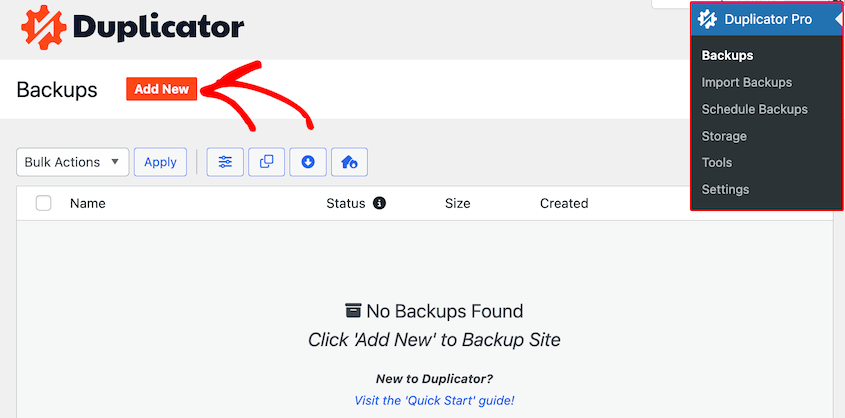
Duplicator is my favorite tool for this. Go to Duplicator Pro » Backups and click Add New.
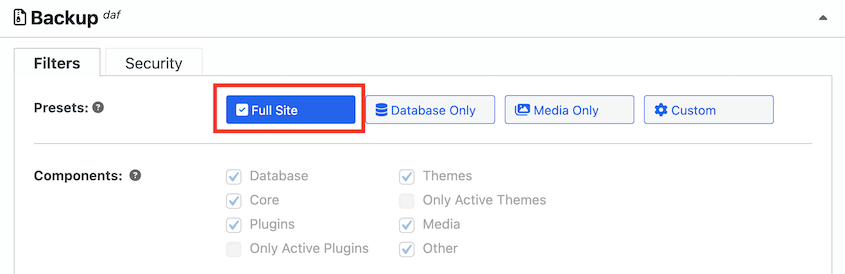
Choose the Full Site backup preset and select at least two storage locations (I like using Local and Duplicator Cloud).
You’ll finish with two files: the archive, which holds your compressed site and database, and the installer, which is the PHP script that puts everything back.
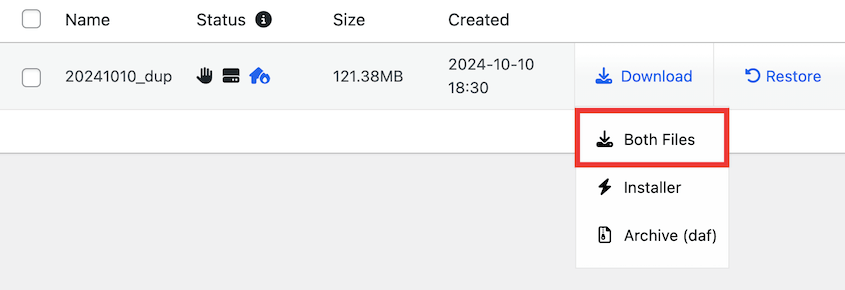
If anything goes wrong during the file restoration process, re-upload these files to your server and launch Duplicator’s installer.
If you’re not using Duplicator, take a manual backup. Here’s the bare minimum for this step:
- Download wp-content, wp-config.php, and .htaccess to your computer over FTP.
- Export your database from phpMyAdmin as a .sql file.
You’re ready to move on when you know where your backup lives and how you’d put it back.
Step 3: Match the WordPress Version You’re Restoring
Every tutorial on this topic tells you to download the latest version of WordPress. That’s fine advice if your site is already running the latest version. It’s a trap if it isn’t.
Say you’re two major releases behind. You drop the newest core files in, and you haven’t repaired anything yet. What you’ve done is force a major version upgrade plus a database schema change onto an unstable site, mid-emergency, with no testing.
Restore the version you’re on. Upgrade later, on purpose, once the site is healthy.
Here’s how to find your version number:
- From the dashboard: go to Dashboard » Updates. The version you’re running is stated at the top of the screen.
- Over FTP: open wp-includes/version.php and read the
$wp_versionline near the top of the file. This works when nothing else does. - Over SSH: run
wp core versionand it prints the number.
Now, download that exact build from the WordPress release archive instead of the main download page. The main page only serves the current release.
The WordPress core files download is a single zip containing wp-admin, wp-includes, wp-content, and the loose root files. Match the full version string, not just the major number. A point release apart is still a different set of files.
You’re ready for Step 4 when you have a WordPress zip on your computer that matches your site or a terminal open and waiting.
Step 4: Replace the Core Files
This is the step where the damaged files come out and clean ones go in. There are three ways to do it, and they all replace WordPress’s program files with verified copies from WordPress.org while leaving your content and settings untouched.
Which one you use comes down to the access you have:
- Method 1: The dashboard button. Use this if you can still log into WordPress. It’s the fastest by a wide margin.
- Method 2: WP-CLI. Use this if you have SSH. It’s the most precise, and it’s the only one that pins your version inside the same command.
- Method 3: Manual FTP. Use this when you have neither. It works on any host, and it has the most ways to go wrong.
Method 1: Use the Dashboard Re-install Button
If wp-admin still loads, start here. It’s the fastest way to reinstall WordPress core, and you won’t have to touch a single folder.
Go to Dashboard » Updates. When you’re already on the current version, WordPress says so and offers to reinstall that version for you, with a Re-install version X.X.X button.
Click it. WordPress will download the update, unpack the core update, verify the unpacked files, install the latest version, and upgrade the database. It closes with a success message on the same screen.
Know one limitation before you start. This reinstalls the version WordPress believes you should be on, so it can’t take you backward. If a bad update is what broke your site, this button won’t undo it.
It also overwrites files rather than deleting folders, and so does Method 2. Anything an attacker added inside wp-admin or wp-includes stays put. If you’re cleaning up a hack, use Method 3, or confirm afterward with a checksum pass that nothing extra is left.
Some hosts interrupt the process with a Connection Information dialog asking for FTP credentials. That’s a file ownership problem, and the troubleshooting section below covers the fix.
Method 2: Use WP-CLI
WP-CLI is what I reach for whenever I have terminal access. Connect over SSH, move into your WordPress directory, and run:
wp core download --version=$(wp core version) --force --skip-contentHere’s what each piece does:
--version=$(wp core version)reads the version your site is running and downloads that exact release.--forceoverwrites the existing files. Without it, WP-CLI refuses to touch a directory that already contains WordPress.--skip-contentleaves wp-content out of the download entirely, so your themes, plugins, and uploads never come near the overwrite.
Don’t reach for wp core install here, even though the name sounds right. That command runs the WordPress installation routine on a fresh site, and it’s the wrong tool for a site that already exists.
Before you press enter, know that --force doesn’t ask for confirmation. If anyone deliberately edited a core file on this site, that edit disappears the second the command runs. Usually that’s the whole point, but check with whoever built the site if you’re not certain.
Then confirm the result:
wp core verify-checksumsA clean pass means the file half of your problem is solved.
Method 3: Replace the Files Manually Over FTP
When you can’t reach the dashboard and don’t have SSH, you do the same job by hand: take the two core folders off the server and put fresh ones in their place.
None of the individual moves are difficult. The sequence is what protects the files you need to keep, so it’s worth following in order.
- Deactivate your plugins if you can still reach the dashboard. Skip it if you can’t. This is a precaution, not a requirement.
- Unzip the WordPress download on your computer. You’ll see wp-admin, wp-includes, wp-content, and a handful of loose files.
- Delete wp-admin and wp-includes on the server. Both folders, completely. Leave everything else exactly where it is.
- Upload the fresh wp-admin and wp-includes from your unzipped copy into the same location.
- Upload the loose root files from the new build and overwrite the old ones. Don’t delete your root folder first. You’d take wp-config.php and .htaccess down with it.
- Copy the files from inside the new wp-content into your existing wp-content. Copy into it. Never replace it.
- Confirm wp-config.php and .htaccess are still in your root. If either is missing, upload the copy you saved earlier.
Step 3 in that list is where people hesitate, because deleting feels riskier than overwriting. It’s the opposite.
Overwriting only replaces files that exist in both copies. Anything an attacker dropped inside wp-admin or wp-includes isn’t part of the official build, so nothing overwrites it, and it sails through your entire cleanup untouched. Deleting the folders first is what makes this a real fix rather than a cosmetic one.
Set your expectations on timing, too. wp-includes on its own runs past a thousand files, and FTP moves them one at a time. Twenty minutes is normal on a slow connection, and dropped transfers can happen.
If the upload continues to fail, send the zip to your server as a single file and extract it there with your host’s File Manager. One large transfer is far more reliable than a thousand small ones.
You’re through this step when your folder structure matches the fresh copy, wp-config.php is intact, and the site loads, even if it greets you with a database update prompt.
Step 5: Run the Database Upgrade and Clear the Leftovers
Your files are clean now, but WordPress may still be sitting in whatever state the failed update left behind. Three small cleanups finish the job.
Start by visiting /wp-admin. You may be asked to log in again, which is normal.
If WordPress detects that your database needs to catch up with the code, it shows a Database Update Required screen with an Update WordPress Database button. Click it and let it run.
Do this right away, because until you do, your site is running new code against an old schema.
Next, look in your root directory for a file called .maintenance and delete it if it’s there. WordPress creates that file at the start of an update and removes it when the update completes. When an update dies partway through, the file stays behind, and visitors see the maintenance message.
It’s a hidden file, so it won’t appear in your file listing until you switch hidden files on. In FileZilla, that’s Server » Force showing hidden files, and in most host file managers, it’s a Show hidden files checkbox in the settings.
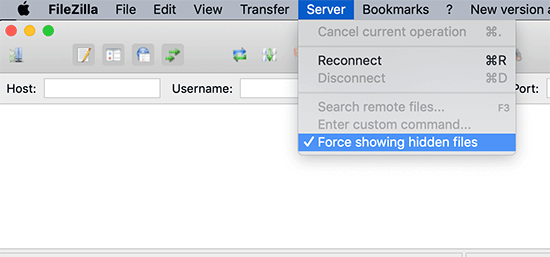
Then clear every cache you’ve got: your caching plugin, your host’s server cache, your CDN, and your own browser. Skip this, and you can burn 20 minutes debugging a page that was already fixed.
Reactivate your plugins if you turned them off during Method 3.
You’re finished here when the dashboard loads, the update prompt is gone, and your front end renders.
Step 6: Verify the Restore Worked
A site that loads isn’t the same as a site that’s fixed. Before you close the tab, run through this list.
Here’s what to check:
- Re-run
wp core verify-checksums. A clean pass is the only definitive proof that your core files match the official release. - Load your front end logged out in a private browsing window. Logged-in views hide caching problems and permission errors.
- Click through the pages that matter. Your homepage, a single post, a category archive, the login screen, and any form or checkout you depend on.
- Re-save your permalinks. Go to Settings » Permalinks and click Save Changes without changing a thing. That regenerates your rewrite rules, which is the usual reason posts start returning 404s after a file swap.
- Confirm your URLs. Under Settings » General, check that WordPress Address (URL) and Site Address (URL) read exactly what they did before.
- Read your error log. Anything new in there is worth dealing with now, while you still remember what you changed.
Then take one more backup. Your site is in a known-good state at this exact moment, which is the state worth capturing, and it’s a far more useful copy to keep than the emergency one you took in Step 2.
What If Replacing Core Files Doesn’t Fix the Problem?
Sometimes you work through all the steps, checksums come back clean, and the site is still wrong. When that happens, the damaged core files were a symptom rather than the cause.
Three scenarios account for most of these:
- The site was hacked. Replacing core files strips the injected code out of core files and nothing else. A backdoor in wp-content/uploads, a modified theme functions file, or something tucked into mu-plugins all survive it. The clearest tell is PHP files sitting in your uploads folder, where nothing but media should ever be.
- The database took damage too. Your files are fine, and your content isn’t. Spam links injected into the posts table, a rewritten siteurl in the options table, and unfamiliar admin accounts all outlive a core restore.
- Checksums pass and the site still errors. That points at a plugin, a theme, or a PHP version mismatch. Step 1 sent you down the right path; the core files were never the problem.
In all three cases, restoring the whole site from a backup you trust beats picking at it file by file. You stop guessing at what’s clean.
In Duplicator Pro, find a backup from before the trouble started, and restore it.
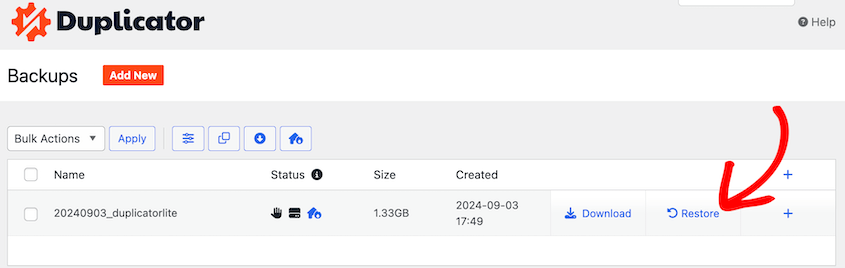
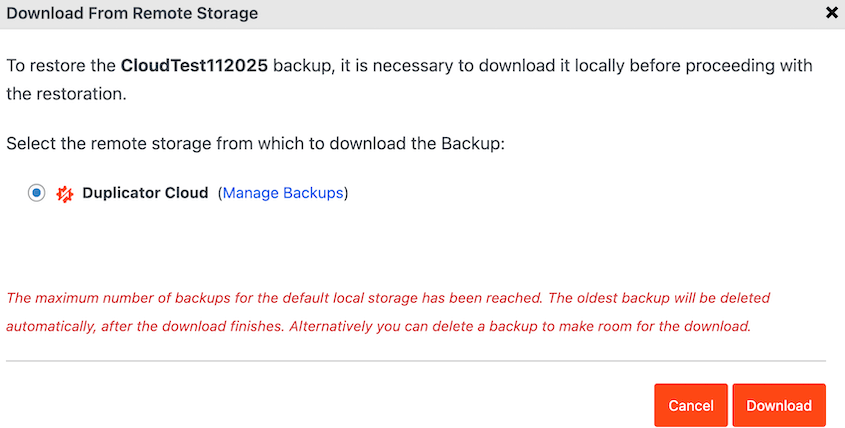
If that backup lives in Google Drive, Dropbox, or another connected storage location, you can restore straight from WordPress without downloading and re-uploading the archive first.
If WordPress won’t load at all, re-upload the backup you started with to your root directory. Launch Duplicator’s installer with a URL like: https://your-domain/installer.php
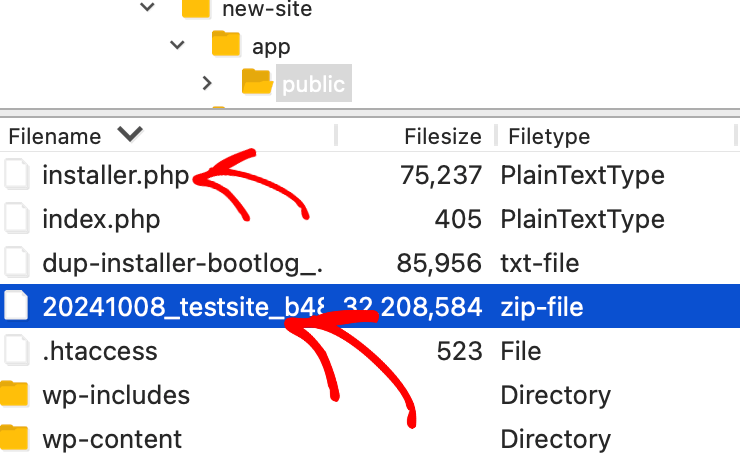
A restore returns your site to the moment that backup was taken, so anything published or ordered since then goes with it. On a compromised site, that’s usually the right call, because a partial cleanup that misses one backdoor puts you right back here in a week.
Duplicator doesn’t scan for or remove malware. It hands you a clean copy of a site that worked. Pair it with a security scanner if you’re dealing with an active infection.
Troubleshooting: Common Errors After Restoring Core Files
These are the failures that come up most often after a core file swap. Work from whichever symptom you’re looking at.
Why Does My Site Say “Briefly Unavailable for Scheduled Maintenance”?
You get a plain white page with a single line of text on it, and it won’t go away.
WordPress writes a file called .maintenance to your root directory when an update begins and deletes it when the update finishes. If the update died in between, that file is still sitting there, and WordPress has no way to know the job was never completed. WordPress stops honoring the file after 10 minutes, but a failed update can leave your site half-updated in the meantime.
Delete .maintenance from your root directory over FTP with hidden files switched on. Over SSH, wp maintenance-mode deactivate does the same thing. Your site returns the moment the file is gone.
Why Am I Being Asked for FTP Connection Information?
You click Re-install version X.X.X and WordPress opens a Connection Information dialog asking for a hostname, username, and password. This is a file ownership issue.
WordPress writes files directly only when they’re owned by the same user the web server runs. When they aren’t, it asks for FTP credentials so it can write them another way.
Enter the credentials for the FTP account that owns your WordPress files, and it’ll continue. If you don’t have those, ask your host to correct the ownership, which is the real fix.
You’ll also find advice online about adding define('FS_METHOD', 'direct'); to wp-config.php. It sometimes works, but it routes around the symptom, and it can fail later in ways that are harder to diagnose than the dialog.
Why Do I Get a White Screen After Replacing Core Files?
Nothing loads at all, front end or admin, and there’s no error text to work from. Three causes cover nearly all of these: an FTP transfer that finished incompletely, file permissions that came out wrong during upload, or a PHP fatal error that’s being suppressed.
Re-upload wp-includes first, since it’s the biggest folder and the likeliest to have dropped files. Then check your permissions, which should be 644 for files and 755 for folders.
If the screen is still blank, add define('WP_DEBUG', true); and define('WP_DEBUG_LOG', true); to wp-config.php and read wp-content/debug.log. That turns a white screen into a file name and a line number.
Why Do Checksums Still Fail After a Clean Reinstall?
You’ve replaced everything, and wp core verify-checksums is still throwing warnings. It’s usually one of three things: readme.html is flagged because your host modifies or removes it, the command picked the wrong language for your install, or something in those folders genuinely doesn’t belong there.
If every file is flagged, re-run it with your locale (wp core verify-checksums --locale=fr_FR, for example) and see what’s left standing. A “File should not exist” warning means something extra is sitting inside a core folder, and overwriting won’t remove it. Delete wp-admin and wp-includes outright and upload fresh copies, which is the difference Method 3 makes.
Why Does WordPress Say an Update Is Already in Progress?
You try to reinstall and get told “Another update is currently in progress.” WordPress sets a lock in your options table when a core update starts, so two updates can’t run at the same time. A crashed update leaves that lock behind with nothing to clear it.
The lock expires on its own after 15 minutes, so waiting costs you nothing but time. To clear it now, run wp option delete core_updater.lock, or open your options table in phpMyAdmin, find the core_updater.lock row, and delete it.
Nothing Is Working: What Now?
You’ve worked the list, and the site is still down. At this point, stop repairing and start restoring.
Go back to the backup you took in Step 2. If you can still reach the dashboard, run a one-click restore from Duplicator Pro » Backups. If you can’t, re-upload the archive and installer to your root directory and launch the installer in your browser, which works with no functioning WordPress install behind it.
If you don’t have a backup, contact your host and ask about a server-side snapshot. Most hosts keep daily backups on a rolling window even on shared plans, and support can restore one for you.
Frequently Asked Questions (FAQs)
Will restoring WordPress core files delete my posts and pages?
No. Your posts, pages, comments, and settings live in your database, and your media, themes, and plugins live in wp-content. Restoring core files replaces wp-admin, wp-includes, and the loose PHP files in your root directory. None of those hold your content. The only way to lose anything is by deleting wp-content accidentally.
Do I need a backup before I replace core files?
Yes, and not because the process itself is risky. It’s because a dropped FTP transfer or one mistyped delete leaves you with a site that can’t run at all. A backup taken minutes earlier turns that into a five-minute restore instead of a rebuild. Back up your files and the database together, and keep a copy off-site.
Can I restore core files without FTP or SSH access?
You can, as long as you have one of two things: a working WordPress login or your host’s File Manager. With a login, use Dashboard » Updates and the Re-install version X.X.X button. With File Manager, upload the WordPress zip, extract it on the server, and swap the folders there. File Manager is often quicker than FTP anyway.
What’s the difference between reinstalling WordPress and restoring core files?
When you reinstall WordPress core, you replace only its program files, and your site stays intact. Reinstalling WordPress from scratch means a fresh installation, which starts you over with an empty site.
Should I use wp core install to restore my core files?
No. wp core install runs the WordPress installation routine, which creates database tables and configures a brand new site. On an existing site, it’s the wrong tool. WP-CLI sees that WordPress is already installed and stops without changing anything. To replace core files with WP-CLI, run wp core download with the --force and --skip-content flags, then confirm the result with wp core verify-checksums.
Which WordPress version should I download to restore my core files?
The version your site is already running, matched exactly, point release included. Downloading the newest release forces an unplanned version upgrade and a database schema change onto a site that’s already broken. Find your version under Dashboard » Updates or in wp-includes/version.php, then pull that build from the WordPress.org release archive.
Does replacing core files remove malware from a hacked site?
Only partly. It clears code injected into legitimate core files, which is real progress. It doesn’t touch backdoors in wp-content/uploads, modified theme files, malicious mu-plugins, or injected rows in your database. Deleting wp-admin and wp-includes before uploading fresh copies does remove attacker-added files inside them, but a full cleanup needs a security scan or a restore from a clean backup.
How do I restore core files on WordPress Multisite?
The same way you would on a single site. Core files sit in one place across a network, so replacing wp-admin, wp-includes, and the root files covers every site at once. Afterward, run the network database upgrade under Network Admin » Dashboard » Upgrade Network. Multisite backups and restores are supported on Duplicator’s Pro plan and above.
Clean Core Files Are the Baseline: Here’s What to Do Next
You’ve replaced WordPress’s program files with verified copies and confirmed it with a checksum pass. That pass matters more than the site simply loading again. A site can load perfectly well with a modified core file quietly running someone else’s code on every request, which is why the diagnostic step came before anything else.
Three habits keep you out of this from here.
- Put your backups on a schedule instead of taking them when you happen to remember.
- Take a fresh backup after every successful update, so your most recent known-good state is never more than one restore away.
- Run
wp core verify-checksumsas a routine monthly check rather than an emergency measure, because a modified core file you catch during a health check is a far smaller problem than one you discover when the site goes down.
One more thing worth doing while you’re already in wp-config.php. Add define('DISALLOW_FILE_EDIT', true); to switch off the built-in theme and plugin editors, which closes the easiest path for anyone with admin access to change a file from inside the dashboard. Then add a small .htaccess file to wp-content/uploads that blocks PHP from running there:
<Files *.php>

Require all denied

</Files>
That second one is Apache 2.4 syntax, so on nginx you’ll want the equivalent location block in your server config. Together they shut the two doors that put most people in this position to begin with, and neither takes longer than a minute.
Stop Repairing WordPress Sites by Hand
Replacing core files manually works. It also costs you an afternoon, and it only helps if you catch the problem before it spreads. A recent backup and a one-click restore turn that long debugging session into two minutes.
Duplicator Pro is what more than 1.5 million active users rely on for scheduled backups, one-click restores straight from cloud storage, and a disaster recovery URL that still works when WordPress won’t load. Every paid plan comes with a 14-day no-questions-asked refund.
If this tutorial helped, these guides are worth bookmarking too.
- How to Restore WordPress From a Backup (In Less Than 5 Minutes)
- How to Manually Restore Your WordPress Site
- How to Restore a Website With Only a Database Backup
- How to Downgrade Your WordPress Version and Revert Bad Updates
- How to Restore Your WordPress Site from a Google Cloud Backup
- How to Restore a WordPress Site to a Previous Date Without a Backup




