
How Long Does a WordPress Restore Take? I Timed It on 3 Setups
 Joella Dunn
 John Turner
Your site’s down, and someone wants to know when it’ll be back.
Maybe it’s a client. Maybe it’s your boss. Or maybe it’s you, looking at a blank screen after a plugin update.
So you search for how long a WordPress restore takes. The answer you’ll find is “a few minutes to a few hours.” That’s a wide window when you’re the one who has to give an answer.
I wanted a real number. So I built test sites, broke a few of them on purpose, and timed 10 restores. The sites ranged from a 144 MB starter site to a 10 GB site packed with images. They ran on budget shared hosting, a managed WordPress plan, and a local server.
The restore turned out to be the fast part. None took longer than 4 minutes.
In this post, I’ll show you how long each restore took, where the rest of the downtime comes from, and what to set up now so your next restore is fast.
Table of Contents
- Key Results
- How Long Does a WordPress Restore Take?
- How I Tested WordPress Restores
- What Did the Restore Times Show?
- Why Is Your Real Downtime Longer Than the Restore?
- What Makes a WordPress Restore Slower?
- How Can You Make Your Next Restore Faster?
- How Long Should You Promise Clients a Restore Will Take?
- Frequently Asked Questions (FAQs)
- The Restore Is the Fast Part
- Know Your Recovery Time Before You Need It
Key Results
Here’s how long my test WordPress restores took, and what it means for your own site:
- Every restore finished in under 4 minutes. That includes a 10 GB backup with more than 220,000 files, which took about 3.5 minutes.
- A small site on budget shared hosting restored in under a minute. From a broken site, the recovery URL had it back in under 30 seconds.
- Three times the data didn’t mean three times the wait. The 10 GB backup took less than twice as long as the 3.3 GB one.
- Your server can matter as much as your backup size. My 209 MB personal site on a managed plan took almost as long as a 3.3 GB site on my computer.
- No restore method was clearly the fastest. Duplicator’s one-click restores from wp-admin, remote cloud restores, and recovery URL times landed within seconds of each other on most sites.
- Most downtime happens before the restore starts. Noticing the outage and choosing a backup can take hours if nobody’s watching.
- A recovery URL only helps if you set it up first. It needs a complete, unfiltered local backup chosen as your recovery point beforehand.
- Practice is how you get a real number. One test restore on a staging site tells you more about your site than any benchmark.
How Long Does a WordPress Restore Take?
In my tests, I wanted to see how long it took for Duplicator to restore different websites. I timed three restore methods for four sites.
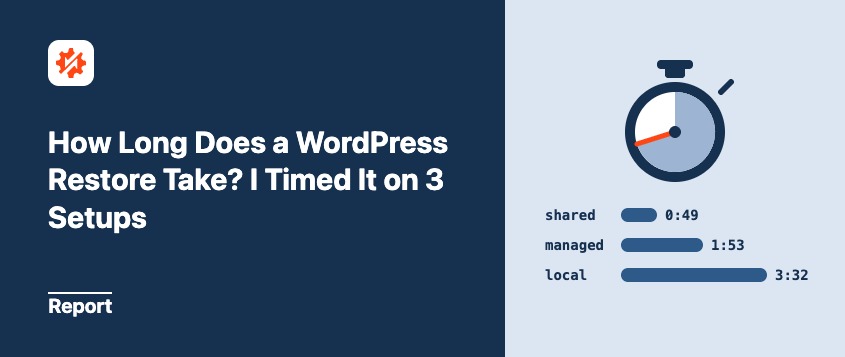
A small site on shared hosting restored in under a minute, and a 10 GB site took about 3.5 minutes. Every restore I ran, across three setups and three restore methods, finished in under 4 minutes.
Here’s every run, in minutes and seconds:
| Site | Backup size | One-click Restore | Cloud restore | Recovery URL |
|---|---|---|---|---|
| Small site, shared hosting | 144 MB | 0:49 | 0:40 | 0:26 |
| Real site, managed WordPress hosting | 209 MB | 1:53 | 2:14 | 1:48 |
| Medium site, local install | 3.3 GB | 2:07 | Not tested | 2:39 |
| Large site, local install | 10 GB | 3:32 | Not tested | 3:30 |
The two cloud restores used different methods. The 144 MB restore ran from Duplicator restoring a cloud backup in wp-admin, and the 209 MB restore used the Duplicator Cloud recovery connector.
On the same server, backup size affected restore time the most. Across different hosts, the server mattered as much as the size.
These are restore times, not downtime. The difference between the two is where most of your waiting happens, and I’ll get to that below.
How I Tested WordPress Restores
Restore time only means something if you know what was restored and where. So here’s exactly what I set up.
The Test Sites
I used four sites. Two were real WordPress installs I already had. The other two were one local install that I padded to two sizes:
| Site | Backup size | Files | Database |
|---|---|---|---|
| Small (shared hosting) | 144 MB | 23,114 | 4 MB |
| Real site (managed hosting) | 209 MB | 28,380 | 60 MB |
| Medium (local) | 3.3 GB | 173,971 | 171 MB |
| Large (local) | 10 GB | 224,049 | 513 MB |
To build the medium and large sites, I uploaded photo-sized images through the Media Library so WordPress created every thumbnail size. That gave the sites realistic file counts instead of a few giant files. I also generated long posts to grow the database.
The real site is a personal blog. It’s not padded, and it has 14 plugins and a few years of content.
The Setups
I tested on three different setups:
- A budget shared hosting plan running PHP 8.3 with a 512 MB memory limit.
- A managed WordPress hosting plan running PHP 8.2 with a 256 MB memory limit.
- A local install running PHP 8.4. It has no other sites competing for resources and no hosting limits, so treat these times as a best case.
The Timer
I started the timer when I clicked Restore (or loaded the recovery URL). I stopped it when the installer said the restore was finished. For the remote cloud restores, that total includes downloading the backup.
A separate timer covered getting back to normal after the restore.
What These Numbers Can’t Tell You
I ran each restore once and recorded the time of day. Restores on shared hosting can run slower when the server is busy, so a second run could take more or less time.
There are other limits too. I tested one plan per hosting category, over my home internet connection. I didn’t record how long each stage of the restore took, so I can’t say whether the files or the database took longer.
The budget plan, the managed plan, and my local server also each ran different sites. That means I can’t give you a clean “host A versus host B” comparison.
I skipped the cloud restores on the local sites because uploading several gigabytes from my home connection would’ve taken far longer than the restore itself.
These results are a benchmark, not a promise. Your server will differ.
What Did the Restore Times Show?
Every run succeeded on the first try. Each restore method lands in the same few-minute range, and the gaps between them are smaller than I expected.
One-Click Restore From wp-admin
This is the path when WordPress still loads and the backup is stored on your server. You pick a backup on the Backups screen and click Restore. It’s in both Duplicator Lite and Pro.
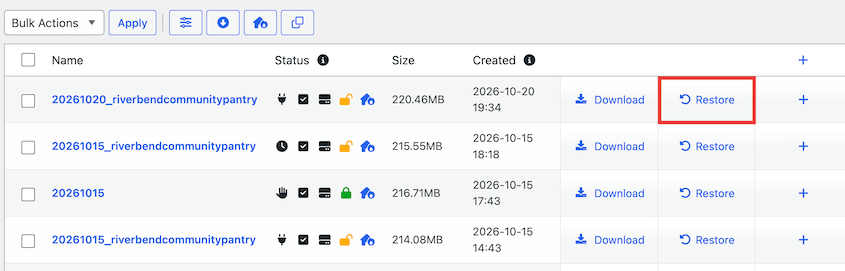
My times ran from under a minute on the small site to about 3.5 minutes on the 10 GB site.
The scaling surprised me. The large backup holds about three times the data of the medium one, but it took less than twice as long (3.5 minutes vs about 2).
How Long Does Restoring From Duplicator Cloud Take?
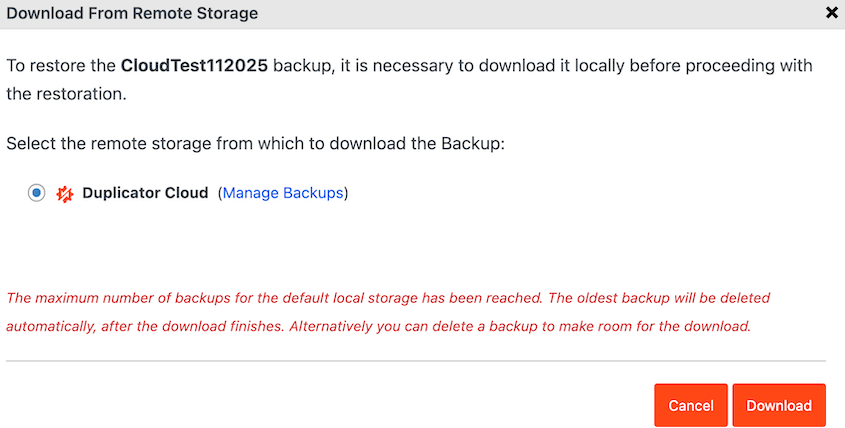
Restoring from Duplicator Cloud adds a step: the backup has to be downloaded before it can be restored. This is the path you need when the copy on your server is gone, or the whole server was wiped.
On the small site, I restored from Duplicator Cloud inside wp-admin. It took 40 seconds, which was faster than the local one-click restore on the same site. A 144 MB download clearly wasn’t the bottleneck.
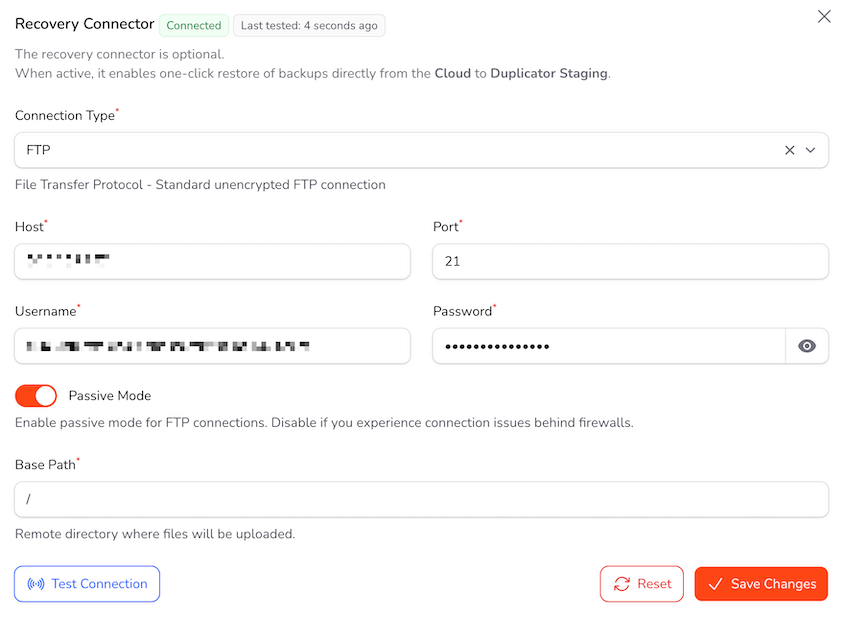
On my personal site, I used the cloud recovery connector instead. It runs the restore from the Duplicator Cloud dashboard over SFTP, so WordPress doesn’t need to be working. It took about 20 seconds longer than restoring the local copy.
Restoring When You Can’t Get Into wp-admin
For these runs, I broke each site deliberately first. I added a fatal error to a theme or plugin file, so the front end and wp-admin both went down. Then I restored with Duplicator’s disaster recovery URL.
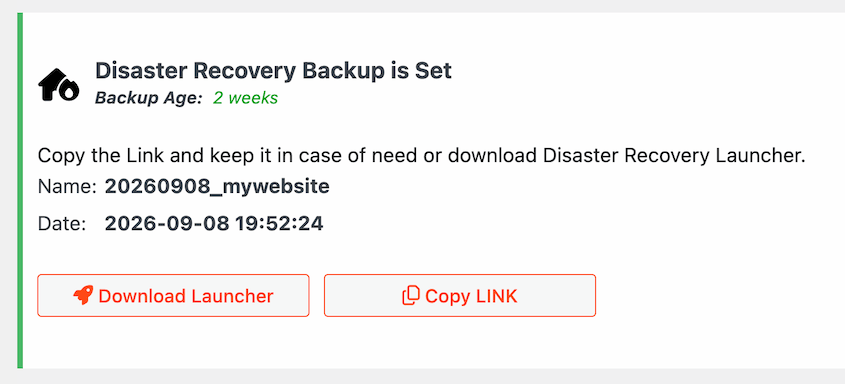
The recovery URL opens the restore wizard in any browser, even when WordPress won’t load. It’s a Duplicator Pro feature.
It only works if you set a recovery point beforehand, and that backup has to be complete, unfiltered, and stored locally on the server.
On the small site, the recovery URL beat the one-click restore by more than 20 seconds. On the medium site, it was about 30 seconds slower.
On the other two, the difference was a few seconds. With one run each, I wouldn’t call either method faster.
Why Is Your Real Downtime Longer Than the Restore?
The restore progress bar measures one stage. Your site is down from the moment it breaks until you’ve confirmed it works again, and that clock has five stages:
- Notice: Someone realizes the site is down.
- Decide: You pick which backup to restore.
- Retrieve: The backup gets onto the server.
- Restore: The installer unpacks the backup.
- Verify: You check that everything works.
I measured the last three. The first two depend on you, and they’re usually the longest.
How Long Until You Notice the Site Is Down?
A broken site could stay down until someone checks. That could mean hours of downtime before the restore even starts, and no backup plugin can shorten it.
An uptime monitor can. It checks your site every few minutes and alerts you when it stops responding. That helps you notice and troubleshoot downtime before it affects real visitors.
Which Backup Should You Restore?
Picking a backup is quick when you know what broke and when. It’s slow when you don’t.
If you restore a backup from after the problem started, you’ll restore twice.
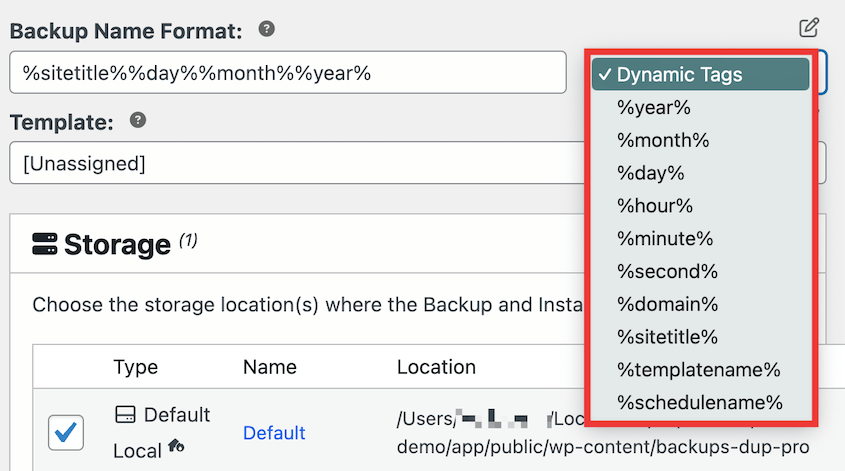
Clear backup names and dates help here. Duplicator uses dynamic backup tags to differentiate backups.
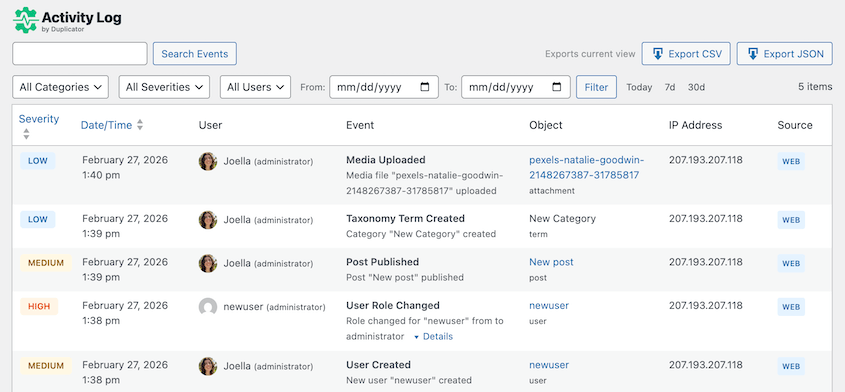
The Activity Log plugin can show you what changed on your site and when, which makes the right backup easier to spot. It’s included free with the Duplicator Elite plan.
Getting the Backup Back Onto the Server
This stage depends on where your backup lives. A local backup is already on the server, so there’s nothing to move.
A cloud backup has to come back down first. In my tests, the 209 MB recovery connector restore took about 20 seconds longer than restoring the local copy.
The small site’s cloud restore was faster than its local one, though, so with one run each, I can’t say how much of that gap was the download. If you’re uploading the backup yourself, your own upload speed sets the pace.
That’s the case for keeping both. The local copy restores fastest, and the off-site copy survives if the server is wiped.
Checking That Everything Works
After my personal site’s cloud restore, I timed the cleanup. Logging back in, purging the managed host’s cache, and checking posts took only 36 seconds.
That’s the minimum. On a real recovery, also resave your permalinks (Settings » Permalinks » Save Changes) and test your forms and checkout. If you use a CDN, clear its cache too.
Nothing needed fixing after any of my restores. The sites came back exactly as they were in the backup. If you use a different restore method (like a manual restore), you could end up spending more time fixing issues.
What Makes a WordPress Restore Slower?
The factors below explain why certain WordPress restores take more time:
- Total size and file count. The 10 GB backup with 224,049 files took the longest. Every thumbnail size WordPress creates is another file to extract. Check both numbers in Duplicator’s scan before you build a backup.
- Database size. Large log, analytics, and translation tables all have to be rebuilt row by row. Look at the Database section of Duplicator’s scan to see what’s taking up space.
- Restoring to a different domain. A restore to the same site keeps the URLs it already has. Moving a site to a new domain means every stored URL gets rewritten, which adds time on large databases.
- Host limits. Your PHP time limit, memory limit, and storage speed all play a part, and budget plans have the tightest ones. Find yours under Tools » Site Health » Info » Server, or in Duplicator’s scan.
- Download and upload speed. This only matters for cloud restores and manual uploads. A local backup skips it.
How Can You Make Your Next Restore Faster?
Everything that shortens a recovery happens before anything breaks. Once your site’s down, you’re working with whatever you set up in advance.
Here are the four things I’d set up now:
- Set a recovery point and save the URL off the site, so you can restore even when wp-admin won’t load.
- Keep one local copy and one off-site copy, so you have both the fastest restore and one that survives a wiped server.
- Trim what doesn’t need restoring, so every backup is smaller and restores sooner.
- Practice the restore on a staging site, so your first restore isn’t during an emergency.
Set a Recovery Point and Save the URL Off the Site
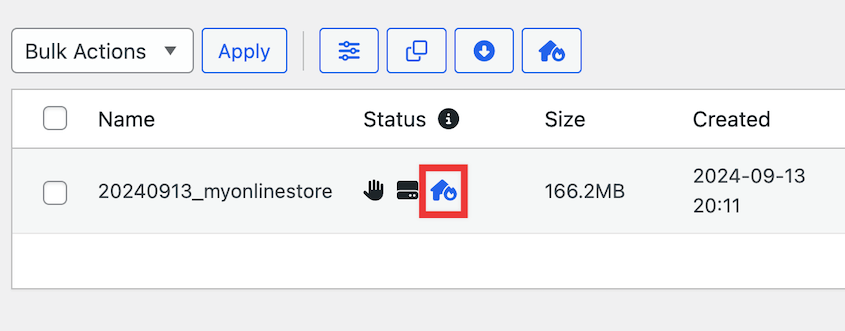
A recovery point is the backup Duplicator Pro restores from the recovery URL. Create a full-site backup and store it locally. Then, click on the house icon to set disaster recovery.
Copy the recovery URL or download the launcher file.
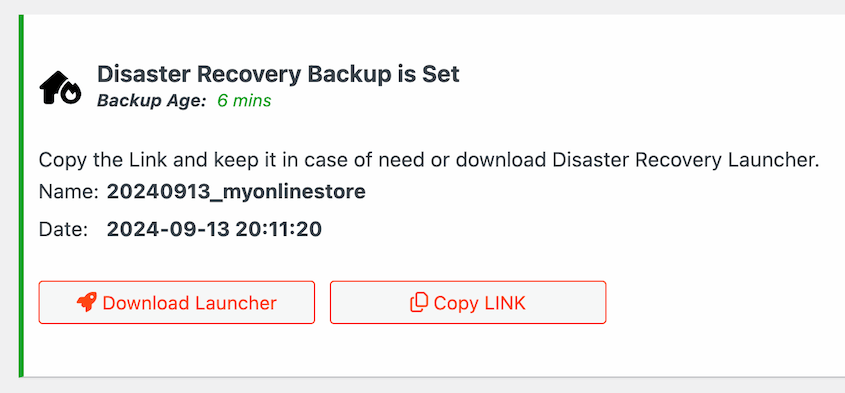
Save these restore methods somewhere that doesn’t depend on your site. The URL is useless if the only copy is inside the wp-admin you can’t reach.
Whenever your site goes down, find this recovery URL and paste it into a browser window. Or, open the recovery launcher file.
Keep One Local Copy and One Off-Site Copy
The local copy is your fastest restore. The off-site copy is the one that survives a wiped server or a hosting account you can’t get into.
Duplicator Pro can send each backup to both in one go. Our 3-2-1 backup rule guide covers how many copies to keep and where.
Trim What Doesn’t Need Restoring
Smaller backups restore faster. Post revisions, expired transients, and unused image sizes add bulk to every backup without adding anything you’d miss.
WP Media Cleanup removes image variations your site doesn’t use. DB Optimizer cleans up unnecessary data from your database. Get both free with Duplicator Pro or Elite plans!
Practice the Restore on a Staging Site
The worst time to run your first restore is during an emergency. With Duplicator Pro, you can turn a backup into a staging site and restore it there first. You’ll learn the steps and get a real time for that site.
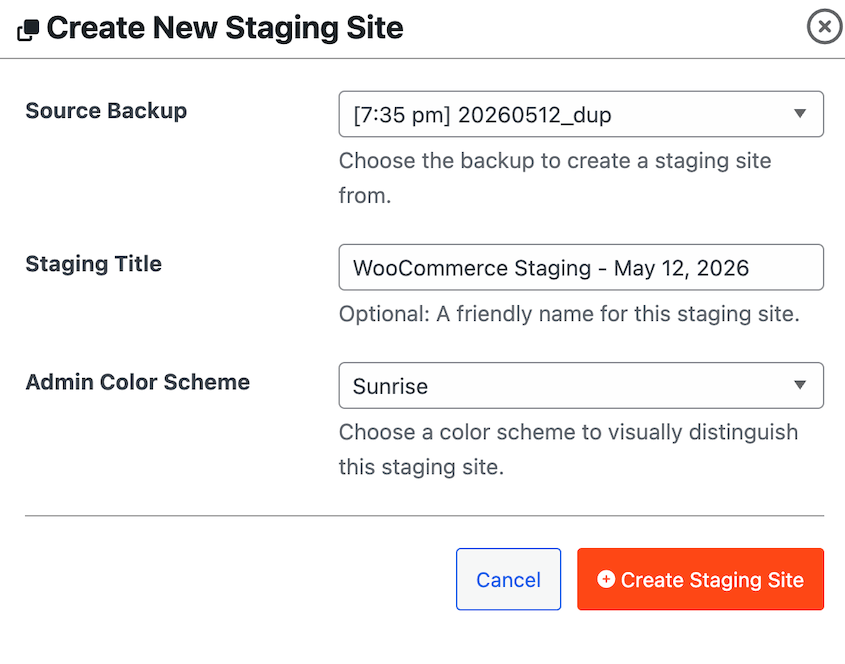
Our guide to backup testing walks through the routine I use.
How Long Should You Promise Clients a Restore Will Take?
If you manage client sites, someone will ask “when will it be back?” in the middle of an incident. It’s easier to answer that before it happens.
Two numbers matter (in IT terms, your RTO and RPO).
Recovery time is how long until the site is back. My results cover the restore itself, which took a few minutes for most sites. Add time for noticing the problem and checking the site, then promise a window you can achieve at 11 p.m. as well as midday.
Recovery point is how much data you’d lose, which is everything since your last backup. With Duplicator Pro, hourly incremental backups mean you’re never more than an hour behind.
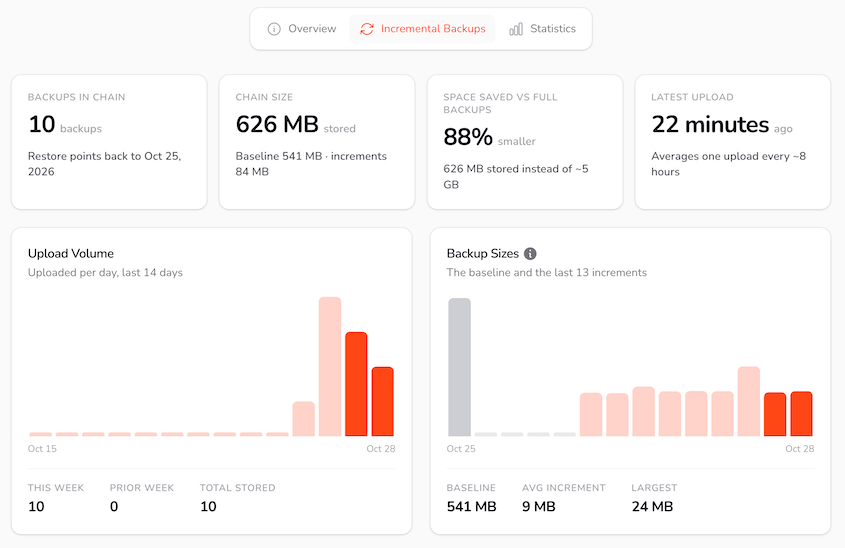
One habit makes this easier. Time a practice restore for each client site once a year and write the number in their file. Then your promise is based on their site, not mine.
Frequently Asked Questions (FAQs)
How long does it take to restore a WordPress site from a backup?
In my tests, it took under a minute for a 144 MB site on shared hosting and about 3.5 minutes for a 10 GB site. Your time depends on backup size, file count, database size, and your server. Total downtime runs longer, because noticing the problem and checking the site afterward adds to the clock.
Why is my WordPress restore taking so long?
The usual causes are a large backup with many files, a big database, and tight hosting limits on PHP time or memory. Cloud and manual restores also depend on download or upload speed. Check your site’s size and file count in Duplicator’s scan, and your PHP limits under Tools » Site Health » Info » Server.
Will my site be offline during a restore?
Yes. While files and the database are being replaced, visitors may see errors or an incomplete site. In my tests, that window lasted from under 30 seconds to about 3.5 minutes. Plan restores for a quiet time when you can.
Is restoring a site faster than migrating it?
People often assume they’re completely different jobs. They use the same restore process. The main difference is that a migration to a new domain has to rewrite every stored URL in the database. A same-domain restore skips most of that, so it usually finishes sooner. I didn’t time a migration, so I can’t put a number on the gap.
Can I restore WordPress if I can’t log in to wp-admin?
Yes. With Duplicator Pro, you can load the Disaster Recovery URL in any browser, as long as you set a recovery point beforehand. With a Duplicator Cloud plan, a recovery connector can run the restore from the Cloud dashboard. On Lite, you can also upload the backup’s archive and installer to the server and run the installer yourself.
Does a bigger backup always take longer to restore?
In my tests on the same machine, yes, though not in proportion. My 10 GB backup took less than twice as long as my 3.3 GB one. Across different hosts, size matters less, because your server’s limits and speed can matter just as much.
The Restore Is the Fast Part
Every restore I timed finished in under 4 minutes. Once a restore starts, it’s quick and predictable. The downtime that hurts happens around it, while nobody’s noticed yet or you’re deciding which backup to trust.
Your numbers won’t match mine exactly. A large site on a tight shared plan will run slower than anything here. The only way to know your own restore time is to run one when nothing’s on fire.
One last tip: save your recovery URL and your hosting login in the same password manager entry. During an outage, one search gives you both, and you won’t be hunting for the second one with your site down.
Know Your Recovery Time Before You Need It
A restore you’ve already practiced is a restore you can promise. Duplicator Pro gives you one-click restores, cloud backups, and a recovery URL that works when wp-admin doesn’t.
More than 1.5 million WordPress professionals use Duplicator Pro to back up and restore their sites. Join them to set up automatic backups, disaster recovery, and secure cloud storage for your site!
If this post got you thinking about restores, these guides are worth reading next:
- Backup Testing: My Real Routine to Avoid Useless WordPress Backups
- How to Manually Restore Your WordPress Site
- Site Just Crashed? Here’s Your Complete Website Recovery Plan
- How to Restore a WordPress Site to a Previous Date Without a Backup
- The 3-2-1 Backup Rule Explained: What It Is and What’s Changed in 2026