
30 AI Prompts to Manage Your WordPress Backups
 Joella Dunn
 John Turner
Connecting an AI assistant to your WordPress site only takes a few minutes. Then you’re looking at an empty chat box, and it’s not obvious what to do.
Working with AI in WordPress is new, and you might not know how to use it. So, I’ve put together the prompts I’d hand anyone starting out.
There are 30 of them, grouped by the job you’re trying to get done.
Copy them as they are, or change the names and times to fit your site.
Table of Contents
- What You Need Before You Start
- How to Use These Prompts
- 30 Prompts to Manage Your WordPress Backups
- Troubleshooting AI Backup Problems
- Frequently Asked Questions (FAQs)
What You Need Before You Start
These prompts work through Duplicator’s AI abilities. Duplicator makes these actions available to any assistant you connect to your site.
Here’s what you need in place first:
- WordPress 6.9 or newer. That version added the Abilities API these prompts run on.
- Duplicator 5.2 or newer. Lite can create backups with AI, but you’ll need Duplicator Pro for scheduling, template creation, cloud storage, etc.
- An AI assistant connected to your site. WPVibe is a free plugin that connects Claude, ChatGPT, Cursor, and more. Our guide on how to back up WordPress with AI agents walks you through connecting it.
- At least one storage location set up in Duplicator » Storage. Your assistant can test and use your storage, but it can’t connect new storage or see your storage passwords.
- An administrator account. Each ability checks your Duplicator permissions before it runs.
How to Use These Prompts
Every AI prompt in this list follows the same three steps:
- Step 1: Copy the prompt and add your details. Swap in your own schedule names, times, and storage so the assistant acts on the right thing.
- Step 2: Read the reply before you send the next request. The assistant reports what it did and anything it refused, which tells you whether to adjust.
- Step 3: Check the result in wp-admin the first time. One look confirms the assistant set things up the way you meant.
Step 1: Copy the Prompt and Add Your Details
Anything in brackets is a placeholder. Replace it with your own schedule name, backup name, or storage.
You don’t need to know the ability names. Plain language works, and the assistant picks the right action.
Step 2: Read the Reply Before You Send the Next Request
Your assistant tells you what it did. Expect IDs, next run times, and file sizes.
When something can’t run, it usually says why.
In my testing, I asked for a schedule that ran every three hours. The assistant came back with “run_every 3 is not valid for a hourly schedule,” which told me exactly what to change.
Step 3: Check the Result in wp-admin the First Time
The first time you use a prompt, open the matching Duplicator screen in wp-admin and check it.
Backups show up in Duplicator » Backups, schedules in Duplicator » Schedule Backups, and templates in Duplicator » Templates.
After that, you can trust the reply.
To see everything your assistant can do on your site, go to Duplicator » Tools » AI.
30 Prompts to Manage Your WordPress Backups
Now you’re ready to use AI to do WordPress maintenance! Copy and paste these prompts to do a desired action on your website.
Check Your Backup Status
Start here on any site you’ve just connected, inherited from another developer, or haven’t looked at in a while. These prompts only read information, so they’re safe to send anytime.
1. Is My Site Backed Up?
Is my site backed up?This is the best first prompt on any site. Your assistant checks for a complete backup from the last 7 days that has a finished copy on remote storage.
You’ll get a one-line answer, like Protected: the last backup with a remote copy was 3 minutes ago, on Duplicator Cloud.
If your site isn’t protected, the reply tells you why. Maybe your recent backups are only on your server, you haven’t set up remote storage, or your last off-site copy is more than a week old.
Local backups show up in that answer, but they don’t count as protection on their own. If your server fails, a backup stored on it goes down with it.
2. Give Me an Overview of My Backup Setup
Give me an overview of my Duplicator setup: versions, last backup, storage, and when the next schedule runs.You get your Duplicator, WordPress, PHP, and database versions in one reply. It also covers your last backup, how many storage locations you have, and when the next scheduled backup runs.
I use this one when I’m handed a client site and want the full picture before I change anything.
3. List My Recent Backups
List my 10 most recent backups with their status and size.Your assistant returns each backup’s name, status, date, and size. It’s a quick way to spot a failed backup or one that’s much bigger than usual.
Create Backups When You Need Them
These are the requests you’ll reach for before plugin updates, theme changes, or anything else you might want to undo.
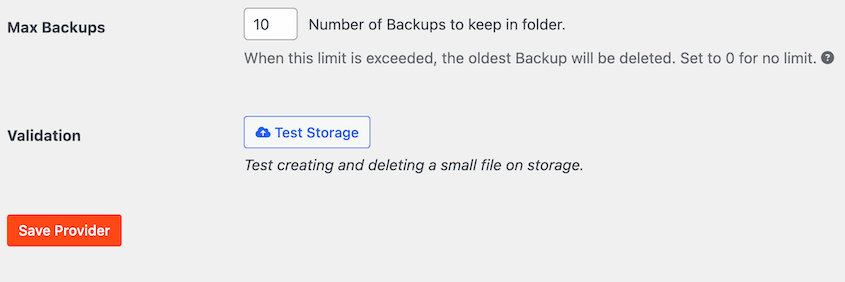
Before you use them, there’s one thing to know. When a new backup finishes, Duplicator applies your storage’s retention setting. That’s the number of backups each storage keeps. If you’re at the limit, the oldest backup is removed to make room.
That’s normal and keeps your storage from filling up. Check the Max Backups setting in Duplicator » Storage so you know what to expect.
4. Back Up My Whole Site Now
Back up my whole site now. Use the reason: before the theme update.Your assistant starts a full backup and reports back when it’s done. In my test, a 220 MB site took about 39 seconds.
The reason is optional, but I’d always add one. It’s saved with the backup in Duplicator’s log next to “AI Assistant,” so you can tell later why each backup exists.
5. Back Up Just the Database Now
Back up just the database now.A database-only backup is small and fast. It’s a good fit before content changes, settings changes, or a form plugin update, when your files won’t change.
6. Create a Backup From a Template
Create a backup from my [Client Standard] template.A plain “back up my site” request uses your default template and ignores its file and table filters. So if you’ve set up a template that excludes cache folders or log files, ask for it by name.
This prompt applies the template’s exclusions. You’ll find how to build that template in prompt 13.
7. Cancel the Backup That’s Running
Cancel the backup that's running now.Use this when you’ve started a backup by mistake, or one has been stuck at the same percentage for a while. It also works on a backup that’s still transferring to storage.
Set Up and Manage Backup Schedules
AI backup schedules can save you a lot of configuration time. Setting one up in wp-admin means choosing a template, a storage location, a frequency, and a start time across a few screens.
With your assistant, it’s one sentence.
8. Set Up a Daily Backup Schedule
Back up my whole site every day at 2 AM and send it to Duplicator Cloud. Turn the schedule on.Your assistant creates the schedule and tells you when it’ll run next.
New schedules stay off until you ask for them to be turned on, so nothing runs before you’re ready.
9. Change How Often a Schedule Runs
Change my [daily] schedule to run weekly on Sundays at 3 AM.Only the details you mention change. Everything else about the schedule stays the same.
10. Copy a Schedule With a Few Changes
Copy my daily Duplicator Cloud schedule. Make the copy run weekly and send it to Google Drive.This is handy when you want a second copy of your backups somewhere else. You keep the daily Duplicator Cloud backups and add a weekly copy in Google Drive.
It’s an easy way to follow the 3-2-1 rule without building the second schedule from scratch.
11. Run a Schedule Now
Run my [nightly] schedule now.The backup starts right away, using the schedule’s template and storage. It’s a quick way to test a new schedule without waiting until the right time.
12. Pause a Schedule
Pause my [weekly] schedule.Your assistant turns the schedule off without deleting it. When you’re ready, ask it to turn the schedule back on.
I’d pause a schedule during a website migration, so a backup doesn’t start halfway through.
Build Backups the Same Way on Every Site
If you manage client sites, you probably already know how you like backups to work on all of them. Backup templates let you save that setup once and reuse it, and your assistant can handle the setup.
13. Create a Backup Template
Create a template called Client Standard that leaves out .log and .tmp files and the wp-content/cache folder.You can leave out file types, folders, or specific database tables. Your assistant creates the template and confirms the exclusions.
14. Copy a Template as a Database-Only Version
Copy my Client Standard template as a database-only version called Client DB Only.Now you have two versions of the same setup. Use the full one for scheduled backups and the database-only one for quick backups before updates.
15. Use a Template for a Schedule
Use my Client Standard template for my daily Duplicator Cloud schedule.Your scheduled backups now follow the template’s exclusions.
On a new client site, send prompts 13 and 15 together. Every site you manage ends up backed up the same way, and you don’t have to rebuild the setup from memory.
Make Sure Your Off-Site Storage Works
A schedule only helps if its backups reach your storage. Connections can quietly stop working when a token expires or a password changes, and you won’t know until you go looking for a backup.
These prompts let you check before you need it.
16. Test Your Storage Connection
Test my Duplicator Cloud connection.Your assistant writes a small test file to your storage and deletes it again. If both work, the connection is good.
You can test any storage location this way, including Google Drive, Dropbox, Amazon S3, and more.
17. Send a Backup Off-Site
Send my latest backup to Duplicator Cloud.Your assistant copies a complete backup from your server to the storage you name. You’ll have an off-site copy right away, without waiting for the next schedule.
18. Transfer a Backup Back to Your Server
Transfer my [backup name] backup back from Duplicator Cloud to this server.This copies a backup from remote storage back to your site. You’ll want it when the local copy is gone and you need the backup on your server again.
19. Rename a Storage Location or Add a Note
Rename my Google Drive storage to Client A Drive and add a note that it's for monthly archives.Clear names help when you manage several storage locations across client sites.
Your assistant can change a storage location’s name and notes. With the safety setting on, it can also change how many backups that storage keeps.
It can never see or change your storage credentials, which stay in Duplicator » Storage.
Fix Failed Backups and Clean Up
When a backup fails, the reason is in its build log. That log can run thousands of lines, and most of it is technical detail you don’t need.
These prompts let your assistant read it for you, then help clear out the files that tend to cause trouble.
20. Find Out Why a Backup Failed
Why did my last backup fail?Your assistant checks the backup’s status, failure details, and build log. Then it explains the cause in plain language.
If the cause is a build setting, our guide to fixing a failed WordPress backup walks through the fixes.
21. Review a Build Log
Show me the build log for my last backup and tell me if anything looks wrong.This one is useful even when a backup succeeds. Your assistant can point out warnings, like a file that was skipped or a step that took much longer than usual.
22. Remove Leftover Installer Files
Remove the installer files left over from my last migration.After a migration or restore, Duplicator’s installer files can stay on your server. They can block your next backup, and they shouldn’t be left on a live site.
This is the same job as Duplicator » Tools » General » Delete Installation Files, handled from your chat.
23. Clean Up Temporary Build Files
Clean up the temporary files from old backup builds.Backups that were stopped or failed partway through can leave temporary files behind. Clearing them frees up space on your server.
24. Run AutoTune to Get Optimal Backup Settings
Run AutoTune and tell me which settings it chose.AutoTune runs test backups on your server and saves the build settings that work best there. It’s the fix to reach for when backups keep failing or timing out because of a build setting.
Starting AutoTune changes your backup settings, so it needs the safety setting turned on.
Get Ready to Restore
Your assistant can’t run a restore. It can get everything ready, though, so a restore takes a minute when you need one.
25. Set a Recovery Point
Back up my full site and set it as my recovery point.A recovery point is a backup Duplicator keeps ready to restore. It comes with a recovery link that works even when wp-admin won’t load.
Use this prompt before your assistant updates plugins, edits pages, or changes settings. If you copy the recovery link beforehand, you can roll back any unexpected changes.
The recovery point has to be a full-site backup kept on your server. If you ask for one from a database-only backup, your assistant will tell you why it can’t.
26. Get Your Recovery Link
Give me my recovery link.Save the link somewhere outside your site, like a password manager or your client notes. If your site goes down, you’ll need it without logging in.
You can also find the link yourself in Duplicator » Tools » Recovery.
27. Learn How to Install a Backup
Explain how to install my latest backup on a new host.Your assistant walks you through the steps for your backup, whether you’re moving to a new host or setting up a copy of the site. You run the install yourself.
For the full process, see our guide on how to move a WordPress website to a new host.
Manage Incremental Backups
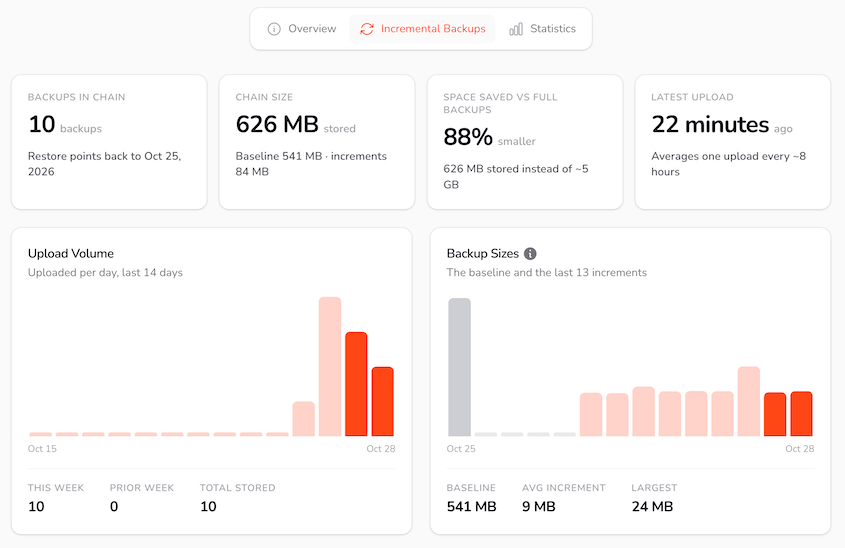
Incremental backups save a full baseline once, then only what’s changed since. Each one is small, so you can back up as often as every hour without filling your storage.
28. Run an Incremental Backup Now
Run an incremental backup now.Use this right before a change you might want to undo, instead of waiting for the next scheduled run. If nothing has changed since the last one, there’s nothing new to save.
You can also ask your assistant to turn incremental backups on or off.
29. Check Your Incremental Backups
When did my last incremental backup run, and how much Duplicator Cloud space are they using?It’s a quick health check. If the last run is older than you expect, check that incremental backups are turned on. If your storage is filling up, you might want to keep fewer backups or upgrade your storage plan.
Control What Your Assistant Can Change
Sensitive actions stay off until an administrator turns on Allow AI assistants to run unsafe actions in Duplicator » Settings » General.

That setting covers these tasks:
- Deleting backups, schedules, templates, and storage locations
- Changing your Duplicator settings or how many backups a storage keeps
- Giving out your recovery link
- Starting AutoTune
- Purging orphaned backup files
Your assistant can’t turn the setting on itself. It’s saved from the wp-admin settings page only.
If you connect through WPVibe, deleting a backup or schedule also asks for your approval in the browser first.
30. Delete a Schedule You Don’t Use
Delete my [old weekly] schedule. I don't use it anymore.Your assistant deletes the schedule once the setting is on and you approve the request. Deleting is permanent, so name the schedule clearly.
Deleting a backup works the same way, with one difference worth knowing: it only removes the copy on your server. Copies in Duplicator Cloud or other remote storage stay where they are.
My habit is to turn the setting on for the task and turn it off again when I’m done.
Troubleshooting AI Backup Problems
Most problems with these prompts come down to setup or a setting. Here are the ones you’re most likely to run into.
Your Assistant Says It Can’t Find Any Duplicator Tools
What you see: Your assistant says it doesn’t have access to Duplicator, or it offers to walk you through wp-admin instead.
Why it happens: The abilities need WordPress 6.9 or newer and Duplicator 5.2. Your assistant may also be using a connection it set up before you updated.
How to fix it: Update WordPress and your Duplicator plugin. Then start a new chat so your assistant picks up the current list of abilities. If it still can’t see them, reconnect it through WPVibe.
Your Assistant Says the Action Isn’t Allowed
What you see: A reply saying the action needs unsafe actions to be allowed.
Why it happens: Deletions, settings changes, and the recovery link are off by default.
How to fix it: If you want the action to run, turn on Allow AI assistants to run unsafe actions in Duplicator » Settings » General. Send the request again, then turn the setting off when you’re finished.
Your Backup Included Files You Meant to Leave Out
What you see: A backup that’s bigger than expected, with cache or log files inside.
Why it happens: A plain “back up my site” request uses your default template and ignores its file and table filters.
How to fix it: Ask for a backup from your template by name (prompt 6), or tie the template to a schedule (prompt 15).
Your Oldest Backup Disappeared After a New One
What you see: A backup you expected to find is gone from Duplicator » Backups.
Why it happens: Each storage location keeps a set number of backups. When a new backup finishes and you’re at the limit, Duplicator removes the oldest one.
How to fix it: Check the number of backups kept for each storage in Duplicator » Storage, and raise it if you want a longer history.
Your New Schedule Never Ran
What you see: A schedule that shows in Duplicator » Schedule Backups but has no backups from it.
Why it happens: New schedules are turned off unless you ask for them to be turned on. On a quiet site, WordPress’s built-in scheduler (WP-Cron) may also not run until someone visits.
How to fix it: Ask your assistant to turn the schedule on, then run it once (prompt 11) to confirm it works. If it’s on and still misses runs, check with your host about setting up a real server cron job.
Frequently Asked Questions (FAQs)
Do I Need Duplicator Pro to Use These Prompts?
Several of these prompts work with Duplicator Pro features. Schedules, backup templates, recovery points, and storage like Google Drive and Amazon S3 all need Pro. Incremental backups also need a Duplicator Cloud plan. If you have the free version of Duplicator, you can only use AI to create on-demand backups.
Can My AI Assistant Restore My WordPress Site?
Not today. Your assistant can set a recovery point, give you the recovery link (when the safety setting allows it), and walk you through installing a backup. You open the recovery link and confirm the restore yourself.
Which AI Assistants Work With Duplicator?
Duplicator works with any assistant that can use the WordPress Abilities API on your site. The easiest way to connect one is WPVibe, a free plugin that works with Claude, ChatGPT, Cursor, and more. You’ll need WordPress 6.9 or newer, and your assistant acts with the permissions of the WordPress account you connect.
Can an AI Assistant Delete My Backups?
Only if an administrator turns on Allow AI assistants to run unsafe actions in Duplicator » Settings » General, and your assistant can’t turn it on itself. With WPVibe, deleting also asks for your approval in the browser. Deleting a backup only removes the copy on your server, so copies in remote storage stay put.
Do I Have to Use the Exact Wording in These Prompts?
No. Your assistant reads plain language and picks the right action, so you can reword any prompt to fit your site. Be specific about names, times, and storage, though. “Send my latest backup to Duplicator Cloud” gets a faster, more accurate result than “back up to the cloud.”
Can My AI Assistant See My Storage Passwords?
No. Your assistant can test storage, send backups to it, and change a storage location’s name and notes. It can’t connect new storage or read or change your credentials. You still set up connections yourself in Duplicator » Storage, so your passwords and tokens stay in wp-admin.
Start With One Prompt Today
You now have a prompt for most of the backup jobs that tend to slip down your to-do list. Set up a schedule, check that storage works, and set a recovery point before your next round of changes. That’s most of your backup routine handled in a few messages.
Keep an eye on two things as you go. The first is retention, which removes your oldest backup when a storage hits its limit. The second is the safety setting. Turn it on when you need it, and off again afterward.
One more tip. Save your favorite prompts as a snippet or a saved prompt in your assistant. When you take on a new client site, you can paste the same setup word for word.
Every site ends up with the same schedule, template, and recovery point, and you don’t have to remember how you did it last time.
Hand Your Backup Routine to Your AI Assistant
Backups are the kind of job that’s easy to push to next week, right up until the day you need one. Handing the routine to your AI assistant means it gets done when you ask, instead of when you finally get around to it.
Over 1.5 million WordPress professionals use Duplicator to back up, migrate, and restore their sites. With Duplicator Pro, your assistant can set up schedules, build templates, send backups to Google Drive, Amazon S3, and Duplicator Cloud, and set recovery points.
If this guide helped, these are worth bookmarking too:
- The Safe Way to Back Up WordPress With AI Agents
- [New] Duplicator’s AI Abilities Now Handle Your Entire Backup Routine
- How to Fix a Failed WordPress Backup: Settings vs. Server Limits
- What Is an Incremental Backup in WordPress? (And How to Run Them)
- How to Set Up WordPress Auto Backups to Google Drive, Dropbox, & S3
- How to Restore WordPress From a Backup (In Less Than 5 Minutes)