


He probado TODOS los plugins de copia de seguridad de WordPress – Estos funcionan en 2026
 Joella Dunn
Joella Dunn
Joella Dunn
 John Turner
John Turner
John Turner
Tu sitio de WordPress es una valiosa tienda en línea, portafolio, blog u otro espacio personal. ¿Qué sucede cuando ocurre un desastre?
Una mala actualización, un intento de hackeo o un simple error humano pueden hacer que todo tu sitio se caiga.
Si tienes un plugin de copia de seguridad, podrás restaurar tu sitio. Estas herramientas guardan copias de tus datos regularmente para que puedas volver a poner tu sitio en línea si algo sale mal.
La conclusión es: NECESITAS un plugin de copia de seguridad. Pero si necesitas ayuda para encontrar el adecuado, no te preocupes. He hecho el trabajo por ti.
Probé, revisé y comparé los mejores plugins de copia de seguridad de WordPress del mercado. Te mostraré cómo elegir uno que se ajuste a tus necesidades para que puedas empezar a hacer copias de seguridad de tu sitio hoy mismo.
Aquí están los puntos clave:
- Deberías tener un plugin de copia de seguridad fiable para recuperarte de malware, fallos del servidor o errores humanos.
- Los mejores plugins ofrecen programaciones automáticas, almacenamiento en la nube (como Google Drive o S3) y restauración sencilla con un solo clic.
- Duplicator es la mejor opción general por su capacidad para manejar migraciones complejas y recuperación ante desastres, incluso cuando tu sitio está fuera de línea.
Tabla de Contenidos
Mis mejores opciones para el mejor plugin de copia de seguridad de WordPress
Antes de empezar, aquí tienes una lista rápida de los mejores plugins de copia de seguridad de WordPress. ¡Asegúrate de seguir leyendo esta publicación para un análisis en profundidad de las características y la facilidad de uso de cada plugin!
| Plugin de copia de seguridad | Precios | Mejor para |
| Duplicator | Gratis o 69,30 €/año | Copias de seguridad, migraciones y clonaciones sencillas pero flexibles |
| UpdraftPlus | Gratis o 70 €/año | Copias de seguridad y restauraciones fáciles de usar |
| Jetpack Backup | 4,95 €/mes | Archivo de copia de seguridad y restauraciones con un clic |
| BlogVault | 99 €/año | Copias de seguridad incrementales y monitorización de seguridad |
| WPvivid | Gratis o 49 €/año | Copias de seguridad, migraciones y optimización de imágenes |
| WP Database Backup | Gratis o 1 €/50 GB | Copias de seguridad de bases de datos manuales o automáticas |
Cómo probamos y revisamos los plugins de WordPress
- Uso en el mundo real: Los miembros de nuestro equipo utilizan activamente el plugin durante el proceso de revisión y para proyectos personales. Esto proporciona experiencia de primera mano del plugin en un entorno práctico.
- Análisis Funcionalidad Principal: Probamos a fondo las funcionalidades principales anunciadas por el plugin. Esto asegura que el plugin cumpla lo que promete.
- Pruebas de Usabilidad: Evaluamos qué tan fácil de usar es el plugin, incluyendo el diseño de su interfaz y la experiencia general del usuario.
- Identificar la audiencia objetivo: Consideramos el tipo de sitio web o usuario ideal que se beneficiaría más de las funciones del plugin.
Qué buscar en un plugin de copia de seguridad de WordPress
Si tienes un sitio web, es importante realizar copias de seguridad periódicas. Esencialmente, esto implica guardar una copia de tus archivos y base de datos de WordPress. Cuando un error de código o un fallo de software daña tu sitio, puedes restaurar fácilmente una copia de seguridad reciente.
A menudo, los proveedores de hosting te ofrecerán una forma de hacer copias de seguridad de tu sitio web. Sin embargo, puede ser beneficioso contar con una herramienta de copias de seguridad de terceros. Al instalar el plugin de copias de seguridad de WordPress adecuado, puedes acceder a tu sitio web incluso después de errores del servidor.
Los mejores plugins de copias de seguridad de WordPress facilitan la copia de seguridad y restauración de tu sitio en vivo. No necesitarás usar cPanel o un cliente FTP para descargar manualmente tus datos.
Aquí tienes algunas características que recomendamos buscar:
- Copias de seguridad en tiempo real
- Copias de seguridad completas y copias de seguridad solo de la base de datos
- Almacenamiento en la nube
- Copias de seguridad programadas
- Restauraciones en un clic
- Recuperación ante desastres fuera del sitio
Cuando instales cualquier plugin, querrás saber que viene con un sistema de soporte estelar. Antes de elegir un plugin de copias de seguridad, asegúrate de que ofrezca un servicio al cliente fiable. De esta manera, podrás tener la tranquilidad de que tu sitio web se respaldará correctamente.
Nuestros Plugins de Copias de Seguridad de WordPress Favoritos (Analizados para 2026)
Incluso cuando sepas qué características de copia de seguridad buscar, es posible que no sepas qué plugin es el adecuado para ti.
¡Para ayudarte a tomar la mejor decisión, aquí tienes nuestra lista de los mejores plugins de copias de seguridad para WordPress!
- Duplicator: El mejor para copias de seguridad flexibles, migraciones y clonación, incluida la recuperación ante desastres incluso cuando tu sitio está caído.
- UpdraftPlus: Una opción popular y fácil de usar para copias de seguridad y restauraciones gratuitas directamente desde tu panel.
- Jetpack Backup: Ofrece restauraciones sencillas con un solo clic y gestión desde una aplicación móvil.
- BlogVault: Una solución SaaS premium que almacena copias de seguridad en sus propios servidores para reducir la carga del sitio.
- WPvivid: Una solución todo en uno para copias de seguridad y migraciones, con un complemento optimizador de imágenes.
- WP Database Backup: Una herramienta sencilla y enfocada para hacer copias de seguridad únicamente de tu base de datos de WordPress.
Duplicator
Duplicator es un plugin flexible que realiza copias de seguridad, migra y clona sitios de WordPress. Debido a su simplicidad y versatilidad, está instalado activamente en más de 1 millón de sitios web.
Como nuevo propietario de un sitio web, es posible que no sepas cómo hacer una copia de seguridad. Duplicator facilita este proceso. Todo lo que tendrás que hacer es añadir una nueva copia de seguridad.
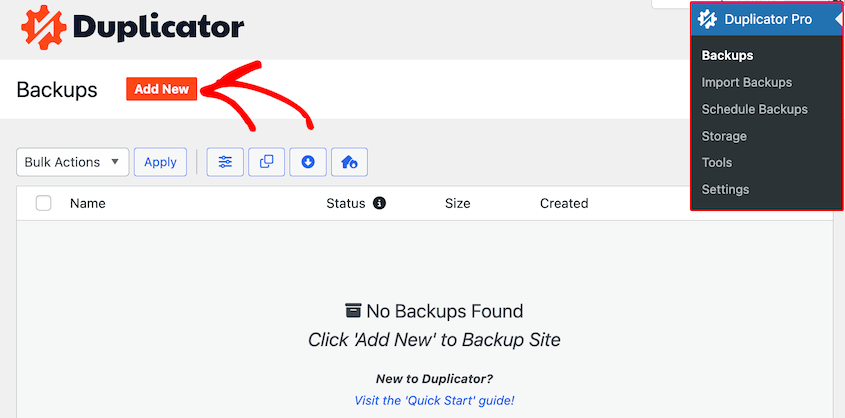
Usa etiquetas para crear el nombre perfecto. Esto te ayudará a identificar el correcto si alguna vez necesitas restaurarlo.
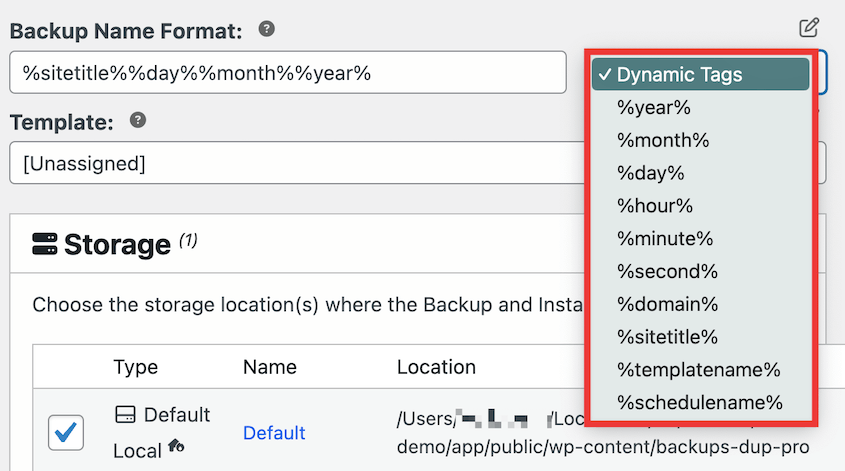
Guarda tu copia de seguridad localmente o elige una ubicación de almacenamiento externa. Duplicator admite todos estos servicios de almacenamiento en la nube:
- Google Drive
- Dropbox
- Microsoft OneDrive
- Amazon S3
- Wasabi
- Google Cloud
- DreamObjects
- Vultr
- DigitalOcean Spaces
- Cloudflare R2
- Backblaze B2
Además, Duplicator tiene su propio almacenamiento en la nube. Duplicator Cloud es fácil de configurar, ya que se activa con tu licencia de Duplicator Pro.
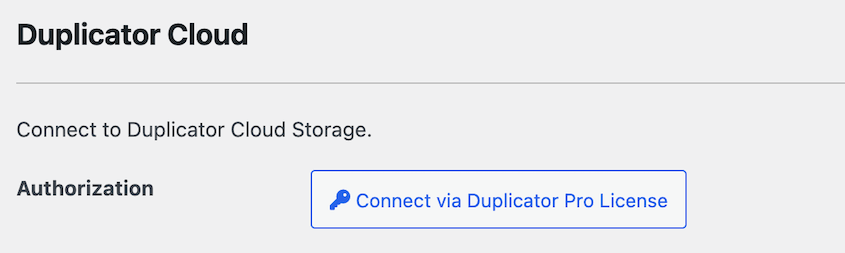
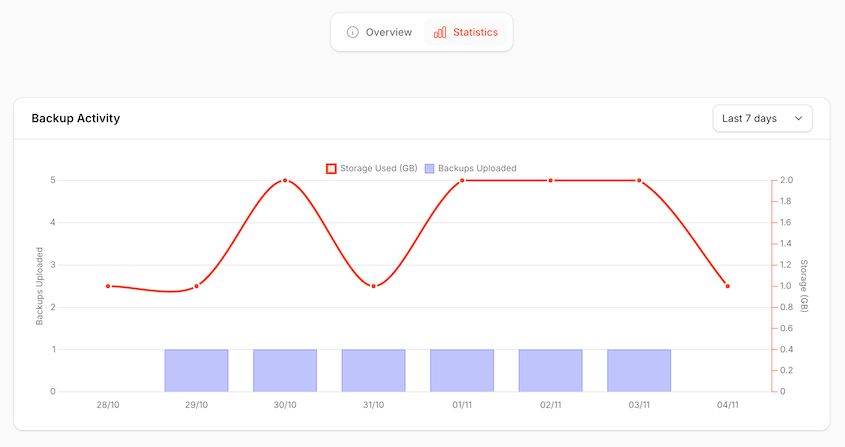
Una vez que configures copias de seguridad automáticas en la nube de Duplicator, puedes administrarlas en un panel de control externo. Verás la actividad de las copias de seguridad y el espacio de almacenamiento utilizado.
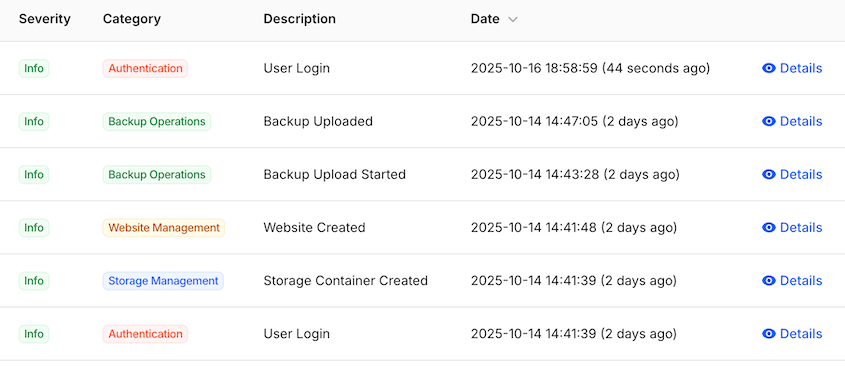
Al monitorizar el registro de actividad, no te pillarán desprevenido los límites de almacenamiento ni los inicios de sesión no autorizados.
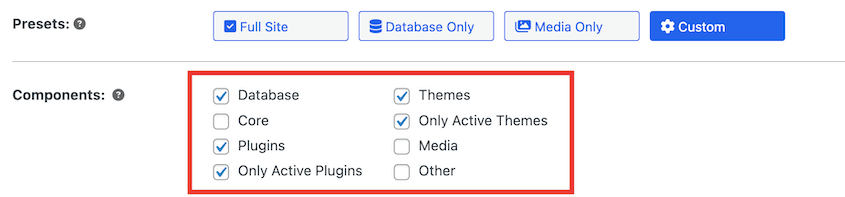
Con el plugin Duplicator, puedes personalizar exactamente qué datos se guardan en tu copia de seguridad. Esto es tan fácil como marcar una casilla.
Cuando necesites restaurar una copia de seguridad, simplemente haz clic en el botón Restaurar. Duplicator te guiará por el resto del proceso.
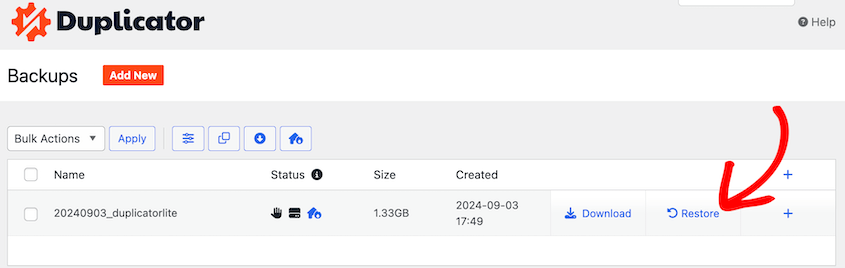
A diferencia de otros plugins de copia de seguridad, Duplicator puede restaurar tu sitio incluso si está completamente desconectado. Si no puedes acceder a tu panel de control, sube tus archivos de copia de seguridad a tu servidor. Lanza el instalador con esta URL: https://tudominio.com/installer.php
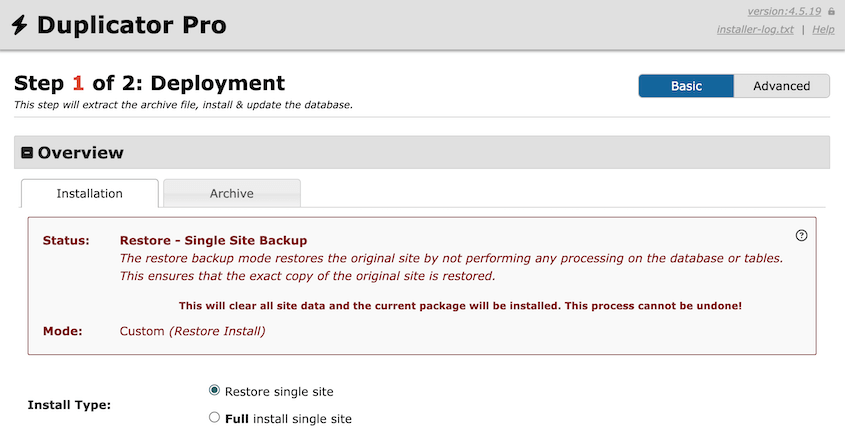
Al subir estos archivos de copia de seguridad a otro servidor, puedes migrar tu sitio a un nuevo host o nombre de dominio. Esto convierte a Duplicator en una herramienta útil para migraciones y clonaciones de WordPress.
Lo que nos gustó de Duplicator
- Migraciones de sitios de arrastrar y soltar
- Copias de seguridad programadas cada hora, día, semana y mes
- Copias de seguridad personalizadas
- Se integra con servicios en la nube como Dropbox, Google Drive, Amazon S3 y más
- Sitios preconfigurados personalizables
- Copias de seguridad y migraciones de redes multisitio
- Soporte para sitios grandes
- Instalador optimizado
- Puntos de recuperación ante desastres
- Restauraciones en un clic
- Almacenamiento nativo en la nube de Duplicator con precios escalables
- Plugin gratuito WP Media Cleanup con Elite
Precios: Duplicator Lite es un plugin de copia de seguridad de WordPress completamente gratuito. Considera actualizar a la versión premium para acceder al almacenamiento en la nube, copias de seguridad automáticas y migraciones de arrastrar y soltar. Estos planes comienzan en 69,30 $ al año.
Duplicator Cloud cuesta tan solo 29 $ al año por 2 GB de espacio de almacenamiento. Hay muchos planes superiores si necesitas más espacio de almacenamiento para copias de seguridad.
UpdraftPlus

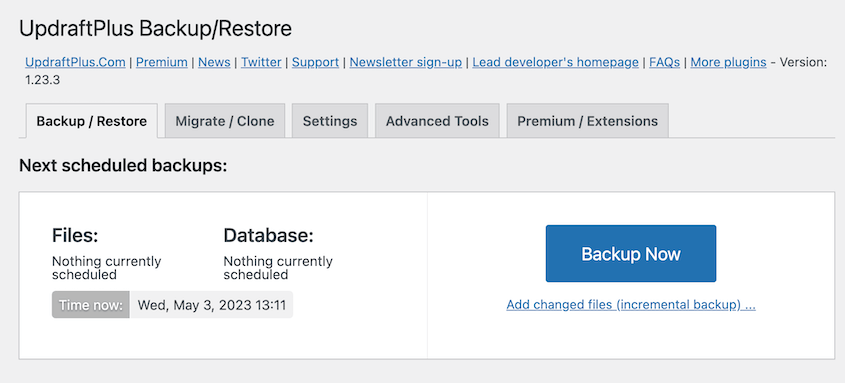
Otro popular plugin de copia de seguridad de WordPress es UpdraftPlus. Puedes usar esta herramienta para realizar copias de seguridad manuales y programadas. Cualquiera de estas opciones guardará una copia de seguridad de los archivos de tu sitio web, plugins, temas y base de datos.
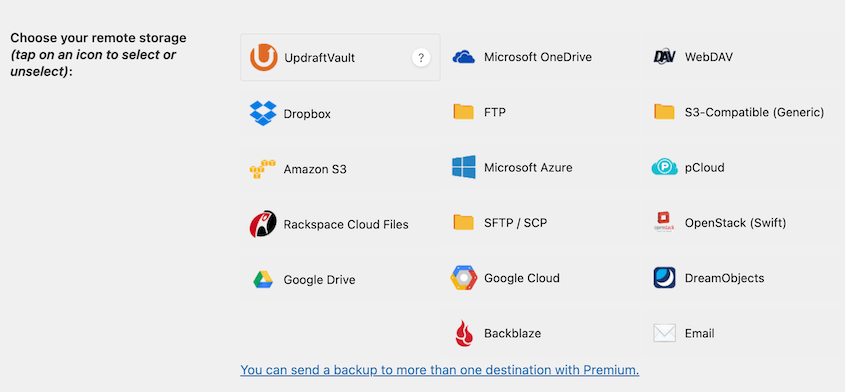
UpdraftPlus te permite guardar copias de seguridad en ubicaciones de almacenamiento en la nube como Dropbox, Google Drive, Amazon S3 y Rackspace Cloud. También tiene UpdraftPlus Vault, un servicio de almacenamiento de pago.
Similar a Duplicator, UpdraftPlus admite la clonación de sitios web. Sin embargo, tendrás que comprar tokens adicionales para acceder al complemento UpdraftClone.
Lo que nos gustó de UpdraftPlus
- Opciones de copia de seguridad y restauración
- Copias de seguridad programadas
- Funcionalidad de clonación y migración
- Almacenamiento en la nube
- Soporte para WordPress Multisite
- Copias de seguridad incrementales
- Copias de seguridad automáticas antes de las actualizaciones
Lo que no nos gustó de UpdraftPlus
- Genera archivos de copia de seguridad separados para tu base de datos, temas, plugins y subidas
- Tienes que comprar tokens para clonar tu sitio web
- Solo puede restaurar copias de seguridad desde el panel de control, lo que te deja potencialmente vulnerable a bloqueos
Precios: UpdraftPlus tiene una versión gratuita con opciones básicas de copia de seguridad y restauración. El plugin premium incluirá funciones avanzadas como copias de seguridad incrementales, cifrado de bases de datos y copias de seguridad de archivos que no son de WordPress. Estos planes comienzan en $70 al año.
¿No estás seguro de cómo decidir entre estos dos plugins de copia de seguridad principales? ¡Echa un vistazo a nuestra comparación detallada entre UpdraftPlus y Duplicator!
Jetpack Backup
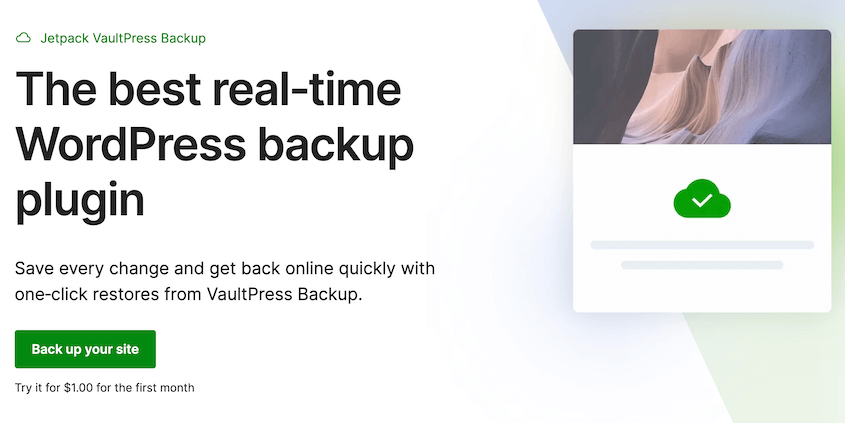
Jetpack Backup, o VaultPress, es un plugin fácil de usar para principiantes que simplifica el proceso de copia de seguridad. Dado que fue desarrollado por Automattic, la misma empresa detrás de WordPress, Jetpack se integra perfectamente en tu panel de control.
Usando Jetpack, puedes hacer una copia de seguridad de tu base de datos y directorio raíz. Incluso en la aplicación móvil de Jetpack, podrás restaurar tu sitio con un solo clic.
Sin embargo, ten en cuenta que Jetpack Backup solo realiza copias de seguridad parciales. Los archivos principales de WordPress y las instalaciones adicionales de WordPress se excluirán de cualquier copia de seguridad.
También es importante tener en cuenta que los planes más económicos de Jetpack solo almacenarán tus copias de seguridad durante 30 días. Si deseas restauraciones ilimitadas del último año, tendrás que actualizar al plan Complete por $50 al mes.
Lo que nos gustó de Jetpack
- Copias de seguridad completas, incrementales y diferenciales
- Copias de seguridad en la nube en tiempo real
- 10 GB de almacenamiento de copias de seguridad
- Archivo de 30 días y registro de actividad
- Restauraciones en un clic
- Aplicación móvil
Lo que no nos gustó de Jetpack
- Sin versión gratuita
- Algunos usuarios informan que Jetpack causa problemas de rendimiento en sus sitios
- Solo almacena copias de seguridad durante 30 días
Precios: Aunque puedes encontrar Jetpack como un plugin gratuito, tendrás que suscribirte a un plan de pago para usarlo. Estos comienzan en $4.95 al mes. Recibirás hasta 10 GB de espacio de almacenamiento para copias de seguridad.
BlogVault
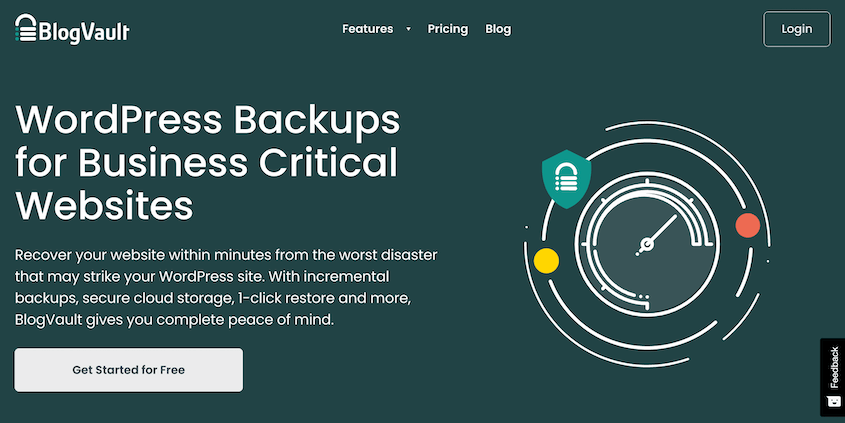
A diferencia de otros plugins de copia de seguridad de WordPress en esta lista, BlogVault es un SaaS (Software como Servicio). En lugar de sobrecargar los recursos de tu servidor con archivos zip de copia de seguridad voluminosos, BlogVault almacena los datos de tu sitio web en sus servidores dedicados. Esto puede aumentar tu velocidad de carga.

BlogVault también puede manejar sitios web de hasta 500 GB de tamaño. Esto incluye redes multisitio de WordPress y tiendas WooCommerce.
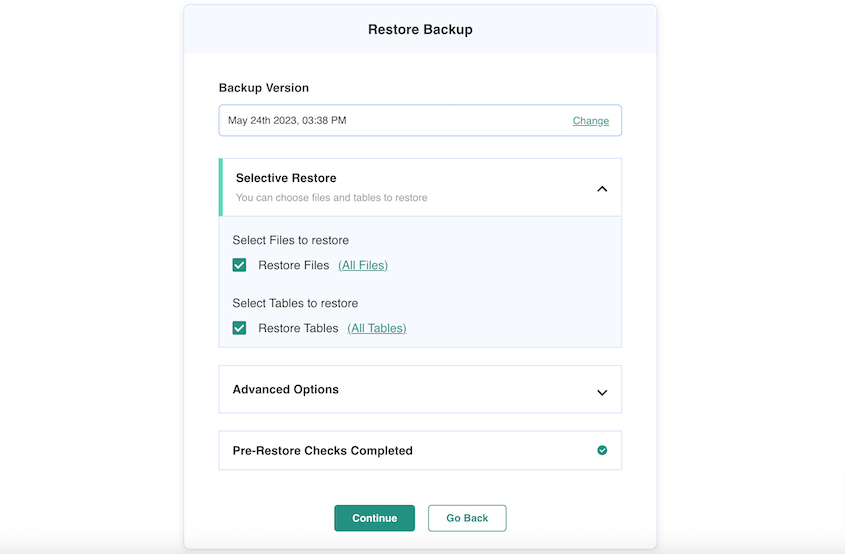
Cuando necesites restaurar tu sitio web, puedes probar una copia de seguridad reciente. Al restaurarla primero en los servidores de BlogVault, sabrás que es seguro subirla a tu sitio web. Además, BlogVault admite restauraciones selectivas para reemplazar solo los datos corruptos en tu sitio.
Lo que nos gustó de BlogVault
- Copias de seguridad completas e incrementales
- Almacenamiento de copias de seguridad fuera del sitio
- Restauraciones en un clic
- Copias de seguridad de WooCommerce en tiempo real
- Migración sin tiempo de inactividad
- Monitorización de tiempo de actividad
- Pruebas de regresión visual
- Funciones de seguridad
Lo que no nos gustó de BlogVault
- Sin versión gratuita
- Almacenamiento en la nube limitado
Precios: Las suscripciones de BlogVault comienzan en 99 $ al año. Incluso el plan básico de copias de seguridad incluye almacenamiento en la nube, copias de seguridad multisitio y copias de seguridad diarias automatizadas.
WPvivid
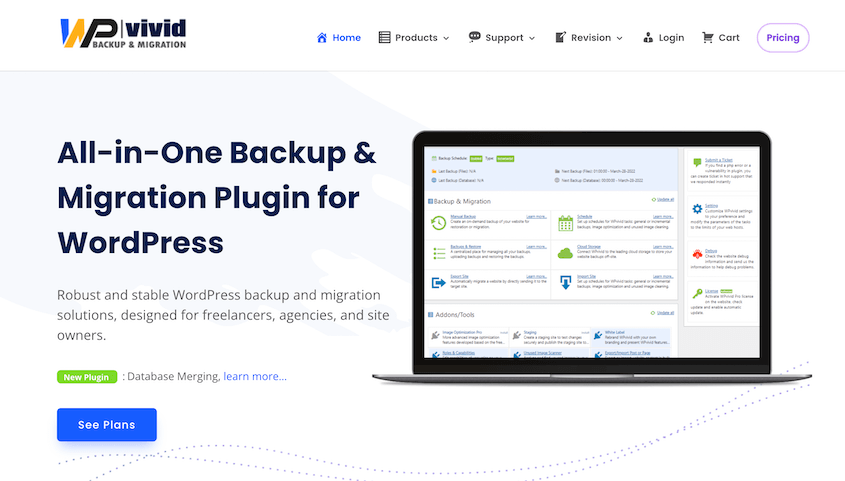
WPvivid tiene todas las funciones básicas que esperarías de un plugin de copias de seguridad de WordPress. Podrás hacer copias de seguridad de tu sitio web, crear sitios de staging y migrar tu contenido a un nuevo host. Además, existen opciones de almacenamiento externo para guardar tu sitio de forma remota.
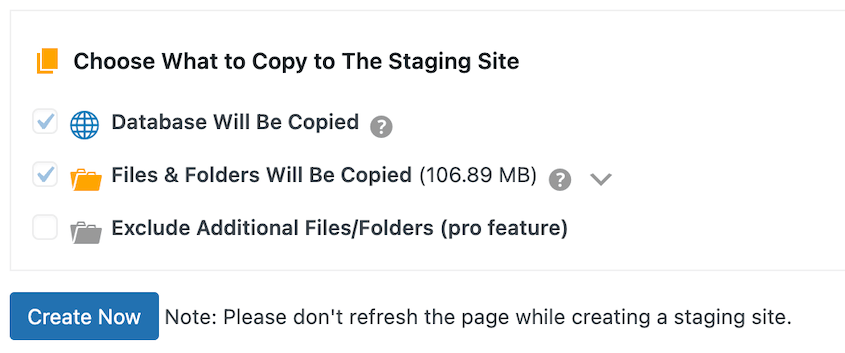
Con WPvivid, puedes obtener un complemento de optimización de imágenes. Al comprimir los archivos multimedia de tu sitio, disfrutarás de un servidor más rápido. WPvivid también limpiará las imágenes no utilizadas para que tus archivos de copia de seguridad sean más ligeros.
Lo que nos gustó de WPvivid
- Copias de seguridad completas, solo de archivos y solo de base de datos
- Copias de seguridad programadas
- Restauraciones en un clic
- Almacenamiento en la nube
- Plugin compatible de limpieza de imágenes no utilizadas
- Opciones de exportación/importación
- Copia de seguridad automática antes de las actualizaciones
Lo que no nos gustó de WPvivid
- Algunas funciones clave como las copias de seguridad automáticas antes de las actualizaciones y las copias de seguridad incrementales solo están disponibles en la versión premium
Precios: El plugin principal de WordPress es gratuito. Para funciones más avanzadas, los planes premium comienzan en $49 al año.
WP Database Backup
En algunos casos, es posible que solo desee hacer una copia de seguridad de su base de datos. Con WP Database Backup, puede comenzar a hacer copias de seguridad de los archivos de su base de datos y restaurarlos si es necesario. También le permite configurar un horario de copia de seguridad para guardar regularmente una copia de su base de datos.
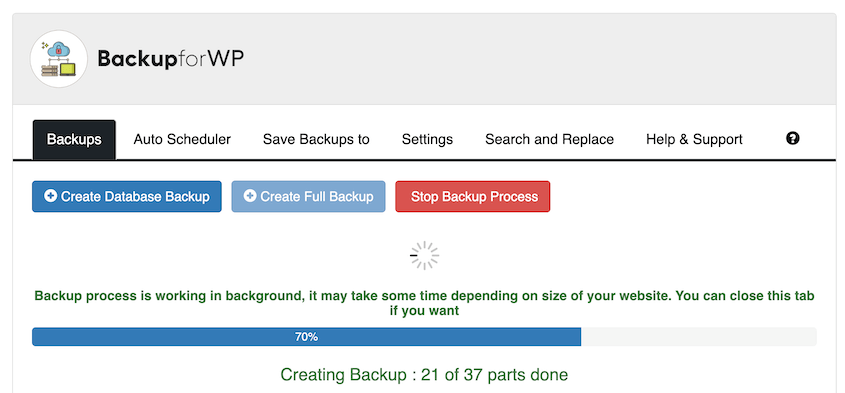
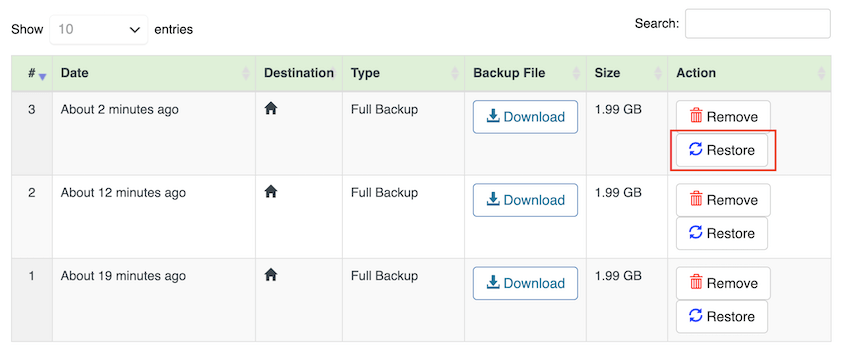
El principal beneficio de WP Database Backup es que es fácil de usar. Puede crear nuevas copias de seguridad de la base de datos con un solo clic. El proceso de restauración es igual de sencillo.
Sin embargo, tenga en cuenta que WP Database Backup no realiza una copia de seguridad de todo su sitio. Para mantener sus datos completamente seguros, le recomendamos instalar un plugin que también haga una copia de seguridad de sus archivos.
Lo que nos gustó de WP Database Backup
- Copias de seguridad de bases de datos manuales y automáticas
- Restauraciones en un clic
- Ubicaciones de almacenamiento remoto
- Ordenar y buscar lista de copias de seguridad
- Informes de copias de seguridad
Lo que no nos gustó de WP Database Backup
- Encontré el proceso de copia de seguridad muy lento
- Hay una versión gratuita, pero tiene características más limitadas
Precios: WP Database Backup es gratuito. Si desea acceder al almacenamiento en la nube incorporado, puede comprarlo por $1 por cada 50 GB al mes.
Preguntas Frecuentes (FAQs)
¿Cuál es la mejor manera de hacer una copia de seguridad de WordPress?
La mejor manera de hacer una copia de seguridad de WordPress es instalar un plugin de copia de seguridad como Duplicator Pro. Usando Duplicator, puede personalizar fácilmente las copias de seguridad con los ajustes preestablecidos disponibles (sitio completo, solo base de datos, solo medios o personalizado). También podrá conectar ubicaciones de almacenamiento en la nube de terceros y habilitar copias de seguridad automáticas.
¿Cuál es el mejor plugin gratuito de copias de seguridad para WordPress?
El mejor plugin gratuito de copias de seguridad para WordPress es Duplicator Lite. Esta herramienta compila todos los archivos de WordPress, plugins, temas, archivos multimedia e información de la base de datos en un solo archivo zip. Dado que Duplicator también proporciona un instalador independiente, también puede usarlo para migrar su sitio web a otro nombre de dominio, servidor o host web.
¿WordPress realiza copias de seguridad automáticas?
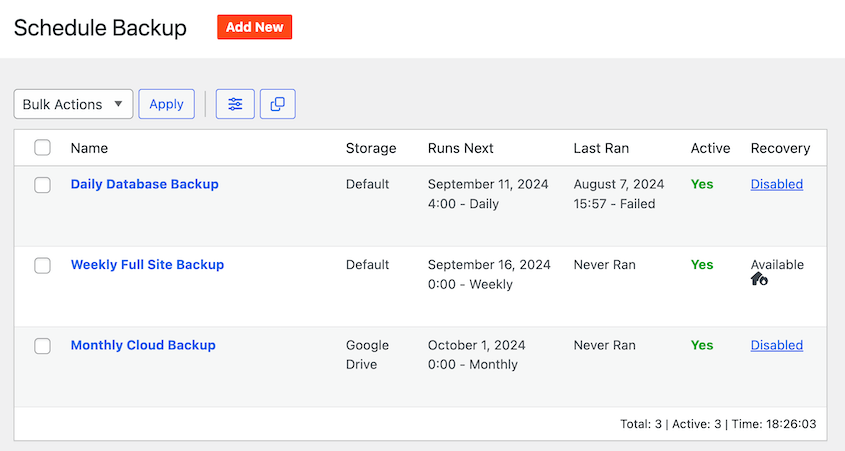
No, WordPress no proporciona copias de seguridad automáticas integradas. Sin embargo, un plugin como Duplicator puede ayudarle a programar copias de seguridad recurrentes. Puede elegir entre copias de seguridad por hora, diarias, semanales y mensuales. Si es necesario, podrá ejecutar varios horarios para hacer copias de seguridad de partes específicas de su sitio en el momento adecuado.
¿Cómo hago una copia de seguridad completa de mi sitio de WordPress?
Para hacer una copia de seguridad completa de su sitio de WordPress, instale Duplicator Pro como su plugin de copia de seguridad. Luego, cree una nueva copia de seguridad e incluya todos los componentes de su sitio web. Después de terminar de crear la copia de seguridad, descárguela en su computadora local.
¿Qué plugin se recomienda para copias de seguridad automatizadas?
Duplicator Pro es el mejor plugin para programar copias de seguridad automáticas. Con esta herramienta, puedes crear copias de seguridad mensuales, semanales, diarias u horarias.
Puedes elegir qué partes de tu sitio hacer una copia de seguridad una vez que se ejecute el programa. Esto facilita guardar los datos correctos en el momento adecuado.
¿Decisión Final: Cuál es el Mejor Plugin de Copia de Seguridad de WordPress?
Duplicator es el mejor plugin de copia de seguridad de WordPress debido a sus completas funciones. Esta herramienta te permite crear fácilmente copias de seguridad completas y solo de la base de datos. Además, puedes usar Duplicator para configurar copias de seguridad automáticas, migrar tu sitio web a un nuevo servidor o crear un sitio de staging.
Alternativas: All-in-One WP Migration, WP Time Capsule y Backup Migration son otros plugins que pueden hacer una copia de seguridad de tu sitio. Sin embargo, los hemos eliminado de esta lista para centrarnos en las mejores opciones para tu sitio. Solid Backups (BackupBuddy) solía estar en nuestra lista, pero su empresa ha cerrado, por lo que ya no está disponible.
No dejes que una caída te cueste tu negocio
Tu sitio web es tu escaparate, tu portafolio y tu línea directa con tu audiencia. Un solo error podría borrar años de arduo trabajo en segundos.
Es por eso que tener un plugin de copia de seguridad fiable es una necesidad absoluta.
El paso más importante es simplemente empezar. Al automatizar tus copias de seguridad y almacenarlas fuera del sitio, te aseguras de que un pequeño fallo no se convierta en un desastre catastrófico. Dormirás mejor sabiendo que tus datos están seguros y son completamente recuperables.
¿Estás listo para empezar a hacer copias de seguridad de tu sitio web? ¡Descarga Duplicator Pro para copias de seguridad automáticas y almacenamiento en la nube!
Ya que estás aquí, quizás te interesen estas guías adicionales de WordPress:
- De la brecha a la recuperación en 5 minutos: Mi estrategia de copias de seguridad de WordPress
- Tu sitio de WordPress podría desaparecer mañana (a menos que hagas esto)
- Cómo Implementar un Plan de Copia de Seguridad 3-2-1 que Funciona Siempre
- Cómo hacer una copia de seguridad de un sitio de WordPress manualmente
- Cómo proteger las copias de seguridad del ransomware




