


WordPress Database Maintenance: What to Do Weekly, Monthly, and Quarterly
 Joella Dunn
Joella Dunn
Joella Dunn
 John Turner
John Turner
John Turner
Most WordPress users never open their database until something forces them to.
Your WordPress database stores everything that makes your site work. Every piece of content your visitors see and every configuration setting they don’t is sitting in there.
When it’s healthy, you never think about it. When it isn’t, the effects show up everywhere.
In this post, I’ll cover what WordPress database maintenance involves, which signs indicate a problem, and which tools handle each job.
None of these tasks are particularly difficult, but skipping them compounds over time. A database that’s been ignored for two years is a lot harder to deal with than one that gets routine attention.
Here are the key takeaways:
- WordPress databases accumulate bloat automatically: post revisions, expired transients, auto-drafts, and orphaned plugin tables pile up without any automatic cleanup.
- Slow page loads and a sluggish admin are common signs that your database needs attention, not just your hosting plan.
- Always back up before doing anything else. A restore point turns a potential disaster into a five-minute fix.
- The right order is: clean first, optimize second. Running OPTIMIZE TABLE before removing bloat just reorganizes data you’re about to delete.
- Scheduled maintenance beats reactive maintenance. Weekly transient clearing, monthly table optimization, and quarterly plugin audits keep problems from compounding.
- Free tools cover most of the basics: WP-Optimize, WP-Sweep, and WP-CLI handle routine cleanup. Duplicator Pro is worth the cost for reliable automated backups.
Table of Contents
- Do You Need to Maintain Your WordPress Database?
- Signs Your WordPress Database Needs Maintenance
- WordPress Database Maintenance Tips
- Set Up Automatic Database Backups
- Remove Unnecessary Data
- Optimize Database Tables
- Schedule Database Cleanups
- Perform Available Updates
- Do a Security Scan
- Check Site Speed
- Scan for Broken Links
- Optimize Images
- Test Your Forms
- Filter Spam Comments
- Remove Unnecessary or Inactive Plugins and Themes
- Clear Your Cache
- Tools for WordPress Database Maintenance
- WordPress Database Optimization Best Practices
- Full WordPress Database Maintenance Checklist
- Frequently Asked Questions (FAQs)
Do You Need to Maintain Your WordPress Database?
Yes, your website needs consistent database maintenance. However, it might not need as much as another site.
A five-page brochure site that hasn’t changed in months accumulates bloat slowly. A WooCommerce store processing daily orders, running a dozen active plugins, and publishing new content every week is a different situation entirely.
Both need maintenance. The frequency and depth of that maintenance are what vary.
WordPress doesn’t clean up after itself. Every time a plugin runs a process, it may write to the database. Every draft you save creates a revision record. Every transient a plugin creates is supposed to expire on its own but often doesn’t.
None of this gets automatically removed. It just accumulates.
Over time, here’s what happens:
- Post revisions multiply every time you edit content.
- Auto-drafts pile up from sessions that were never published or properly discarded.
- Trashed posts and comments are automatically deleted after 30 days, but on busy sites that can still leave a lot sitting in the trash unless you empty it more often or change that interval.
- Expired transients linger in the
wp_optionstable long after they’ve served their purpose. - When plugins or themes get deleted, they frequently leave behind orphaned tables and option entries that have no parent and serve no function.
The database gets heavier gradually, and the effects show up as slower queries, longer page loads, and more overhead on every request. That friction is easy to dismiss until it isn’t.
Signs Your WordPress Database Needs Maintenance
Some of these signs are obvious. Others are easy to attribute to the wrong cause. Knowing what’s actually happening makes it easier to act on.
- Pages load slowly even on a good connection.
If your hosting hasn’t changed, your traffic hasn’t spiked, and pages are slowing down, the database is a reasonable place to look.
Fragmented tables and unoptimized queries add overhead to every page request. That overhead accumulates as the database grows heavier.
- The WordPress admin feels slow.
The Posts, WooCommerce Orders, and Media Library pages all pull large amounts of data from the database on every load. If navigating the admin has gotten noticeably slower, that’s often a database problem, not a hosting problem.
- Database errors are appearing.
“Error establishing a database connection” is the most visible sign that something is wrong.
Table-specific MySQL errors (usually surfaced when WP_DEBUG is enabled) point to something more specific—a corrupted table, a failed write, a structural issue from a bad update, or a server interruption. These don’t resolve on their own.
- The database has grown significantly without a clear reason.
If you check your database size and the number is larger than you’d expect given your content volume, something is accumulating that shouldn’t be.
Transients and post revisions are the most common culprits, but plugin-specific logging tables can also grow without much visibility.
- Plugins and themes have been installed and removed over time.
Many plugins create their own database tables during installation and don’t remove them on deletion. If you’ve cycled through several form plugins, SEO tools, or membership plugins over the years, there’s a reasonable chance their tables are still sitting in your database doing nothing.
- The database hasn’t been touched in months, or ever.
A database that’s never been maintained on a site that’s been running for years almost certainly has bloat worth addressing. Even if there are no visible problems, that doesn’t mean the database is clean.
WordPress Database Maintenance Tips
These aren’t all strictly database tasks, but they’re all part of keeping a WordPress site healthy, and most interact with the database in some way.
Work through them in the order that makes sense for your site, but always start with a full-site backup.
Here’s a quick look at our WordPress database maintenance tips:
- Set Up Automatic Database Backups: Schedule recurring backups to a remote destination so you always have a restore point before running any maintenance task.
- Remove Unnecessary Data: Clear out post revisions, auto-drafts, trashed content, expired transients, and orphaned metadata to cut down database size at the source.
- Optimize Database Tables: Run OPTIMIZE TABLE after cleanup to defragment internal storage and reclaim space left behind by deleted rows.
- Schedule Database Cleanups: Automate recurring cleanup tasks so bloat doesn’t quietly rebuild between manual maintenance sessions.
- Perform Available Updates: Keep WordPress core, plugins, and themes current to pull in query optimizations, schema fixes, and security patches.
- Do a Security Scan: Scan the database itself for injected scripts, unauthorized admin accounts, and malware hiding in stored content, not just theme and plugin files.
- Check Site Speed: Use Query Monitor to identify which plugins are generating slow or excessive database queries on every page load.
- Scan for Broken Links: Catch links broken by deleted posts, changed slugs, or missing redirects before visitors do.
- Optimize Images: Remove unused image size variations that accumulate on the server and inflate backup sizes without appearing anywhere on the site.
- Test Your Forms: Confirm that form submissions still write correctly to the database after any significant maintenance or migration.
- Filter Spam Comments: Configure automatic spam deletion so caught spam doesn’t quietly pile up in the database indefinitely.
- Remove Unnecessary or Inactive Plugins and Themes: Delete what you’re not using and check for leftover database tables that didn’t get cleaned up on removal.
- Clear Your Cache: Flush server-side cache, CDN cache, and object cache after maintenance so performance improvements actually show up in testing.
Set Up Automatic Database Backups
Everything else on this list carries some risk without a restore point.
Optimization can fail. Cleanup tools can remove more than intended. Updates can break things.
A recent backup turns a potential disaster into a minor inconvenience.
The problem with manual backups is that they get skipped. You plan to run one before the next update, something comes up, and you do the update anyway.
Automating the process removes that gap. A scheduled backup is always reliably there when you need it.
Backup frequency should match how often your content changes. A WordPress website that publishes daily needs daily backups. A site that changes once a month can get away with weekly.
The question to ask is: how much work would I be willing to redo if I had to restore from the last backup?
Storage location matters as much as frequency. Keeping backups on the same server as your site means a server failure takes both the site and the backup with it.
Store backups off-server with Google Drive, Dropbox, Amazon S3, or another remote destination.
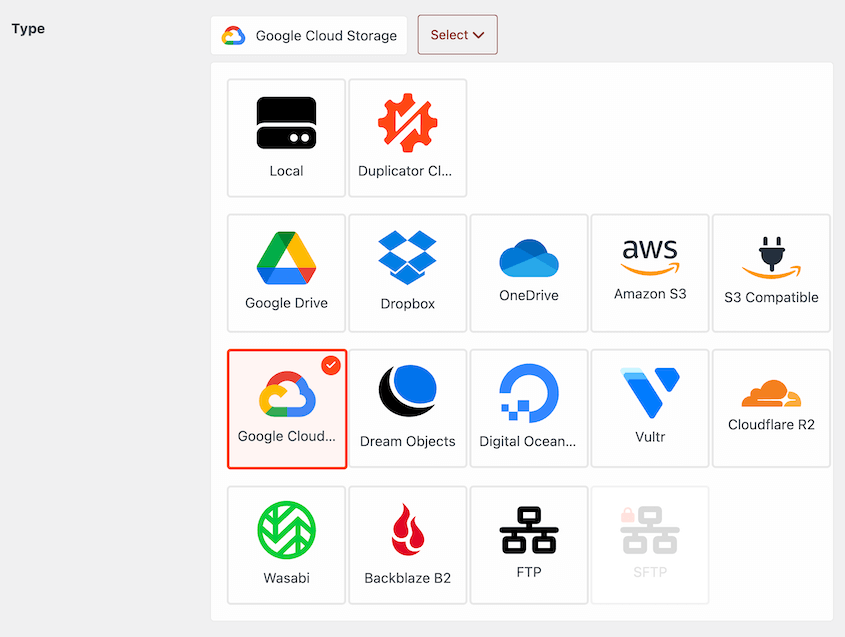
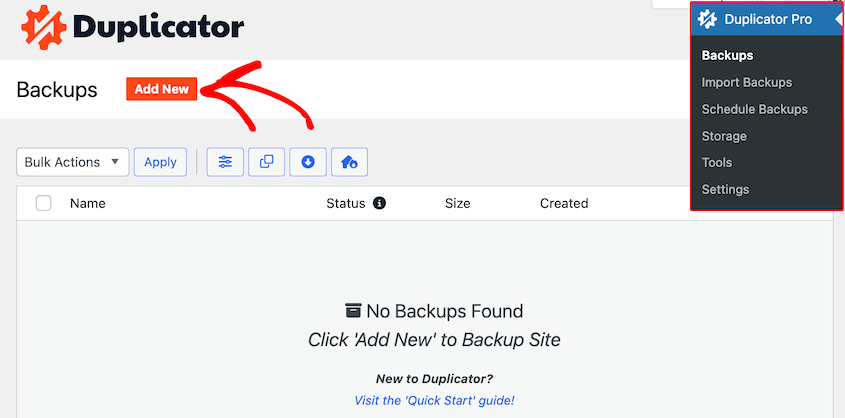
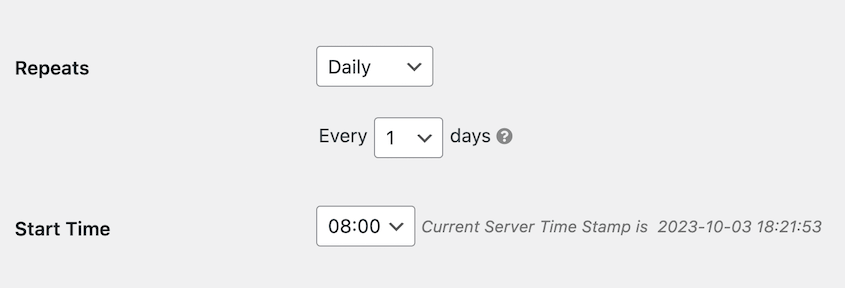
Duplicator Pro is a backup plugin that handles all of these tasks. You can set up custom scheduled automatic backups that run hourly, daily, weekly, or monthly.

Duplicator connects to 10+ remote storage locations, including Duplicator Cloud, Google Drive, Dropbox, S3, and OneDrive.
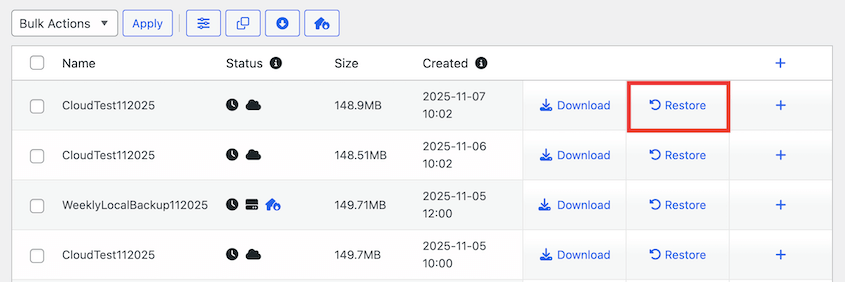
If you ever need to roll back your site, use the Restore button. Even if your backup is in the cloud, Duplicator downloads and restores it.
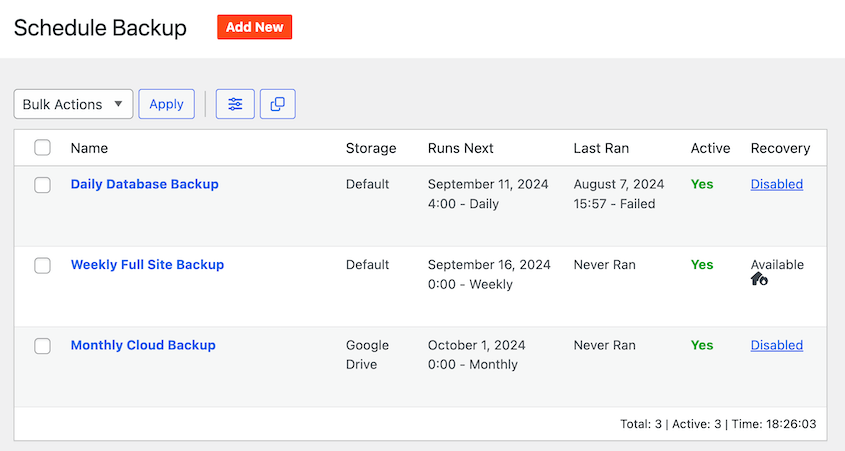
I recommend backing up your database at least weekly. More active sites might need daily or hourly backups to keep track of new customer orders and other sensitive data.
You can set up multiple backup schedules so your entire site is covered. Automate more frequent database backups, but have a consistent backup routine for your entire site as well.
This way, you won’t worry about losing any data!
Remove Unnecessary Data
WordPress accumulates some data that has no ongoing purpose. Removing it is usually the single most effective way to reduce database size.
Post revisions are the biggest contributor on content-heavy sites. WordPress saves a new revision every time you update a post, and there’s no hard limit unless you set one in wp-config.php.
Auto-drafts are created when WordPress saves a post in the background during editing sessions that were never published or properly discarded. They accumulate quietly and are rarely reviewed.
Trashed posts, pages, and comments don’t disappear immediately when you move them to the trash. WordPress keeps them there for 30 days by default before deleting them automatically, unless you’ve changed that setting.
Expired transients are temporary data entries plugins store in the wp_options table. They’re supposed to be cleaned up automatically when they expire, but this doesn’t always happen.
Expired transients that linger contribute to table bloat and slow down queries that scan wp_options.
Orphaned metadata is left behind when posts, users, or taxonomy terms are deleted. The metadata records stored in tables like wp_postmeta and wp_usermeta often remain even after the parent record is gone.
They don’t cause visible errors, but they add unnecessary rows to tables that get queried frequently.
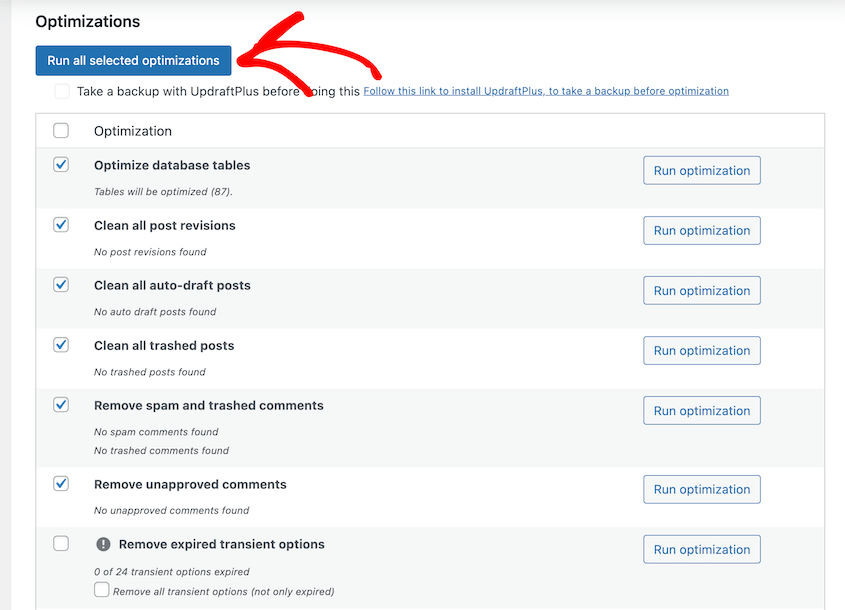
WP-Sweep and WP-Optimize are both solid tools for handling and removing unnecessary data from your database. You can install one of them and let it clean out your database in just a few minutes.
Optimize Database Tables
When rows are deleted from a database table, MySQL doesn’t immediately reclaim that space. It leaves gaps in the table’s internal structure—overhead that accumulates over time.
Running OPTIMIZE TABLE reclaims the freed space, which can reduce table size and improve query performance.
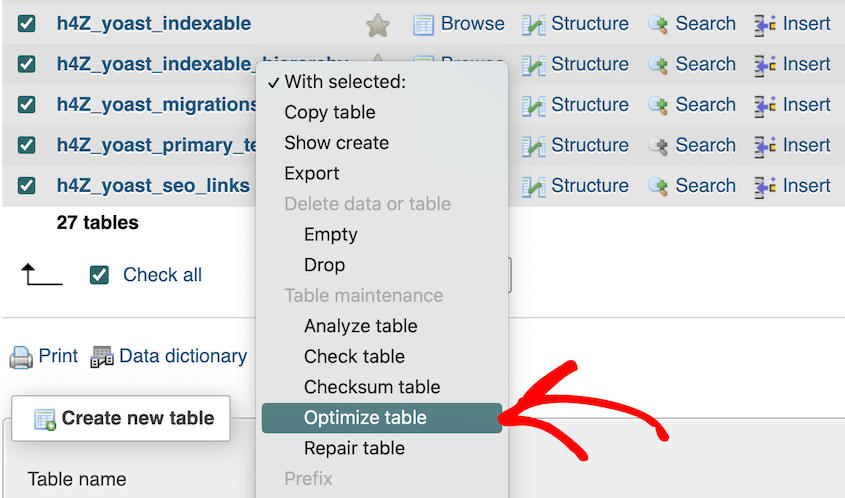
You can run optimization a few ways. With phpMyAdmin, select the tables and choose Optimize table from the dropdown.
If you’re familiar with the terminal, use WP-CLI to run wp db optimize. For a more beginner-friendly cleanout, install a maintenance plugin like WP-Optimize.
Schedule Database Cleanups
A one-time cleanup improves things temporarily. Without a recurring schedule, bloat returns and compounds again.
Scheduled cleanups keep the database from reaching the point where maintenance becomes a major project.
Clear expired transients weekly, purge post revisions and auto-drafts monthly, and do a full review of database size and plugin tables quarterly.
These intervals aren’t universal (a high-traffic WooCommerce store may need more frequent attention than a simple blog), but they’re a workable starting point for most sites.
WP-Optimize and Advanced Database Cleaner both support scheduled cleanups. You configure the tasks once, set the frequency, and the plugin handles it automatically.
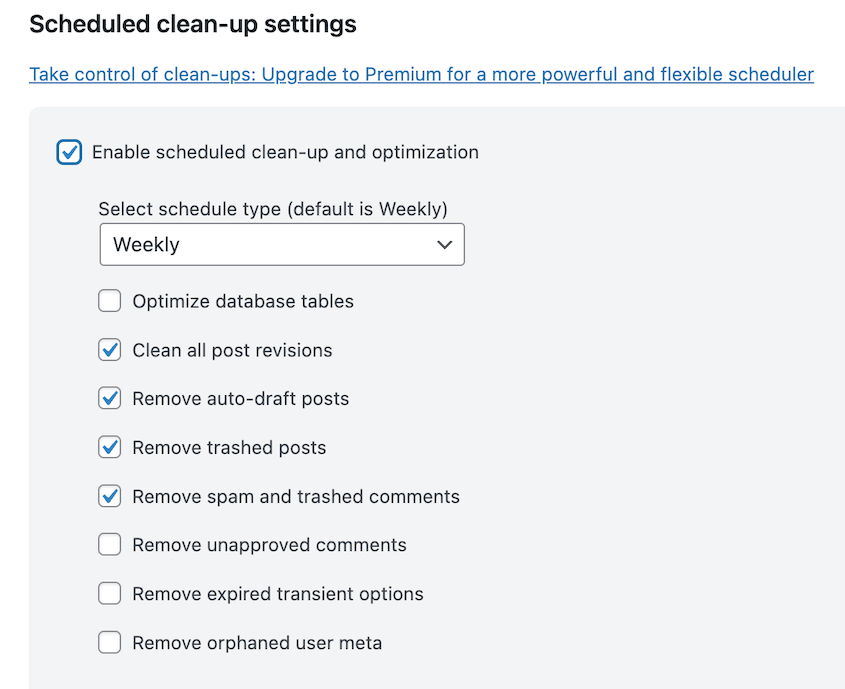
Review the schedule periodically. A site that’s grown significantly over the past year may need more frequent maintenance than it did when you first set it up.
Perform Available Updates
WordPress core, plugin, and theme updates often include database-related changes like query optimizations, schema updates, security patches, and bug fixes. Skipping updates will carry known problems forward.
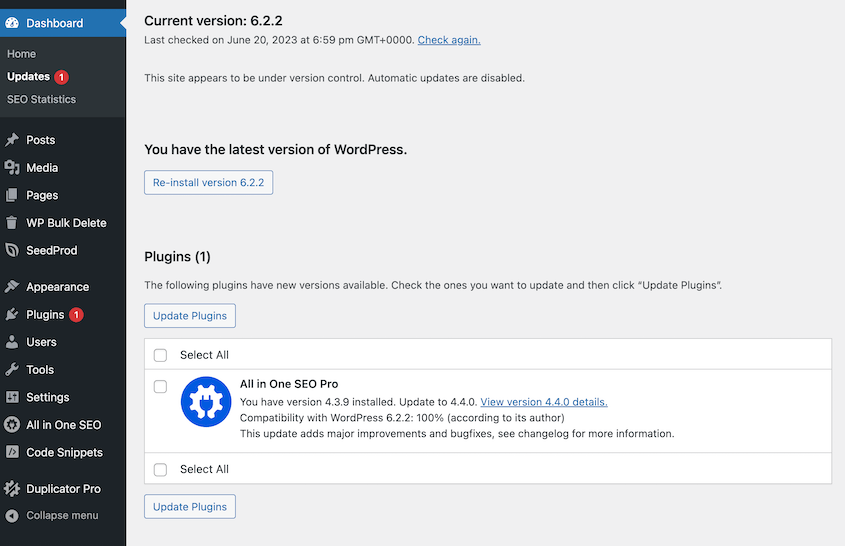
Back up before updating. This applies to every update, but especially to plugins that interact heavily with the database. WooCommerce, membership plugins, form builders, and similar tools often include database schema changes in their updates.
For WordPress core, enabling automatic updates for minor releases (security and maintenance updates) is generally safe and reduces the window of exposure to known vulnerabilities.
Major releases are worth reviewing before applying, particularly if you’re running plugins with significant database dependencies.
If your site is large or complex enough that a bad update would be genuinely disruptive, test updates on a staging environment first. Apply them to production once you’ve confirmed nothing broke.
When you’re ready to test an update, create a full backup of your site and download it with Duplicator. Drag and drop the backup into your staging environment to instantly clone your site and assess the update safely.

Do a Security Scan
Malicious code doesn’t always live in theme files or plugins. It frequently ends up in the database: injected into post content, widget settings, or the wp_options table.
A security scan that only checks files misses this entirely.
Database-aware scans look for injected scripts in post content, unauthorized administrator accounts, unexpected changes to core option values, and known malware signatures in stored data.
Wordfence and Sucuri are well-known security plugins with database security scanning. Either is a reasonable choice for regular maintenance.
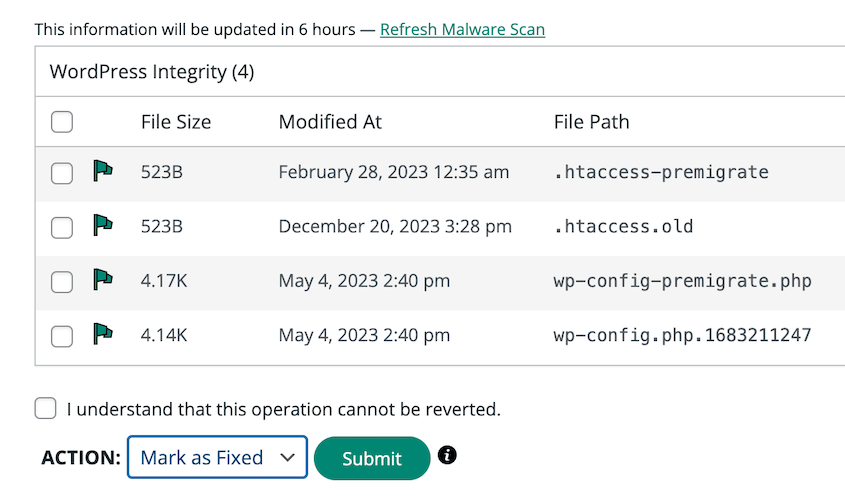
If a scan finds something, the next step isn’t just removing it; it’s understanding how it got there. The vulnerability that allowed the injection may still be open. Removing the malicious content without closing the entry point means it can return.
Security scanning is detective work. It identifies what’s already happened. It doesn’t prevent future intrusions on its own.
Check Site Speed
Database health has a direct effect on load time. Unoptimized tables, plugins that generate excessive queries, and uncached database calls all add to the time it takes to serve a page.
A site that’s gotten slower over time often has a database problem contributing to it.
Google PageSpeed Insights and GTmetrix give you an external view of load time and flag specific issues.
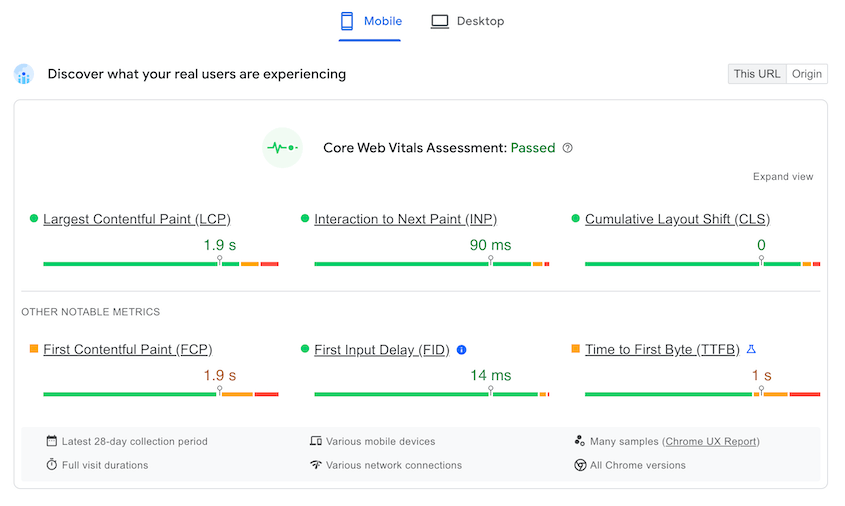
For database-specific diagnosis, Query Monitor is more useful. It’s a WordPress plugin that shows which database queries run on each page load, how long each one takes, and which plugin or theme is responsible for it.
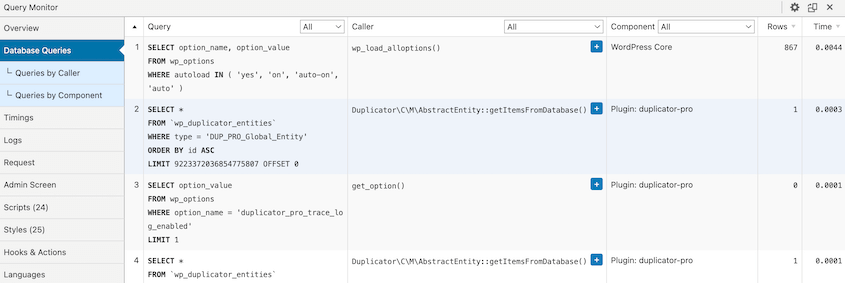
If a single plugin is generating dozens of slow queries on every page request, that’s worth investigating. Some plugins are simply inefficient; others have configuration options that reduce their database load.
Scan for Broken Links
Broken links don’t damage the database directly, but they’re frequently a result of database operations like deleted posts, changed slugs, and moved pages that didn’t get redirects set up.
A content audit that includes link checking should be a part of periodic site maintenance.
Broken Link Checker (the plugin) and Screaming Frog (a desktop crawler) both handle this.
For internal broken links, the right fix is usually either updating the link at the source or adding a redirect from the old URL to the new one. You can do this with Broken Link Checker.
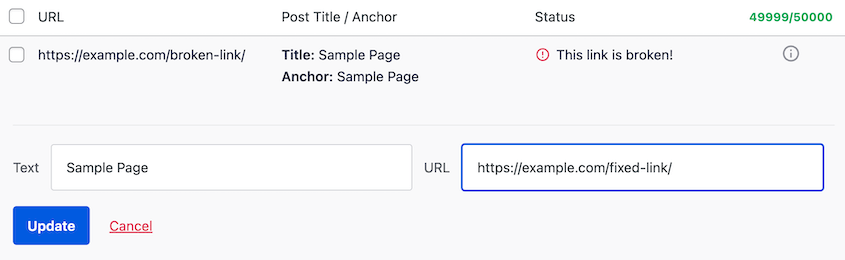
For external broken links, update the URL if a new one exists, or remove the link if the content is gone.
Optimize Images
What most site owners don’t realize is that WordPress creates multiple size variations for every image you upload—thumbnail, medium, large, and any custom sizes registered by your theme or plugins.
Most of those variations never appear anywhere on the site. They just sit on the server, consuming disk space and inflating backup sizes.
An image library that’s been accumulating for a few years can have tens of thousands of unused variation files. Manually sorting through them to figure out what’s safe to delete isn’t realistic.
WP Media Cleanup handles this automatically. It scans your entire site to map which image variations are actually referenced in your content.
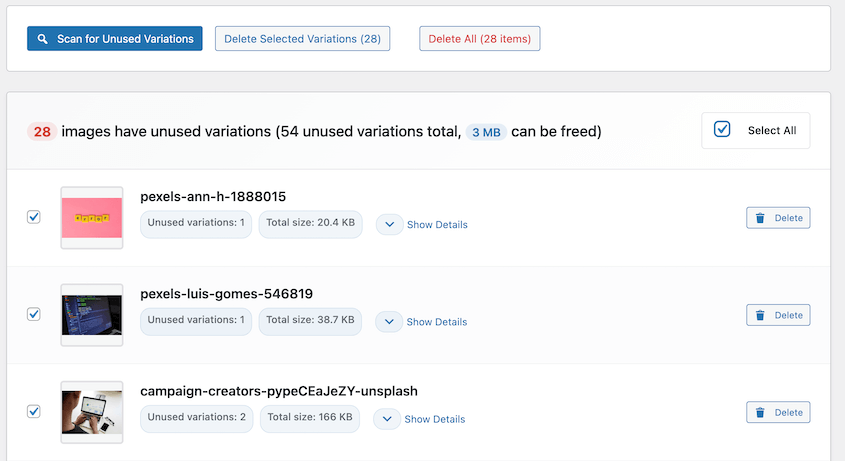
Anything that exists on the server but isn’t used anywhere gets flagged for removal. Original full-size images are never touched; the plugin only targets the size variations.
EWWW Image Optimizer and Smush handle image optimization and can convert files to WebP, which delivers smaller file sizes at comparable quality and is supported by all modern browsers.
Test Your Forms
Forms interact with the database more than most site owners realize.
Submissions get stored, emails get triggered, and transactions get logged. After any significant database maintenance, it’s worth confirming that forms still work as expected.
Test both the frontend behavior (does the form submit without errors?) and the backend records (did the entry appear in the plugin’s dashboard?).
These can fail independently. A form can appear to submit successfully while failing to write the entry to the database.
WPForms and Gravity Forms store entries in custom database tables. Those tables accumulate data over time and benefit from the same kind of periodic cleanup as the rest of the database. If you’re not regularly exporting and archiving old entries, they’ll keep growing.
Broken forms after a database update or site migration are easy to miss if you’re not actively checking. Adding form testing to your post-maintenance routine catches these before a real user does.
Filter Spam Comments
On sites with active comment sections, spam is one of the more consistent sources of database bloat. Spam gets stored in the database and stays there until someone clears it.
The core trash default is 30 days, but many sites prefer something shorter, like 15 days. You can catch and remove spam with a plugin like Akismet.
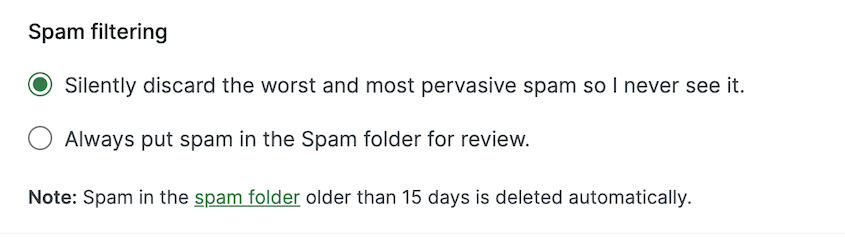
This keeps the spam queue from growing indefinitely without requiring manual intervention.
For immediate cleanup, bulk-delete via the Comments screen or use a cleanup plugin to remove it in one pass.
Remove Unnecessary or Inactive Plugins and Themes
Inactive plugins don’t run, but many of them leave a footprint. Database tables created during installation, option entries written to wp_options, and transients don’t go away automatically when you deactivate a plugin.
Review your installed plugins a few times a year. Anything that isn’t actively in use should be deleted, not just deactivated.
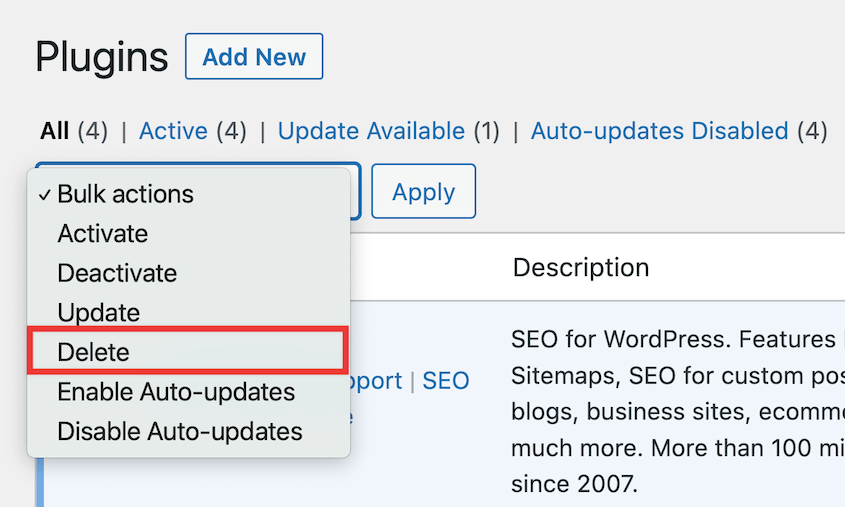
After deletion, check for leftover tables using phpMyAdmin or Advanced Database Cleaner. If a table has no active plugin associated with it, it can usually be removed—but review before deleting, particularly if the table name isn’t immediately recognizable.
The same applies to themes. WordPress requires at least one fallback theme (a default Twenty-Something theme works), but anything beyond that can be deleted.

Unused themes don’t create database bloat in the same way plugins do, but they represent unnecessary code on the server and a potential security risk if they’re not being updated.
Before removing any plugin that stores significant data (form entries, WooCommerce orders, membership records), export that data first. Deleting the plugin without exporting means the data goes with it.
Clear Your Cache
After database maintenance, cached content may reflect the pre-maintenance state of the site. A page that was cached before you cleared expired transients or updated content will keep serving the old version until the cache is refreshed.
Clear both server-side cache (WP Rocket, W3 Total Cache, LiteSpeed Cache, or whatever your host provides) and CDN cache if you’re using one.
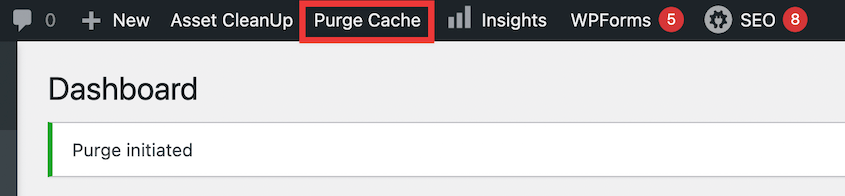
Object caches (Redis, Memcached) store the results of database queries in memory. Clear these as well, since they may be holding query results that are no longer accurate.
Some database improvements won’t show up in performance metrics until the cache is cleared. Running a speed test immediately after optimization without clearing the cache first can produce misleading results.
Make cache clearing the last step in the maintenance routine, then test.
Tools for WordPress Database Maintenance
Each tool below serves a different purpose. Some overlap, but none are redundant. The right combination depends on your comfort level and what you’re trying to accomplish.
Duplicator
Before you run any maintenance task that modifies the database, you need a restore point. Duplicator Pro is the right tool for that job, and it’s the first thing to set up before anything else on this list.
Duplicator Pro creates full site backups that include both the database and files in a single portable archive. You can also create database-only backups with presets.
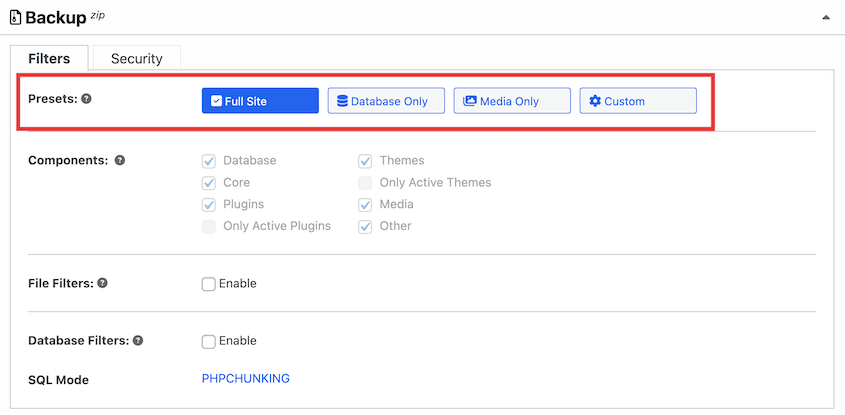
Scheduled backups run automatically on whatever frequency you configure: hourly, daily, weekly, monthly, or custom intervals.
Duplicator can send your data to remote destinations like the native Duplicator Cloud, Google Drive, Dropbox, Amazon S3, OneDrive, and FTP.

Backups stay off the server, which means a server failure doesn’t take your restore point with it.
The restore process is practical. Beginners can click the Restore button from the admin dashboard.
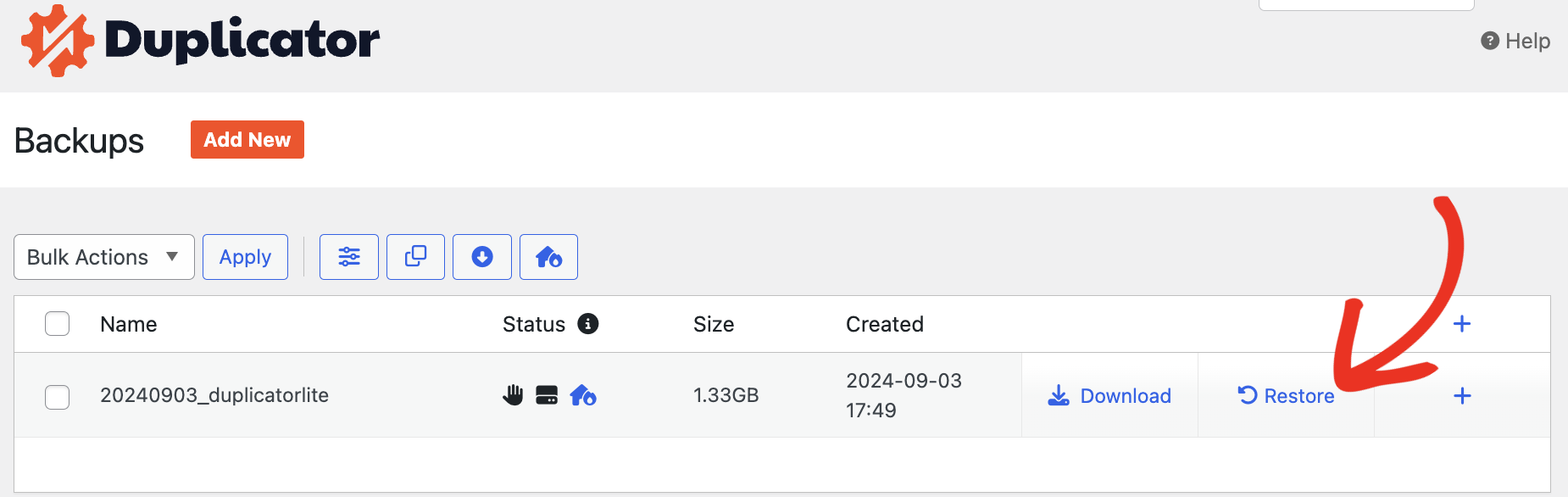
Duplicator handles the restore through its own installer, which works even when WordPress itself isn’t loading. If your entire site is down, upload your backup files directly to the server to restore your data.
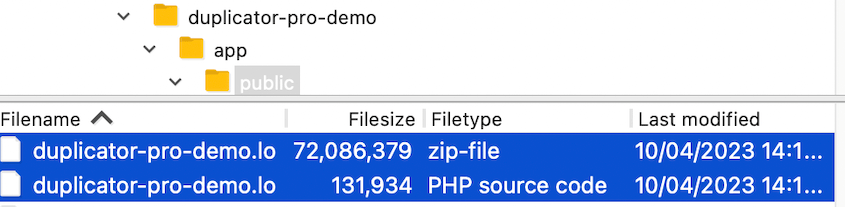
Duplicator Pro also handles site migrations using the same archive format as its backups. If you’re already using it for backups, migration is covered without needing a separate tool.
Think of it as the foundation of any maintenance setup, not an optional extra. Everything else is easier when you know you can recover from a mistake.
Database Cleanup Plugins
WP-Optimize covers the most common cleanup tasks: post revisions, auto-drafts, spam comments, expired transients, and table optimization. It supports scheduling, so you can set it to run automatically on a recurring basis.
For most sites, this is a good starting point. It handles the majority of routine database cleanup without much configuration.
Advanced Database Cleaner is particularly useful for identifying leftover tables from plugins that have been deleted. It maps each table to its associated plugin, so you can see what’s still active and what’s been orphaned.
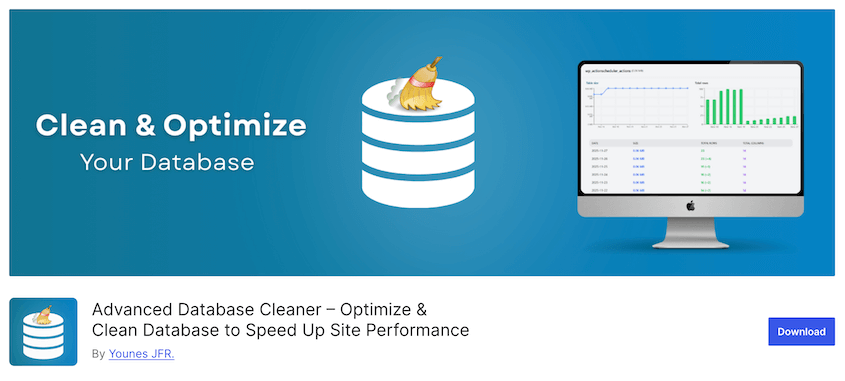
Use it when WP-Optimize’s broader cleanup isn’t specific enough.
WP-Sweep doesn’t include scheduling, but if you want a straightforward tool for manual cleanup sessions, it gets the job done.

If you need to fully reset your database to its default settings, I recommend Database Reset Pro. This free plugin will instantly roll back any database without removing your passwords. It’s great for development.
phpMyAdmin
phpMyAdmin is a web-based interface for MySQL that’s included with most cPanel and Plesk hosting environments. It gives you direct access to the database.
With phpMyAdmin, you can browse table contents, check table status, run SQL queries, export specific tables, and perform repairs and optimization.
For optimization, select the tables you want to work on, open the dropdown at the bottom of the table list, and choose Optimize table.
For a full database export, use the Export tab, select SQL format, choose the tables you want, and download the file.
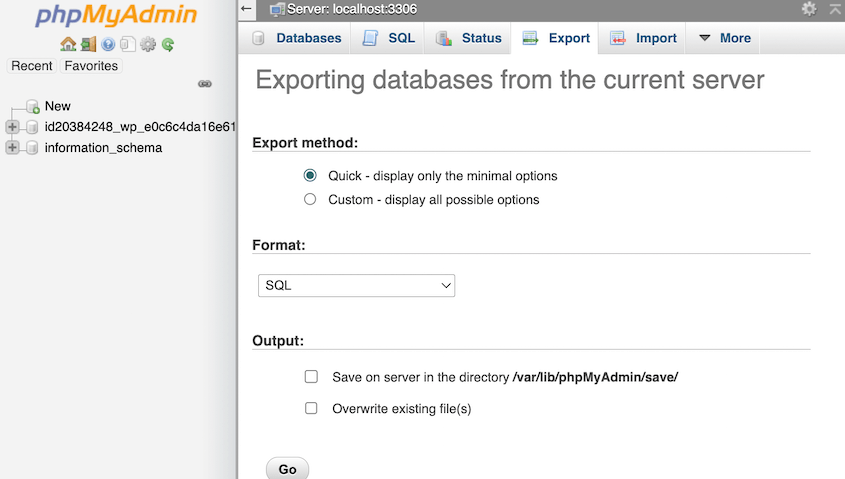
phpMyAdmin is best suited to intermediate users. The SQL query tab can modify or delete data instantly without confirmation prompts, so if you’re not comfortable writing SQL, stick to the interface options rather than the query tab.
WordPress Built-In Repair Tool
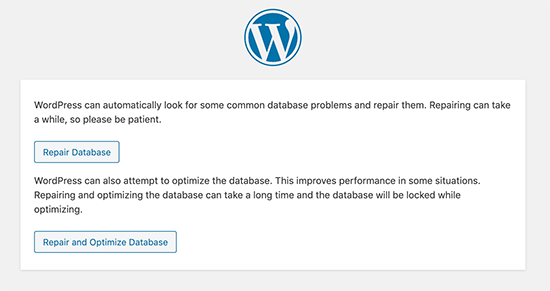
WordPress includes a built-in database repair tool that’s useful when you’re seeing database errors and want a quick diagnostic without opening phpMyAdmin.
To activate it, add define('WP_ALLOW_REPAIR', true); to your wp-config.php file, then visit yourdomain.com/wp-admin/maint/repair.php.
You’ll see two options: Repair Database, which fixes structural issues in database tables, and Repair and Optimize Database, which does the same and runs optimization afterward.
WP-CLI for Developers
WP-CLI is a command-line tool for managing WordPress without using the admin interface. For developers, it’s faster and more flexible than any plugin UI, and it’s well-suited to automation via server cron jobs.
The most useful commands for database maintenance:
wp db optimize: optimizes all database tableswp db repair: runs the repair routine on the databasewp db export/wp db import: exports or imports a full database backup as a SQL filewp transient delete --all: removes all transients at oncewp post delete $(wp post list --post_status=trash --format=ids): deletes all trashed posts in one command
For routine maintenance on multiple sites, WP-CLI commands can be scripted and scheduled to run without any manual intervention.
Most managed WordPress hosts provide SSH access for WP-CLI. If you’re not sure whether your host supports it, check their documentation or ask support.
WordPress Database Optimization Best Practices
- Always back up before optimizing.
This applies every time, not just when something seems risky. Optimization tasks rarely cause problems, but “rarely” isn’t “never.” A backup takes minutes with Duplicator, while recovering without one can take hours.
- Optimize after cleaning, not before.
Running OPTIMIZE TABLE on a database full of post revisions, expired transients, and orphaned metadata just reorganizes data you’re about to remove.
Remove the bloat first, then defragment what remains. Doing it in the wrong order wastes time and creates unnecessary write load.
- Don’t optimize constantly.
For InnoDB tables (the default on most modern WordPress installations), OPTIMIZE TABLE rebuilds the entire table internally. Running it daily or after every minor change creates write overhead without meaningful performance gains.
Once a month, or after a significant cleanup session, is enough.
- Use a staging environment for significant changes.
If you’re doing a major cleanup, updating database-heavy plugins like WooCommerce, or changing your URL structure, test on staging first. Applying untested changes directly to a live production site is how preventable problems happen.
Most managed hosts include staging environments. If yours doesn’t, Duplicator Pro can create one.
- Cap post revisions at the source.
Rather than cleaning up revisions reactively, limit how many WordPress saves in the first place.
Adding define('WP_POST_REVISIONS', 5); to your wp-config.php file tells WordPress to keep a maximum of five revisions per post and discard older ones automatically.
This doesn’t remove existing revisions, but it stops the accumulation from continuing at the same rate.
- Audit plugins for database efficiency.
Not all plugins are written with database performance in mind. Some generate an excessive number of queries on every page load; others write to the database far more than their function warrants.
Query Monitor makes this visible. It shows which queries run on each page, how long they take, and which plugin or theme generated them.
If a plugin is consistently responsible for slow or excessive queries, that’s worth addressing, either through its settings or by replacing it.
- Keep a basic maintenance log.
A log makes it easier to spot patterns, confirm that scheduled tasks are actually running, and understand what changed before a problem appeared. It doesn’t need to be elaborate—a simple text file or a note in a project management tool works fine.
Full WordPress Database Maintenance Checklist
Use this as a reference, not a rigid set of rules. Adjust based on your site’s actual activity.
A static site doesn’t need every item on this list. A WooCommerce store with daily orders probably needs more than what’s here.
Weekly
- Clear expired transients
- Empty spam comments (or confirm automatic deletion is configured)
- Check for available updates across plugins, themes, and WordPress core
Monthly
- Verify that automated backups ran and test a recent one
- Remove post revisions beyond your defined limit
- Delete auto-drafts and trashed content
- Optimize database tables
- Run a security scan
- Clear server-side and CDN cache
- Test key forms (submission and entry logging)
Quarterly
- Audit and remove inactive plugins and themes; check for leftover database tables
- Scan for broken links
- Check site speed and review slow queries with Query Monitor
- Review database size in phpMyAdmin or your hosting dashboard
- Submit or verify your sitemap in Google Search Console
- Review the image library for orphaned or unoptimized files
As Needed
- Repair corrupted tables
- Restore a backup after a failed update or migration
- Full database export before a major update or site migration
Frequently Asked Questions (FAQs)
Will database optimization delete any of my content?
No. Running OPTIMIZE TABLE reorganizes the internal storage structure of a table and reclaims fragmented space—it doesn’t touch the data stored in the table. Your posts, pages, comments, and settings are unaffected.
Cleanup tasks like deleting revisions, clearing spam, or removing trashed content are separate operations, and those only run when you explicitly initiate them. You control what gets removed.
What’s the difference between optimizing and repairing a database table?
Optimization is routine maintenance on a table that’s functioning normally. It defragments internal storage and reclaims overhead left behind by deleted rows. Repair is for a table that’s damaged or structurally corrupted—one that’s returning errors or failing to read and write correctly.
You optimize for performance on a healthy table; you repair when you’re seeing errors tied to a specific table. Running optimization on a corrupted table won’t fix the underlying problem.
What’s the best WordPress database cleaner?
For most sites, WP-Optimize handles the common tasks well: post revisions, expired transients, spam comments, auto-drafts, table optimization, and scheduling. It covers the majority of routine cleanup without requiring much configuration.
If you need more granularity—particularly for identifying and removing leftover tables from deleted plugins—Advanced Database Cleaner is a good choice.
Developers who prefer working from the command line can handle all of this through WP-CLI without installing a plugin at all.
How do I reduce my WordPress database size?
Start with the biggest contributors: post revisions, expired transients, spam comments, and auto-drafts. Remove them with a cleanup plugin, then run OPTIMIZE TABLE to reclaim the freed space. Going forward, cap revisions in wp-config.php with define('WP_POST_REVISIONS', 5);, maintain a regular spam-clearing schedule, and audit plugins for unnecessary database writes.
If the database is still larger than expected after cleanup, check whether any plugin-specific tables are logging more data than needed. Some analytics plugins and form builders store detailed logs by default, and those tables can grow substantially over time.
How much does WordPress maintenance cost?
The range is wide and depends almost entirely on how much you want to do yourself. Handling maintenance with free plugins costs nothing except time. Premium tools like Duplicator Pro add a modest annual cost but cover backups, migrations, and restores in a way that free tools typically don’t match.
Managed WordPress hosting from providers like WP Engine or Kinsta runs roughly $20–35 per month and includes automated backups, security scanning, and update management as part of the package.
Hiring a freelancer or agency for ongoing maintenance ranges from $50 to several hundred dollars per month depending on the scope and the size of the site.
Don’t Wait for an Error Message
Database maintenance isn’t complicated, but it does require consistency.
A site that gets regular attention rarely develops the kind of compounding problems that turn into real recovery work. A site that’s been ignored for years is a different situation.
The order of operations matters: back up first, clean up second, and optimize third. Running optimization before cleanup wastes effort. Running either without a backup in place is an unnecessary risk.
Not every task on this list applies to every site. Use the checklist to identify what’s relevant to your situation and build a schedule around that, rather than treating every item as mandatory.
If there’s one place to start, it’s backups. A reliable restore point makes every other maintenance task safer, and it’s the one thing that limits the damage when something goes wrong—whether that’s a failed update, a botched migration, or a corrupted table.
Duplicator Pro handles scheduled automatic backups, stores copies in the cloud, and restores them in minutes. It’s the foundation of a maintenance setup that actually holds up when you need it.
While you’re here, I think you’ll like these related WordPress guides:
- How Black Bike Media Rescued a 2.4GB Corrupted Database
- How to Restore a Website With Only a Database Backup
- Here Are the WordPress Database Repair Steps I Took Myself (No Developer Needed)
- How to Optimize Your WordPress Database: Get a Fast Site in 10 Steps
- The Best WordPress Database Optimization Plugin I’ve Used (Plus 3 Alternatives)




