


How to Migrate Your Website from Weebly to WordPress
 Joella Dunn
Joella Dunn
Joella Dunn
 John Turner
John Turner
John Turner
You’re clicking through Weebly’s app marketplace for the third time this week, searching for a plugin that does what you need.
It doesn’t exist.
You try adding custom code to fix your SEO. The editor strips it out.
You want to add a specific checkout feature for your store. Weebly’s eCommerce plan doesn’t support it, and there’s no workaround.
This is the Weebly Wall. The moment you realize your business has outgrown a platform that was never built to scale with you.
Weebly works great when you’re starting out. The drag-and-drop builder is intuitive, so you can launch a site in an afternoon. But the same simplicity that made it easy to start becomes a cage once you need more control.
In this guide, I’ll walk you through the process of moving your Weebly site to WordPress.
You’ll need a few hours and some patience. But by the end, you’ll own your website in a way you never did on Weebly.
Here are the key takeaways:
- WordPress gives you complete ownership of your site files and database, unlike Weebly’s closed platform
- You’ll get access to 60,000+ free plugins instead of Weebly’s limited app marketplace
- The migration is simple using a free tool called Weeblytowp.com to export your content
- You’ll need WordPress hosting, and you can transfer your custom domain or buy a new one
- Setting up proper redirects and permalinks prevents broken links and lost SEO rankings
- WordPress costs less long-term with no transaction fees and thousands of free themes and plugins
Table of Contents
Why Migrate from Weebly to WordPress?
Weebly is renting. WordPress is owning.
When you build on Weebly, you’re building on someone else’s property. They control the features. They set the prices. They decide what you can and cannot do with your own content.
If Weebly decides tomorrow that your pricing tier no longer includes a feature you depend on, you adapt or pay more. If they change their terms of service, you accept it. You have no leverage because your entire business presence is locked inside their system.
WordPress is different: you own the files, and you control the database.
If you don’t like your hosting company, you move. If a plugin stops working, you replace it. Nobody can change the rules on you because there’s no single company controlling the platform.
The Plugin Gap
Weebly’s app center has a few hundred apps. Many are paid, and most are basic.
WordPress has over 60,000 free plugins in its official repository.
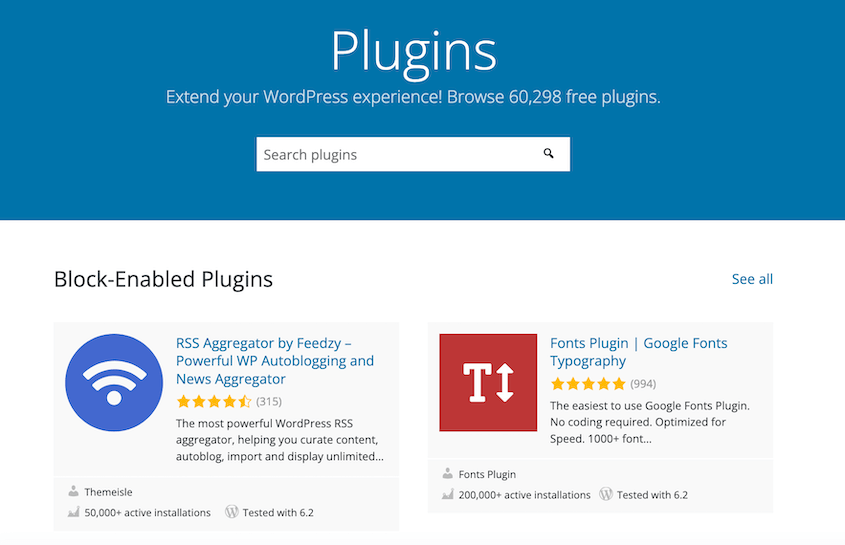
Need advanced booking? Want to sell subscriptions? Need to integrate with a weird third-party API your payment processor requires? Someone has probably built a plugin for it.
With WordPress, you’ll have options when your business needs something specific.
SEO Control
Weebly gives you the basics: title tags, meta descriptions, and alt text.
But technical SEO? That’s locked down.
You can’t edit schema markup properly. You can’t control how the HTML renders or optimize page speed beyond Weebly’s built-in settings.
WordPress gives you complete access. Feel free to install an SEO plugin like AIOSEO. Add custom schema. Optimize images. Control caching. Fix Core Web Vitals.
You’re not guessing whether Weebly will implement a feature—you just do it yourself.
Cost
Weebly looks affordable until you need e-commerce features. Then you’re paying 3.3% + 30¢ per transaction. For lower transaction fees, you can upgrade to Square Plus or Premium, but then you’ll pay upwards of $49 per month.
WordPress has thousands of free plugins and themes to use. You can easily find a free e-commerce plugin (like Easy Digital Downloads) with no transaction fees.
There are plenty of other ways to monetize your site as well. Because WordPress is so flexible, you can start affiliate marketing, display ads, sell subscriptions, and much more.
How to Migrate from Weebly to WordPress
Let me walk you through the process of migrating your site from Weebly to WordPress:
- Step 1: Set up WordPress hosting and install WordPress
- Step 2: Export your Weebly content using Weeblytowp.com to create a WordPress-compatible XML file
- Step 3: Import the XML file into WordPress using the native WordPress importer
- Step 4: Redirect your domain by updating nameservers or adding redirect code to Weebly
- Step 5: Configure permalinks to match your old Weebly URL structure and prevent broken links
Step 1: Set Up Your WordPress Website
WordPress doesn’t work like Weebly—there’s no all-in-one platform. You’re choosing where your site lives.
To set up WordPress, you’ll need a web hosting provider. Bluehost, SiteGround, and Kinsta all work well.
Avoid generic hosting companies that treat WordPress as an afterthought. You want a host with one-click WordPress installation and support staff who actually understand the platform.
If you own a custom domain through Weebly (like yourbusiness.com), you’ll need to unlock it. Log into Weebly, go to your domain settings, and disable the registrar lock. You’ll get a transfer authorization code.
If you’ve been using a free Weebly subdomain (like yourbusiness.weebly.com), you’ll need to buy a proper domain. Subdomains can’t be transferred because you don’t own them.
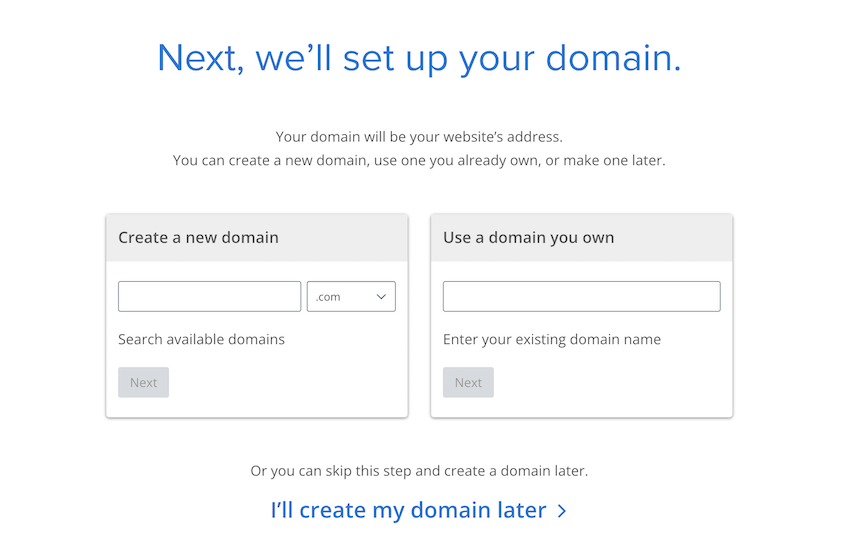
Most WordPress hosts offer one-click installation. You’ll pick your domain and set up admin login credentials. WordPress installs in under a minute.
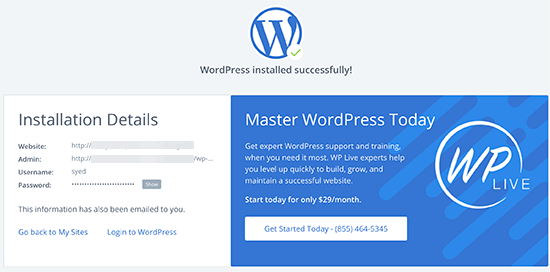
You now have a blank WordPress site.
Here’s what those other guides won’t tell you: sometimes the Weebly import process fails.
If that happens, you’ll want to start over with a clean WordPress installation. But manually deleting hundreds of broken posts and pages is miserable.
Instead, install the Duplicator plugin right now, while your WordPress site is still blank. Create a backup of this clean, empty site.

If the Weebly import goes sideways, you can use Duplicator to restore this blank slate in under two minutes. Just reset and try again.
Step 2: Export Your Weebly Content
Weebly doesn’t have an export button, so we’ll use a workaround.
Go to https://weeblytowp.com/. This is a free tool that crawls your Weebly site and converts it into a WordPress-compatible XML file.
Enter your Weebly site URL, name, and email. Choose the WXR export format and decide whether you want to include your Weebly site’s pages in the backup.
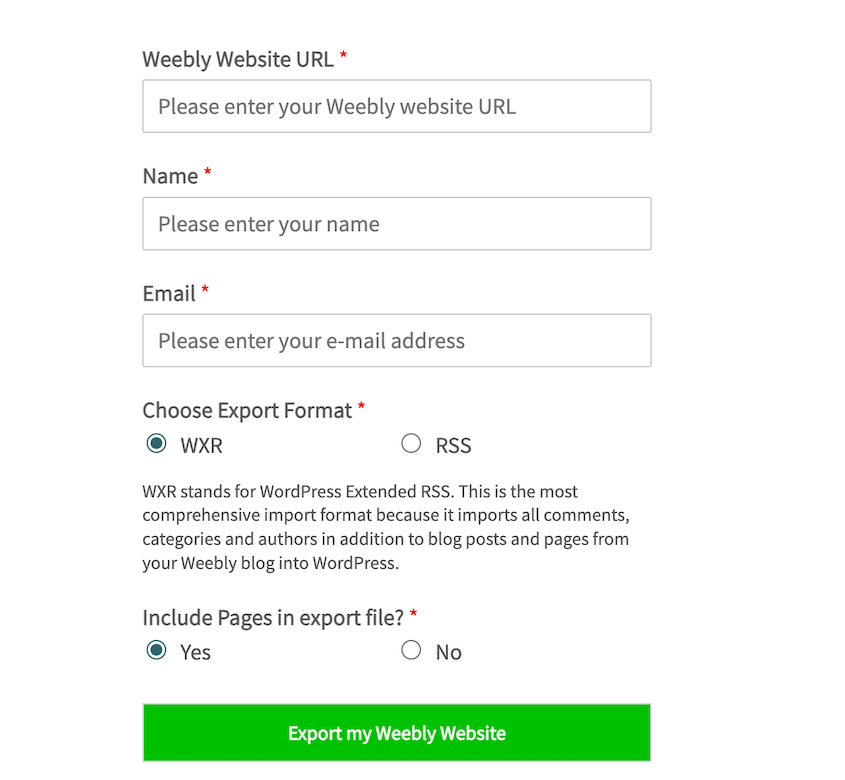
The process takes a few minutes depending on your site size. When it finishes, download the XML file.
Step 3: Import Your Weebly Site into WordPress
Log into your WordPress dashboard. Go to Tools » Import.
You’ll see a list of import options. Find WordPress (even though this is coming from Weebly, the XML format is WordPress-compatible).
If WordPress prompts you to install the WordPress importer, click Install Now and then Run Importer.
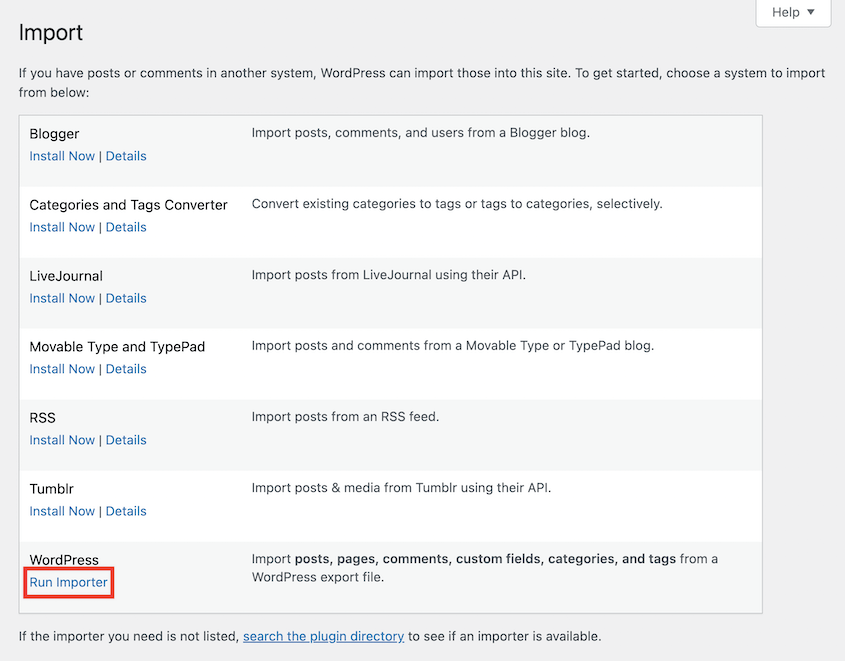
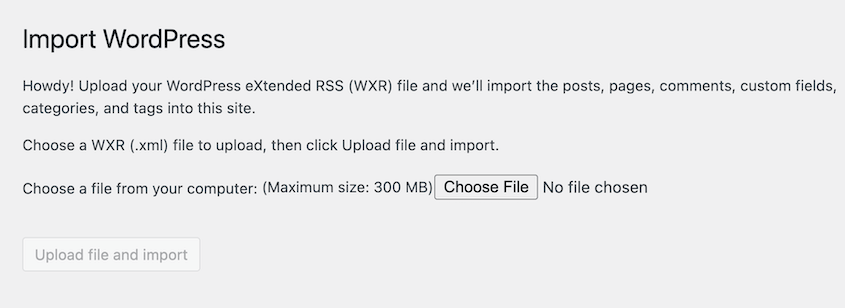
Upload the XML file you downloaded from the Weebly to WordPress importer.
On the next screen, WordPress asks if you want to import file attachments. Check that box. This tells WordPress to download all the images from Weebly’s servers and save them to your new WordPress site.
Assign the new posts to an author on your WordPress site.
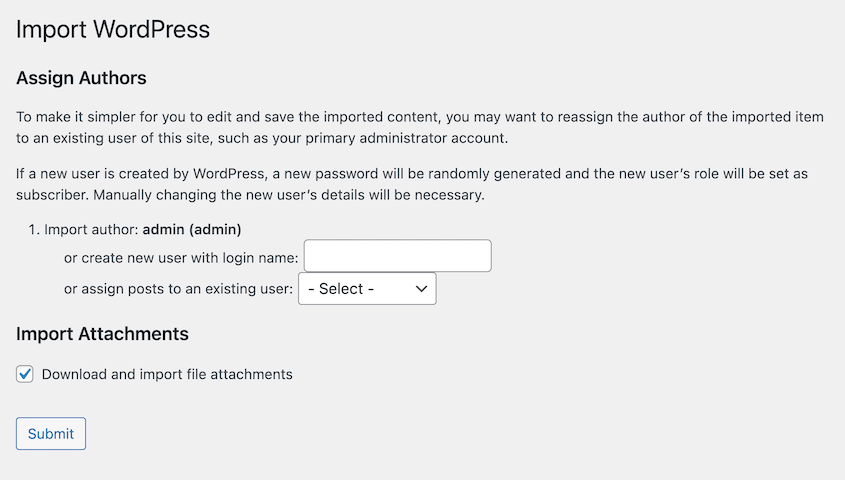
Click Submit and let the import run.
This takes anywhere from two minutes to twenty, depending on how much content you have. Don’t close the browser window.
When it finishes, go look at your site. Click through a few pages and posts to make sure they transferred correctly.
Step 4: Redirect Your Weebly Site to WordPress
Your content is now in WordPress, but visitors are still landing on your old Weebly site. So, you need to set up redirects from your Weebly domain to the new location.
How you do this depends on your domain situation.
Scenario A: You Own a Custom Domain
If you’re using a custom domain on Weebly, you need to update your nameservers.
Log into your Weebly account and open the Domains page. Click on your domain name and hit Change by the Nameservers option.
Delete the old nameservers that point to Weebly. Add the nameservers your WordPress host provided. They look something like ns1.yourhost.com and ns2.yourhost.com.
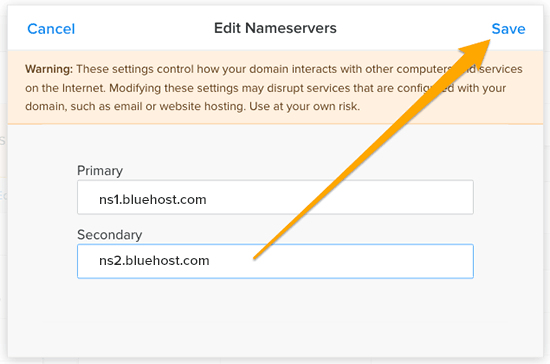
Save the changes.
DNS propagation takes 24-48 hours. After this, everyone should be seeing your WordPress site.
Scenario B: You’re Using a Weebly Subdomain
If your site is on a free Weebly subdomain (yourbusiness.weebly.com), you can’t change the nameservers. You don’t own the domain—Weebly does.
But you can force a redirect.
Log into Weebly. Go to Settings » SEO. Scroll down to the Header Code section.
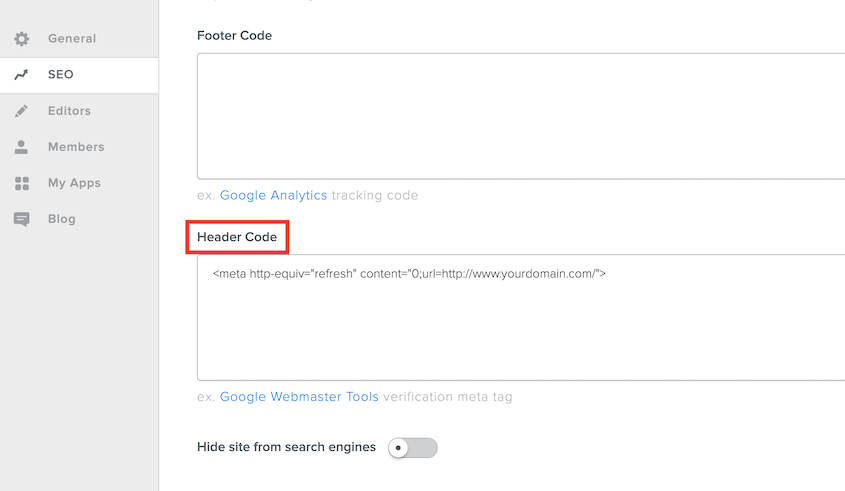
Paste this code:
<meta http-equiv="refresh" content="0;url=http://www.yourdomain.com/">
Replace yourdomain.com with your actual WordPress domain.
The 0 means zero seconds delay. As soon as someone hits your Weebly subdomain, they’re instantly redirected to WordPress.
This isn’t as clean as a proper domain transfer, but it works. Anyone who bookmarked your old Weebly URL will still reach your new site.
Step 5: Set Up Permalinks
Your content is imported. Your domain is redirected. But there’s one more problem: Weebly URLs end in .html.
WordPress doesn’t use .html by default. yourbusiness.com/about.html becomes yourbusiness.com/about/.
Every link pointing to your old pages is now broken. To avoid generating hundreds of 404 errors, you need to update your WordPress permalinks.
Go to Settings » Permalinks in WordPress. Select Custom Structure and enter this: /blog/%postname%
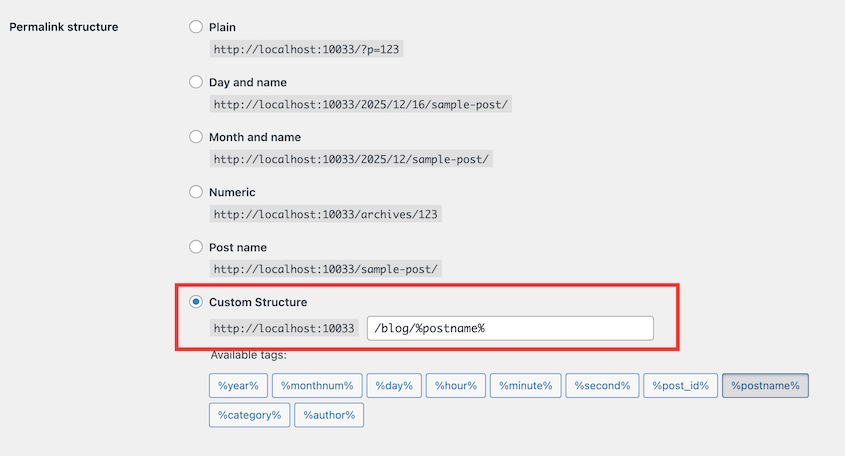
This keeps your blog posts at /blog/post-title/ instead of moving them to the root directory. It won’t add the .html extension, but it maintains the /blog/ structure that Weebly used.
WordPress doesn’t have a built-in option to add .html to page URLs, so I recommend installing the Add Any Extension to Pages plugin.
Go to Settings » Add Any Extension to Pages. Set the extension to .html.
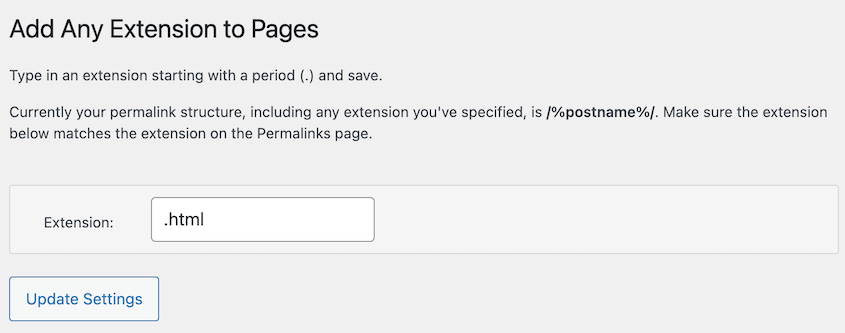
Now your pages match the old Weebly structure perfectly without 404 errors or broken links.
Your migration is complete!
Frequently Asked Questions (FAQs)
Can I transfer my Weebly website to another host?
No. Weebly is a closed content management system, not just a hosting service. You can’t FTP into Weebly’s servers and download your site files because those files don’t exist in a portable format. You can only migrate the content to a different platform like WordPress.
How do I migrate Weebly to Squarespace?
Squarespace offers an importer tool that pulls content from Weebly. But you’re jumping from one closed platform to another. Squarespace has more features than Weebly, but you’ll hit similar walls eventually—limited plugins, paid features, and no real ownership of your site files.
What happens to my Weebly contact forms?
They don’t migrate. Contact forms are built with Weebly’s system and won’t work in WordPress. Install a plugin like WPForms and rebuild your forms from scratch. It’ll only take a few minutes per form.
Weebly to WordPress: The Migration Is Just the Start
WordPress has a learning curve, but here’s what you get in exchange: control.
You’re not waiting for Weebly to implement a new feature. You’re not locked into a pricing tier that doesn’t fit your business.
You own your website, so you decide what happens next. The sky is the limit!
Once you start customizing your WordPress site, you won’t want to risk losing that work.
Duplicator Pro runs automatic, scheduled backups to cloud storage. Set it once, and your site backs up to Google Drive, Dropbox, or Amazon S3 every night. If something breaks, you restore your site in minutes.
While you’re here, I think you’ll like these hand-picked WordPress resources:
- 11 WordPress Maintenance Tasks You Won’t Want to Forget
- How to Redesign a WordPress Site (Without Downtime)
- How Many WordPress Plugins Are Too Many? (Definitive Guide)
- How to Create a WordPress Site From Scratch
- How to Start a WordPress Blog
- How Long Does It Take to Learn WordPress?
- WordPress Migration Plugins That Actually Work




