


The Complete Post-Migration WordPress Testing Checklist (2026)
 Joella Dunn
Joella Dunn
Joella Dunn
 John Turner
John Turner
John Turner
You’ve just finished migrating your WordPress site, and everything looks fine at first glance.
But here’s the thing—I’ve seen migrations that looked perfect fall apart within hours. A contact form that stopped sending emails. A payment gateway that silently failed. Little issues that cost real money.
I’ve been migrating WordPress sites for years, and I learned this lesson the hard way: a migration isn’t complete when the files move. It’s complete when you’ve verified everything actually works.
That’s what this post-migration checklist is for. I’ve created a step-by-step guide to catch hidden problems before your visitors or clients discover them.
Because finding a broken checkout process during your testing? That’s fixable. Finding it after you’ve lost three days of sales? That’s a nightmare.
Let’s walk through exactly what you need to do during your post WordPress migration testing.
Here are the key takeaways:
- Don’t assume automated tools caught everything; migration plugins can’t control the new server environment, which may have different PHP versions, memory limits, or security configurations that break functionality
- Test all contact forms, newsletter signups, and checkout processes immediately
- Use the password reset feature to confirm WordPress emails are sending, as this affects order confirmations, notifications, and user communications
- Complete a full test transaction to ensure cart, checkout, payment processing, and order confirmations work correctly
- Confirm your robots.txt isn’t blocking crawlers, sitemaps use new domain URLs, and meta tags don’t reference old domains
- Click every link, submit every form, and complete actual transactions to catch hidden failures
Table of Contents
Why Test Your Site After a Migration?
When you move a WordPress site, you’re copying files between two completely different environments.
The new server might be running a different PHP version, memory limit, or security configuration.
All of these variables can break things that worked perfectly fine on the old server.
I’ve personally seen a site break because the new web host had a slightly older version of MySQL. The site loaded, but every form submission failed. The client didn’t notice for two days and lost dozens of leads in the process.
Here’s what’s at stake: your contact forms are how people reach you. Your e-commerce checkout is how you make money. Your login system is how your team accesses the backend.
If any of these fail after a migration, you’re losing business opportunities while you scramble to fix them.
Even if you used an automated migration tool like Duplicator, it can only control what it packages and unpacks. It can’t control the server environment it lands in. That’s why testing is non-negotiable.
What Should You Test After a Migration?
This is where we get practical. I’m going to walk you through every important element that needs testing after a migration.
Once you verify everything methodically, you’ll sleep better knowing your site is actually functional.
After a migration, you should test:
- Navigation and links: Click through main navigation, footer links, sidebar widgets, and internal content links to catch 404 errors and verify HTTP/HTTPS protocol consistency
- Forms: Submit every contact form, newsletter signup, and quote request to verify success messages, email notifications, and backend entry logging
- Search functionality: Test site search with both existing and non-existing terms to ensure results display correctly and error pages appear appropriately
- E-commerce features: Complete full test transactions including add-to-cart, checkout, purchase confirmation, and backend order verification
- Comments and user accounts: Test login/logout flows, user profile access, comment submission, and notification delivery for membership or community features
- Content accuracy: Check for database encoding errors (strange characters), broken shortcodes, and layout issues across multiple pages
- Media files: Verify images in your Media Library, test embedded videos, check PDF downloads, and confirm galleries display correctly
- Plugin and theme functionality: Inspect sliders, pop-ups, menus, theme options panels, and page builder functionality for compatibility issues
- SEO elements: Verify title tags, meta descriptions, robots.txt configuration, and XML sitemap URLs all use your new domain
- Analytics tracking: Confirm Google Analytics tracking code exists and Real-Time reports show your test visits
- Redirects: Test all 301 redirects to ensure old URLs properly redirect to new locations and preserve link equity
- SSL certificate: Check for a padlock icon in a browser and scan for mixed content issues causing security warnings
- Security settings: Verify security plugin configurations transferred correctly and file permissions are set properly (755 for directories, 644 for files)
- Admin access: Test login functionality for different user roles to confirm access levels and permissions work correctly
- Database integrity: Verify post counts, page counts, and comment counts match pre-migration numbers
- Email delivery: Use the password reset feature to confirm WordPress can send emails through the new server
Navigation and Links
Start with the basics. Open your site in a browser and click every single link in your main navigation.
Then check your footer links, your sidebar widgets, and any call-to-action buttons.
Go into a few blog posts and click the internal links within the content. You’re looking for 404 errors or links that still point to your old domain.
Broken links frustrate visitors and hurt your SEO rankings. Google treats 404 errors as a signal of poor site quality, and users who hit dead ends simply leave, so you’ll want to fix them.
If you migrated from HTTP to HTTPS, check for a padlock icon in your browser’s address bar. If it’s broken or missing, you’ve got assets loading over the wrong protocol.
Open your browser’s console and look for any security warnings. They’ll tell you exactly which images or scripts are causing issues.
Forms
Every form on your site needs to be tested. Contact forms, newsletter signups, quote request forms—all of them.
Forms are direct lines to revenue. A broken contact form means missed sales inquiries. A broken newsletter signup means you’re not building your email list.
Don’t just check if the form submits. You need to verify three things:
- Does the user see a success message or get redirected to a thank-you page?
- Did you receive the email notification?
- Does the form entry appear in your WordPress backend?
I’ve seen migrations where the form appeared to work on the front end, but emails were going into the void. The user got a success message. The site owner got nothing.
Test every single form using a real email address you can check immediately. This way, you’ll know your visitors can contact you properly.
Search Functionality
Site search is how visitors find what they need quickly. If it breaks, people can’t navigate your content, especially on sites with hundreds of posts or products. You’re essentially hiding your own content from people who want to find it.
If your site has a search bar, you should test it.
Search for something you know exists on your site. Check if the results show up correctly.
Then search for something that doesn’t exist. Make sure you get a proper “No Results Found” page instead of an error.
This seems minor, but broken search functionality means your visitors can’t navigate your content properly.
E-Commerce Features
If you run a WooCommerce store, you need to test the entire purchase flow. Not just browse products—actually complete a transaction.
Here’s your mini-checklist:
- Add a product to cart
- View the cart page
- Proceed through checkout
- Complete the purchase (use test mode or create a 100% off coupon)
After the purchase, verify two things: first, check if the order confirmation email arrived. Second, log into your WordPress backend and confirm the order appears in your orders list.
Comments and User Accounts
If you run a membership site or rely on user-generated content, broken authentication is catastrophic. Members can’t access paid content they purchased. Contributors can’t submit their work.
After a migration, create a test user account or use an existing one. Try logging in.
Can you access the user profile page? Can you edit the profile?
If your site allows comments, leave a test comment on a post. Check that it appears correctly and you received the notification email.
Try logging out and logging back in. Make sure the login/logout flow works smoothly.
Content Accuracy
Your content is your credibility. Garbled text and broken layouts make you look unprofessional, and visitors question whether they can trust your business.
Database character encoding issues can affect hundreds of posts at once. It’s better to catch and fix them now than discover them page by page over the next month.
Open your most important pages. Homepage, About page, Services page—whatever matters most to your business.
Read through them. Look for weird characters like ’ instead of apostrophes. These are database encoding errors that sometimes happen during migrations.
Check your shortcodes. If you see something like [contact-form-7 id=”123″] displaying as plain text instead of rendering the actual form, your shortcode plugin isn’t active or didn’t transfer correctly.
Look at your page layouts. Are columns displaying correctly? Is your sidebar in the right place?
Sometimes content looks fine at first glance but breaks on specific pages. Spot-check at least 10-15 different pages across your site.
Media Files
Missing images create a poor user experience and can break your site’s design entirely. Product photos that don’t load mean lost sales. PDF resources that return 404 errors frustrate visitors who came specifically for that content.
File transfer interruptions happen more often than you’d think, especially on sites with thousands of media files.
Go to your WordPress Media Library. Scroll through and check if thumbnail images are generating correctly.
Then visit pages that have image galleries. Play embedded videos. Click on PDF downloads.
If you have a lot of media files and some are missing, it usually means the file transfer didn’t complete. You’ll need to re-upload those files manually or re-run the migration.
Plugin and Theme Functionality
Visit your site’s front end and check any visual elements that depend on plugins or your theme.
Are sliders, pop-ups, and menus appearing correctly?
Then go to your WordPress admin. Visit the settings pages for your most critical plugins. Look for error messages or missing data.
Check your theme options panel. If you use a page builder like SeedProd, Elementor, or Divi, open a page in edit mode. Make sure the builder loads correctly and all your design elements are intact.
This is where you’ll catch plugin compatibility issues with the new server environment.
SEO Elements
SEO problems after migration can tank your search rankings overnight.
A misconfigured robots.txt file tells Google to stop indexing your entire site—your traffic disappears within days. Old domain URLs in your sitemap confuse search engines and create duplicate content issues.
These are the kinds of mistakes that take months to recover from.
Right-click on your homepage and select View Page Source.
Look for your title tag (in the <title> tags) and your meta description (in the <meta name=”description”> tag). Make sure they’re displaying correctly and don’t contain your old domain name.
Next, visit yoursite.com/robots.txt in your browser. Check that it’s not set to block all crawlers.
If you see Disallow: / without any specific paths, your site is telling search engines not to index anything. This sometimes happens if you migrated from a staging site that had indexing disabled.
Finally, check your XML sitemap. Usually it’s at yoursite.com/sitemap.xml or yoursite.com/sitemap_index.xml depending on your SEO plugin.
Open it and verify all the URLs use your new domain name, not the old one.
Analytics Tracking
If you use Google Analytics, you need to verify it’s still tracking.
The quick check: view your site’s source code (right-click, View Page Source) and search for your Google Analytics tracking ID. It usually starts with “UA-” or “G-“.
But here’s the better test: open Google Analytics and go to the Real-Time report. Then visit your site in another browser tab. You should see yourself appear as an active user within a few seconds.
If you don’t show up, your tracking code isn’t firing. Check if your analytics plugin is still active and properly configured.
Redirects
Lost redirects mean lost link equity and frustrated users. Those backlinks you worked hard to build? They’ll hit 404 pages if the redirects don’t work.
If you had any 301 redirects set up on your old site, test them.
Try visiting the old URLs that should redirect. Make sure they’re still sending users to the correct new locations.
If you’re using AIOSEO, you can test redirects with a single click.
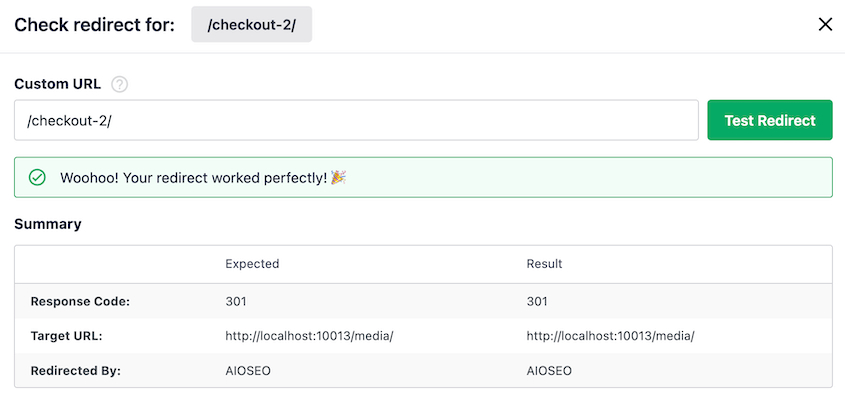
Redirects are often stored in your .htaccess file or managed by a redirect plugin. Sometimes they don’t carry over during migration, especially if you changed server types (like moving from Apache to Nginx).
SSL Certificate
Look at your browser’s address bar. Do you see a padlock icon?
If the padlock is broken or shows a warning, you have an SSL issue.
This could mean your SSL certificate didn’t install correctly on the new server, or you have mixed content (some assets loading over HTTP instead of HTTPS).
For a detailed diagnosis, use a tool like Why No Padlock? It’s a free online tool that scans your site and tells you exactly what’s causing the SSL warning.
Security
If you use Wordfence, Sucuri, or Solid Security, log into the plugin settings and make sure all your rules and configurations carried over.
You should also verify file permissions. In most cases, directories should be set to 755 and files to 644. Your hosting provider can help you check this if you’re not comfortable using FTP or SSH.
Wrong file permissions can create security vulnerabilities or prevent WordPress from functioning correctly, so it’s important to check them after a migration.
Admin Access
This sounds obvious, but test it anyway. Log out of WordPress completely. Then log back in.
If you have multiple user roles on your site, ask someone with a different role (like an Editor or Author) to try logging in. Make sure their access level is correct and they can perform their usual tasks.
Database Integrity
Your WordPress database holds everything that makes your site unique—years of content, customer data, and order history.
Incomplete database transfers mean missing content that you might not notice for weeks. By then, recovering it requires restoring from backups and potentially losing newer data. Check it now while you still have easy access to the source.
The practical way to test your database is to check if all your posts, pages, and comments are present.
Go to Posts » All Posts and verify the count matches what you had before. Do the same for pages and comments.
If you’re technically inclined, open your wp-config.php file and check the database table prefix. Then log into phpMyAdmin and verify your database tables actually use that prefix. A mismatch here will break your site.
Most users won’t need to dig this deep, but if you’re seeing weird behavior (like posts not appearing or settings not saving), a database issue might be the culprit.
Email Delivery
WordPress sends emails for a lot of things: password resets, form submissions, comment notifications, e-commerce orders, and more.
Broken email delivery creates invisible failures across your entire site. Customers don’t receive order confirmations and think their purchase failed. Password resets don’t arrive, locking people out.
Here’s a simple test: use the Forgot Password feature on your login page. Enter your admin email and request a password reset link.
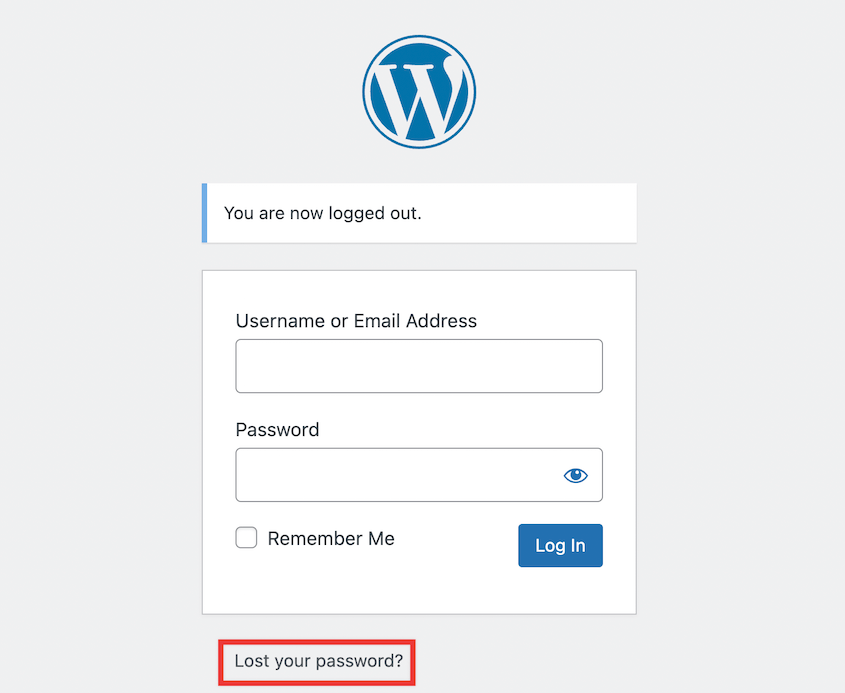
Did the email arrive? Check your spam folder if it’s not in your inbox.
If WordPress emails aren’t sending, it’s usually because your new host has stricter email sending policies. The easy solution is to use an SMTP plugin like WP Mail SMTP.
Don’t skip this test. Email delivery issues are incredibly common after migrations.
Frequently Asked Questions (FAQs)
Why is my WordPress site not working after a migration?
The most common culprits are database connection errors in your wp-config.php file, URLs that still reference the old domain and need a search-and-replace, and incorrect file paths. Caching issues can also make a working site appear broken—try clearing your browser cache and any server-side caching before panic sets in.
How long does it take to migrate a WordPress site?
It depends on your site size, your internet connection speed, and your hosting provider’s performance. A small site might migrate in 15 minutes, while a large site with thousands of images and posts could take several hours.
What is a post-migration checklist?
It’s a structured list of items you need to inspect and test after moving your WordPress site to verify everything transferred correctly. Think of it as quality control—it helps you catch errors before your visitors experience them.
Why is my WordPress site showing a blank page after a migration?
This is the White Screen of Death, and it’s usually caused by a fatal PHP error from a plugin or theme that’s incompatible with your new server environment. Enable WP_DEBUG in your wp-config.php file to see the actual error message, which will point you toward the problem.
How do I fix broken links in WordPress after a migration?
The most reliable method is using a database search-and-replace tool like the Better Search Replace plugin to update all instances of your old URL to your new one. Duplicator Pro actually has this functionality built directly into the migration process, which prevents broken links from happening in the first place.
Your Migration Isn’t Done Until It’s Tested
I know this checklist looks long. It is.
But here’s the reality: finding a broken payment form during your testing takes five minutes to fix. Finding it a week later—after you’ve lost orders and frustrated customers—takes hours of damage control.
Testing isn’t the exciting part of migration. Nobody celebrates when their contact form works. But that’s exactly the point.
Your site should work so reliably that nobody has to think about it. Not you, not your team, not your visitors. This checklist gets you there.
Make this testing process a standard part of every migration you do. Create a simple spreadsheet. Check boxes as you go. It becomes faster each time, and you’ll catch issues that would otherwise slip through.
Your site is your business. Treat the testing phase with the same importance you gave the migration itself.
Ready to migrate your WordPress site with confidence? Duplicator Pro automates the complex parts of migration (URL replacement, database configuration, and file transfers), so you spend less time troubleshooting.
It’s designed to prevent many common errors in post-migration testing. Upgrade to Duplicator Pro today!
While you’re here, I think you’ll like these other WordPress resources:
- How to Organize a WordPress Website Migration (3 Foolproof Phases)
- The Pre-Migration Checklist That Prevents Website Migration Disasters
- How to Audit Content Before a Website Migration
- Your WordPress Site Migration Is Going to Fail (Unless You Avoid These Mistakes)
- The Ultimate WordPress Migration Checklist: Master the Move!
- WordPress Migration Plugins That Actually Work in 2026




