

How to Update WooCommerce Without Breaking Your Store (2026 Guide)
 Joella Dunn
Joella Dunn
Joella Dunn
 John Turner
John Turner
John Turner
A broken checkout during a flash sale causes lost orders, abandoned carts, and customers who go find a competitor while you’re digging through error logs trying to figure out what went wrong.
I’ve seen it happen. A store owner updates WooCommerce without backing up first, the payment gateway throws a fatal error, and checkout stops working for hours.
WooCommerce is not like updating any other plugin. It’s deeply wired into your payment gateway, your order database, your shipping logic, and any extensions you’ve stacked on top of it. When something breaks after a WooCommerce update, it breaks in ways that directly affect your customers and your revenue.
In this tutorial, I’ll cover the complete process: what to check before you touch anything, how to use staging to test the update, what to run after the update to confirm everything works, and how to recover if something goes wrong anyway.
Here are the key takeaways:
- Regular updates provide security patches, performance improvements, and new features for your WooCommerce store
- Always create a full backup and test updates on a staging site before going live
- Schedule updates during low-traffic periods to minimize customer disruption
- Test all core functionalities including payments, checkout, and product management after updating
- Keep rollback options available and know how to clear caches, update PHP, and increase memory limits
Table of Contents
Why Update WooCommerce?
You wouldn’t want to run an online store with outdated software. Here’s why it’s so important to always use the latest version of WooCommerce.
- Security
Outdated software makes your e-commerce store vulnerable to hackers. Updates patch these holes, keeping your customers’ data safe.
- Performance
Over time, software can get sluggish. Updates often include bug fixes and performance improvements, making your store run faster and smoother. This lets your customers have a better shopping experience.
- Fresh Features
New versions of WooCommerce often introduce exciting features. The plugin developers create new enhancements to the e-commerce platform. These can boost your functionality and help you stand out from the competition.
What to Do Before You Update WooCommerce
Every WooCommerce update failure I’ve diagnosed traces back to at least one skipped pre-step. These take about twenty minutes total. The cleanup when something breaks takes hours.
Turn Off Automatic Updates
Automatic updates seem like a convenient way to stay on top of things. However, they can sometimes cause conflicts with your existing theme or plugins.
Imagine you’ve spent hours customizing your storefront with a unique theme, only to have an automatic update scramble your layout or disable key features. To avoid these headaches, let’s take control of the update process.
Disabling automatic updates is a simple process. Open the Plugins page and find WooCommerce. Then, hit Disable auto-updates.

After this, WooCommerce updates will be in your hands! You can control when and how you update WooCommerce, allowing you to better prepare your store.
Read the WooCommerce Changelog
Before every update, go to the WooCommerce changelog and read what changed. The changelog tells you what bugs were fixed, which database tables changed, which hooks or filters were deprecated, and whether the payment blocks received any structural changes.
If a changelog entry mentions a database schema change or a deprecated filter you recognize from your site’s custom code, flag it before updating. If you have a developer who has customized WooCommerce behavior on your store, show them the changelog before you proceed. Five minutes of reading prevents hours of mystery debugging.
Because WooCommerce is a WordPress plugin, it has a helpful community that’s available whenever you need it.
Check the WooCommerce support forum to see if there are any known bugs related to the specific update you’re planning to install.
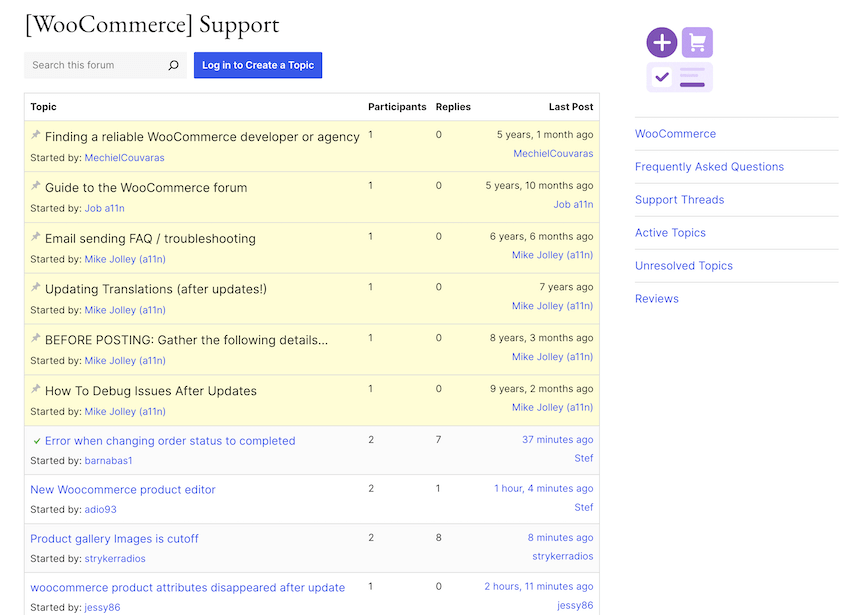
See if others have encountered issues with the update you’re considering. This will help you decide if it’s safe to update now or if it’s better to wait for a fix.
Check Extension Compatibility
A major WooCommerce release could break an extension that hasn’t published a compatibility update yet.
For each paid extension you have installed, go to its page in the WordPress plugin repository or the WooCommerce marketplace and check the “Tested up to” version. If it doesn’t list the new WooCommerce version as tested, check the extension’s own changelog for a recent update.
If neither shows compatibility with the new version, wait a week. The WooCommerce update will still be there.
This is especially important for WooCommerce Payments, WooCommerce Subscriptions, and WooCommerce Bookings. A broken payment integration stops every transaction. A broken subscription extension can affect renewal processing. These are not things you want to discover after updating production.
Back Up Your Entire Store
Before you update anything, create a complete backup of your store. WooCommerce stores every order, customer record, and product data in the database. A failed update that corrupts the database without a backup is a genuine disaster.
Duplicator creates full backups of your entire store, including themes, plugins, content, and settings. This backup acts as a safety net in case anything goes wrong during the update process.
Be sure to select an off-site destination like Duplicator Cloud, Google Drive, Amazon S3, Dropbox, or another cloud storage option you have configured. A backup that lives only on the same server you’re about to update is not a safety net. If the update corrupts the server environment, the backup on that server may be unreachable.
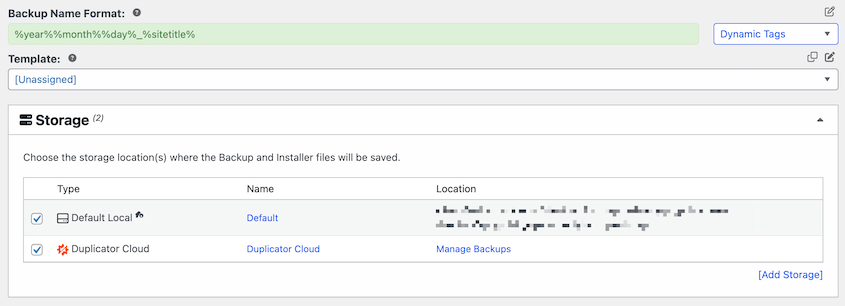
Choose the Full Site backup preset to save all the data in your WooCommerce store.

Click through the scan and build screens. When Duplicator finishes, you’ll see the backup listed in your WordPress dashboard. Download a local copy to your computer before moving on. That copy is your insurance.

Create a Staging Site
A broken checkout on a live site loses real money from real customers in real time. Staging is where you find out whether the update breaks anything, before any of that happens.
Duplicator can create an isolated copy of your live store from any full-site backup. After you build that pre-update backup, turn it into a testing area.
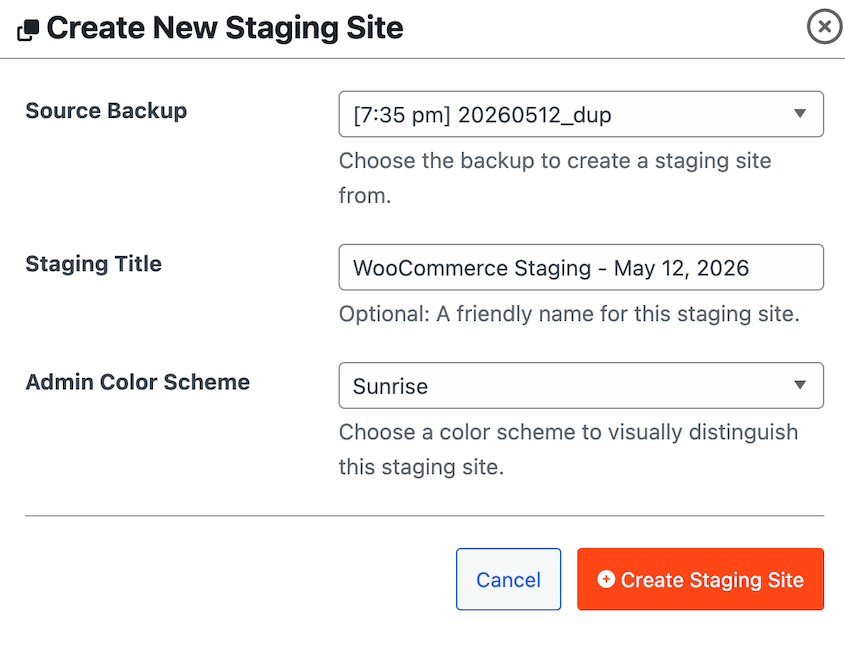
Duplicator copies your files and database automatically. When it finishes, log in using the same credentials you use on production.
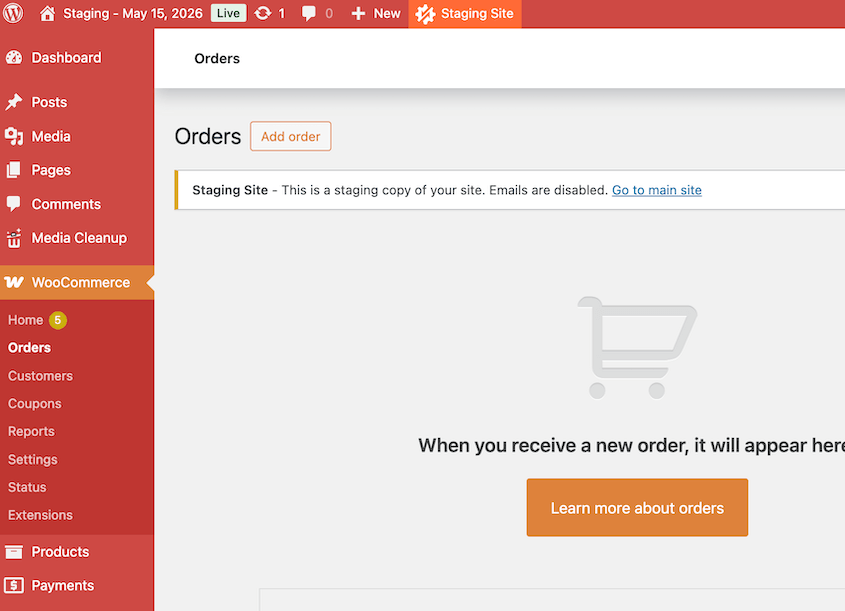
Three protections Duplicator applies automatically, all of which matter more for stores than for regular sites:
- Outgoing emails are blocked.
- Search engine indexing is disabled.
- The database uses a unique table prefix.
Choose the Right Time to Update
Updates can cause temporary downtime while the new version installs. Even if you test the update on a staging site, you’ll need time to troubleshoot after you make the changes live.
To minimize disruption to your customers’ shopping experience, it’s important to choose the right time to update.
Here are some tips for selecting the best update window!
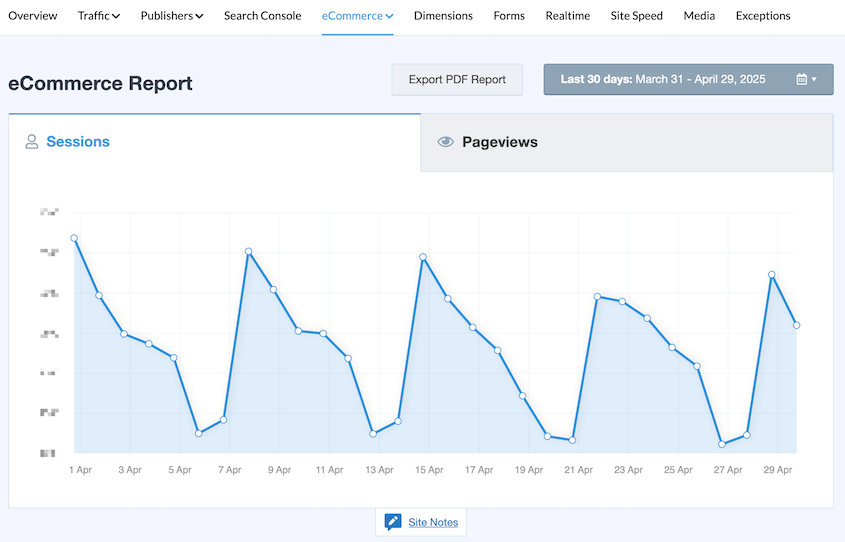
Use website analytics tools like MonsterInsights to identify your store’s typical traffic patterns. Schedule your update for a time when you experience fewer visitors, such as early mornings, late evenings, or even weekends.
Consider sending a brief notification about upcoming maintenance for a scheduled update. You could also put your store in maintenance mode with a plugin like SeedProd.
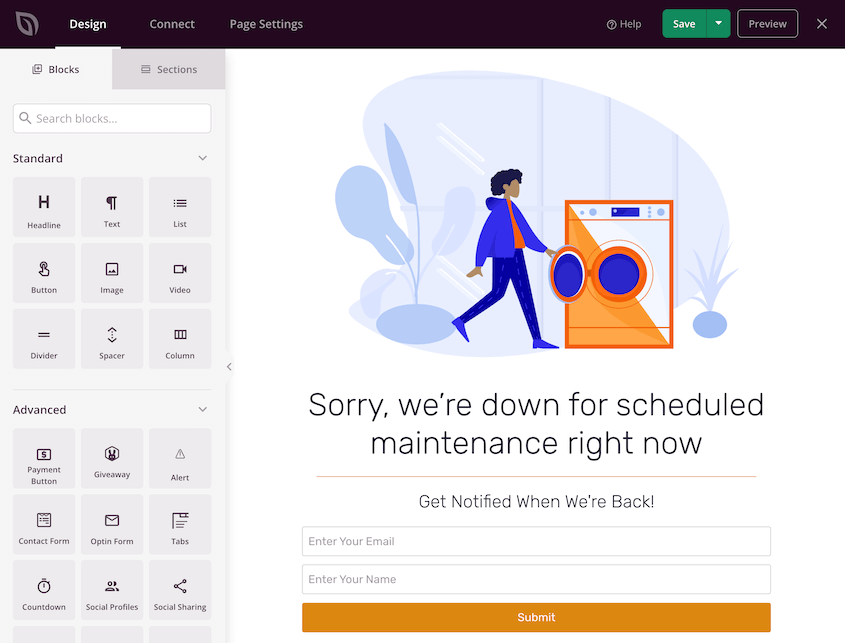
By strategically scheduling the update, you can minimize disruption and ensure a smooth transition for your customers.
How to Update WooCommerce
Step 1: Update the WooCommerce Plugin
Go to Dashboard » Plugins » Installed Plugins and find WooCommerce in the list. If an update is available, you’ll see an Update Now link below the plugin name. Click it.
Alternatively, go to Dashboard » Updates, find WooCommerce in the plugin section, check the box next to it, and click Update Plugins.
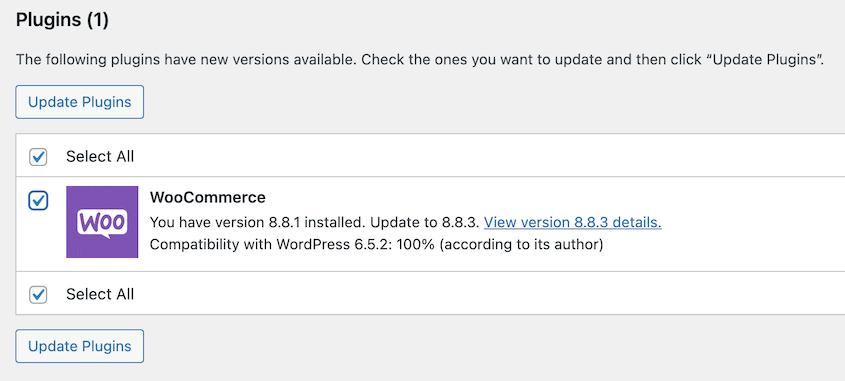
WordPress puts the site into brief maintenance mode, downloads the new WooCommerce files, replaces the old ones, and redirects you back to the Plugins screen. The process takes under a minute on most hosts. When WooCommerce shows the new version number, the core update is done.
Step 2: Run the Database Update If Prompted
After a major WooCommerce version jump, you may see a yellow banner at the top of your dashboard: WooCommerce database update required. To keep things running smoothly, we have to update your database to the newest version.
Run it. Click Update WooCommerce Database and wait.
This step updates WooCommerce’s database tables to match the new version’s schema.
It doesn’t delete your orders, products, or customer data. What it does do is add new tables, update existing ones, and migrate any data that needs to be in a different structure for the new version to work correctly.
If you skip it, WooCommerce will keep showing the banner and some features may behave incorrectly. It takes seconds on most stores. On stores with 50,000 or more orders, allow a few minutes and don’t navigate away from the page while it runs.
Step 3: Update WordPress Core, Themes, and Remaining Plugins
After WooCommerce is updated and the database is current, update everything else. Go to Dashboard » Updates and work through the remaining plugins, then themes, then WordPress core.
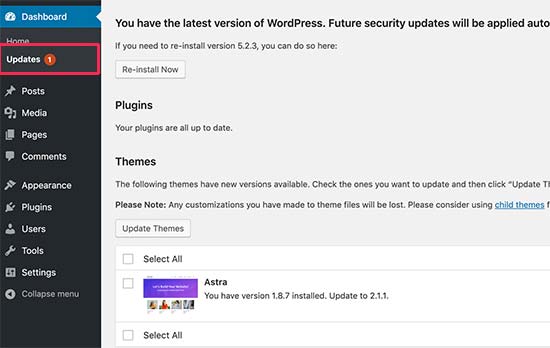
Once all updates are done, go to your caching plugin and purge everything. Clear both server-side cache and any CDN cache if you have one configured.
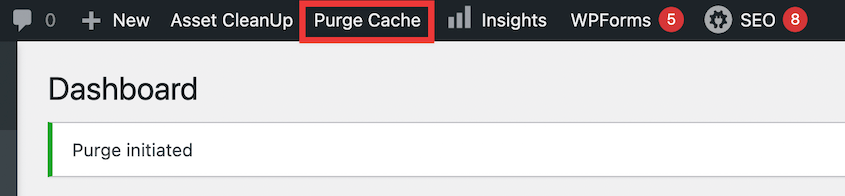
You want your next page loads to hit the freshly updated code, not a cached version of the old one.
The WooCommerce Checkout Testing Checklist
Run every item on this checklist on staging before you update production. Then run it again on production after the update. Both passes matter.
- Place a test order with your primary payment gateway. Use sandbox or test mode — Stripe, PayPal, and Square all provide test card numbers. Confirm the order completes, shows up in orders, and triggers the order confirmation email.
- Apply a coupon code and verify the discount calculates correctly. Check both percentage and fixed-amount coupons if you use both.
- Add a variable product to the cart. Select a specific variant (size, color, or other attribute) and confirm the correct variant adds to cart with the correct price.
- Confirm inventory decrements after a completed test order. Go to the product and verify the stock count dropped by the quantity ordered.
- Check the order confirmation email. Open it in both HTML and plain text view. Confirm the order details, line items, totals, and shipping address are correct.
- Log into a test customer account and confirm the order appears.
- Issue a partial refund from the Orders screen. Confirm it processes through your payment gateway and the order status updates correctly.
- If you use WooCommerce Subscriptions: Place a subscription order and confirm the renewal schedule and next payment date appear correctly in the subscription record.
- If you use WooCommerce Bookings: Create a test booking and confirm availability logic is intact — that booked slots are blocked for subsequent bookings.
- Test at least two shipping zones or rules. Add products that trigger different shipping rates and confirm the rates display correctly at checkout.
- Verify tax calculations on a test order. If you use Avalara, TaxJar, or a custom tax plugin, confirm the rate applies correctly to the test order’s address.
- Complete the entire checkout flow on mobile. Add to cart, view cart, enter shipping and payment details, and confirm the submit button is functional and the page renders correctly on a small screen.
If all items pass on staging, the production update is low risk. If any item fails on staging, you have a specific problem to diagnose before your live store is ever at risk.
How to Troubleshoot WooCommerce Update Errors
Even with the best preparation, errors can happen after a WooCommerce update. Don’t worry, we’ll help you troubleshoot these errors and get your store back on track.
Check the WooCommerce Version
If the update fails, first check that you installed the right version of WooCommerce. The latest version will usually have better performance and bug fixes.
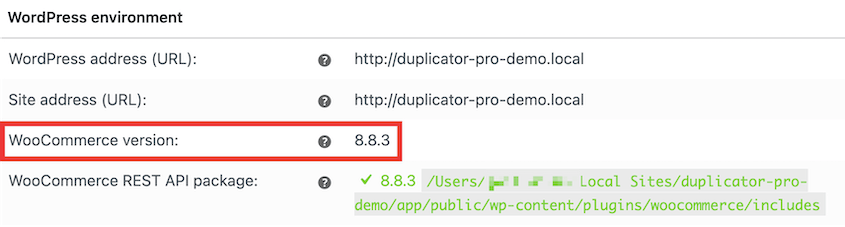
Login to your WordPress dashboard and navigate to WooCommerce » Status. In the WordPress environment section, you’ll see your current WooCommerce version number.
Head over to the WooCommerce page on wordpress.org. The plugin details will show you the latest version.
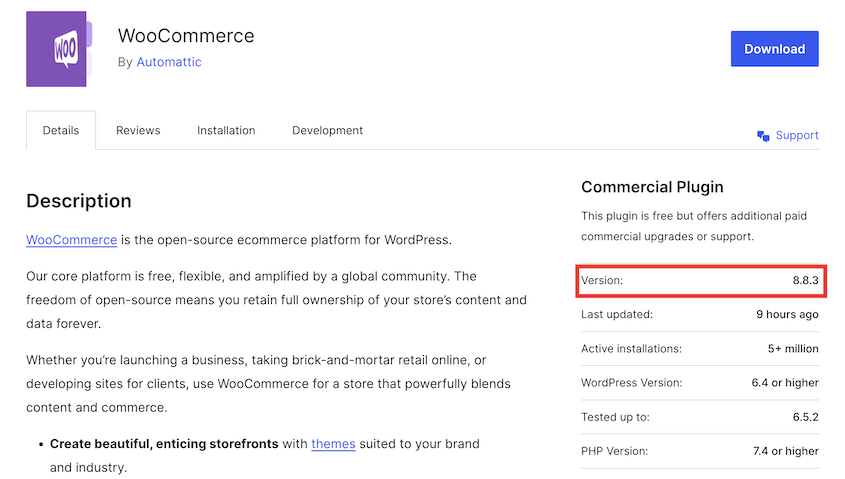
By verifying compatibility, you can avoid potential conflicts and ensure a successful update.
Update WordPress Core, Themes, and Plugins
Outdated WordPress core software, themes, or plugins can sometimes clash with a new WooCommerce update. So, you’ll want to make sure everything is up to date.
In your WordPress dashboard, navigate to Updates. If a new WordPress version is available, you’ll see a notification there.
Repeat this process for plugins and themes.
Clear Your Cache
Sometimes, cached data can cling to outdated information. After an update, this cached data might still display the old version of your store, causing confusion.
If you’re using a caching plugin like WP Super Cache or W3 Total Cache, these plugins usually have built-in options to clear your website’s cache. Consult the plugin’s documentation for specific instructions.
By clearing your cache, your website will display the latest version of your store after a WooCommerce update.
Update Your PHP Version
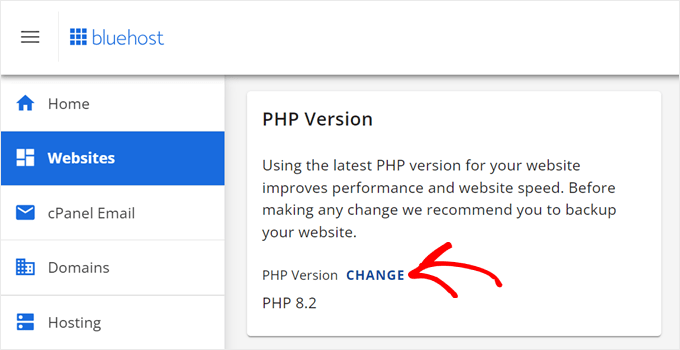
PHP is the language your website uses to communicate with the server. Outdated PHP versions might not understand the instructions included in the latest WooCommerce update, leading to errors.
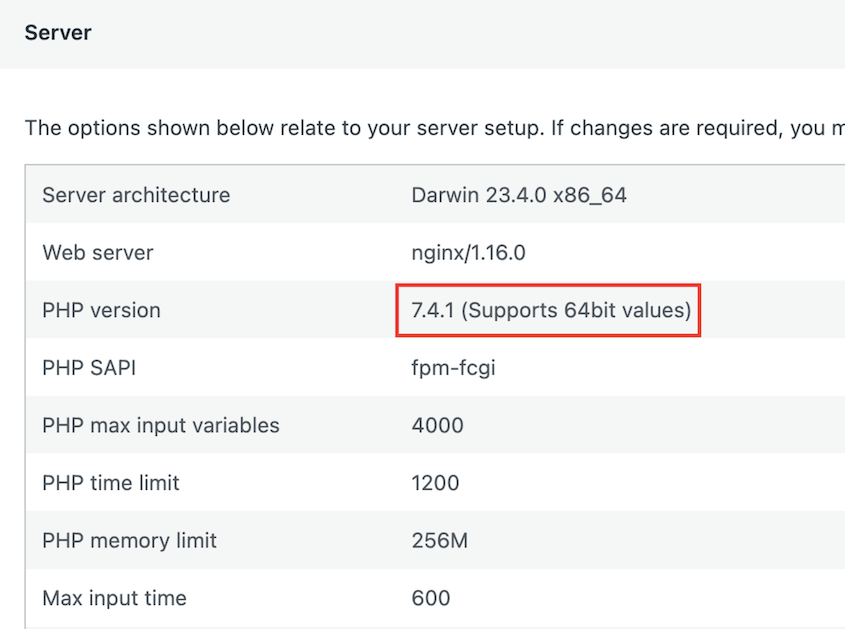
In your WordPress dashboard, navigate to Tools » Site Health. Under the Info tab, you’ll find details like your current PHP version.
You can see what the latest PHP version is on php.net.
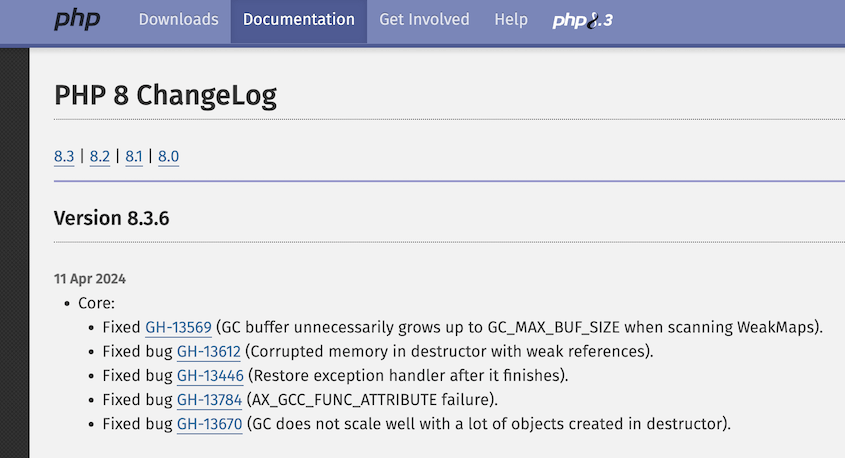
Updating your PHP version typically requires contacting your hosting provider. They can guide you through the update process or may even offer it as a service.
Increase PHP Memory
Insufficient PHP memory allocation can lead to errors after WooCommerce updates. To increase it, you’ll need to edit your wp-config.php file.
Add this code before the ‘That’s all, stop editing! Happy blogging.’ line:
define( 'WP_MEMORY_LIMIT', '256M' );
For more details, see this detailed tutorial on how to increase PHP memory.
After this, you’ll provide your website with the resources it needs to function smoothly after a WooCommerce update.
Roll Back the Update
Maybe the WooCommerce update introduced critical issues on your live site. If you don’t want to troubleshoot, consider reverting your site to a previous version.
Duplicator Pro offers a user-friendly one-click restore functionality. Simply go to the Backups page, where you’ll see all the backups of your site. Find the backup you created before the update and hit Restore.
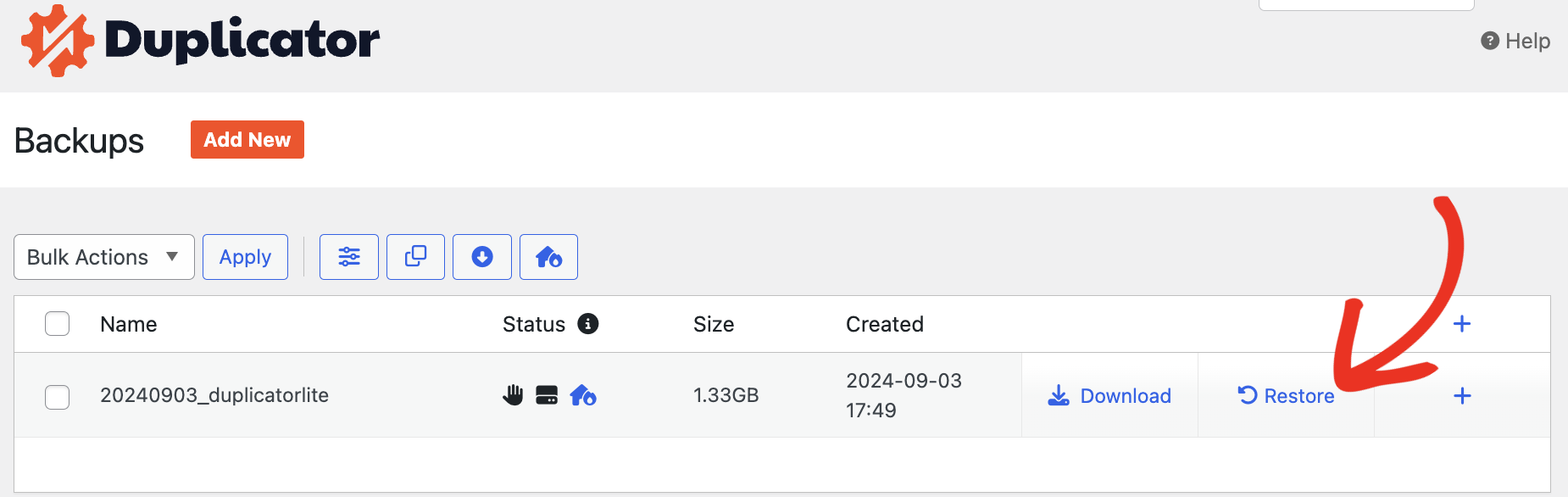
This rollback feature acts as a safety net, restoring a stable version of your store if needed.
FAQs About Updating WooCommerce
How do I update WooCommerce to the latest version?
To update WooCommerce to the latest version, start by backing up your store. Then, consider using a staging site to test the update. If all goes well on the staging site, migrate the update to your live store. Remember, tools like Duplicator Pro can streamline this process.
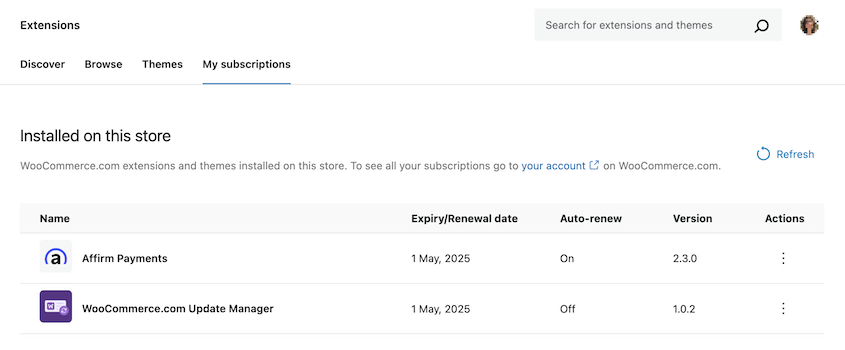
To update any extension you bought from WooCommerce.com (now Woo), go to WooCommerce » Extensions » My subscriptions. This is where you can view version numbers for your WooCommerce extensions and perform updates.
Where do I find my WooCommerce version?
You can find your WooCommerce version easily within your WordPress dashboard. Navigate to WooCommerce » Status. The version number will be displayed under the WordPress environment details.
How do I update the WooCommerce database manually?
You can manually update WooCommerce databases with the command line. First, log into your WordPress site via SSH. Then, use this command to access your root directory:
cd ~/sites/example.com
Enter the following command to update the WooCommerce database:
wp wc update
How do I update all products in WooCommerce?
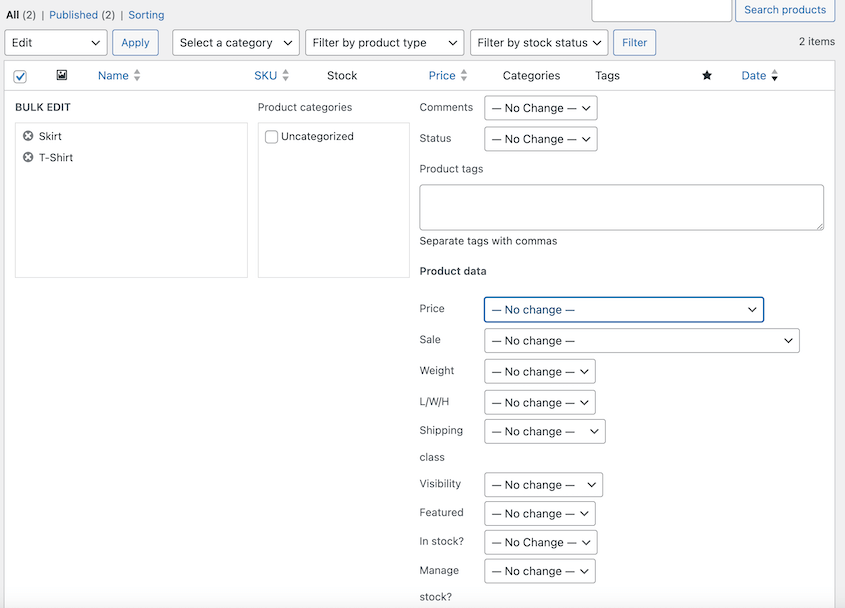
Within the WooCommerce product list, you can select multiple products and edit them in bulk. You can update pricing, stock quantities, shipping, size, sale price, and other key information on your product pages. This is ideal for simple updates that apply to a group of products.
If you have a large number of products or complex edits, consider using product import/export tools. Export your products to a CSV file, make the necessary changes in the spreadsheet, and then import the updated file back into WooCommerce.
Don’t Update Your Store Without a Backup
Every WooCommerce update carries some risk. The stores that come through cleanly are the ones with a backup created before they started, a staging site where the update was tested, and a checkout checklist that confirmed everything worked before production was touched.
More than 1.5 million WordPress professionals use Duplicator Pro to back up before updates, create staging environments for safe testing, and restore sites when something goes wrong.
For a WooCommerce store, the disaster recovery URL alone is worth it. It could be the difference between a thirty-minute restore and rebuilding your store from scratch.
While you’re here, I think you’ll like these extra WordPress tutorials:
- How to Update WordPress (And Stay Ahead of the Curve)
- 31 Best WooCommerce Plugins to Improve Your Online Store
- How to Back Up a WooCommerce Database
- 6 Best WooCommerce Backup Plugins (Free and Paid)
- How to Migrate a WooCommerce Site
- How to Migrate Your Shopify Store to WooCommerce




