

![[NEW] Optimiseur de base de données Duplicator : Nettoyez votre base de données WordPress avant qu'elle ne devienne un problème](https://duplicator.com/wp-content/uploads/2026/06/Announcement-DB-Optimizer.jpg)

Vous envisagez sérieusement WooCommerce ? D'abord, obtenez un plugin de sauvegarde (mon choix n°1)
 Joella Dunn
Joella Dunn
Joella Dunn
 John Turner
John Turner
John Turner
Vous consacrez des années de travail à votre boutique en ligne. Vous vous souciez réellement quand un client passe une commande. C'est votre entreprise, votre passion et votre revenu.
Voir à quelle vitesse les choses peuvent mal tourner en ligne vous fait réaliser que les sauvegardes ne sont pas facultatives. C'est le filet de sécurité qui vous permet de respirer plus facilement, sachant que votre entreprise est protégée.
Donc, si vous gérez une boutique WooCommerce et que vous pensez même aux sauvegardes (bravo !), laissez-moi partager ce que j'ai appris.
J'ai testé une tonne de plugins de sauvegarde et j'ai trouvé ceux qui tiennent vraiment leurs promesses.
Voici les points clés à retenir :
- Duplicator est mon premier choix avec plus de 14 options de stockage cloud, des sauvegardes automatisées, des restaurations en un clic et une récupération après sinistre hors site.
- UpdraftPlus offre des sauvegardes incrémentielles et est idéal pour les sauvegardes cloud gratuites.
- BlogVault capture les commandes WooCommerce en temps réel, idéal pour les boutiques à fort trafic.
- Jetpack fournit des sauvegardes en temps réel avec des journaux d'activité détaillés et un accès via application mobile.
- Tous les plugins prennent en charge les sauvegardes automatisées afin que vous n'ayez jamais à protéger manuellement votre boutique.
Table des matières
Avez-vous besoin d'un plugin de sauvegarde WooCommerce ?
Oui ! Tout comme une assurance vous protège des accidents, un plugin de sauvegarde protège votre boutique en ligne contre les problèmes imprévus.
Un bon plugin de sauvegarde WooCommerce ne se contente pas de créer des sauvegardes. Il garantit que les copies de sauvegarde sont sécurisées et faciles à restaurer.
Cela vous permet de rétablir la fonctionnalité de votre boutique, en minimisant la perte de ventes potentielles.
Vos données (détails des clients, enregistrements des ventes, catalogues de produits) sont votre entreprise. Leur sécurité doit toujours être une priorité absolue. Il est donc important d'investir dans un plugin de sauvegarde WooCommerce fiable pour protéger vos données.
Le bon plugin de sauvegarde devrait également vous offrir une expérience sans stress. Il vous permettra d'automatiser les sauvegardes et même de rationaliser les migrations complètes de site si nécessaire. Vous n'aurez pas à vous soucier d'effectuer des tâches techniques vous-même !
Comment j'évalue les plugins de sauvegarde
Je crois que la meilleure façon d'évaluer vraiment un plugin est de mettre la main à la pâte et de l'utiliser moi-même. C'est exactement ce que j'ai fait pour chacun de ces plugins de sauvegarde WooCommerce.
Je les ai installés sur de vrais sites WordPress, j'ai suivi le processus d'installation et j'ai créé des sauvegardes.
J'ai testé différents types de sauvegardes, exploré les options de stockage et même suivi le processus de restauration pour voir à quel point il fonctionne bien lorsque vous en avez réellement besoin.
Cette approche pratique m'a permis de voir au-delà des promesses marketing et de comprendre comment ces plugins fonctionnent dans des scénarios réels. Je voulais savoir s'ils tiennent vraiment leurs promesses et s'ils sont vraiment fiables pour protéger une boutique WooCommerce.
Je partage ce que j'ai appris, afin que vous puissiez avoir une idée plus claire de celui qui pourrait le mieux convenir à votre boutique WooCommerce.
Pourquoi nous faire confiance ?
En tant qu'équipe derrière Duplicator, nous avons passé des années dans l'univers de WordPress. Notre plugin a été téléchargé des millions de fois, ce qui nous donne un aperçu unique des défis auxquels les utilisateurs de WordPress sont confrontés lors de la maintenance de leurs sites web.
Notre équipe de développement a des décennies d'expérience dans la gestion de sites WordPress de toutes tailles, des petits blogs personnels aux installations d'entreprise.
Nous reconnaissons qu'aucun outil n'est parfait pour tout le monde, et nous nous engageons à vous aider à trouver la bonne solution pour vos besoins spécifiques.
Notre objectif est simple : vous donner des recommandations honnêtes et pratiques basées sur une expérience réelle. Nous voulons vous aider à maintenir un site WordPress avec un minimum de tracas et un maximum d'efficacité !
Mes plugins de sauvegarde WooCommerce préférés
Il existe de nombreux plugins de sauvegarde WooCommerce disponibles, vous ne savez donc peut-être pas lequel est le meilleur. Pour vous aider à affiner vos options, je les ai examinés pour vous !
Voici un bref aperçu :
- Duplicator : Mon choix n°1 avec 14 options de stockage cloud, des sauvegardes automatisées et des migrations par glisser-déposer
- UpdraftPlus : Choix populaire avec sauvegardes incrémentielles et restaurations en un clic
- BlogVault : Sauvegardes en temps réel qui capturent instantanément les événements WooCommerce, idéales pour les boutiques à fort trafic
- Jetpack : Sauvegardes fiables en temps réel avec journaux d'activité détaillés et accès à l'application mobile
1. Duplicator
Ayant utilisé plusieurs plugins de sauvegarde WooCommerce, Duplicator se démarque à plusieurs égards. Premièrement, son interface conviviale facilite la configuration sans connaissances en codage.
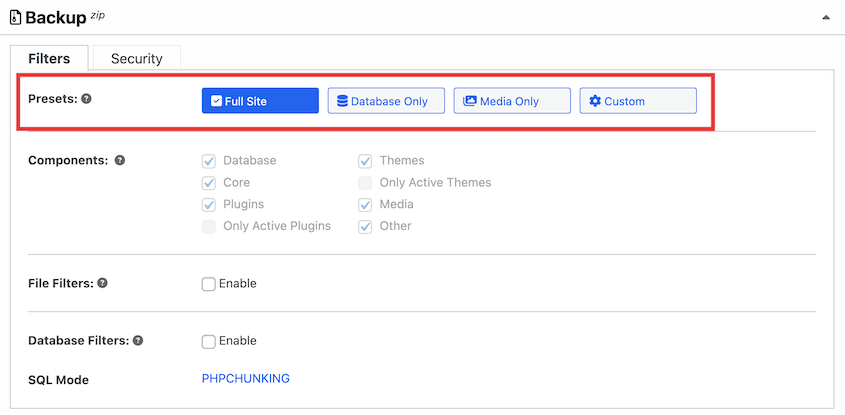
Avec Duplicator, vous pouvez sauvegarder l'intégralité de votre site ou des parties spécifiques de votre boutique (comme la base de données). Les préréglages de sauvegarde rendent cela aussi simple qu'un clic.
Contrairement à d'autres plugins, Duplicator prend en charge 14 emplacements de stockage de sauvegarde, notamment :
- Serveur local
- Cloud Duplicator
- FTP
- Google Drive
- Dropbox
- Microsoft OneDrive
- Amazon S3
- Wasabi
- Google Cloud
- DreamObjects
- Vultr
- DigitalOcean Spaces
- Cloudflare R2
- Backblaze B2
- Tout autre service de stockage cloud compatible S3
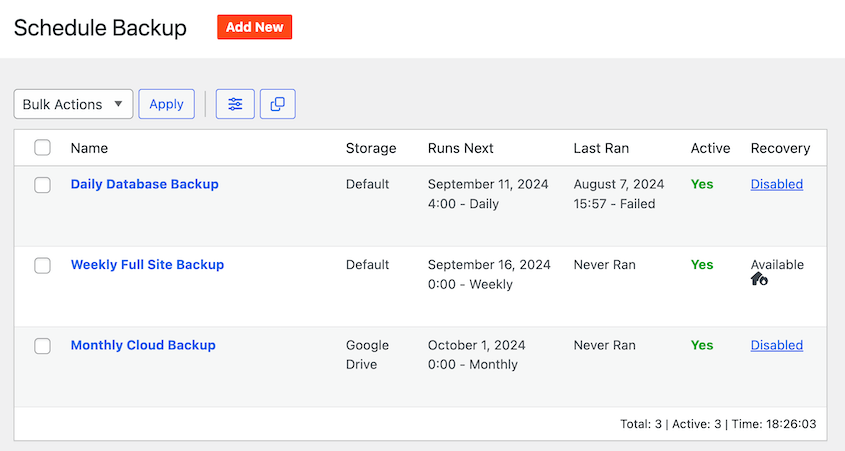
Mieux encore, Duplicator automatise les sauvegardes. Au lieu de devoir vous souvenir de créer des sauvegardes manuelles, vous pouvez définir des planifications.
Celles-ci protégeront votre boutique WooCommerce en arrière-plan, vous n'aurez donc jamais à vous soucier de la perte de données.
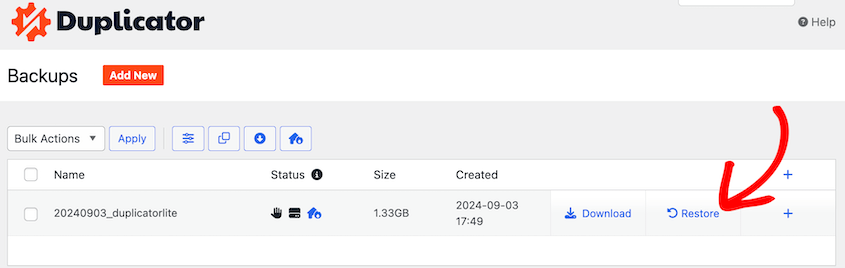
Il y a un bouton de restauration à côté de chaque sauvegarde, vous pouvez donc annuler les modifications de votre site WordPress après tout problème. Duplicator peut restaurer votre boutique en ligne même si vous êtes complètement bloqué.
Cependant, il fait bien plus que des sauvegardes.
Avec Duplicator, vous pouvez cloner votre boutique WooCommerce vers un site de staging local ou la déplacer vers un meilleur fournisseur d'hébergement. Créez simplement une sauvegarde complète et déposez-la à un nouvel emplacement.

Ce que j'ai aimé
- Sauvegardes automatiques
- Stockage cloud vers Duplicator Cloud, Google Drive, Amazon S3, Backblaze B2, Google Cloud, et plus encore
- Sauvegardes complètes, uniquement base de données, uniquement médias, ou personnalisées
- Format de fichier DupArchive pour prendre en charge les grands sites
- Prend en charge les réseaux multisites WordPress
- Chiffrement des archives
- Restaurations en un clic
- Restaurations à distance depuis le cloud
- Reprise après sinistre
- Migrations par glisser-déposer
- Prend en charge le clonage vers des sites vides
- Version gratuite disponible
Ce que je n’ai pas aimé
- Certaines fonctionnalités comme le stockage cloud et les sauvegardes automatiques ne sont disponibles que dans la version pro.
Pourquoi j'ai choisi Duplicator
Duplicator se distingue comme le meilleur plugin de sauvegarde WooCommerce en raison de ses sauvegardes personnalisées faciles, de ses planifications automatisées et de son stockage cloud. Il est également suffisamment flexible pour migrer votre boutique vers un autre serveur, hébergement ou nom de domaine.
2. UpdraftPlus
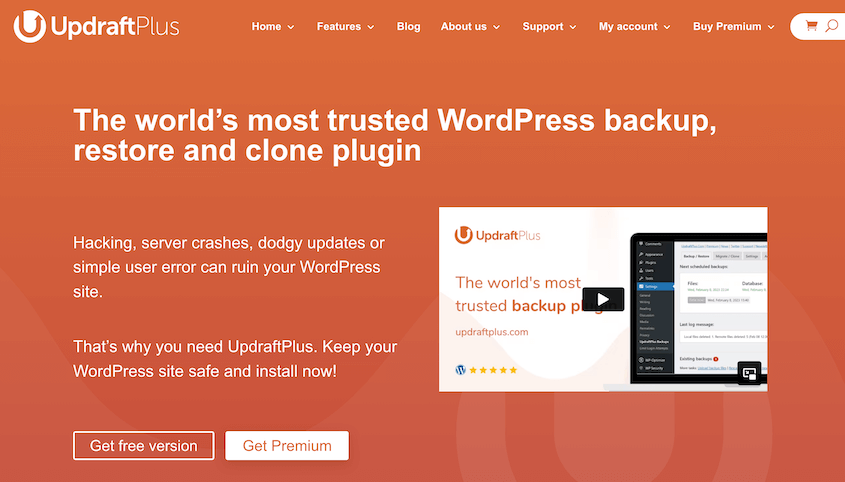
UpdraftPlus est un autre plugin de sauvegarde WordPress populaire qui prend en charge WooCommerce. Il vous permet de sauvegarder, cloner ou migrer votre boutique en ligne.
Lorsque vous avez besoin d'une sauvegarde, cliquez sur Sauvegarder maintenant. Vous pouvez choisir d'inclure vos fichiers, votre base de données ou les deux.
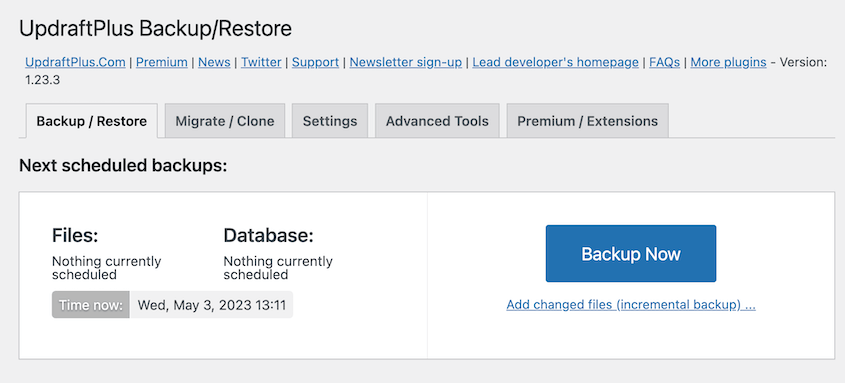
Ensuite, téléchargez des copies de votre base de données WordPress, de vos plugins, thèmes, téléchargements ou plugins essentiels. Ce seront tous des fichiers séparés.

UpdraftPlus prend en charge les restaurations en un clic si vous avez besoin de revenir en arrière sur votre boutique WooCommerce. Contrairement à Duplicator Pro, il n’y a pas d’options de restauration hors site, alors assurez-vous de télécharger vos sauvegardes.
Ce que j'ai aimé
- Sauvegardes incrémentielles
- Sauvegardes complètes, uniquement fichiers ou uniquement base de données
- Stockage à distance
- Restaurations en un clic
- Fonctionnalités de migration et de clonage
- Version gratuite disponible
Ce que je n’ai pas aimé
- Fichiers de sauvegarde distincts pour différentes parties de votre site
- Les options de restauration ne sont disponibles que depuis votre tableau de bord WordPress, vous pourriez donc être bloqué.
- Les prix premium commencent à 70 $ par an, ce qui rend UpdraftPlus plus cher que des plugins similaires.
Pourquoi j'ai choisi UpdraftPlus
UpdraftPlus est un excellent plugin pour créer des sauvegardes cloud gratuitement. Cependant, cela peut être une option plus coûteuse si vous avez besoin de cloner ou de migrer votre site WordPress. Si le coût ne vous dérange pas, UpdraftPlus Premium dispose de fonctionnalités WooCommerce efficaces comme les sauvegardes incrémentielles et les sauvegardes avant mise à jour.
3. BlogVault
En tant que propriétaire d'une boutique WooCommerce, vous ne voudrez pas perdre de nouvelles commandes ou de données clients. Si vous utilisez BlogVault, vous pouvez sauvegarder votre boutique en ligne en temps réel, capturant les données importantes immédiatement.

BlogVault comprend les événements WooCommerce critiques comme les nouvelles commandes. Une fois qu'un événement est déclenché, BlogVault capture ces données et les stocke sur ses serveurs cloud distants.
Le meilleur, c'est que ces sauvegardes en temps réel ne ralentiront pas votre site. BlogVault ne sauvegarde que les données d'événements spécifiques, minimisant ainsi sa charge.
Ce que j'ai aimé
- Sauvegardes WooCommerce en temps réel
- Charge minimale
- Récupération de sauvegarde sur 365 jours
- Restaurer le site sans perdre les nouvelles commandes
- Stockage cloud hors site
- Chiffrement de niveau entreprise
- Staging en un clic
- Surveillance de la sécurité
Ce que je n’ai pas aimé
- Aucune version gratuite disponible
- Ne stocke les sauvegardes que sur les serveurs cloud de BlogVault, limitant sa flexibilité de stockage
Pourquoi j’ai choisi BlogVault
Si vous souhaitez enregistrer régulièrement les nouvelles commandes WooCommerce et d'autres données, envisagez d'utiliser BlogVault. Ses sauvegardes en temps réel sont une option efficace pour les sites WooCommerce.
4. Jetpack
Un autre plugin avec des sauvegardes en temps réel est Jetpack. Autrement connu sous le nom de VaultPress, Jetpack peut enregistrer régulièrement les nouveaux changements sur votre boutique en ligne.
Vous n'avez jamais à vous soucier d'effacer de nouvelles données lorsque vous restaurez une ancienne sauvegarde. Jetpack restaurera votre site, en préservant les nouvelles commandes et les clients.
Jetpack fournit un journal d'activité détaillé de chaque changement dans votre boutique, y compris la personne qui l'a effectué. Vous pouvez utiliser l'application mobile pour visualiser ces mises à jour et restaurer les sauvegardes précédentes si nécessaire.
Ce que j'ai aimé
- Sauvegardes en temps réel
- Sauvegarder les données clients et commandes WooCommerce
- Sauvegardes personnalisées des tables WooCommerce
- Restaurations en un clic
- Journal d'activité des sauvegardes
- Stockage de sauvegarde dans le cloud
- Application mobile
- Chiffrement des sauvegardes
- Conforme au RGPD
Ce que je n'ai pas aimé
- Jetpack Backup est disponible sur WordPress.org, mais vous devrez payer pour utiliser le service.
Pourquoi j'ai choisi Jetpack
Jetpack est l'un des plugins de sauvegarde WooCommerce les plus populaires. Il vous permet de sauvegarder les clients, les commandes et les bases de données en temps réel. Ces sauvegardes sont stockées dans le cloud, ce qui les rend faciles à restaurer.
FAQ sur les plugins de sauvegarde WooCommerce
Quel est le meilleur plugin de sauvegarde WooCommerce ?
Le meilleur plugin de sauvegarde WooCommerce est Duplicator Pro. Cet outil vous permet de créer des sauvegardes personnalisées de votre boutique en ligne. Vous pouvez automatiser les sauvegardes et même créer des calendriers de sauvegarde personnalisés pour des parties spécifiques de votre site.
Comment sauvegarder mon site WooCommerce ?
Pour sauvegarder votre site WooCommerce, installez Duplicator Pro. Après avoir créé une nouvelle sauvegarde, choisissez un emplacement de stockage. Ensuite, choisissez exactement quelles données vous souhaitez inclure dans la sauvegarde.
Une fois que Duplicator a généré votre sauvegarde, téléchargez-la. Si vous stockez les sauvegardes dans le cloud, vous devrez les télécharger depuis la plateforme tierce.
Comment automatiser les sauvegardes WordPress ?
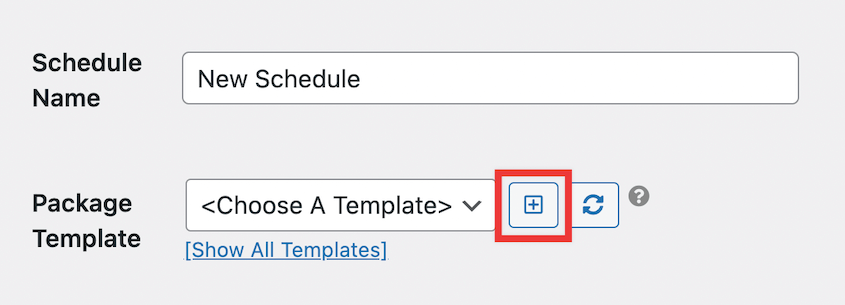
Au lieu de créer des sauvegardes à la demande, vous pouvez les automatiser. Pour ce faire, assurez-vous que Duplicator Pro est installé. Visitez la page Planifications et ajoutez-en une nouvelle. Si vous souhaitez créer une sauvegarde personnalisée, créez un nouveau modèle pour celle-ci.
Choisissez un emplacement de stockage et définissez une heure de sauvegarde. Ensuite, activez la planification.
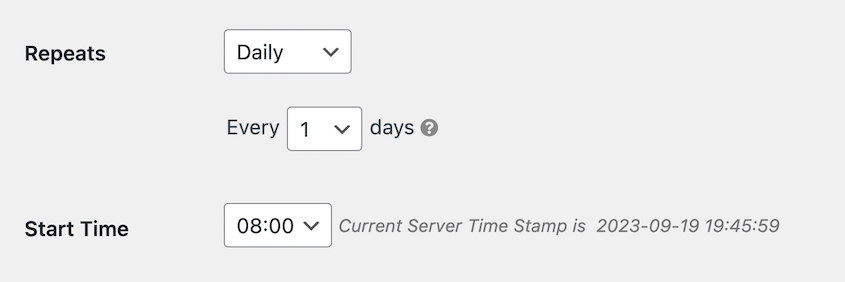
Les plugins de sauvegarde automatique comme Duplicator vous aident à éviter le processus fastidieux de téléchargement de vos fichiers WordPress et de votre base de données MySQL. Vous obtiendrez des sauvegardes régulières de votre site sans avoir à utiliser phpMyAdmin ou cPanel.
Comment exporter tout le contenu de WooCommerce ?
Vous pouvez facilement exporter tout le contenu de WooCommerce avec un plugin comme Duplicator. Créez simplement une nouvelle sauvegarde et sélectionnez tous les composants de sauvegarde. Une fois votre boutique sauvegardée, téléchargez le fichier de sauvegarde.
Comment migrer mon site web WooCommerce ?
Pour migrer votre site web WooCommerce, créez une sauvegarde complète avec Duplicator. Ensuite, créez une base de données pour le nouveau site et installez WordPress.
Pour éviter les temps d'arrêt, nous vous recommandons de mettre à jour votre fichier hosts. Pour plus de détails, lisez notre tutoriel sur comment migrer un site WooCommerce.
Sur le nouveau serveur, trouvez la page Importation de Duplicator Pro. Faites glisser et déposez votre fichier d'archive de sauvegarde ici.
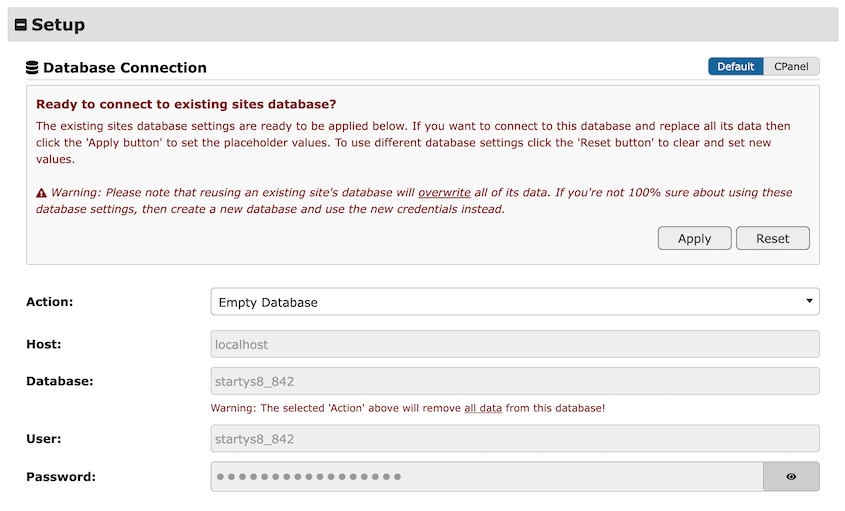
Dans l'assistant de migration de Duplicator, assurez-vous que les informations de la base de données sont correctes. Elle doit être connectée à la nouvelle base de données.
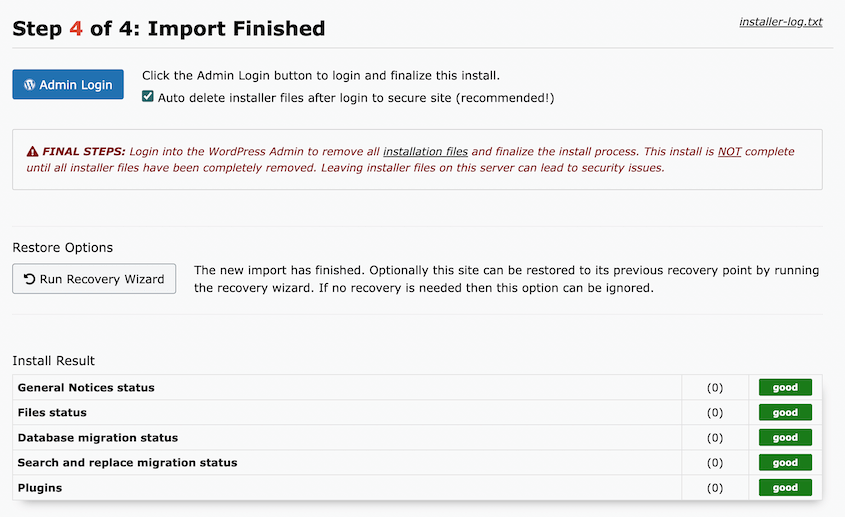
Terminez la migration. Ensuite, utilisez le bouton Connexion administrateur pour accéder à votre nouveau site WooCommerce.
Sauvegardez votre boutique WooCommerce dès aujourd'hui
Votre boutique WooCommerce représente plus que de simples produits et ventes : c'est votre gagne-pain, votre projet passionnel et des années de travail acharné. Le bon plugin de sauvegarde vous permet de vous concentrer sur la croissance de votre entreprise au lieu de vous inquiéter de ce qui pourrait mal tourner.
D'après mes tests et mon expérience, Duplicator se démarque comme le vainqueur incontesté pour la plupart des propriétaires de boutiques WooCommerce. Ses sauvegardes automatisées, ses options de stockage cloud étendues et ses capacités de migration en font la solution la plus complète disponible.
Vous souhaitez commencer à sauvegarder régulièrement votre boutique WooCommerce ? Téléchargez Duplicator Pro et configurez des sauvegardes automatiques vers le cloud !
Pendant que vous êtes ici, vous pourriez également aimer ces guides WordPress :
- 31 meilleurs plugins WooCommerce pour améliorer votre boutique en ligne
- Le guide ultime des sauvegardes WooCommerce
- Comment mettre à jour WooCommerce (sans casser votre boutique en ligne)
- Comment sauvegarder une base de données WooCommerce
- Comment migrer votre boutique Shopify vers WooCommerce
- Stratégies SEO éprouvées pour WooCommerce




