


The Real Cost of Cloud Storage Limits for WordPress Site Owners
 Joella Dunn
Joella Dunn
Joella Dunn
 John Turner
John Turner
John Turner
You’re wrapping up a client project when the notification hits: “Backup failed: insufficient storage space.”
Most people don’t think about cloud storage limits until they become a problem. By then, you’re scrambling—deleting old backups manually, upgrading storage plans, or worse, pushing updates without a safety net.
Storage limits affect more than just available space. They determine how often you can back up your sites, how many restore points you can keep, and whether your disaster recovery plan actually works when you need it.
Understanding what you’re getting from cloud storage providers (the real limits, not just the advertised storage number) prevents these panic moments.
Here are the key takeaways:
- Cloud storage limits go beyond advertised capacity: file size restrictions, API rate limits, bandwidth caps, and version control can sabotage backups even when you have storage space available.
- Generic storage services create WordPress-specific problems like shared quotas across multiple services, connection timeouts during large uploads, and authentication complexity.
- Storage constraints force backup compromises: you’ll choose between daily versus weekly backups, 7-day versus 30-day retention, or risk skipping pre-update backups when near capacity limits.
- Managing limits requires constant maintenance: excluding files, separating database and file backups, compression, off-peak scheduling, and manual retention policies turn set-and-forget backups into ongoing work.
- Services like Duplicator Cloud are designed specifically for WordPress backups and offer predictable pricing, backup-specific features, single-dashboard management, and storage tiers that match actual site sizes.
Table of Contents
What Are Some Cloud Storage Limits?
When you sign up for cloud storage, you see one number front and center: total storage capacity. For example, 15GB with Google Drive or 2GB with Dropbox’s free tier.
That number doesn’t tell you everything you need to know about whether the service will work for WordPress backups.
Cloud storage limits come in multiple forms, and each one affects your backups differently.
File Size Restrictions
Most providers cap the maximum size of individual files.
Google Drive allows up to 5TB per file or 750GB daily. Dropbox limits web uploads to 2TB, and the website only handles up to 50GB per file.
This matters because WordPress backup files are often large single archives. A moderate WooCommerce site with product images easily generates 3GB backup files.
If your storage provider caps individual files, that backup fails—even if you have 50GB of total space available.
Total Storage Capacity
This is the advertised number of total storage included in your plan.
But that capacity gets consumed by more than just your backup files.
Google Drive shares its 15GB quota across Gmail, Google Photos, and Drive. Upload 8GB of family photos, and you’re left with 7GB for everything else, including backups.
Storage providers also count file versions against your quota.
Google Drive keeps previous versions of files for 30 days. Unless you have a backup retention policy, all your monthly backups consume space (until Google deletes them).
Upload and Download Bandwidth Limits
Cloud providers restrict how much data you can transfer within a given period. These limits reset daily or monthly.
Google Drive’s free tier throttles upload speeds aggressively after you hit certain thresholds. Dropbox limits bandwidth on free accounts to around 20GB per day.
You’ll see this when backups start taking progressively longer to upload or when they time out halfway through. The backup appears to work fine for weeks, then suddenly fails because you crossed an invisible bandwidth threshold.
API Request Limits
Automated backups use APIs to communicate with cloud storage. Every time your backup plugin checks available space, uploads a file chunk, or verifies an upload, that’s an API request.
Providers rate-limit these requests. Google Drive allows around 20,000 requests per 100 seconds per user.
Run automated backups across multiple WordPress sites using the same credentials, and you hit these limits fast. The backup doesn’t fail with a clear error message, it just stops responding or reports a generic connection timeout.
File Count Restrictions
Some providers limit the total number of files you can store, not just total storage size.
This catches people who split backups into smaller chunks to work around file size limits. You might have 20GB of available space, but if you’ve already stored 100,000 files and the provider caps you at 100,000, your next backup fails.
Connection Timeout Limits
Providers terminate connections that take too long to complete uploads.
Large WordPress backups can take 20-30 minutes to upload on slower connections. If the provider times out connections after 15 minutes, your backup dies mid-upload.
You end up with a partial file that passes basic validation checks but will fail catastrophically during restoration.
Some providers don’t even tell you the upload was incomplete. The backup plugin reports success because it finished sending data. The storage service reports success because it received a file.
You don’t discover the problem until you try to restore, and the file is corrupted.
Version Limits
Automatic file versioning consumes storage quota invisibly.
You set up weekly backups with a 4-week retention policy. You think you’re storing 4 backup files. But if your provider keeps 30-day version history on every file, you’re actually storing closer to 8-12 versions depending on when files were updated versus when old versions expire.
Version cleanup doesn’t happen instantly when old versions age out. There’s lag time. Your quota might show 85% full when you’re actually over 100% once version history is calculated correctly.
Why Cloud Providers Impose Limits
Storage providers aren’t restricting access to frustrate users. These limits reflect real infrastructure costs and business models.
Infrastructure Costs
Cloud storage requires servers, redundant systems, cooling, power, and bandwidth. Storing 1TB of data across multiple data centers with redundancy and 24/7 accessibility costs money.
Free tiers and low-cost plans work because most users don’t max out their storage or bandwidth. Providers rely on average usage staying well below maximum capacity.
When you upload a WordPress backup, that file gets stored across multiple servers in different locations for redundancy.
Every byte you upload gets multiplied several times behind the scenes. Your 5GB backup might consume 15-20GB of actual storage infrastructure.
Fair Usage Policies Prevent Abuse
Rate limits and bandwidth caps prevent users from monopolizing shared resources.
Without API request limits, someone could write a script that hammers the service with thousands of requests per second, degrading performance for everyone else.
Daily bandwidth limits prevent people from using cloud storage as a CDN or unlimited streaming service.
These policies protect the service quality for legitimate users. They’re less about restricting you and more about preventing the handful of users who would otherwise consume too many resources.
Tiered Pricing Matches Different Needs
Most providers offer multiple tiers specifically because users have different storage requirements.
Someone backing up a personal blog needs different capacity than an agency managing 50 client sites. Free and low-cost tiers handle light usage. Paid tiers provide more resources for heavier demands.
Common Cloud Storage Limits by Provider
Different cloud storage providers have wildly different limit structures. What works fine with one service fails immediately with another.
Google Drive Limitations
Google Drive is a convenient cloud storage option that you probably already have. It’s also surprisingly restrictive for automated WordPress backups.
Google gives you 15GB free, shared across Gmail, Google Photos, and Google Drive. Check your current usage—you’ve probably got 8-10GB consumed before storing a single backup.
That 4GB of remaining space might handle one small WordPress site, one time. Run daily backups with a week of retention, and you need 7x the backup file size. A 600MB backup needs 4.2GB just for one week of daily copies.
Key Limitations of Google Drive:
- File size: 5TB theoretical limit, but API chokes around 750GB daily
- Shared drives capped at 500,000 items
- 20,000 API calls every 100 seconds
- File versions count against quota (30-day version history)
Real Problems:
- Automated daily backups can trigger rate limiting quickly
- Can’t preview backup files over 100MB in web interface
- Run backups for 3+ sites with the same account and hit API limits
Workspace accounts ($7-22/month per user) provide better limits but require paying for email and productivity tools you might not need.
Dropbox Constraints

Dropbox has been around forever and integrates with everything. It gives you 2GB free.
That’s barely enough for two backups of a basic site. Any site with significant media, WooCommerce products, or user content produces backups larger than 2GB each.
Key Limitations:
- File size limit: up to 2TB
- Bandwidth throttling on free accounts after ~20GB daily
Real Problems:
- Free tier essentially useless for WordPress backups
- Upload speeds degrade progressively after hitting thresholds
- Team folders require paid plans
Amazon S3 Limits
Amazon S3 is the gold standard for reliability and scalability. It’s also complex to configure and expensive if you’re not careful.
Key Limitations:
- Complex setup: IAM roles, bucket policies, access permissions
- Egress fees: $0.09 per GB for downloads
- Maximum object size is 5TB
- Files larger than 5GB require multi-part uploads
- Request pricing: $0.005 per 1,000 PUT requests
- Multiple storage classes add decision complexity
- Regional pricing variations (30-50% differences)
Real Problems:
- Download a 50GB backup and pay $4.50 in egress fees
- Setup requires technical knowledge
Other Popular Options
- 5GB free tier
- 250GB file size limit (reasonable)
- Path length restriction: 400 characters breaks nested WordPress structures
- Storage: $6 per TB per month (cheaper than S3)
- 100 buckets per account
- API/CLI supports up to 10 TB per file, the web is limited to 500 MB.
- $5/month minimum for 250GB storage + 1TB bandwidth
- Buckets limited to 800 operations per second
- Pay full $5 even if only using 10GB
- Limits depend entirely on hosting plan
- Shared with live site storage
- Many managed hosts prohibit backup storage in terms of service
- No versioning or retention management features
How Storage Limits Affect WordPress Backups
Storage limits force you to choose between backup frequency and retention.
You want daily backups with 30 days of retention. That requires 30x your backup file size. A 2GB backup needs 60GB of storage.
Most free tiers give you 2-15GB total. The math doesn’t work.
The compromises:
- Weekly backups instead of daily
- 7-day retention instead of 30
- Premature deletion of old backups to make room
- Pre-update backups get skipped when near capacity
- Can’t follow 3-2-1 backup rule (three copies, two media types, one off-site)
- Backup rotation becomes manual work instead of automatic
WordPress sites grow constantly, and backup file sizes follow. Media libraries expand, and e-commerce sites accumulate order data. Database bloat from revisions, spam, and transients adds 20-30% annually.
A site growing from 2GB to 5GB over months is normal. Your storage capacity doesn’t grow with it.
For agencies managing multiple sites, the complications multiply:
- Different limits across clients (Google Drive, Dropbox, S3, and various others)
- OAuth tokens expire at different times, requiring constant re-authentication
- Silent failures go unnoticed until restoration is needed
- Tracking storage usage across 30+ sites becomes spreadsheet work
- Billing clients for unexpected overages
- Can’t offer consistent backup policies due to varying limits
- Sites with smaller budgets get worse disaster recovery protection
How to Manage Cloud Storage Limits
You can’t eliminate storage limits on free or low-cost plans. You can work around them, though every workaround has trade-offs.
Exclude Unnecessary Files
Cache directories, temporary files, and development files don’t need to be backed up every time.
WordPress cache directories can grow to gigabytes. They regenerate automatically. Backing them up wastes storage.
Common exclusions:
- /wp-content/cache/
- /wp-content/uploads/cache/
- /.git/ (if you’re not using version control for deployment)
- /node_modules/ (if accidentally present)
- Error logs and debug logs
- Any tmp or temp directories
Some plugins create their own cache directories. WooCommerce stores session data. Page builders cache compiled CSS.
Identify what’s consuming space and whether it needs a backup. With a plugin like Duplicator, use file and database filters to exclude unnecessary data.
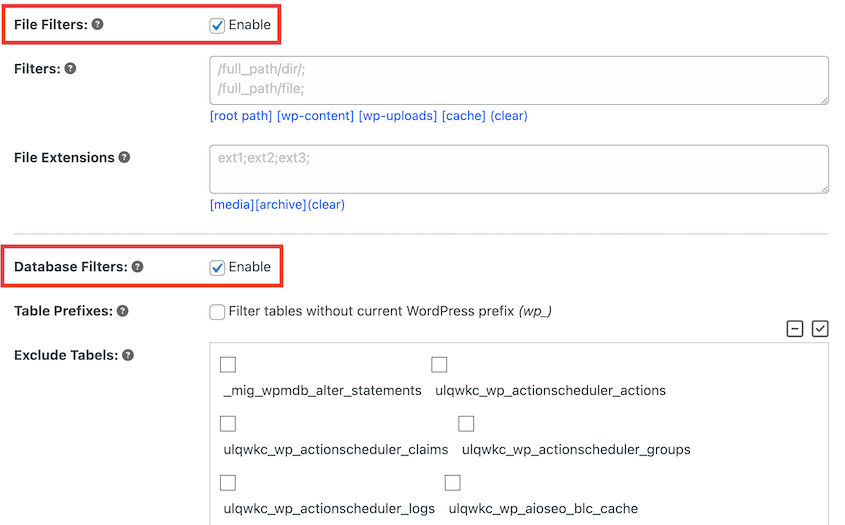
Separate Database and File Backups
Database backups are small, usually 50MB to 200MB for typical sites. File backups are larger because they have gigabytes of media libraries, themes, and plugins.
Run database backups daily. Run file backups weekly.
Your database changes constantly. You want recent database backups for minimal data loss during restoration.
Your files change rarely. Theme files, plugin files, and uploaded media don’t change between backups usually. Weekly file backups are often sufficient.
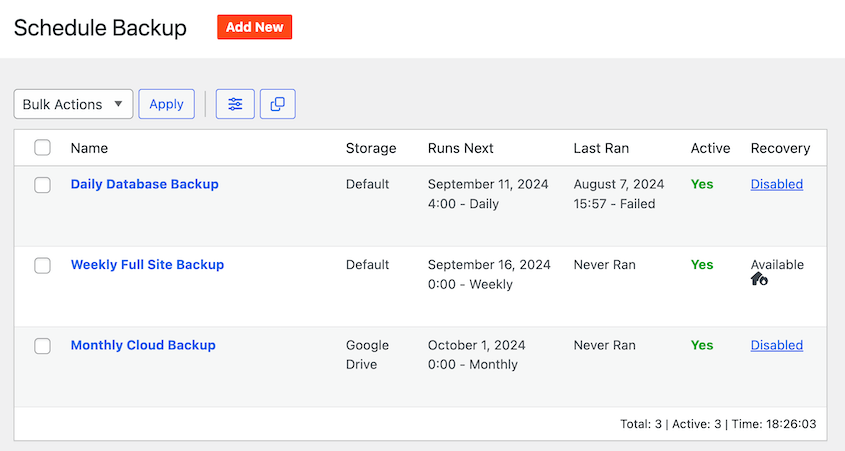
If you’re using Duplicator to back up your site, I’d recommend scheduling separate database-only and files-only backups. These automatic backups will run on your custom schedule: hourly, daily, weekly, or monthly.
Use Incremental Backups
Incremental backups store only files that changed since the last backup.
- First backup: full site.
- Second backup: only the data that changed.
- Third backup: only the data that changed since the second backup.
Storage requirements drop dramatically. Instead of 7 full 3GB backups (21GB), you have one 3GB full backup and six incremental backups totaling maybe 300MB (3.3GB total).
Enable Compression
Backup compression reduces file size by 30-60% depending on content types.
Most backup plugins offer backup compression. Duplicator automatically compresses your entire website into a single zip file.
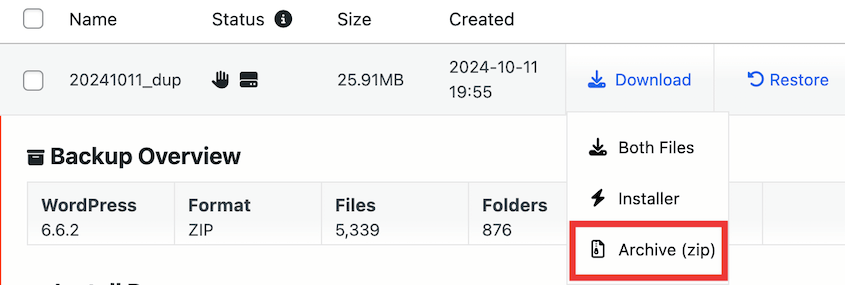
This happens before Duplicator uploads the backup to the cloud. So, every backup is optimized to save storage space.
Schedule During Off-Peak Hours
Run backups at night when server load is low and API rate limits are less likely to be exhausted.
Off-peak scheduling reduces the chance of competing with other site operations for resources. Your backup completes faster, uses less server CPU, and is less likely to time out.
Use Smart Retention Policies
Retention policies determine how many backups you keep. More backups mean better restoration options but more storage consumption.
A common retention strategy is 7-30-90:
- Daily backups: keep 7 days
- Weekly backups: keep 4 weeks (30 days)
- Monthly backups: keep 3 months (90 days)
This gives you both recent and long-term backups.
However, implementing this requires storage for roughly 14 backups (7 daily + 4 weekly + 3 monthly). If your backup size is 2GB, you need 28GB of storage. Most free storage tiers provide 2-15GB.
The math doesn’t work without paid storage or aggressive compression and exclusions.
With limited storage, simplify to 7 days of daily backups.
Seven daily backups give you a week of restoration points. It’s not ideal—you can’t roll back to before last month’s redesign. But it’s realistic given storage constraints.
If you have slightly more storage:
- Daily backups: 7 days
- Weekly backups: 4 weeks
This gives you 11 total backups and restoration points going back a month.
Configure automatic deletion of backups older than your retention period.
This keeps storage usage predictable. When the 8th daily backup completes, the plugin automatically deletes the backup from 8 days ago.
Duplicator Cloud: Purpose-Built Storage for WordPress
Generic cloud storage services work for general file storage. WordPress backups have specific requirements that general storage doesn’t address well.
Purpose-built backup storage like Duplicator Cloud eliminates many of these problems.
Predictable, Transparent Limits
Duplicator Cloud is a new cloud storage option built by Duplicator, a WordPress backup plugin. It offers clear storage tiers:
- 2GB: $29/year
- 10GB: $49/year
- 25GB: $99/year
- 50GB: $149/year
- 150GB: $199/year
Annual pricing means predictable costs without surprise monthly bills or unexpected overages.
For a typical WordPress site generating 2-3GB backups, the 10GB tier at $49/year provides room for 3-4 backups—enough for reasonable retention.
Easy Upgrades Without Reconfiguration
Outgrow your tier? Upgrade from your Duplicator account dashboard.
You won’t need to reconfigure backup settings or OAuth authentication. Upgrade your tier and keep backing up.
Duplicator Cloud upgrades are internal—click upgrade, pay the difference, done.
Built for WordPress Backup Workflows
Duplicator Cloud integrates directly with Duplicator Pro. It’s not a generic storage service adapted for backups; it’s storage designed specifically for WordPress backup workflows.
Connect Duplicator Pro to Duplicator Cloud through your Duplicator account. Authenticate once, and your backups start working.
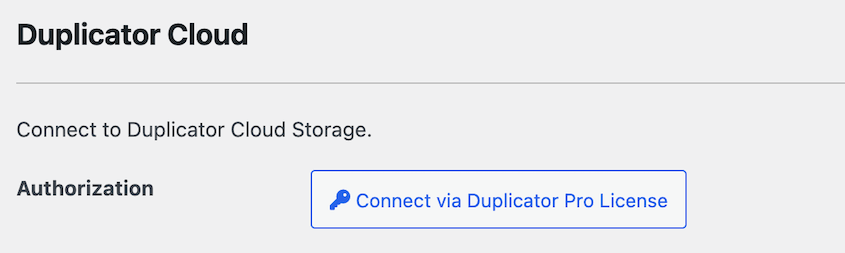
Storage tiers match typical WordPress site sizes:
- Small business sites: 2-10GB
- Medium sites with moderate media: 25GB
- Large sites with extensive media: 50-150GB
You’re not forced to buy 1TB of storage you’ll never use just to get past a 15GB free tier that’s too small.
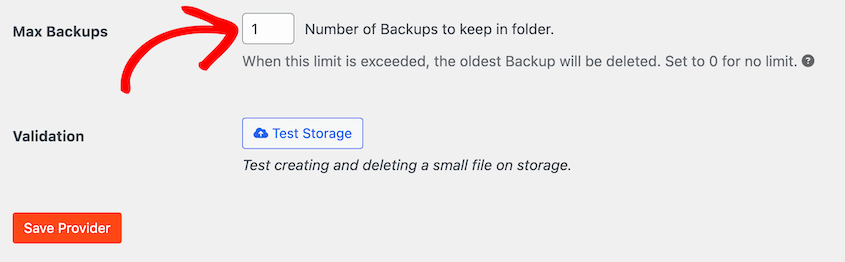
Set your retention policy—say, 7 daily backups. Duplicator Pro backs up to Duplicator Cloud daily. When the 8th backup completes, the oldest backup is automatically deleted to stay within your storage limit.
Generic cloud storage shows total usage. Duplicator Cloud shows backup-specific usage with context about retention policies and site growth trends.
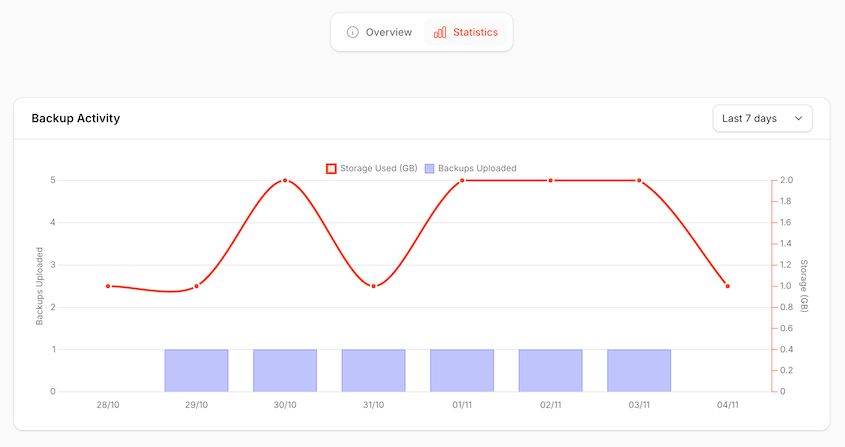
You can:
- See which sites use how much storage
- Track backup sizes over time
- Identify sites approaching limits before problems occur
- Backup-specific usage with retention policy context
- Plan for storage capacity across multiple sites
Managing backups and storage through separate services creates coordination overhead. Duplicator Cloud puts backup creation and storage in one place.
Single Dashboard for All Sites
One dashboard shows backup status and storage usage across all your WordPress sites.
See which sites backed up successfully yesterday. Which sites are approaching storage limits. Which sites have old backups that might need attention.
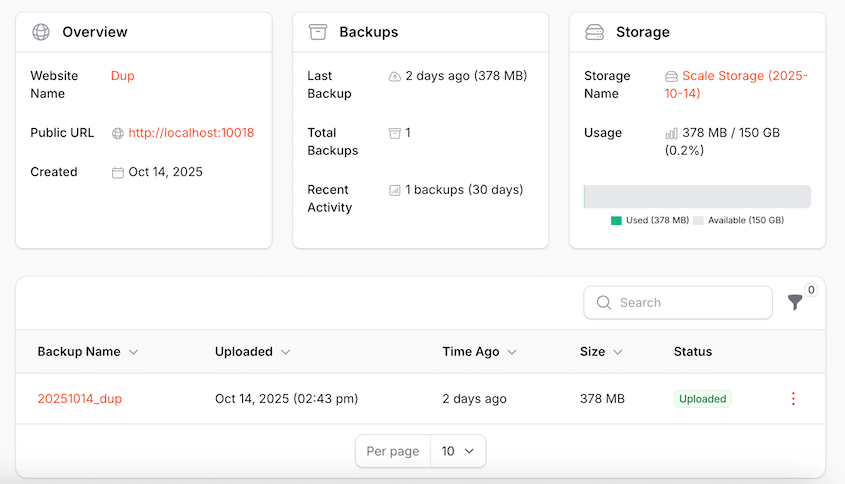
For agencies managing dozens of sites, this centralized visibility is significant. No logging into multiple cloud storage accounts to check status.
Activity Logs for Backup Status and Trends
View backup history and success/failure patterns. See when backups were completed, how large they were, and whether any issues occurred.
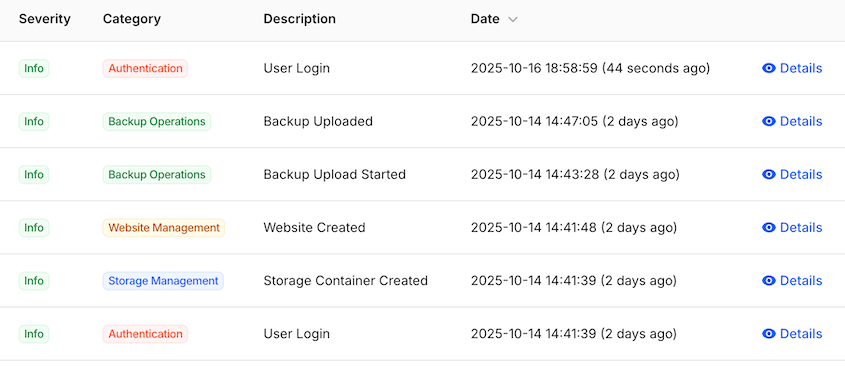
Detailed logs help troubleshooting. When backups start failing, logs show what changed. When backup sizes suddenly jump, logs show when the growth happened.
Generic cloud storage logs file uploads. Duplicator Cloud logs backup operations with WordPress-specific context.
One Support Team for Plugin and Storage
Generic cloud storage means two support channels: backup plugin support and storage provider support. You’re coordinating between them, trying to get problems solved.
Duplicator handles both backup functionality and storage. One support channel. One team that understands the complete backup workflow.
Grant Client Access Without Sharing Master Credentials
With Duplicator, you can give clients access to their backup storage without sharing your master account credentials.
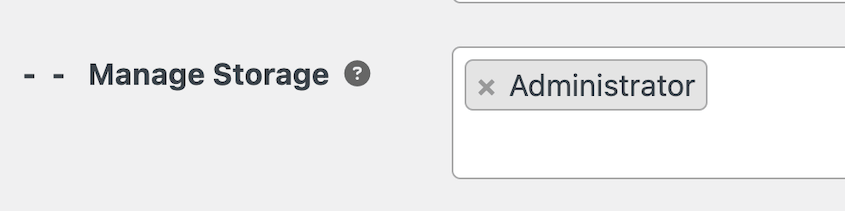
This matters for agency work. Clients can view their backup status and download their backups independently. They can’t see other clients’ backups or modify your account settings.
With generic cloud storage, you either share account credentials (security risk) or manually download and send backups when clients need them (time-consuming).
Making the Switch to Better Cloud Storage
Cloud storage limits affect more than available space. They shape your entire WordPress backup strategy.
File size restrictions, bandwidth caps, API rate limits, and authentication complexities turn backups from set-and-forget operations into ongoing maintenance tasks.
Generic cloud storage services work for general file storage. WordPress backups demand consistent reliability, predictable costs, and workflows that handle large archive files without authentication drama or surprise fees.
Purpose-built backup storage addresses these requirements directly.
Explore Duplicator Pro and Cloud storage tiers to see how purpose-built backup storage seamlessly works with your WordPress workflows!
While you’re here, I think you’ll like these related WordPress resources:
- How to Create a Cloud WordPress Backup
- 5 Best WordPress Cloud Storage Plugins
- 12 Best Cloud Storage Services for WordPress Backups
- Cloud Storage That Costs NOTHING: Free Offsite Backup Options to Consider
- How to Remotely Back Up and Restore WordPress




