

The ultimate guide to the installer
This guide gives you a complete walkthrough of how to use Duplicator to migrate or restore your WordPress site, from uploading your backup files to launching the install script.
Whether you’re moving a site to a new host or deploying from a backup, this guide explains each stage of the installer workflow so you can complete installations with confidence.
The installation methods
With Duplicator, the following installation methods are currently supported:
1- Import Install: Drag and drop or use a URL for superfast installs. This Pro-only feature will import both Pro and Lite archives.
- Import File:
Drag and drop an existing Duplicator Lite or Pro archive and quickly replace the existing WordPress site - Import Link:
Provide a link to an existing Duplicator Lite or Pro archive and quickly replace the existing WordPress site.
For more information about the Import installation method, please refer to this guide.
2- Classic Install:
With this mode users can install to an empty directory like a new WordPress install does, or overwrite an existing WordPress website in a few clicks. For more information about the Classic installation method, please refer to this guide.
Initiating the installation
Method 1: using the import installation method
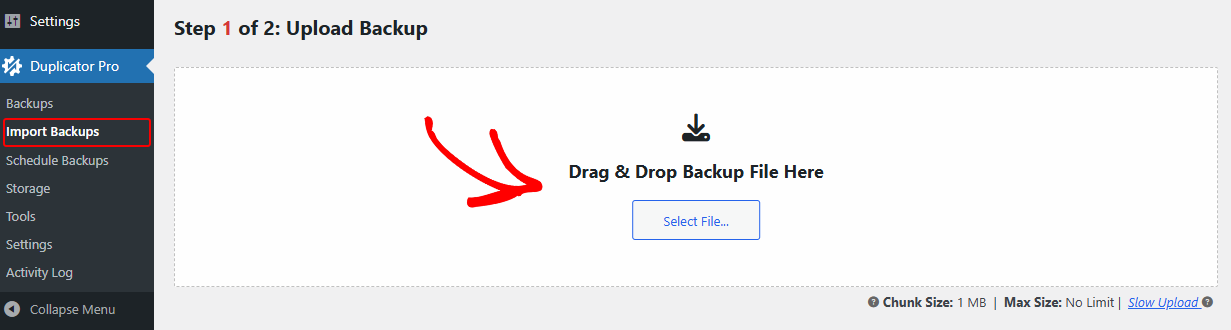
- Go to Duplicator Pro » Import Backup
- Upload the backup by clicking the Upload area, and choosing the backup archive
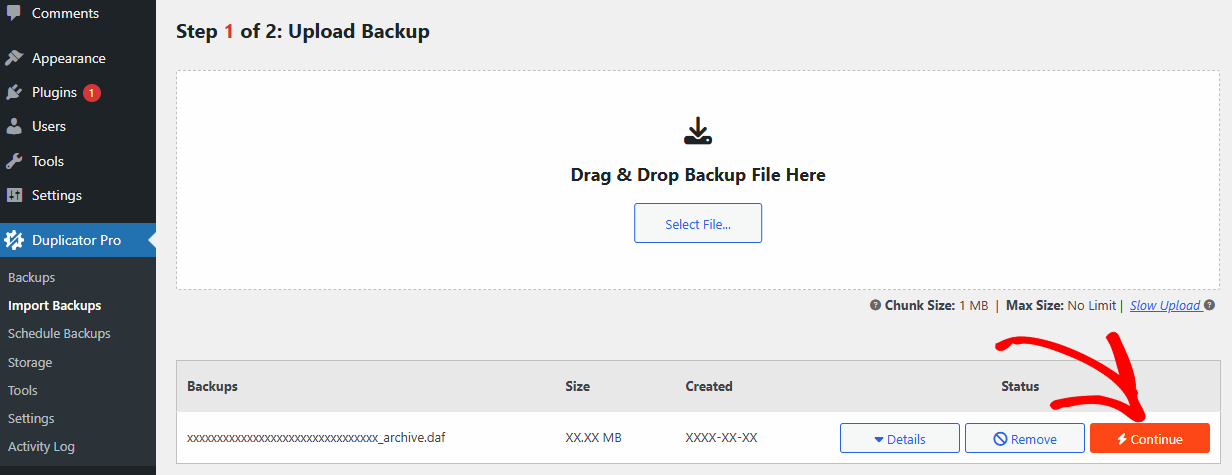
- Click the Continue button to initiate the installation
- Confirmation
After clicking the Continue button in the Import Backups page, a confirmation box pops up. This box shows if there is a disaster recovery point is set, instructs you on how to set a disaster recovery point, and provides you with information about your website like the number of posts, pages, and media, etc.
The Recovery Point is not mandatory to perform an import. However, it can assist in restoring this site if there is a problem during installation.
Method 2: using the classic installation method
- Transfer both the installer.php and archive.zip/archive.daf files to the root path of your destination site.
- Open any web browser and browse to the ‘installer.php’ such as:
http(s)://your-domain/installer.php
http(s)://your-domain/[hashed-secure-data]_installer.php
Pre-installation (Installer Security)
Duplicator Pro secures the backup and the installer to prevent any possible attack. Backups can be secured either by setting a password on the installer or encrypting the entire backup. For more information, please refer to this article.
Views

The installer has two operating views that can be toggled via the Basic and Advanced buttons in the right-hand corner of the application. An overview of each view is explained below.
- Basic:
This is a simple two-step mode with all options set to the defaults. This is the default mode. The Basic view is the easiest and fastest and covers most setup types. This is the recommended view for most installs. - Advanced:
This four-step mode allows for higher levels of customization with various detail settings. The Advanced view allows users to implement and apply additional settings/features to the install process.
Step 1: Deployment
Section: Overview
The overview section allows users to identify the status, mode and select from the install type based on the user’s install status. Additionally, there are other details about the archive file. Below is an overview of the various status, mode, and install types.
Overview » Installation
This section provides an overview of the various install modes, methods, and types currently in use, as well as the status of the install process.
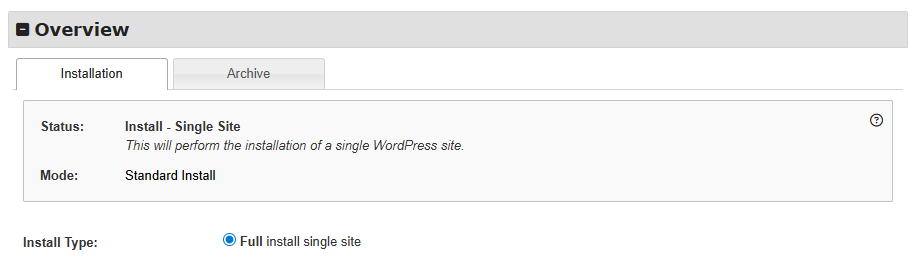
Status:
Indicates the current type of installation being performed. The status can be one of the following:
- Install – Single Site:
Performs a standard installation of a single WordPress site. - Install – Multisite-Subdomain:
A full Multisite installation using subdomains (e.g., subdomain.mysite.com). All sites in the network will be extracted and installed. - Install – Multisite-Subfolder:
A full Multisite installation via subfolders. All sites in the network will be extracted and installed. - Install – Standalone Site:
Converts a selected subsite into a standalone website. - Install – Archive Single Site into Subdomain/Subfolder Multisite:
Inserts the backup site into an existing Multisite network using either subdomains or subfolders. - Install – Selected Subsite in Subdomain/Subfolder Multisite:
Inserts a selected subsite from the backup into an existing subdomain/subfolder Multisite installation. - Recovery – [Site Type]:
Enabled when the installer detects recovery mode. This overwrites the current site from a recovery point made on a specific date. The site type indicates the type of site being recovered. - Restore Site Backup:
Enabled when the installer detects an archive that matches the current setup. Restores the original site without processing the database or tables for an exact copy. Status types include: Restore: Single Site Backup, Restore – Multisite-Subdomain Backup, Restore – Multisite-Subfolder Backup.
Mode:
Determines how the installer handles files and the database during the installation.
- Standard Install:
Includes both files and tables from the archive. Filters enabled during the archive build process determine which files and tables are included. This method is used when no existing WordPress site is present in the installation directory. - Standard Install – Database Only:
Includes only database tables from the archive. Filters enabled during the archive build process determine which tables are included. Used when the archive only contains the database and no existing WordPress site is present. - Overwrite Install:
Includes both files and tables from the archive. Filters enabled during the archive build process determine which files and tables are included. Used when an existing WordPress site is detected. - Overwrite Install – Database Only:
Includes only database tables from the archive. Filters enabled during the archive build process determine which tables are included. Used when an existing WordPress site is detected. - Custom Install:
The install is specifically driven by the status type. Refer to the status type for detailed install instructions. - Overwrite Install – No database actions (Database Excluded):
The installer does not perform any actions on the database, as it was excluded during backup creation.
Important Notice (Overwrite Install): Overwriting a website with a backup will clear all existing site data. This process cannot be undone! Please create a backup of the website before performing an overwrite installation.
Install Type:
Allows selecting the specific installation type. The available options vary depending on the installation scenario.
- Full/Restore:
The default install type. - Convert:
A Multisite feature used to convert a network subsite into a standalone site. - Import:
A Multisite feature used to import a subsite into a Multisite network. Restore, Convert, and Import types are visible only when the installer detects that the action can be performed.
The Restore, Convert and Import types are only visible when the installer detects that it can perform the action.
How the installer works with multisite
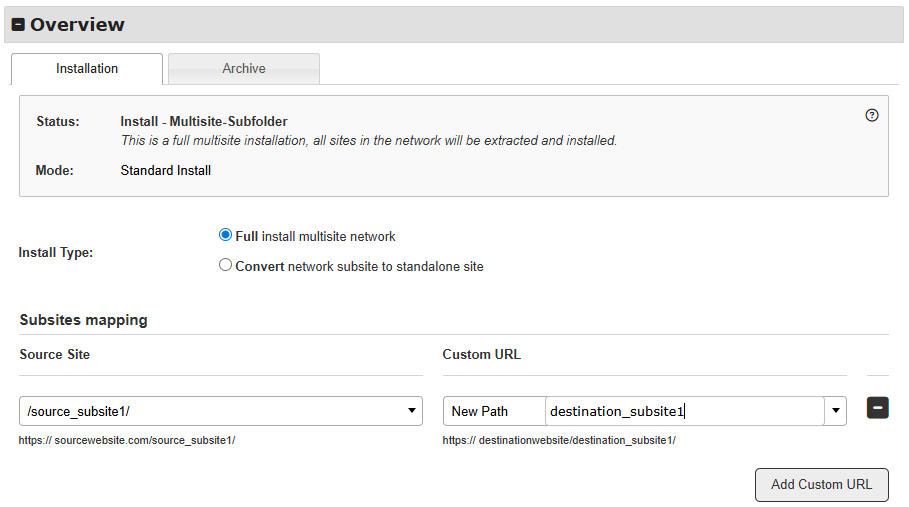
Duplicator Pro allows you do the different types of the multisite migrations easily, below is a brief of how the different types of multisite migrations is prepared in the Overview section:
- Installing a multisite backup on an existing multisite
- Choose Full install multisite network to install the entire multisite or a group of its websites.
- Click the button Add Custom URL for each subsite that you will install, choose a source site, choose a New Path or a New URL for the field Custom URL, and fill it with the preferred value.
- Converting a network subsite into a standalone website
Similar to installing a multisite backup, but selecting the “Convert” option allows you to choose a specific website from the backup to overwrite your current site. Select the desired subsite in the “Subsite” field. - Importing a standalone website into an existing multisite:
Importing a standalone website directly using the Classic installation method is not possible. Use the “Import” method from Duplicator Pro » Import Backups within the website admin dashboard. - Importing a single site backup on a multisite:
To import a single website into an existing network as a subsite, select the website from the backup in the “Source site” dropdown and choose the desired website path or URL in the “Target site” field.
Duplicator Pro makes the multisite migration easy for you. It doesn’t require any coding or manual changes. For more information on how to use the Duplicator Pro multisite migration options, please refer to these articles:
– Migrating a full multisite network
– Exporting a multisite subsite to a standalone site
– Importing a standalone website into a multisite
– Cloning a subsite within the same multisite
– Migrating a multisite subsite to a different multisite
Overview » Archive
This tab displays details about the archive file and information related to the site included in the backup.
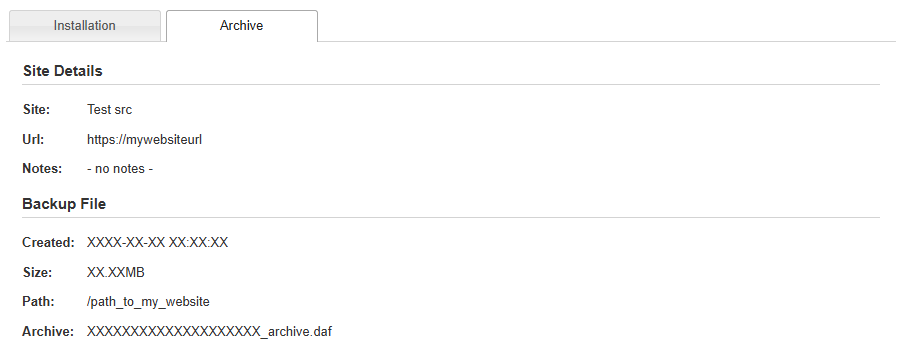
Site Details
Provides information about the current website, including the name, URL, and notes.
Backup File
The site details section provides information about the backup, including the creation date, backup size, path, and archive name.
Section: Setup
The Setup section is where you configure the foundational elements for your WordPress website’s installation. It provides comprehensive options for establishing database connections, managing database actions, defining crucial site details, and specifying how the archive files will be processed during extraction.
Setup » Default
This option assumes familiarity with the existing server environment and typically requires the database to be created manually beforehand on most hosting providers.
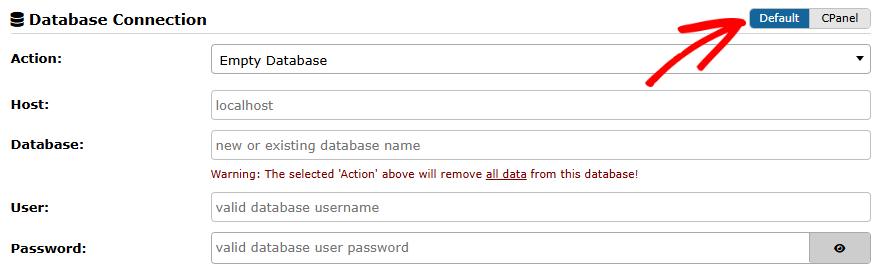
Setup » CPanel
cPanel: The cPanel option is for hosts that support cPanel software. This option will automatically show you the existing databases and users in your cPanel server and allow you to create new databases directly from the installer.
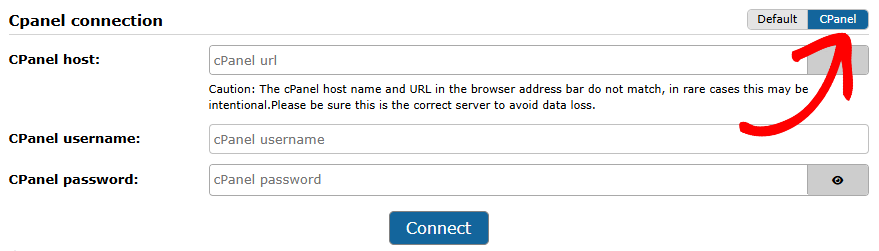
cPanel Connection
- cPanel host:
This should be the primary domain account URL associated with your host. Most hosts require you to register a primary domain name. This URL should be entered into the host field. For example, if your primary domain name is mysite.com, you would enter https://mysite.com:2083. Port 2083 is the common port number used by cPanel. If you do not know your primary domain name, please contact your hosting provider or server administrator. - cPanel username:
The cPanel username used to log into your cPanel account. This is not the same as your WordPress administrator account. If you are unsure of this name, please contact your hosting provider or server administrator. - cPanel password:
The password for the cPanel user account.
Setup » Database connection
The database connection inputs allow you to connect to an existing database or create a new database, along with the other actions below.
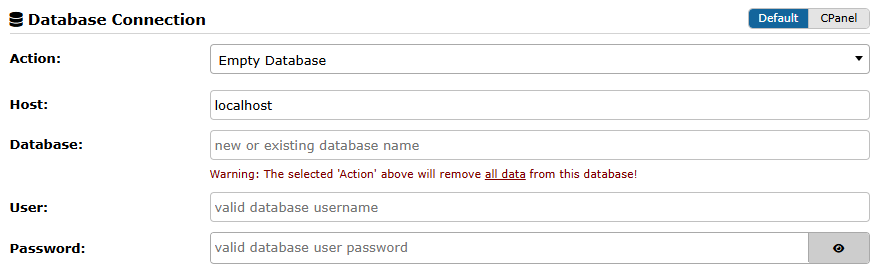
Warning: Reusing an existing site’s database will permanently overwrite all of its data. If you are not entirely confident about using these database settings, it is strongly recommended to create a new database and use its credentials instead.
Below are the installer database options:
- cPanel Prefix
The cPanel Prefix setting is visible in the cPanel tab only.
Ignore: Enabling this option removes the prefix added to database name and username of the cPanel connection below.
- Action:
Defines how the installer interacts with your database, from emptying it to creating new tables or skipping database actions. Carefully select the appropriate action to manage your existing data and ensure a successful installation. The following are the available options for Action:- Empty Database
DELETE all tables in the database you are connecting to. Please make sure you have backups of all your data before using this part of the installer, as this option WILL remove all data. - Create New Database
This option attempts to create a new database if one does not already exist. Note that this functionality is often restricted by most hosting providers due to host limitations but typically works on most local systems. If the database cannot be created automatically, you will need to log in to your host’s database management system and create the database manually. If your host supports cPanel, you may be able to use this option to create a new database after logging in via your cPanel account. - Overwrite Existing Tables
This option overwrites only the database tables that are part of the extracted backup. It is particularly useful if you intend to install WordPress into a database that already contains other WordPress installations or applications. Note: When performing an installation alongside another existing installation, be sure to change the table prefix. Only tables with the same prefix will be overwritten, while tables with a different prefix will be retained. - Skip Database Extraction
This option requires that you manually run your own SQL import to an existing database before running the installer. When this action is selected the database inside the backup will NOT be processed. The database you’re connecting to should already be a valid WordPress installed database. This option is viable when you need to perform custom SQL work or advanced installations. - Backup and Rename Existing Tables
Create a backup of all existing tables by performing a RENAME of all tables in the database. This makes room for the new tables to be created. - Only Extract Files
With this option selected the database will not be installed. This is useful if you want to just extract the files from the backup and not perform any actions on the database.
- Empty Database
- Host:
This field specifies the name of the host server where the database resides. While localhost is common, each hosting provider may have its own naming convention; please consult your server administrator or hosting provider to determine the proper host name. To add a port number, append it to the host (e.g., localhost:3306). - Database:
Enter the name of the database to which this installation will connect and install the new tables and data - User:
This is the username for the MySQL/MariaDB database server. This is a special account with privileges to access, read from, and write to that database. It is distinct from your WordPress administrator account. - Password:
The password corresponding to the MySQL/MariaDB database server user.
Setup » Site Details
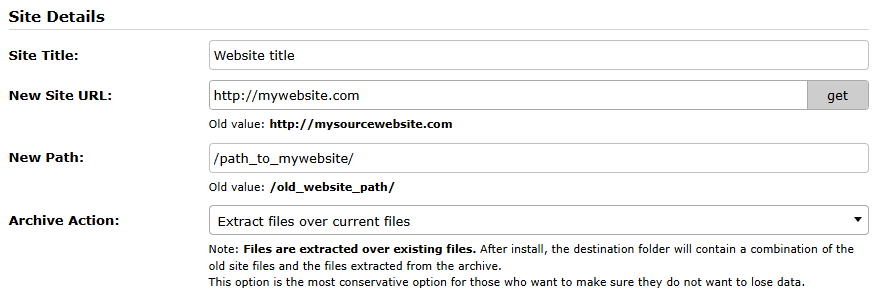
The settings options in this section allow users to modify the “Site Title,” “Site URL,” and “Site Path.” By default, and in most cases, the “Site URL” and “Site Path” should not require alteration. In ‘Basic’ mode, these values are read-only; to edit them, switch to the “Advanced” mode found in the upper right corner of the installer wizard.
Below are the available options in the Site Details tab:
- Site Title
This field defines the name of your WordPress website. On most websites, this value will be the name used to bookmark the site or the name displayed in the browser tab when viewing the page. - Site URL
The ‘New Site URL’ input field is automatically populated with the installation site’s URL. By default, there is no need to change it. For detailed information, refer to the WordPress Site URL & Alternate Directory documentation. This value should only be changed if you fully understand its intended purpose and implications. The ‘Old URL’ value is listed as read-only and displays the URL of the site at the time the backup was created. These values should not be modified unless you are aware of the underlying reasons and potential consequences. - Site Path
This represents the physical server path where your WordPress site resides. For hosted servers, please check with your hosting provider for the correct path location. These values should not be changed unless you are aware of the underlying reasons and potential impact. - Archive Action:
This setting specifies how the archive files will be handled during extraction. The following options are available in the ‘Archive Action’ field:- Extract files over current files
The existing site files will be overwritten with the contents of the archive.zip/daf.
Note: Files are extracted over existing files. After install, the destination folder will contain a combination of the old site files and the files extracted from the archive. This option is the most conservative option for those who want to make sure they do not want to lose data. - Remove WordPress core and content and extract (Pro)
The existing WordPress core files and WordPress content directory will be removed, and then the archive will be extracted. - Remove all files except add-on sites and extract (Pro)
All files except add-on sites will be removed, and then the archive will be extracted. An add-on site is a site/domain that is stored in a directory off of your main site that has been “added on” to your main hosting account. For instance, when you purchased a hosting account it could be for a.com. Then after that, you decided to add b.com and c.com to the same hosting account. The structure of this setup is often the following although it can vary sometimes:
– /public_html – contains files for a.com
– /public_html/b.com – contains files for b.com
– /public_html/c.com – contains files for c.com - Empty only uploads folder (Pro)
Only the uploads directory will be emptied and replaced with the content of the backup’s upload directory.
- Extract files over current files
Section: Options (Advanced mode only)
The advanced options are only shown when the installer mode is set to “Advanced.” This section allows users to change or set advanced options, configure additional database settings and set other configuration options in the wp-config.php file.
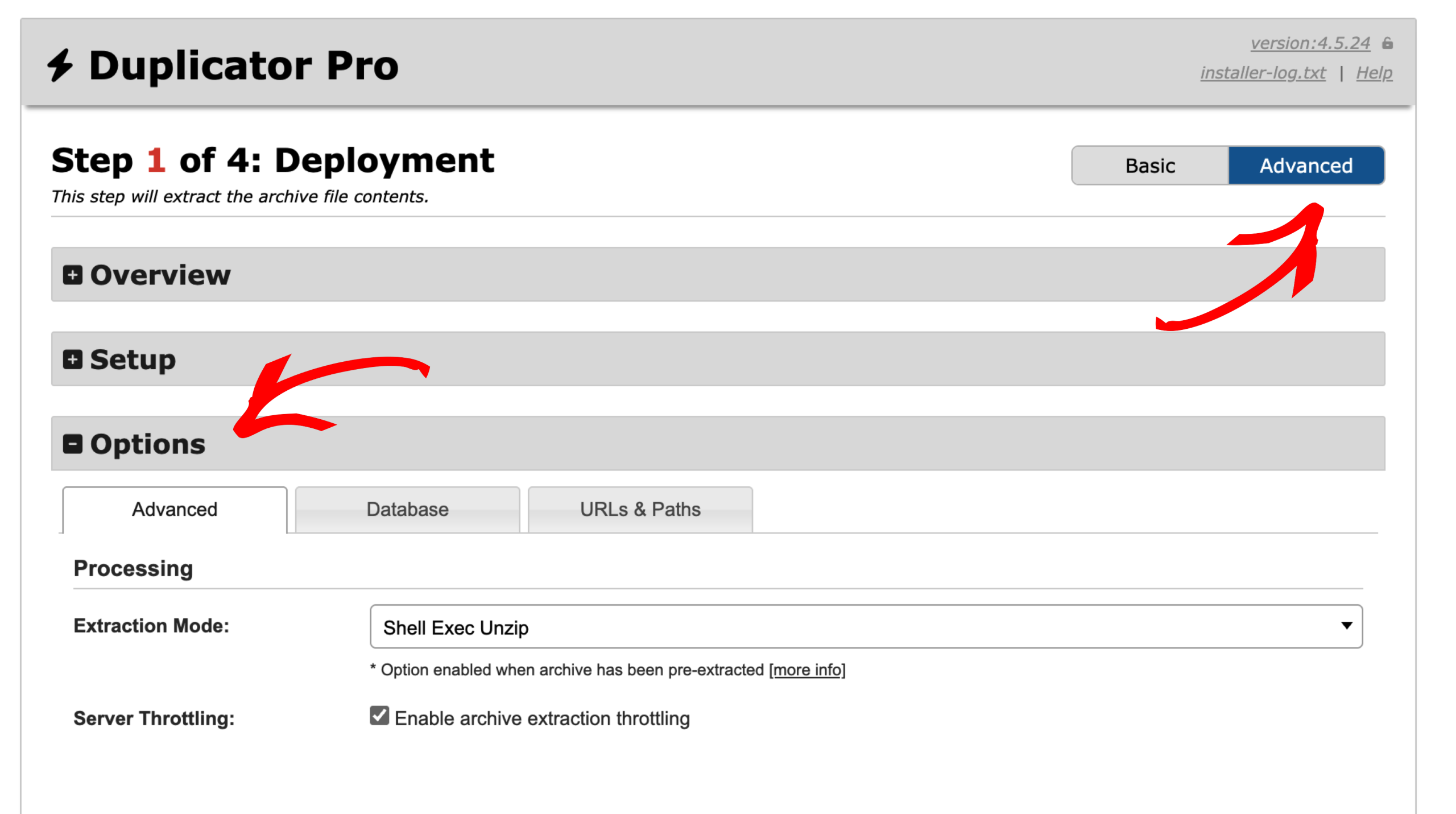
Options » Advanced
These are the advanced options for advanced users.
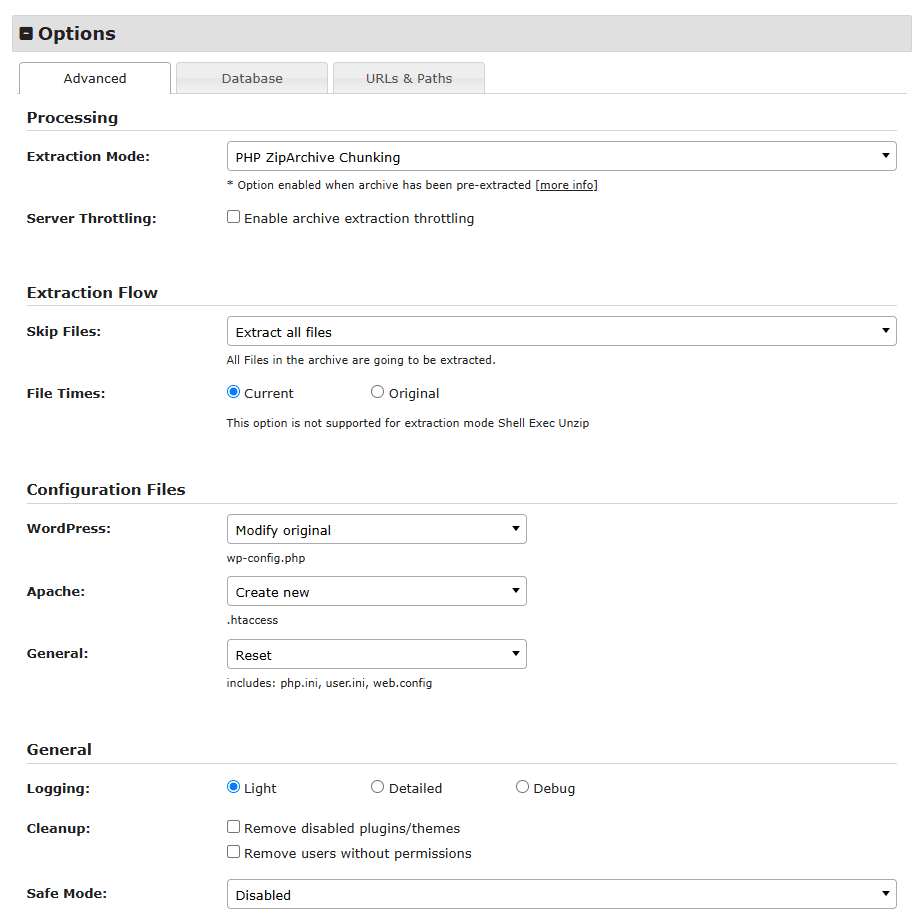
Options » Advanced » Processing:
Extraction Mode: Select the extraction mode, the installer offers the following extraction options:
- Manual Archive Extraction
Set the Extraction value to “Manual Archive Extraction” when the archive file has already been manually extracted on the server. This can be done through your host’s control panel such as cPanel or by your hosting provider directly. This setting can be helpful if you have a large backup or have issues with the installer extracting the backup due to timeout issues. - PHP ZipArchive
This extraction method will use the PHP ZipArchive code to extract the archive zip file. - PHP ZipArchive Chunking
This extraction method will use the PHP ZipArchive code with multiple execution threads to extract the archive zip file. - Shell-Exec Unzip
This extraction method will use the PHP shell_exec to call the system unzip command on the server. This is the default mode that is used if it’s available on the server. - DupArchive
This extraction method will use the DupArchive extractor code to extract the DAF-based backup.
Server Throttling:
Enable archive extraction throttling (Checkbox)
This option is only available with Zip Formats
If the current host is a budget host that monitors CPU usage, then users might want to consider checking this box to help slow down the process and not kick off any high-usage monitors.
Options » Advanced » Extraction Flow
Skip Files:
The following are the available options for the Skip Files field:
- Extract all files
Extract all files from the backup archive. This option is selected by default. - Skip extraction of WordPress core files (Pro)
Extract all files except WordPress core files. Choose this option to extract only the wp-content folder and other non-core WordPress files and directories. - Skip extraction of WordPress core files and plugins/themes existing on host
When this option is chosen the WordPress core files, if any, are not modified. They are not deleted and/or extracted.
Also, if a plugin (theme) exists on BOTH the host and the backup, the contents of the destination host plugin (theme) are going to be kept. - Extract only media files and new plugins and themes
Extract all media files, new plugins, and new themes. The installer will not extract plugins and themes that already exist on the destination site.
File Times:
When the archive is extracted it should show the current date-time or keep the original time it had when it was built. This setting will be applied to all files and directories.
Note: Setting the Original time is currently only supported when using the ZipArchive Format.
The following are the available options for the File Times field:
- Current
- Original
Note: This option is not supported for extraction mode Shell Exec Unzip
File and Directory Permissions:
- WordPress file permissions control who can read, write, or execute files on your server
- Standard permissions are 644 for files and 755 for directories
- Never use 777 permissions as they allow anyone to modify your files
- Regular permission checks help prevent security vulnerabilities and site malfunctions
Options » Advanced » Configuration Files
WordPress:
This option determines how the installer will work with the wp-config.php file, you can choose one of the following:
- Do nothing
This option simply does nothing. The wp-config file does not get backed up, renamed, or created. This advanced option assumes you already know how it should behave in the new environment. This option is for advanced technical people. - Modify original
This is the default recommended option which will modify the original wp-config file. - Create new from wp-config sample
This option creates a new wp-config file by modifying the wp-config-sample.php file. The new wp-config.php file will behave as if it was created in a fresh, default WordPress installation.
Apache:
This option determines how the installer will work with the .htaccess file, you can choose one of the following:
- Do nothing
This option simply does nothing. The .htaccess is not backed up, renamed, or created. This advanced option assumes you already have your .htaccess file set up and know how it should behave in the new environment. When the backup is built it will always create an .htaccess file at this location:
/dup-installer/dup_descriptors_[HASH]/orig_files/.htaccess
Since the file is already in the archive file it will show up when the archive is extracted. - Retain original from Archive.zip/daf
This option simply overwrites the existing .htaccess file with the one from the backup (/dup-installer/dup_descriptors_[HASH]/orig_files/.htaccess file). Please note this option will cause issues with the install process if the .htaccess is not properly set up to handle the new server environment. This is an advanced option and should only be used if you know how to properly configure your .htaccess configuration. - Create New
This is the default recommended option which will create a new .htaccess file. The new .htaccess file is streamlined to help guarantee no conflicts are created during install.
Notes: Inside the archive.zip or archive.daf will be a copy of the original .htaccess (Apache) file that was set up with your backed up site. The .htaccess file is copied to /dup-installer/dup_descriptors?[HASH]/orig_files/.htaccess. When using either “Create New” or “Retain original from Archive.zip/daf” an existing .htaccess file will be backed up to a /wp-content/backups-dup-pro/installer/orig_files/.htaccess. This change will not be made until the final step is completed, to avoid any issues the .htaccess file might cause during the installation.
General
When Duplicator creates an archive, it automatically backs up the following configuration files if they exist on the source site:
- php.ini
- .user.ini
- Web.config
Backup Location in Archive:
archive.zip|daf/dup-installer/dup_descriptors_[HASH]/orig_files/[location]_phpini
archive.zip|daf/dup-installer/dup_descriptors_[HASH]/orig_files/[location]_userini
archive.zip|daf/dup-installer/dup_descriptors_[HASH]/orig_files/[location]_webconfig
Backup Locations Defined:
- source_site – Original file from when the archive was created
- installer_host – Original file from the destination server before installation
Configuration actions
Three options for how to handle configuration files during migration:
- Do Nothing
- What happens:
- No special actions are performed
- If configuration files exist in both the archive and the destination directory, the archive configuration files will not overwrite the destination files
- Use this option if your configuration files are already set up correctly
- What happens:
- Retain Original from Archive
- What happens:
- Step 1: Any existing configuration files on the destination server are moved to:
/wp-content/backups-dup-pro/installer/orig_files/installer_host_[CONFIG-TYPE] - Step 2: At the final installer step, configuration files from the source site are copied from the archive backup to the destination server from:
/dup-installer/dup_descriptors_[HASH]/orig_files/source_site_[CONFIG-TYPE]
- Step 1: Any existing configuration files on the destination server are moved to:
- Result:
The source site’s configuration files are used on the destination - Best for:
When you want to preserve the source site’s server configuration on the destination
- What happens:
- Option 3: Reset
- What happens:
- Step 1: Any existing configuration files on the destination server are moved to:
/wp-cotent/backups-dup-pro/installer/orig_files/installer_host_[CONFIG-TYPE] - Step 2: If configuration files exist in the archive, they are deployed to match the archive file structure
- Step 1: Any existing configuration files on the destination server are moved to:
- Result:
Starts fresh with configuration files from the archive or none at all - Best for:
When you want a clean configuration setup on the destination server
- What happens:
Options » Advanced » General
Logging:
The level of detail that will be sent to the log file (installer-log.txt). The recommended setting for most installs should be “Light.”
Note, if you use Debug the amount of data written can be very large. Debug is only recommended for rare cases.
The following are the available options for the field Logging:
- Light
- Detailed
- Debug
Cleanup:
The following are the available options for the field Cleanup:
- Remove disabled plugins/themes
Remove all inactive plugins and themes when installing site. Inactive users will also be removed during subsite to standalone migrations. - Remove users without permissions
Removes users that currently do not have any permissions associated with their accounts.
Safe Mode:
Safe mode is designed to configure the site with specific options at install time to help overcome issues that may happen during the installation where the site is having issues. These options should only be used if you run into issues after you have tried to run an installation.
The following are the available options for the field Safe Mode
- Disabled
This is the default. This option will not apply any additional settings at install time. - Enabled
When enabled the safe mode option will disable all the plugins at install time. Note: When this option is set you will need to manually re-enable the plugins after the installation from the WordPress admin Plugins page.
Options » Database
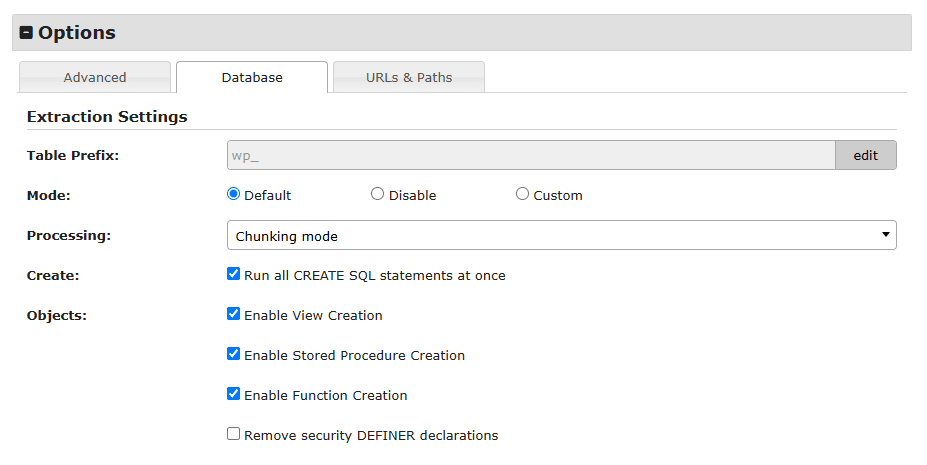
These are the advanced options for database configuration.
Options » Database » Extraction Settings
Table Prefix:
This option allows changing the table prefix to something other than the source site’s table prefix. The table prefix is the value placed in front of your database tables. It is possible to have multiple WordPress installations in one database if you give each WordPress site a unique prefix.
Mode:
Modes affect the SQL syntax MySQL supports (and others such as MariaDB) . This setting performs various data validation checks. This makes it easier to use MySQL in different environments and to use MySQL together with other database servers. It is very useful when running into conversion issues. The following options are supported:
- Default
This is the recommended setting to use. It will use the current Database mode setting. - Disable
This will prevent the database engine from running in any mode. - Custom
This option will allow you to enter a custom set of mode commands. See the documentation link below for options.
For a full overview please see the MySQL mode and MariaDB mode specific to your version. To add a custom setting enable the Custom radio button and enter in the mode(s) that needs to be applied.
Processing:
The following are the available options for the field Processing
- Chunking mode
Split the work of inserting data across several requests. If your host throttles requests or you’re on a shared server that is being heavily utilized by other sites then you should choose this option. This is the default option. - Single step
Perform data insertion in a single request. This is typically a bit faster than chunking, however it is more susceptible to problems when the database is large or the host is constrained.
Create:
Run all CREATE SQL statements at once. This option should be checked when source database tables have foreign key relationships. When choosing this option there might be a chance of a timeout error. Uncheck this option to split CREATE queries in chunks. This option is checked by default.
Objects:
Allow or Ignore objects for “Views,” “Stored Procedures,” “Functions” and “DEFINER” statements. Typically the defaults for these settings should be used. In the event you see an error such as “‘Access denied; you need (at least one of) the SUPER privilege(s) for this operation” then changing the value for each operation should be considered.
Below are the available options for the field Objects
- Enable View Creation
- Enable Stored Procedure Creation
- Enable Function Creation
- Remove security DEFINER declarations
Options » URLs & Paths
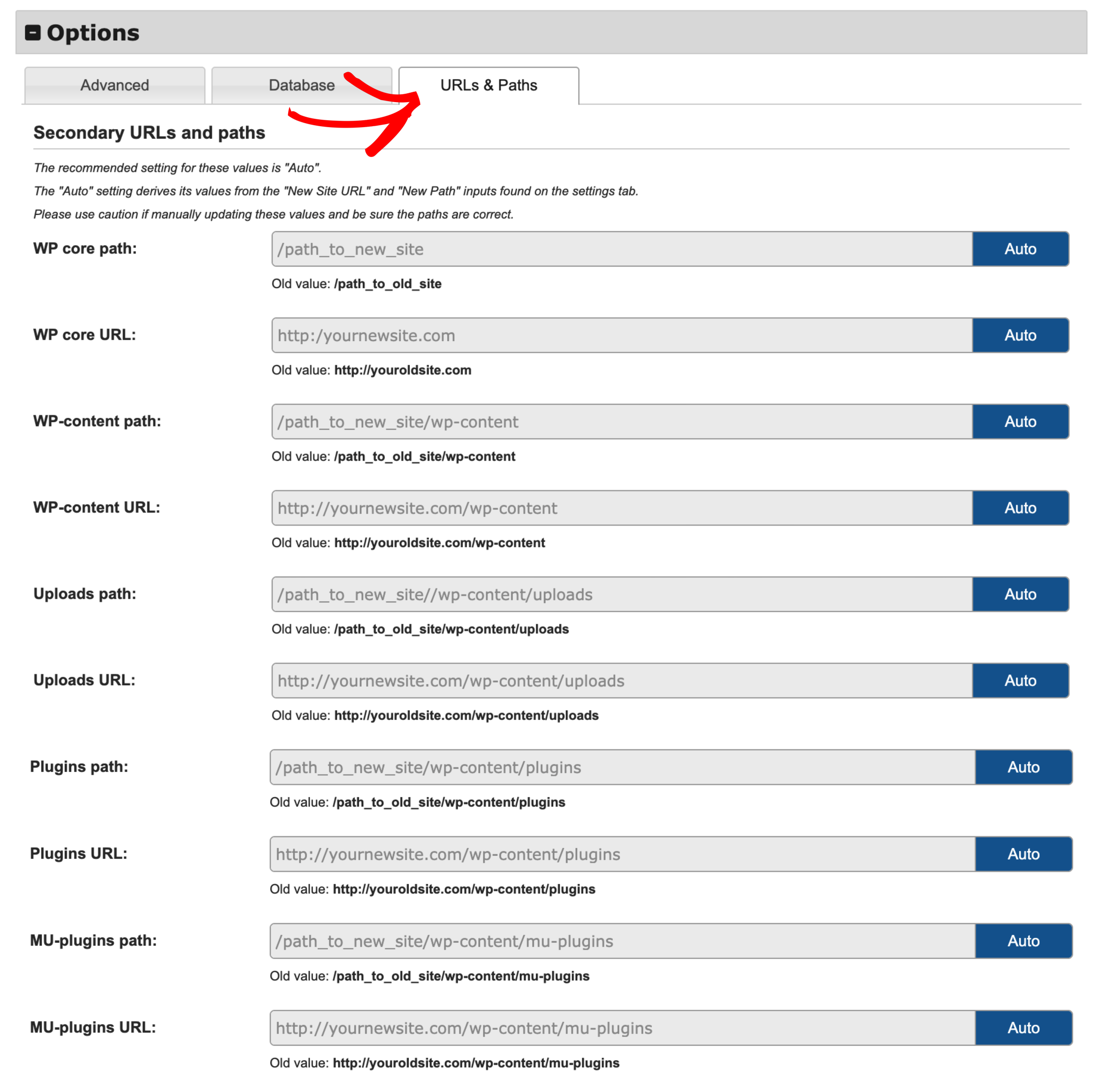
Options » Secondary URLs and paths
In the tab “URLs & Paths,” you can read the current path of all the various path configurations for the WordPress site. These are advanced options that should only be edited if you know the correct path.
Notes:
- These options are editable in the Pro version.
- The recommended setting for these values is “Auto”.
- The “Auto” setting derives its values from the “New Site URL” and “New Path” inputs found on the settings tab.
- Please use caution if manually updating these values and be sure the paths are correct.
All the following fields are configurable with Duplicator:
- WP core path
- WP core URL
- WP-content path
- WP-content URL
- Uploads path:
- Uploads URL
- Plugins path
- Plugins URL
- MU-plugins path
- MU-plugins URL
These paths and URLs are set automatically by the backup installer. You can set these paths and URLs manually. If you are changing it, please make sure you are putting the right path or URL.
Section: Validation
The system validation checks help to make sure the system is ready for install.
During installation the website will be in maintenance mode and not accessible to users. The series of checks will alert if there are any items that need attention. An overview of the different status codes can all be found online in the FAQ titled How to fix installer validation checks?
The validation process requires a connection to the database before starting. Enter in all the Database Connection fields and click the “Validate” button to start the validation process.
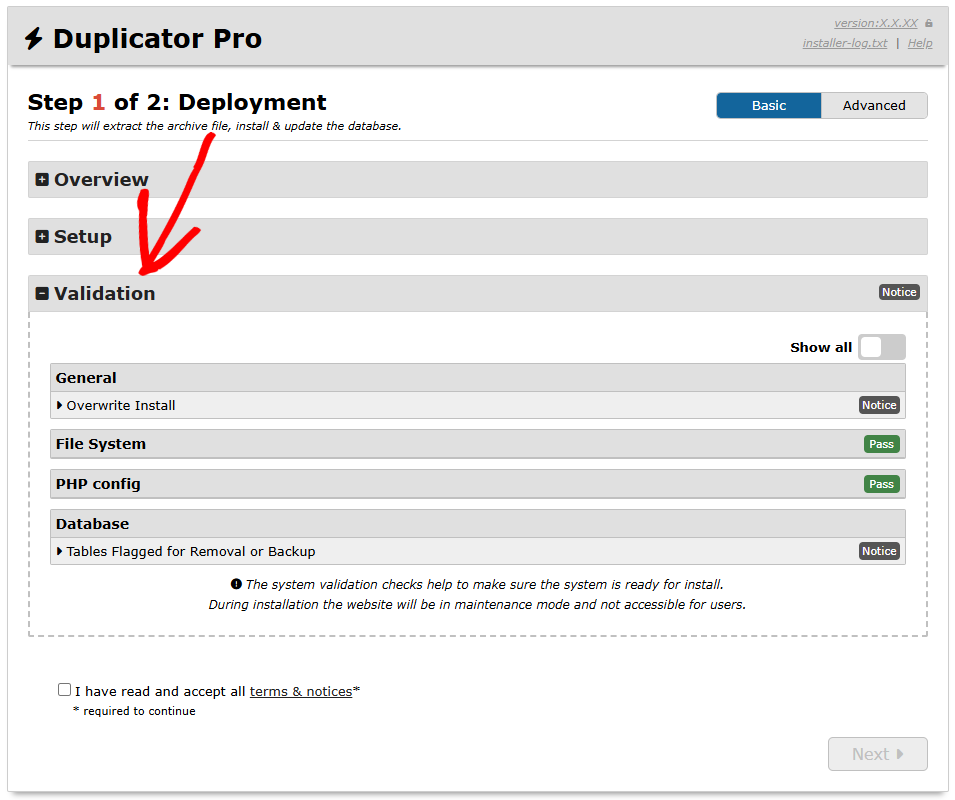
If the database connection is not successful, details about how to solve the issue will be provided. If the database connection is successful then additional system checks will be performed to help identify any potential issues that might arise during the install process.
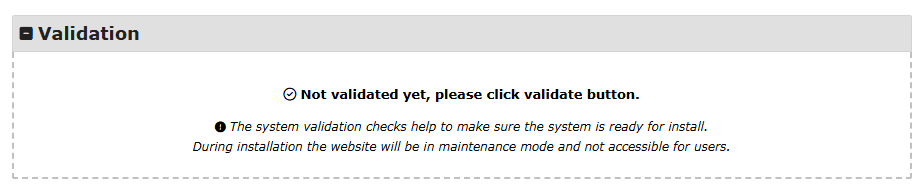
Before you click the Validate button, the following is displayed in the Validation section:
- The system validation checks help to make sure the system is ready for install.
- During installation the website will be in maintenance mode and not accessible for users.
Validation results
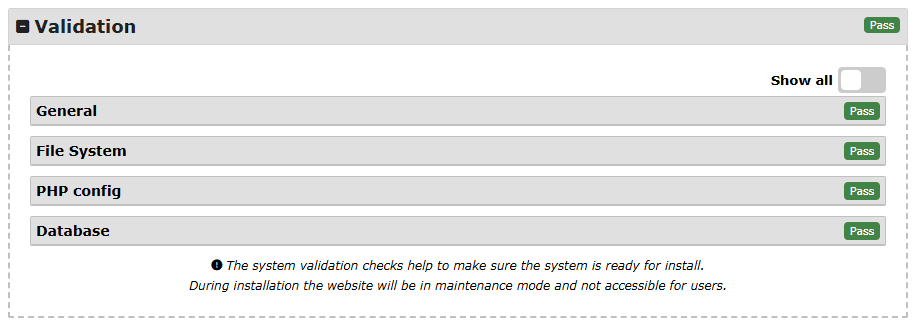
From a Full Backup Installation:
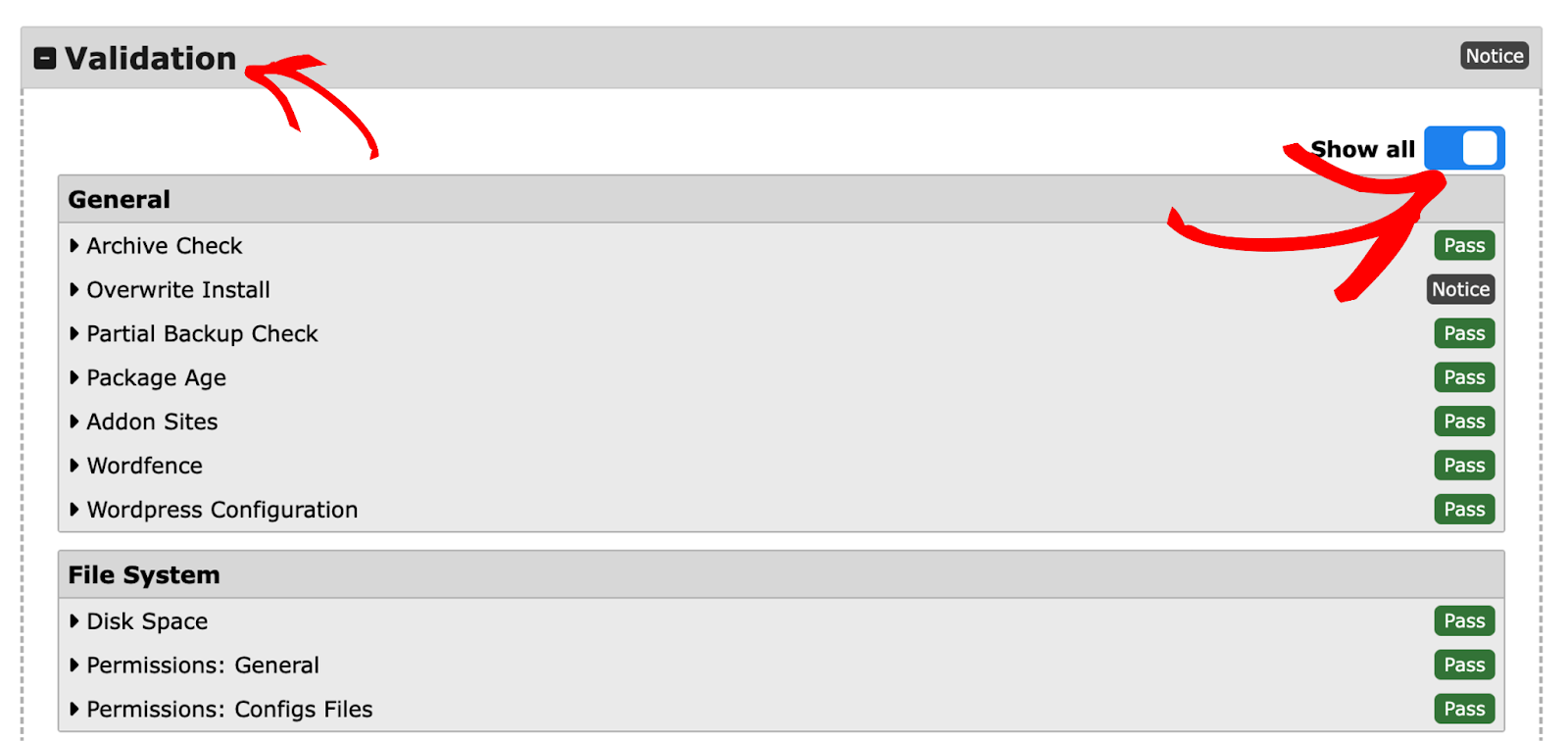
General
- Archive Check
- Overwrite Install
- Partial Backup Check
Partial Backup Check:
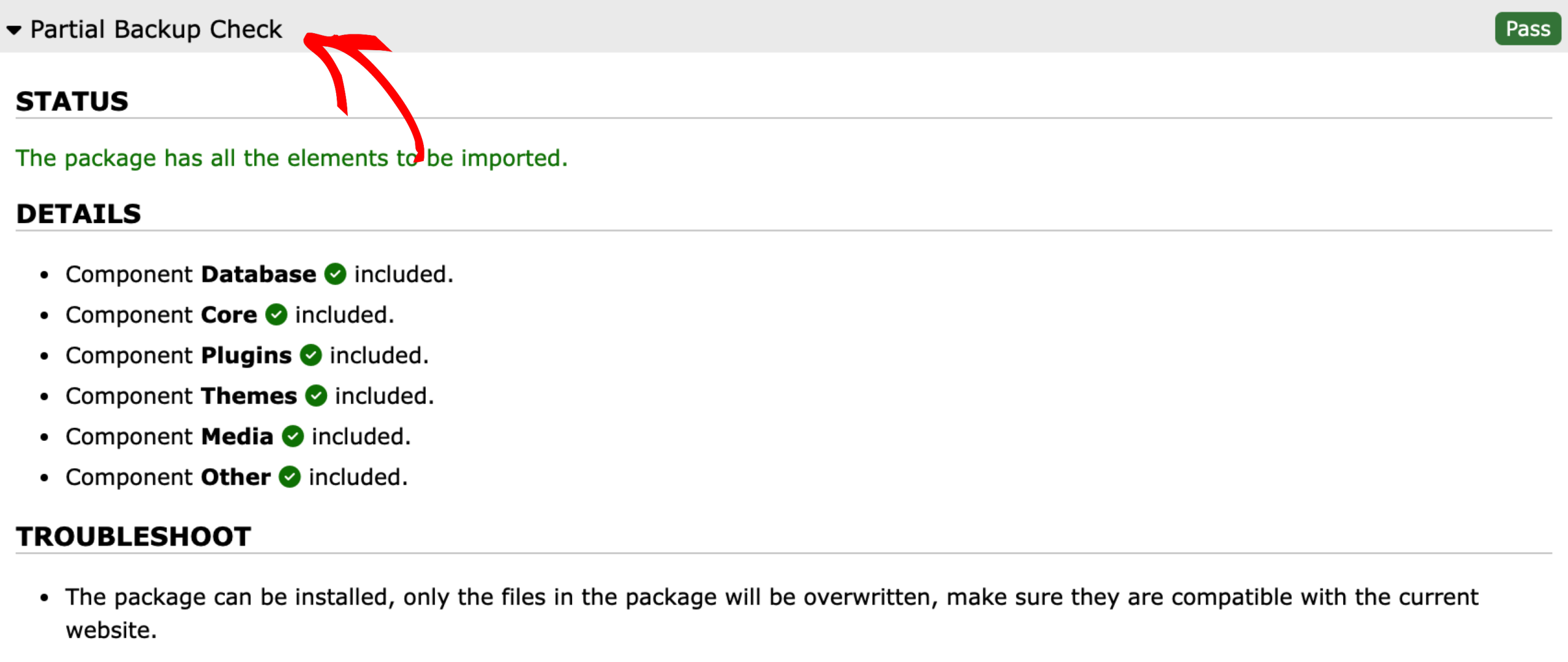
DETAILS
Below the details, the included and excluded components in the backup are listed,
- Component Database included/excluded.
- Component Core included/excluded.
- Component Plugins included/excluded.
- Component Themes included/excluded.
- Component Media included/excluded.
- Component Other included/excluded.
Also, information like the following is shown:
- Backup Age
- Addon Sites
- Wordfence
- WordPress Configuration
File System
- Disk Space
- Permissions: General
- Permissions: Configs Files
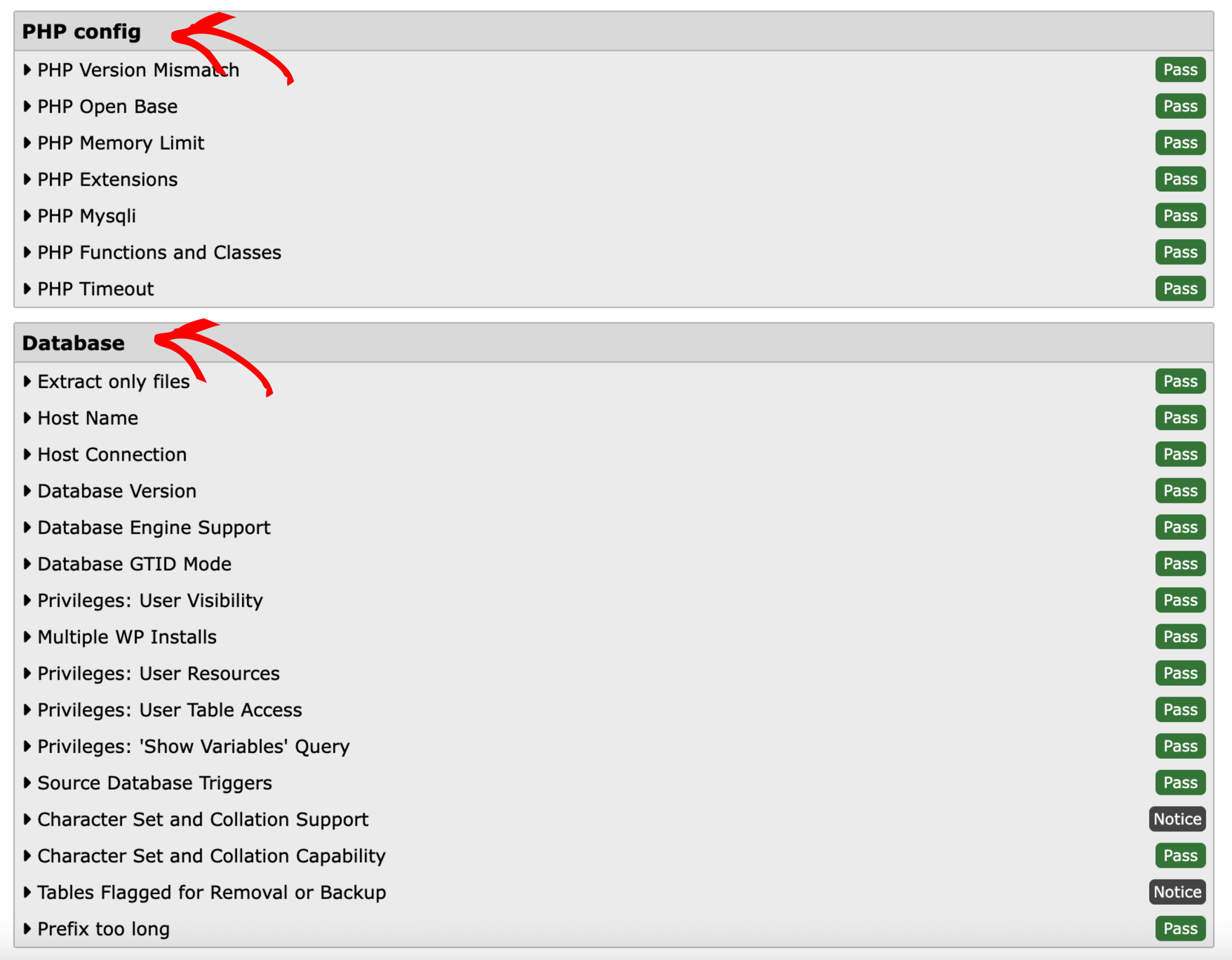
PHP config
- PHP Version Mismatch
- PHP Open Base
- PHP Memory Limit
- PHP Extensions
- PHP Mysqli
- PHP Functions and Classes
- PHP Timeout
Database
- Extract only files
- Host Name
- Host Connection
- Database Version
- Database Engine Support
- Database GTID Mode
- Privileges: User Visibility
- Multiple WP Installs
- Privileges: User Resources
- Privileges: User Table Access
- Privileges: ‘Show Variables’ Query
- Source Database Triggers
- Character Set and Collation Support
- Character Set and Collation Capability
- Tables Flagged for Removal or Backup
- Prefix too long
Install Confirmation
Standard install:
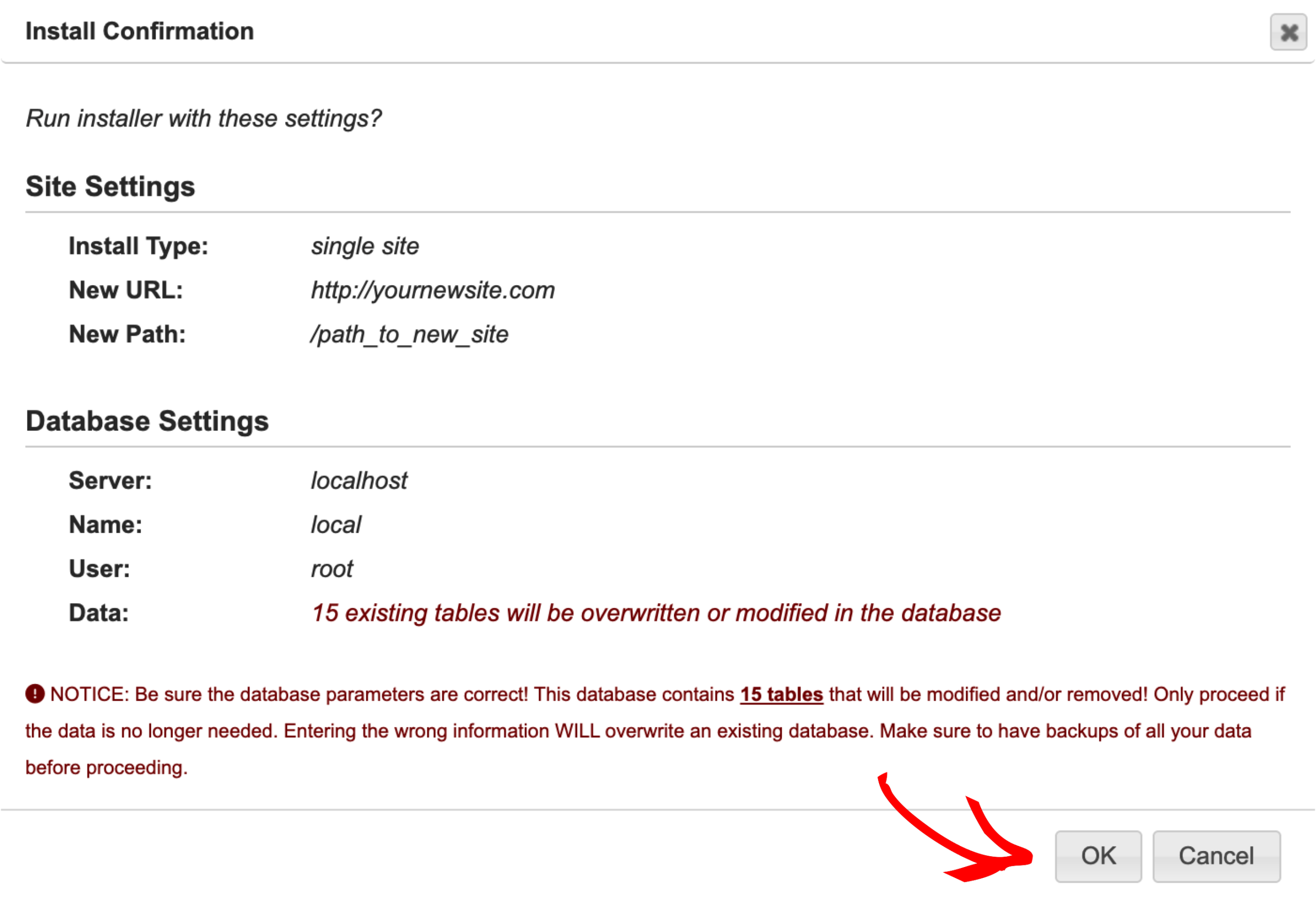
Overwrite install:
Site Settings
In this section, the installer displays the following information about the installation:
- Install Type
- New URL
- New Path
Database Settings
In this section, the installer displays the following information about the database:
- Server
- Name
- User
- Data
In Data, the installer mentions how many table that will be created or modified.
NOTICE: Be sure the database parameters are correct! This database contains 35 tables that will be modified and/or removed! Only proceed if the data is no longer needed. Entering the wrong information WILL overwrite an existing database. Make sure to have backups of all your data before proceeding.
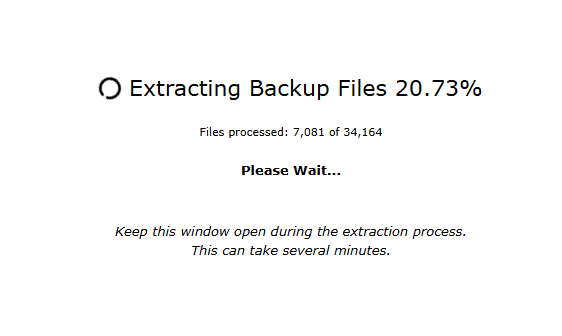
Archive Extraction
Step 2: Install Database (Advanced mode only)
Step 2 options only show when Advanced mode is enabled. This step controls which tables will be included in the install, the table character set and collation type. The tables tab shows the original table names with the number of rows and size.
By default, all tables will be imported and updated during the install process. If a table is not imported then it cannot be updated. The update process performs a full scan on the imported table finding all old URLs and file paths and updating them with the new paths of the new server. The update process will also include all “Search and Replace” options found in Step 3.
Tables
These are the advanced options for importing and updating tables. All tables are included by default.
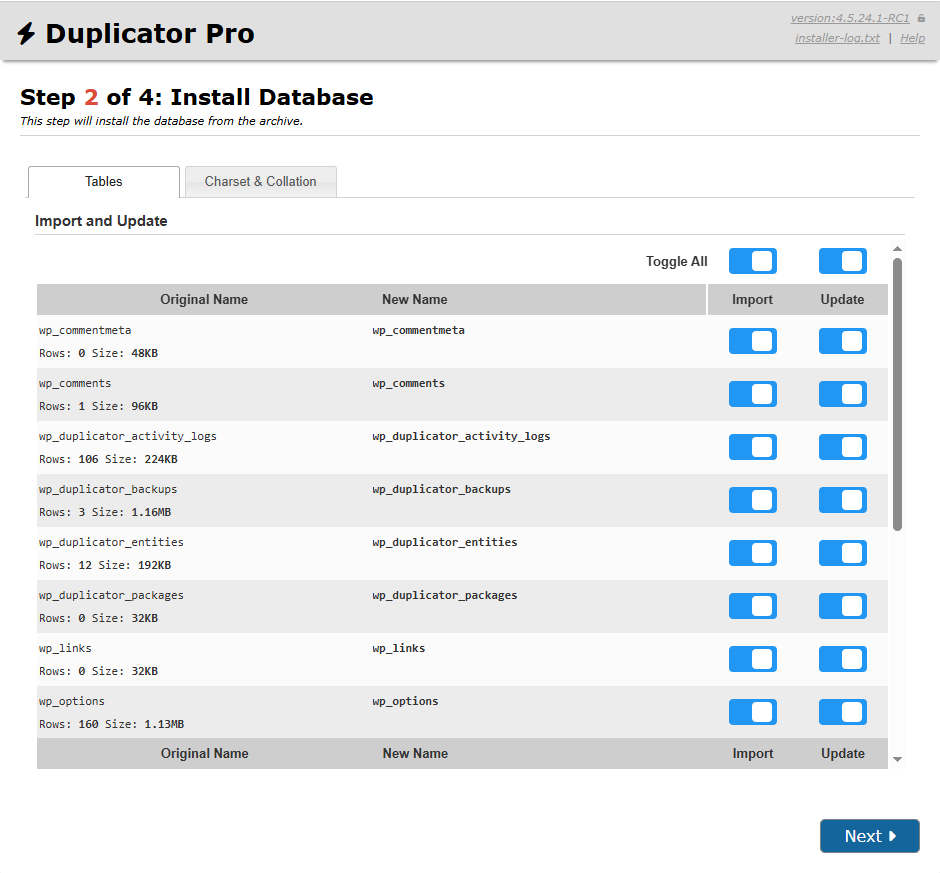
Import and Update:
This table lists all database tables and allows you to configure their import and update behavior. Each row represents a single table and includes the following information:
- Original Name: The name of the table in the original website.
- New Name: The name of the table in the website being installed.
- Import: Determines whether the table will be imported into the database. This process includes creating the table and importing all associated data. Disabling this option prevents the table from being added to the database. By default, this option is enabled for all tables. Exercise caution when excluding a table, as it may impact the functionality of the new website. If you are unsure of the consequences, it is recommended to leave this option enabled.
- Update: Determines whether the table will be processed for URL replacement and any custom search and replace operations. Disabling this option prevents this processing for the selected table. By default, this option is enabled.
You can enable or disable the Import and Update actions in bulk using the controls at the top of the table.
Charset & Collation

- Charset:
When the database is populated from the SQL script it will use this value as part of its connection. Only change this value if you know what your database character set should be. Visit the Character Sets, Collations, Unicode manual for more details. - Collation
When the database is populated from the SQL script it will use this value as part of its connection. Only change this value if you know what your database collation should be.
Step 3: Update Data (Advanced mode only)
This step will update the database and config files to match your new sites values.
Engine
This option controls how the database is updated when migrating to the new site.
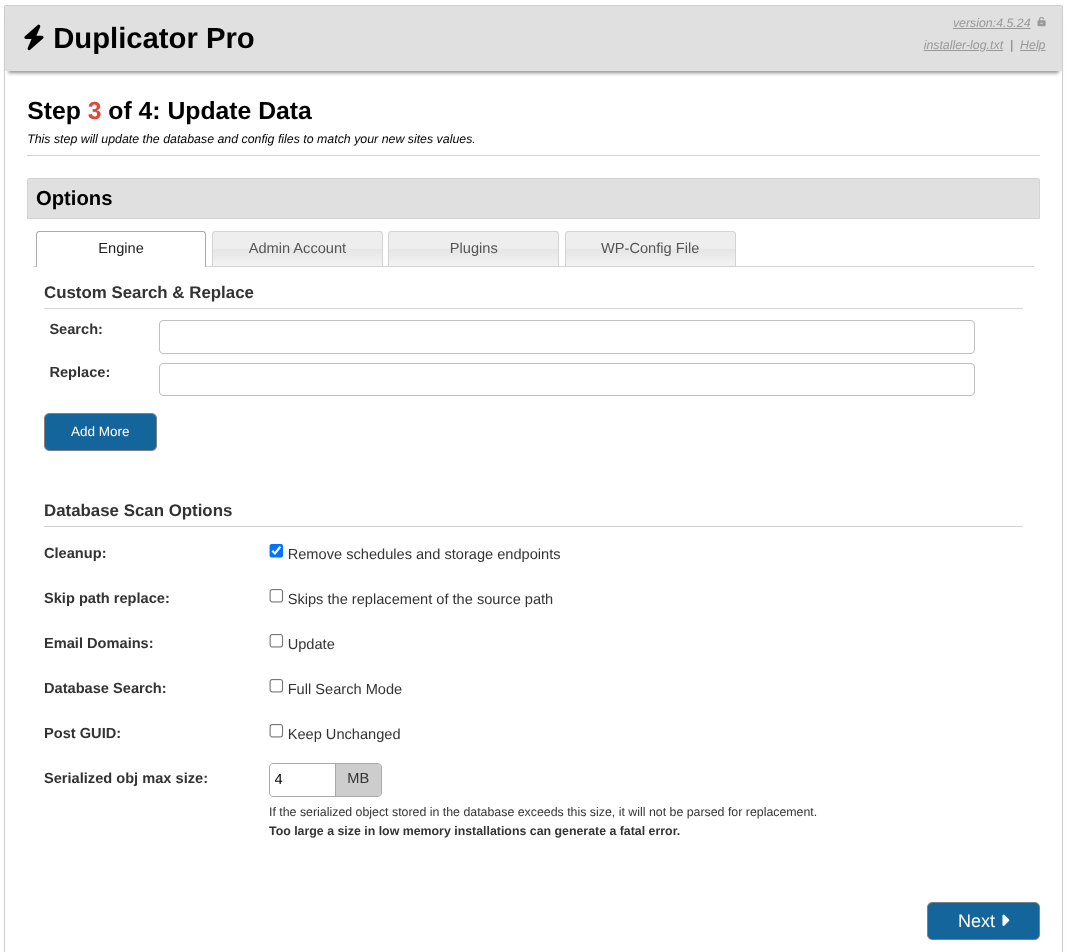
Engine » Custom Search & Replace
Permits adding as many custom search and replace items as needed. Use extreme caution when using this feature, it can have unintended consequences as it will perform a search and replace on the entire database. It is recommended to only use highly unique items such as full URL or file paths with this option.
- Search: Input field
- Replace: Input field
Engine » Database Scan Options
- Skip path replace:
This is an advanced option that should be used when trying to install from either the “/” or “/html” location. The following conditions are set with this option when the installation location is detected. - Source folder is / the parameter should be visible in read-only mode and not checkable.
- Source folder is /html the parameter must be checked by default and kept checked.
- In other cases, the parameter must be inactive by default and checkable.
- This option helps to resolve issues when the installation path is either “/” or “/html”. In case the source path is /html this option is required to prevent data update conflicts. For example the html_type option in the wp_options table with data such as text/html is replaced with text/[new_path] which can lead to other issues therefore this option is required to be checked to prevent those types of database update issues.
- Email Domains:
The domain portion of all email addresses will be updated if this option is enabled. - Database Search:
Database full search forces a scan of every single cell in the database. If it is not checked, then only text-based columns are searched, which makes the update process much faster. Use this option if you have issues with data not updating correctly. - Post GUID:
If you’re moving a site, keep this value checked. For more details, see the notes on GUIDS. Changing values in the posts table GUID column can cause RSS readers to evaluate that the posts are new and may show them in feeds again. - Serialized obj max size: (Input field)
Large serialized objects can cause a fatal error when Duplicator attempts to transform them.
If a fatal error is generated, lower this limit.
If a warning of this type appears in the final report:
DATA-REPLACE ERROR: Serialization
ENGINE: serialize data too big to convert; data len: XXX Max size: YYY
DATA: …..
and you think that the serialized object is necessary, you can increase the limit or set it to 0 to have no limit.
Admin Account
Create a new WordPress administrator or update the existing password of an existing user.
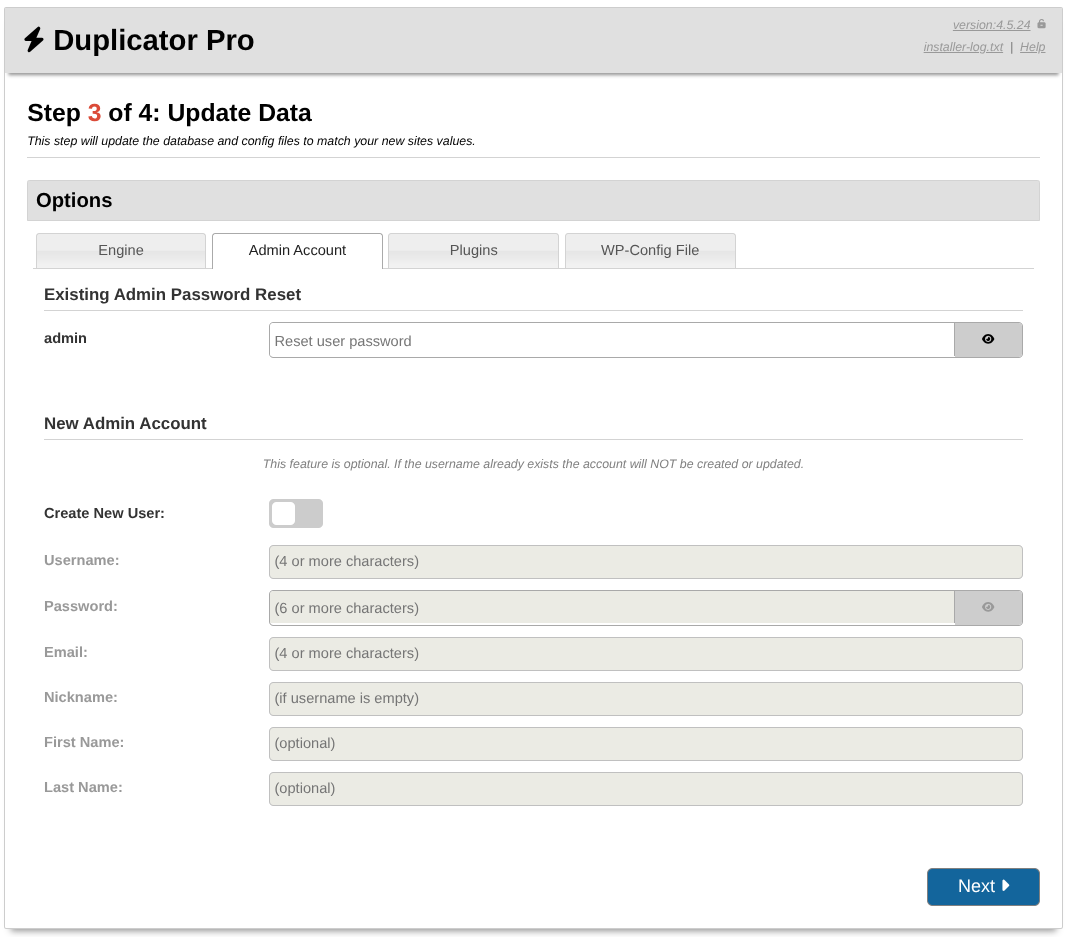
Admin Account » Existing Admin Password Reset
Use this feature to change the password of an existing WordPress admin account. This feature can come in handy if the password was forgotten or if it needs to be changed.
Admin Account » New Admin Account
This feature is optional. If the username already exists, the account will NOT be created or updated.
- Create New User: (Checkbox)
- Username: (Input field, required)
Username of the user being created. This will be used as the login for the new administrator account. Please note that usernames are not changeable from within the WordPress UI. Mandatory Field. - Password: (Input field, required)
Password of the user being created. Must be at least 6 characters long. Required field when creating a new user. - Email: (Input field, required)
The email of the new user. A mandatory field when creating a new user. - Nickname: (Input field)
The nickname of the new user will be created. It is optional to create a new user. If you do not enter a nickname, the username will become the nickname. - First Name: (Input field)
First name of the user being created. Optional. - Last Name: (Input field)
Last name of the user being created. Optional.
Plugins
This section controls all plugins registered with the site and listed in the Plugin list table. All plugins are grouped as Active or Inactive plugins. Check all plugins that need to remain active, and uncheck all plugins which should not be active. If running the installer in “Safe Mode” then all plugins except needed ones will be disabled.
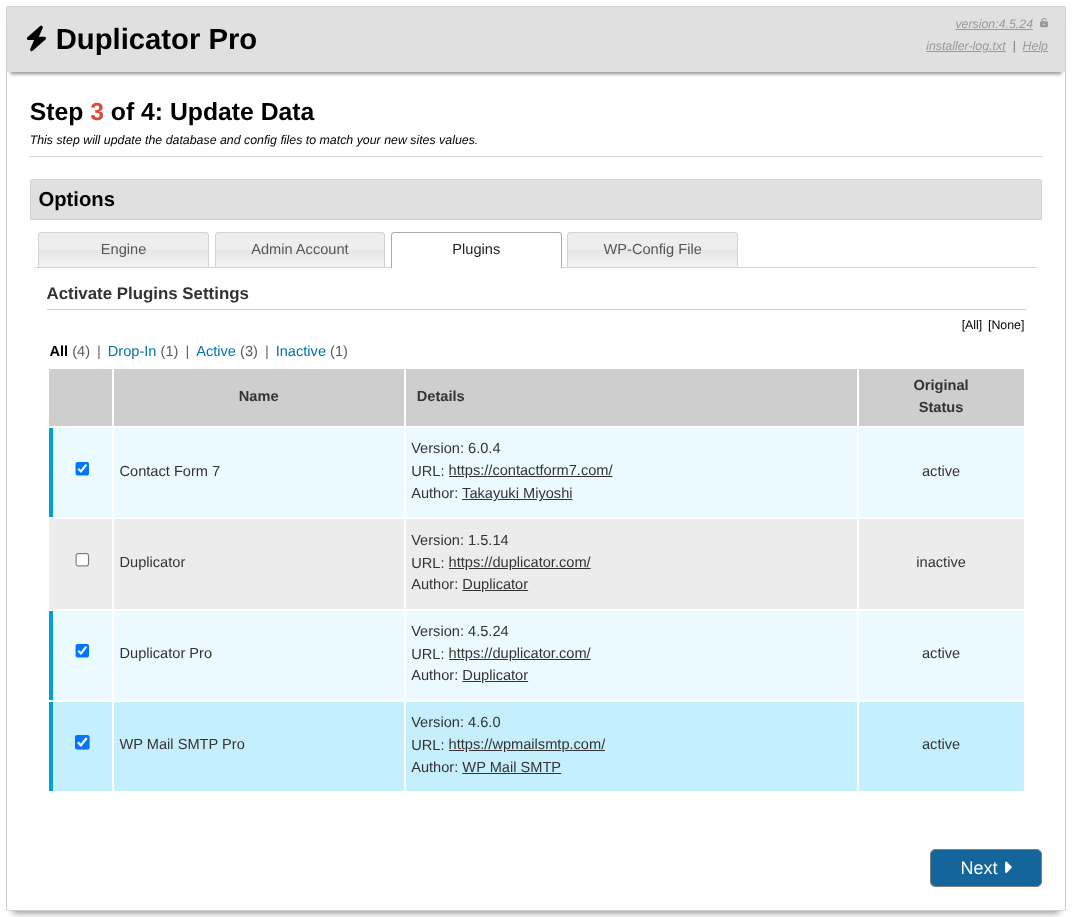
Plugins » Activate Plugins Settings
A table that includes a list of all the plugins on the website. Every row represents a plugin, it shows the name, details about the plugin, and its status on the original website when the backup was created.
You can selectively display all the plugins, only the active or inactive ones, or only the drop-ins with the anchors on top of the table. You can also enable or disable all the plugins at once by using the anchors on the top right of the table.
WP-Config File
In this section, you can configure different constants in the wp-config.php file.
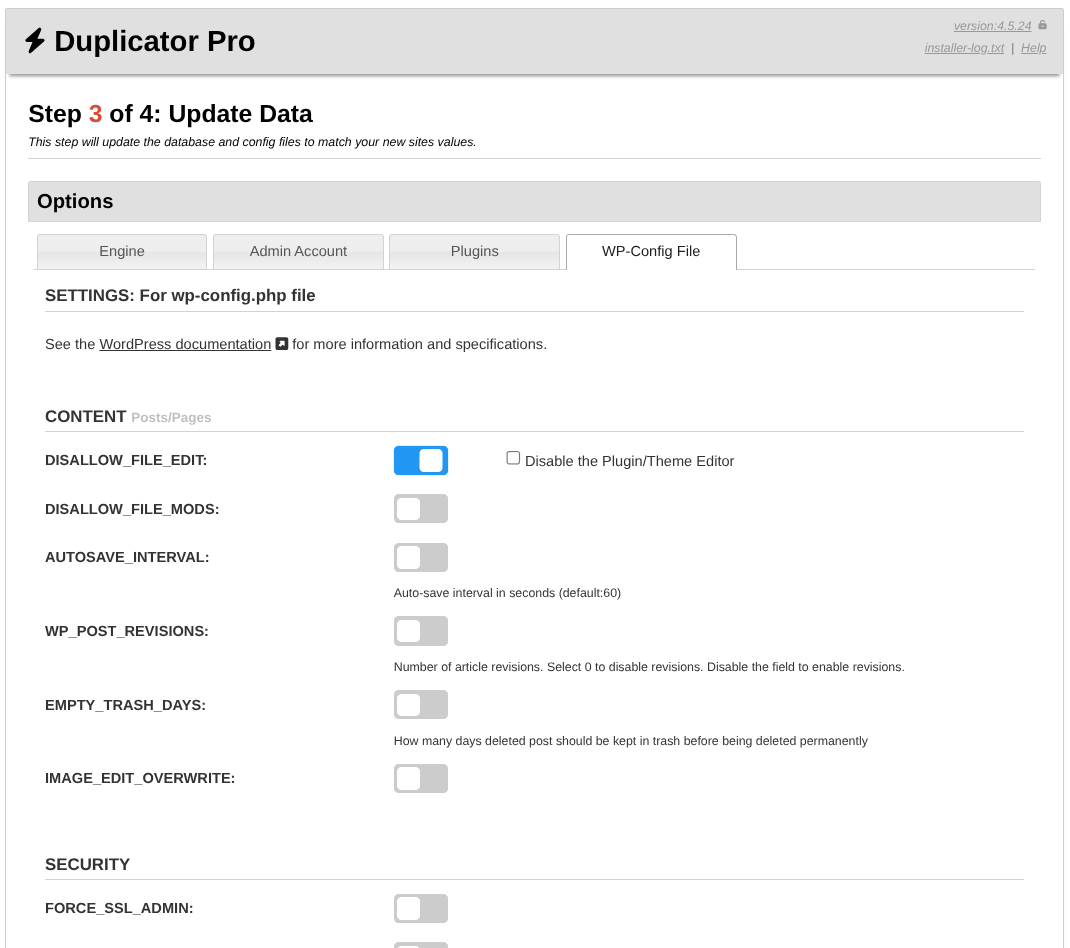
Each wp-config value has an associated switch that controls the insertion and removal of the constant.
If the switch is deactivated, the constant will be removed from wp-config.php. However, if the switch is active, an additional checkbox or input field will appear which controls the value of the constant. In the screenshot, you can see that the switch for DISALLOW_FILE_EDIT is active, but the additional checkbox next to it is not selected. This will result in inserting the following into wp-config.php: define(‘DISALLOW_FILE_EDIT’, false);. If the checkbox was enabled, it would result into the following to be inserted into wp-config.php: define(‘DISALLOW_FILE_EDIT’, true);.
WP-Config File » CONTENT Posts/Pages
- DISALLOW_FILE_EDIT: (Toggle)
- DISALLOW_FILE_MODS: (Toggle)
- AUTOSAVE_INTERVAL: (Toggle)
Auto-save interval in seconds (default:60) - WP_POST_REVISIONS: (Toggle)
Number of article revisions. Select 0 to disable revisions. Disable the field to enable revisions. - EMPTY_TRASH_DAYS: (Toggle)
How many days deleted post should be kept in trash before being deleted permanently - IMAGE_EDIT_OVERWRITE: (Toggle)
WP-Config File » SECURITY
- FORCE_SSL_ADMIN: (Toggle)
- AUTOMATIC_UPDATER_DISABLED: (Toggle)
- WP_AUTO_UPDATE_CORE: (Toggle)
- Auth Keys: (Toggle)
Generate New Unique Authentication Keys and Salts
WP-Config File » CRON
- ALTERNATE_WP_CRON: (Toggle)
- DISABLE_WP_CRON: (Toggle)
- WP_CRON_LOCK_TIMEOUT: (Toggle)
Cron process cannot run more than once every WP_CRON_LOCK_TIMEOUT seconds
WP-Config File » DEBUG
- WP_DEBUG: (Toggle)
Display errors and warnings: (Checkbox) - WP_DEBUG_LOG: (Toggle)
Log errors and warnings: (Checkbox) - WP_DEBUG_DISPLAY: (Toggle)
Display errors and warnings: (Checkbox) - SCRIPT_DEBUG: (Toggle)
JavaScript or CSS errors: (Checkbox)
WP-Config File » SYSTEM
- WP_CACHE: (Toggle)
- WPCACHEHOME (Toggle)
This define is not part of the WordPress core but is a define used by WP Super Cache. - WP_MEMORY_LIMIT: (Toggle)
PHP memory limit (default:30M; Multisite default:64M) - WP_MAX_MEMORY_LIMIT: (Toggle)
WordPress admin maximum memory limit (default:256M)
WP-Config File » GENERAL
- WP_DISABLE_FATAL_ERROR_HANDLER: (Toggle)
- MYSQL_CLIENT_FLAGS: (Toggle)
- CONCATENATE_SCRIPTS: (Toggle)
- SAVEQUERIES: (Toggle)
- WP_TEMP_DIR: (Toggle)
Step 4: Test Site
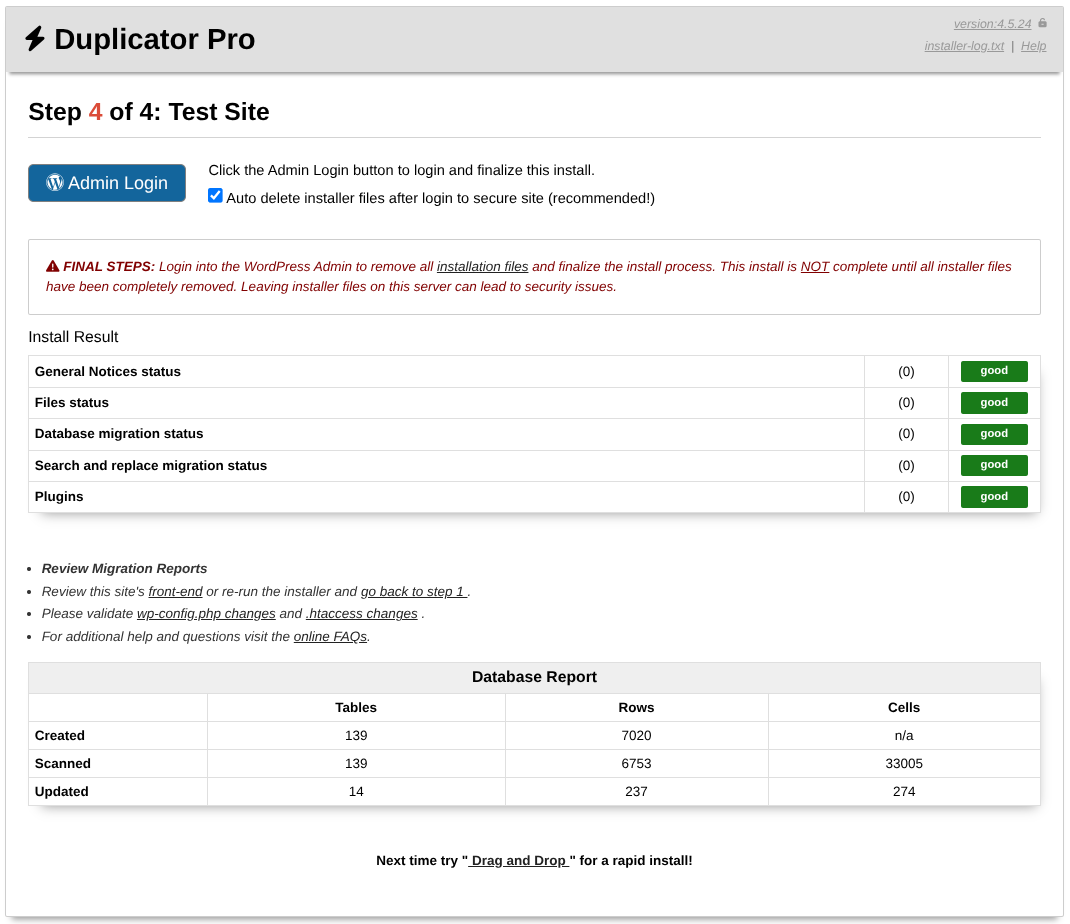
Admin Login
Click the Admin Login button to log in and finalize this installation.
Auto delete installer files after login to secure site (recommended!): Checkbox
When checked, the installer deletes all installation files. Leaving these files on your server can be a security risk! You can remove all these files by logging into your WordPress admin and following the remove notification links, or by deleting those files manually. Be sure those files/directories are removed.
- Dup-installer
- Installer.php
- Installer-backup.php
- dup-installer-bootlog__[HASH].txt
- archive.zip/daf
FINAL STEPS: Login into the WordPress Admin to remove all installation files and finalize the installation process. This installation is NOT complete until all installer files have been completely removed. Leaving installer files on this server can lead to security issues.
Install Result
- General Notices status
- Files status
- Database migration status
- Search and replace migration status
- Plugins
This section will give you an overview of any issues which have been detected during the installation. If no issues will be detected, a green “good” badge will be displayed, otherwise you will see either a warning or fail message.
Review Migration Reports
The installation report is designed to give you a synopsis of the possible errors and warnings that may exist after the installation is completed.
- Review this site’s front-end or re-run the installer and go back to step 1.
- Please validate wp-config.php changes and .htaccess changes.
- For additional help and questions, visit the online FAQs.
Database Report
A report about the database tables, rows cells that Duplicator Pro created, scanned, and updated during the backup installation.
The Duplicator installer is built to make WordPress migrations and restores straightforward and efficient. By becoming familiar with its options and workflows, you can confidently manage different installation scenarios. This knowledge helps ensure smooth, reliable site deployments every time.


