


Best FREE WordPress Backup Plugins: Simple, Fast, & Reliable (2026)
 Joella Dunn
Joella Dunn
Joella Dunn
 John Turner
John Turner
John Turner
Do you want to find a free WordPress backup tool?
Backups are an essential part of keeping your WordPress website safe from hacks and critical errors. However, you may not be able to find an affordable backup plugin for your needs.
Fortunately, there are many free WordPress backup options available, so you don’t need to buy a premium tool. You can easily protect your data without overspending your budget.
In this post, I’ll show you the best free WordPress backup tools!
Here are the key takeaways:
- WordPress doesn’t include built-in backups, but many free plugins offer comprehensive backup solutions
- Duplicator is the best all-around free backup tool for migrations, cloning, and full-site backups
- UpdraftPlus excels at scheduled automatic backups with cloud storage integrations
- Most free versions have limitations like file size caps, limited cloud storage, or restricted scheduling features
- Premium upgrades typically start between $39-$70 annually and unlock advanced features like incremental backups and multisite support
- Key features to compare include cloud storage options, migration capabilities, staging sites, and restoration methods
Quick Summary: Best Free WordPress Backup Tools
Best Free WordPress Backup Plugins at a Glance
All plugins offer a free tier. Features shown reflect the free version unless noted.
| Plugin | Key Features | Cloud Storage | Custom Backups |
Migration & Cloning |
Limitations |
|---|---|---|---|---|---|
| Duplicator Our Pick |
Works even if WordPress is completely down | Local only (free tier) | Upgrade to Pro for cloud storage & scheduling | ||
| UpdraftPlus | Incremental backups (premium only) | Dropbox, Google Drive, DreamObjects & more | Add-on needed | Backup splits into separate files per component | |
| WPvivid | Staging and backups | Dropbox, OneDrive, Google Drive, S3, DigitalOcean | Image optimization needs a separate plugin | ||
| Total Upkeep | Error checks & selective restores | FTP / SFTP | Limited remote storage options | ||
| All-in-One WP Migration | Easy data exports | Limited in free version | 300 MB file import limit on free plan | ||
| WP Staging | Creates staging sites | Limited in free version | Staging only; no full migration | Upgrade for one-click push to production | |
| WP Database Backup | Custom backups & DB optimization | FTP/SFTP, Google Drive, S3, Dropbox | Upgrade for custom backup scheduling |
Features reflect the free tier unless otherwise noted. Cloud storage and scheduling typically require a paid upgrade.
Backup, migrate, or stage your WordPress site in minutes.
Table of Contents
How We Test & Review WordPress Plugins
When it comes to recommending tools for your WordPress site, we don’t take shortcuts. Our review process is thorough, hands-on, and designed to give you the most accurate picture possible.
We installed and tested each tool on actual WordPress sites, not just development environments. This real-world testing allows us to evaluate how these tools perform under genuine conditions with varying themes, plugins, and content.
We didn’t just read about these tools or glance at their feature lists. We used them. We broke things (intentionally) and fixed them. We pushed them to their limits to see where they excel and where they fall short.
Our evaluations covered specific tasks including backups, cloud storage, scheduling, cloning, and migrations.
Does WordPress Have a Free Backup?
By itself, WordPress doesn’t come with a built-in backup solution. However, many free WordPress plugins come with backup functionality.
WordPress is known for its extensive library of plugins. When it comes to backups, there’s no shortage of options to protect your website. Most of these plugins offer free versions that are perfect for beginners looking to dip their toes into the world of WordPress backups.
Some WordPress hosting providers also include free backups as part of their packages. It’s worth checking with your host to see if they provide automated backups and how frequently they perform them.
While these backups may not be as customizable as dedicated plugins, they can serve as an additional layer of protection.
What Are the Best Free WordPress Backup Tools?
Since your WordPress site isn’t automatically backed up, you’ll want to either manually back up your website or install a WordPress backup plugin.
Although it’s free to manually download your site files and database, a plugin is much more beginner-friendly and leaves no room for human error.
If you’re looking for a free WordPress backup plugin, there are plenty available on WordPress.org! I’ll show you some of the most popular options so you can find the most cost-effective tool for your site.
Here’s a quick look at the free backup tools we’ll be covering:
- Duplicator: The best all-around free tool for backups, migrations, and cloning.
- UpdraftPlus: A great choice for scheduled, automatic backups to cloud storage.
- WPvivid: An all-in-one solution that includes staging and optimization features.
- Total Upkeep: Ideal for large sites, with automated pre-update backups and error checks.
- All-in-One WP Migration: A beginner-friendly plugin specializing in easy site migrations.
- WP Staging: An effective tool for creating one-click staging sites for testing.
- WP Database Backup: A simple, focused plugin for reliable database backups.
Duplicator
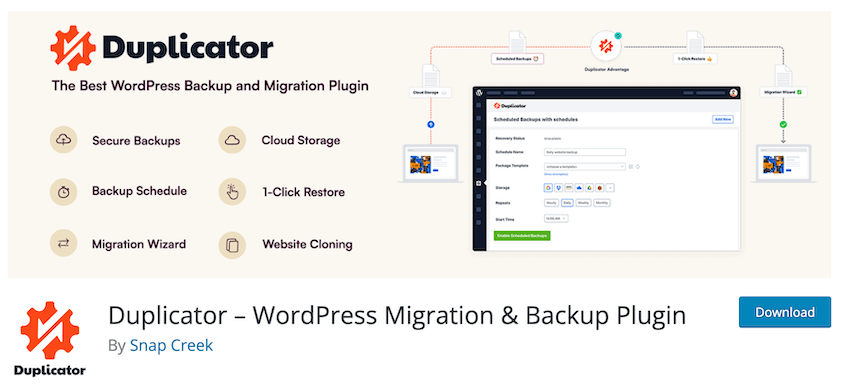
With over 1 million active installations, Duplicator is a popular free WordPress backup plugin. It can back up your site, clone it, or migrate it to a new location. This makes Duplicator a flexible option for any type of website owner.
Duplicator works by backing up your entire site into a single zip file. Every backup you create will also come with a standalone installer.
With both of these files, you can easily restore a backup, migrate to a new host, change your domain, and more.
The free version allows you to build full backups or database-only backups by simply checking a box.
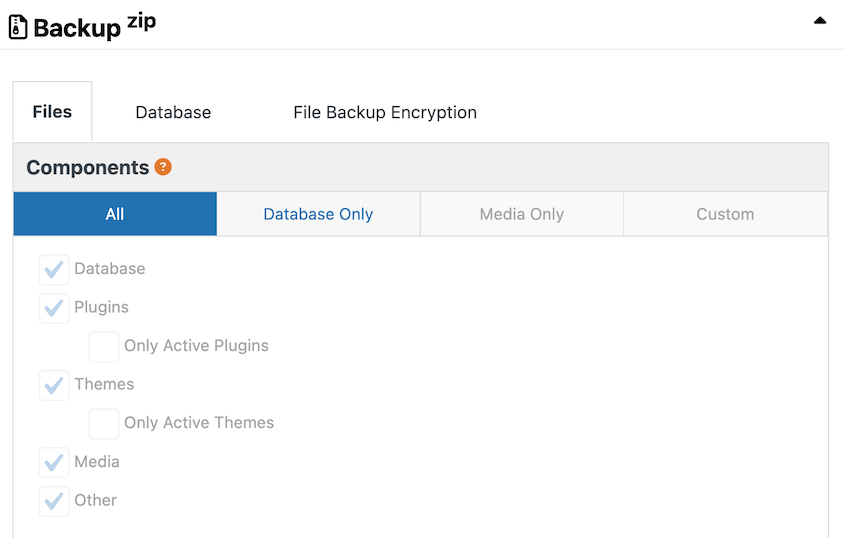
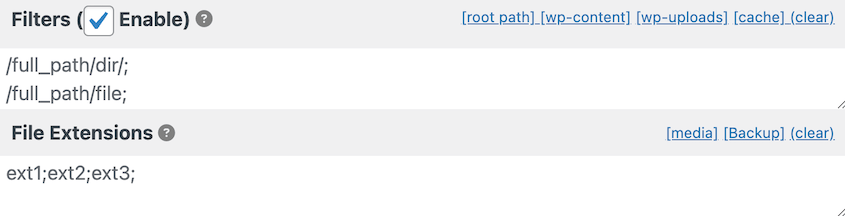
To customize your backup even more, use filters. You’ll be able to filter out file extensions or database tables that you don’t want to include in the backup.
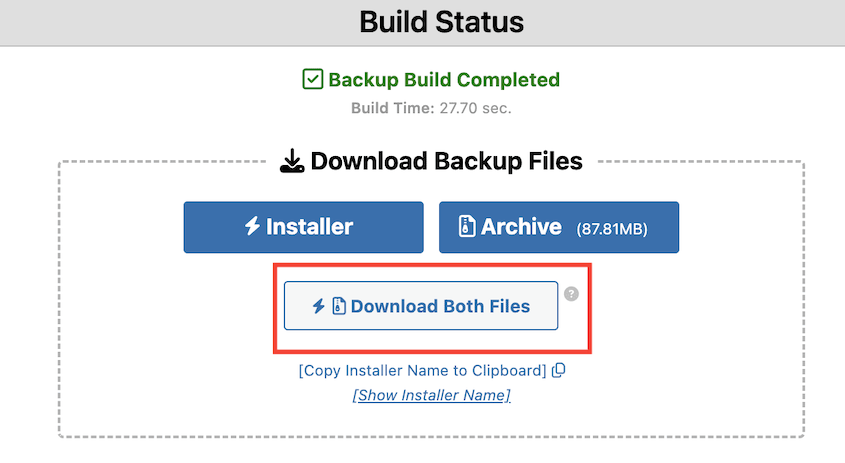
Once you build the backup, download the archive and installer files. The archive has the full copy of your website, while the installer will help you unpack the archive in a new location.
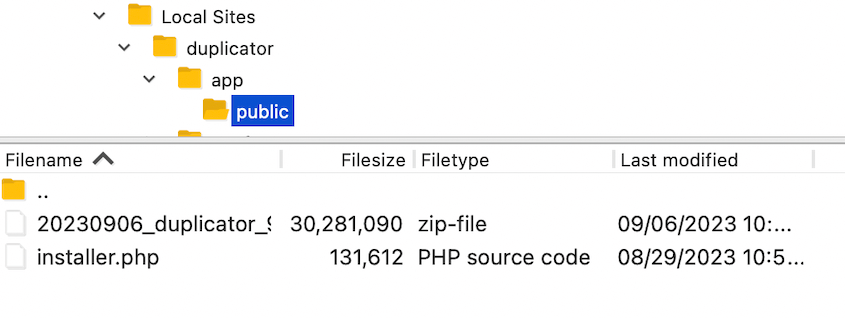
If you ever need to restore your website, open your site files and upload these backup files to your root directory.
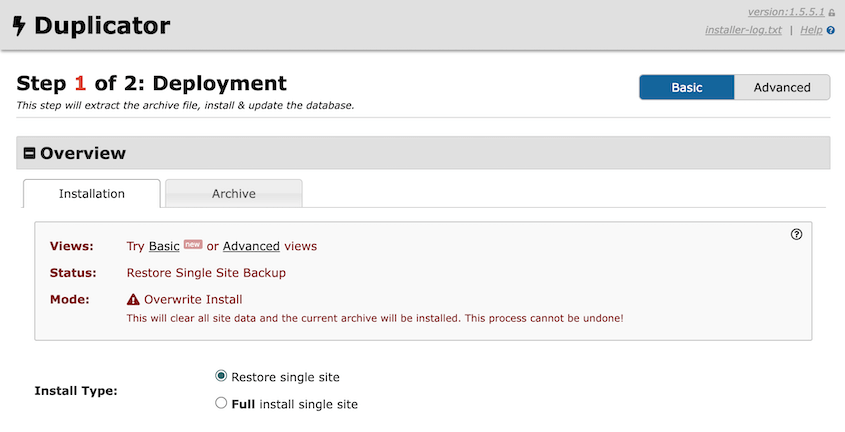
Then, visit https://your-domain/installer.php and the Duplicator installer will pop up. This allows you to easily restore your original website.
You can use this same process to migrate your website. After creating a complete backup, upload it to a new host, server, or domain name.
Duplicator will automatically unpack the backup, import your database, perform a search and replace, and any other complicated migration tasks!
What We Liked About Duplicator
- Customizable backups
- Cloning to a staging site
- Migrations to a new host, server, or domain name
- Standalone installer to import backups even if WordPress isn’t installed
- Easy backup restores
- Step-by-step migration wizard
- Affordable premium version
- Email notifications with backup summaries
- Backup/migrate ecommerce stores running on WooCommerce
What We Didn’t Like About Duplicator
- Some backup features like automated backups, cloud storage, and recovery points are limited to the premium version
Pricing: Duplicator Lite is completely free to use. It supports full and database backups, migrations, and cloning. If you want to use cloud storage, drag-and-drop migrations, or scheduled backups, upgrade to Duplicator Pro for $69.30 per year.
UpdraftPlus
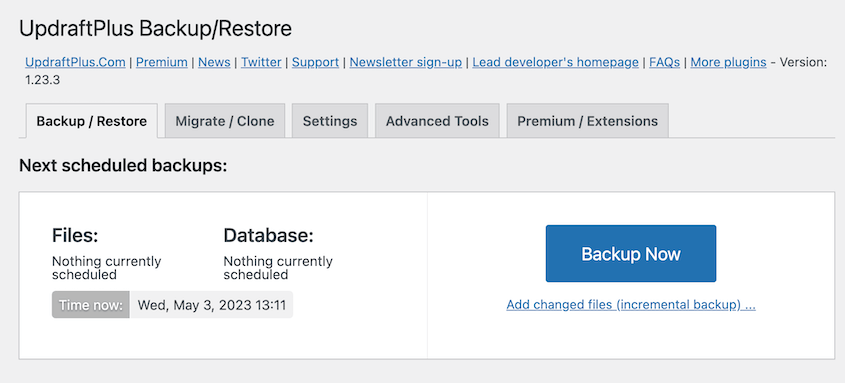
UpdraftPlus is another free WordPress backup plugin. It’s a go-to choice for many due to its user-friendly interface and comprehensive backup options.
With UpdraftPlus, you can create complete backups of your site or specific elements like the database, plugins, themes, and uploads. It supports automated backups on a schedule that suits you best.
What We Liked About UpdraftPlus
- Backup and restore options
- Automate backups
- Remote storage to UpdraftVault, Dropbox, Google Drive, DreamObjects, and more
- Premium version supports incremental backups and pre-update backups which conserve server resources
What We Didn’t Like About UpdraftPlus
- Separate backup files for database, plugins, themes, uploads, and other files
- No off-site restore options, leaving your site vulnerable to errors that lock you out of the dashboard
- Need UpdraftClone tokens to clone your website
- Requires Migrator add-on
Pricing: The basic version of UpdraftPlus is free. You can upgrade to the premium version starting at $70 yearly.
WPvivid
WPvivid offers backup, migration, and optimization tools in one package. With extensive backup options and an add-on image cleaner, it caters to a wide range of needs.
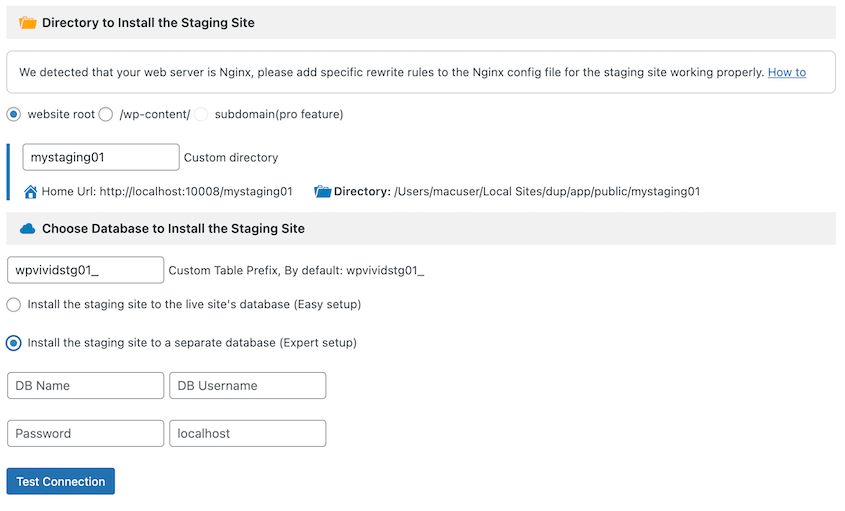
With WPvivid, you can back up your entire website, just the core files, or just the database. Send them to a local server or a staging site.
What We Liked About WPvivid
- Full backups, file backups, or database backups
- Cloud storage to Dropbox, Microsoft OneDrive, Google Drive, Amazon S3, and DigitalOcean Spaces
- Auto migration to a new domain or server
- Scheduled backups
- One-click restores
- MainWP backup plugin
- Image optimization plugin
What We Didn’t Like About WPvivid
- Some advanced features like incremental backups and auto-backups before updates are limited to premium plans
- Image optimization and MainWP backups are separate plugins
Pricing: WPvivid has a completely free version. The premium plans start at $49 per year.
Total Upkeep
Total Upkeep by Boldgrid is a reliable, free WordPress plugin that offers backup and restoration features. It allows you to back up, restore, and migrate your website for free.
As a website owner, a bad update could accidentally cause software conflicts that lead to crashes. With Total Upkeep, you can automatically back up your site before updates and roll it back to this backup if anything goes wrong.
To migrate your site to another server, all you’ll need to do is install Total Upkeep on the new site. Create a download link on the old site and paste it into the new dashboard.
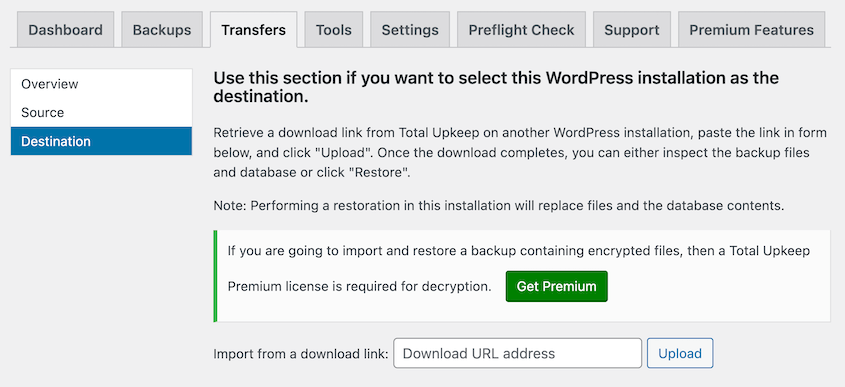
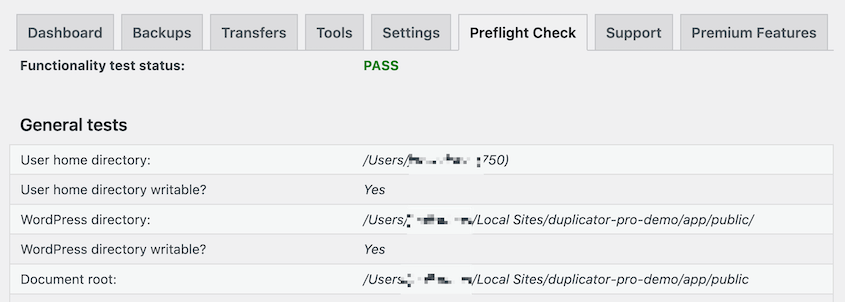
Before and after the migration, Total Upkeep will perform Site Checks to make sure your site isn’t experiencing any errors.
What We Liked About Total Upkeep
- Remote backups to FTP/SFTP
- Automated and manual backups
- Restore entire backups or single site files
- Site Check to monitor for catastrophic errors
- Auto rollback
- No size limitations
What We Didn’t Like About Total Upkeep
- Limited remote storage options
- Restoring a backup requires using a script rather than a built-in feature
Pricing: Total Upkeep is free, and the premium version costs $2.50 per month.
All-in-One WP Migration

All-in-One WP Migration is a powerful free WordPress plugin that specializes in site migrations. With over 5 million active installations, it has gained a reputation for its ease of use and reliable migration capabilities.
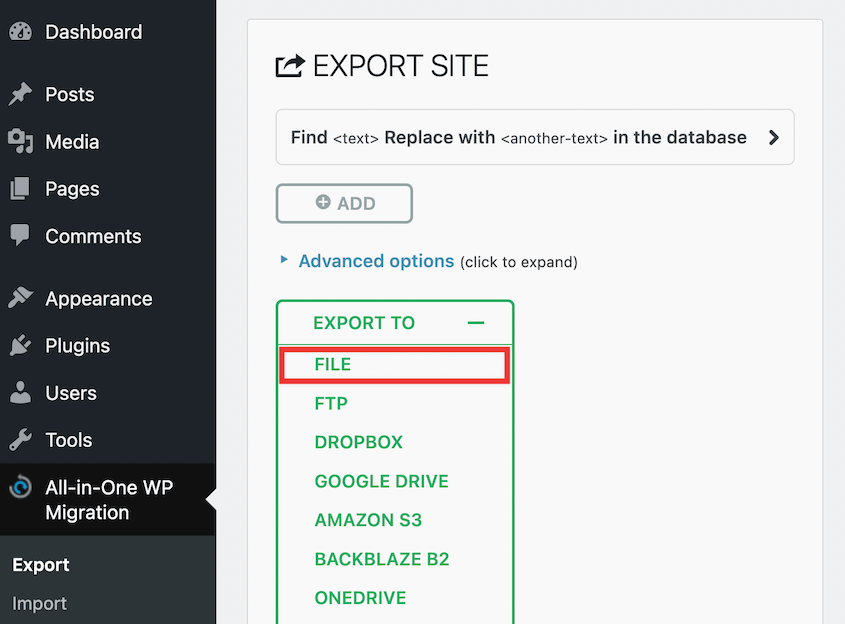
This plugin simplifies the process of moving your WordPress site to a new host or domain. It allows you to export your entire site in one click. Then, you can import this data into a new WordPress website.
What We Liked About All-in-One WP Migration
- Backup and migration features
- Compatible with mobile devices
- One-click backups
- Export and import data from backup files
What We Didn’t Like About All-in-One WP Migration
- May need premium extensions to access full range of features
- File import size is limited to 512 MB
- Requires WordPress to be installed
Pricing: The core plugin is free. The premium version starts at $99/yr. There are also premium extensions to increase the file upload limit and add multisite support. These start at $69 and are priced individually.
WP Staging
WP Staging is a WordPress plugin that creates a cloned copy of your website and stores it in a sub-folder on your WordPress installation. You can then use this as a staging site, pushing changes to and from your live website.
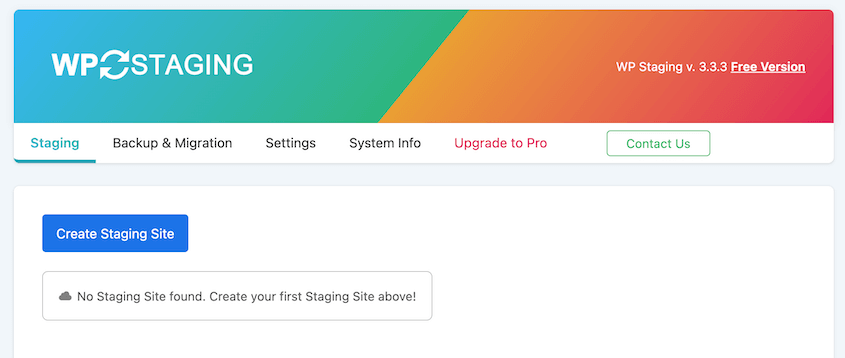
Along with staging, WP Staging has backup features. You’ll be able to customize manual backups or schedule them to run in the future. Additionally, you can upload a backup in a new location to migrate your website.
What We Liked About WP Staging
- Cloning, migration, and backup features
- Create staging sites
- Hide staging site with custom login prompts and meta tag no-index
- One-click restores
- No server timeouts
What We Didn’t Like About WP Staging
- You’ll need to upgrade to access remote cloud storage options, one-click pushes to production, or staging sites on a subdomain
Pricing: WP Staging is free to use. To upgrade, plans start at $8.83 monthly.
WP Database Backup
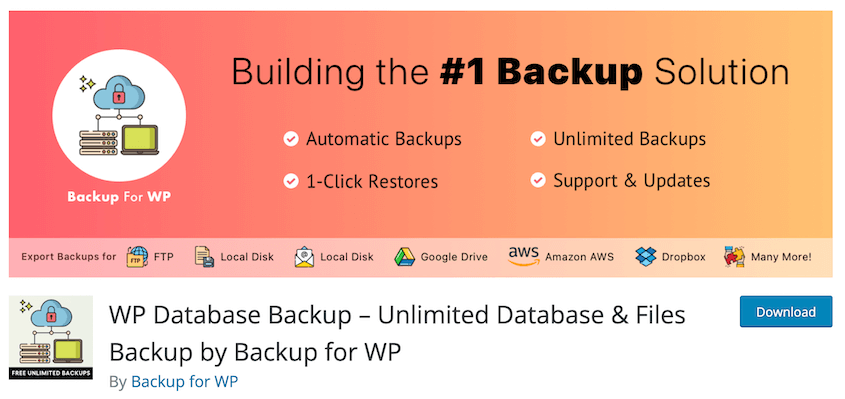
As the name suggests, WP Database Backup specializes in backing up your WordPress database. It allows you to create database backups manually or on a schedule.
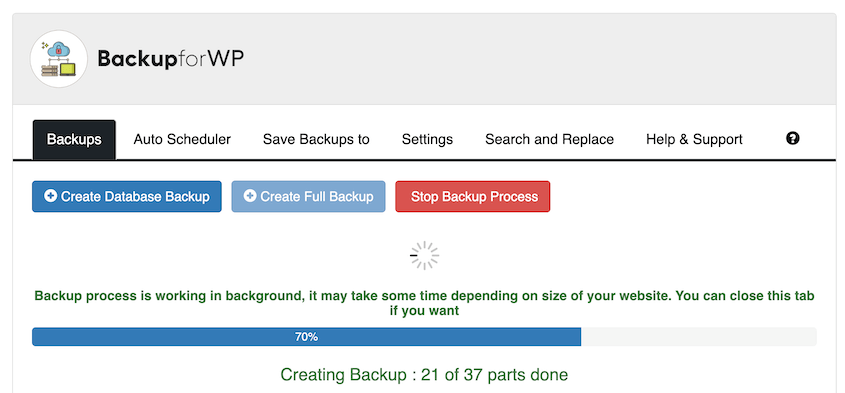
While it focuses on the database, it is a valuable tool for users who want to ensure their data is protected. It supports full backups and cloud storage.
Unlike other options on this list, it has a built-in search and replace function to update your database URLs after a migration.
What We Liked About WP Database Backup
- Full, files-only, and database-only backups
- Automatic weekly, monthly, and daily backups
- Storage to FTP/SFTP, Google Drive, Amazon S3, and Dropbox
- Search and replace
What We Didn’t Like About WP Database Backup
- Features like pre-update backups and exact backup scheduling are restricted to the Pro version
Pricing: WP Database Backup is free. The Pro version starts at $49 for a single site license.
FAQs About Free WordPress Backups
What is the best free backup for WordPress?
Here are the best free backup plugins for WordPress:
The best free backup plugin for WordPress is Duplicator. At no cost, you’ll be able to back up your entire website and migrate it to another location. Plus, Duplicator Pro offers cost-effective plans at a lower price than similar backup plugins.
Alternatives: BlogVault, BackupBuddy, and Jetpack Backup are popular backup plugins that support real-time backups and other useful features, but they aren’t free. You’ll have to purchase a premium subscription to start using them.
How do I backup my WordPress site for free?
You can back up your WordPress site for free by installing Duplicator Lite, a free WordPress backup plugin. Simply create a new backup. Then, download it so it’s available whenever you need to restore your site.
How do I backup my WordPress site without plugins?
To back up your WordPress site without plugins, you’ll need to download both your WordPress files and database. You can use either an FTP client or cPanel to download a copy of your files. Then, export your database as a SQL file in phpMyAdmin.
Secure Your WordPress Site Without Spending a Dime
The truth is, you don’t need to break the bank to protect your website. Whether you choose Duplicator for its all-around versatility, UpdraftPlus for scheduled cloud backups, or any of the other tools on this list, you’re taking an important step to protect your hard work.
Here’s a pro tip many WordPress users overlook: don’t rely on just one backup method. Your hosting provider might offer backups, but they’re not always guaranteed or easily accessible when you need them most.
By combining your host’s backup system with a dedicated plugin like Duplicator, you create multiple layers of protection. Store backups in different locations (locally and in the cloud) so if one fails, you’ve got another safety net ready.
Remember, the best backup is the one you actually set up and maintain. Start with a free tool today, test your backups regularly, and upgrade to premium features only when your site’s needs grow.
Are you ready to extend your free WordPress backup options? Download Duplicator Pro to set up automatic backups, drag-and-drop migrations, and cloud backup storage at an affordable price!
While you’re here, I think you’ll like these extra WordPress guides:
- 13 Best Free WordPress Plugins to Build a Budget-Friendly Website
- How to Back Up WordPress Multisite
- 8 Best WordPress Restore Plugins For Quick Data Recovery
- How to Remotely Back Up and Restore WordPress
- Ultimate Guide to WordPress Backup Files: What You Need to Know
- How to Migrate a WordPress Site for FREE




