


WP Migrate vs. Duplicator: Which Plugin I Recommend for Developers
 Joella Dunn
Joella Dunn
Joella Dunn
 John Turner
John Turner
John Turner
There’s a specific kind of anxiety that hits right before you migrate a WordPress site.
You’ve backed up the database. You’ve transferred the files. Everything should work.
But when you type in that new domain and hit enter, there’s always that split second where you wonder if you’re about to see a white screen of death.
I’ve been there (multiple times), on client sites where downtime costs real money.
Both WP Migrate and Duplicator promise to eliminate that anxiety, but they approach the problem from different angles. One treats migration as a sync operation between two live sites. The other treats it as packaging your entire site into a portable snapshot you can move anywhere.
I’ve used both tools extensively—on small blogs, massive WooCommerce stores, and everything in between.
In this post, I’ll break down the key differences between WP Migrate and Duplicator so you can choose the best plugin for your needs.
Here are the key takeaways:
- Duplicator creates portable backup files you can move anywhere (even offline), while WP Migrate requires two live WordPress sites communicating via API
- For most users, Duplicator is the better choice because it combines migration and disaster recovery in one tool with automatic backups
- WP Migrate excels in one specific scenario: developers who need to sync database changes between staging and production environments daily
- Duplicator’s free version handles unlimited file sizes with no artificial caps, while WP Migrate’s free version only exports backups and imports to LocalWP
- Both work, but Duplicator removes migration anxiety by giving you physical files you control—no server-to-server connections that can fail
What Is Duplicator?

Duplicator is a backup and migration plugin. It takes your entire WordPress site (including every file, database table, theme tweak, and plugin setting) and wraps it into a single zip file called a backup.
This backup is completely portable. You can upload it to a new host, email it to a client, store it on your desktop, or send it to cloud storage.
The dual nature is what makes it powerful. You’re not just migrating live sites from Host A to Host B. You’re also cloning production sites, saving cloud backups, creating restore points, and much more.
Over 1.5 million active installations prove something important: Duplicator is flexible and user-focused.
What Is WP Migrate?
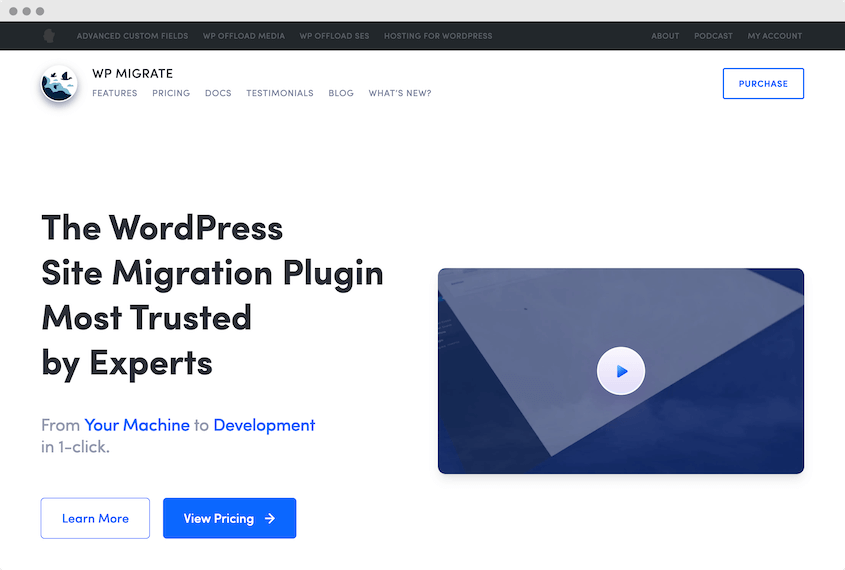
WP Migrate started out as WP Migrate DB, and that DNA still runs through everything it does. At its core, it’s a database management tool that specializes in pushing and pulling databases between environments.
Think staging to production or local development to a live server. However, it’s evolved into a full-site migration plugin.
You install the plugin on both the source site and the destination site. They connect to each other using a secret key. Then you push or pull data between them.
This approach has advantages for developers who work in staging workflows and need to sync database changes regularly.
But it also introduces a dependency: both sites need to be live and talking to each other for the migration to work.
WP Migrate vs. Duplicator: Key Differences
The fundamental difference comes down to the connection method.
WP Migrate requires two live WordPress installations communicating via API. Duplicator creates a physical file you can take anywhere—even offline.
This shapes everything about how the tools work.
Duplicator treats backups and migrations as the same operation. Every migration starts with a backup automatically. WP Migrate treats migration as a sync process: moving data between two active environments.
Quick comparison of key differences:
- Migration Workflow: Duplicator packages your site into a portable zip file and can install your site even without WordPress, while WP Migrate syncs between two live WordPress installations
- Backup Features: Duplicator automatically creates backups with every migration and can schedule cloud backups. WP Migrate focuses on database exports, not disaster recovery
- Ease of Use: Duplicator offers drag-and-drop migrations for beginners. WP Migrate requires some technical knowledge of staging workflows and API connections
- Pricing: Duplicator’s free version can migrate any website to another server or host, while WP Migrate’s free version only exports and imports to LocalWP
- Reviews: Duplicator has 4.9/5 stars with 5,000 reviews and 1.5 million active installations. WP Migrate has 4.3/5 stars with 300 reviews and 200,000 active installations
- Best For: Duplicator works for everyone from beginners to agencies, whereas WP Migrate mainly serves developers syncing staging environments
Migration Workflow
How you actually move a site matters more than feature lists.
Let me walk you through both workflows as they happen in practice.
Duplicator’s Migration Workflow
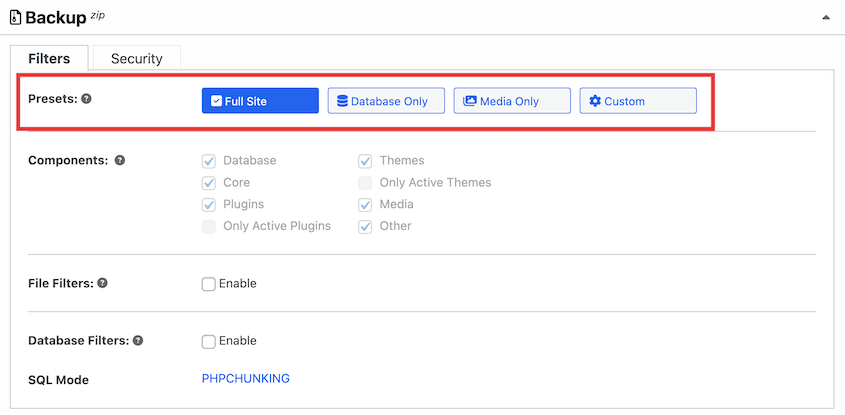
To migrate a site with Duplicator, you’ll start by creating a full-site backup. There are also custom WordPress backup presets in case you want to only move certain data.
Before Duplicator builds anything, it checks your site for problems. I’ve had it flag a 2GB debug.log file I didn’t know existed. Catching that before migration saved me from uploading a bloated backup and wondering why the transfer kept timing out.
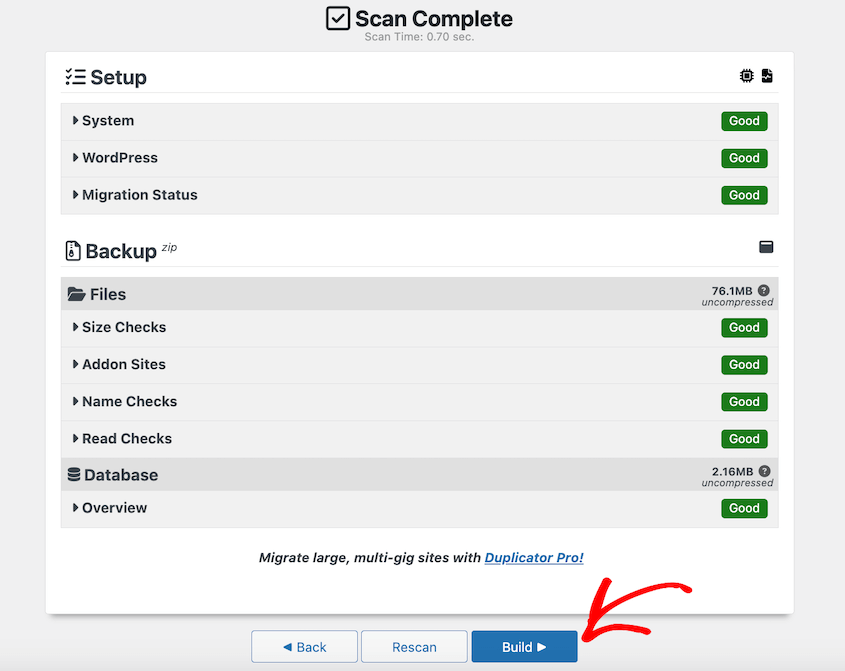
After the scan, you have two different ways to migrate your site. Let’s start with the easy option.
Once your backup is built, download the archive file. This is a zip file that includes all your website’s custom data.
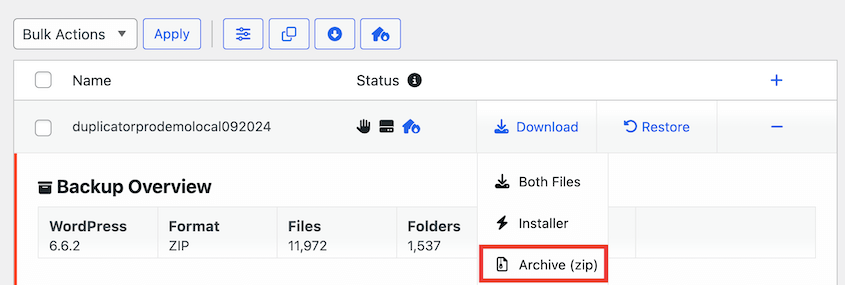
Set up the second site by installing WordPress and setting up Duplicator Pro. Then, go to the Import page and drag and drop the original backup file into it.

Duplicator will walk you through the rest of the migration process.
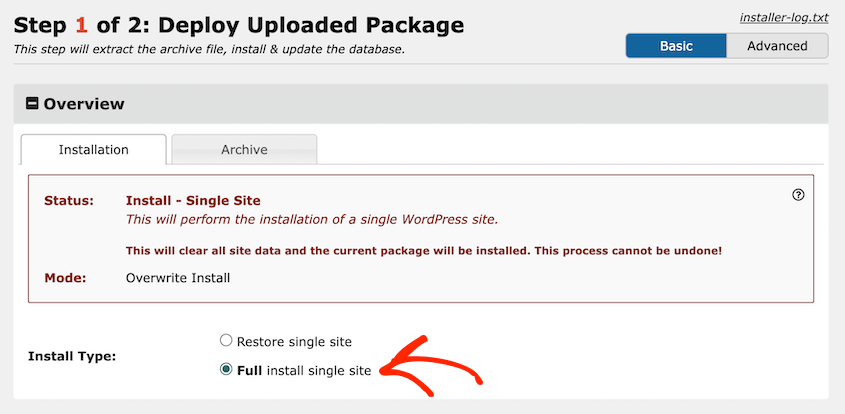
I also like the classic installation, which works without needing to install WordPress on that second site. You’ll download the installer file, which is Duplicator’s custom PHP installation file that unzips the backup.
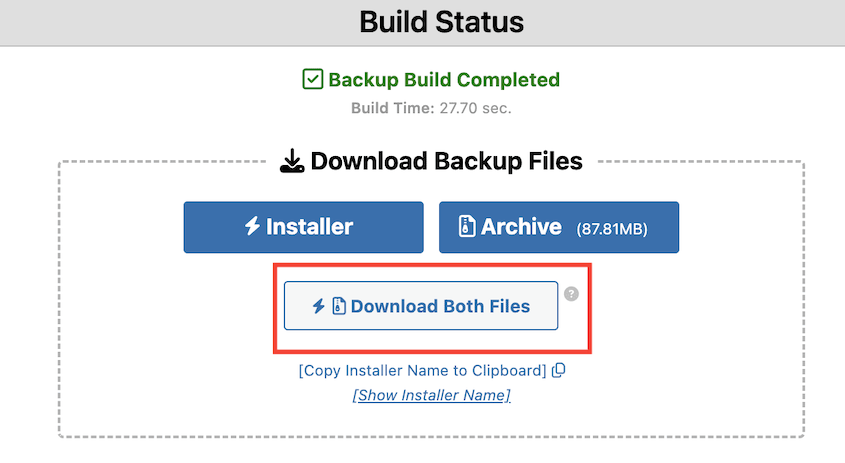
With an FTP client or file manager, upload the zip and installer.php to an empty server on the new site. Run the installer by searching for this URL: https://your-domain/installer.php.
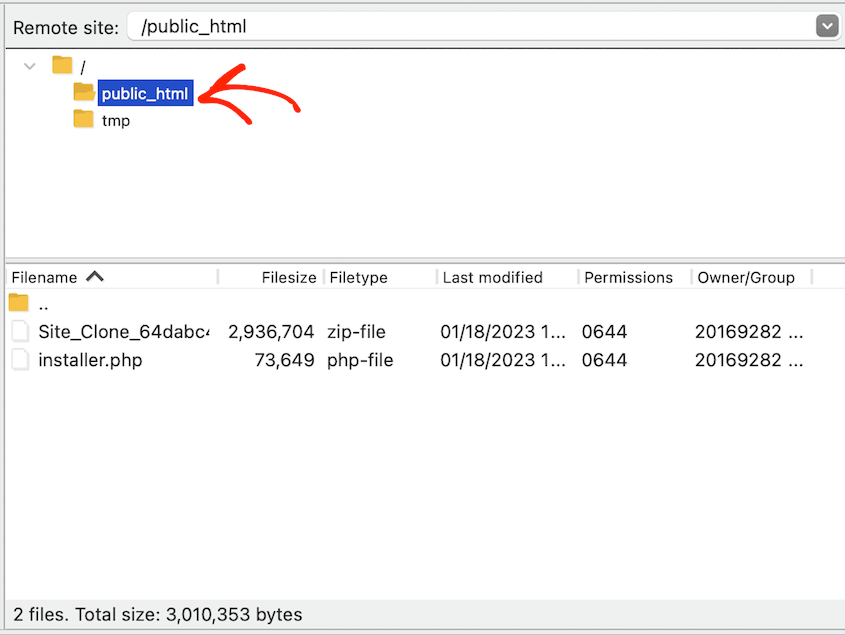
The migration wizard will immediately launch. This saves you from installing WordPress every time you migrate a site, which can be an extra hassle for developers.
WP Migrate’s Migration Workflow
With WP Migrate, you need WordPress running on both ends before you start.
This isn’t a dealbreaker for developers who always work in staging environments. But if you’re migrating to a new host where you haven’t set up WordPress yet, you have an extra step.
Install WordPress on the destination. Install the plugin on both sites.
Then, you download the first site and import it into the second one. The two installations communicate directly via API.
Backup Features
Migrations and backups aren’t separate concerns.
Every time you move a site, you should be creating a recovery point. If the migration fails or breaks something three days later, you need a way back.
Duplicator’s Backup Features
With Duplicator, every migration starts with a backup.
You can’t build a migration package without creating a complete snapshot of your site. This means you’re never migrating without a safety net.
But it goes beyond pre-migration backups.
You can schedule Duplicator to send backups to the cloud on a consistent basis. Set it once, forget about it, and know you have rolling backups going back weeks or months.
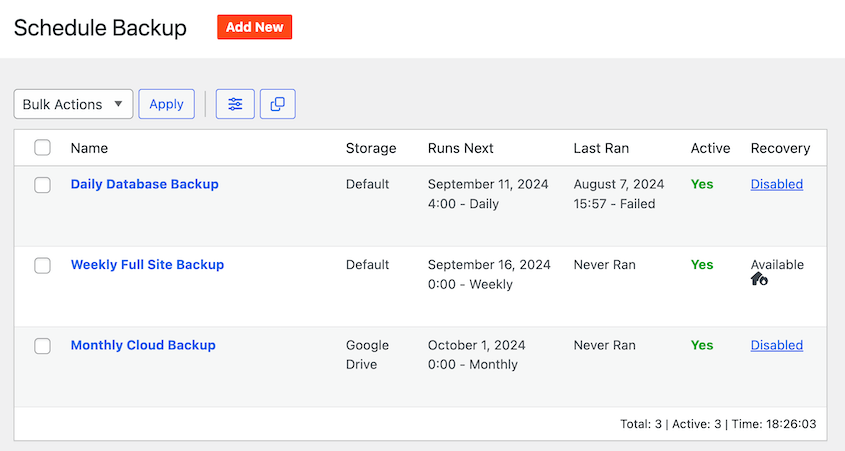
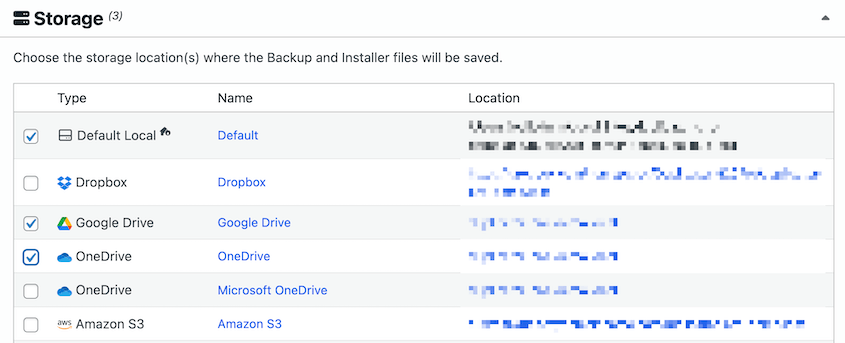
It supports hourly, daily, weekly, and monthly automatic backups. You can send data to any of these locations:
- Duplicator Cloud
- Local storage
- FTP
- Google Drive
- Dropbox
- Microsoft OneDrive
- Amazon S3
- Wasabi
- Google Cloud
- DreamObjects
- Vultr
- DigitalOcean Spaces
- Cloudflare R2
- Backblaze B2
The cloud storage options matter more than they sound. A backup sitting on the same server that just crashed isn’t a backup. It’s a file you can’t access.
Duplicator Pro supports built-in Duplicator Cloud storage, plus integrations with major third-party services, so your backups always live somewhere safe.
WP Migrate’s Backup Features
WP Migrate can create custom backups of your site. I particularly like the database export option.
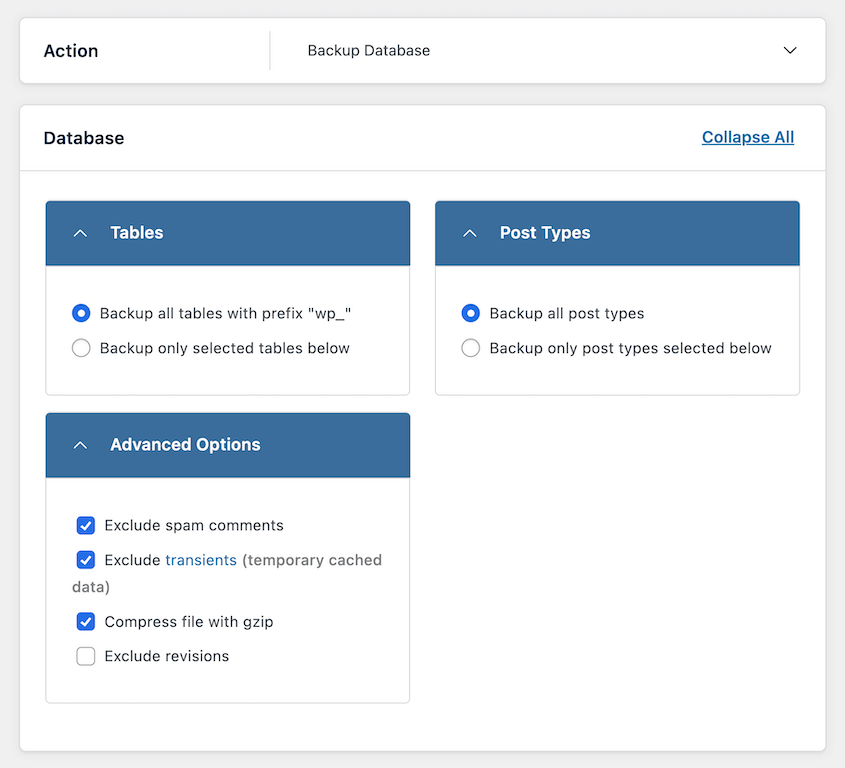
However, it’s not built for disaster recovery. The focus is on syncing data between environments, not creating site recovery insurance.
You can use it to back up your database, which is valuable for developers managing schema changes. But it lacks that “one zip file holds my entire business” security.
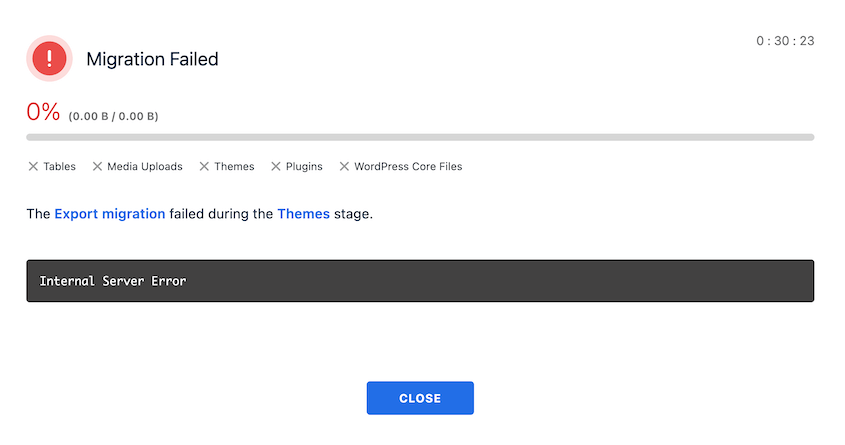
I also found the backup process to be slow. For me, a full backup of a 40MB local site timed out after 30 minutes of processing.
Beginner-Friendly Ease of Use
Both plugins work, but they assume different levels of technical comfort.
Duplicator’s Beginner-Friendly Features
Duplicator is beginner-friendly with a minimal learning curve. It works by creating backups of your site, which you can move anywhere that supports WordPress.
The drag-and-drop migrations in the Pro version are designed for complete beginners. All you’ll need to do is back up the original site and drop this backup into the new site.
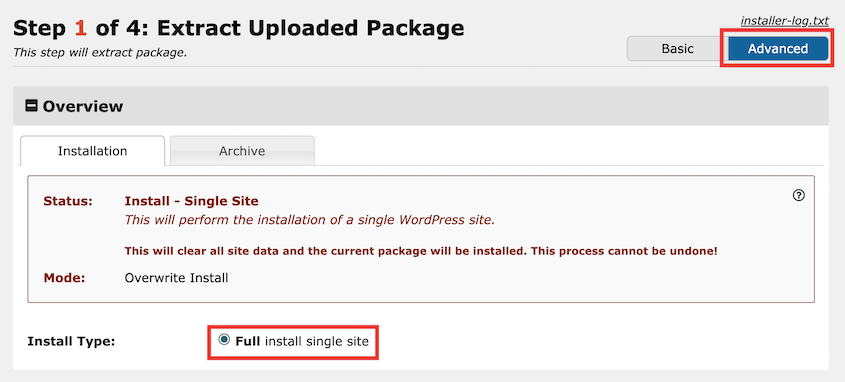
Each step in the migration wizard explains what’s happening and why. It defaults to the basic migration steps, with an advanced view if you’re more technically inclined.
When I hand off a site to a client and tell them, “You can make your own backups now,” I point them to Duplicator. If an update breaks something, you don’t need to understand complicated configurations.
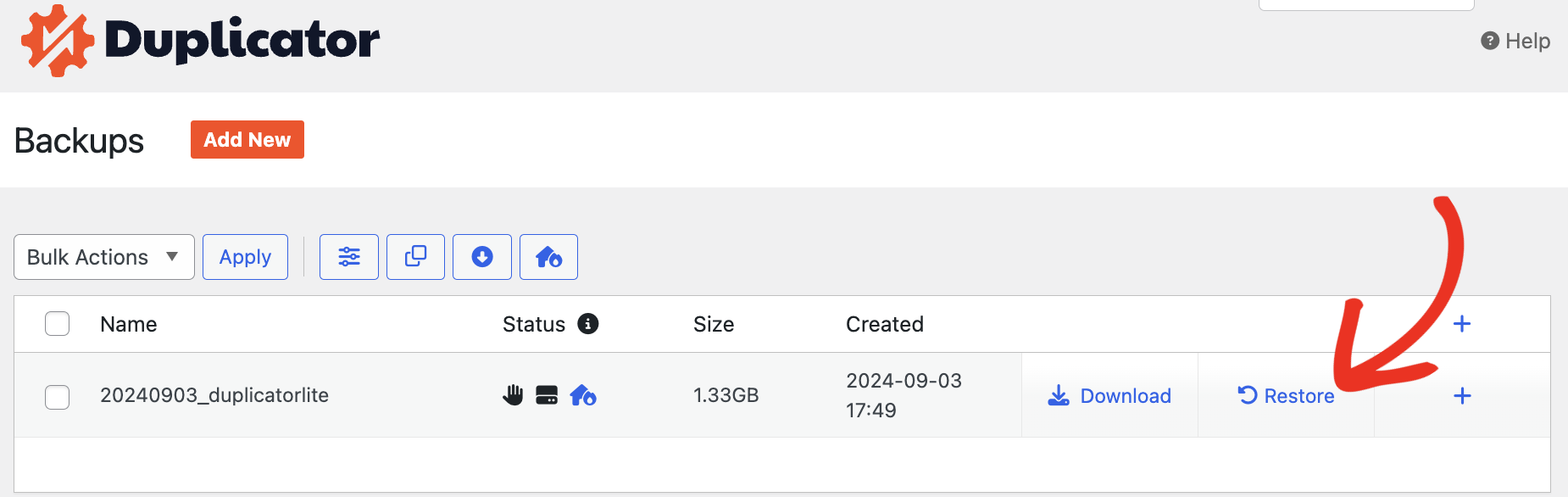
You restore the backup by hitting a Restore button. The site goes back to exactly how it was.
That simplicity removes the fear of maintaining a WordPress site. You can test things knowing you have an undo button.
Keep in mind that the free version is slightly more developer-focused. You can still use it to back up and migrate your site, but you’ll need to use an FTP client to import data into a second location.
WP Migrate’s Beginner-Friendly Features
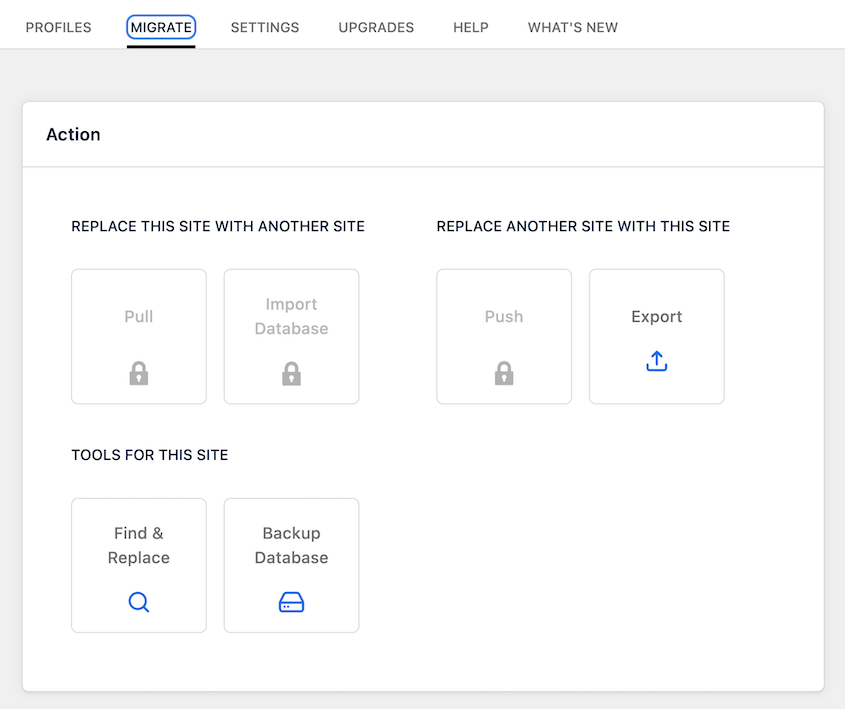
WP Migrate’s interface is fairly easy to use. There are two main actions: replacing the current site with another site and replacing another site with this data. Essentially, importing and exporting.
You can also search and replace URLs to fix any incorrect data. There’s another option to back up your database.
WP Migrate has a partnership with LocalWP, a local development tool. Once you download a backup with WP Migrate, you can import it as a new local site in Local WP.
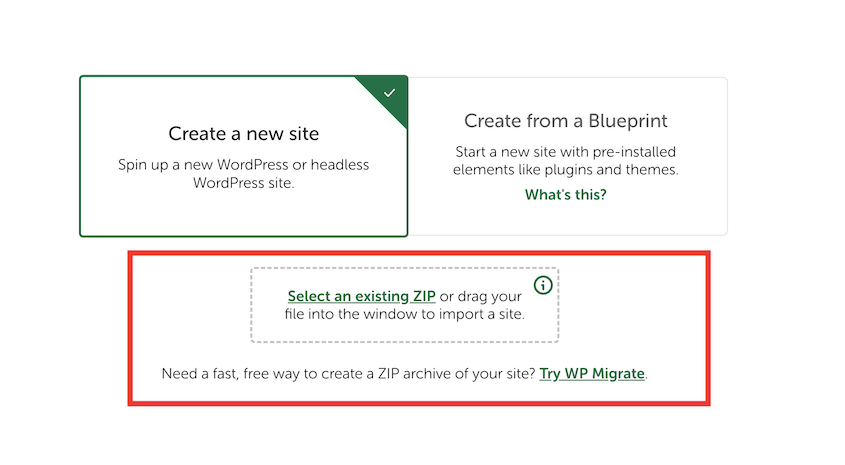
However, this is really the only way to migrate sites with the free version. You’ll have to upgrade to WP Migrate Pro for more importing options.
Another small detail I noticed is that there’s no easy full-site backup preset. You need to individually check all of your data to include it in the export, which adds some time to every download.
Pricing and Value
Free versions have limits, but paid versions cost money. The question is whether those costs make sense for what you actually need to do.
Duplicator’s Pricing
Duplicator has a completely free version. You can move massive sites—gigabytes of files and databases—using the classic install method. There’s no artificial caps on file size or upload limits.
Yes, you need to know how to use FTP. But if you’re willing to learn that one skill, you can migrate enterprise-level sites without spending a dollar.
Duplicator Pro starts at $69.30/year, but I think it pays for itself in time saved.
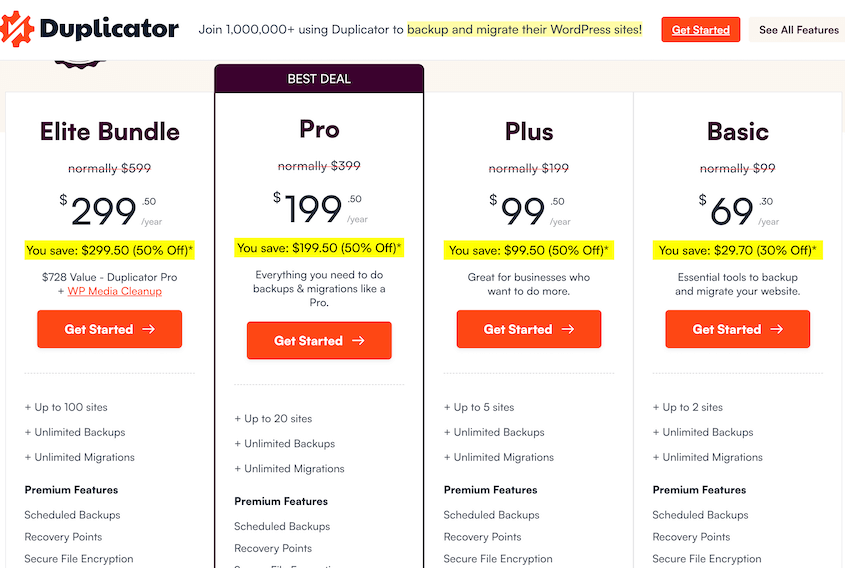
The premium version has drag-and-drop migrations instead of FTP uploads. You can use scheduled cloud backups instead of remembering to perform backups manually.
The Elite plan includes the free WP Media Cleanup plugin, and this is where agencies find real value.
WordPress creates thumbnail variations for every image you upload. Over the years, this accumulates. A site with 5,000 images might have 35,000 actual image files sitting in wp-content/uploads.
Most of those thumbnails are never used. Old themes generated sizes you don’t need anymore. Plugins created variations that nothing references.
WP Media Cleanup scans your entire site (including themes, plugins, ACF fields, and post content) to identify which images are actually being used.
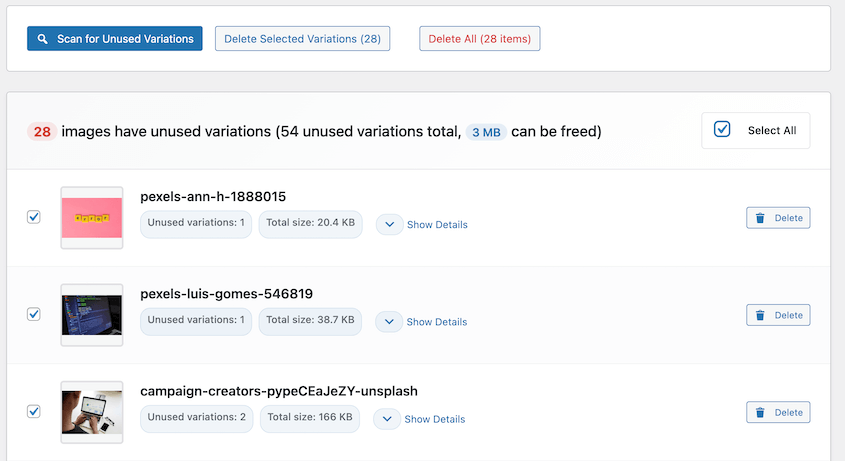
The unused ones? It moves them to a temporary folder for 30 days, so you can restore them if you need to.
For agencies managing dozens of sites, Elite includes WP-CLI support. You can run backups and image cleanups across your entire client roster from the terminal. This isn’t a feature for everyone. But if you’re at scale, it’s gold.
WP Migrate’s Pricing
Like Duplicator, WP Migrate has a free version. However, it can only export backups and import data to a LocalWP site.
Basic functionality is available for free, but pushing/pulling files (not just databases) requires a paid license. WP Migrate Pro starts at $49/year.
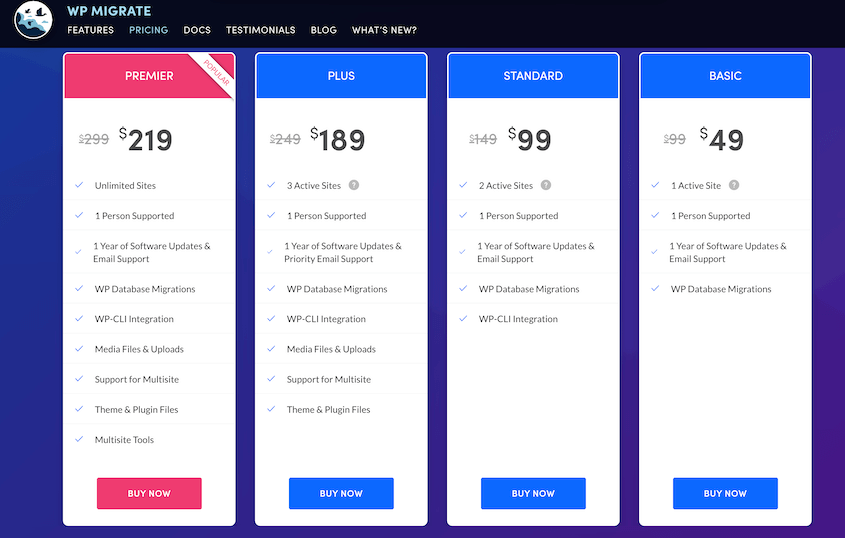
The lowest plan can only push/pull databases between WordPress sites and supports one person. You’ll have to upgrade to migrate media, theme, or plugin files.
This gets annoying fast if you’re a high-volume mover. You’re either paying per site or hitting transfer limits.
Reviews
User reviews reveal patterns that feature lists don’t.
When hundreds of people mention the same thing—good or bad—it’s worth your attention.
Duplicator’s Reviews
On WordPress.org, Duplicator has almost 5,000 user reviews. Its average rating is 4.9 out of 5 stars.
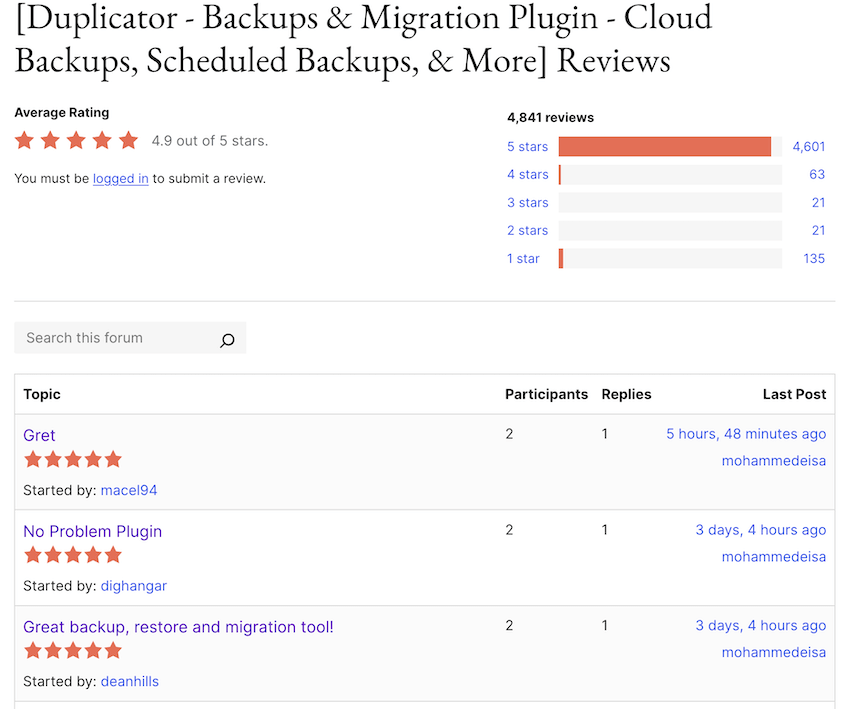
The recurring theme is that Duplicator worked while other plugins failed. People talk about trying different migration plugins before Duplicator finally succeeded.
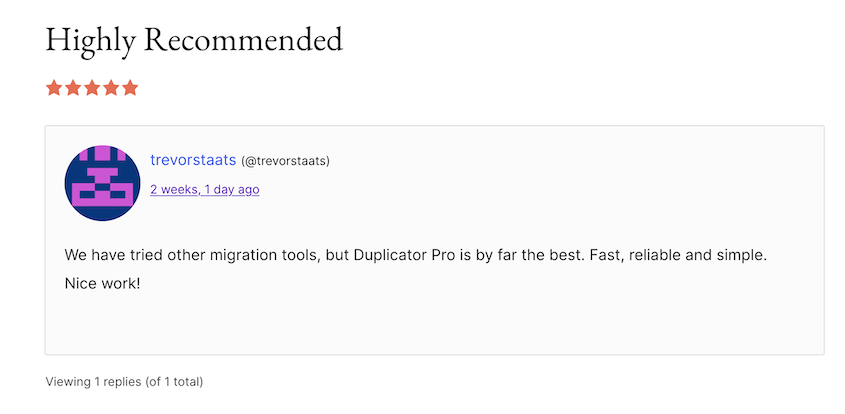
They also mention using Duplicator for years of development or other website work.

Duplicator has over 1 million active installations. With a 4.9/5 star rating, you know the plugin is working for people!
WP Migrate’s Reviews
WP Migrate Lite has over 300 reviews on WordPress.org and 200,000 active installations. So, it’s being used much less frequently than Duplicator.
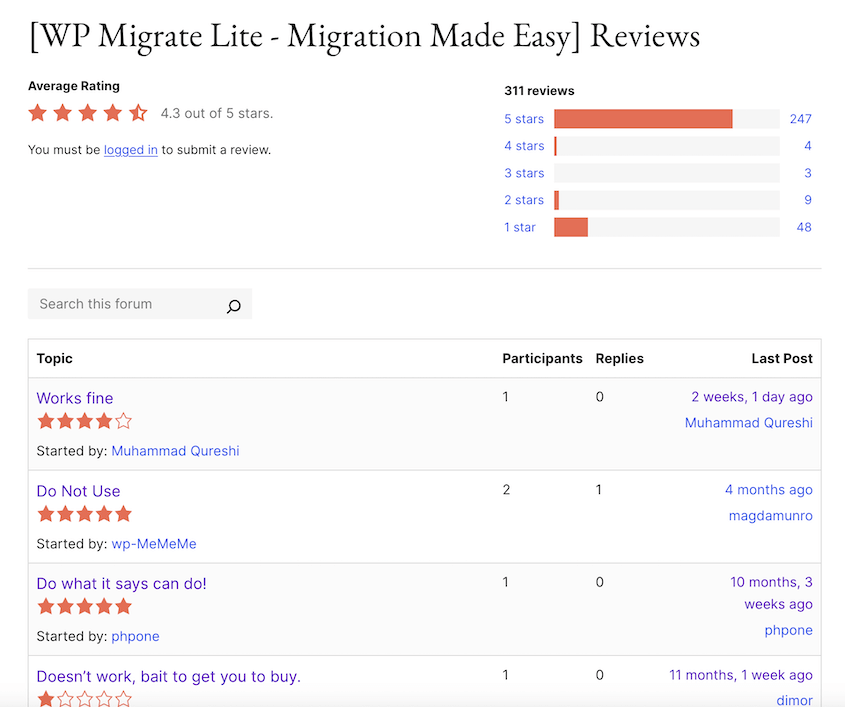
The average rating is 4.3 out of 5 stars. The negative reviews highlight the limited functionality on the free version. Exporting data works fine, but the importing functionality is paywalled.

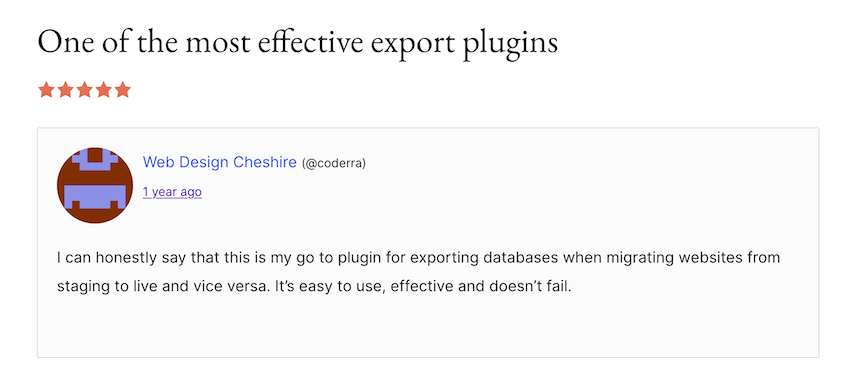
On the other hand, some developers love it for staging workflows. The ability to push database changes from local to live—or pull production data down for testing—gets consistent praise.
WP Migrate vs. Duplicator: Pros and Cons
Let me consolidate this into pros and cons lists so you can compare WP Migrate and Duplicator side by side.
Duplicator Pros and Cons
Pros:
- Physical backup file you can store anywhere
- Scanner catches problems before they break your migration
- Works on completely empty servers—no WordPress installation required first
- Drag-and-drop migrations in Pro version (no FTP needed)
- Elite plan includes WP Media Cleanup to shrink bloated sites
- Cloud storage keeps backups safe off-server
- Generous free version with no artificial file size caps
Cons:
- Free version requires FTP or SFTP knowledge for classic migrations
WP Migrate Pros and Cons
Pros:
- Excellent for syncing databases between local and live environments
- Great for developers who need to push schema changes or pull production data
- Partnership with LocalWP for local development workflows
Cons:
- Requires WordPress installed on both source and destination
- Not designed as a backup solution—it’s a sync tool
- Free version limited to exports and LocalWP imports only
- Paid plans have site limits and transfer caps
- No easy full-site backup preset (must manually select all data)
WP Migrate vs. Duplicator: Which Should You Choose?
For most WordPress users, Duplicator is the clear choice. It handles migrations and backups in one tool. It works on any hosting environment without needing both sites live at the same time.
Business owners get automated cloud backups and one-click restores. Freelancers get portable site packages they can move between servers. Agencies get staging workflows plus disaster recovery in the same plugin.
The beginner-friendly interface means you can hand it off to clients without fielding support calls. The free version is powerful enough for professional work.
WP Migrate has a specific niche for developers. If you’re pushing database changes daily between staging and production, it’s built for that exact workflow.
But that’s a narrow use case.
For the vast majority of WordPress users, Duplicator does everything you need. It’s more reliable because it doesn’t depend on two servers communicating perfectly. It’s safer because backups live on your computer or in cloud storage you control.
When a client calls in a panic because their hosting account got suspended, I don’t need their server to be online. I have their site packaged on my computer. I can spin it up on a new host in 20 minutes.
That’s the difference between a sync tool and a complete backup solution.
Frequently Asked Questions (FAQs)
How do I back up a WordPress site with Duplicator?
Go to Duplicator » Backups » Add New. Follow the wizard through setup and scan. Once the backup builds, download the archive and installer files. That’s it—your entire site is saved in a portable package.
What’s the difference between Migrate Guru and Duplicator?
Migrate Guru processes migrations on their servers, which helps if you’re on terrible hosting with strict resource limits. Duplicator runs on your server, giving you better privacy and control over your data. Duplicator also doubles as a full backup solution, while Migrate Guru only handles migrations.
What’s the difference between All-in-One WP Migration and Duplicator?
All-in-One WP Migration hits upload limits quickly on the free version—you’ll need to pay to import sites larger than 512MB. Duplicator allows massive site moves for free using the classic manual extraction method, with no artificial file size caps.
What is the best WordPress migration plugin?
Duplicator. It balances power for developers with simplicity for beginners. You get migration, backup, scheduling, and cloud storage in one plugin. The free version handles all types of migrations, and Pro adds convenience features that save hours of work.
Is All-in-One WP Migration good?
It works well for small sites, but the paywall for importing anything over 512MB catches people by surprise. You end up paying for a premium extension just to complete basic migrations on most real-world sites.
Stop Stressing About Your Next Move
Migrations shouldn’t be a gamble.
Tools that rely on live server-to-server connections add variables you can’t control. Duplicator removes those problems by packaging your site into a portable bundle.
Here’s a tip I wish someone had told me years ago: before wiping the old site after a migration, download the installer.php and archive.zip to cloud storage. If the new host has issues or crashes during setup, you still have a copy of your data.
That’s the peace of mind you need when you’re responsible for sites that generate real revenue.
Ready to move your site without the headache? Get Duplicator Pro today and experience the easiest migration of your life. Or start with the free version and see why over 1.5 million sites trust Duplicator to handle their most critical moves.
While you’re here, I think you’ll like these related WordPress guides:
- How to Move a WordPress Website to a New Host
- How to Migrate a Large WordPress Site
- How to Migrate a WordPress Site to a New Domain
- WordPress Migration Plugins That Actually Work in 2026
- Migrations Without the Money: Best FREE WordPress Migration Plugins
- Duplicator Free vs Pro: Which Version Has the Best Value?




