


BlogVault vs Solid Backups vs Duplicator:すべてテストしました
 Joella Dunn
Joella Dunn
Joella Dunn
 John Turner
John Turner
John Turner
あなたのウェブサイトは、あなたのデジタルライフラインです。一つのミスで、あなたが築き上げてきたすべてが一瞬にして消え去る可能性があります。
起業家や企業が、しっかりとしたバックアップ戦略を持っていなかったために、数ヶ月(時には数年)の仕事を失うのを何度も見てきました。
だからこそ、適切なWordPressバックアッププラグインを選ぶことが、あなたのサイトの存続の鍵となるのです。
今日は、WordPressバックアップの世界で注目されている3つのプラグイン、BlogVault、Solid Backups(旧BackupBuddy)、Duplicatorについて解説します。
これは、あなたの最も価値のあるオンライン資産を保護するための、無駄のないガイドと考えてください。最後まで読めば、あなたのニーズに最適なバックアッププラグインが見つかるはずです!
この記事では、次のことを学びます:
- BlogVault、Solid Backups、Duplicatorの主要機能比較
- ウェブサイトの種類や予算に応じた最適な価格のプラグインはどれか
- 情報に基づいた意思決定を支援するための、各バックアップソリューションの長所と短所
- ほとんどのWordPressユーザーにとって、トップチョイスとなるプラグインはどれか
BlogVault、Solid Backups、Duplicatorのクイック比較
| 機能 | BlogVault | Solid Backups | Duplicator |
| クイックバックアップ | ❌ | ✅ | ✅ |
| 簡単な復元プロセス | ✅ | ✅ | ✅ |
| ステージング | ✅ | ✅ | ✅ |
| 自動バックアップ | ✅ | ✅ | ✅ |
| 移行 | ✅ | ✅ | ✅ |
| クラウドストレージ | ✅ | ✅ | ✅ |
| 無料版 | ❌ | ❌ | ✅ |
| 手頃なプレミアムプラン | ❌ | ❌ | ✅ |
目次
- WordPressバックアッププラグインとは?
- What to Look For In a WordPress Backup Plugin
- BlogVault vs Solid Backups vs Duplicator: Compared
- Features: BlogVault vs Solid Backups vs Duplicator
- Usability: BlogVault vs Solid Backups vs Duplicator
- Migrations: BlogVault vs Solid Backups vs Duplicator
- Restore Options: BlogVault vs Solid Backups vs Duplicator
- Pricing: BlogVault vs Solid Backups vs Duplicator
- BlogVault vs Solid Backups vs Duplicator: Pros and Cons
- Features: BlogVault vs Solid Backups vs Duplicator
- BlogVault vs Solid Backups vs Duplicator:どれを選ぶべきか?
- Frequently Asked Questions (FAQs)
WordPressバックアッププラグインとは?
WordPressバックアッププラグインとは、WordPressウェブサイトのコンテンツ、ファイル、データベースのコピー(バックアップ)を作成するツールです。ウェブサイトのクラッシュやデータ損失の後、バックアッププラグインはデータ損失なしで、サイトを以前の動作状態に簡単に復元できます。
WordPressバックアッププラグインに求めるべきこと
WordPressバックアッププラグインはウェブサイトデータを保護する簡単な方法を提供できますが、選択肢は多数あります。選択肢を絞り込むために、考慮すべきいくつかの要因を以下に示します。
信頼性
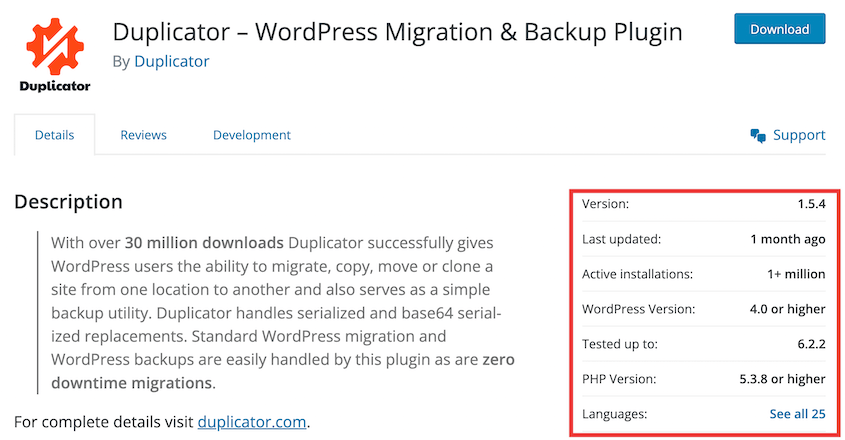
確かな評判と肯定的なユーザーフィードバックを持つバックアッププラグインを選択するのが最善です。WordPress.orgのレビューと評価を必ず確認してください。
バックアップソリューション
手動バックアップと自動バックアップの両方を含む、信頼性の高いバックアップオプションを提供するプラグインであることを確認してください。クラウドストレージも重要です。
柔軟性
自動バックアップをスケジュールするオプションを探して、バックアップの設定と忘れることができるようにしましょう。さらに、バックアップから特定のファイルやデータベースを除外する必要がある場合があるため、カスタマイズ可能なバックアッププラグインを選択してください。
ストレージオプション
プラグインが一般的なクラウドサービスまたはリモートサーバーのバックアップをサポートしているかどうかを確認したいはずです。これにより、バックアップをオフサイトに送信し、サーバーエラーから安全に保つことができます。
簡単な復元
復旧を容易にする、手間のかからない復旧プロセスを簡素化するプラグインを選択してください。
サポートとドキュメント
最高のバックアッププラグインには、応答性の高いカスタマーサポートと詳細なドキュメントがあります。
BlogVault vs Solid Backups vs Duplicator: 比較
WordPressバックアッププラグインを探し始めると、おそらく3つの主要な選択肢が際立つでしょう。BlogVault、Solid Backups(旧BackupBuddy)、そしてDuplicatorです。しかし、どれが一番良いのでしょうか?調べてみましょう!
機能:BlogVault vs Solid Backups vs Duplicator
まず、BlogVault、Solid Backups、Duplicatorの主なバックアップ機能を見てみましょう。これにより、どのプラグインがあなたのサイトに最適かが正確にわかります!
機能比較からの主なポイントは次のとおりです。
- Duplicatorは、災害復旧とドラッグアンドドロップ移行を備えた最も包括的な機能セットを提供します
- BlogVaultは、増分バックアップとエンタープライズグレードのセキュリティに焦点を当てています
- Solid Backupsは堅実な基本機能を提供しますが、競合他社と比較して高度な機能は少なくなっています
Duplicator の機能
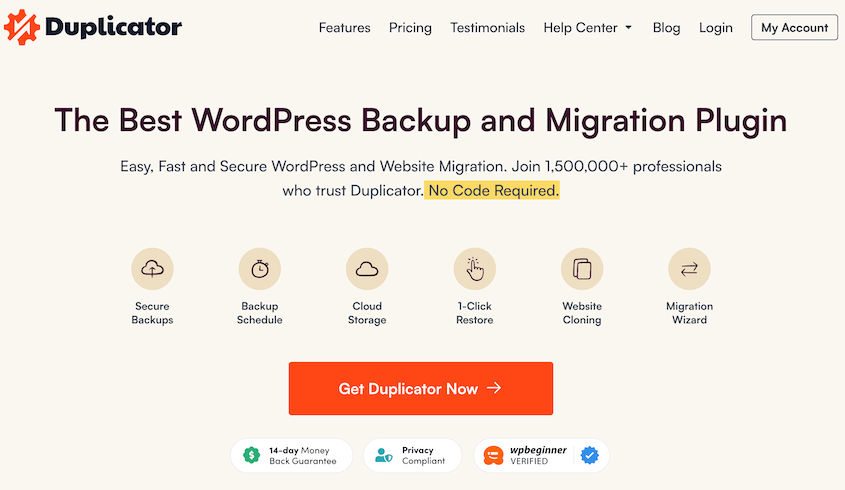
Duplicator Proは、ウェブサイトを移行、バックアップ、クローンする強力なWordPressプラグインです。その包括的な機能により、サイト管理がより効率的かつ安全になります。
Duplicator Proを使用すると、すべてのファイル、テーマ、プラグイン、データベーステーブルを含む完全なバックアップを作成できます。その後、復旧ポイントを設定して、緊急時にバックアップを即座に復元できます。
それだけではありません!Duplicator Proで期待できる素晴らしい機能の一部を次に示します。
- 手動および自動バックアップ
- ファイルとデータベースのフィルター
- 大規模サイトの移行とマルチサイトネットワークをサポート
- ワンクリック復元
- 災害復旧
- クラウドストレージ連携
- サーバー間インポート
- ステップバイステップの移行ウィザード
- ドラッグアンドドロップ移行
- WordPressのインストールは不要
- 事前設定されたサイトを設定する
BlogVaultの機能
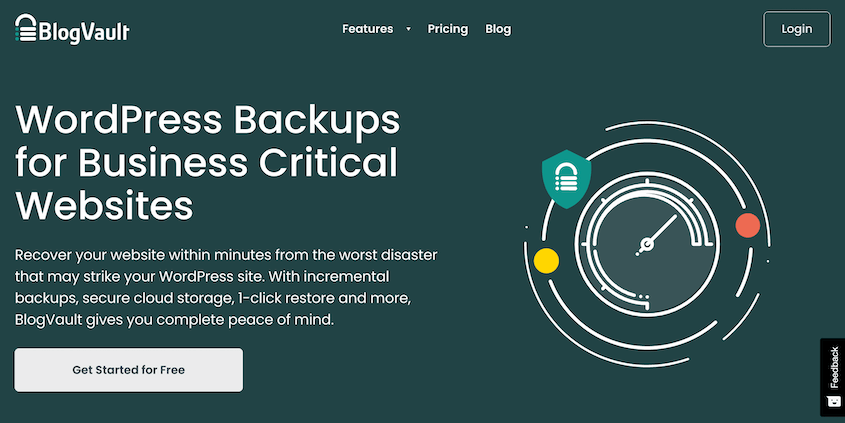
BlogVaultは、WordPressユーザーにサイトを保護するための信頼性の高い方法を提供する包括的なバックアップおよびセキュリティサービスです。自動バックアップ、リアルタイムバックアップ同期、ワンクリック復元を提供します。これにより、ウェブサイトのデータは常に安全で簡単に復旧可能になります。
BlogVaultの主な機能の一部を次に示します。
- 完全バックアップと増分バックアップ
- オフサイトバックアップストレージ
- エンタープライズグレードのバックアップ暗号化
- ワンクリック復元
- ワンクリックステージング
- 新しいウェブホスティングプロバイダーまたはドメインへの移行
- 大規模サイトとWordPressマルチサイトのサポート
Solid Backupsの機能
Solid Backups(旧BackupBuddy)は、WordPressウェブサイトのコピーを保存できる別のサードパーティ製バックアップサービスです。ウェブサイトの所有者は、このツールを使用してスケジュールされたバックアップを実行したり、悪いアップデートの後にサイトをロールバックしたり、コンテンツを別の場所に移行したりできます。
Solid Backupsで利用できる機能の一部を次に示します。
- WordPressの完全バックアップ
- スケジュールバックアップ
- Stash Liveへのリモートストレージ
- 復元オプション
- 移行とクローン作成
- URLの置換
ユーザビリティ:BlogVault vs Solid Backups vs Duplicator
バックアップツールは、使いやすくなければ役に立ちません。BlogVault、Solid Backups、Duplicatorでバックアップを作成するのがどれほど簡単か見てみましょう。
ユーザビリティの比較から得られた主なポイントは次のとおりです。
- Duplicatorは、ステップバイステップのガイダンスにより、最も直感的なインターフェイスを提供します
- BlogVaultは最も簡単なセットアップを提供しますが、外部ダッシュボード管理に大きく依存しています
- Solid Backupsはユーザーフレンドリーですが、初期設定に時間がかかります
Duplicatorのユーザビリティ
Duplicatorはユーザーフレンドリーなインターフェイスを備えており、バックアップと移行をステップバイステップでガイドします。
開始するには、バックアップを作成します。これにより、ファイル、プラグイン、テーマ、データベースがzipファイルにコンパイルされます。
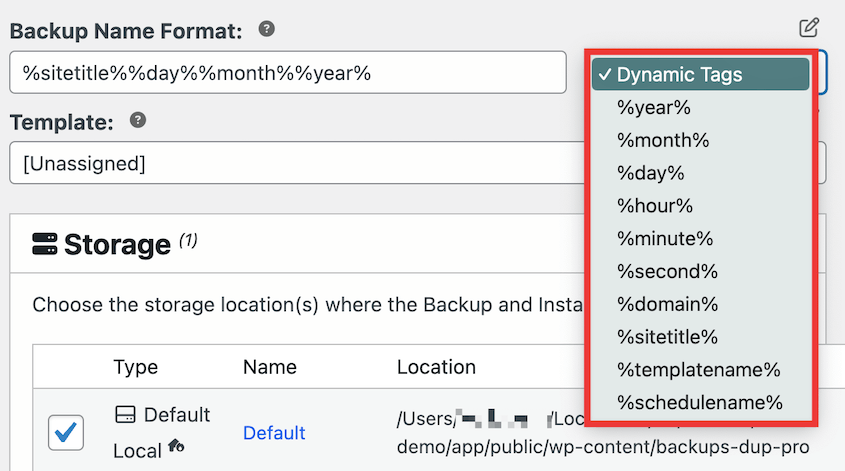
動的タグを使用してバックアップ名をカスタマイズできます。現在の月、日、時間、スケジュール名、その他の詳細を追加して、適切なバックアップを適切なタイミングでよりよく識別できるようにします。
自由にクラウドストレージサービスを選択してください。バックアップが作成されると、Duplicatorはデータをこの場所に自動的に送信します。
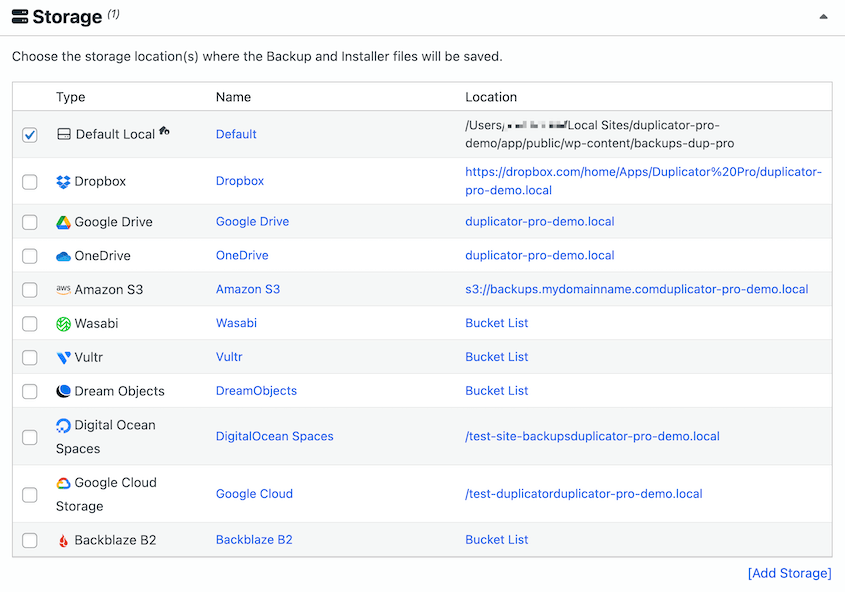
Duplicator Proで使用できるすべてのストレージオプションを次に示します。
- Google Drive
- Dropbox
- Amazon S3
- Backblaze B2
- Wasabi
- Google Cloud
- OneDrive
- DreamObjects
- Vultr
- DigitalOcean Spaces
- Cloudflare R2
- FTP
- ローカルサーバー
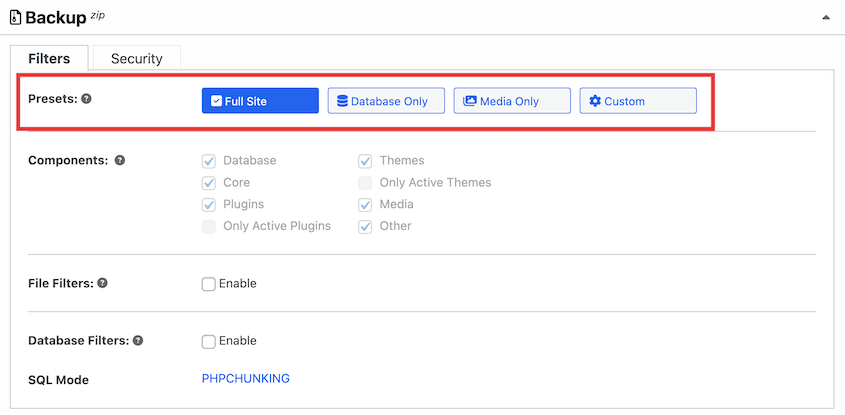
バックアップのカスタマイズは、チェックボックスをオンにするのと同じくらい簡単です。データベース、コアWordPressファイル、プラグイン、テーマ、メディアファイルをインクルード/エクスクルードするかどうかを決定できます。
次に、**次へ**をクリックします。Duplicatorがサイトをスキャンして問題がないか確認していることがわかります。
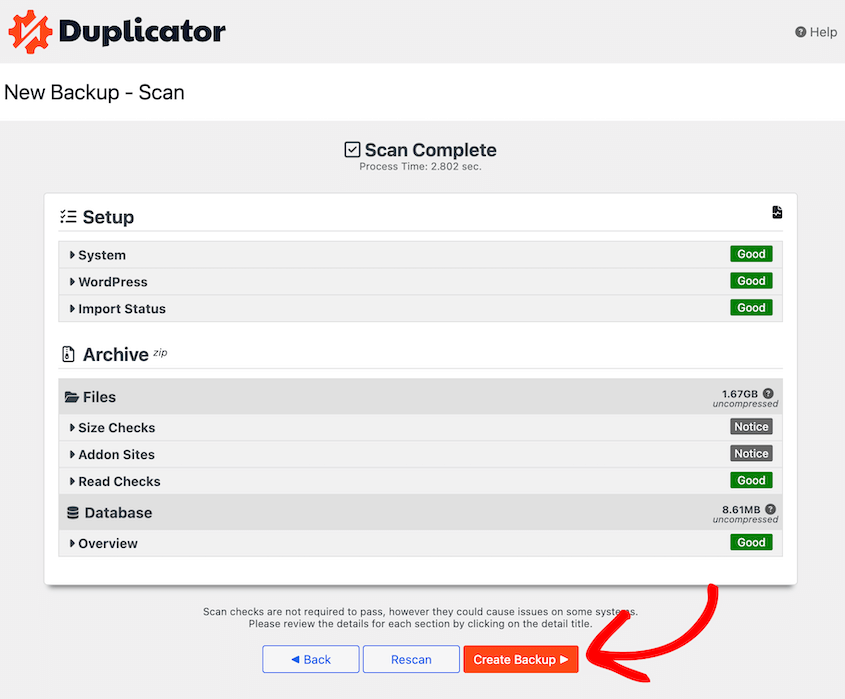
続行すると、Duplicatorがサイトをバックアップします!新しいバックアップは、**バックアップ**ページに表示されます。
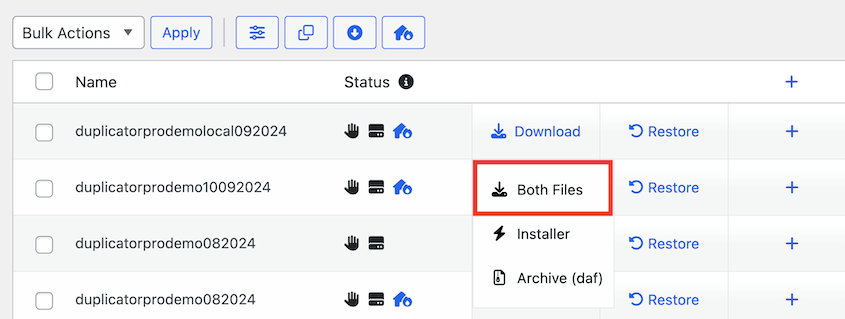
**ダウンロード**をクリックすると、アーカイブファイルとインストーラーファイルのコピーを保存できます。
アーカイブにはWordPressサイトのコピーが含まれており、インストーラーがそれを展開します。これらのバックアップファイルをダウンロードすることで、後で簡単にバックアップを復元したり、サイトのコピーを別の場所に移動したりできます。
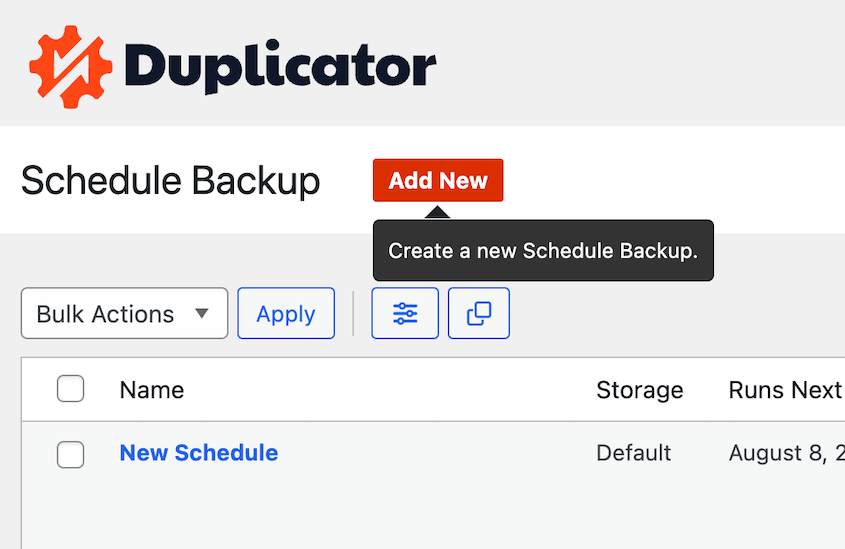
また、時間を節約して自動バックアップを設定することもできます。これを行うには、**バックアップのスケジュール**ページを見つけて、**新規追加**をクリックします。
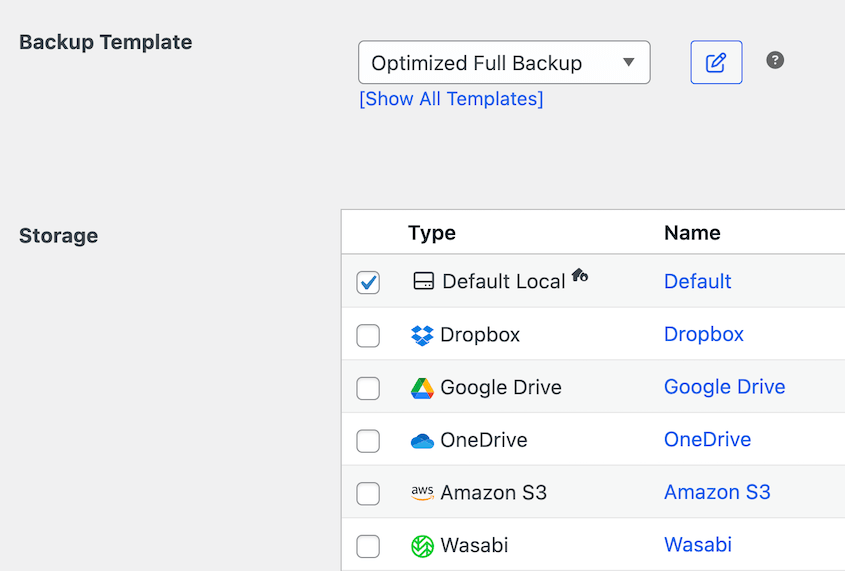
バックアップスケジュールに名前を付けます。カスタム自動バックアップが必要な場合は、新しいバックアップテンプレートを作成します。次に、ストレージの場所を選択します。
Duplicatorでは、週次、月次、時間次、または日次のバックアップをスケジュールできます。これらのオプションのいずれかを選択し、開始時刻を指定します。
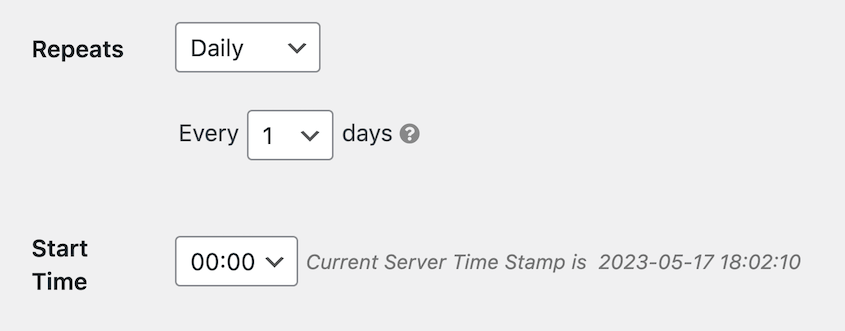
最後に、スケジュールを有効にします。これにより、サイトが常にバックアップされ、予期しないエラーから保護されます。
BlogVaultのユーザビリティ
BlogVaultの使用を開始するには、プラグインをインストールしてメールアドレスを入力するだけです。これにより、BlogVaultダッシュボードに自動的に移動します。
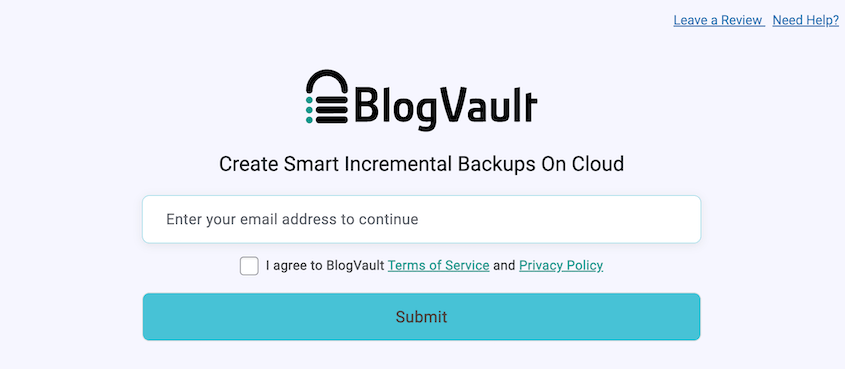
BlogVaultと同期した後、サイトは自動的にバックアップされます。手動バックアップを作成するには、サイトを再度同期するだけです。
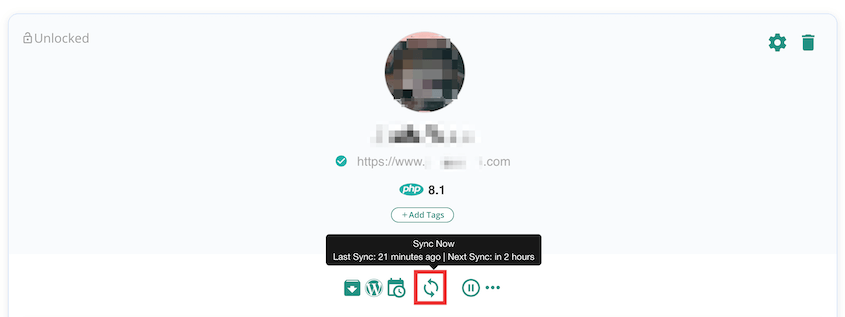
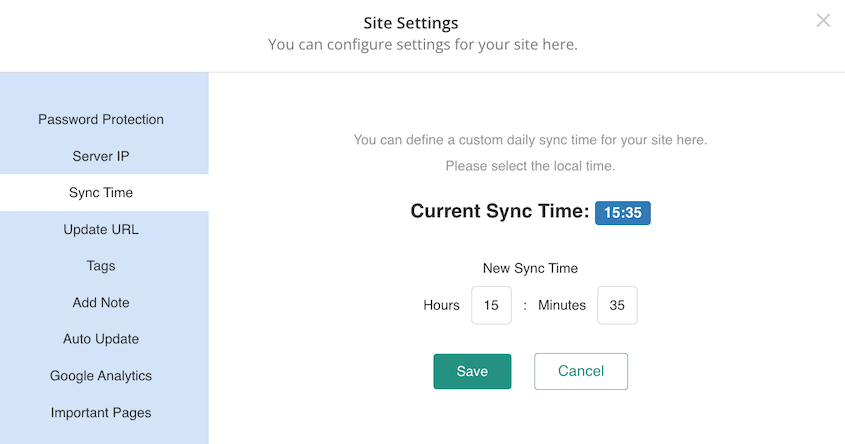
サイトをスケジュールでバックアップしたい場合は、サイトの設定を開きます。「同期時間」の設定をクリックして更新してください。
BlogVaultでは、テーマ、プラグイン、WordPressのバージョンを自動更新することもできます。この WordPressメンテナンスサービス は、eコマースサイトの時間を効果的に節約できます。
Solid Backupsのユーザビリティ
DuplicatorやBlogVaultと同様に、Solid Backupsはバックアップの作成とスケジュール設定を容易にします。サインアップ後、バックアップオプションをカスタマイズできるフォームに入力します。完了すると、Solid Backupsがサイトのバックアップを開始します。
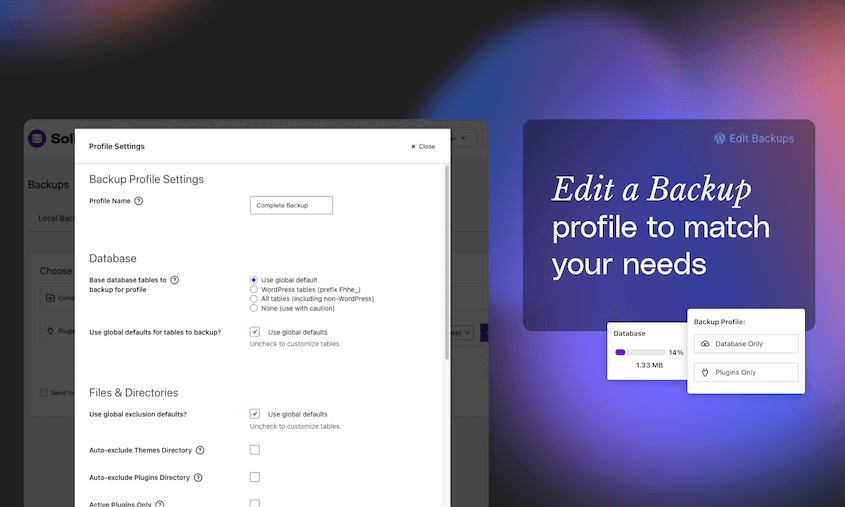
多くのユーザーは手動バックアップよりも自動スケジュールを好むため、Solid Backupsはこの代替手段を提供します。バックアップ間隔、日付、時刻、リモートストレージの場所を選択できます。
Solid Backupsを使用すると、複数のバックアップスケジュールを設定することもできます。データベースは毎月保存し、フルバックアップは毎週実行できます。これにより、サイトのすべての部分を手動でバックアップする手間が省けます。
移行:BlogVault vs Solid Backups vs Duplicator
多くのWordPressバックアッププラグインは、ウェブサイトの移行も可能です。サイトにインストールされているプラグインの数を制限したい場合は、移行プラグインとしても機能するものを見つけるのが最善です。
移行比較からの主なポイントは次のとおりです。
- Duplicatorは、ダウンタイムなしで最も簡単なドラッグアンドドロップ移行プロセスを提供します
- BlogVaultは、FTPとデータベースの認証情報に関する知識が必要です
- Solid Backupsは、手動でのファイルアップロードとスクリプト実行を伴います
Duplicatorの移行
多くの場合、新しいドメイン名やホスティングプランへの移行は、複雑で時間がかかることがあります。Duplicatorを使用すると、簡単です。このプラグインはドラッグアンドドロップ移行をサポートしているため、初心者でも技術的な経験なしでウェブサイトを移行できます。
Duplicatorでバックアップを作成したら、アーカイブファイルをダウンロードします。次に、Duplicator Proが2番目のサイトにインストールされ、有効化されていることを確認します。「バックアップのインポート」ページを見つけて、バックアップをアップロードします。

その後、Duplicatorが元のウェブサイトをインポートする手順を案内します。新しいサイトがセットアップされている間、古いサイトは引き続き稼働しています。
ダウンタイムがないため、検索エンジン最適化(SEO)ランキングを損なうことなく、新しいWordPressホストにサイトを移行できます!
BlogVaultの移行
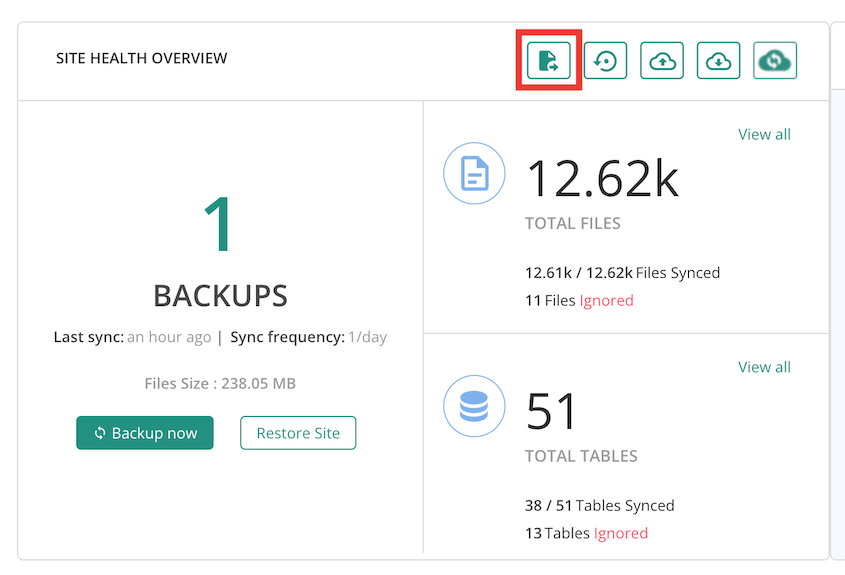
BlogVaultでサイトを移行するには、最近のバックアップを見つけて「移行」ボタンを押します。
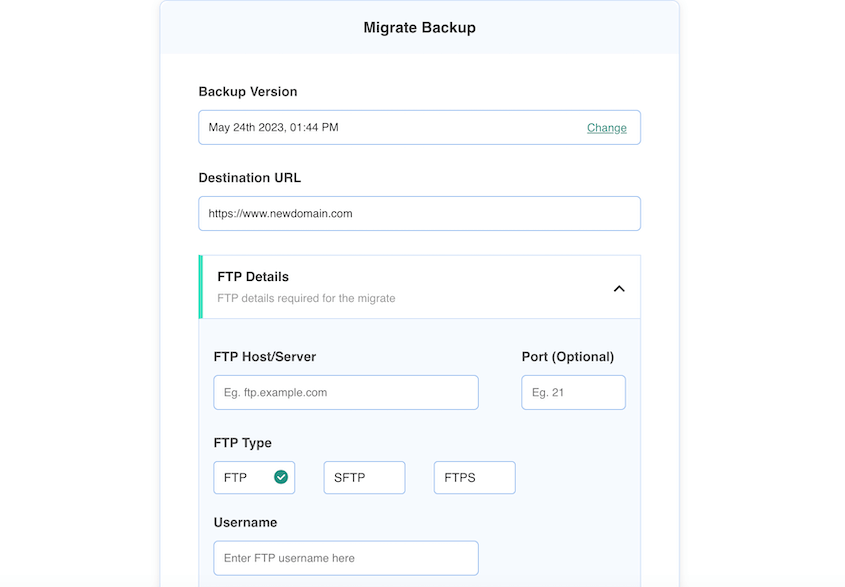
次に、新しいURL、FTPの詳細、データベースの認証情報を入力する必要があります。
必要に応じて、特定のファイルまたはデータベーステーブルのみを移行することを選択できます。
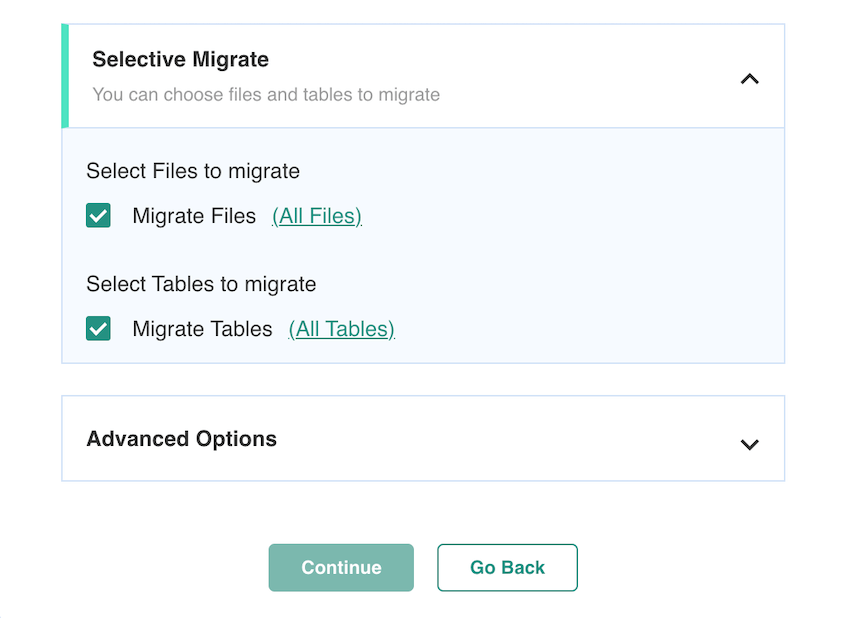
その後、BlogVaultがWordPressウェブサイトを新しい場所に転送します。
Solid Backupsの移行
Solid Backups を使用すると、サイトの完全バックアップを作成することから移行プロセスを開始します。Solid Backups がバックアップ zip ファイルを生成したら、それをダウンロードしてください。
ImportBuddy.php ファイルもダウンロードする必要があります。次に、これらの両方のファイルを新しいサーバーにアップロードします。これは cPanel または File Transfer Protocol (FTP) クライアントを使用して行うことができます。
移行を完了するには、ImportBuddy スクリプトを実行します。これにより、ウェブサイトを新しい場所に移動するために必要な最終ステップが表示されます。
復元オプション:BlogVault vs Solid Backups vs Duplicator
バックアップは、簡単に復元できる場合にのみ役立ちます。BlogVault、Solid Backups、および Duplicator を復元オプションの観点から比較してみましょう。
バックアップ復元の比較から得られる主なポイントは次のとおりです。
- Duplicator は、WordPress からロックアウトされていても機能する独自の災害復旧オプションを提供します。
- BlogVault は、きめ細かな制御のための選択的復元機能を提供します。
- Solid Backups は、サイト全体の復元と個々のファイルの復元の両方をサポートしています。
Duplicator の復元オプション
他のバックアッププラグインとは異なり、Duplicator を使用すると、WordPress ダッシュボードを使用せずに サイトバックアップを復元できます。これは、wp-admin エリアにロックアウトされた場合に非常に役立つ機能です。
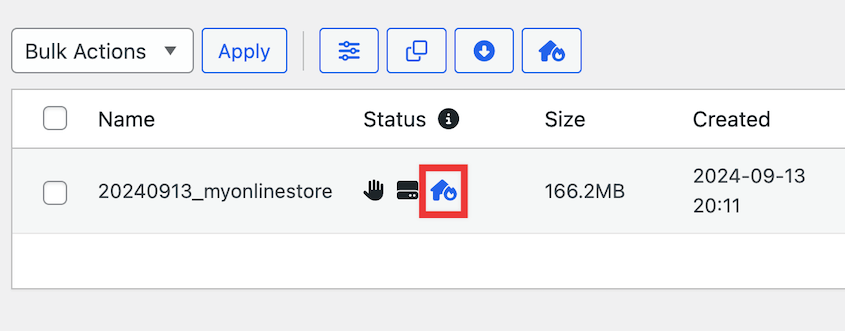
バックアップを簡単に復元できるようにするには、災害復旧ポイントとして設定する必要があります。まず、最新のバックアップを見つけて、災害復旧アイコンをクリックします。
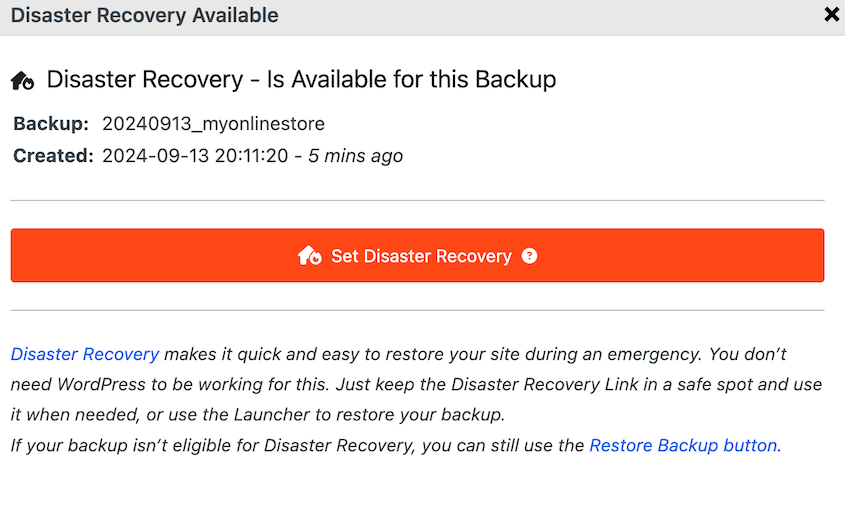
ポップアップウィンドウで、災害復旧を設定を選択します。
これで、サイトを復元するための 2 つのオプションがあります。復旧リンクまたはランチャーファイルです。
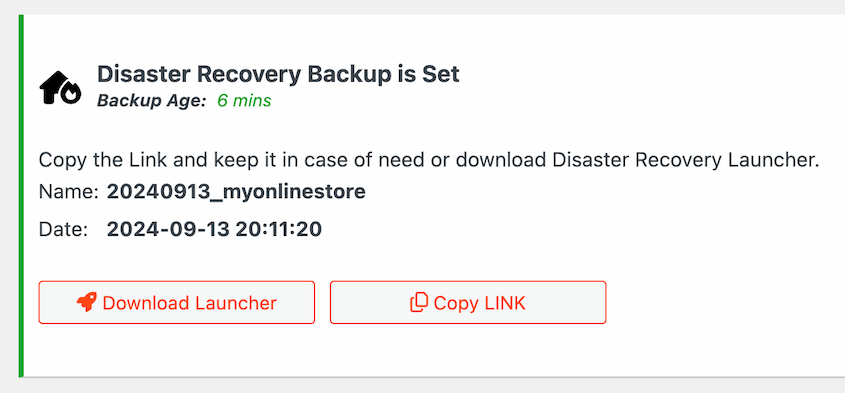
復旧リンクは安全な場所に保存できます。サイトがクラッシュした場合は、新しいブラウザウィンドウに貼り付けるだけです。WordPress にログインできない場合でも、Duplicator の復旧ウィザードが自動的に起動します。
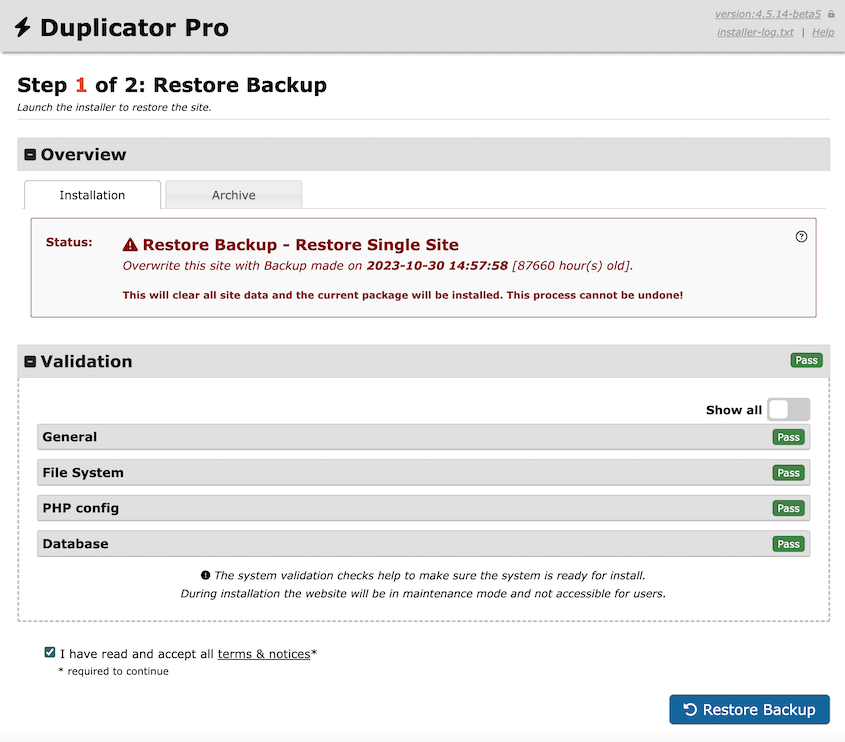
復旧ランチャーも同様に機能します。ファイルをダウンロードし、サイトを復元する必要があるときにいつでも開いてください。
災害復旧を使用すると、数分でサイトを再び稼働させることができます!
Duplicator にはワンクリック復元ボタンもあります。これを使用して、サイトを以前のバックアップに即座にロールバックします。
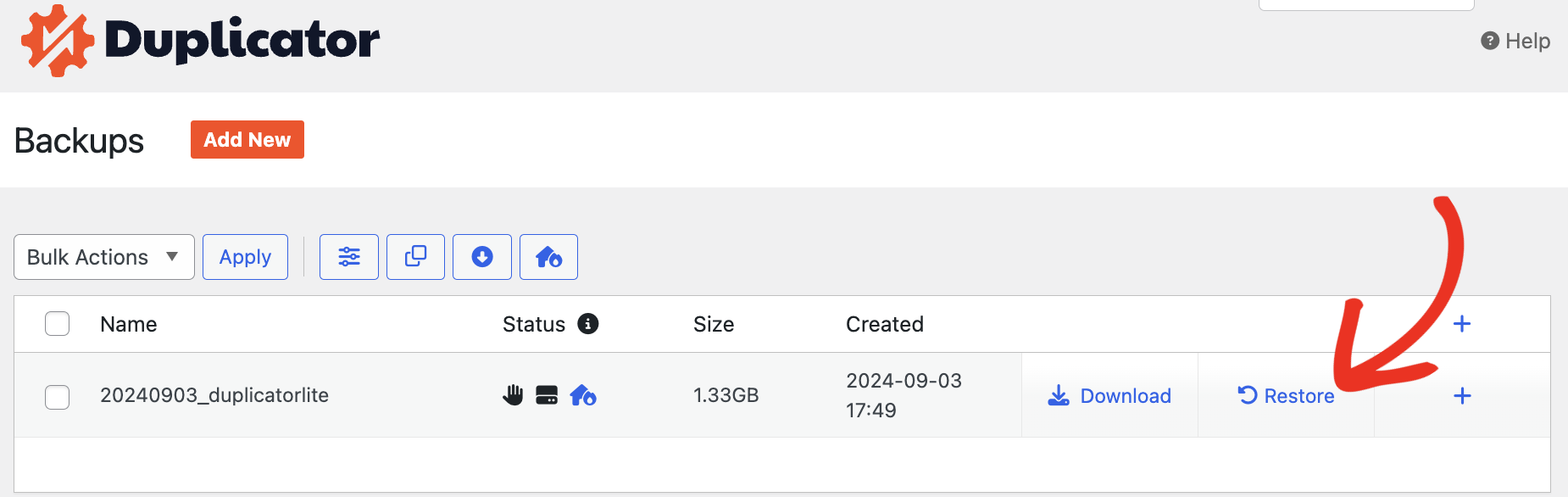
これにより、開発者は新しい機能をテストし、必要に応じてすぐにロールバックできます。
BlogVault の復元オプション
BlogVault でサイトを復元するには、サイトを復元ボタンを見つける必要があります。
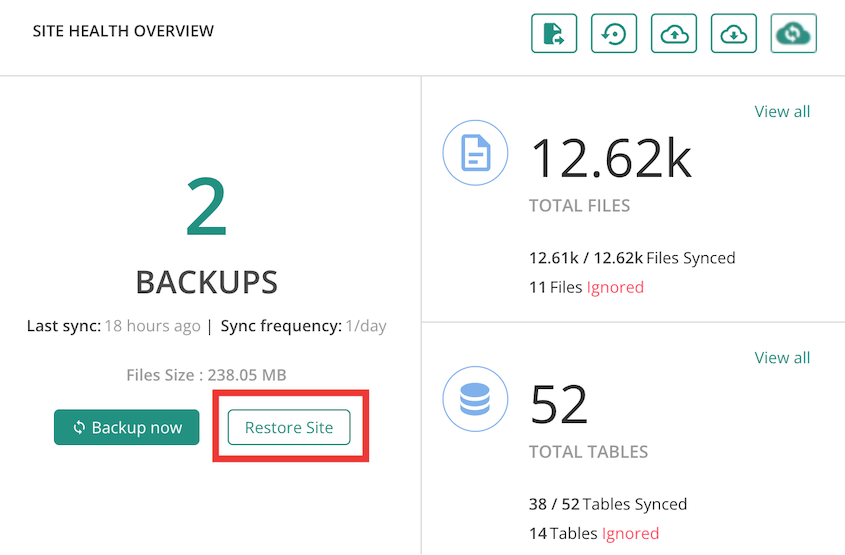
次に、復元したいバックアップを選択します。BlogVault は選択的復元をサポートしているため、復元から特定のファイルやデータベーステーブルを除外することもできます。
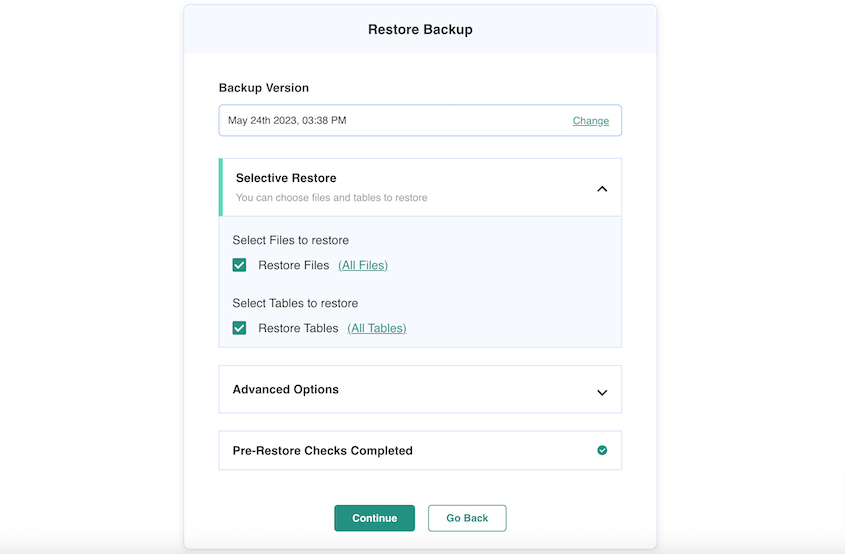
その後、BlogVault はサイトを以前のバージョンに変換します。
Solid Backups の復元オプション
他のバックアッププラグインと同様に、Solid Backups には簡単な復元プロセスがあります。復元バックアップタブに移動するだけです。適切なバックアップを見つけて、復元をクリックします。
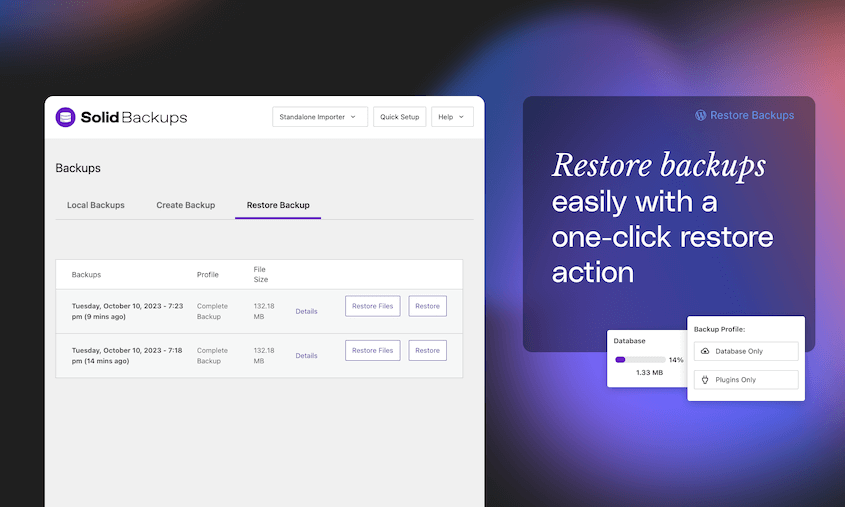
サイト全体を復元する必要がない場合は、個々のファイルを復元できます。必要に応じて、以前のデータベース状態にロールバックすることもできます。
価格設定:BlogVault vs Solid Backups vs Duplicator
あなたの 新しい中小企業ウェブサイト を成功させるためには、最も費用対効果の高いツールを見つけたいと思うでしょう。これらのバックアッププラグインの価値を比較し、価格に見合うかどうかを見てみましょう。
価格比較からの主なポイントは次のとおりです。
- Duplicator は、無料バージョンと年間 $49.50 から始まるプロプランで、最も手頃なソリューションを提供します。
- BlogVault は、無料バージョンがなく、年間 $149 から始まる最も高価なオプションです。
- Solid Backups は年間 $99 で中間に位置しますが、無料の代替手段がありません。
Duplicatorの料金
Duplicator は、ウェブサイトのバックアップ、移行、クローニングの基本的な機能を備えた 無料バージョン を提供しています。このツールを使用してサイトをバックアップしたり、別のサーバーに転送したりできます。
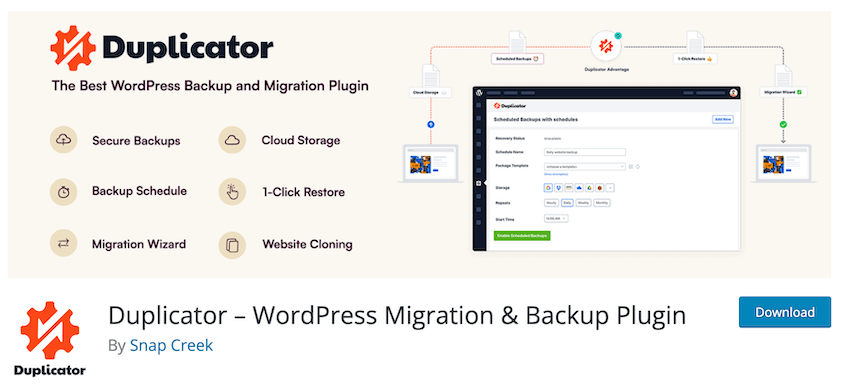
しかし、 Duplicator Pro を使用すると、サイト管理がはるかに簡単になります。自動バックアップ、ドラッグ&ドロップでのサイト移行、クラウドストレージなどが含まれています。
Duplicator Pro の価格は年間わずか $49.50 から始まります。基本的なプランでも、無制限のバックアップと移行にアクセスできます。
BlogVault の価格設定
WordPress.org ディレクトリで BlogVault プラグインを無料で見つけることができますが、これは有料の バックアップサービス です。プラグインをダウンロードしたら、プレミアムプランにサインアップする必要があります。ただし、BlogVault は 7 日間無料で試すことができます。
無料トライアル後、BlogVault は年間 $149 から始まります。毎日の自動バックアップ、ステージングサイト、および視覚的な回帰テストが利用できます。
他のバックアッププラグインとは異なり、BlogVault は特定のユースケースに対応するさまざまなプランを提供しています。たとえば、バックアップの頻度を高くしたい場合があります。この場合、BlogVault は年間 $299 で 1 日に 4 回サイトをバックアップします。
Solid Backups の価格設定
Solid Backups は、月額 $8.25(または年間 $99)から始まるプレミアムバックアッププラグインです。基本的なプランでは、1 つのサイトのみをバックアップし、20GB のストレージスペースを提供します。
または、他のセキュリティプラグインや マルチサイト管理ツール とバンドルされた Solid Backups を購入することもできます。たとえば、Solid Security と Solid Central は Solid Suite バンドルで利用でき、年間 $199 でアップグレードできます。
BlogVault vs Solid Backups vs Duplicator:長所と短所
それでは、BlogVault、Solid Backups、Duplicator の長所と短所を簡単にまとめましょう!
Duplicator
長所:
- バックアップ、移行、クローニング機能
- 使いやすいインターフェース
- 簡単なドラッグ&ドロップ移行
- 重大なエラー後にバックアップを復元するための災害復旧 URL を提供します
- 高速ワンクリック復元
- 大規模なウェブサイトや マルチサイトネットワーク のバックアップと移行が可能
- 自動バックアップスケジュール
- 多くのクラウドストレージ連携
- 無料バージョンあり
- 手頃な価格のプレミアムバージョン
- タイムアウトやその他のバックアップ更新に関する電子メール通知
- 毎日、毎週、または毎月の電子メール概要
欠点:
- マルウェアスキャンやその他のセキュリティスキャン機能が組み込まれていない
BlogVault
長所:
- 効率向上のための増分バックアップ
- 7日間の無料トライアル
- 稼働監視
- ビジュアルリグレッションテスト
- マルウェア除去やWebアプリケーションファイアウォール(WAF)などのWordPressセキュリティ機能
- オフサイトダッシュボード
欠点:
- バックアッププロセスは、特に大規模なウェブサイトの場合、時間がかかることがあります
- ライブチャットサポートなし
- 無料バージョンなし
- クラウドストレージオプションが限定的
Solid Backups
長所:
- バックアップ、移行、クローン作成ツール
- 個別のファイル復元オプション
- 簡単なステージングとデプロイ
- データベースロールバック
- Solid BackupsをSolid Security(旧iThemes Security Pro)などの他のツールとバンドルできる
欠点:
- 高価なプラン
- 無料版または無料トライアル期間なし
BlogVault vs Solid Backups vs Duplicator:どれを選ぶべきか?
BlogVault、Solid Backups、Duplicatorの3つのプラグインはすべて価値のある機能を提供していますが、WordPressのバックアップと移行のニーズにおいては、Duplicatorが最良の選択肢として浮上します。そのユーザーフレンドリーなインターフェース、効率的なバックアップ作成、移行機能は、初心者と経験豊富なユーザーの両方にとって優れた選択肢となります。
そして一番良いところは?高価なサブスクリプションなしでこれらのすべての機能を入手できます。BlogVaultやSolid Backupsとは異なり、Duplicatorはプラグインの無料版を完全に提供しています。アップグレードが必要な場合でも、手頃な価格の支払いオプションがあります。
よくある質問(FAQ)
WordPressの最高のバックアッププラグインは何ですか?
WordPressの最高のバックアッププラグインは、包括的なバックアップ、移行、クローン機能によりDuplicator Proです。その他の代替案としては、BlogVault、Solid Backups(BackupBuddy)、UpdraftPlus、Jetpack Backup(VaultPress)、BackWPupがあります。
WordPressサイトをバックアップする最良の無料の方法は何ですか?
WordPressサイトをバックアップする最良の無料の方法は、Duplicator Liteをダウンロードすることです。この無料プラグインを使用すると、サイト全体をジップバックアップアーカイブにバックアップできます。その後、このファイルをコンピューターにダウンロードして、ウェブサイトで何か問題が発生した場合に利用できるようにします。
自動バックアップに最適なプラグインはどれですか?
自動バックアップに最適なプラグインはDuplicator Proです。サイトのバックアップを1時間ごと、毎日、毎週、または毎月実行するようにスケジュールできます。さらに、バックアップの開始時刻をカスタマイズしたり、好みのクラウドストレージの場所を指定したりすることもできます。
プラグインなしでWordPressデータベースをバックアップするにはどうすればよいですか?
phpMyAdminでエクスポートすることにより、WordPressデータベースをバックアップできます。これにより、データベースがSQLファイルにダウンロードされます。より簡単な方法が必要な場合は、Duplicator Proを使用してデータベースバックアップを作成することを検討してください。
WordPressの最適な無料バックアップとは?
無料のDuplicator Liteプラグインを使用してWordPressサイトを無料でバックアップできます。このツールを使用すると、ウェブサイト全体をバックアップ、クローン、さらには移行することもできます。バックアップを作成するには、新しいバックアップを作成してダウンロードするだけです。
UpdraftPlusとBlogVaultの違いは何ですか?
BlogVaultは、増分バックアップ、セキュアなクラウドバックアップ、ワンクリックステージング、セキュリティ監視をサポートするバックアップサービスです。UpdraftPlusは、簡単なバックアップ、復元、移行機能を備えたWordPressバックアッププラグインです。RackspaceやAmazon S3などの場所にバックアップを保存できる、より多くのサードパーティ製クラウドサービスをサポートしています。
UpdraftPlusはそれだけの価値がありますか?
UpdraftPlusは、もう一つのWordPressバックアップおよび移行プラグインです。初心者向けのインターフェースと柔軟なアドオンを備えていますが、Duplicatorのような類似オプションよりも高価です。さらに、復元機能はWordPress管理ダッシュボードからしかアクセスできません。
完全なレビューについては、UpdraftPlusとDuplicatorの比較をご覧ください!
WordPressマルチサイトに最適なバックアップは何ですか?
WordPressマルチサイトに最適なバックアッププラグインはDuplicator Proです。ネットワーク全体、または個々のサブサイトをバックアップするために使用できます。Duplicatorは自動バックアップとマルチサイト移行もサポートしています。
結論
BlogVaultとSolid Backupsにはそれぞれの利点がありますが、Duplicatorは手頃な価格、機能性、安心感の完璧な組み合わせを提供します。無料バージョンでも基本的な保護が得られ、プロバージョンは?まるでプロのデータ復旧チームをポケットに入れているようなものです。
あなたのウェブサイトは、数え切れないほどの努力の結晶です。バックアップをケチって将来を危険にさらさないでください。小規模なブログでも複雑なeコマースサイトでも、信頼性の高いバックアップソリューションは不可欠です。
手頃な価格でありながら機能満載のWordPressバックアッププラグインを使い始める準備はできましたか?今すぐDuplicator Proをダウンロードしてください!
せっかくなので、これらの他のWordPressガイドも気に入ると思います。
- 最高のWordPressバックアッププラグイン9選
- WordPressデータベースのバックアップ方法
- クラウドWordPressバックアップの作成方法
- ストレスフリーなデータストレージのための最高の自動バックアップサービス
- Duplicatorレビュー:最高のバックアップおよび移行プラグインですか?
- 迅速なデータ復旧のための8つの最高のWordPress復元プラグイン




