


How to Back Up a WooCommerce Database (3 Easy Methods for 2026)
 Joella Dunn
Joella Dunn
Joella Dunn
 John Turner
John Turner
John Turner
It happens when you least expect it.
Your product data vanishes. Customer information disappears. Years of work evaporate in seconds.
This is an unfortunate reality many store owners face after server crashes, failed updates, or security breaches. Without proper backups, recovery becomes nearly impossible.
Your WooCommerce database is the lifeblood of your business. It contains every product, customer detail, and transaction that keeps your store functioning.
Regular database backups provide the safety net every store needs, allowing you to restore operations quickly if disaster strikes.
I’ll show you how to back up your WooCommerce database. You’ll learn how to create backups and how to automate the process so your store remains protected with minimal effort.
Here are the key takeaways:
- Use backup plugins like Duplicator Pro for automated, cloud-integrated database protection
- Manual phpMyAdmin backups require database credentials and regular file downloads
- Web host backup services offer simple one-click database protection through control panels
- Automated scheduling prevents data loss from forgotten manual backups
- Disaster recovery plans ensure quick site restoration even when locked out of WordPress
Table of Contents
Why Back Up Your WooCommerce Database?
A database backup is your WooCommerce store’s safety net if anything goes wrong.
You never know when you might get hacked or an error destroys your data. If this happens, you can restore a clean backup of your live site to instantly get your store back online and avoid permanent data loss.
The longer your WooCommerce store is offline, the more sales you lose. Having a backup means you can get your site back up and running quickly, minimizing downtime.
Want to try out a new plugin but worry it might mess up your store? With a backup, you have the freedom to experiment, knowing you can restore your store if things go awry.
How to Back Up Your WooCommerce Database
By now, you’ll probably want to back up your WooCommerce database, but you might not know how to do it. I’ll explain three different methods you could use to make this happen.
- Backup Plugin: Automated cloud backups with one-click restore using Duplicator Pro
- Manual Backup: Direct database export via phpMyAdmin plus file manager downloads
- Web Host Backup: Built-in hosting provider backup services through cPanel or similar control panels
Method 1: Use a WooCommerce Backup Plugin
Backups are only effective if you create them consistently. If you forget to back up your site, you won’t have a copy of your WooCommerce database to restore.
For this reason, I recommend using a backup plugin instead of the manual route. Options like Duplicator Pro allow you to automate backups so you never have to worry about losing customer or product data.
Step 1: Install Duplicator Pro
Duplicator Pro is a backup and migration plugin that seamlessly integrates with WooCommerce. You can use this tool to create WooCommerce backups and even move your entire store when you need to.
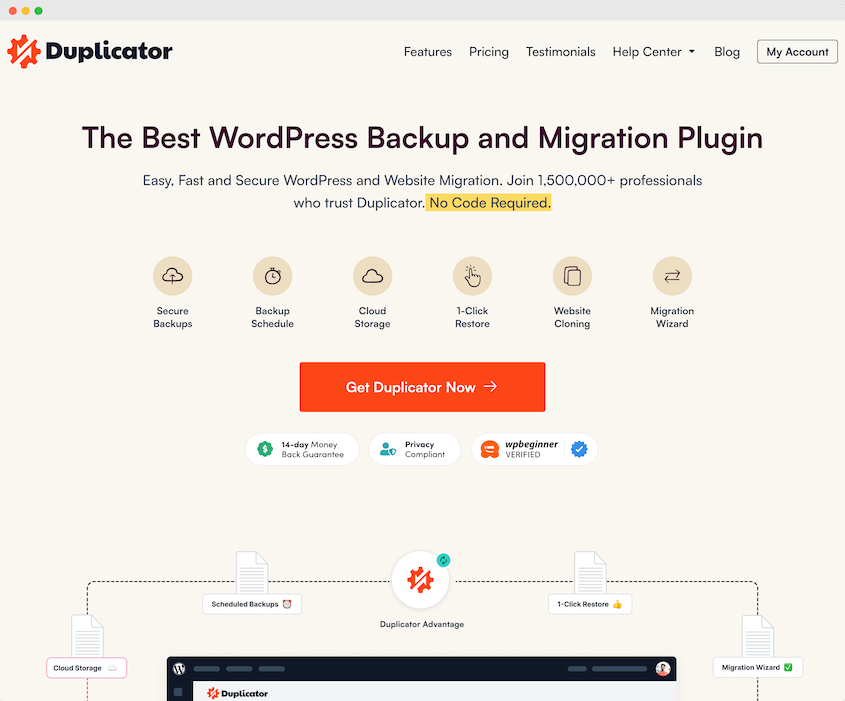
Duplicator supports many cloud storage providers including Wasabi, Amazon S3, Google Cloud, and in-house Duplicator Cloud. It also gives you easy restore options to quickly recover your store after issues.
With the free version, you can easily back up your WordPress database. However, consider upgrading to Duplicator Pro to access secure cloud storage, one-click restores, and other helpful features.
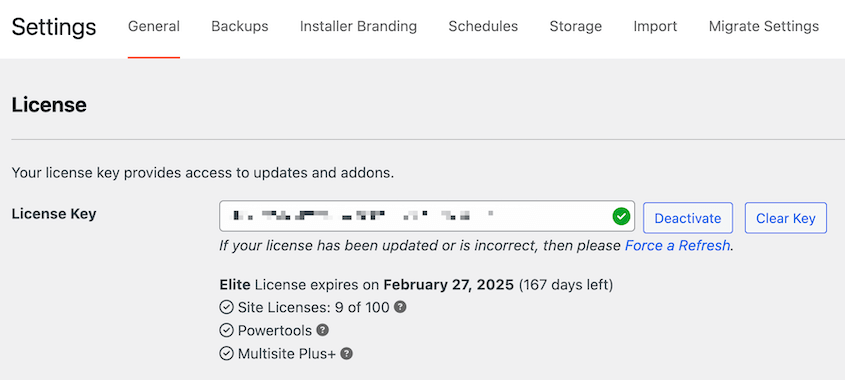
After purchasing a subscription, install and activate Duplicator in WordPress. To start using the premium version, you’ll need to activate your license key in Duplicator Pro » Settings » General.
Step 2: Create a Database Backup
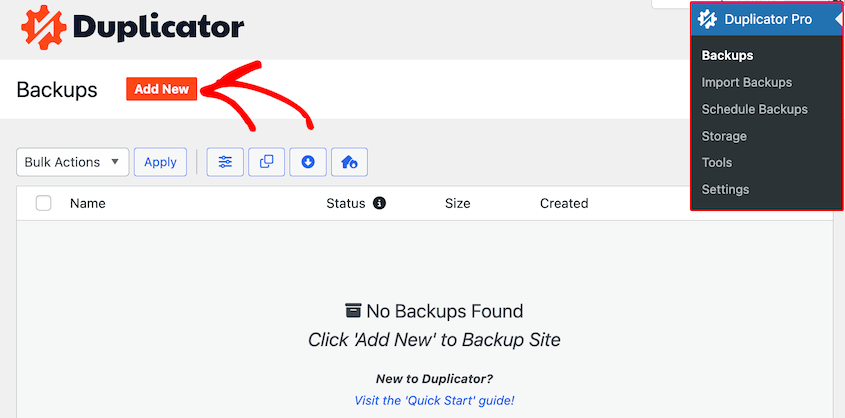
Even if you’re new to WordPress, Duplicator makes it extremely simple to create backups of your online store. To get started, find Duplicator Pro » Backups » Add New.
Name the backup with dynamic tags. If you want to send your backup to the cloud, choose a cloud storage location.
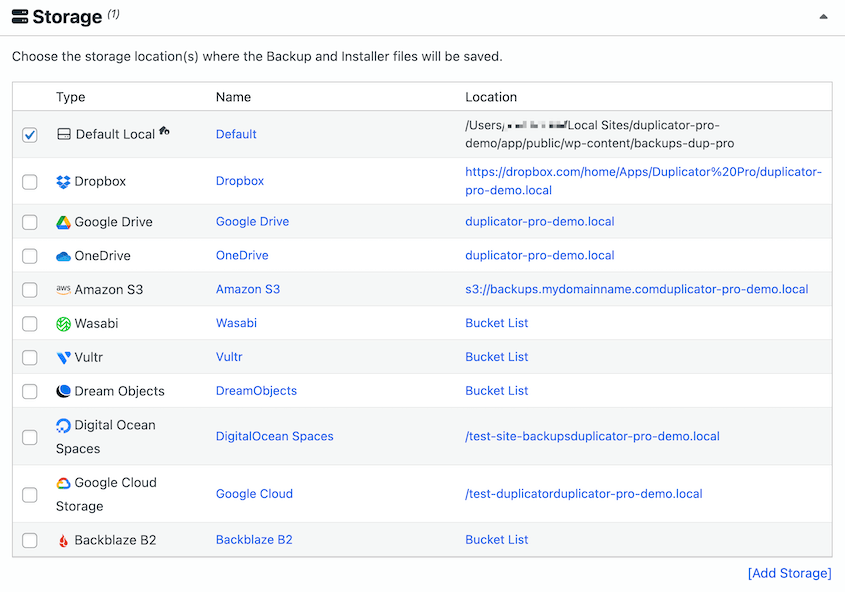
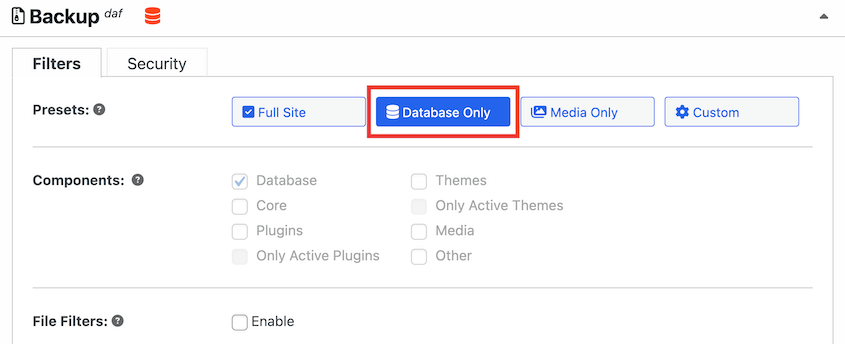
To limit the backup to just database files, click on the Database Only preset.
Hit Next. Duplicator will scan your WooCommerce store and alert you of any issues.
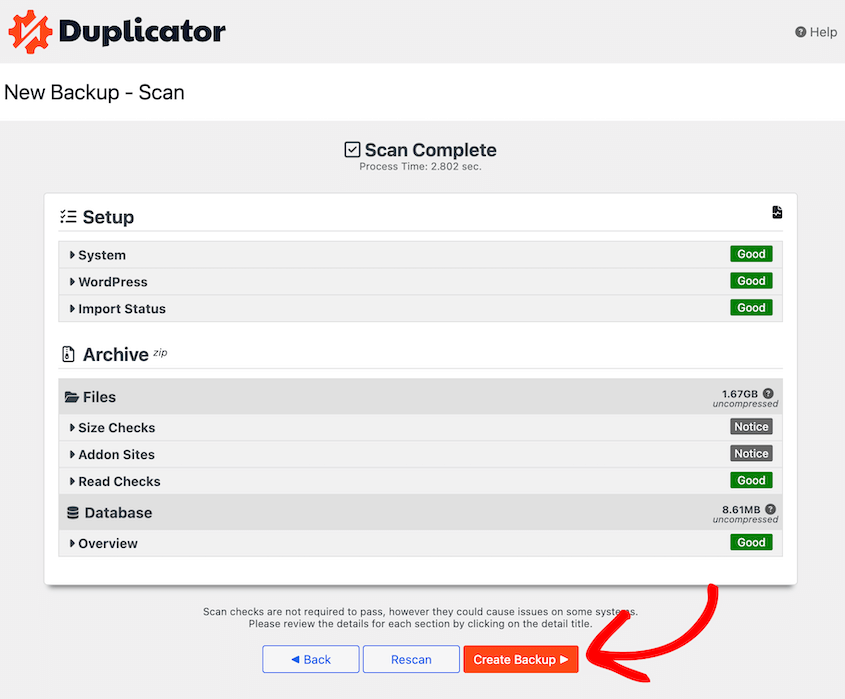
Click on Create Backup.
Step 3: Set Up Automatic Backups
By now, you’ll have a real-time backup of your WooCommerce database. However, you’ll get new orders and customers, so you’ll have to consistently back up your site.
The next step is to set up automatic backups. This ensures you always have a recent backup, preserving your online store’s functionality.
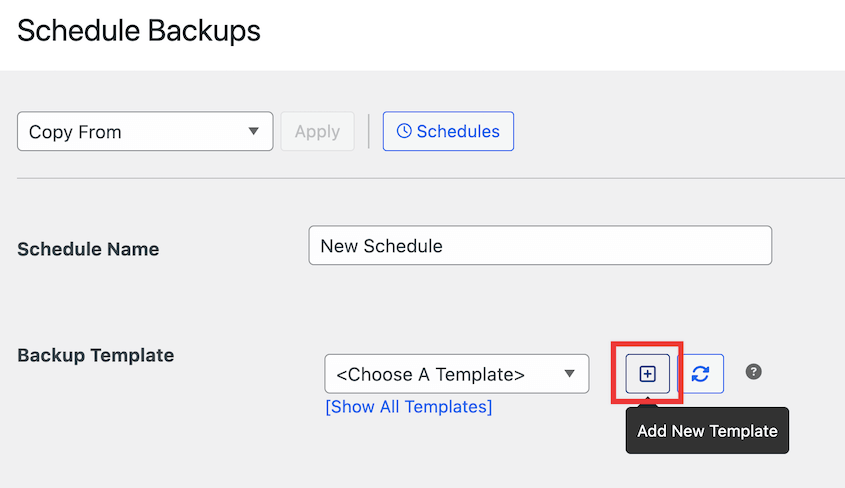
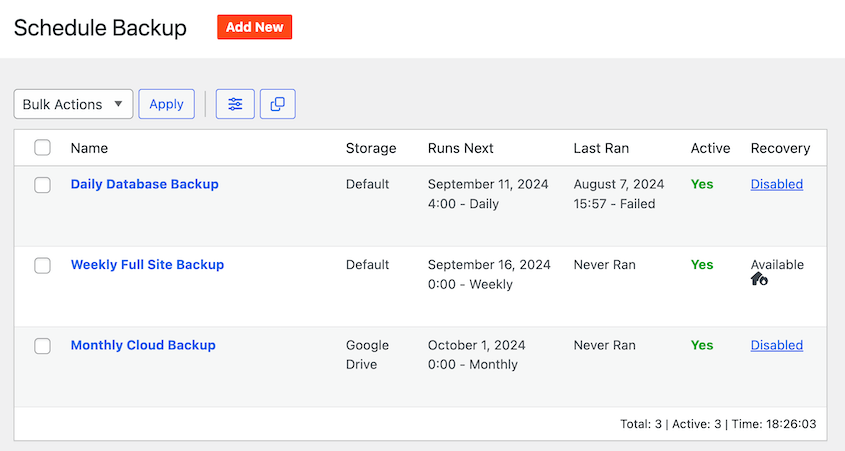
Find Duplicator’s Schedule Backups page. Then, create a new schedule.
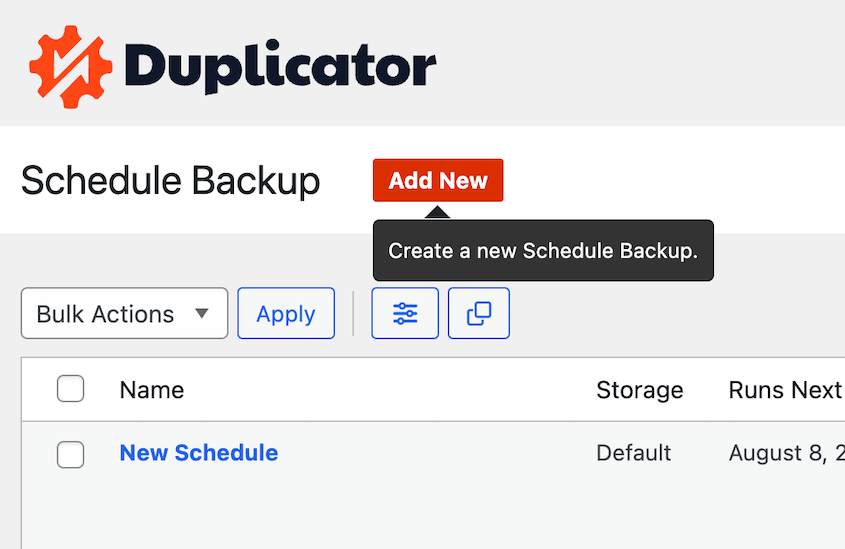
Name the backup schedule. To customize what data is included in the backup, add a new backup template.
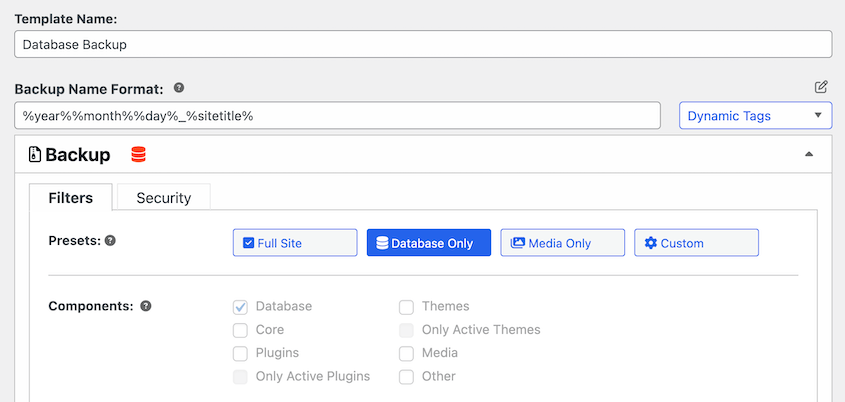
You can customize this the same way you created a backup earlier. If you only want to protect the database, build a database-only template.
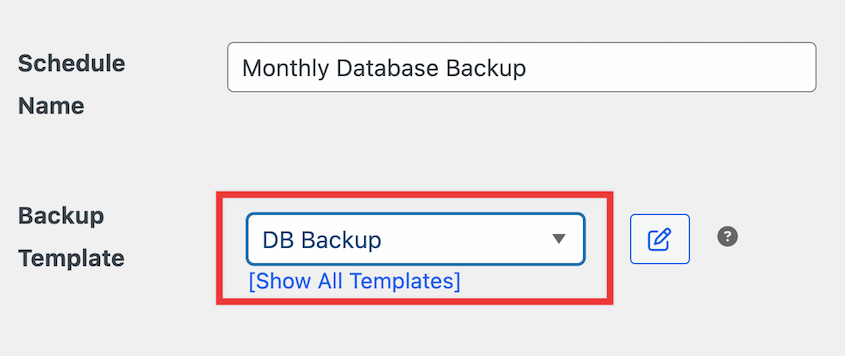
Go back to the new schedule screen and select the new backup template.
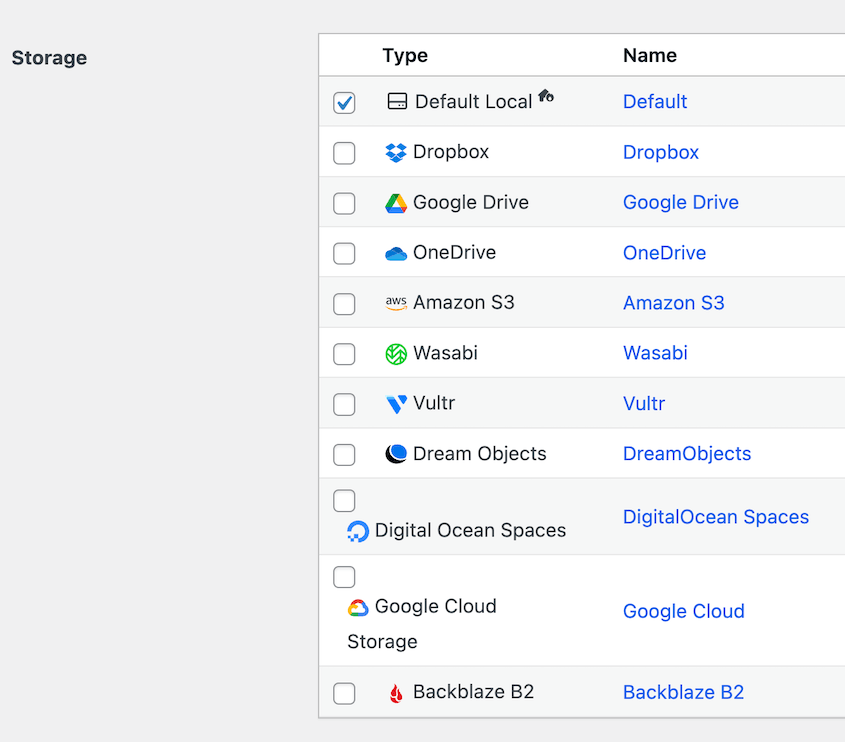
Next, decide where you want to store backups. You’ll see a local storage option, as well as any cloud services you’ve connected.
Duplicator allows you to set automatic monthly, weekly, hourly, or daily backups. For each of these options, you’ll have advanced settings like specific days of the month or week.

Finally, enable the schedule and save it. Your WooCommerce database is now protected!
You can create as many schedules as you need to. You might want to back up the database more frequently, but make sure you have full backups as well.
Step 4: Have a Disaster Recovery Plan
Backups are great to have, but you’ll need to know how to restore them. Fortunately, Duplicator has you covered.
Whenever you see an error on your site, go to the most recent backup. Hit the Restore button.
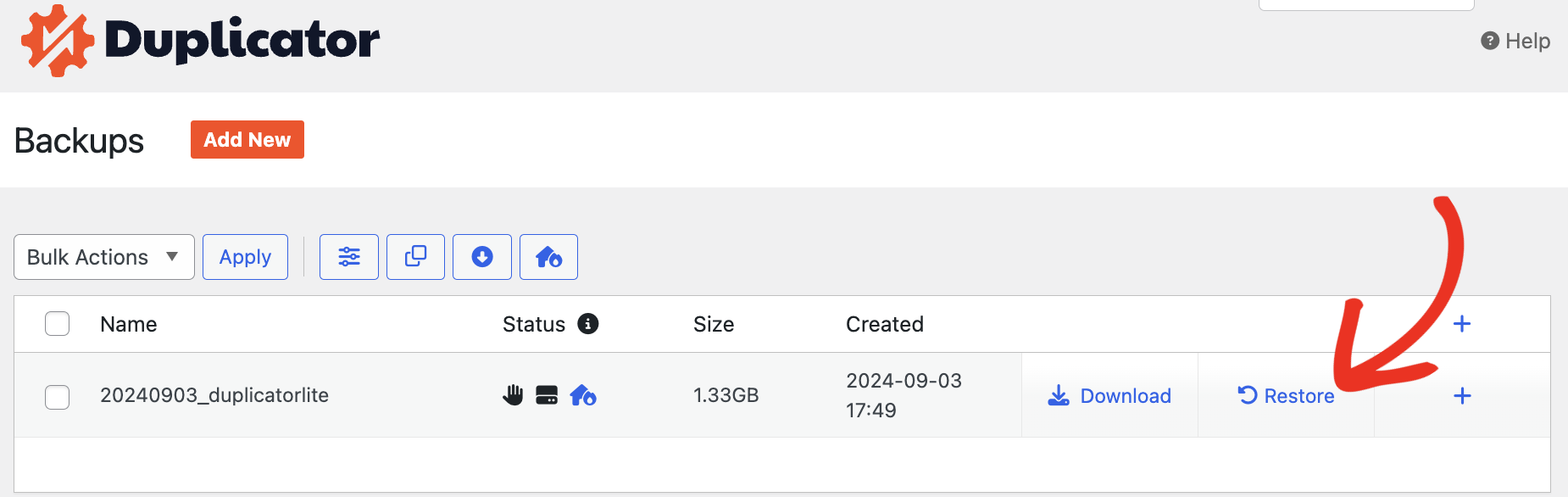
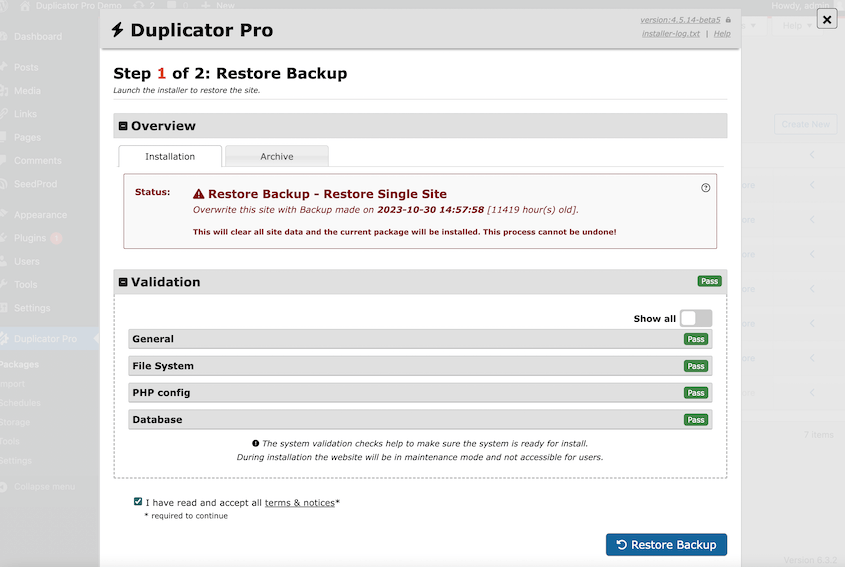
This opens a pop-up, allowing you to instantly roll back to the previous version.
You might face a bigger issue that locks you out of your WordPress dashboard. When this happens, you won’t be able to access the one-click restore feature.
To prepare for the worst, be sure to set up disaster recovery. This allows you to restore your site without logging into WordPress.
Find your latest full-site backup. Click on the disaster recovery icon next to it.
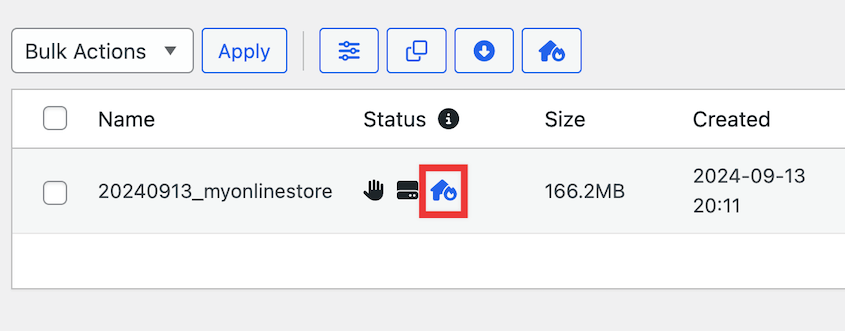
Once you set disaster recovery, copy the recovery link or download the recovery launcher file.
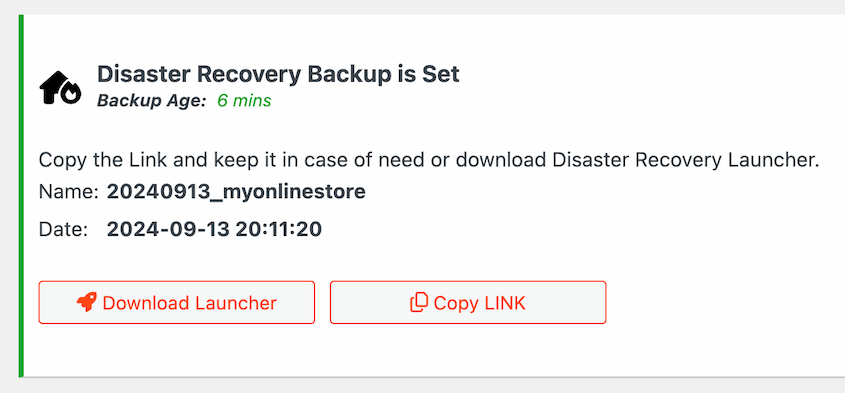
If disaster strikes, all you need to do is paste the recovery link into a new browser window. Or, simply open the recovery file.
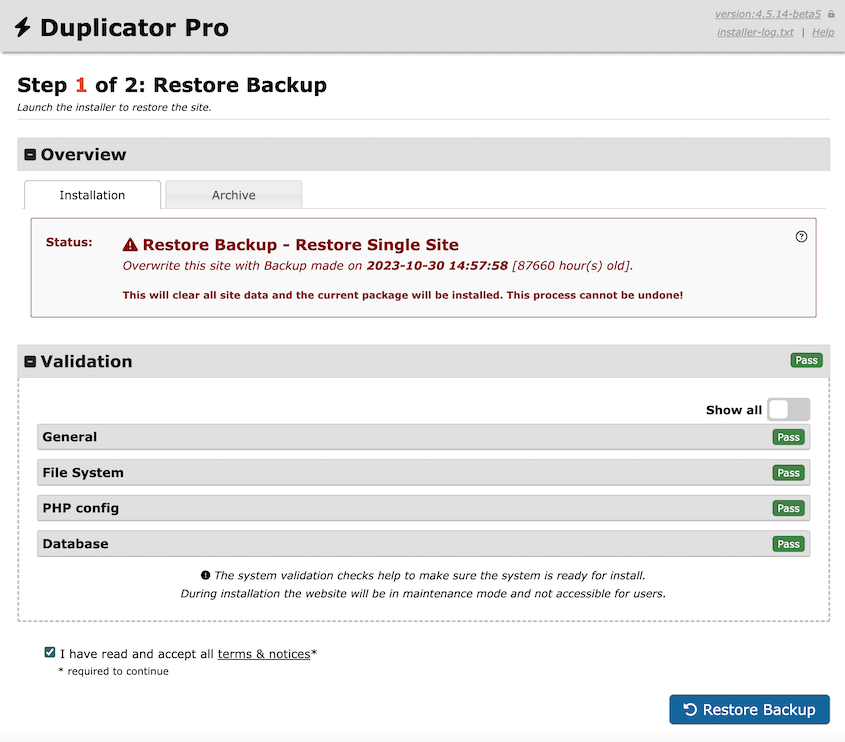
This immediately restores your site!
Method 2: Manually Back Up Your Database
If you want a more hands-on approach, you can create a manual backup. However, this can be more time-consuming and difficult to configure.
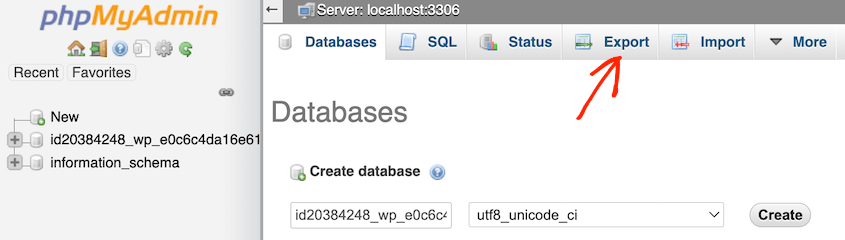
To back up your database, sign into a database manager like phpMyAdmin. Click on your database name.
If you’re not sure of your database credentials, this information is in your wp-config.php file.
Open the Export tab.
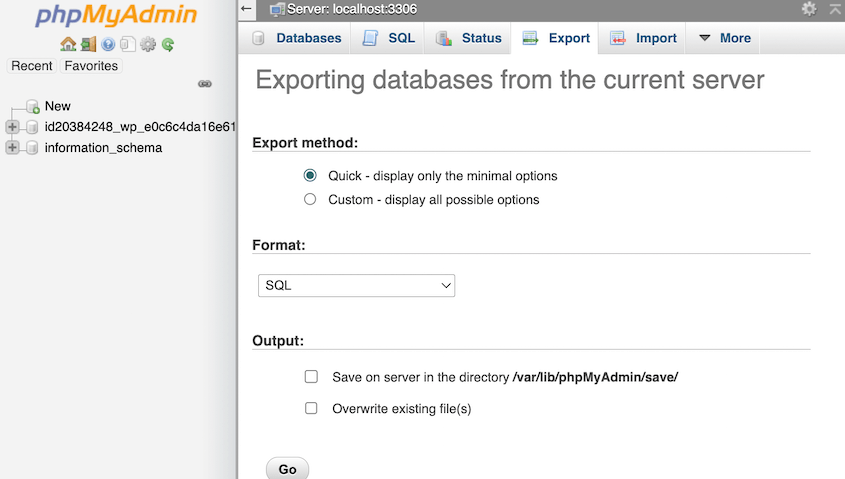
Choose SQL as the file format. Hit Go to download your database.
To fully restore your WordPress site after a site-wide error, you’ll also need a copy of your files. To download your WooCommerce files, sign into a file manager like cPanel or an FTP client like FileZilla.
Find your public_html directory and select all of the files in it. Next, download them.
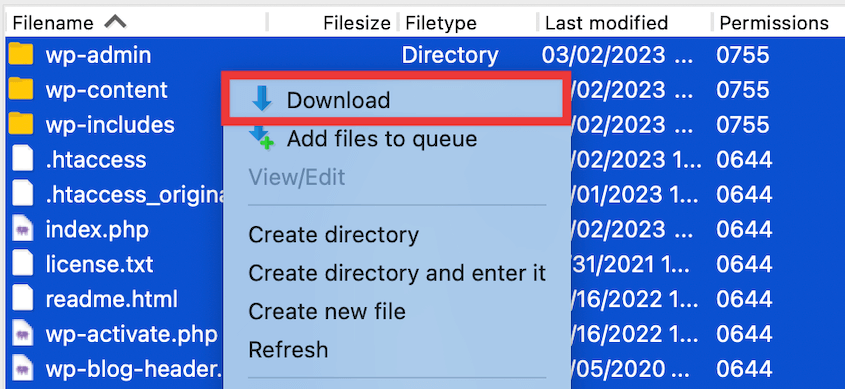
This will download your WordPress files to your computer. Compress them into a zip file and save them in a safe place.
Method 3: Use Your Web Host to Back Up Your Database
Many web hosting providers offer backup services, which include database backups.
Log into your hosting provider’s account. Look for the control panel—this could be cPanel, Plesk, or something similar, depending on your hosting provider. For this tutorial, I’ll be using cPanel.
Here, find the Backup option. This is usually located under the files section. But, this may vary depending on your host’s setup.
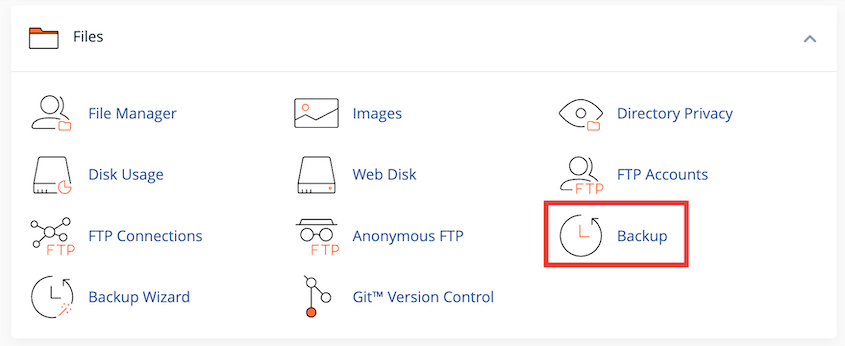
You’ll see several backup choices, including a database backup. For cPanel, click on your database name under Download a MySQL Database Backup.
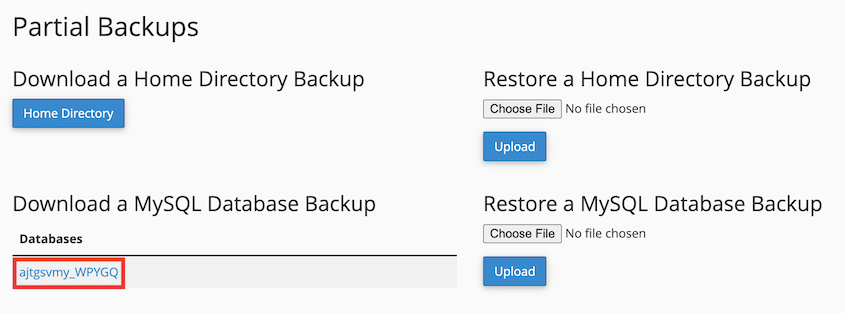
Now, your WooCommerce database is safe and sound. If you’re unsure about any steps, don’t hesitate to reach out to your web host’s customer support.
FAQs About Backing Up Your WooCommerce Database
How do I back up my WooCommerce store?
You can back up your WooCommerce site with Duplicator. Include everything in your e-commerce store or limit it to just a database-only backup. After the backup is created, download it.
Alternatives: Other backup/restore plugins include UpdraftPlus, BlogVault, BackupBuddy, and Jetpack.
How do I export all data from WooCommerce?
To export all data from WooCommerce, install the Duplicator Pro plugin. Then, create a full backup of your online store. You can use this file to migrate your WooCommerce store to a new host, domain, or server.

If you want to only export WooCommerce products or orders, you could use the Import Export Suite, which is a WooCommerce add-on. Another effective tool is WP All Import.
How do I migrate my WooCommerce website?
If you need to migrate your WooCommerce website, Duplicator Pro is the best tool. You’ll simply need to create a complete backup of your online store. Then, upload this backup to the new location by dragging and dropping it into the Import Backups page.

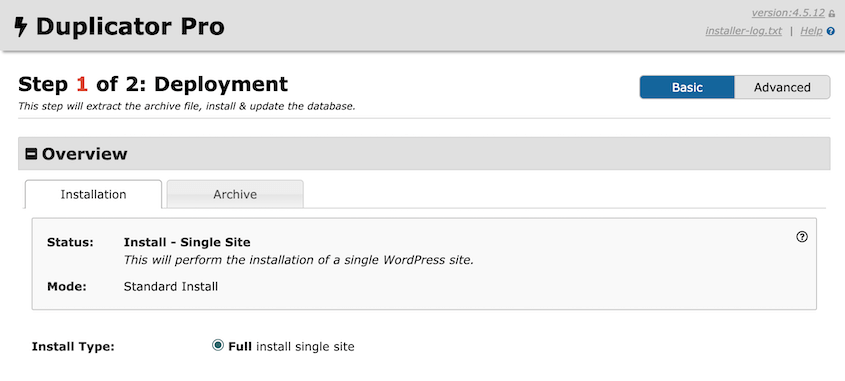
If you don’t already have WordPress installed, upload your backup archive and installer files to the new server. Launch the Duplicator installer by pasting this link into a new web browser: https://your-domain/installer.php
Build a WooCommerce Safety Net Today
By now, your WooCommerce database will be backed up, and your store will be protected against the unexpected.
Whether you chose Duplicator Pro for automated cloud backups, phpMyAdmin for a hands-on approach, or your web host’s built-in tools, the important thing is that you took action.
The worst time to think about backups is after something goes wrong. A single server crash, failed update, or security breach can wipe out years of products, customer data, and order history in seconds. With a solid backup strategy in place, you can restore your store quickly and get back to running your business.
Are you ready to protect your customer and order data? Download Duplicator Pro today to set up automatic database backups and restore them whenever you need to!
While you’re here, you may also like these WordPress tutorials:
- 9 Best WordPress Backup Plugins
- How to Create a WordPress Staging Site (For Safe Testing)
- Ultimate Guide to WordPress Backup Files: What You Need to Know
- How to Protect Your Website From Hackers (Ultimate Security Guide)
- 31 Best WooCommerce Plugins to Improve Your Online Store
- Proven WooCommerce SEO Strategies to Skyrocket Your Store’s Rankings




