


Creación de una copia perfecta: Cómo clonar un sitio de WordPress de forma segura
 Joella Dunn
Joella Dunn
Joella Dunn
 John Turner
John Turner
John Turner
Clonar tu sitio de WordPress crea un duplicado operativo en un servidor diferente, manteniendo todas sus características pero oculto a la vista del público.
Es como tener una versión encubierta, lista para pruebas o cambios sin afectar el sitio en vivo.
Podrías configurar una copia clonada de tu sitio en un servidor al que quieras migrar. Tendrás tiempo para tener todo configurado en la nueva ubicación mientras tu sitio antiguo sigue activo.
También recomendaría usar la clonación para staging y desarrollo. Las agencias de diseño la usan para trabajar en los sitios de los clientes sin afectar a sus visitantes en vivo.
Podrías pensar que clonar es complejo, ¡pero puedes hacerlo en solo unos minutos!
Aquí están los puntos clave:
- Clonar crea un duplicado completamente funcional de tu sitio de WordPress que opera independientemente de tu sitio en vivo, perfecto para probar cambios sin riesgo.
- Clonar es diferente de hacer una copia de seguridad. Los clones están activos y son funcionales, mientras que las copias de seguridad son copias inactivas para restauración.
- Los casos de uso comunes incluyen: entornos de staging para pruebas seguras, migración a nuevos hosts sin tiempo de inactividad y creación de copias de desarrollo para agencias web.
- Usa el plugin Duplicator (más de 1.5 millones de instalaciones activas) para automatizar todo el proceso de clonación y evitar errores manuales.
- El proceso de 5 pasos solo toma minutos: instala Duplicator, crea una copia de seguridad, sube los archivos a tu nuevo servidor, crea una base de datos y ejecuta el instalador.
Tabla de Contenidos
Resumen rápido: Cómo clonar un sitio de WordPress
¿Cuándo necesitas clonar un sitio de WordPress?
Clonar implica guardar una copia de tu sitio web en una nueva ubicación. Esta es una copia exacta que es completamente operativa.
Aunque esto pueda parecer similar a una copia de seguridad, hay una diferencia importante.
Cuando haces una copia de seguridad de tu sitio, guardas una copia inactiva e inoperativa. Si accidentalmente rompes algo en tu sitio en vivo, puedes restaurar esta copia de seguridad guardada.
Un clon es un duplicado exacto del sitio de WordPress, excepto que es independiente y completamente funcional. Puedes cambiar el clon del sitio sin afectar tu sitio web en vivo.
En un sitio de staging clonado, puedes realizar un rediseño completo, instalar actualizaciones, añadir nuevo software y editar archivos sin romper tu sitio en vivo.
Si te estás mudando a un nuevo host web o dominio, puedes clonar el sitio original y configurar la versión clonada en el nuevo servidor. Esto previene cualquier tiempo de inactividad que pudiera dañar tu Experiencia de Usuario (UX).
Los clones de sitios web también pueden ser útiles para los desarrolladores web.
En lugar de trabajar en el sitio en vivo, puedes clonar el sitio web de tu cliente a un subdominio. Usando este entorno de staging, podrás hacer cambios de forma segura.
Cómo clonar un sitio de WordPress
Como principiante, clonar puede parecer un proceso difícil. ¡No te preocupes, te guiaré en cada paso del camino!
Así es como puedes clonar tu sitio de WordPress:
- Descarga un plugin de clonación: Clonar tu sitio manualmente es difícil y propenso a errores. Para una experiencia más fluida, usa un plugin como Duplicator.
- Crear una copia de seguridad: Empaqueta tu sitio en un único archivo de copia de seguridad, fácil de mover.
- Mover tus archivos: Sube tus archivos de copia de seguridad al nuevo servidor.
- Configurar la base de datos: Crea una nueva base de datos y un nuevo usuario de base de datos para tu sitio clonado.
- Ejecutar la instalación: Inicia el instalador de Duplicator para finalizar la configuración de tus archivos originales en el nuevo sitio.
Paso 1: Descarga un plugin de clonación
Para empezar a clonar tu sitio web, te recomiendo instalar Duplicator. Con más de 1,5 millones de instalaciones activas, este plugin es la opción más popular para clonar WordPress.
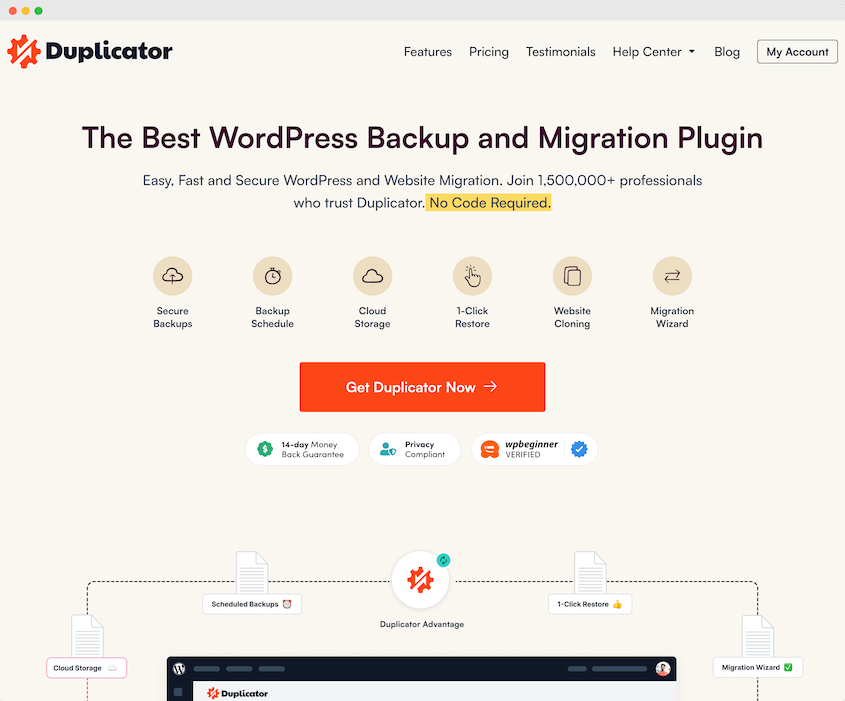
Con Duplicator, puedes copiar tu sitio de WordPress a un dominio, hosting web o entorno local diferente.
No tendrás que descargar ni subir datos manualmente. Además, no sufrirás ninguna interrupción del servicio.
Primero, elige tu licencia preferida para Duplicator Pro. Aunque puedes descargar una versión gratuita, las suscripciones premium incluyen migraciones de arrastrar y soltar, almacenamiento en la nube, copias de seguridad automáticas y mucho más.
Una vez que descargues Duplicator, instálalo en tu panel de WordPress.
Durante el proceso de compra, recibirás una clave de licencia para Duplicator Pro. Antes de empezar a usar el plugin, ve a Duplicator Pro » Ajustes » General.
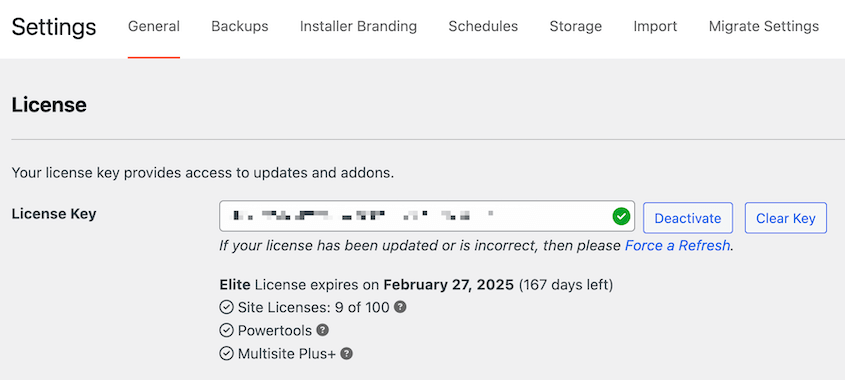
Pega tu clave en los ajustes de Clave de licencia.
Paso 2: Crear una copia de seguridad
Después de activar Duplicator, necesitarás crear una copia de seguridad. Esto agrupará tus plugins, temas, base de datos y otros archivos de WordPress.
Una vez que compiles todos tus datos en un único archivo zip, podrás migrarlo fácilmente a otra ubicación.
Primero, busca Duplicator » Copias de seguridad » Añadir nueva.
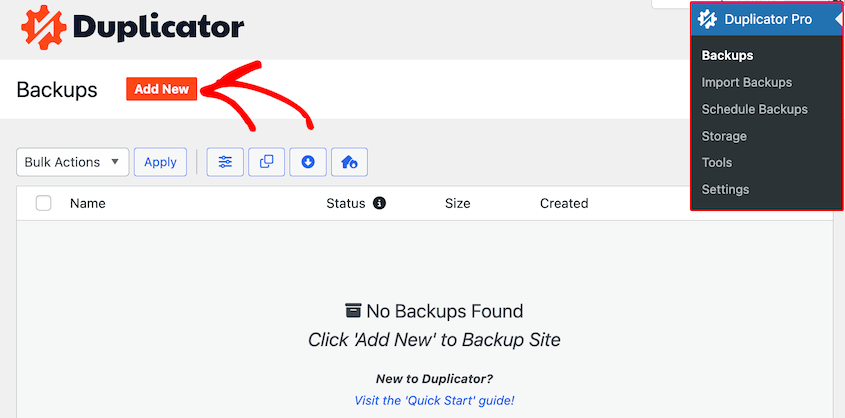
En la siguiente página, ponle un nombre a la copia de seguridad. Luego, elige una ubicación de almacenamiento.
Con Duplicator Pro, puedes conectar proveedores de almacenamiento en la nube como:
- Duplicator Cloud
- Google Drive
- Microsoft OneDrive
- Dropbox
- Amazon S3
- Wasabi
- Google Cloud
- DreamObjects
- Vultr
- DigitalOcean Spaces
- Cloudflare R2
- Backblaze B2
- FTP
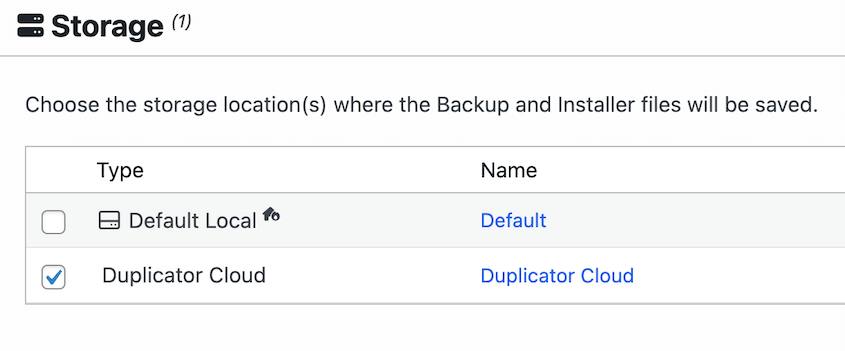
En la sección Copia de seguridad, elige qué componentes del sitio quieres incluir. Para una copia completamente clonada, selecciona Sitio completo.

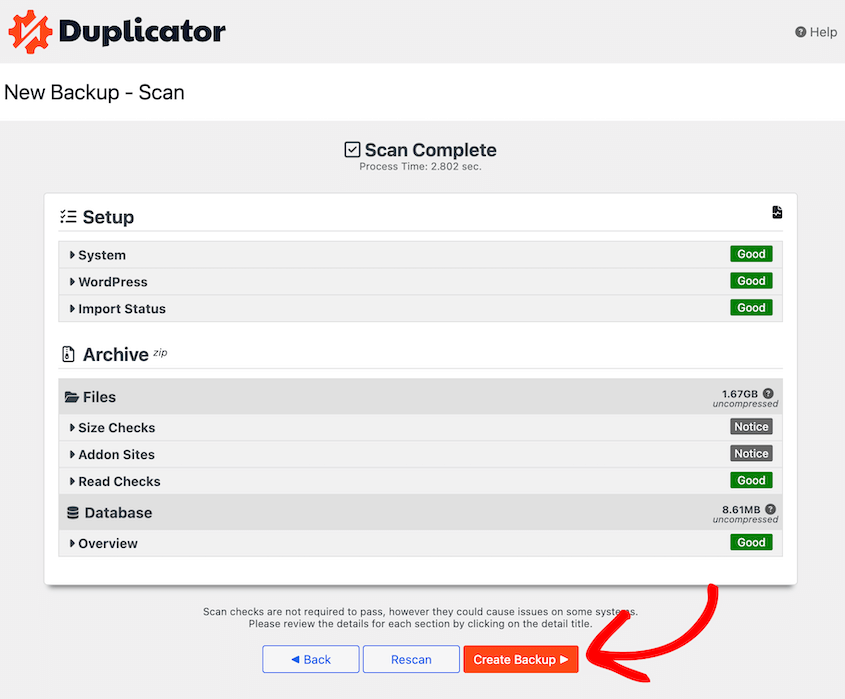
Después de hacer clic en Siguiente, Duplicator escaneará tu sitio web. Incluso si ves un aviso, puedes continuar con el proceso de creación. Pulsa Crear copia de seguridad.
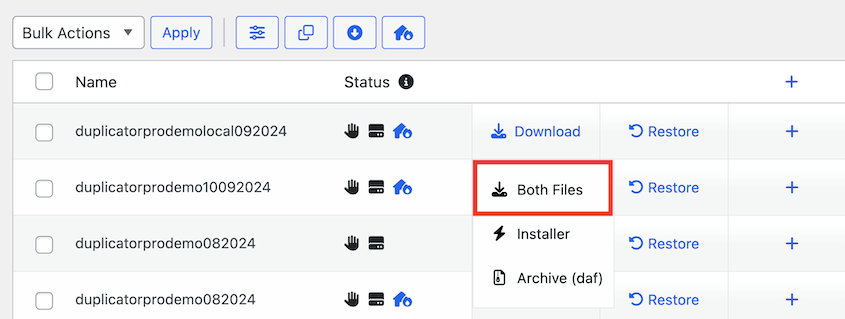
En la página de Copias de seguridad, verás un archivo Instalador y un archivo zip Archivo. Antes de pasar al siguiente paso, descarga ambos.
Paso 3: Sube los archivos clonados a tu nuevo servidor
Una vez que tengas una copia de tu sitio de WordPress, es hora de subirla a otra ubicación.
Si ya has instalado WordPress, abre tu panel de control e instala Duplicator Pro. Luego, busca la página Importar copias de seguridad y sube el archivo de archivo de tu copia de seguridad.

Sin embargo, ¡no tienes que tener WordPress instalado!
Con Duplicator, puedes subir tu copia de seguridad a un cliente File Transfer Protocol (FTP) o a cPanel. Instalarás el sitio en un directorio completamente vacío, ahorrando tiempo.
Si eliges usar un cliente FTP, te recomiendo FileZilla. Este software gratuito facilita la conexión a los archivos de tu sitio y el inicio de su edición.
En la parte superior de la ventana de FileZilla, introduce el nombre de host, nombre de usuario, contraseña y número de puerto. Puedes encontrar esta información en el panel de control de tu hosting de WordPress.

Después de pulsar Conexión rápida, verás los archivos de tu sitio en el lado derecho. A continuación, abre el directorio raíz, que es la carpeta public_html. Aquí, sube tus archivos de copia de seguridad de Duplicator.
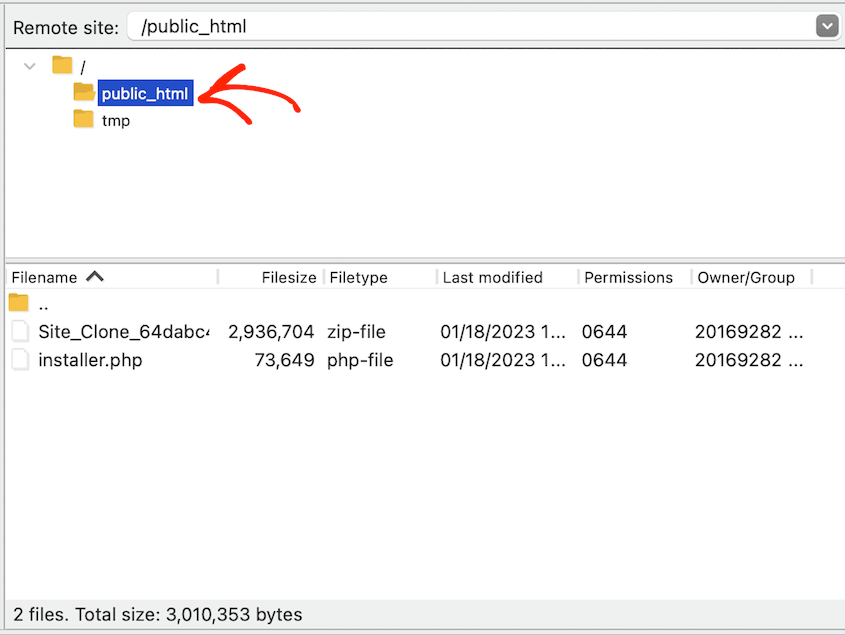
Deberías ver tanto un archivo installer.php como un archivo zip que contiene tus datos de WordPress. Asegúrate de eliminar cualquier otro archivo de tu carpeta public_html.
Paso 4: Crea una base de datos para tu sitio clonado
Después de haber subido tus archivos clonados, es hora de crear una nueva base de datos para almacenar sus datos. Esto permitirá a Duplicator mover la información de tu antigua base de datos a la nueva.
Es probable que tu proveedor de hosting te permita editar tu base de datos desde tu panel de control. Por ejemplo, Bluehost tiene una opción para Bases de datos MySQL.
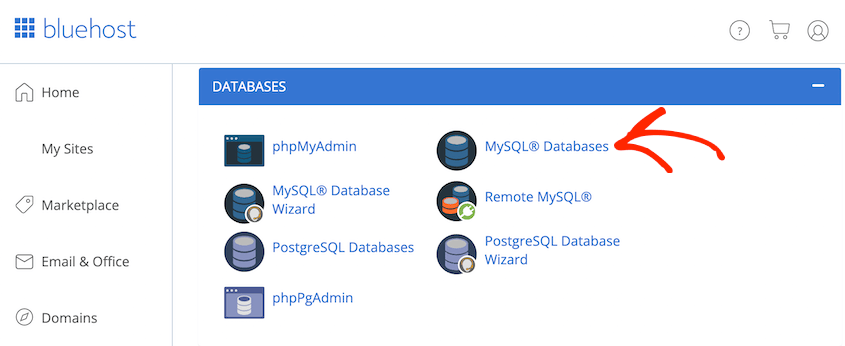
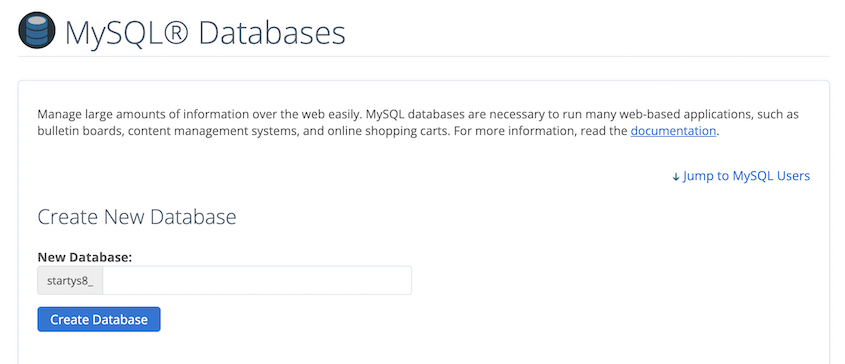
Después de hacer clic en esto, busca la opción para crear una nueva base de datos. Dale un nombre y haz clic en Crear Base de datos.
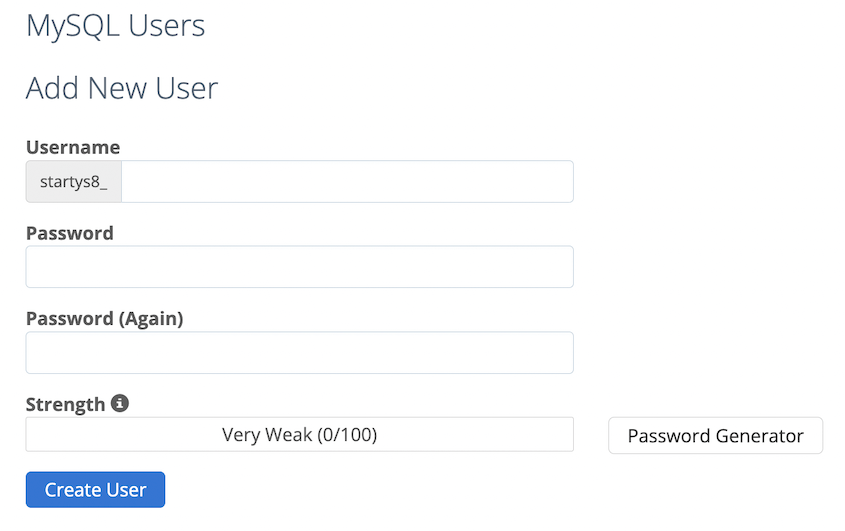
Ahora, necesitarás añadir un nuevo usuario a la base de datos. En la sección Usuarios MySQL, introduce un nuevo nombre de usuario y contraseña.
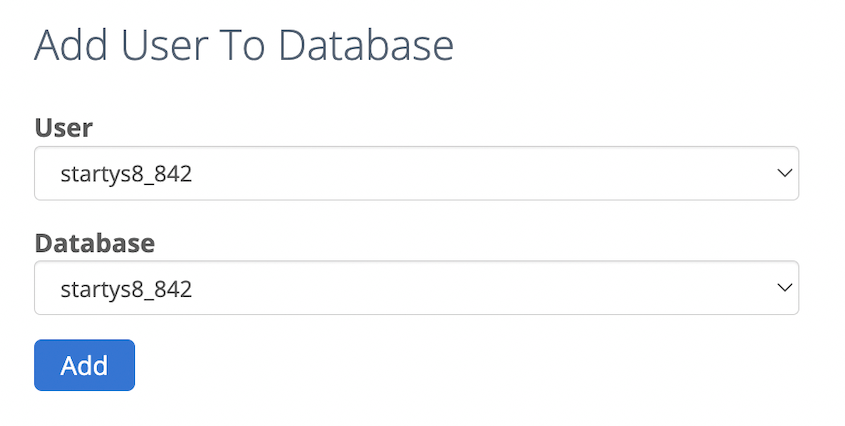
También necesitarás asignar ese usuario a la nueva base de datos.
¡Para el siguiente paso, asegúrate de recordar la información de tu base de datos!
Paso 5: Ejecuta el instalador de Duplicator
Finalmente, abre una nueva ventana del navegador. En la barra de búsqueda, introduce tu dirección web completa seguida de ‘installer.php’. Aquí tienes un ejemplo:
https://yourdomain.com/installer.php
En la página de instalación de Duplicator, busca la sección Configuración. Aquí, introduce el nombre de tu nuevo host, nombre de la base de datos, nombre de usuario y contraseña.
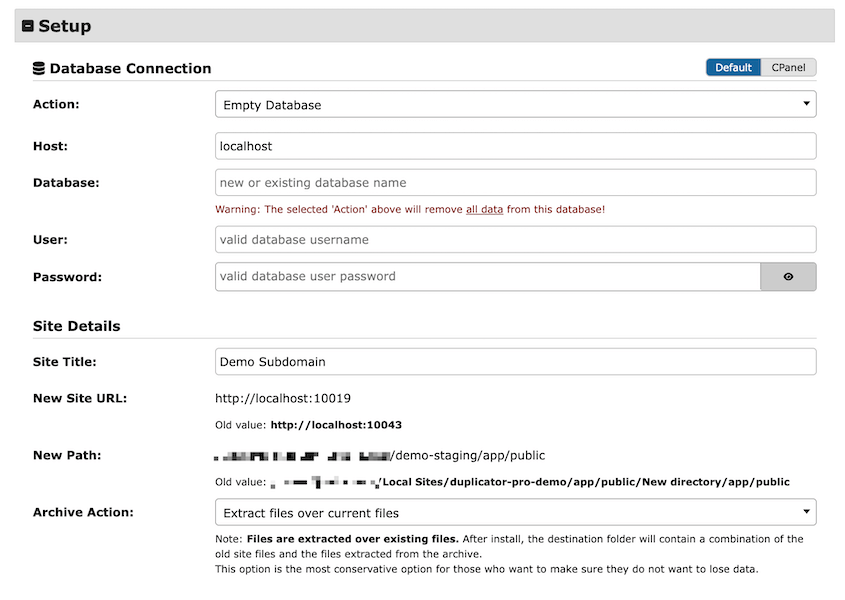
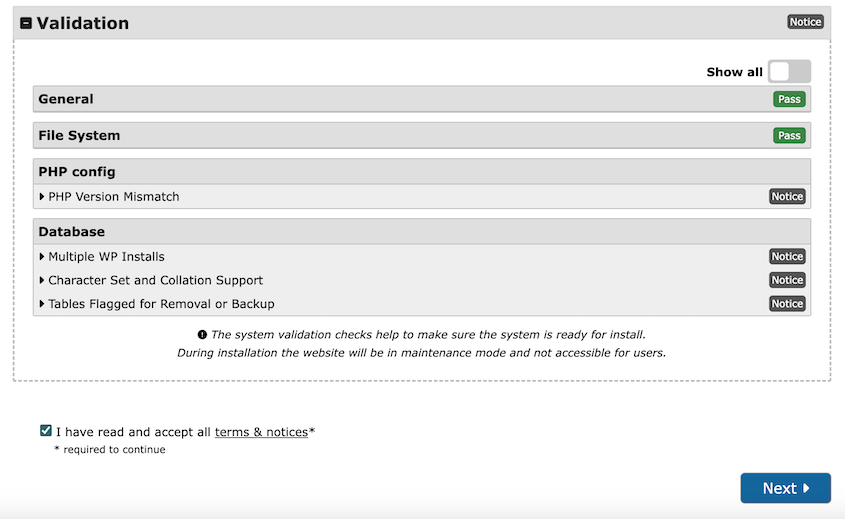
Luego, desplázate hasta el final y pulsa Validar. Duplicator probará la conexión a tu base de datos. Si todo funciona correctamente, selecciona la casilla de términos y avisos y haz clic en Siguiente.
Duplicator importará tu base de datos y finalizará la instalación. Si tiene éxito, verás un botón de Inicio de sesión de administrador.
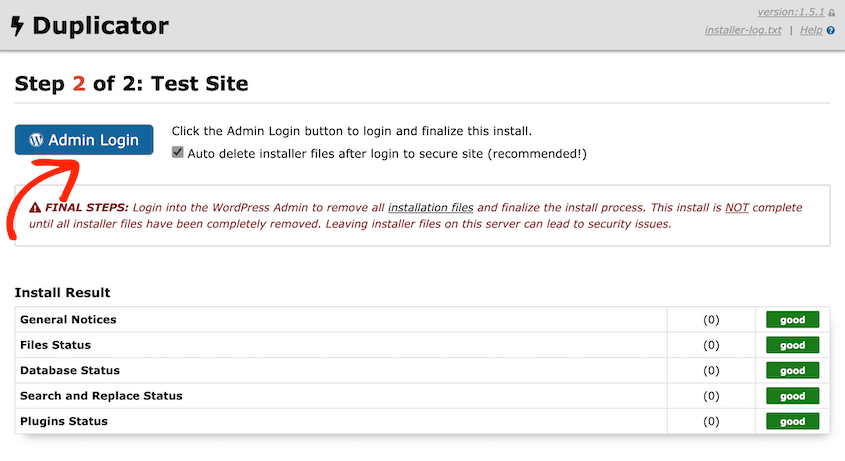
¡Con un solo clic, puedes iniciar sesión en el panel de administración de WordPress de tu nuevo sitio! Esta nueva instalación de WordPress se verá y funcionará exactamente como el sitio web original.
Preguntas Frecuentes (FAQs)
¿Se puede duplicar un sitio de WordPress?
Puedes duplicar un sitio de WordPress usando el plugin Duplicator. Instala Duplicator, crea una copia de seguridad del sitio existente y úsala para configurar la copia en una nueva ubicación. Este proceso es eficiente para clonar sitios con fines de staging, migración o copia de seguridad.
¿Cómo descargo un sitio completo de WordPress?
Descarga un sitio completo de WordPress con el plugin Duplicator. Instala el plugin, crea una nueva copia de seguridad y descarga los archivos del instalador y del archivo. Estos archivos incluyen el contenido y la base de datos del sitio, lo que te permite mover o hacer una copia de seguridad del sitio de manera eficiente.
¿Cómo clono un sitio de WordPress sin plugins?
Clona un sitio de WordPress sin plugins copiando manualmente los archivos y la base de datos. Usa un cliente FTP para descargar los archivos del sitio, exporta la base de datos a través de phpMyAdmin y súbelos al nuevo servidor. Actualiza el archivo wp-config.php con las nuevas credenciales de la base de datos para completar el proceso.
¿Cómo duplico un sitio de WordPress para staging?
Puedes duplicar un sitio de WordPress para staging usando Duplicator. Instala el plugin, crea una copia de seguridad del sitio en producción y despliégala en un entorno de staging. Este método asegura que el sitio de staging refleje el sitio en producción para probar cambios de forma segura.
¿Cómo migro mi sitio de WordPress usando Duplicator?
Para migrar tu sitio de WordPress usando Duplicator, crea una copia de seguridad de los archivos y la base de datos de tu sitio. Descarga los archivos del instalador y del archivo, súbelos al nuevo servidor y ejecuta el script del instalador. Este proceso transfiere tu sitio sin problemas a una nueva ubicación.
¿Cómo clono mi sitio de WordPress a un nuevo dominio?
Si quieres clonar tu sitio de WordPress a un nuevo dominio, crea una copia de seguridad de tu sitio original con Duplicator Pro. Luego, descarga los archivos del archivo y del instalador de la copia de seguridad. Súbelos al nuevo servidor.
En un navegador nuevo, visita https://tudominio.com/installer.php
En la esquina superior derecha del asistente de instalación, selecciona la vista Avanzada.
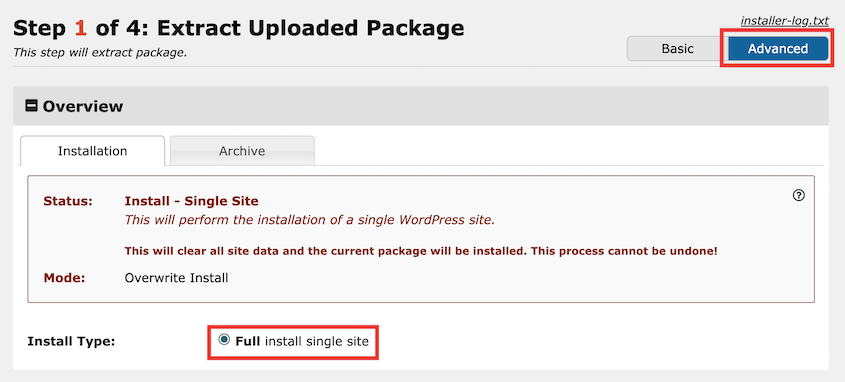
Ahora podrás actualizar tu dominio durante la migración. Simplemente introduce tu dominio antiguo en el campo Buscar y el nuevo debajo de él.
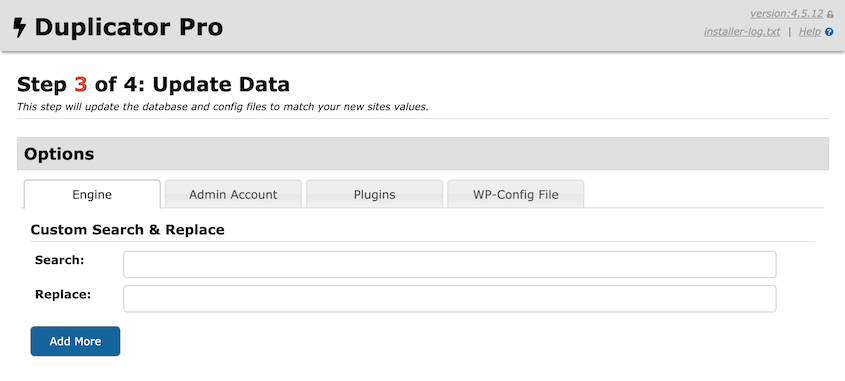
Duplicator importará automáticamente todos tus datos antiguos al nuevo sitio. Además, buscará en tu base de datos el dominio antiguo y lo actualizará con el nuevo.
Crea una copia perfecta de tu sitio de WordPress
Ahora tienes las claves para clonar tu sitio sin esfuerzo, salvaguardando la integridad de tu sitio web a través de pruebas y migraciones fluidas.
¿Estás listo para clonar tu sitio web existente? ¡Descarga Duplicator Pro para crear copias de tu sitio rápidamente y moverlas donde necesites!
Ya que estás aquí, quizás te interesen estos consejos, trucos y guías adicionales de WordPress:
- Los 9 mejores plugins para clonar un sitio de WordPress (Elección de expertos)
- Los 20 errores más comunes de WordPress (y algunas soluciones rápidas)
- ¿Cuánto cuesta migrar un sitio de WordPress?
- Cómo Copiar un Sitio Web de WordPress (4 Métodos)
- Cómo Copiar una Base de Datos de WordPress
- Cómo Descargar Tu Sitio Web Completo de WordPress




