


How to Back Up a WordPress Site to Dropbox (Updated for 2026)
 Joella Dunn
Joella Dunn
Joella Dunn
 John Turner
John Turner
John Turner
Millions of WordPress websites are hacked every year.
Yet most site owners I meet still rely solely on their hosting provider’s backup system. It’s like keeping all your savings under one mattress: risky and unnecessary.
That’s why I started using Dropbox as my backup solution. Not because it’s fancy or expensive (it’s actually free for up to 2GB), but because it gives me something invaluable: control.
When your site goes down, you don’t want to wait for hosting support to restore your backup. You need immediate access to a recent, working copy of your site.
Let me show you exactly how I protect WordPress sites using Dropbox!
In this post, you’ll learn:
- Why Dropbox is an ideal backup solution for WordPress sites
- How to install and configure a Dropbox backup plugin
- Step-by-step instructions for creating your first cloud backup
- How to set up automated backups to run on your schedule
- The complete process for restoring your site from a Dropbox backup
Quick Summary: How to Back Up WordPress to Dropbox
Table of Contents
Why Back Up Your WordPress Site to Dropbox?
You can keep your website backups on your server, but this isn’t the safest option. Your server might get hacked or become corrupted. You could lose your backups.
To secure your data, consider using cloud storage. When you save a backup to a third-party storage location, you’ll know you can always access a functional copy of your site.
Storing your backups off-site can also reduce strain on your server. Cloud backups won’t require resources from your web hosting provider.
There are many cloud storage solutions, so you might not know where to start. However, Dropbox is a popular option. This tool provides a central hub for storing, organizing, and recovering your site backups.
Here are some key benefits of backing up your WordPress site to Dropbox:
- Free up to 2GB
- File synchronization across different devices
- Opportunities for team collaboration
- Edit permissions and sharing options
- File encryption
- Stores deleted files and folders for 30 days
- Various plans to scale your storage space
Dropbox might be right for you if you want free cloud storage. You can sign up for a free account and access up to 2GB of storage space.
If you need more, there are many different pricing plans available starting at $9.99 per month. The paid plans cover 2TB+ of storage, which you might need for larger backup files.
How to Back Up a WordPress Site to Dropbox
Dropbox can be an effective backup solution for your website. Let’s discuss the step-by-step process of linking WordPress to Dropbox!
Here’s what we’ll cover:
- Install a Dropbox Backup Plugin: Get Duplicator Pro, which connects to Dropbox and 10+ other cloud storage services
- Connect your Dropbox account: Authorize Duplicator to access your Dropbox storage using a secure authentication token
- Create your first backup: Build a complete backup of your site and automatically send it to Dropbox
- Set up automatic backups: Schedule regular backups (hourly, daily, weekly, or monthly) so your site is always protected
Step 1: Install a Dropbox Backup Plugin
Although you could manually create a backup and upload it to Dropbox, this wastes valuable time.
To make this process easier, consider installing a WordPress backup plugin. Duplicator Pro is my favorite option because it connects to 10+ cloud storage services, including Dropbox.
With Duplicator, you can create backups and automatically push them to cloud storage. Here are all the remote storage options you could use:
- Duplicator Cloud
- FTP
- Google Drive
- Dropbox
- Microsoft OneDrive
- Amazon S3
- Wasabi
- Google Cloud
- DreamObjects
- Vultr
- DigitalOcean Spaces
- Cloudflare R2
- Backblaze B2
To get started, choose a subscription for Duplicator Pro. Although there is a free version, the premium plans include cloud storage integrations.
Once you purchase Duplicator, download the plugin. You’ll also need to copy your unique license key.
Then, open your WordPress dashboard and install and activate Duplicator.
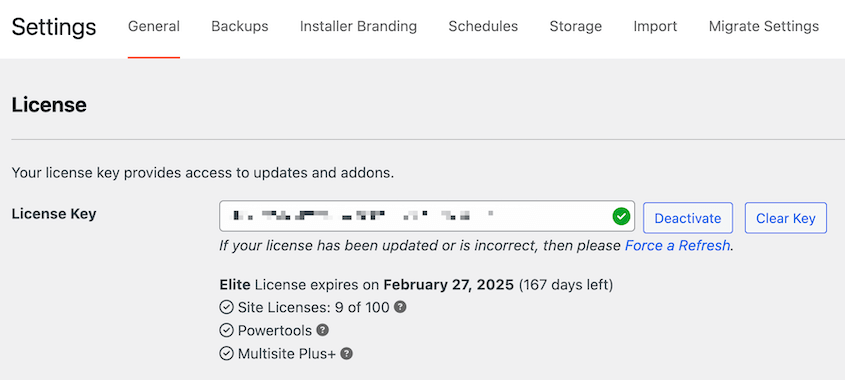
Go to the Duplicator Settings page. Then, find General. Paste the license key that you received with the plugin and click on Activate.
Step 2: Connect Your Dropbox Account
By default, Duplicator will save your backups to your local server. If you want to start using cloud storage options like Dropbox, you’ll need to connect your third-party account.
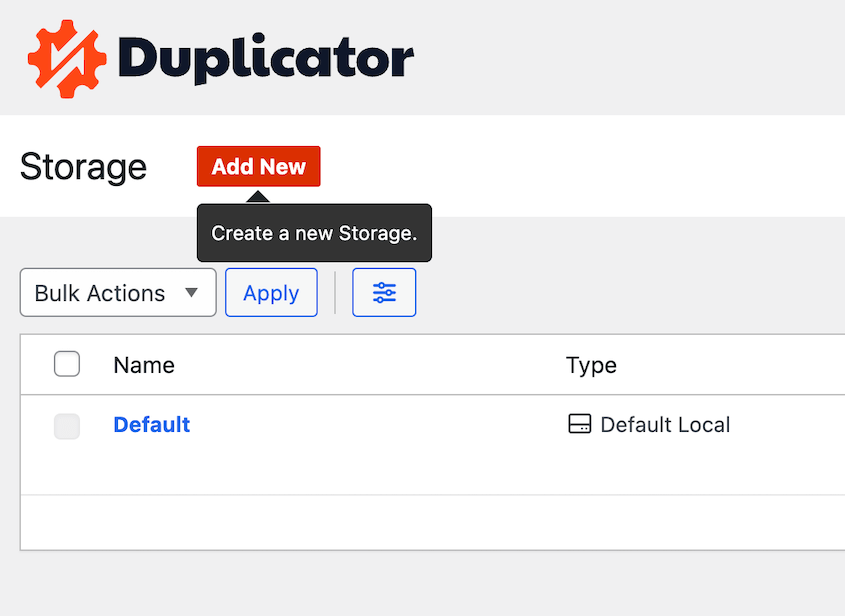
Find Duplicator Pro » Storage. You’ll see the local storage option. To add Dropbox, click on Add New.
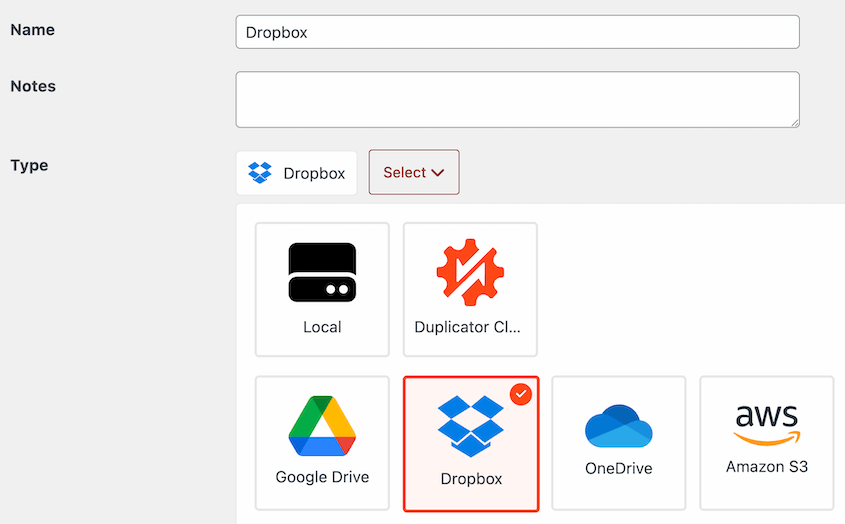
At the top of the page, name the storage location so that it’s easy to find later. You can also add any notes if you want to. Under Type, select Dropbox.
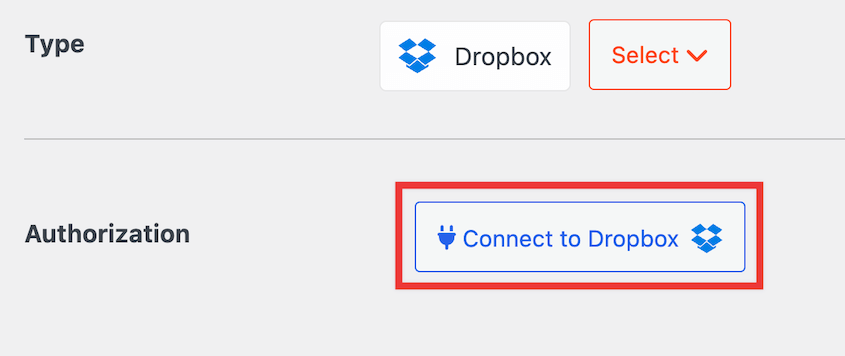
Then, hit Connect to Dropbox.
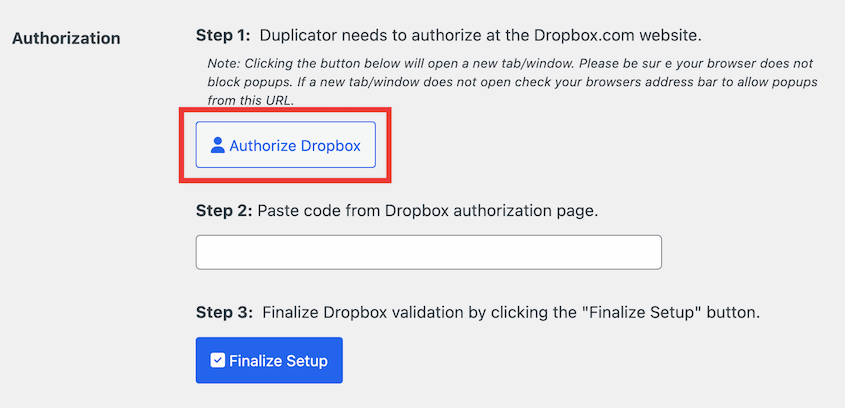
You’ll see new steps for connecting your Dropbox account. Click on Authorize Dropbox to open Dropbox in a new tab.
Sign in to your Dropbox account or sign up for a new one.
Dropbox will then give you an authentication code. Copy this and go back to your WordPress admin dashboard.
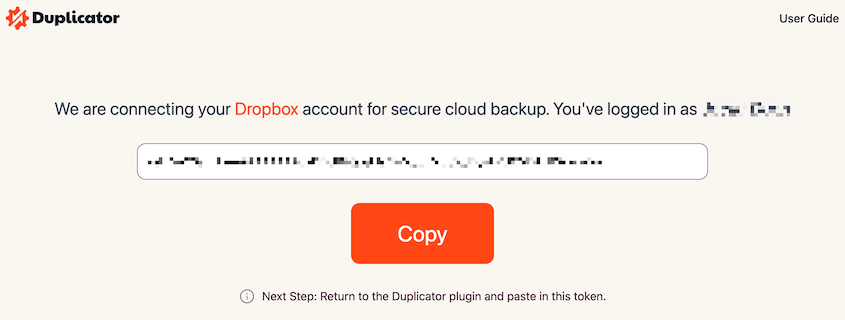
For Step 2 of the Authorization section, paste the authorization code. Click on Finalize Setup.
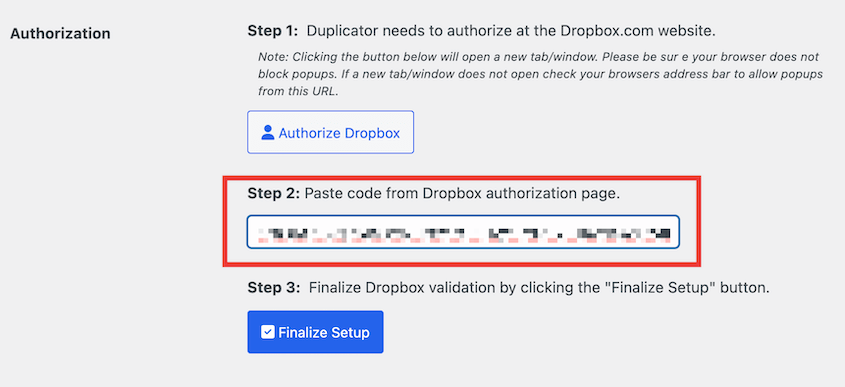
This will add Dropbox as a new storage location for your backups!
Step 3: Create a Dropbox Backup
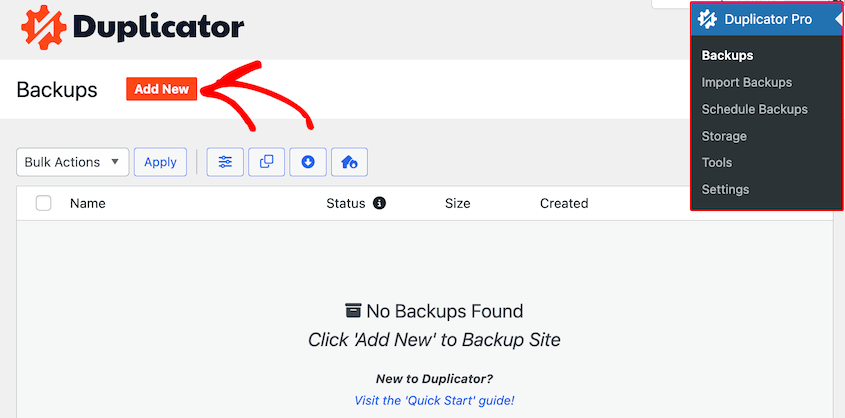
After you configure Dropbox as a storage location, you can create a cloud backup of your website. To do this, navigate to Duplicator Pro » Backups » Add New.
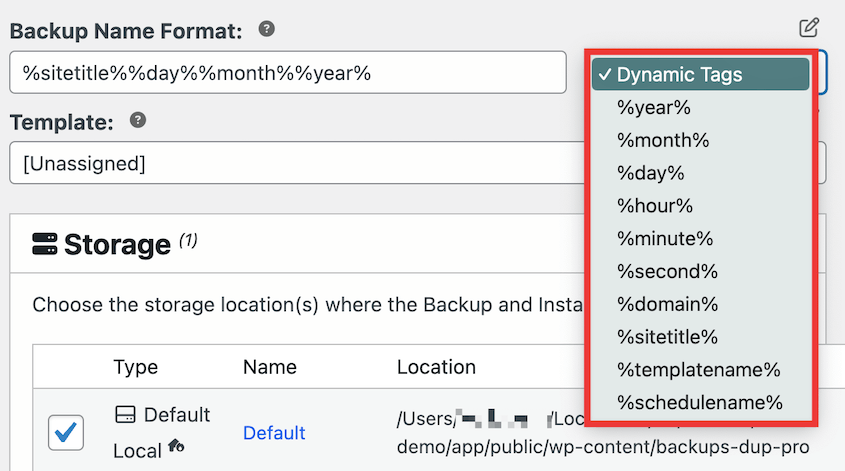
Your backups are only good if you can find them. So, I recommend adding your favorite dynamic tags to name the backup.
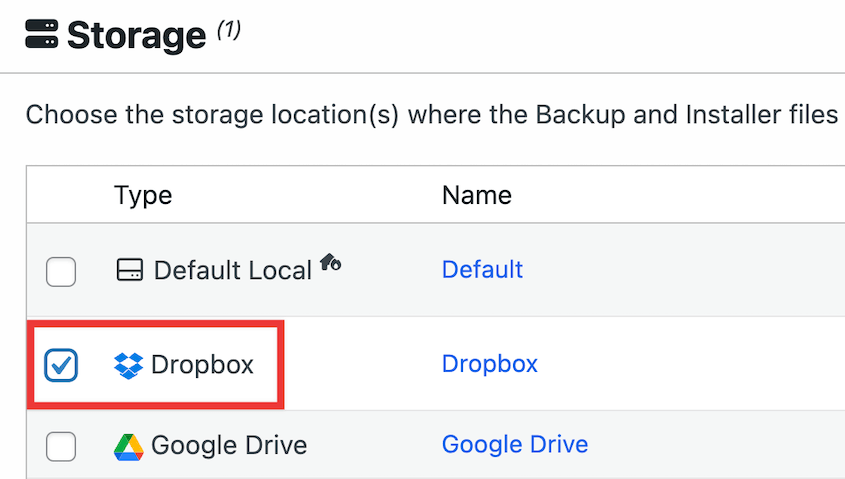
Then, open the Storage section. You’ll see all the cloud storage options that you’ve activated for your website. To back up your backup to Dropbox, select it.
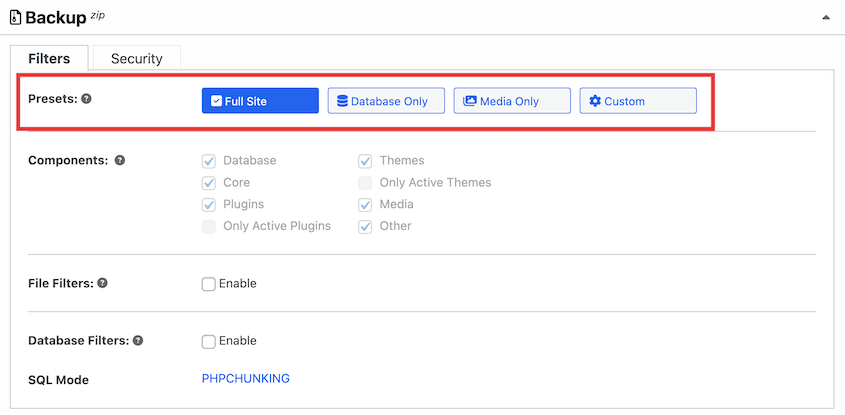
A full backup will include your WordPress files, plugins, themes, database, and media library. If you want to only save certain data, you can create a custom backup.
After you click Next, Duplicator will scan your website. You’ll receive notices if there are any issues.
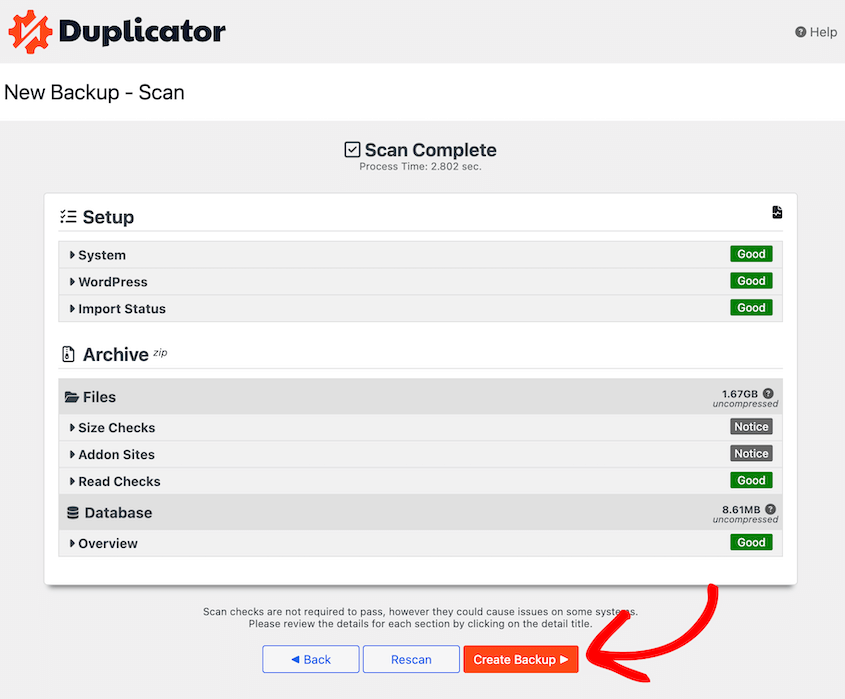
Hit Create Backup. Your backup will be built on the local server first and automatically transferred to Dropbox.
Step 4: Set Up Automatic Backups
Although you could always do manual backups, you might want to dedicate more time to creating blog posts or selling products.
Consider setting up automatic backups instead. You can choose a schedule that meets your needs, and your WordPress website will be backed up for you.
To set up a schedule, head over to Duplicator Pro » Schedule Backups » Add New.
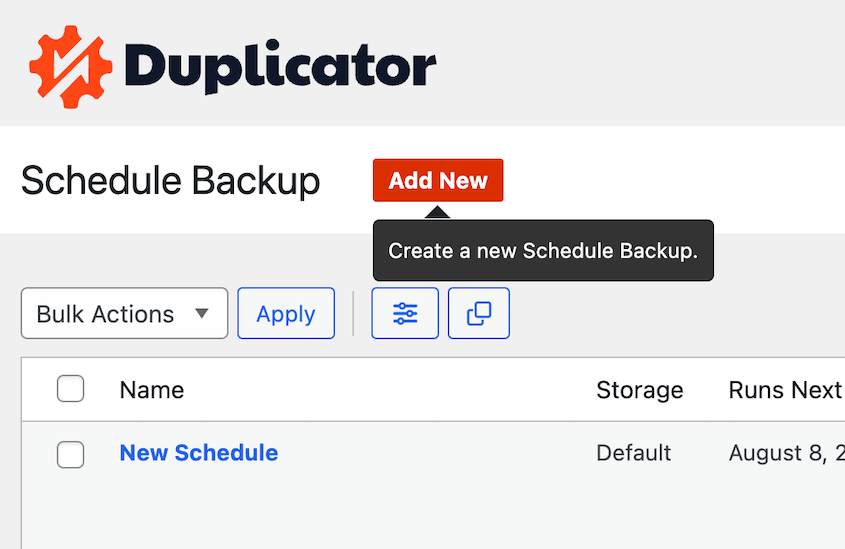
Start by naming your backup schedule. If you want to perform full backups, choose the Default backup template.
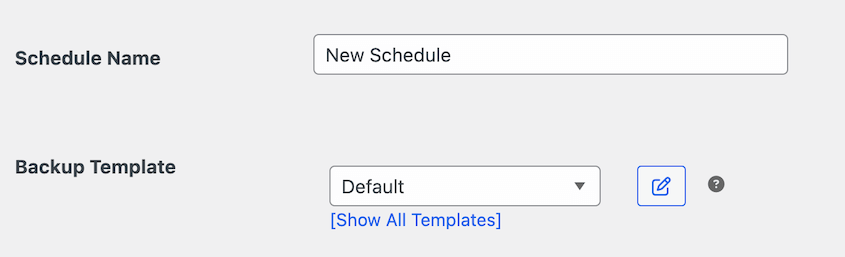
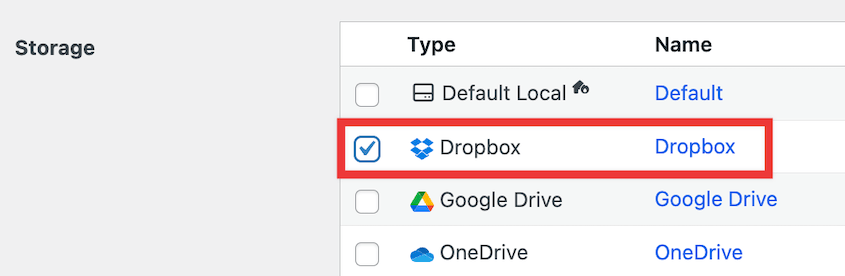
Go to the Storage section and select Dropbox.
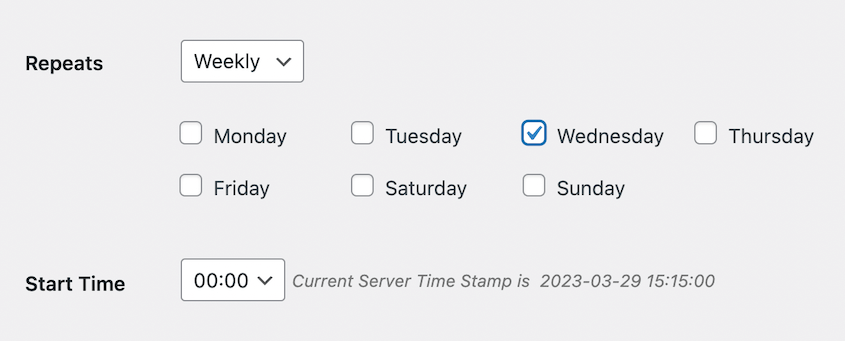
Duplicator supports monthly, weekly, hourly, and daily backups. Once you select one of these options, you can customize exactly when the backup runs.
At the bottom of the page, check the box next to Enable This Schedule.
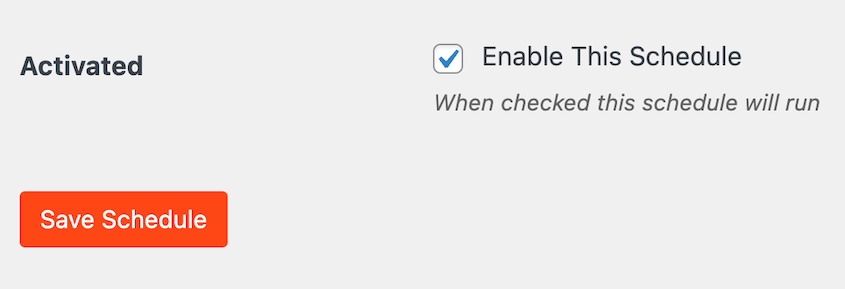
After you save this new schedule, Duplicator will automatically back up your site at the scheduled time. Plus, these backups will be saved to Dropbox.
How to Restore Your Dropbox Backup
Once you send regular backups to Dropbox, you’ll always have a functional copy of your site on hand.
If there are critical errors, data loss, server downtime, or cyber attacks, you can easily restore the most recent backup. This will immediately get your website back to normal.
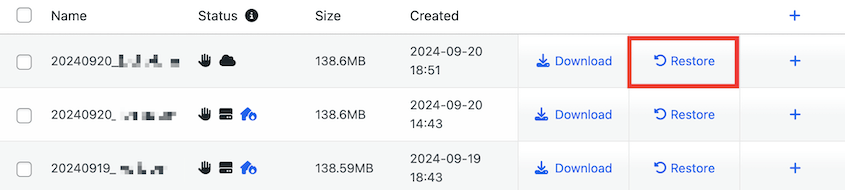
To restore your backup, open Duplicator’s Backups page. Find the most recent Dropbox backup from before the error happened.
Next to it, hit the Restore button.
In the pop-up window, click on Download.
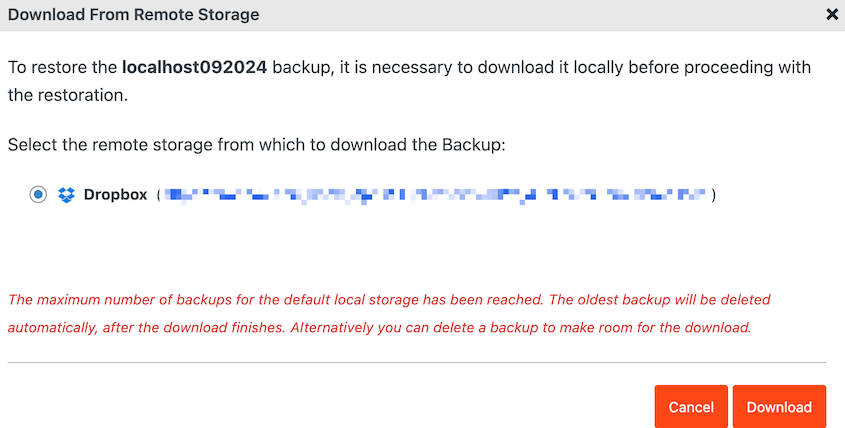
Duplicator will download the backup from remote storage. It’ll automatically pull up the restoration wizard.
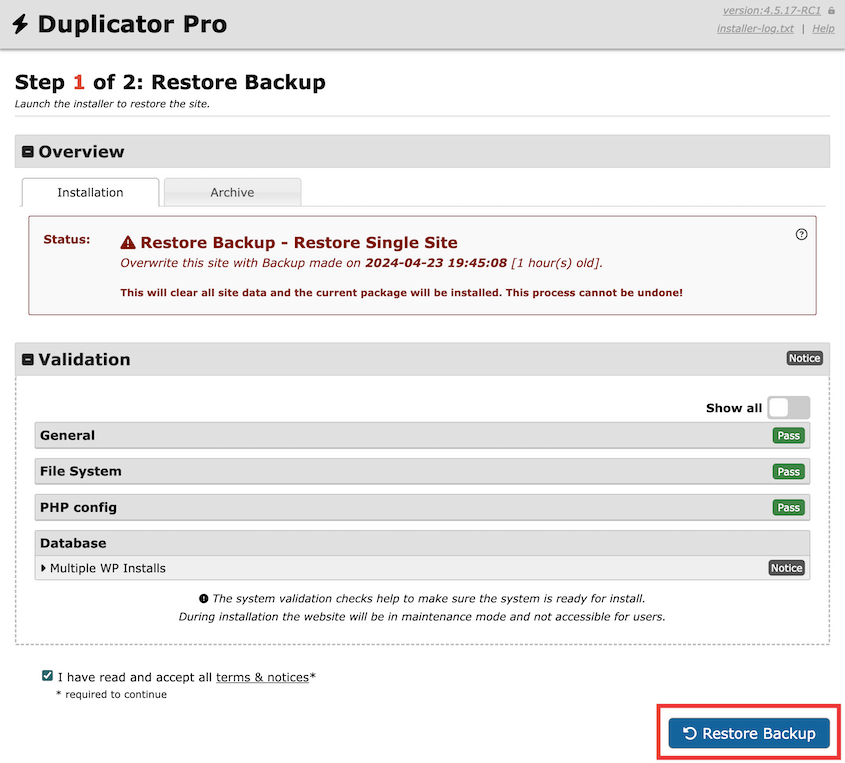
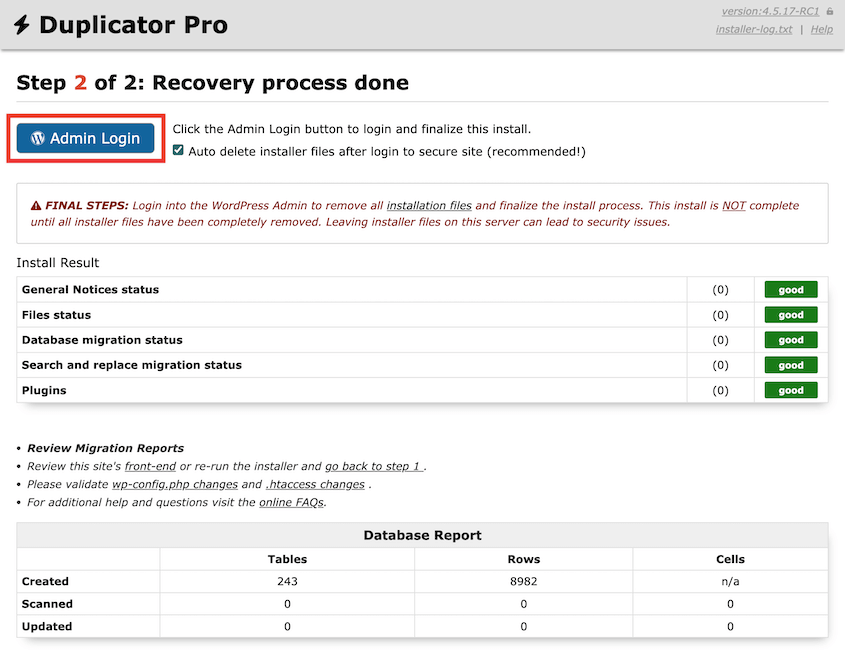
Once you select Restore Backup, your website will roll back to the old version. To access the new site, you’ll have to log back in.
Frequently Asked Questions (FAQs)
Can you use Dropbox as a backup?
Yes, you can use Dropbox to back up your website. Simply install a backup plugin like Duplicator Pro. Then, create a new backup and choose Dropbox as your preferred storage location.
What is the best WordPress plugin to upload files to Dropbox?
Duplicator Pro is the best WordPress plugin for uploading files to Dropbox. Once you back up your WordPress site, Duplicator will push your backup files to a Dropbox folder. Using this tool, you’ll backup/restore your website whenever you need to.
Alternatives: UpdraftPlus, BackWPup, BlogVault, and BackupBuddy also support Dropbox backups. To help you decide between these tools, check out our comparison of the best WordPress backup plugins.
How do I upload a website to Dropbox?
To upload a website to Dropbox, start by installing Duplicator Pro in your WordPress dashboard. Next, add your Dropbox account as a new storage location. Finally, create a backup and select Dropbox under Storage.
How do I back up my whole WordPress site?
You can back up your whole WordPress site with Duplicator Pro. Make sure the new backup includes everything in your website, including the database, core WordPress files, plugins, themes, and media library.
How do I integrate Dropbox with WordPress?
There are tons of plugins that can help you integrate Dropbox and WordPress. To send your site backups to the cloud, consider using Duplicator. With WPForms, you can create Dropbox upload forms. For WooCommerce stores, the WooCommerce PDF Invoices plugin will add new packing slips to your Dropbox account.
Your Hosting Provider Can’t Be Your Only Safety Net
You now have a reliable off-site backup system in place—one that doesn’t depend on your hosting provider to save the day.
That’s a big deal. Most site owners don’t realize how vulnerable they are until something goes wrong and their host’s backup either doesn’t exist, is corrupted, or is out of date.
Dropbox changes that. With your backups stored independently in the cloud, you’re no longer at the mercy of a single point of failure. Whether it’s a hack, a bad plugin update, or a server crash, you’ll have a clean copy of your site ready to go.
Looking for the best WordPress Dropbox plugin? Try out Duplicator Pro to back up your website to cloud storage services like Dropbox, Google Drive, and more!
While you’re here, you may like these extra WordPress guides:
- How to Create a Cloud WordPress Backup
- How to Back Up WordPress Multisite
- 9 Best WordPress Maintenance Services for Easy Site Management
- How to Remotely Back Up and Restore WordPress
- 8 Best WordPress Dropbox Plugins For Secure Cloud Storage
- How to Implement a 3-2-1 Backup Plan That Works Every Time




