


Is Duplicator Good for Beginners?
 Joella Dunn
Joella Dunn
Joella Dunn
 John Turner
John Turner
John Turner
You’ve finally launched your WordPress site, and it feels like a real accomplishment.
But then someone mentions backups or migrating your site. And suddenly, you’re hit with a wave of anxiety.
These tasks sound technical. Intimidating, even. You’re not a developer, and the last thing you want is to accidentally break something you worked so hard to build.
So the question becomes: do you need a backup/migration plugin like Duplicator? And more importantly, if you’re just starting out, is it actually designed for someone like you?
That’s exactly what I’m going to answer in this post.
Here are the key takeaways:
- Backup plugins are easier than manual methods; Duplicator handles all technical details automatically, making it safer than FTP downloads and database exports
- Duplicator is built for beginners with simple backup presets but includes advanced features for developers like WP-CLI commands
- Automatic backups eliminate human error; set schedules once, and backups run in the background without you remembering
- Cloud storage protects against server failures; one-click connections to Duplicator Cloud, Google Drive, Dropbox, and 9+ other services
- One-click restores fix problems in minutes; no technical knowledge needed to recover from broken updates or errors
- Disaster recovery URLs work even when locked out; special backup links let you restore your site without accessing WordPress admin
Table of Contents
Are Backup and Migration Plugins a Good Choice for Beginners?
What stops many beginners is the fear that installing a plugin will somehow make things worse.
What if it’s too complicated? What if clicking the wrong button breaks your site?
I get it. But honestly, the manual way of backing up a WordPress site is actually more complex and more risky than using a good plugin.
Think about what a manual backup involves. You’d need to log into your hosting account, navigate through FTP or cPanel file managers, download your entire WordPress installation (which could be thousands of files), and then separately export your database using phpMyAdmin.
Miss a single folder? Your backup is incomplete. Download the wrong database? Your restore won’t work.
And if something goes wrong during the restore process, there’s no undo button.
A backup plugin like Duplicator does all of this technical work for you. It knows exactly which files to include, how to package your database correctly, and how to restore everything safely.

For someone still learning, it gives you the confidence to create backups or start migrations without worrying that you’ll break something on your site.
Is Duplicator Good for Beginners?
Yes, Duplicator was built with beginners in mind, but it’s also powerful enough that you won’t outgrow it as you gain experience.
I remember when I was first getting started with WordPress, I was terrified of hitting the ‘update’ button on a major plugin.
What if it broke my site? What if I couldn’t fix it? Knowing I had a Duplicator backup gave me the confidence to keep my site maintained.
That’s what a good backup tool should do. It shouldn’t add to your stress—it should take it away.
So what makes Duplicator particularly beginner-friendly? Let’s break down the specific features that make it easy for someone just starting out.
- Easily Customizable Backups: Pre-made backup presets allow you to create custom backups with one click
- Automatic Backups: Schedule backups to run hourly, daily, weekly, or monthly so you never forget
- Many Cloud Storage Options: Simple login prompts connect you to 11+ cloud services for safe off-site storage
- Drag-and-Drop Site Migrations: Move your site between hosts by simply dropping a file—no FTP or database knowledge needed
- One-Click Backup Restores: Fix broken sites in minutes by clicking “Restore” on any previous backup
- Disaster Recovery URLs: Secret links let you restore backups even when completely locked out of WordPress
- Beginner-Friendly Tutorials: Step-by-step guides on Duplicator’s blog, documentation, and email newsletter walk you through every feature
Easily Customizable Backups
When you’re a new site owner, the biggest question is: what exactly do I need to save in a backup?
Duplicator answers this with pre-made presets. The most important one? Full Site.
You click it, and you’re done. Duplicator packages your entire website—all your files, your database, your themes, and your plugins—into a single backup archive.

As you get more comfortable, there are other backup presets too. Database-only backups are quick and useful when you’ve just published new content but haven’t changed any files.
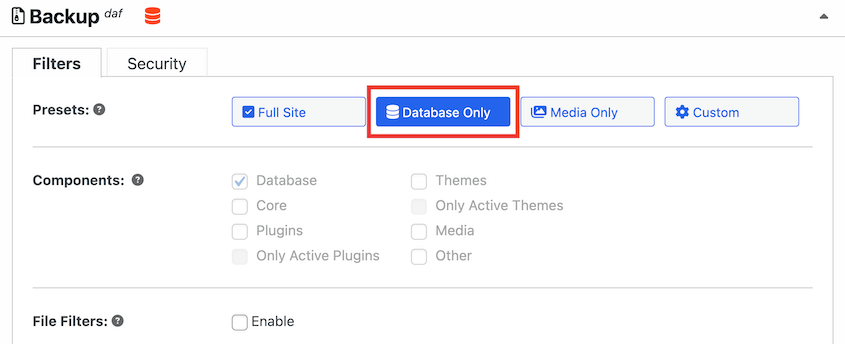
You might also need to download your media library to optimize images. There’s a preset to do that.
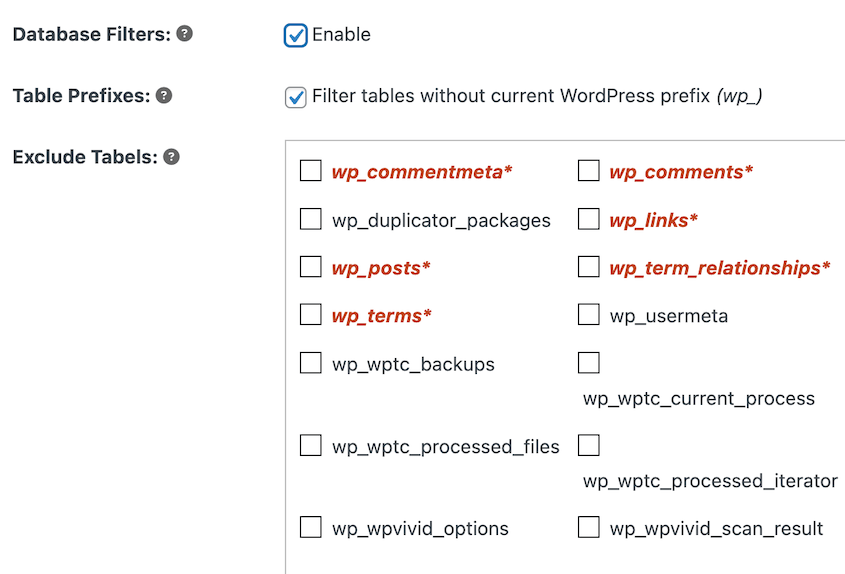
There are also advanced filters if you want to exclude specific folders or file types.
Automatic Backups
Manual backups have one major problem: they rely on you remembering to do them.
And let’s be honest, life gets busy. You’re focused on creating content, responding to customers, or troubleshooting why your contact form isn’t working. Creating a backup falls to the bottom of your to-do list.
Then something goes wrong, and you realize your last backup was three months ago.
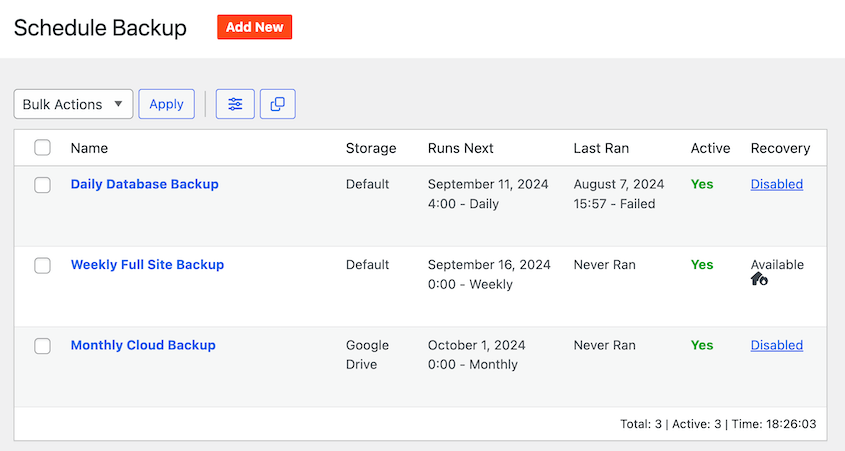
Automatic backups solve this problem completely. You set a schedule once, and Duplicator runs those backups in the background.
It supports hourly, daily, weekly, or monthly backups so you can customize them to fit your schedule.
You don’t have to think about it. You don’t have to remember. It just happens. That’s the definition of peace of mind.
Many Cloud Storage Options
Beginners frequently make the same mistake: they create backups and store them all on their website’s server.
If your server crashes, gets hacked, or your hosting company has a catastrophic failure, your backups go down with it.
For extra security, you need off-site storage.
Duplicator makes this incredibly easy. You can connect to services like:
- Duplicator Cloud
- Google Drive
- Dropbox
- Microsoft OneDrive
- Amazon S3
- Wasabi
- Google Cloud
- DreamObjects
- Vultr
- DigitalOcean Spaces
- Cloudflare R2
- Backblaze B2
- FTP
For most services, it’s just a simple login prompt.
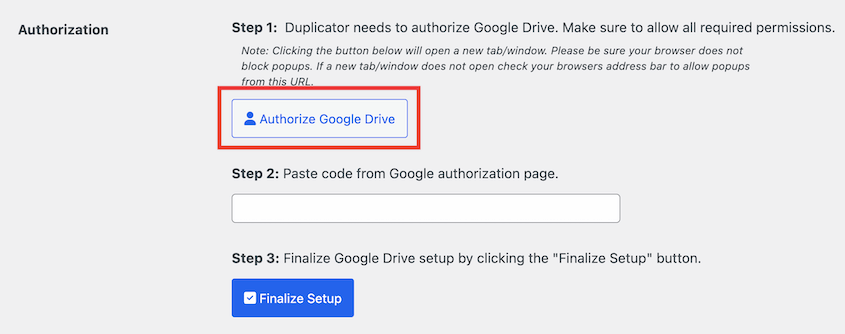
It’s even easier with the built-in Duplicator Cloud storage. Once you buy storage space, connect it to your website with your Duplicator Pro license.
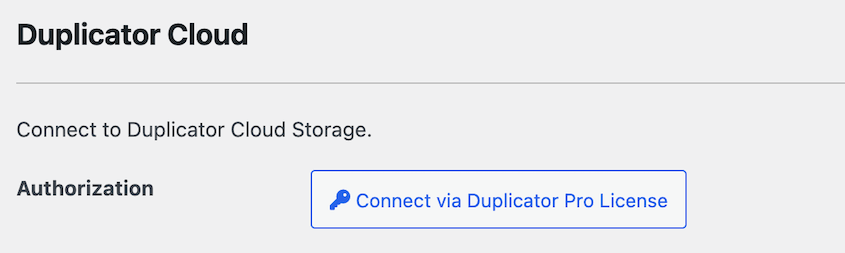
You authenticate once, and that new storage option appears whenever you create or schedule a backup.
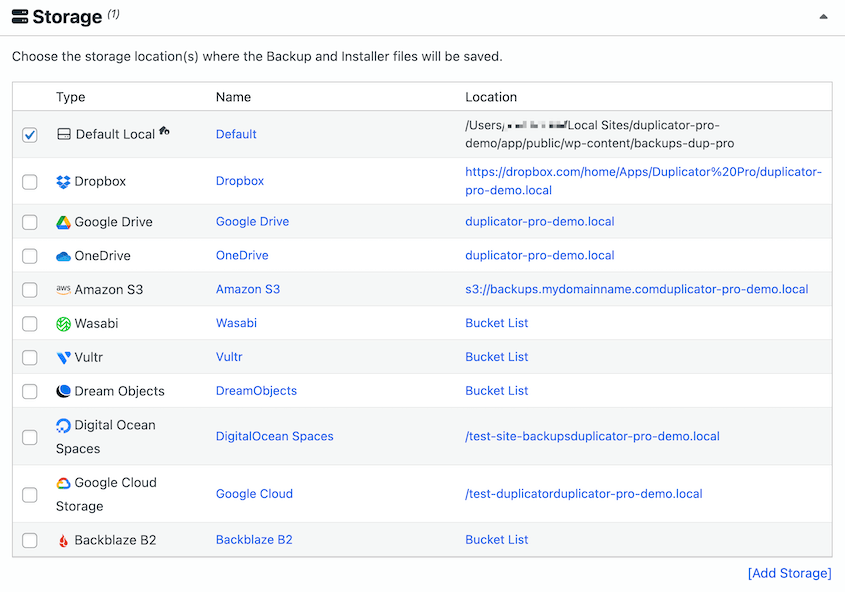
Pick your cloud storage, and Duplicator automatically sends your backups there. Safe, secure, and completely separate from your website server.
Drag-and-Drop Site Migrations
Moving a WordPress site from one host to another used to be a nightmare for beginners.
You’d need to manually transfer files, export and import databases, and then update configuration files with new database credentials. One wrong step and your site wouldn’t load.
Duplicator Pro eliminates all of that difficulty with drag-and-drop migrations.
You’ll create a backup of your site and download the archive file.
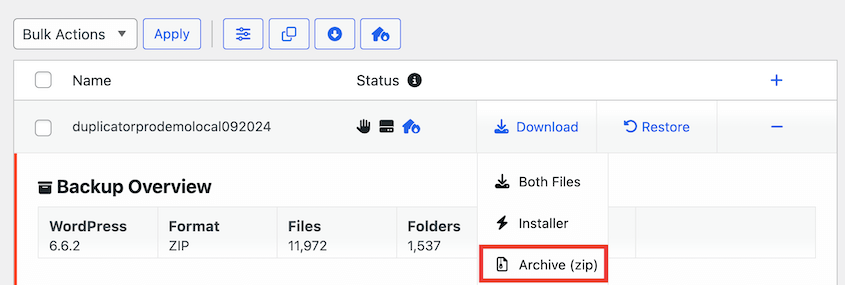
Then, simply drag and drop it into your new hosting location. That’s it!

After you drop the file, Duplicator launches a migration wizard that walks you through the final import process step-by-step.
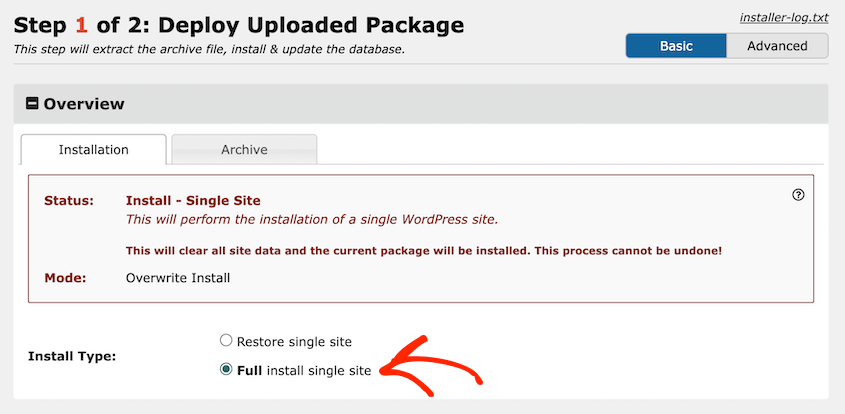
It asks simple questions, updates all your database settings automatically, and handles all the technical configuration changes.
It’s the foolproof method specifically designed for people who’ve never migrated a site before.
One-Click Backup Restores
Sometimes, things break on your website, and you have no idea how to fix it. This is where one-click restores become your best friend.
You go to the Duplicator Backups page, find your last good backup (the one from right before the error started), and click the Restore button.
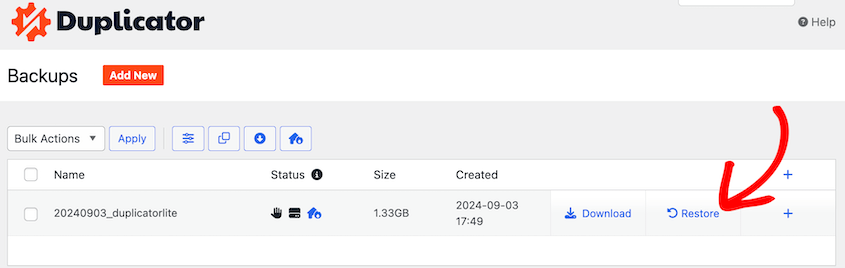
One click, and Duplicator handles everything else. It restores your files, your database, and your settings. Within minutes, your site is back exactly the way it was.
This works even if your backup is in cloud storage. You don’t need to download the backup file and manually re-upload it. Duplicator pulls it from the cloud and runs the restore right from there.
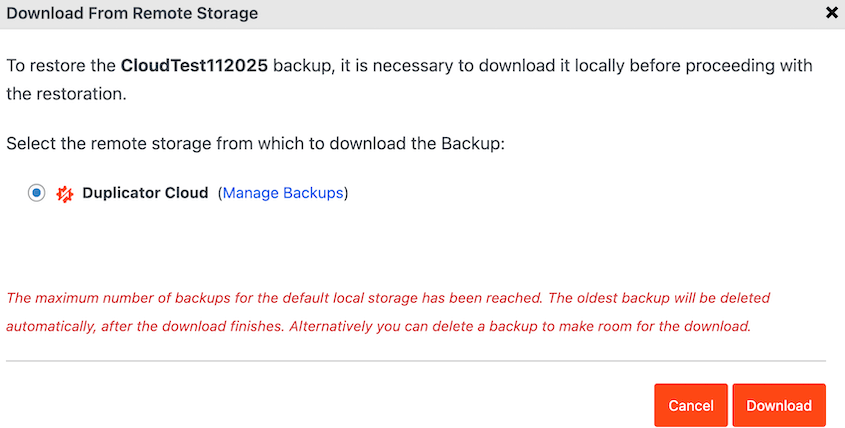
For a beginner dealing with a broken site, this is the difference between a five-minute fix and a full-blown crisis.
Disaster Recovery URLs
Let’s talk about the worst-case scenario: you’re completely locked out of your WordPress admin area.
Maybe a security plugin malfunctioned or a bad update corrupted your login system. Whatever the reason, you can’t access wp-admin at all.
If you can’t log in, how do you restore a backup?
That’s where disaster recovery URLs come in. Think of them as an emergency key to your site.
When you create a backup with Duplicator Pro, you can save a special, secret URL for that backup. It’s a long, random string that only you know.
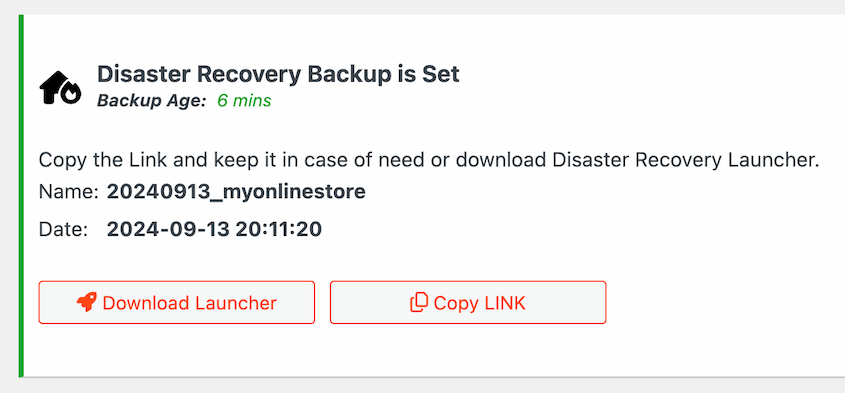
If you ever get locked out, you don’t need to access WordPress. You just paste that URL directly into your browser, and it launches the restore process immediately.
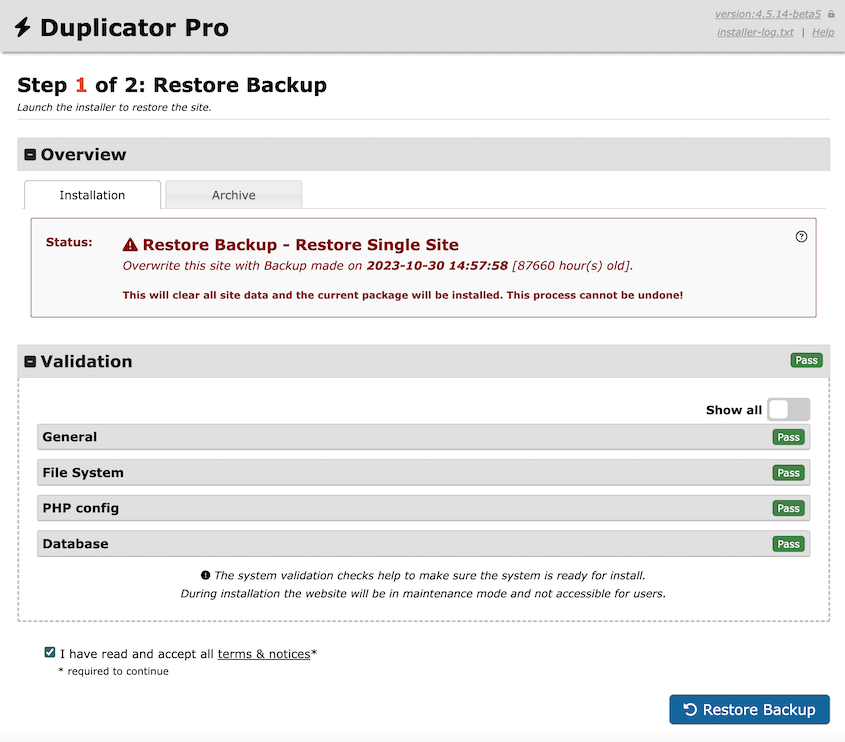
It saves you the hassle of troubleshooting. You’ll use one recovery link to restore your broken site in minutes.
Beginner-Friendly Tutorials
Even the easiest tool can feel overwhelming if you don’t know where to start. That’s why Duplicator invests heavily in educational content written specifically for beginners.
The Duplicator blog and documentation library are packed with step-by-step tutorials.
Each guide includes screenshots showing you exactly what you should see at every step. Whether you’re setting up your first automatic backup, connecting to cloud storage, or running your first migration, there’s a tutorial that walks you through it from start to finish.
Here are my favorite Duplicator tutorials for complete beginners:
- How to Back Up a WordPress Site
- How to Restore WordPress From a Backup
- How to Migrate a WordPress Site
- How to Quickly Clone a WordPress Site
And if you get stuck? The support team is there to help. They’re used to working with beginners and won’t make you feel foolish for asking questions.
Learning a new tool is part of the journey. Duplicator makes sure you’re not learning alone!
Frequently Asked Questions (FAQs)
Do I need to know code to use Duplicator?
No. For the core features in Duplicator Pro (automated backups, one-click restores, drag-and-drop migrations, and cloud storage connections), zero code is required. Everything works through simple point-and-click interfaces.
Is the free version of Duplicator good for beginners?
Duplicator Lite is good for taking manual backups before making a site change or migrating a site when you have some FTP knowledge. However, for the easiest experience with scheduled backups, one-click restores, and drag-and-drop WordPress migrations, Duplicator Pro is the recommended choice for beginners.
What’s the difference between migrating with Duplicator and using my hosting company’s migration tool?
Hosting migration tools only let you move a site to their service. Duplicator is host-independent, giving you the freedom to move your site from any host to any other host. Plus, it’s a complete backup and recovery tool, not just a one-time migration utility.
Ready to Protect Your Site with Confidence?
Duplicator removes the fear and complexity from backing up or migrating your WordPress site.
You don’t need to be a developer. You don’t need to understand databases or server configurations.
You just need a tool that handles the technical details while giving you the confidence to maintain your site properly. That’s exactly what Duplicator Pro does.
Automated backups run in the background. One-click restores fix problems in minutes. Drag-and-drop migrations make moving hosts painless. And disaster recovery URLs give you a safety net even when everything else fails.
Your website deserves protection, and you deserve peace of mind.
Ready for a beginner-friendly WordPress backup and migration tool? See how easy site management can be with Duplicator Pro!
While you’re here, I think you’ll like these other hand-picked WordPress resources:
- Duplicator Free vs Pro: Which Version Has the Best Value?
- Duplicator Review: Is It the Best Backup and Migration Plugin?
- All-in-One WP Migration vs Duplicator: Which Migration Plugin Is Best?
- WordPress 101: How to Back Up a WordPress Site for Peace of Mind
- How to Move a WordPress Website to a New Host (Effortlessly)
- WordPress Migration Plugins That Actually Work




