


WordPress 101: How to Back Up a WordPress Site for Peace of Mind
 Joella Dunn
Joella Dunn
Joella Dunn
 John Turner
John Turner
John Turner
You’ve spent countless hours of work on your website. Without a reliable backup, it’s always at risk, whether from a crash, a hack, or a simple mistake that deletes important content.
In this guide, I’ll show you how to back up your entire site the right way. I’ll walk you through each step so you can protect your content, save time, and avoid losing everything if something goes wrong.
Because crashes, hacks, and glitches can happen to any website, and they’re devastating.
Here are the key takeaways:
- WordPress doesn’t automatically back up your site—you have to create backups manually or use a plugin
- A complete backup includes your files (themes, plugins, media) and your database (posts, pages, users, settings)
- Backup plugins like Duplicator are the easiest option, offering one-click backups, cloud storage, and automatic scheduling
- You can also back up manually via FTP/phpMyAdmin or use your web host’s built-in backup tools
- Regular backups protect you from hacks, crashes, human errors, and failed updates—schedule them weekly at minimum
Quick Summary: How to Back Up a WordPress Site
Table of Contents
Why Back Up Your WordPress Site?
As a website owner, you never know when the worst might happen. After you put years of hard work into growing your site, you might face an unexpected cyber attack or crash.
A WordPress backup is a complete, saved copy of your website’s database and files. It serves as an essential safety net that allows you to restore your site to a functional state if something goes wrong.
A comprehensive backup includes all the important parts of your site:
- WordPress Core Files: Essential directories like wp-admin, wp-content, wp-includes, and the crucial wp-config.php file.
- Plugin & Theme Files: All installed themes and plugins, including their configurations.
- Uploaded Media Files: Images, videos, documents, and other media stored in your wp-content/uploads folder.
- WordPress Database: All database tables (e.g., wp_posts, wp_comments, wp_users, wp_options), containing your posts, pages, comments, user data, and site settings.
Key Benefits of Regular Backups:
Should your website become compromised or experience an issue (like a plugin conflict or malware infection), you can revert to a recent, error-free backup.
By rolling back to a previous version, you can:
- Restore Deleted or Corrupted Data: Recover lost content due to accidental deletion or malicious activity.
- Remove Malware & Security Threats: Clean your site after a cyberattack.
- Resolve Server Crashes: Bring your site back online after hosting-related issues.
- Undo Human Errors: Correct mistakes made during site management or updates.
- Roll Back Unsuccessful Updates: Revert your site if new software (plugins, themes, core) causes conflicts.
Regularly backing up your WordPress files and database is a cornerstone of effective WordPress maintenance. It gives you invaluable peace of mind and better site security.
How to Back Up a WordPress Site
WordPress doesn’t automatically back up your website. This means that your site is constantly at risk if you don’t take matters into your own hands.
You can easily learn how to back up a WordPress site, even as a beginner. There are three primary methods for backing up your WordPress site:
- Backup Plugin (Recommended): Install Duplicator for one-click backups, automatic scheduling, cloud storage, and easy restoration. Best for all skill levels.
- Manual Backup: Download files via FTP and export database through phpMyAdmin. Free but time-consuming and requires technical knowledge.
- Web Host Backup: Use your hosting provider’s built-in backup tools through cPanel or control panel. Simple but offers limited control and customization.
Method 1: Use a WordPress Backup Plugin
The easiest way to back up WordPress is to install a WordPress backup plugin. You’ll be able to quickly save a copy of your files and database whenever you need to.
Plus, these tools often allow you to create cloud backups, restore previous versions of your website, and even migrate your data to another location.
Step 1: Install Duplicator
Although there are many WordPress backup plugins available, Duplicator is extremely easy to use. In just a few clicks, Duplicator will save your site files and database as a single zip file.
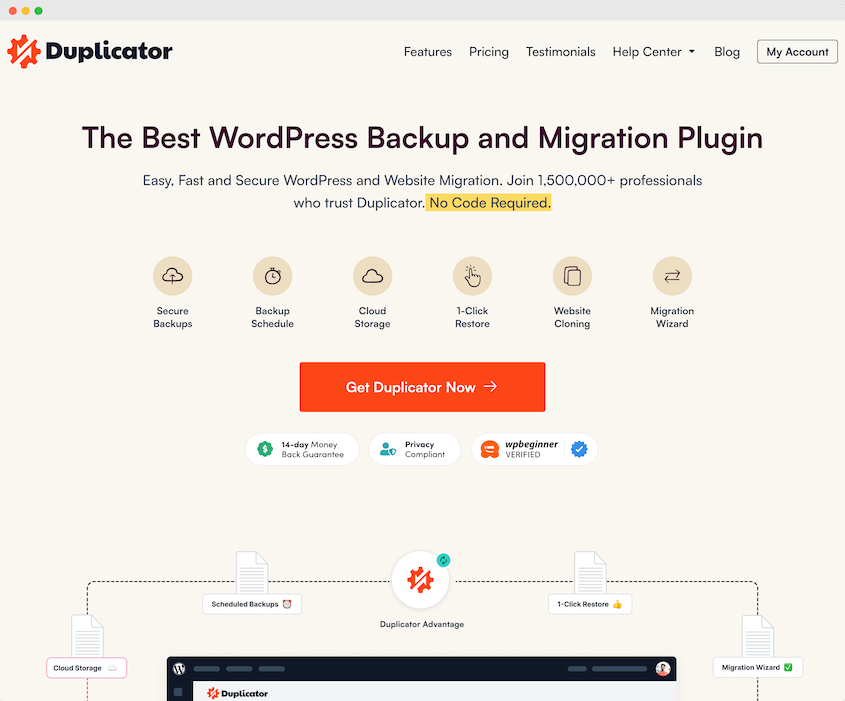
Plus, the Duplicator plugin can do much more than backups. It can:
- Move your site to a different domain name, server, or host
- Clone your live site to a staging area
- Create pre-configured WordPress installations
- Migrate large sites and WordPress multisite networks
- Send a copy of your site to the cloud
- And more!
Once you decide Duplicator is right for your needs, select a subscription and download the plugin. You could use the free version, but consider upgrading for automatic backups, cloud storage, and other helpful backup features.
Next, open your WordPress dashboard and install Duplicator.
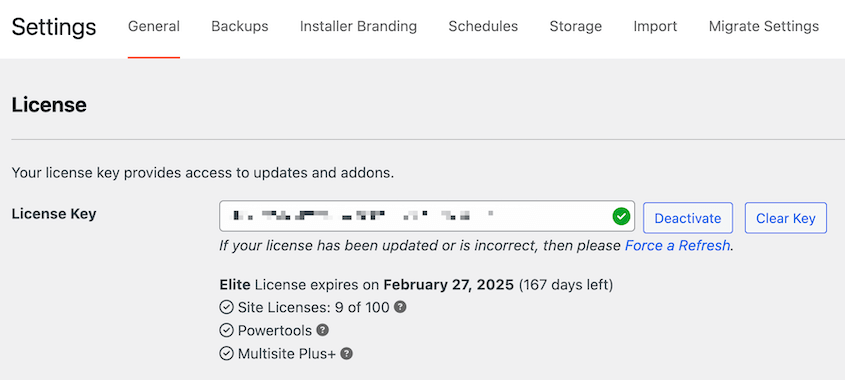
Lastly, be sure to activate the license key that you received with your purchase. To do this, find Duplicator Pro » Settings » General. Paste the license key.
Step 2: Create a Backup
With Duplicator, you can compress all of your website files, plugins, themes, content, and MySQL database into a single zip file. You’ll be able to download this backup to your local computer for safekeeping.
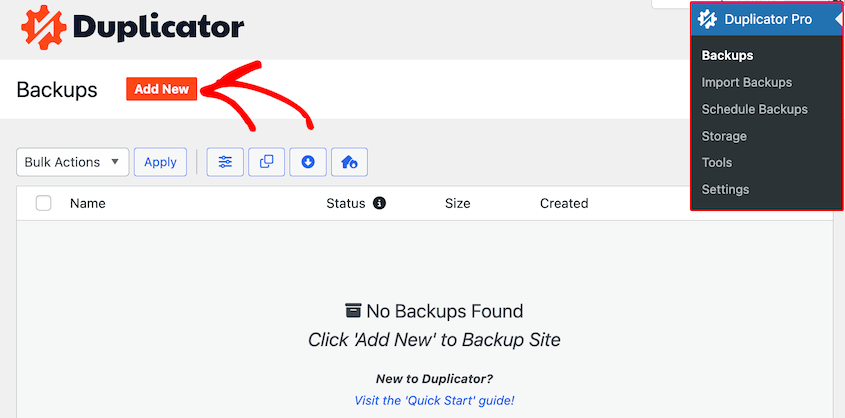
To start backing up your site, go to Duplicator Pro » Backups » Add New.
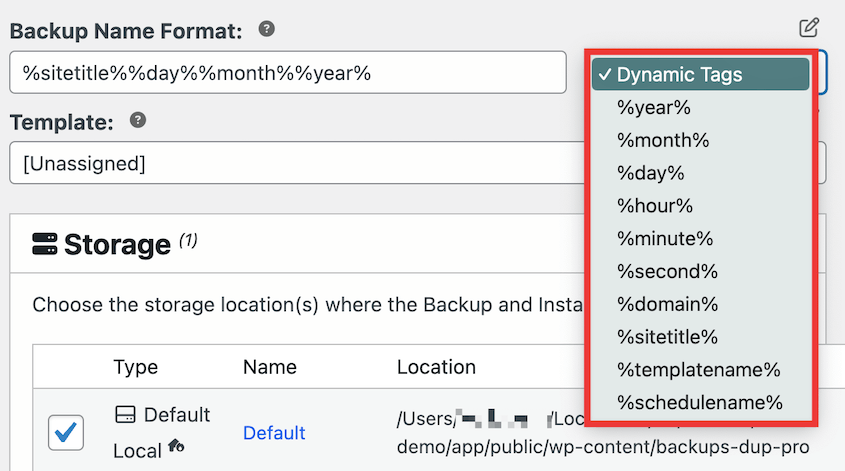
Use dynamic tags to name your backup. This will make it easy to find if you need to restore your site later.
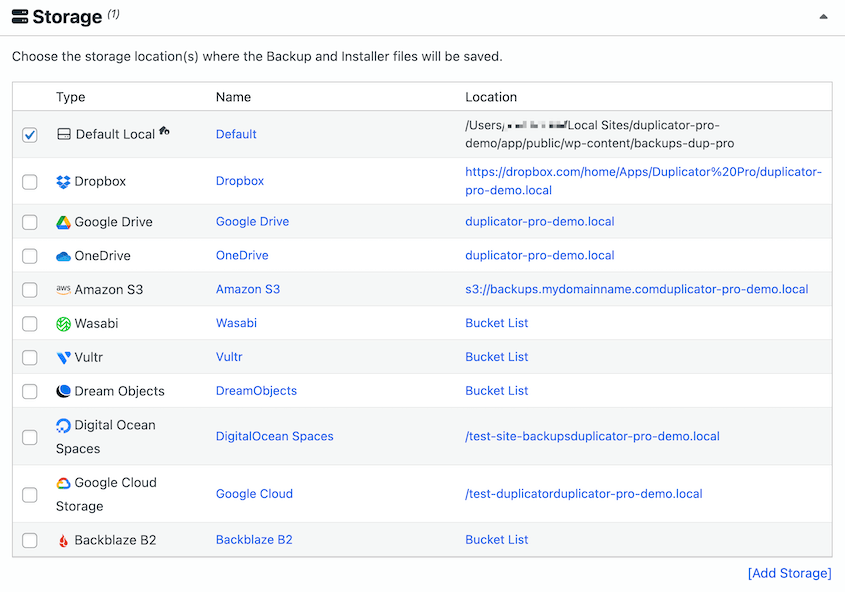
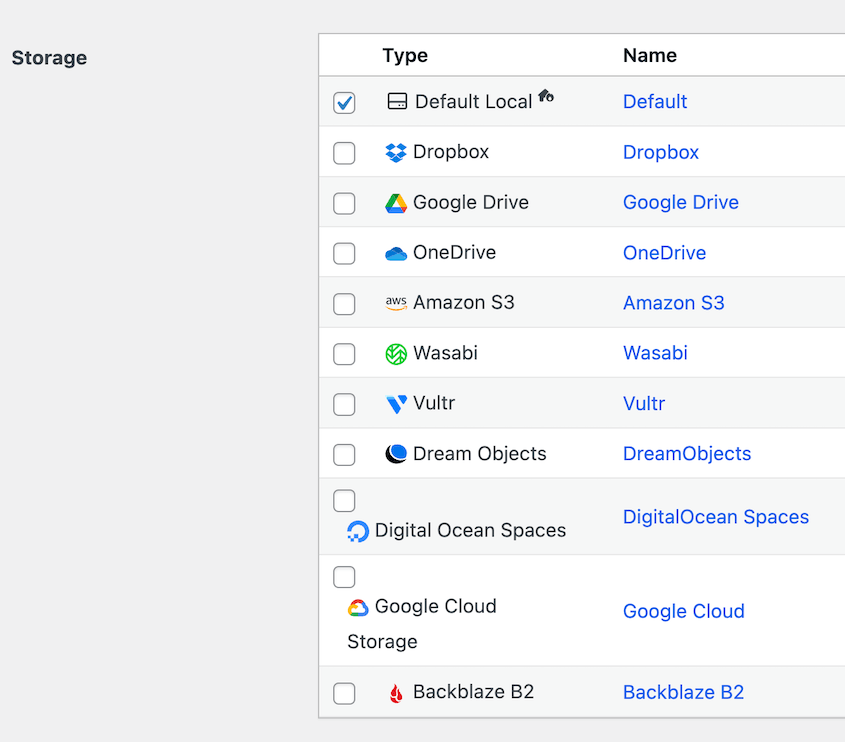
By default, your backup will be stored on your local server. However, Duplicator supports off-site storage including:
- Built-in Duplicator Cloud storage
- FTP
- Google Drive
- Dropbox
- Microsoft OneDrive
- Amazon S3
- Wasabi
- Google Cloud
- DreamObjects
- Vultr
- DigitalOcean Spaces
- Cloudflare R2
- Backblaze B2
- Any other S3-compatible cloud service
One you connect one of these accounts, you can select it in the Storage section.
Now, you can customize the backup. Simply select the data you want to include in the backup file.
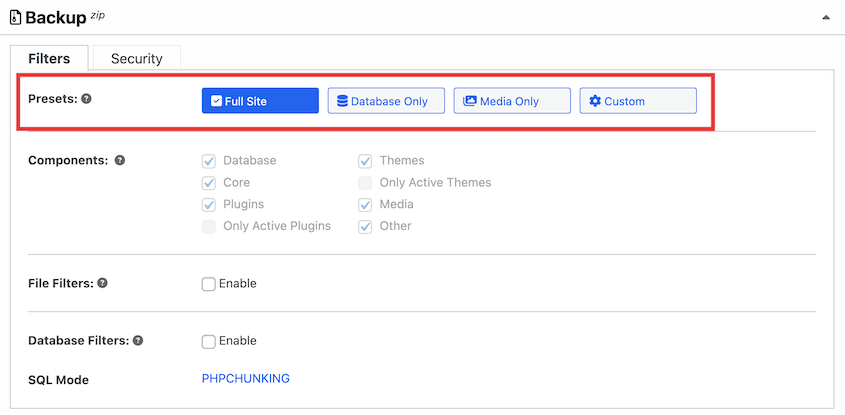
In most cases, you’ll need to do a full backup. This includes everything on your WordPress site, so you can easily restore it if needed.
However, you can easily create any kind of backup with Duplicator.
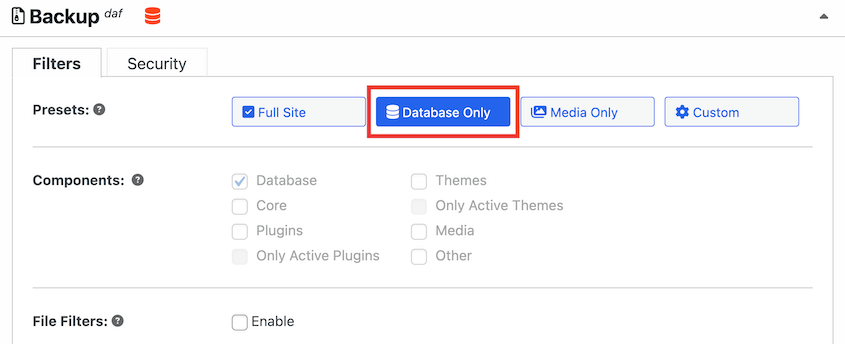
By clicking on the Database Only tab, you’ll save just a copy of the database. If you run a WooCommerce site, this can help you avoid losing any customer data.
For complete backups, select the Full Site tab. Then, click Next.
Duplicator will scan your website. Check any notices to make sure you can successfully back up your site.
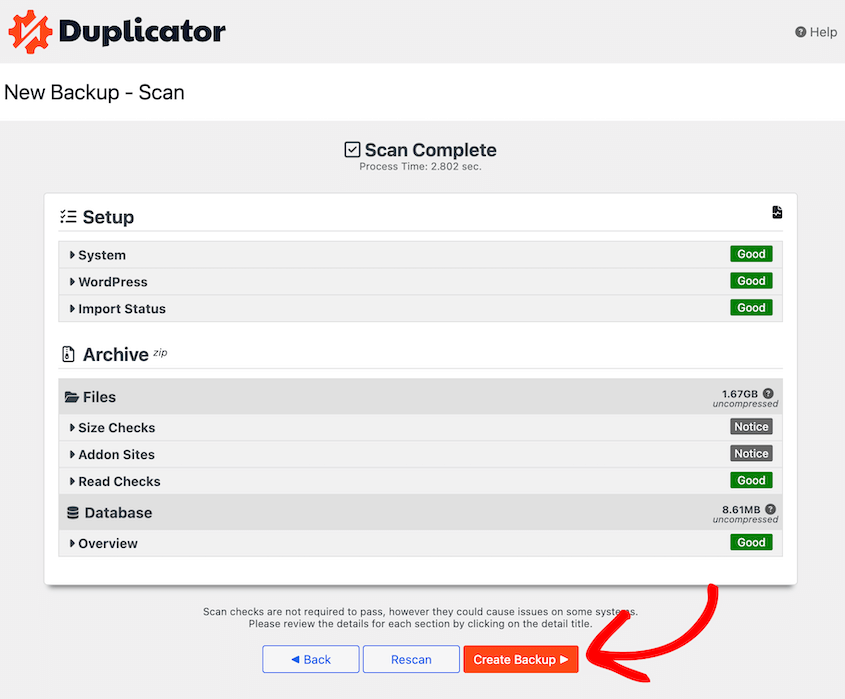
Lastly, hit Create Backup.
Step 3: Download Your Backup
By now, you’ve made a copy of your entire site. To make sure you can easily restore your site to this point, you’ll need to download it.
Open the Backups page. From the list, find the backup you just created.
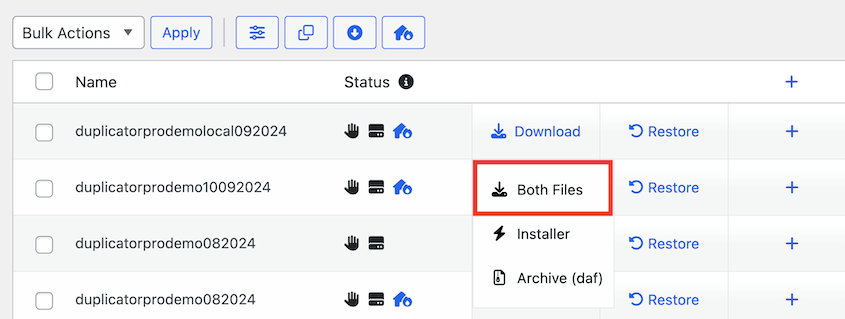
Next to the backup, you’ll see a Download button. Click on this and select Both Files.
This will download the backup of your site to your computer. Make sure you save these backup files to easily access them if you need to.
Whenever your site experiences a cyber attack or critical error, you can re-upload these files to your server to restore your site. However, you can also simply hit the Restore button next to the backup.
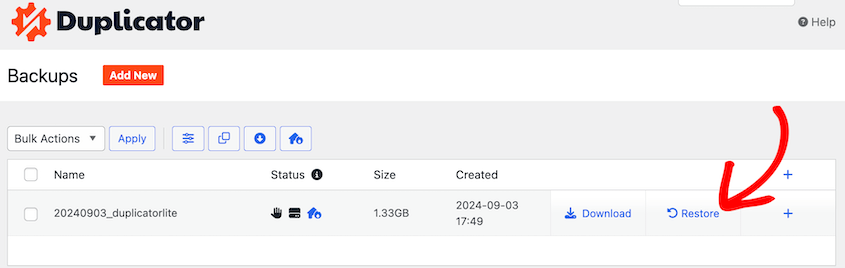
Unlike other backup plugins, Duplicator also gives you a disaster recovery point. This will rollback your site even if you can’t access your dashboard.
To use a backup for disaster recovery, it’ll need to be a full backup that’s stored locally. Then, hit the disaster recovery icon.
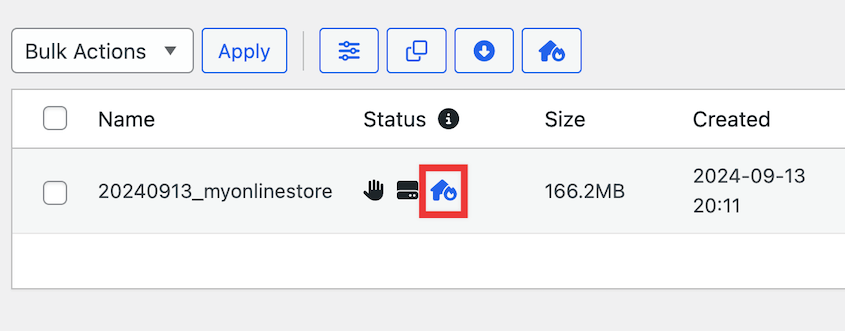
Once you set the recovery point, you can copy the recovery URL or download the launcher file. Either of these will immediately launch the recovery wizard.
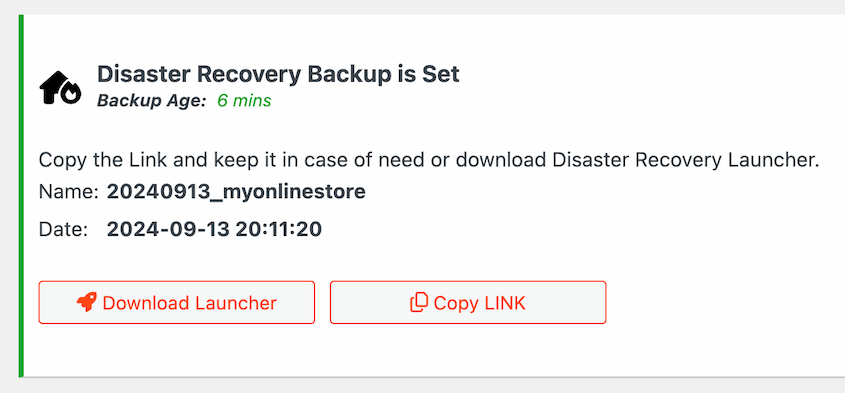
Now your site is fully safe from cyber attacks and other large issues!
Step 4: Set Up Automatic Backups
Although you could manually back up your site every time you need to, this takes extra time and effort. Instead, consider setting up automatic backups.
With Duplicator, you can schedule backups and then forget about them. To get started, find Duplicator Pro » Schedule Backups » Add New.
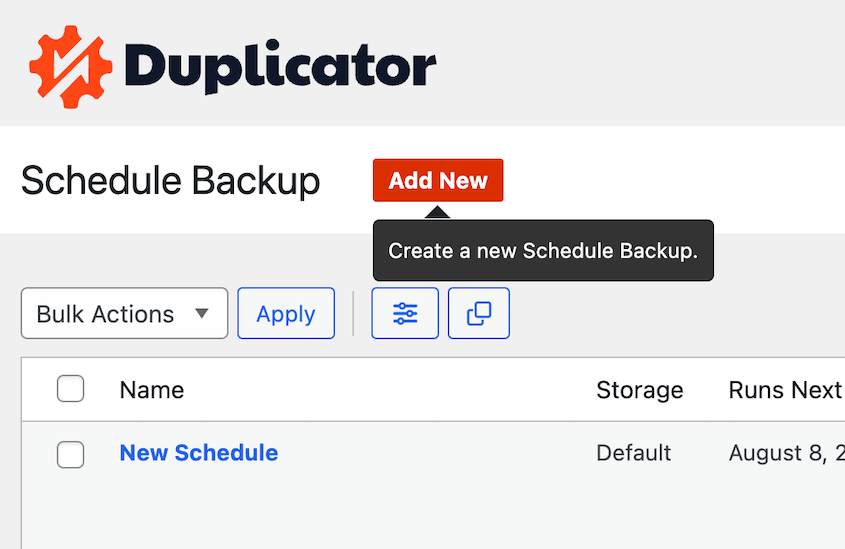
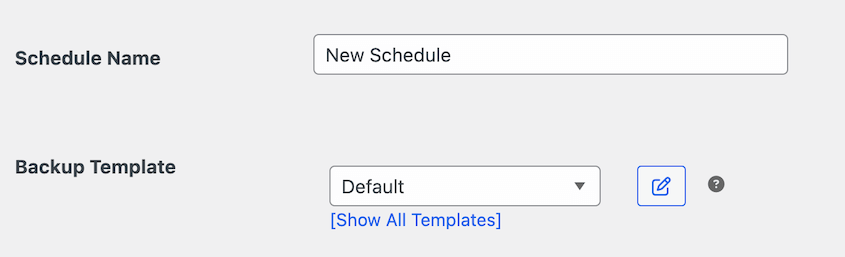
Name your backup schedule. For the Backup Template, you can customize what information is saved in the backup.
If you click on the + icon, this will take you to the template editing page. Here, feel free to edit the backup presets.
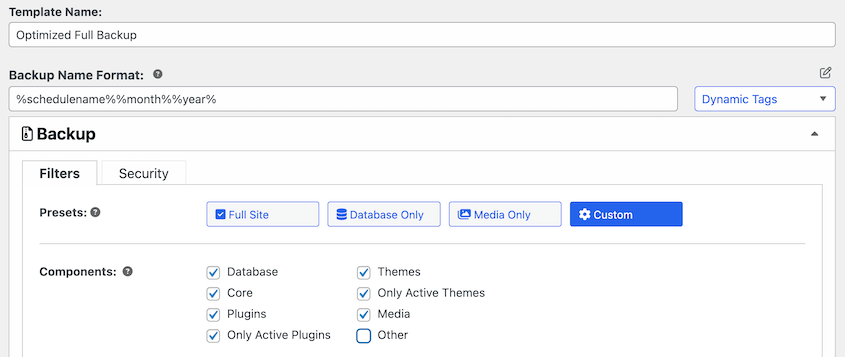
After you save a template, select it for your new backup schedule. Next, choose a storage location.
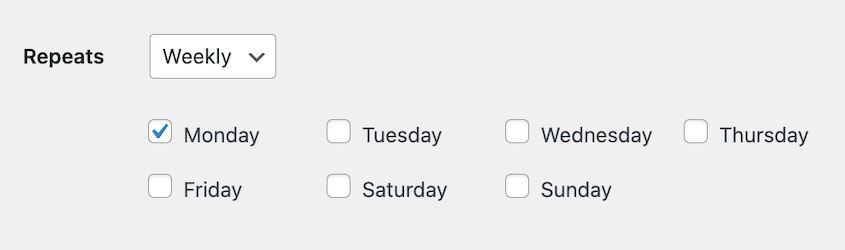
Set a time for your backup schedule. You can create hourly, daily, weekly, or monthly automatic backups. For each of these options, you’ll see different customization settings.
You’ll also need to select a Start Time. This will start the backup process at a specific time of day.
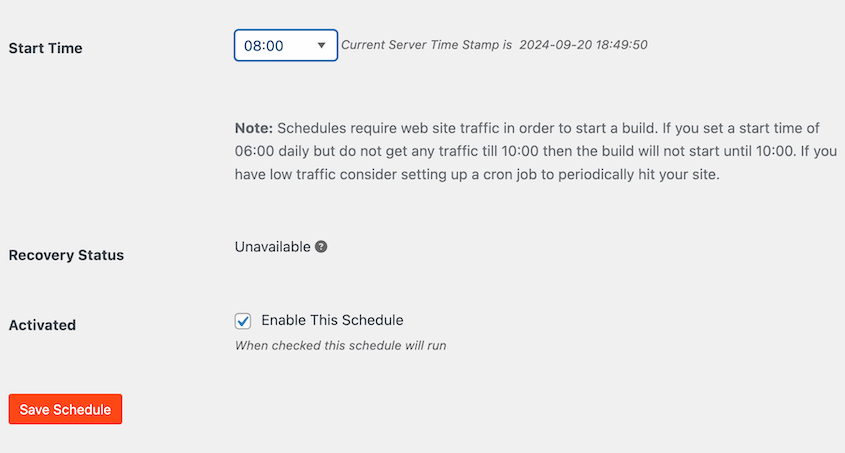
Finally, check the box next to Enable this schedule. After you save it, Duplicator will automatically start performing regular backups.
Quick Summary: Back Up Your Website With a WordPress Plugin
1. Install & Activate Duplicator: Download the plugin, upload it to your WordPress site, and activate your license key to unlock full features.
2. Create a New Backup: Go to Duplicator Pro » Backups » Add New, customize the backup, select your storage location, and run the scan.
3. Download and Store Securely: Once the backup is complete, download it to your computer or automatically store it in connected cloud services like Duplicator Cloud, Google Drive, or Amazon S3.
4. Automate Future Backups: Set up scheduled backups under Duplicator Pro » Schedule Backups to keep your site protected without manual effort.
Method 2: Manually Back Up WordPress
There are two main parts of your WordPress website: the core files and the database. If you manually download both of these, you’ll have a backup of your entire website.
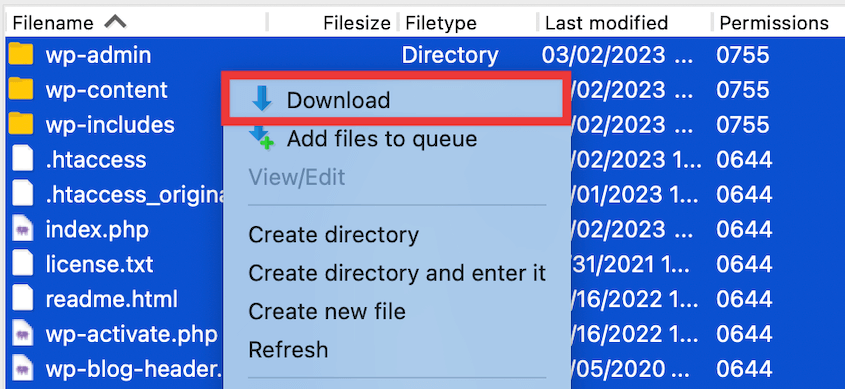
If you decide these risks are worth it, start by backing up your WordPress files. To do this, open a File Transfer Protocol (FTP) client like Filezilla and find your public_html directory.
Select all of the files in this root directory and download them.
You’ll also need to download your WordPress database. Using phpMyAdmin, a database manager, select your database and hit Export.
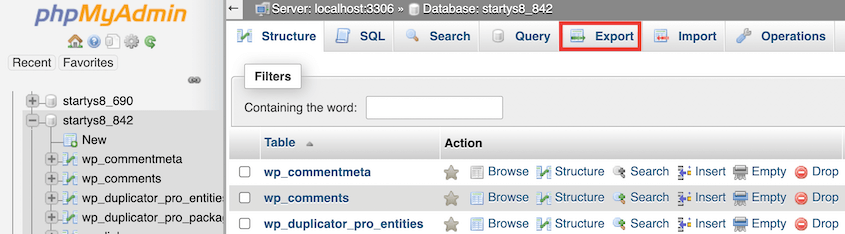
Be sure to choose SQL as the file format. Once you click Go, your database will automatically download.
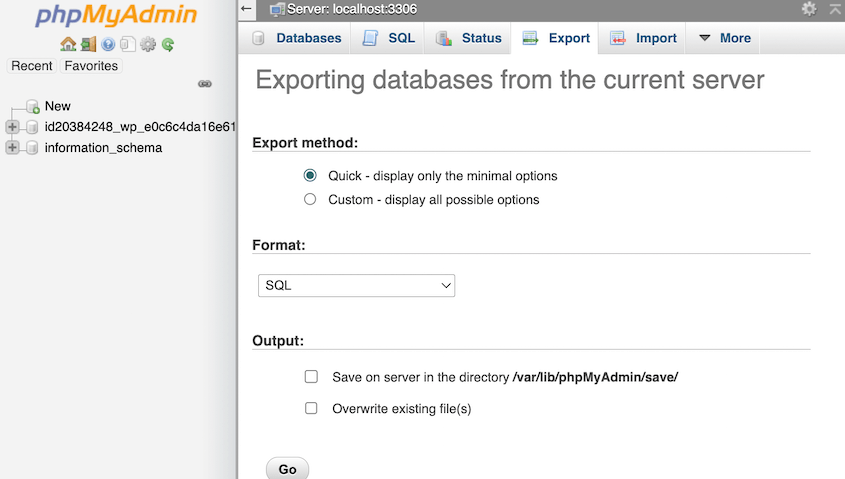
Now that you have backups of your files and database, you can re-upload them to your site if you need to restore your data.
Quick Summary: How to Manually Back Up Your WordPress Site
1. Connect to Your Server via FTP: Use an FTP client like FileZilla to access your site’s root directory (usually public_html), then download all your WordPress files.
2. Access phpMyAdmin: Log into your hosting control panel and open phpMyAdmin to manage your site’s database.
3. Export Your Database: Select your WordPress database, click the Export tab, choose SQL format, and hit Go to download the file.
4. Store Both Files Safely: Keep both your site files and SQL database backup in a secure location. You can re-upload them to restore your site if needed.
Method 3: Back Up Your Website With Your Web Host
Often, WordPress hosting companies automatically back up your website. Bluehost creates complimentary backups every day, week, or month.
Although I recommend being in charge of your site’s backup strategy, you could choose to rely on your web host.
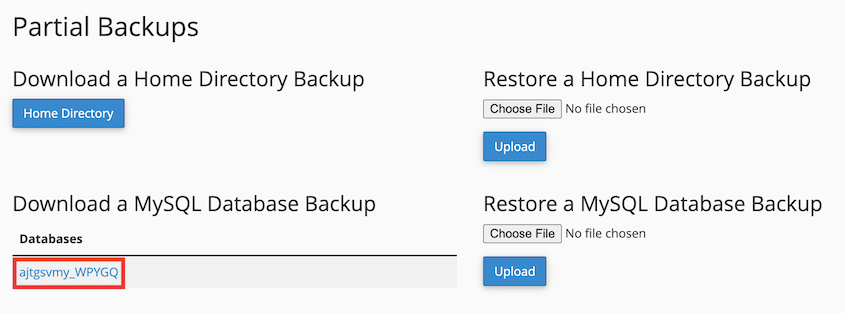
Some WordPress hosts also allow you to create new backups with your control panel. Bluehost users can sign into cPanel and click on Backup.
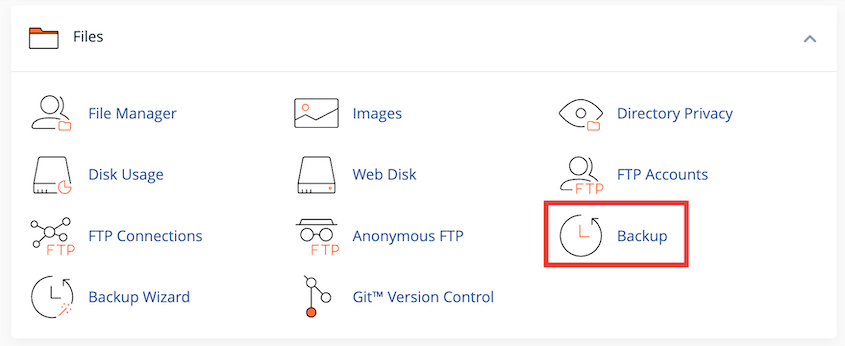
This will give you a few different ways to back up your WordPress site. Under Partial Backups, you can download a copy of your root directory.
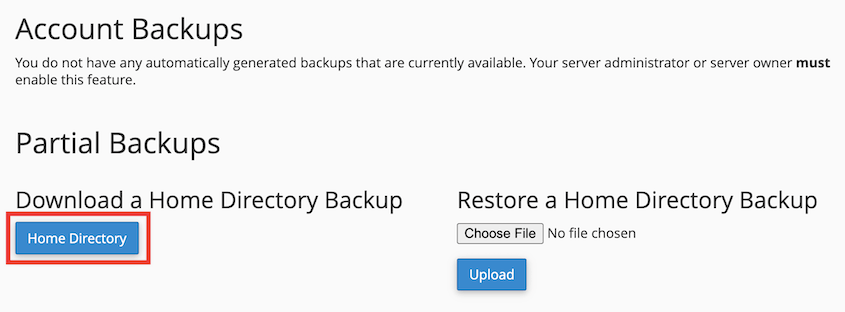
On this page, you’ll also be able to back up your database. Simply click on your database’s name.
Quick Summary: How to Back Up Your WordPress Site With Your Web Host
1. Log Into Your Hosting Account: Access your host’s control panel (usually cPanel) to manage your website settings.
2. Locate the Backup Section: Look for a tool or tab labeled Backup, Backup Wizard, or similar.
3. Download Your Site Files: Select and download your root directory or home directory files.
4. Export Your Database: Click on your WordPress database name to download a full copy. Together with your site files, this forms a complete backup.
Comparing Different WordPress Backup Methods
| Backup Method | Pros | Cons |
| Backup Plugin | – Easy to use with automated options – Supports cloud storage – Can schedule backups | – May require paid versions for full features – Depends on plugin’s reliability |
| Manual Backup | – Full control over the backup process – No plugin dependency | – Time-consuming – Risk of human error – Requires technical knowledge |
| Web Host Backup | – Often included in hosting packages – Automated and integrated with hosting services | – Limited customization – Depends on host’s backup frequency and reliability |
Frequently Asked Questions (FAQs)
How do I back up my WordPress site without plugins?
You can manually back up your WordPress site without plugins by downloading your site files via an FTP client (like FileZilla) or your hosting’s file manager (e.g., cPanel File Manager). Export your MySQL database using phpMyAdmin. Many WordPress hosting companies also offer their own built-in backup tools within your hosting control panel. Always consult your specific host’s documentation for their recommended approach.
How often should I back up my WordPress site?
The frequency of your WordPress backups depends on how often your site changes. At a minimum, back up your site weekly. However, for active sites with frequent updates, high traffic, or e-commerce transactions, consider daily or even hourly database backups.
- E-commerce Websites/Active Blogs: Weekly full backup, with daily (or even hourly) database backups.
- Content-Heavy Blogs: Weekly full backup, with a database backup for every new post.
- Static Sites (Infrequently Updated): Monthly full backup.
Plugins like Duplicator allow you to customize backup schedules and target specific data to optimize storage and data retention.
What is the best WordPress backup plugin?
Duplicator is widely considered the best WordPress backup plugin due to its comprehensive features, ease of use for both backups and site migrations, and disaster recovery options.
Alternatives: Other popular and reliable backup plugins include UpdraftPlus (known for its cloud storage options and free version) and Jetpack (offers real-time backups and security features as part of a larger suite).
How do I back up my WordPress site for free?
You can back up your WordPress site for free by installing the Duplicator Lite plugin. This free version allows you to create full site backups (files and database) as a .zip file on your local server. You can then download this file to your computer for safekeeping. Alternatively, manual backup methods (FTP/phpMyAdmin) are also free, but require more technical skill and time.
How do I manually back up and restore my WordPress site?
To manually back up your WordPress site, use an FTP client (or cPanel File Manager) to download all files from your public_html directory, and use phpMyAdmin to export your WordPress database as an .sql file.
To manually restore, upload these backed-up files and import the .sql database back to your server using the same tools. This process is generally more complex than plugin-based restoration.
How do I know that my WordPress backup was successful?
To confirm a successful WordPress backup:
- Verify File Existence: Check if the backup file (.zip or .daf file for Duplicator) is present in your chosen storage location (local server, cloud storage).
- Check Size: Ensure the file size is reasonable, indicating it contains all expected data.
- Plugin Confirmation: Most reputable backup plugins, including Duplicator, provide a success message, status log, or email notification upon completion.
- Test Restore (Recommended): Periodically perform a test restore on a staging or development environment to confirm the backup is fully functional and all data can be recovered.
What should I do if a backup fails?
If a WordPress backup fails, remain calm and systematically troubleshoot:
- Consult Documentation/Support: Refer to your backup plugin’s official documentation or reach out to their support team. Your hosting provider’s support can also assist with server-related issues.
- Review Error Messages: Check your backup plugin’s logs or dashboard for specific error messages, which often point to the root cause.
- Check Server Resources: Common causes include low PHP memory limit, execution time, or disk space. Contact your hosting provider to increase these limits if necessary.
- Adjust Plugin Settings: Try reducing the backup size by excluding large folders or adjust timeout settings within your plugin.
- Disable Other Plugins: Temporarily deactivate other plugins to check for conflicts.
Start Protecting Your Site Against Unexpected Errors
Learning how to back up your WordPress site is a must for any website owner. By regularly saving copies of your site’s files and database, you create a critical safety net against data loss, cyber attacks, and technical issues.
A consistent backup strategy means you’ll always have a reliable version of your site ready to restore, giving you peace of mind and protecting the effort you’ve invested.
Ready to start regularly backing up your website? Try out Duplicator Pro to set up automatic backups and disaster recovery points!
While you’re here, I think you’ll like these other WordPress backup guides:
- How to Restore a WordPress Site to a Previous Date Without a Backup
- 3-2-1 Backup Rule: What Successful Website Owners Know That You Don’t
- How to Remotely Back Up and Restore WordPress
- How to Back Up a Large WordPress Site
- How to Recover a Hacked WordPress Site
- STOP Making These Website Backup Mistakes




