
Looking for a Jetpack Backup Alternative? 7 Reasons to Switch to Duplicator
 Joella Dunn
 John Turner
Jetpack VaultPress Backup makes automatic cloud backups easy. You connect your site, and it quietly saves your changes in the background.
For some site owners, that’s what they need.
But maybe your backups hit the storage limit. Or maybe you want backups without a WordPress.com account.
In this post, I’ll show you what Duplicator does differently and where Jetpack still has the edge. Then, you can decide if it’s time to switch.
Here are the key takeaways:
- Hourly incremental backups: Duplicator Pro saves one full baseline, then backs up only what changed as frequently as every hour.
- Smaller backups: On our test site, 10 incremental backups took up 88% less space than 10 full backups.
- No WordPress.com account: Duplicator connects to Duplicator Cloud with your Duplicator license.
- More flexibility: Standard backups can go to 10+ storage destinations, and migrations work on empty servers and Multisite networks.
- One honest trade-off: Jetpack backs up WooCommerce changes in real time. Duplicator’s incremental backups run hourly.
Table of Contents
- Why Search for a Jetpack Backup Alternative?
- What Should You Look for in a Jetpack Backup Alternative?
- The Best Jetpack Backup Alternative: 7 Reasons to Switch to Duplicator
- Is Jetpack Backup Better Than Duplicator for Anything?
- How Much Does Duplicator Cost Compared to Jetpack Backup?
- Frequently Asked Questions (FAQs)
Why Search for a Jetpack Backup Alternative?
Jetpack Backup works well, so most people don’t leave because backups fail.
Here’s what usually starts the search:
- Renewal pricing: Backups now come in the Jetpack Security plan. It’s $9.95/month for the first year, then $19.95/month per site.
- Storage limits: Security includes 10 GB. When it’s full, Jetpack deletes your oldest backups. If it can’t keep at least 7 days of history, it pauses new backups until you add storage.
- A WordPress.com account: Jetpack connects your site to WordPress.com, which some agencies and clients would rather skip.
- One plan per site: Each Jetpack Backup plan covers a single site, so costs climb with every site you add.
If one of these bothers you, I’ll show you the best alternative.
What Should You Look for in a Jetpack Backup Alternative?
A good Jetpack Backup alternative should match what Jetpack does well and fix whatever made you start looking.
Here’s what to look for:
- Automatic backups: Backups should run on a schedule, so you never have to remember them.
- Incremental backups: Each backup should save only what changed, so frequent backups don’t fill your storage.
- Off-site storage: Your backups should live away from your web server, so a server failure doesn’t take them down too.
- Easy restores: You should be able to roll back in a few clicks and still have a way back if WordPress won’t load.
- Predictable costs: You should know what you’ll pay at renewal and what happens when your storage fills up.
Incremental backups are the one to check first, because they’re what make frequent backups affordable.
A full backup copies your entire site every time. An incremental backup copies your site once, then only saves the files and database tables that changed. Each backup stays small, so you can run them often.
That’s the core of what Jetpack offers, and it’s the feature Duplicator just added.
The Best Jetpack Backup Alternative: 7 Reasons to Switch to Duplicator
Duplicator is a WordPress backup and migration plugin used on over 1.5 million websites.
Every Duplicator backup can restore your site or move it somewhere new. Now, with incremental backups, it can also protect your site every hour without the storage cost of hourly full backups.
Here’s why I recommend switching from Jetpack to Duplicator:
- Hourly backups for all your plugin data: Changes in any plugin’s tables can be backed up as frequently as every hour.
- Finer control over what’s backed up: Set each table and folder to back up, unwatch, or exclude.
- A choice of where backups live: Save standard backups to 10+ storage destinations.
- Easier recovery when WordPress is broken: Every backup comes with its own installer.
- Simpler migrations and staging: Move your site without a working WordPress install at the destination.
- WordPress Multisite support: Back up and migrate entire networks.
- No WordPress.com connection: Your Duplicator license connects your site to Duplicator Cloud.
Hourly Backups for All Your Plugin Data
Jetpack saves changes to core WordPress and WooCommerce tables in real time. Other changes wait for the daily backup, and Jetpack’s docs say you can’t adjust that daily frequency.
That gap matters if your important data lives in other plugins. Think course progress, form entries, donations, or memberships.
Duplicator’s incremental backups treat those changes like any other. After one full baseline, each snapshot saves whatever files and database tables changed, as often as every hour.
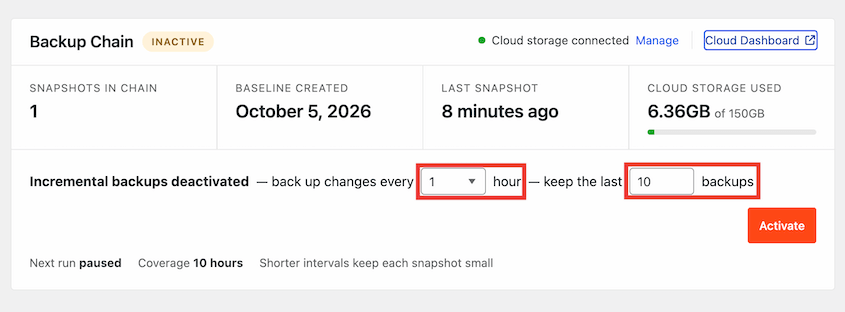
Here’s what you get with incremental backups:
- Your choice of schedule: Run backups anywhere from every hour to every 24 hours.
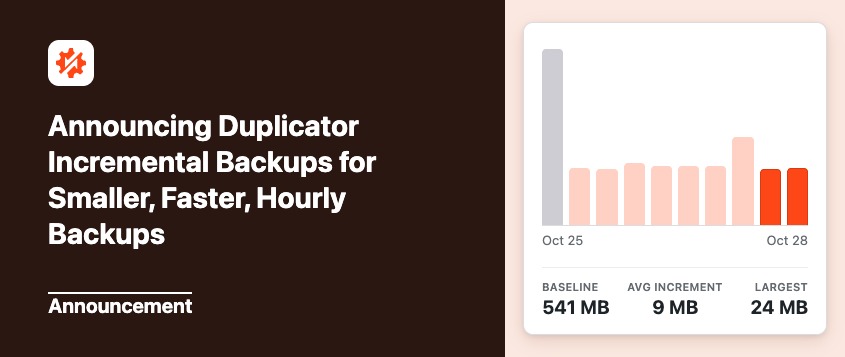
- Small backups: On one of our test sites, the baseline was 540 MB, and the average snapshot was 13 MB. Ten backups used 88% less storage than 10 full copies.
- Skipped runs: If nothing changed, Duplicator skips the run instead of storing an empty backup.
- A change list for every snapshot: Each backup shows what it captured, like “18 files · 56 tables.”
- Automatic cleanup: You choose how many backups to keep, and the oldest ones merge into the baseline.
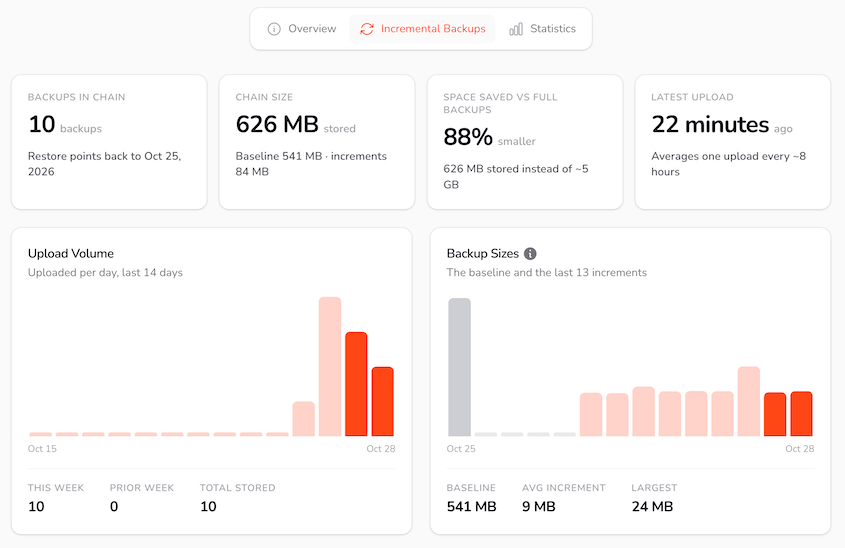
Setup is quick. Connect Duplicator Cloud, create your baseline, pick a schedule, and click Activate. Our guide covers how to set up incremental backups in detail.
Schedules run on WordPress cron, which needs site traffic to trigger. If your site gets few visitors, here’s how to make scheduled backups run on time.
Finer Control Over What’s Backed Up
Jetpack decides most of what goes into your backups. It leaves out WordPress core files, cache and log folders, and tables that don’t use your WordPress prefix. To skip a folder yourself, you add a marker file to it.
Duplicator gives you a settings screen for this. On the Settings tab, you can set each database table and folder to one of three behaviors.
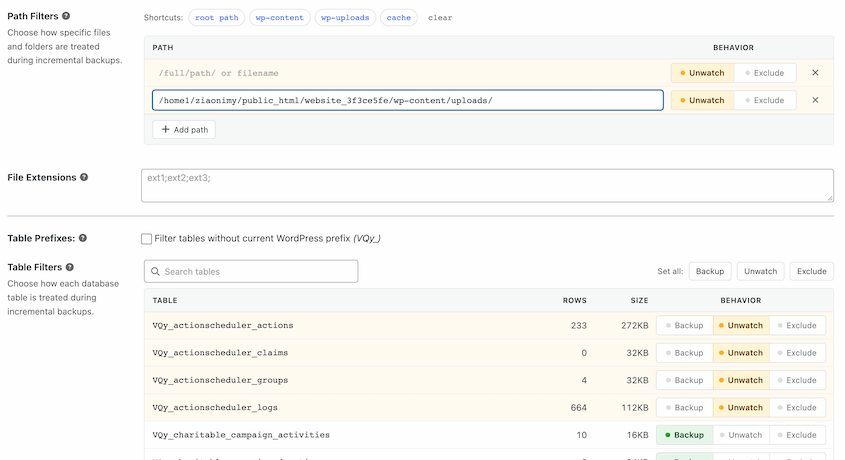
Here’s what each one does:
- Backup: Include it in your backups, and start a new snapshot when it changes.
- Unwatch: Keep it in your backups, but don’t start a new snapshot when only this item changes.
- Exclude: Leave it out of your backups completely.
Duplicator unwatches the noisiest tables (like wp_options) by default. Everything stays in your backups unless you choose to exclude it.
You can also customize your standard manual and scheduled backups. When you’re creating one, choose a preset: Full Site, Database Only, Media Only, or Custom.
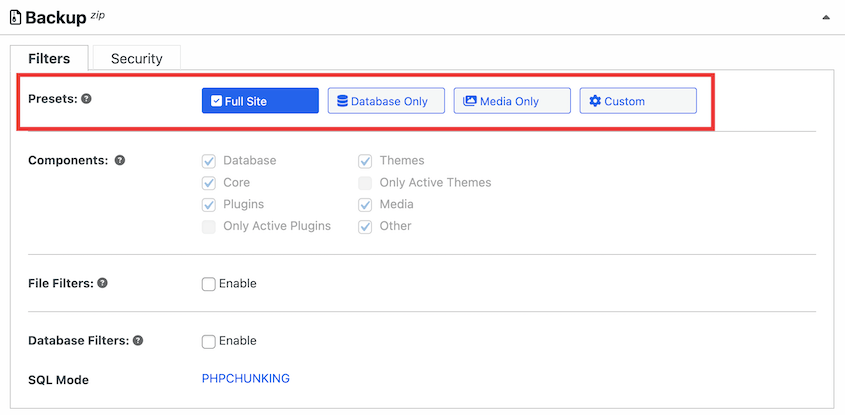
Duplicator has file and database filters to get even more specific about what data gets backed up.
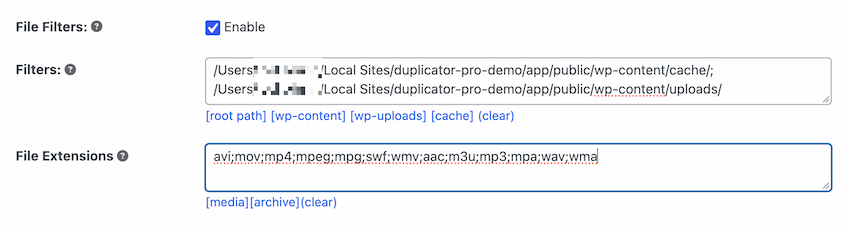
Just keep in mind that a filtered backup isn’t a full backup, so you can’t use it for Disaster Recovery. You can still use it for one-click restores or a classic installation.
A Choice of Where Your Backups Live
Jetpack stores your backups in its own data centers. You can download a copy by hand, but it doesn’t offer a way to send backups to your own storage automatically.
Duplicator’s incremental backups live in Duplicator Cloud. Duplicator Pro can also schedule standard backups to storage you choose.
Here are all the storage destinations Duplicator supports:
- Duplicator Cloud
- Local
- FTP/SFTP
- Google Drive
- Dropbox
- Microsoft OneDrive
- Amazon S3
- Wasabi
- Google Cloud
- DreamObjects
- Vultr
- DigitalOcean Spaces
- Cloudflare R2
- Backblaze B2
- Any other S3-compatible storage service
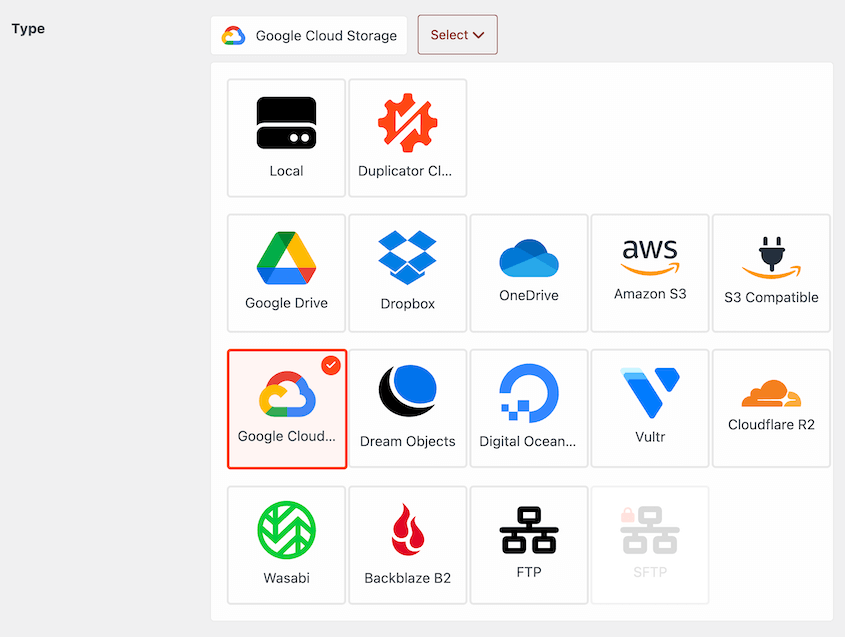
A common setup is hourly incremental backups to Duplicator Cloud, plus a daily or weekly full backup to Google Drive or Amazon S3. That gives you two copies in two places, which helps you follow the 3-2-1 backup rule.
Easier Recovery When WordPress Is Broken
Both plugins restore a healthy site in a few clicks. The difference shows up when WordPress won’t load.
If a Jetpack restore fails, its docs suggest adding server credentials. If your site is down, they suggest reverting to a fresh WordPress install, reconnecting Jetpack, and trying the restore again.
If that fails, you’re looking at a manual restore. That means unpacking the backup, copying folders over FTP, and importing the database with a tool like phpMyAdmin.
Every Duplicator backup includes an archive and an installer. Upload both to your server, open the installer in your browser, and it rebuilds your site without a working WordPress install.
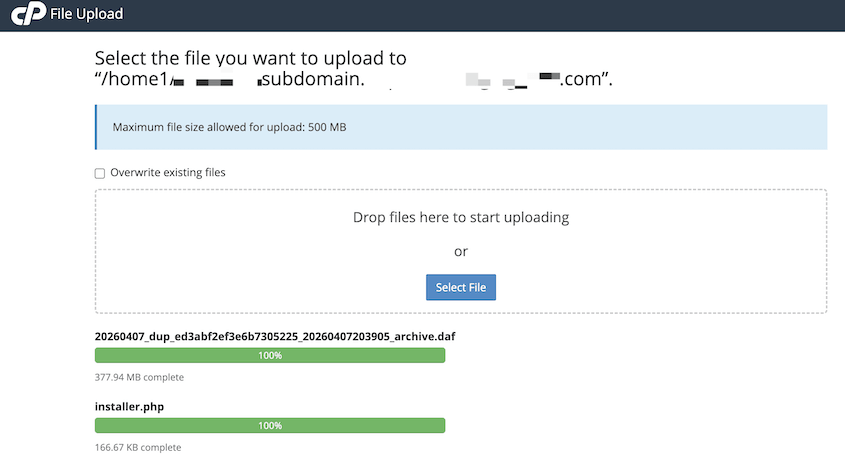
Incremental backups work the same way. Duplicator Cloud turns any snapshot into a regular full backup with an archive and installer. Restoring an older snapshot doesn’t delete your newer ones either.
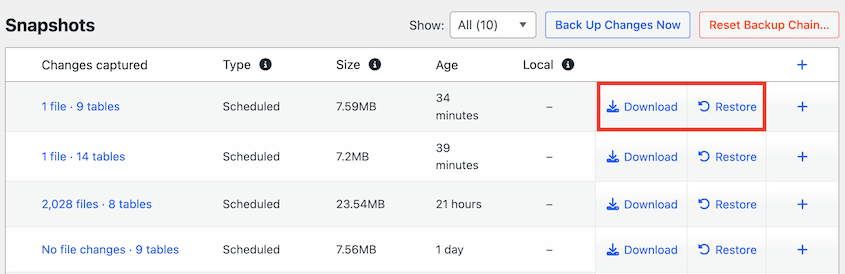
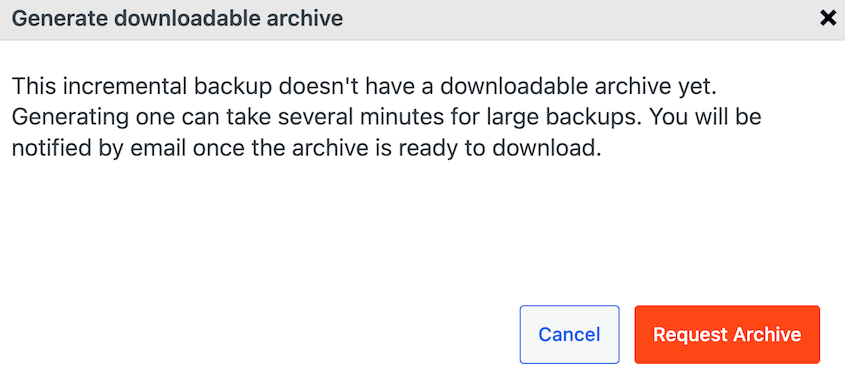
If the full backup hasn’t been generated yet, click Request Archive first. It can take several minutes on a large site, and Duplicator Cloud emails you when it’s ready.
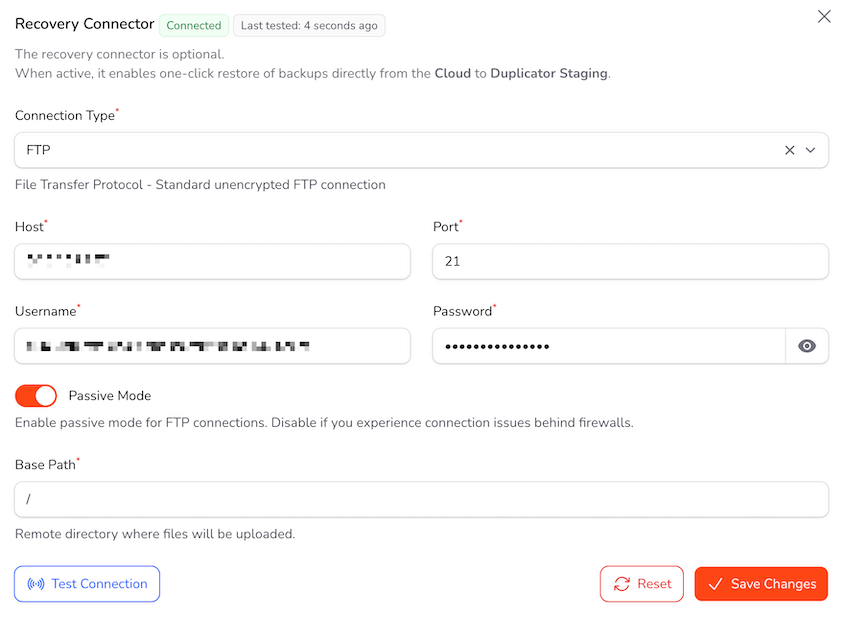
You can also restore from your Duplicator Cloud dashboard if wp-admin is broken. Set up a recovery connector with your FTP or SFTP credentials, and Duplicator Cloud runs a full-site restore from off-site.
Simpler Migrations and Staging
Jetpack can copy your site to a new server. But the destination needs a working WordPress install, and you’ll need to enter SSH, SFTP, or FTP credentials.
Duplicator was built as a migration plugin first, so you have more ways to do it.
The biggest difference is that Duplicator doesn’t need WordPress at the destination. Upload your archive and installer to the new server, open the installer in your browser, and it builds the site from scratch.
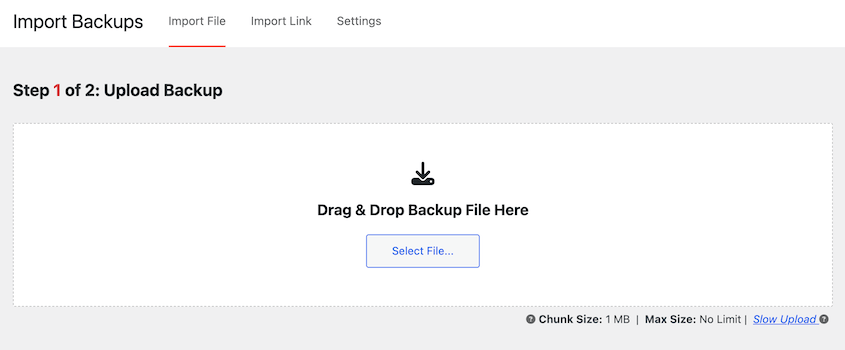
If WordPress is already installed, the move gets even simpler. Go to Duplicator Pro » Import Backups and drop in your backup, or paste a link to it on the Import Link tab. You won’t enter any SSH, SFTP, or FTP credentials, and Duplicator updates your domain during the install.
Your incremental backups can double as migrations too. Click Download next to any snapshot and select Both Files to get a full archive and installer. That means your move can start from a snapshot taken within the last hour.
Duplicator handles large sites as well. One customer uses it to back up and migrate a 400 GB site.
Staging follows the same pattern. Jetpack’s staging clone needs a staging site you set up yourself, plus server credentials for both sites.
In Duplicator Pro, you go to Duplicator Pro » Staging and click Create Staging Site. It builds a working copy in a subfolder of your site, with its own database tables, blocked outgoing email, and search indexing turned off.
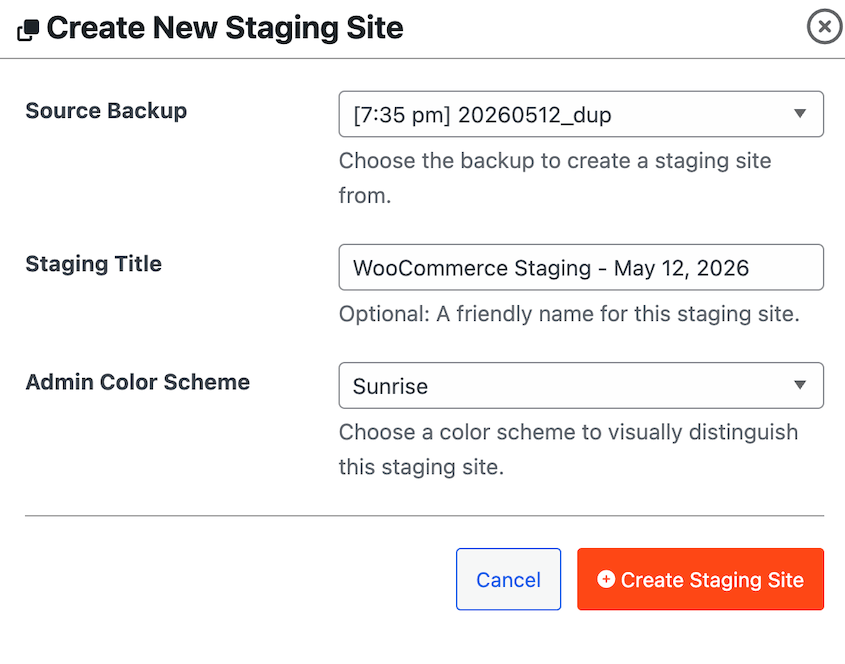
Like Jetpack’s clones, Duplicator’s staging sites don’t push changes back to your live site. They give you a safe copy to test on first.
WordPress Multisite Support
This one is simple. Jetpack Backup doesn’t support WordPress Multisite, and its migration tool doesn’t either.
Duplicator Pro backs up and migrates Multisite networks. If you run a network, Jetpack Backup isn’t an option.
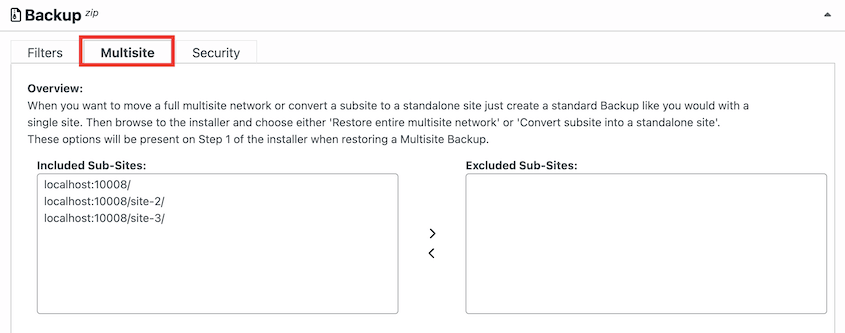
To see how Duplicator works with Multisite, read these posts:
- How to Back Up WordPress Multisite
- How to Restore WordPress Multisite
- How to Migrate WordPress Multisite
- How to Convert WordPress Multisite to a Single Site
No WordPress.com Connection
Jetpack’s backups run through a connection between your site and WordPress.com. To set it up, an administrator links the site to a WordPress.com account, and that person becomes the connection owner.
That connection can cause problems for you later.
Jetpack’s docs say the connection breaks if the owner’s WordPress account is deleted, and it has problems if that person loses the Administrator role. A current admin then has to reconnect the site.
Jetpack recommends transferring ownership before the owner leaves, which is one more item for your offboarding checklist.
Duplicator doesn’t use WordPress.com at all. You download Duplicator Pro from your duplicator.com account, activate your license, and connect Duplicator Cloud to start running incremental backups.
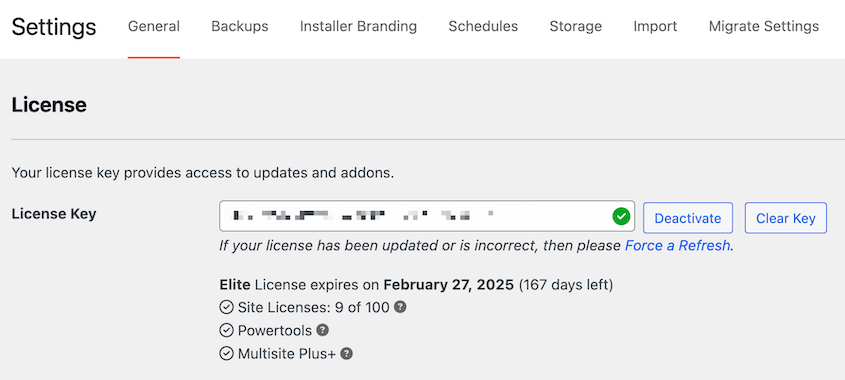
For agencies, this means backups are tied to your license, not to one team member’s personal account. If someone leaves, your client backups don’t leave with them.
Incremental backups do rely on your connection to Duplicator Cloud. But standard backups run on your own server, so you can still create and download a full backup without any outside service.
Is Jetpack Backup Better Than Duplicator for Anything?
Jetpack backs up changes to WooCommerce and core WordPress tables as they happen. Duplicator’s incremental backups run as often as every hour.
For most sites, an hourly backup covers what you’d realistically lose. But if you run a high-volume store where every order matters, real-time backups may be worth Jetpack’s price.
There’s one more difference. Jetpack includes its storage in the plan. With Duplicator, incremental backups need a Duplicator Cloud storage plan in addition to your plugin license.
How Much Does Duplicator Cost Compared to Jetpack Backup?
Incremental backups are included with Duplicator Pro and Elite plans.
Here’s how the pricing works:
- Duplicator Pro: from $199.50/year for up to 20 sites
- Duplicator Elite: from $299.50/year for up to 100 sites
- Duplicator Cloud storage: from $29/year for 2 GB
For comparison, Jetpack Security is $9.95/month for the first year ($119.40/yr), then $19.95/month for each site ($239.40/yr), with 10 GB of storage. Jetpack Complete includes 1 TB for $24.95/month, then $49.95/month.
So on a single site, Jetpack’s first year can cost less. But each Jetpack plan covers one site, while one Duplicator Pro license covers up to 100.
Frequently Asked Questions (FAQs)
What is the best Jetpack Backup alternative?
Duplicator Pro is the best Jetpack Backup alternative for most WordPress sites. It runs hourly incremental backups to Duplicator Cloud, so frequent backups stay small. It also migrates, clones, and stages your site, and it doesn’t require a WordPress.com account.
Does Duplicator do real-time backups like Jetpack?
Duplicator’s incremental backups run as often as every hour, not after every change. Jetpack backs up WooCommerce and core database changes in real time. For most sites, hourly backups are frequent enough. For a busy store where every order counts, Jetpack’s real-time backups may be worth the cost.
How do I switch from Jetpack Backup to Duplicator?
Install Duplicator Pro and connect Duplicator Cloud. Then go to Duplicator Pro » Incremental Backups, create a baseline, and set your schedule. Once a few snapshots finish, download one and install it on a separate test site. After that, you can cancel your Jetpack plan.
Can I use Jetpack Backup and Duplicator at the same time?
Yes. Jetpack copies your site to its own servers, and Duplicator builds backups on yours, so they won’t get in each other’s way. Running both while you switch means you always have a backup to fall back on.
Just restore with one plugin at a time. Once Duplicator has a few successful backups, you can turn off Jetpack.
Is there a free Jetpack Backup alternative?
The free Duplicator plugin creates full backups and migrates your site at no cost. It doesn’t include incremental backups, though. If you want frequent backups that don’t fill your storage, you’ll need Duplicator Pro or Elite and a Duplicator Cloud storage plan.
Switch to Hourly Backups You Control
Jetpack Backup makes automatic cloud backups easy. Now you can get the same kind of protection without the WordPress.com account or the per-site monthly bill.
With Duplicator Pro, your site is backed up as often as every hour, and each backup only saves what changed. You can see what’s in every snapshot and restore any of them. And when it’s time to move or stage your site, it’s the same plugin.
Ready to switch? Get Duplicator Pro and create your first baseline today!
While you’re here, I think you’ll like these hand-picked resources:
- Announcing Duplicator Incremental Backups for Smaller, Faster, Hourly Backups
- How to Set Up WordPress Auto Backups to Google Drive, Dropbox, & S3
- UpdraftPlus vs Duplicator: Solving the Debate Once and For All
- BackWPup Alternative Checklist: What to Look for After the 5.0 Update
- What Is an Incremental Backup in WordPress? (And How to Run Them)
- The Safe Way to Back Up WordPress With AI Agents