

Duplicator Review: Is It the Best Backup and Migration Plugin?
 Joella Dunn
Joella Dunn
Joella Dunn
 John Turner
John Turner
John Turner
Regular backups are an important part of keeping your WordPress site safe. At some point, you might also need to migrate or clone your site.
Duplicator Pro is a flexible tool that can do all of these maintenance tasks, but is it really worth it?
I know how important your website is to you. That’s why I’ve put Duplicator through its paces, testing every feature for flaws.
Here are the key takeaways:
- Duplicator Pro is the most versatile WordPress backup and migration plugin, offering customizable backups, automated scheduling, and one-click restores all in one place.
- Cloud storage is built in, with native Duplicator Cloud and support for third-party providers including Google Drive, Dropbox, and Amazon S3.
- Migrating a site is beginner-friendly thanks to a drag-and-drop import tool and a step-by-step migration wizard that handles URL replacement automatically.
- Large sites and WordPress Multisite networks are fully supported, including a custom DupArchive format with no size limit.
- Disaster recovery is a standout feature, allowing you to restore your site via a recovery URL even when you’re locked out of WordPress.
- Duplicator Lite is free, and includes off-site backups to Duplicator Cloud, one-click restores, and AES-256 encryption.
- Upgrading to Pro (starting at $69.30/year) unlocks scheduled backups, third-party storage like Google Drive and Amazon S3, drag-and-drop migrations, and multisite support.
Quick Summary of Our Duplicator Review
Duplicator lets you easily back up, migrate, and clone WordPress sites. It offers helpful features like scheduled backups, cloud storage, drag-and-drop migrations, and one-click restorations. This makes it a great choice for both beginners and expert developers to keep their websites safe.
Table of Contents
- What Is the Duplicator Plugin?
- How Does Duplicator Work?
- Duplicator Review: Why It’s the Best Backup and Migration Plugin
- What Is the Difference Between Duplicator and Duplicator Pro?
- Duplicator Pricing
- Is the Duplicator Plugin Free?
- How to Migrate a Site with Duplicator
- How to Back Up a Site with Duplicator
- What Is the Size Limit for Duplicator?
- What Are the Requirements to Use Duplicator?
- What Is the Alternative to Duplicator?
- Is Duplicator the Best Backup and Migration Plugin?
What Is the Duplicator Plugin?
Duplicator is a WordPress plugin that helps you back up, clone, and migrate entire websites. Using this tool, you won’t have to worry about data loss during site transfers or backups.
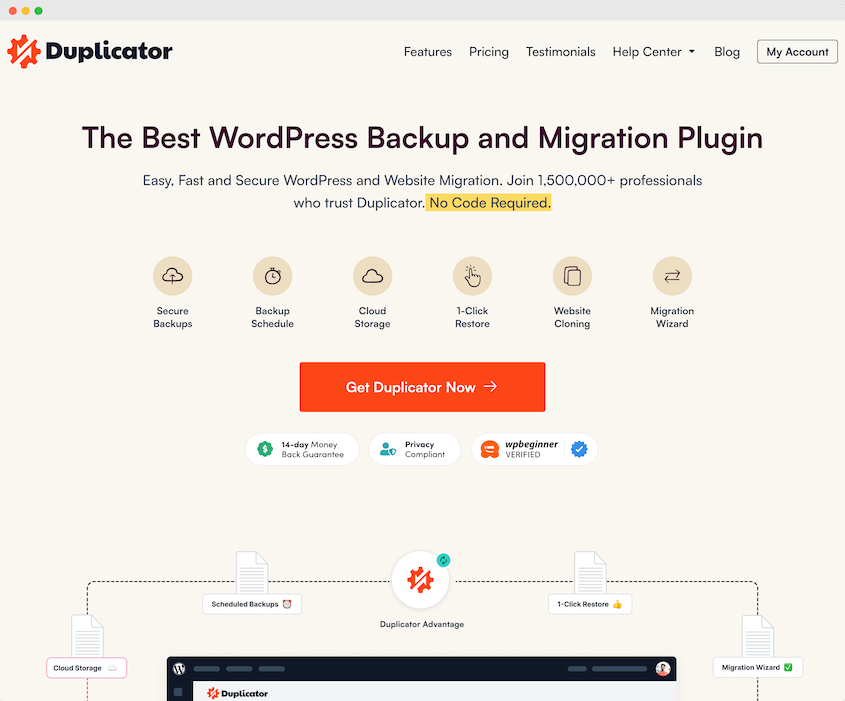
With over 4,000 five-star customer reviews, Duplicator Pro is one of the most popular backup and migration plugins. It offers a solid set of features that for both beginners and experienced developers.
How Does Duplicator Work?
Duplicator works by packaging your entire WordPress website into a single archive file. This contains all of your WordPress files, plugins, themes, media files, and database tables.
Along with an archive file, you’ll get an installer.php script. If you ever need to migrate your site to a new host, server, or domain name, you can upload the archive and installer files to the new location.
Additionally, you can use Duplicator as a backup tool. Once you create a backup, save it on your local server or a third-party cloud storage location. Using Duplicator, you’ll also be able to recover a backup whenever your site goes down.
Duplicator Review: Why It’s the Best Backup and Migration Plugin
Now that you have an idea of what Duplicator is and what it does, let’s dive into some specific features.
Here’s what makes Duplicator stand out as a backup and migration plugin:
- Customizable WordPress Backups: Create tailor-made backups with file and database table filtering
- AutoTune for Fast Backups: Finds backup settings that work on your server when a build keeps failing
- Automated Backups: Schedule hourly, daily, weekly, or monthly backups with customizable templates
- AI Backups: Let AI clients like Claude or ChatGPT create a WordPress backup and check that it finished
- Easy Backup Restore Options: One-click restoration with off-site disaster recovery capabilities
- Cloud Storage: Integrates with 10+ providers including Google Drive, Dropbox, and Amazon S3
- Quick Site Migrations: Drag-and-drop functionality and empty site support for developers
- Support for Large Sites and WordPress Multisite: Handles massive websites and network installations
- Built-in Search and Replace: Automatic or customizable URL replacement during migrations
- Remote Restores: Download and restore cloud backups directly from WordPress
- Dynamic Backup Tags: Organize backups with custom tags and automated scheduling
- Media Optimization: The Pro and Elite plans come with WP Media Cleanup to instantly remove unused image variations
Customizable WordPress Backups
Duplicator Pro gives you the freedom to create tailor-made backups that suit your specific needs.
You’ll use custom backup presets to select specific site components to include/exclude.
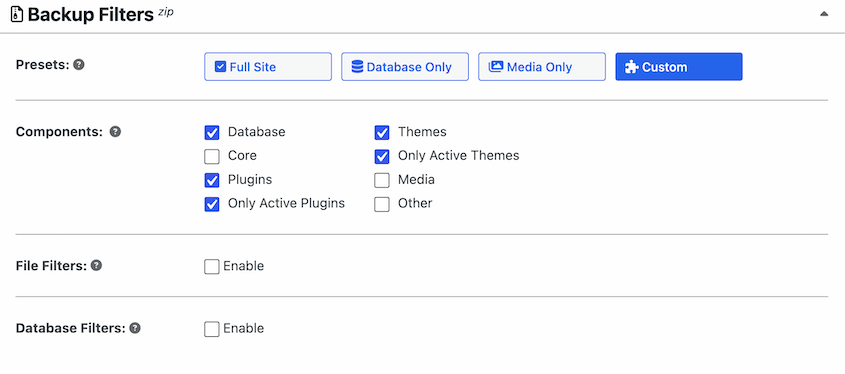
Duplicator also includes file and database table filtering.
You can filter out certain files, directories, or database tables, allowing for efficient use of storage space. Plus, it can reduce backup time.
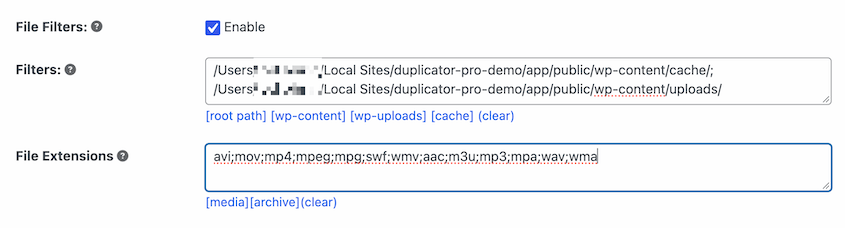
This is a great opportunity to clean up your WordPress site during a migration. You’ll create a copy of your website without any unnecessary folders, database tables, plugins, or themes.
Once you move this backup to another location, the new site will be optimized!
AutoTune for Fast Backups
Sometimes a backup simply won’t build on your server, and the settings that would fix it are difficult to understand as a WordPress beginner. AutoTune finds and implements them for you.
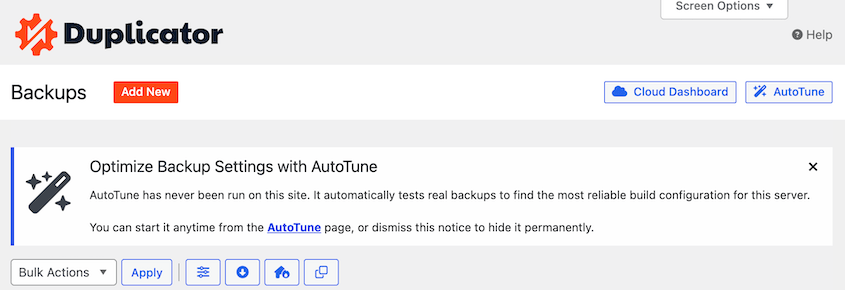
Duplicator’s AutoTune runs real test backups and changes one setting at a time until one of them succeeds. Then, it keeps that configuration.
It adjusts settings like the archive engine, query limit, and compression to find the best setup for your specific website.
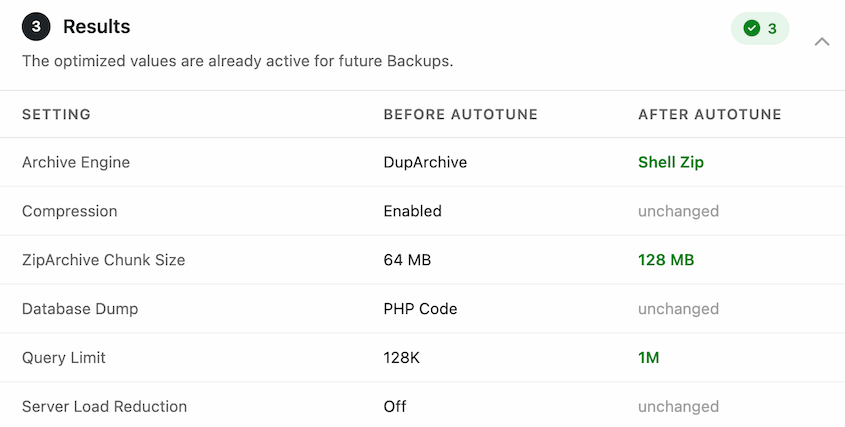
You’ll find it on the Backups page or under Duplicator » Tools » AutoTune. It’s free in Duplicator Lite.
Automated Backups
Without a backup plugin, you might waste a lot of time manually downloading your files and database.
Duplicator allows you to automate your backups, so you never have to worry about forgetting to back up your site.
When you add a new backup schedule, you can choose a backup template. This will specify what data should be saved.
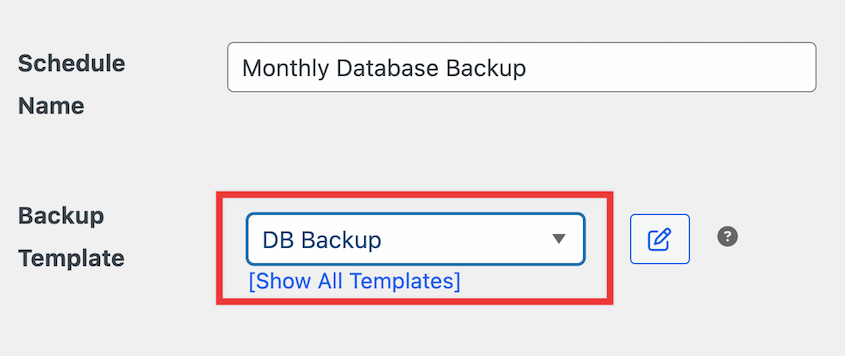
You can also pick a custom storage location for the automated backups. If you select cloud storage, Duplicator will automatically build backups and push them to your third-party account.
With Duplicator, you’ll be able to customize the frequency of your backup schedule. Here are the different options:
- Hourly backups
- Daily backups
- Weekly backups
- Monthly backups
Feel free to also select a start time. This will fully set up routine backups at your preferred interval.
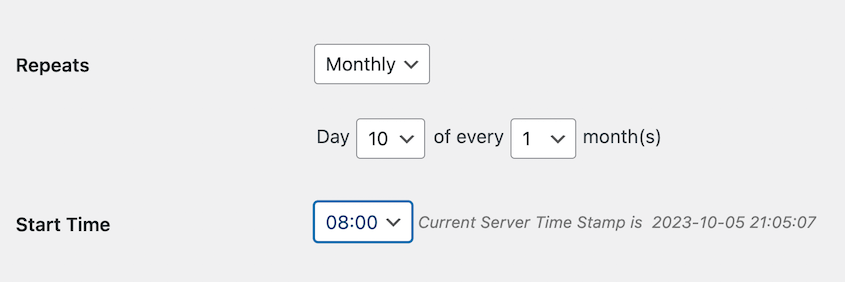
Duplicator can run multiple schedules at one time. Using this feature, you can back up different parts of your site at the right times.
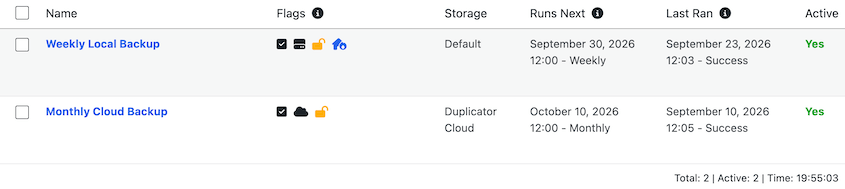
By setting up automated backups, you’ll know that your website is continuously protected, even during your busiest days!
AI Backups
Since Duplicator 5.0, you can hand WordPress backups to an AI assistant. Connect your site once, and Claude or ChatGPT can run a backup for you before it touches anything else.
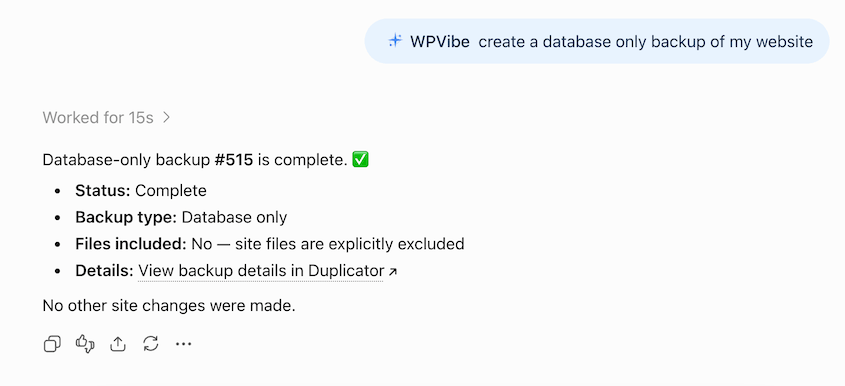
Duplicator gives your assistant three abilities:
- List the backups you already have
- Create a new backup (either full-site or database-only)
- Check whether a backup finished
This allows you to start every AI session by protecting your data. If anything goes wrong, restore the backup and instantly undo the changes.
You’ll need WordPress 6.9 or newer, because these abilities are built on the WordPress Abilities API. Plus, the free WPVibe plugin is key to connecting your AI client to Duplicator.
Easy Backup Restore Options
Accidents happen, and sometimes websites encounter unexpected issues.
With Duplicator, restoring your backups is a breeze. The plugin guides you through the restoration process, and since 5.0, one-click restores work in the free plugin too.
After you create a local backup, you’ll see a Restore button next to it. Click on this to instantly roll back your site.
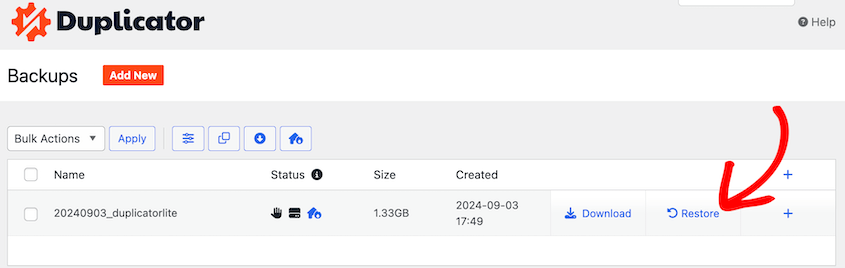
This can be useful for designers, developers, and website owners. Feel free to edit your site design or code. Restore a previous backup if the changes don’t look the way you want them to.
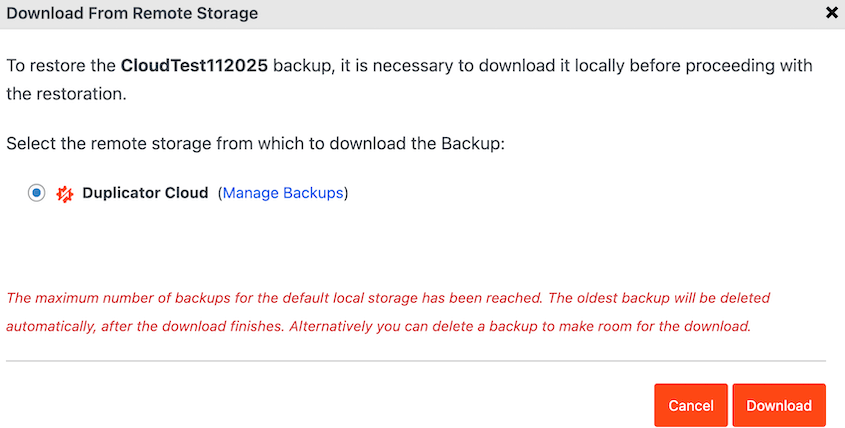
You can even restore cloud backups in one click! If you stored your backup remotely, Duplicator will download your data. So, you won’t even have to leave WordPress.
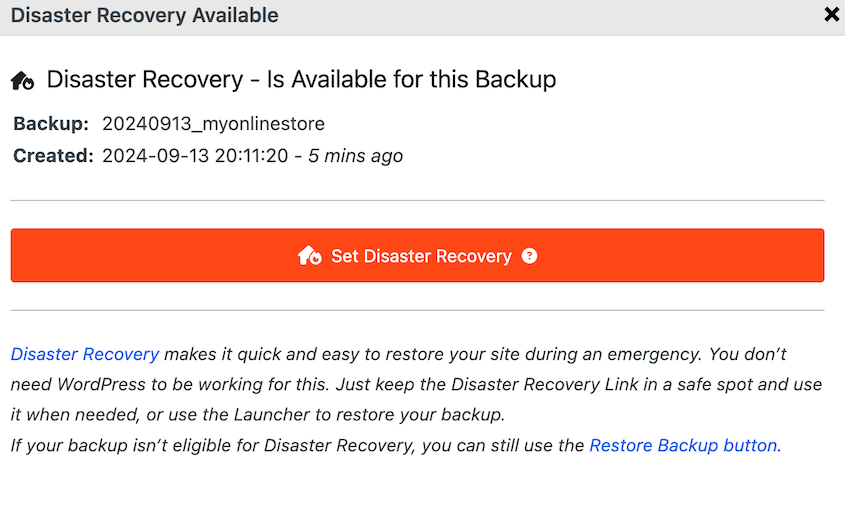
At some point, your site could experience a catastrophic error. Before this happens, you’ll need to set a disaster recovery point. This allows you to recover an error-free backup should anything happen to your site.
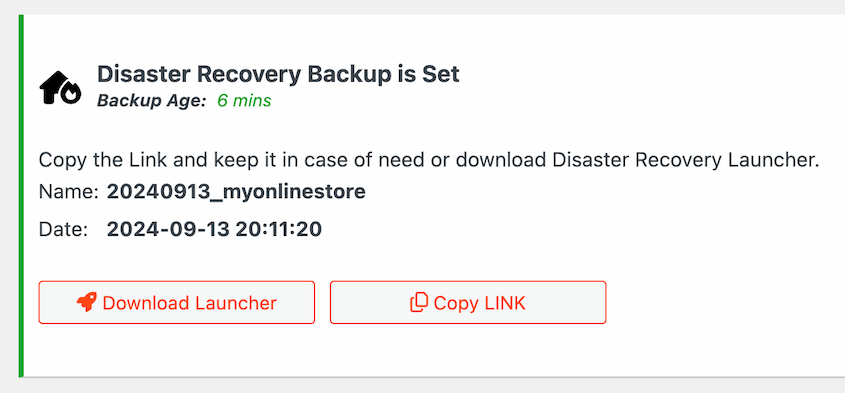
Once this is set, copy the recovery URL. Save this in a safe location so that it can be used to roll back your site in an emergency.
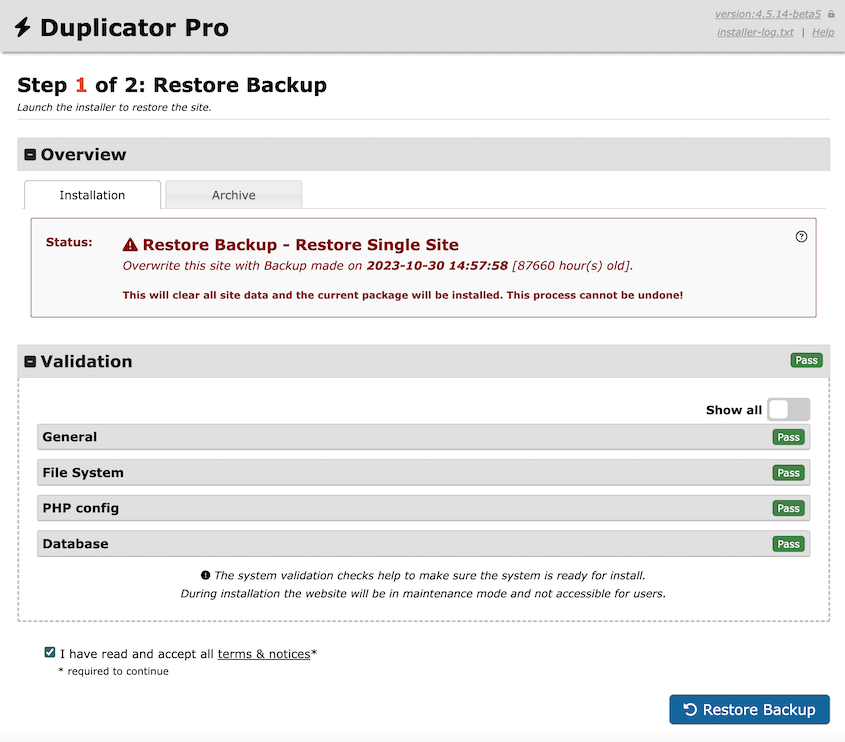
If an error or cyber attack corrupts your data, paste this URL into a new browser window. Duplicator will walk you through the steps to recover the backup.
Cloud Storage
By default, Duplicator will build backups and store them on your local server. However, it also seamlessly integrates with popular cloud storage services.
You can store your backups securely in the cloud, reducing the risk of data loss due to hardware failures or other on-site disasters.
Here are all of the different cloud storage providers supported by Duplicator:
- Duplicator Cloud
- Google Drive
- Dropbox
- Microsoft OneDrive
- Amazon S3
- Wasabi
- Google Cloud
- DreamObjects
- Vultr
- DigitalOcean Spaces
- Cloudflare R2
- Backblaze B2
- Any other S3-compatible storage
Additionally, you can save backups to FTP and local storage. If you need to add a new storage location, simply select the type of provider.
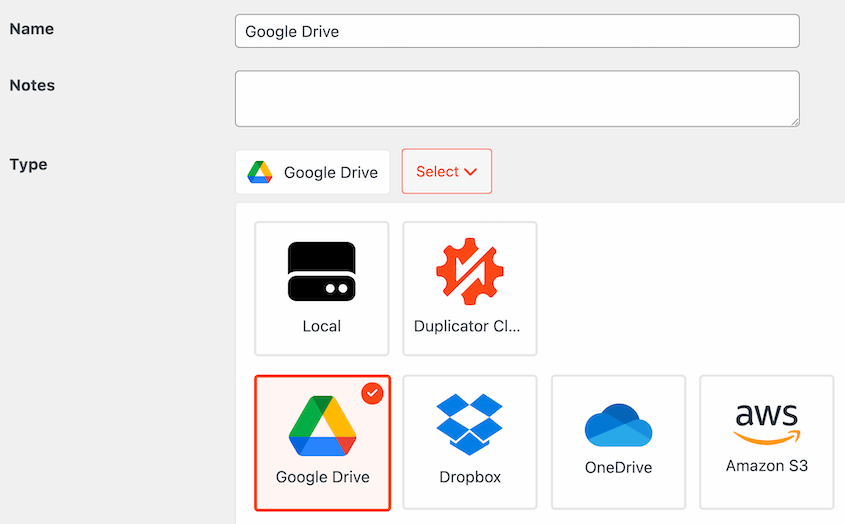
Then, you’ll need to authorize Duplicator to make changes to your cloud storage account. Once you hit Authorize [Provider], sign into your account and paste the generated authorization code.
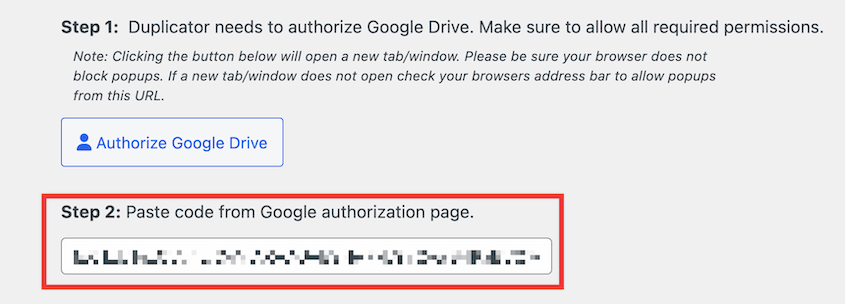
Once you set this up, test the connection. You’ll also be able to customize the maximum number of backups stored in the cloud. This prevents you from overloading your storage.

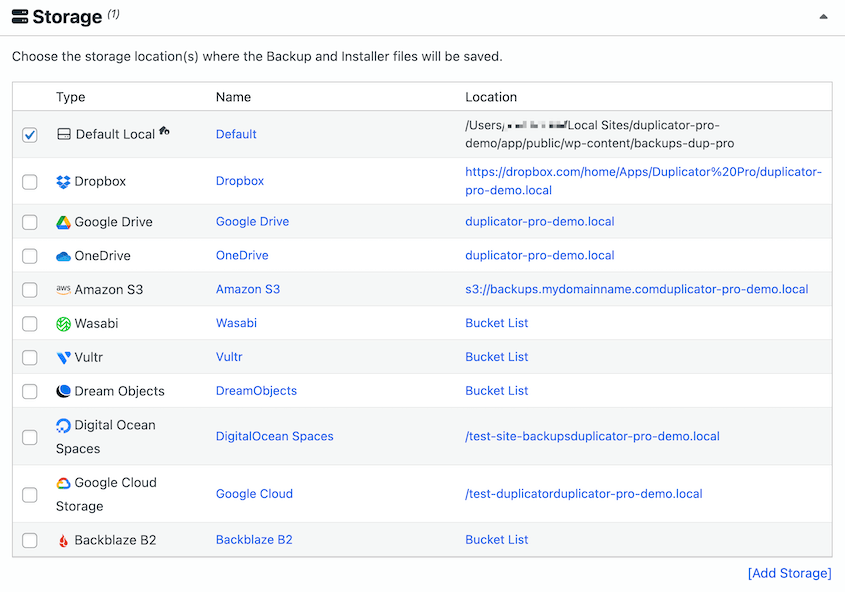
When you create a backup, you’ll see all of the authorized storage locations. Simply select one to automatically push the backup to the cloud.
Quick Site Migrations
Migrating your WordPress site to a new domain or hosting provider can be a daunting task. If you decide to take on a manual migration, you’ll have to be familiar with file managers and phpMyAdmin.
Duplicator Pro takes the complexity out of the equation.
If you already have another WordPress installation set up, you can use the import tool. On this page, simply drag and drop the archive file from the original site.
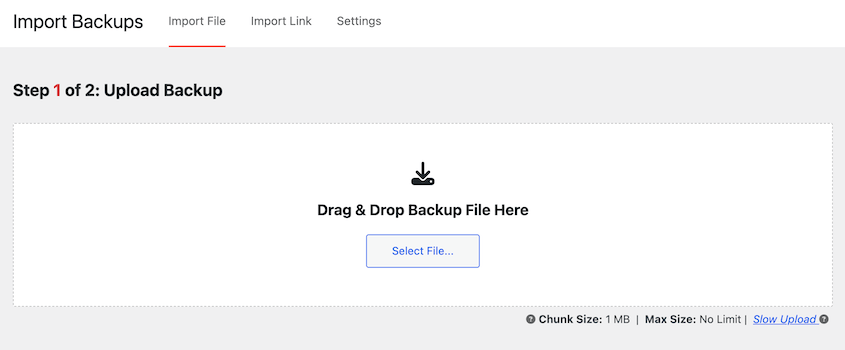
Then, follow the instructions shown in the step-by-step recovery wizard. You’ll see options to search and replace URLs in your database, map multisite domains, and more.
Support for Large Sites and WordPress Multisite
Some backup and migration plugins struggle with large websites or WordPress multisite installations, but not Duplicator Pro. This plugin handles large-scale sites and multisite networks with ease.
If you’re migrating a large site, you can transition the archive engine from a shell zip to a DupArchive. This custom file format was built specifically for larger websites struggling to save all their content into a single file.
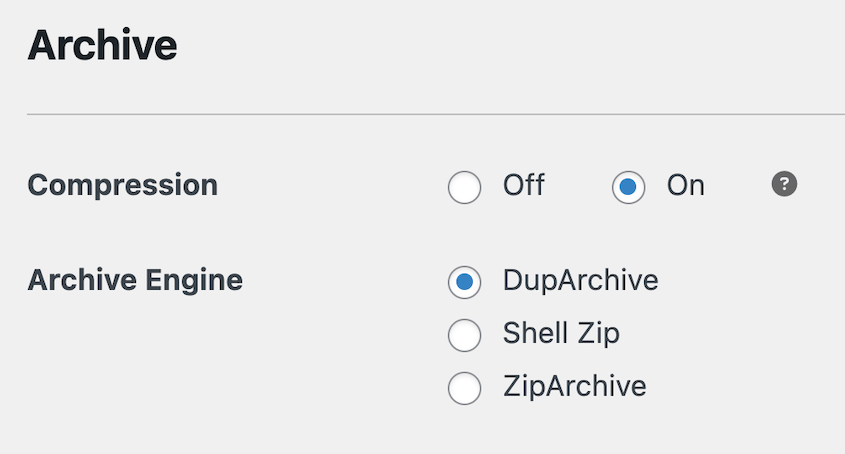
Although there are many backup plugins available, not all of them support WordPress multisite. With Duplicator, you can easily back up your entire network.
Customize backups by only including necessary sub-sites. Alternatively, include all of them for full multisite backups.
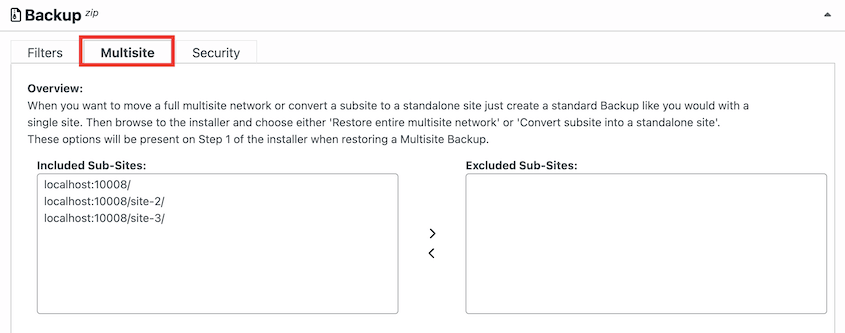
Duplicator also makes it easy to migrate sites into and out of a multisite network. You’ll be able to transition standalone sites into a subsite or move subsites onto their own servers.
Built-in Search and Replace
When you migrate your site to a new domain, your database will still have references to the old domain name. To fix this, you’d normally have to install an extra search and replace plugin.
Fortunately, Duplicator will search and replace old data for you!
In the migration wizard, enter your old domain in the Search box. Then, paste your new one in the Replace box.
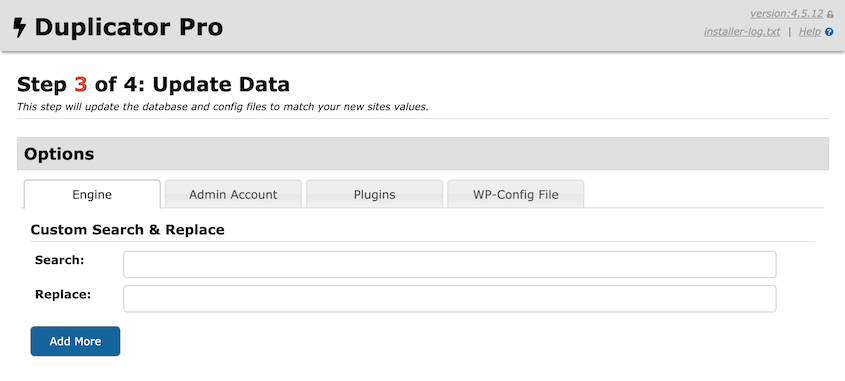
Duplicator will replace all instances of the old domain with the new one across your database, ensuring a smooth transition.
Remote Restores
Duplicator also allows you to download and restore cloud backups directly from your WordPress dashboard.
Start by creating a cloud backup. No matter where you saved your data, you’ll see a Restore button next to your backup.
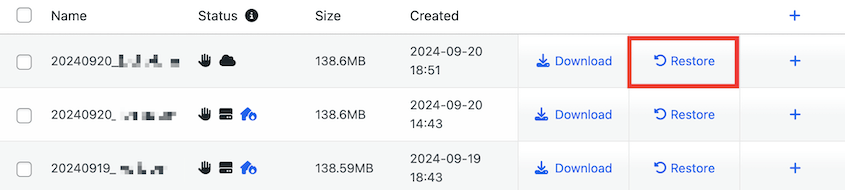
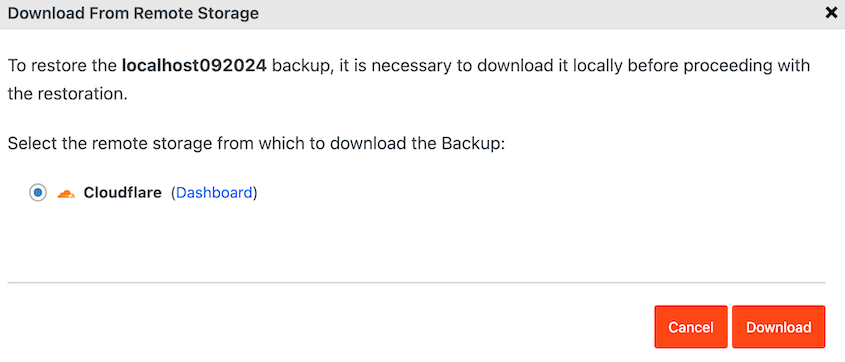
Even though the backup is in cloud storage, you can download it.
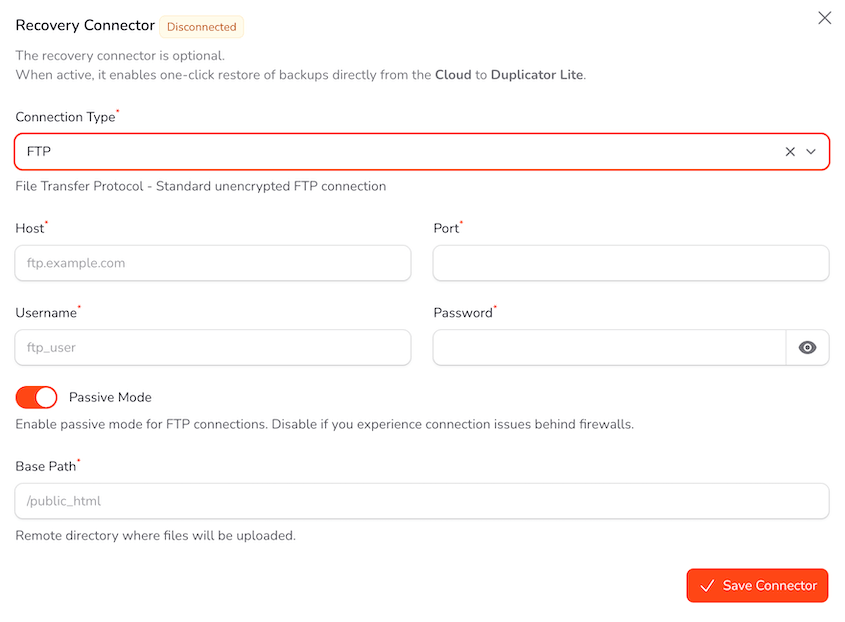
Duplicator Cloud can also restore your site with its recovery connector. All you’ll need to do is enter your FTP/SFTP details.
Once connected, find a backup and restore it.
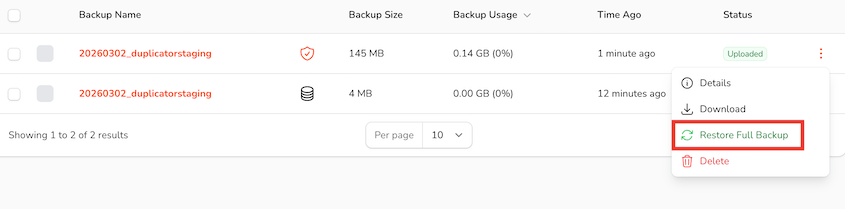
Duplicator will retrieve your data from the cloud and immediately use it to restore your site. This can be a real lifesaver in an emergency. Plus, you won’t have to waste server space for local backups.
Dynamic Backup Tags
Duplicator includes a powerful tagging feature that allows you to customize and organize your archived backups.
When creating a new backup, you can assign relevant tags. These tags can include information like the backup date, time, and website domain.
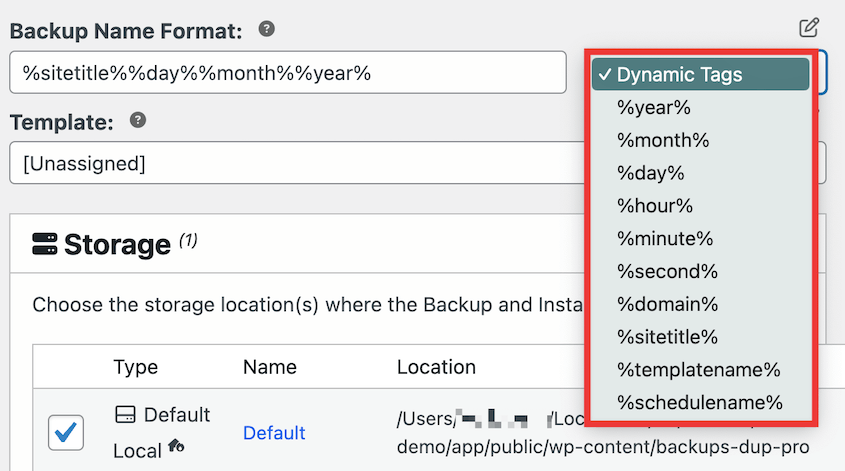
The tags are then displayed beside each backup in the plugin’s interface, making it easy to quickly identify and locate the right snapshot of your site.
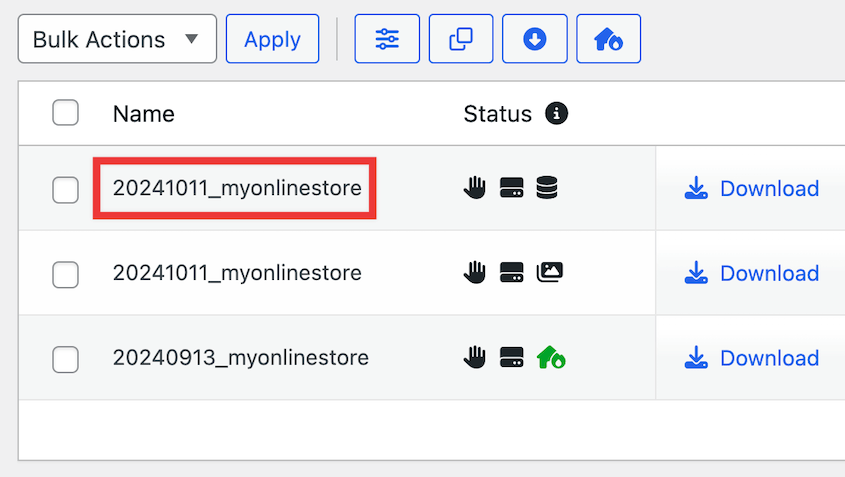
You can also use these tags to set up automated backup schedules. For example, you could configure Duplicator to create a monthly backup with a corresponding tag each month.
With dynamic tags, you’ll have a lot of control over your site’s backup history.
Media Optimization
Over time, WordPress quietly fills your server with image variations you’ll never use. Every image you upload generates multiple resized versions and most of them never appear on your site.
With the Duplicator Pro and Elite plans, you’ll get the WP Media Cleanup plugin for free. This media optimization plugin scans your entire WordPress site to identify which image variations are actively referenced in your content.
It checks posts, pages, widgets, sidebars, theme customizer settings, and custom fields. Anything sitting on your server that isn’t being used gets flagged for removal.
From there, you can delete unused variations in bulk or one by one. Original full-size images are never touched. Only the redundant size variations are removed.
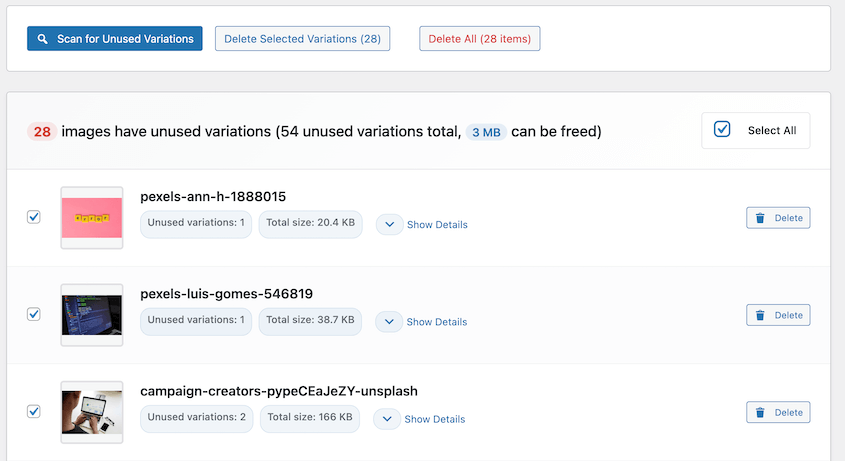
Removed files move to a temporary directory and stay there for 30 days, so you can restore individual images or bulk recover everything if needed. There’s no risk of permanently breaking your site.
What Is the Difference Between Duplicator and Duplicator Pro?
Duplicator Pro is the premium version of the popular Duplicator plugin. While the free version offers basic site migration and backup functionalities, Duplicator Pro takes things up several notches.
Here are some advanced features you’ll get with Duplicator Pro:
- Scheduled backups
- Third-party cloud storage (Google Drive, Dropbox, OneDrive, Amazon S3, FTP/SFTP)
- Disaster recovery URLs
- Server-to-server imports
- Large site and multisite support
- Developer hooks
- Email notifications for timeouts or other backup issues
- Free WP Media Cleanup and DB Optimizer plugins (with Duplicator Pro)
- Free Activity Log plugin (with Duplicator Elite)
Duplicator Lite can be an affordable but flexible backup and migration tool. However, the Pro version provides the full suite of tools needed for professional website management.
Duplicator Pricing
If you’re considering upgrading, here is a cost breakdown for Duplicator Pro:
- Basic: Starts at $69.30 per year, supports up to 2 sites
- Plus: Starts at $99.50 per year, supports up to 5 sites
- Pro: Starts at $199.50 per year, supports up to 20 sites
- Elite: Starts at $299.50 per year, supports up to 100 sites
Is the Duplicator Plugin Free?
Duplicator Lite is a free plugin with basic features to back up, migrate, and clone WordPress websites. With this tool, you’ll be able to create copies of your site called archives, which you can save as backups. It’ll also give you a standalone installer that will help you unpack your content in a new location.
How to Migrate a Site with Duplicator
As your site grows, your hosting provider may not provide enough resources for your expanding needs. Fortunately, you can easily migrate your website with Duplicator.
First, back up the original site. Then, download the backup archive file.
For beginners, you can go ahead and install WordPress on the new host. Once you set up the new site, install Duplicator and import the backup of the old site.
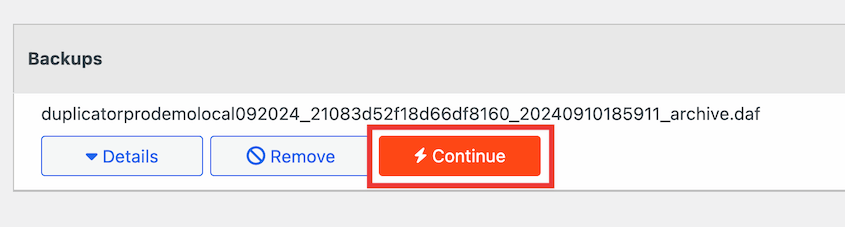
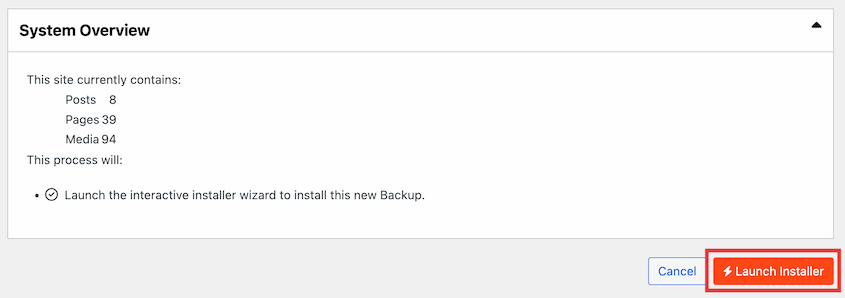
Hit Continue. On the next page, click on Launch Installer.
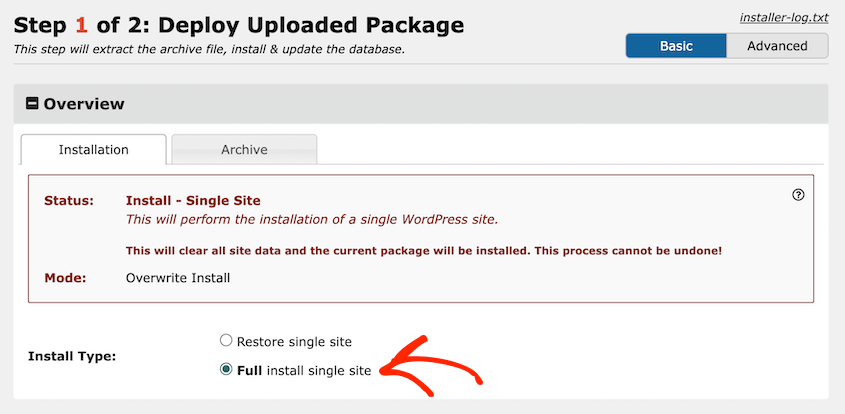
In the Duplicator migration wizard, make sure the Install Type is Full install single site.
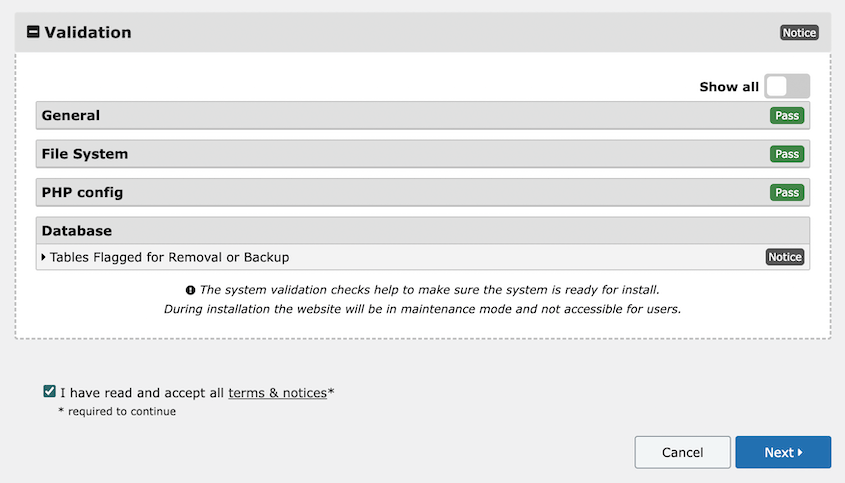
At the bottom, click on Validate. Then, accept the terms and notices and continue.
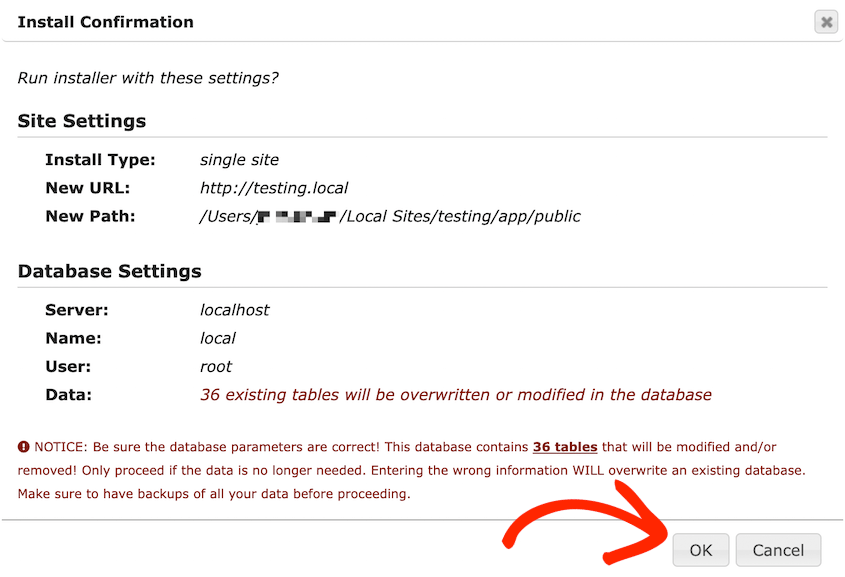
Finally, confirm the installation in the pop-up window.
Duplicator will automatically migrate your old content to the new location. Once finished, use the Admin Login button to access your new dashboard.
If you’re using Duplicator Lite, you’ll need to use an FTP client to upload your archive and installer files to the new root directory.
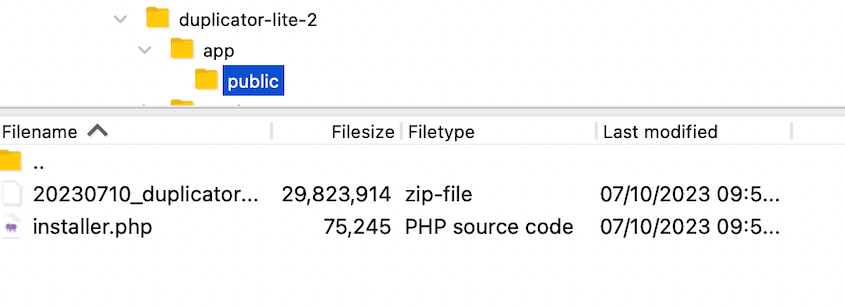
After creating a new database on your new host, launch the Duplicator installer using this URL:
https://your-domain/installer.php
Enter your new database information under Setup.
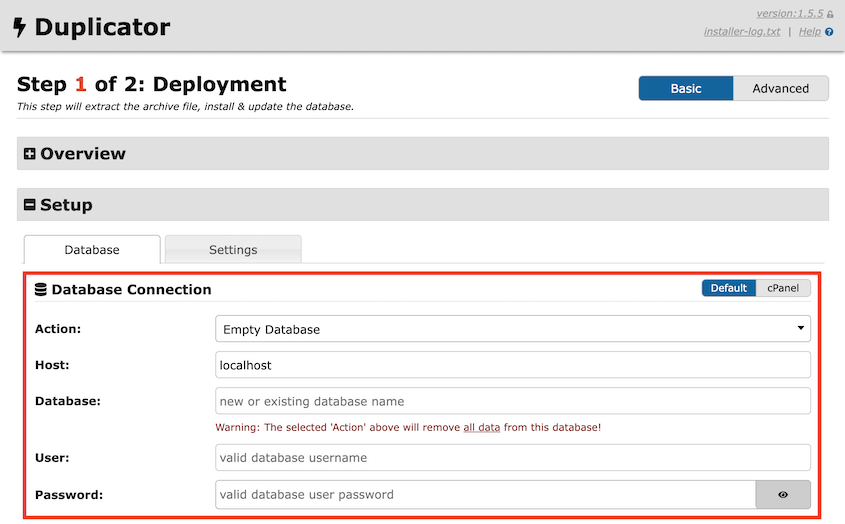
Then, continue with the installation as normal!
How to Back Up a Site with Duplicator
To back up your site, go to Duplicator Pro » Backups » Add New.
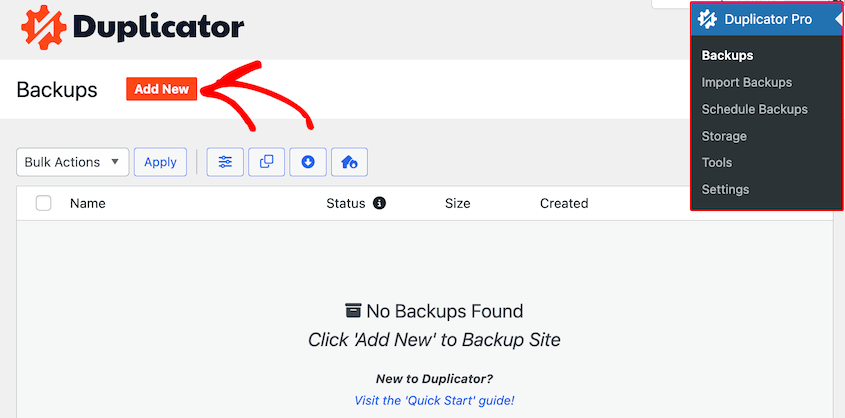
Name the backup and choose a storage location. As we mentioned earlier, you can customize the backup with file and database filters.
Once you click Next, Duplicator will scan your site. Be sure to review any notices before hitting Create Backup.
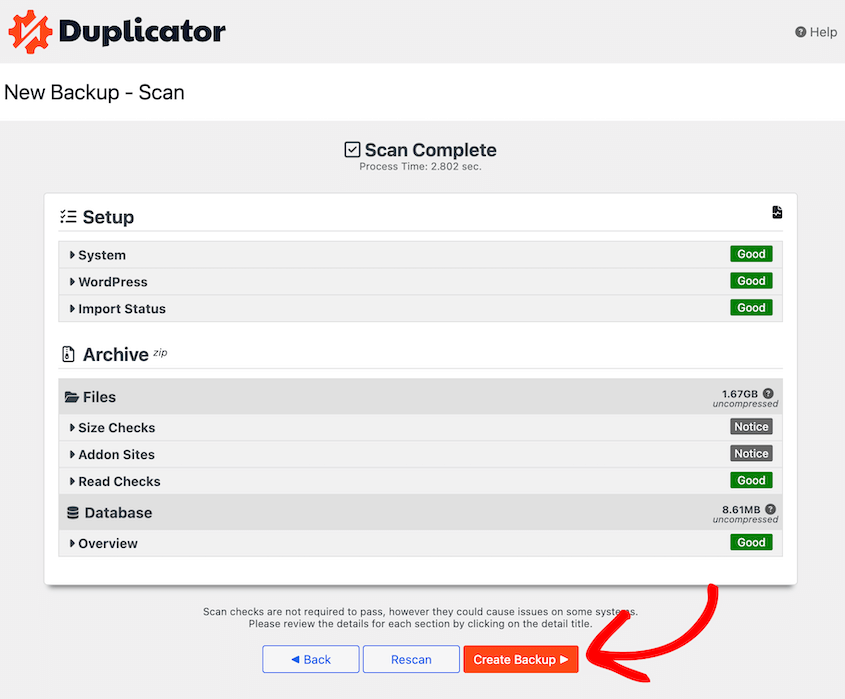
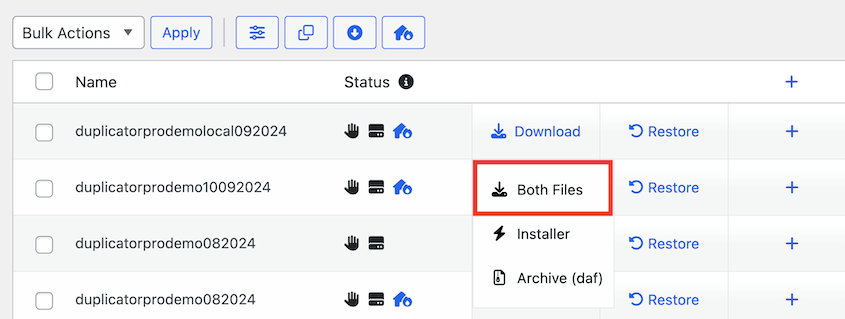
After this, your backup will be listed on the Backups page. To save it, click on Download » Both Files.
Now you have a full backup of your website!
What Is the Size Limit for Duplicator?
There is no size cap in the free version. Since Duplicator 5.0, Duplicator Lite runs the same backup engine as the paid version, so it handles backups of any size.
Backups also build in the background and resume where they left off if the connection drops, which is what used to make large backups time out on shared hosting.
Both the free and paid versions avoid size limits by building the archive in pieces rather than all at once. Keep in mind that there may still be a limitation when it comes to closing a ZIP file.
The time it takes to close the archive increases with the size of the archive, so there can still be some theoretical limitations due to the way ZIP archives work.
To overcome these potential limitations, the developers of Duplicator have introduced the DupArchive, which doesn’t have a theoretical size limit. This means you can create very large archives without any problems.
What Are the Requirements to Use Duplicator?
Duplicator Pro is designed to be compatible with most standard WordPress hosting environments. However, to avoid potential conflicts or issues during the process, it’s essential to meet the following requirements:
- WordPress 5.3+
- PHP 7.4+
- MySQL 5.6+, MariaDB 10.1+
- Web Servers: Apache, LiteSpeed, Nginx, Lighttpd, IIS, WebServerX
Most WordPress hosts will automatically meet these requirements. Since 5.0, both the free and paid versions support managed hosts like WP Engine, GoDaddy Managed WordPress, Flywheel, Pantheon, and WordPress.com.
What Is the Alternative to Duplicator?
I’d recommend using Duplicator because of its flexible backup, migration, and cloning features. However, you might want to fully explore your options.
Here are some of the best alternatives to Duplicator:
- UpdraftPlus: A backup and migration plugin with a user-friendly interface, cloud storage, and automated backups.
- All-in-One WP Migration: A beginner-friendly WordPress migration plugin with one-click transfers and auto-URL replacement.
- BlogVault: A WordPress backup plugin with real-time and incremental backups.
If you’re trying to find the best backup and migration tools for your site, check out these in-depth comparison guides:
Is Duplicator the Best Backup and Migration Plugin?
Duplicator Pro shines as a top-tier backup and migration plugin for WordPress. Its customizable backups, automated processes, cloud storage integrations, and seamless site migrations make it an excellent choice for users of all levels of expertise.
However, I feel like it’s important to acknowledge that other backup and migration plugins may also be viable options. You’ll need to evaluate your individual preferences and requirements to find the best tool for your website.
Duplicator Does the Hard Part — You Just Run Your Website
Running a WordPress site comes with a long list of maintenance tasks: backups, migrations, cloning, media cleanup, and disaster recovery. Most site owners either put these tasks off or handle them manually, which leaves their site vulnerable.
Duplicator Pro takes all of that off your plate.
Backups run on a schedule. Migrations that used to take hours now happen in a few clicks. Cloud storage keeps your data safe even if your server fails. And with WP Media Cleanup included in Elite plans, even your bloated media library gets handled automatically.
The safety net is always there, working in the background, so you can focus on building and growing your site.
One extra tip: don’t wait until something goes wrong to build your first backup. Set up Duplicator now, create your first backup, and configure a disaster recovery URL. Future you will be glad you did.
Do you want to start protecting your data during migrations or backups? Download Duplicator Pro today!
Ready to use Duplicator as your site’s maintenance tool? Here are some tutorials to get you started:
- How to Back Up a WordPress Site
- The Ultimate WordPress Migration Checklist
- How to Create a WordPress Staging Site
- How to Clone a WordPress Site
- How to Redesign a WordPress Site




