

![[Nuevo] Presentamos Duplicator 5.0: Copias de seguridad con IA, AutoTune y funciones gratuitas adicionales](https://duplicator.com/wp-content/uploads/2026/09/Duplicator-5-0-Announcement.jpg)
Cómo restaurar WordPress desde una copia de seguridad (en menos de 5 minutos)
 Joella Dunn
Joella Dunn
Joella Dunn
 John Turner
John Turner
John Turner
Una mañana, intentas iniciar sesión en tu sitio de WordPress, solo para descubrir que ha desaparecido por completo.
¡Pero entonces recuerdas que tienes una copia de seguridad!
Con las herramientas y el conocimiento adecuados, puedes restaurar tu sitio a un punto en el que todo funcionaba perfectamente. No más errores misteriosos.
En este tutorial, te mostraré cómo restaurar tu sitio de WordPress a partir de una copia de seguridad. Al final, tendrás la confianza para manejar cualquier situación que se te presente.
Aquí están los puntos clave:
- La forma más rápida de restaurar WordPress es utilizando un botón de restauración con un solo clic con un plugin de copia de seguridad como Duplicator, que lo incluye en la versión gratuita
- Puedes restaurar tu sitio incluso cuando no puedes acceder a tu panel de control configurando la recuperación ante desastres de antemano
- La restauración manual te da control total, pero requiere subir por separado tanto tu base de datos como tus archivos de WordPress
- Programa copias de seguridad automáticas y almacénalas en la nube para asegurarte de que siempre tienes un punto de restauración reciente
- Prueba tu proceso de restauración en un sitio de staging antes de que realmente lo necesites en una emergencia
Resumen rápido: Cómo restaurar WordPress desde una copia de seguridad
Si no quieres leer la publicación completa, mira este video corto. ¡Te guiará a través de la restauración de copias de seguridad en menos de 10 minutos!
Tabla de Contenidos
- ¿Por qué restaurar WordPress desde una copia de seguridad?
- Cómo restaurar WordPress desde una copia de seguridad
- Qué Comprobar Después de Restaurar WordPress
- Consejos de copias de seguridad para restauraciones rápidas
- Preguntas Frecuentes (FAQs)
- La red de seguridad de 5 minutos que podría salvar tu sitio de WordPress
¿Por qué restaurar WordPress desde una copia de seguridad?
Después de crear tu primer sitio web, es importante crear copias de seguridad regularmente. Una copia de seguridad de un sitio web es una copia guardada de tu base de datos y archivos de WordPress.
Una copia de seguridad actúa como una red de seguridad cuando algo sale mal. Si ves un cambio o error inesperado, puedes simplemente restaurar una de las copias de seguridad de tu sitio guardadas.
Aquí hay algunas razones por las que podrías necesitar restaurar tu sitio web desde una copia de seguridad:
- Hackeos o ciberataques
- Conflictos de plugins o temas
- Errores de codificación
- Actualizaciones de software fallidas
Por ejemplo, tu sitio en vivo podría mostrar la Pantalla Blanca de la Muerte (WSOD). Si quieres restaurar tu tema de WordPress, necesitarás encontrar una copia de seguridad donde esté funcionando correctamente. Una vez que restaures esta versión, tu sitio web volverá a estar en funcionamiento.
Esencialmente, las opciones de restauración del sitio pueden evitar que tengas que solucionar errores inesperados. Puedes ir a una copia de seguridad reciente del sitio, restaurarla y resolver el problema de inmediato.
Cómo restaurar WordPress desde una copia de seguridad
Para asegurarte de no perder archivos importantes del sitio web, querrás tener un plan de recuperación. ¡No te preocupes, te guiaré a través de la restauración de WordPress desde una copia de seguridad!
Aquí están los mejores métodos de restauración de WordPress:
- Restauraciones con un clic con un plugin de copia de seguridad como Duplicator
- Recuperación ante desastres de emergencia cuando no puedes acceder a tu panel de control
- Restauración manual para un control práctico
- Restauración de copias de seguridad de cPanel con el panel de control de alojamiento
Método 1: Restaurar WordPress con un clic
Una forma sencilla de hacer copias de seguridad y restaurar su sitio web es instalar un plugin de copias de seguridad de WordPress. Esto le evita tener que editar manualmente los archivos de su sitio o la base de datos.
Duplicator es un plugin flexible para realizar copias de seguridad de bases de datos y archivos. Puede usarlo para programar copias de seguridad y restaurar su sitio con un solo clic.
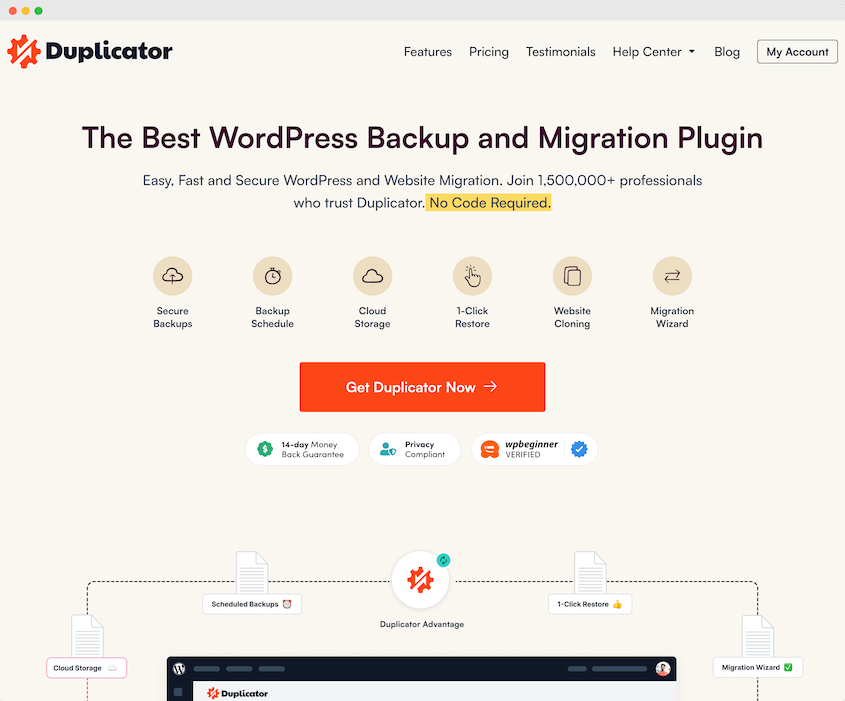
Además de las opciones de copia de seguridad y restauración, estas son algunas de las funciones más útiles disponibles en Duplicator Pro:
- Migraciones de arrastrar y soltar
- Asistente de migración paso a paso
- Instalador optimizado
- Almacenamiento en la nube en Google Drive, Dropbox, Amazon S3 y más
- Búsqueda y reemplazo personalizados
- Soporta redes multisitio (plan Pro)
- Sitios de staging con un solo clic (plan Pro)
- Plugins gratuitos adicionales (con Elite): WP Media Cleanup, DB Optimizer y Activity Log
- Funciones amigables para desarrolladores
- Alertas por correo electrónico
- ¡Y más!
Paso 1: Instalar Duplicator
Para empezar a restaurar tu sitio, instala Duplicator. La versión gratuita soporta restauraciones con un solo clic, pero considera actualizar a Pro para recuperación ante desastres, copias de seguridad programadas y almacenamiento en la nube de terceros.
A continuación, instale y active Duplicator en WordPress.
Si tienes la versión Pro, ve a Duplicator Pro » Ajustes » General. Pega la clave de licencia que recibiste durante el registro.
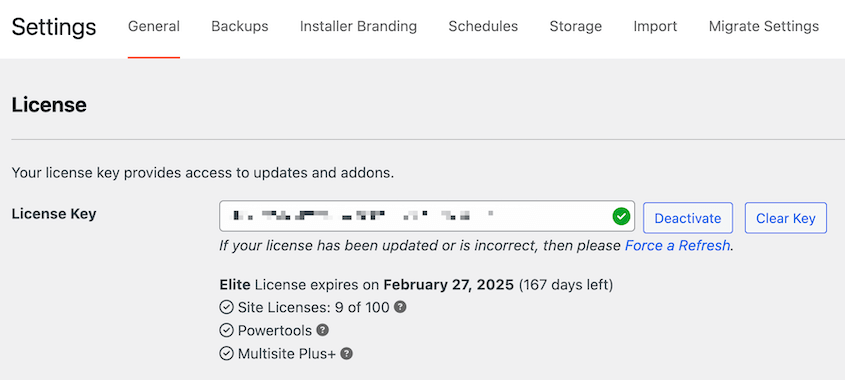
Luego, haga clic en el botón Activar .
Paso 2: Crear una copia de seguridad
Después de activar Duplicator, puede crear su primera copia de seguridad.
Esto guardará una copia de su sitio en un archivo zip. Incluye los archivos principales de WordPress y la base de datos MySQL para una fácil restauración posterior.
Primero, crea una nueva copia de seguridad navegando a Duplicator » Copias de seguridad » Añadir nueva.
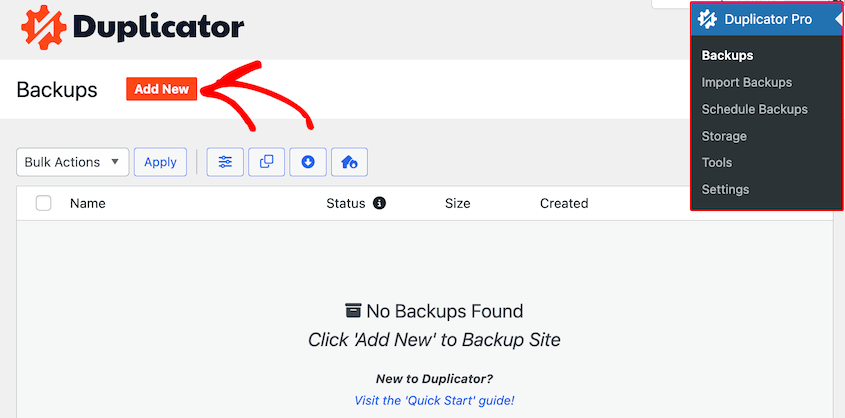
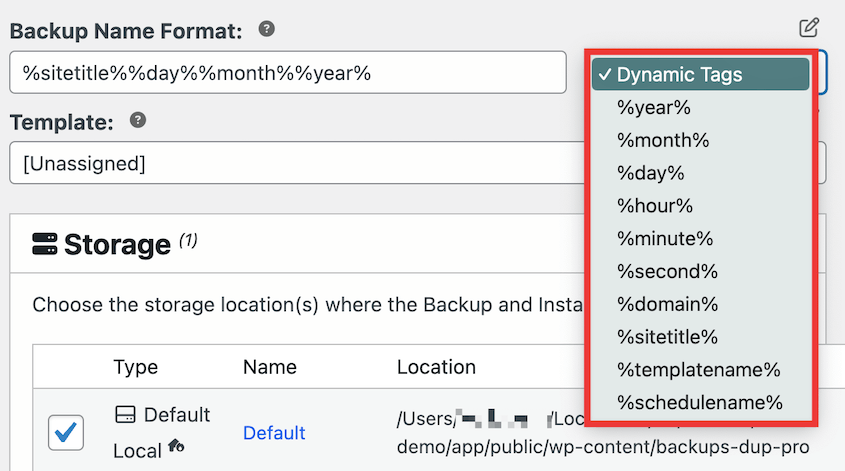
En la parte superior de la página, asigne un nombre identificable a la copia de seguridad. Puede usar etiquetas dinámicas, que le ayudan a encontrar fácilmente la copia de seguridad correcta cuando la necesite.
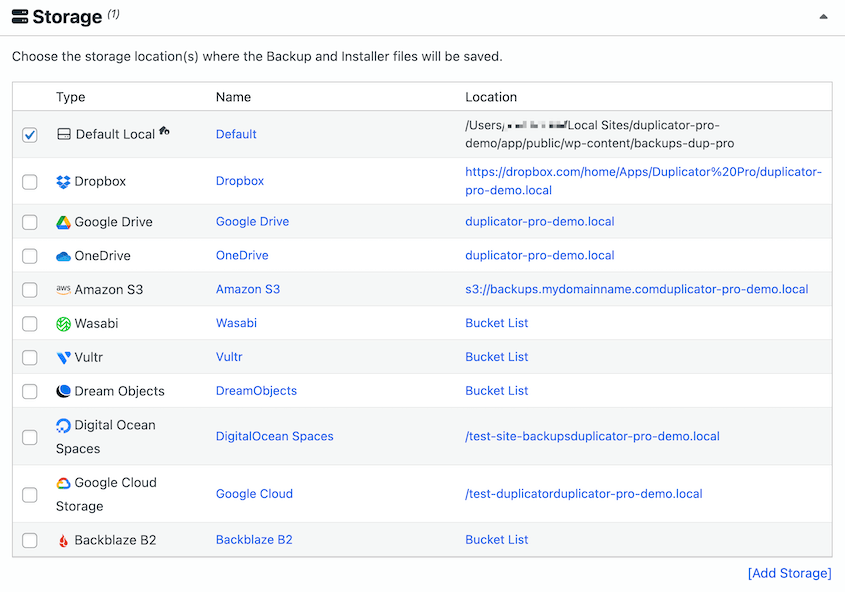
A continuación, elige una ubicación de almacenamiento. Duplicator Pro soporta todas estas opciones (la versión gratuita guarda en Local y Duplicator Cloud):
- Duplicator Cloud
- Local
- FTP
- Google Drive
- Dropbox
- Microsoft OneDrive
- Amazon S3
- Wasabi
- Google Cloud
- DreamObjects
- Vultr
- DigitalOcean Spaces
- Cloudflare R2
- Backblaze B2
- Otros servicios de almacenamiento compatibles con S3
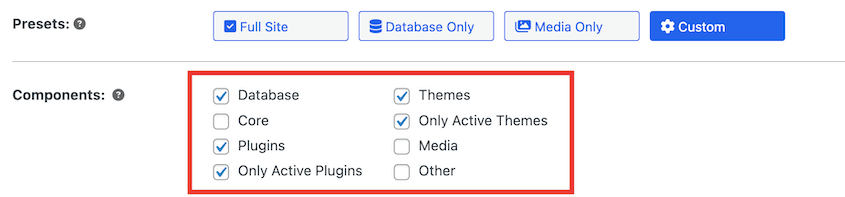
Siempre recomiendo crear una copia de seguridad completa de todo tu sitio web.
Sin embargo, también puedes usar el botón de restauración con un clic para revertir tu base de datos u otras partes de tu sitio. Así que, siéntete libre de personalizar la copia de seguridad.
Una vez que continúes al siguiente paso, Duplicator escaneará tu sitio web. Revisa cualquier aviso antes de pulsar Crear copia de seguridad.
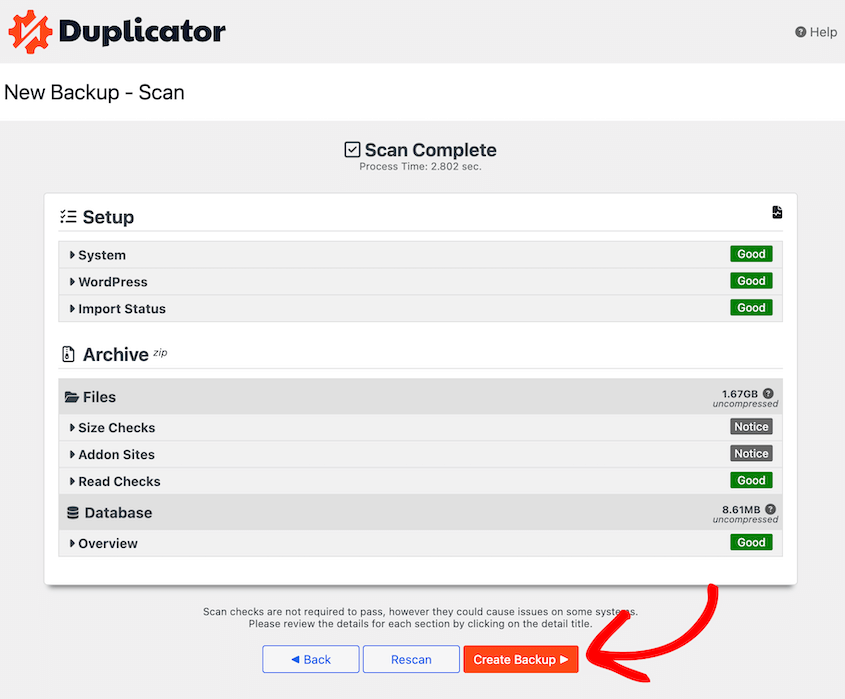
Duplicator comenzará automáticamente a realizar una copia de seguridad de archivos y base de datos.
Paso 3: Usa el botón de restauración con un clic
Ahora que tienes una copia de seguridad de tu sitio web, puedes restaurarla cuando lo necesites. Tu sitio web volverá a estos archivos guardados y configuraciones de base de datos, eliminando cualquier error.
Algunos plugins de copia de seguridad de WordPress dificultan la restauración de tu sitio web. ¡No Duplicator!
Primero, busca la copia de seguridad que deseas restaurar. Haz clic en el botón Restaurar junto a ella.
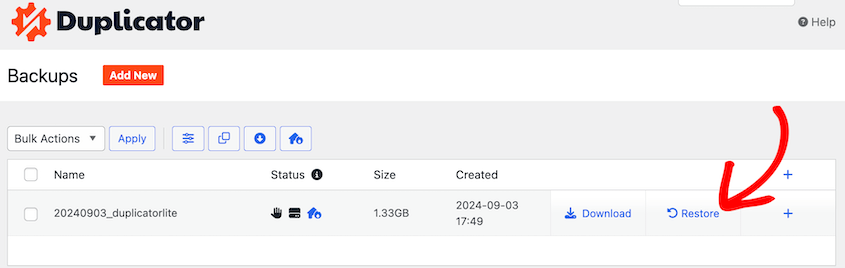
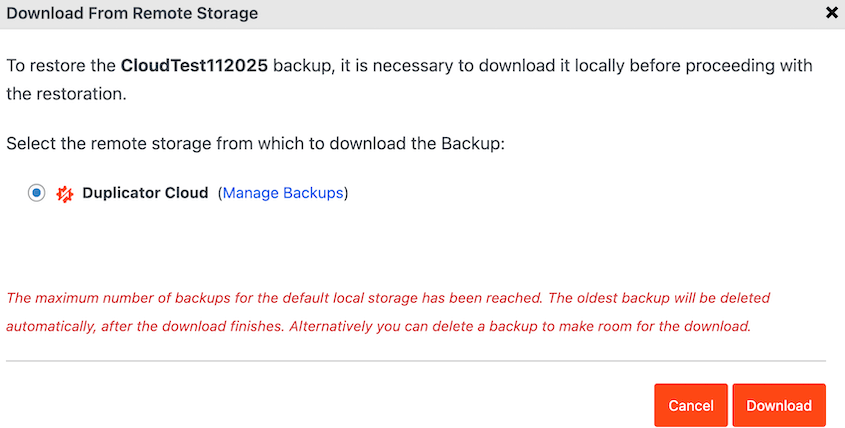
¡Incluso puedes restaurar copias de seguridad en la nube con un solo clic! Duplicator descargará la copia de seguridad a tu servidor local.
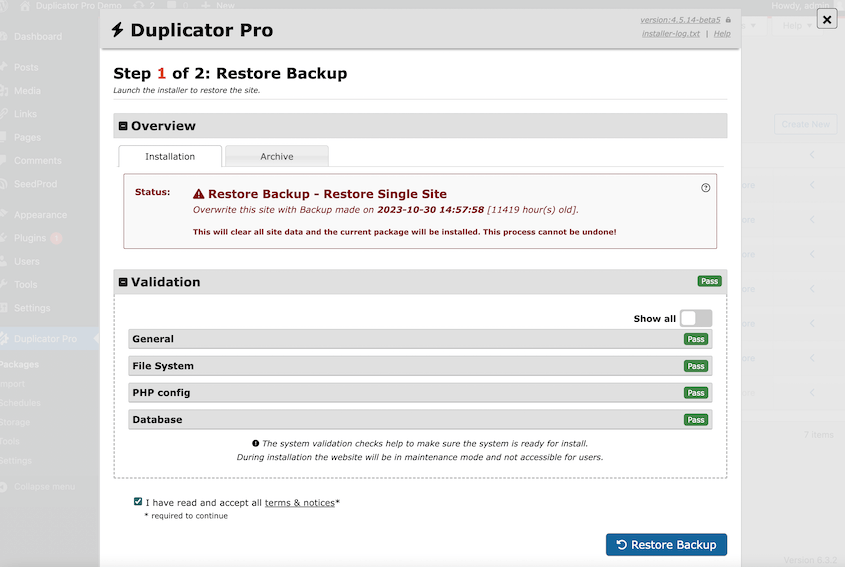
Luego, se abrirá automáticamente el asistente de restauración. Acepta los términos y avisos antes de pulsar Restaurar copia de seguridad.
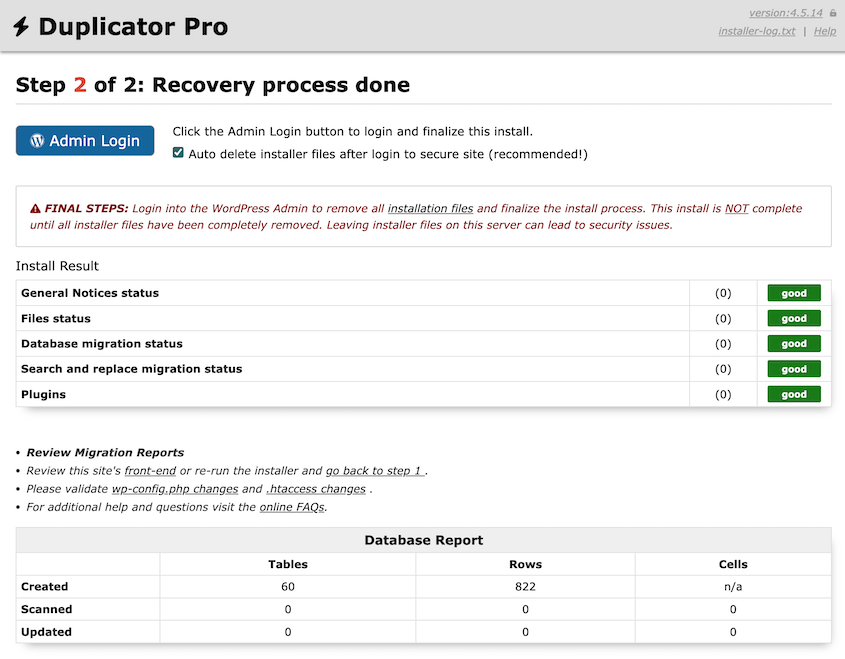
Duplicator revertirá instantáneamente tu sitio a su estado anterior. Usa el botón Inicio de sesión de administrador para acceder a tu sitio sin errores.
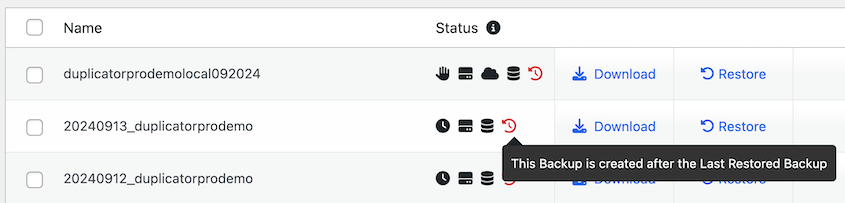
Con las restauraciones de un clic, tendrás control total sobre tu sitio web. Puedes probar código nuevo, ajustar tu tema y hacer otros cambios sin preocuparte por perder datos.
Resumen rápido de cómo restaurar WordPress con un clic:
- Instala Duplicator (las restauraciones con un solo clic también funcionan en la versión gratuita).
- Crea una copia de seguridad completa de tu sitio.
- Usa el botón de restauración con un clic en la página de Copias de seguridad.
- Sigue las instrucciones del asistente de recuperación.
- Vuelve a iniciar sesión en tu sitio web restaurado.
Método 2: Configura un plan de recuperación ante desastres
A veces, un error te impedirá acceder a tu panel de WordPress. En este caso, no podrás usar el botón de restauración con un clic de Duplicator.
¡No te preocupes, todavía puedes restaurar tu sitio!
Al establecer una copia de seguridad como punto de recuperación ante desastres, iniciarás el asistente de recuperación sin necesidad de iniciar sesión.
Paso 1: Haz una copia de seguridad de tu sitio
Como primer paso, haz una copia de seguridad de tu sitio de WordPress. Para usar la función de recuperación ante desastres, asegúrate de guardar la copia de seguridad en almacenamiento local. No excluyas ningún archivo principal de WordPress ni tablas de base de datos.
Una vez que crees una copia de seguridad completa, ¡puedes usarla para recuperar tus datos si tu sitio se cae!
Paso 2: Configura la recuperación ante desastres
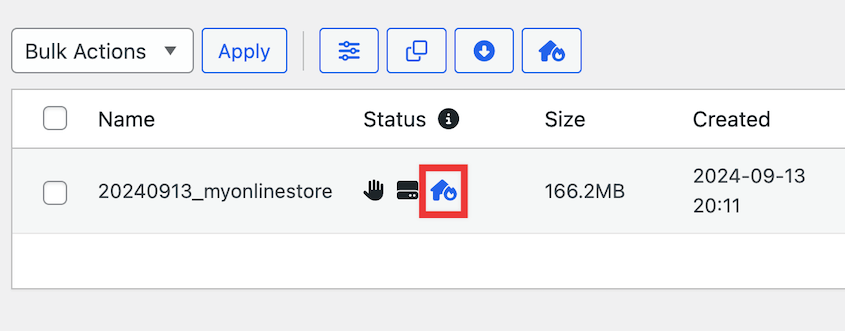
Antes de experimentar un error de WordPress o un hackeo, haz de tu copia de seguridad más reciente el punto de recuperación ante desastres. Junto a la copia de seguridad, haz clic en el icono de la casa azul.
En la ventana emergente, pulsa Establecer recuperación ante desastres.
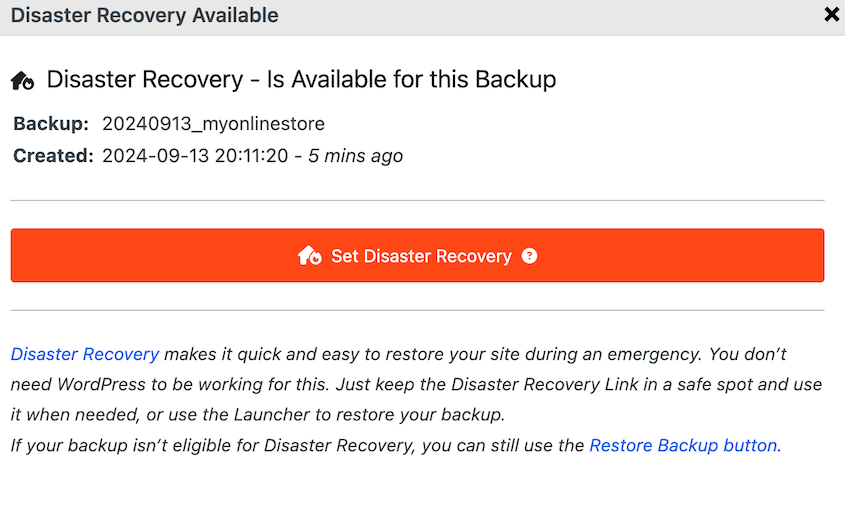
Duplicator te ofrecerá entonces dos formas diferentes de restaurar tu copia de seguridad. Puedes copiar el enlace de recuperación o descargar el lanzador.
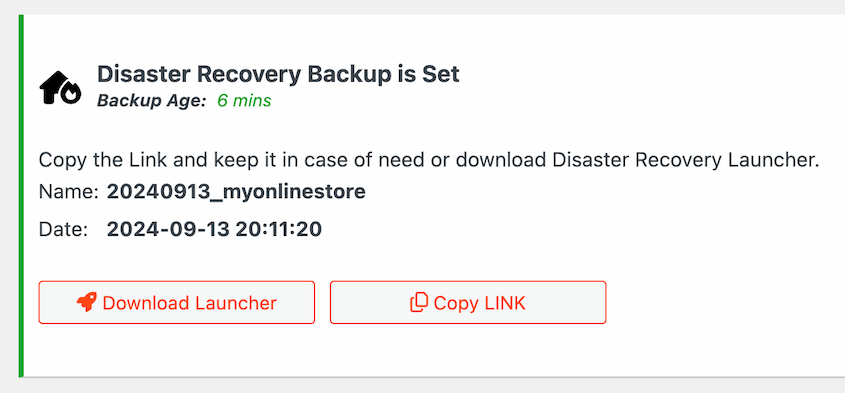
Copia el enlace de recuperación y guárdalo en un lugar seguro, separado de tu sitio de WordPress. También puedes descargar el lanzador, que es un archivo HTML que inicia el asistente de recuperación.
Paso 3: Iniciar el Asistente de Recuperación
Si tu sitio falla, busca tu enlace de recuperación. Abre una nueva ventana del navegador y pega la URL.
Esto te permitirá recuperar tus datos sin un sitio funcional.
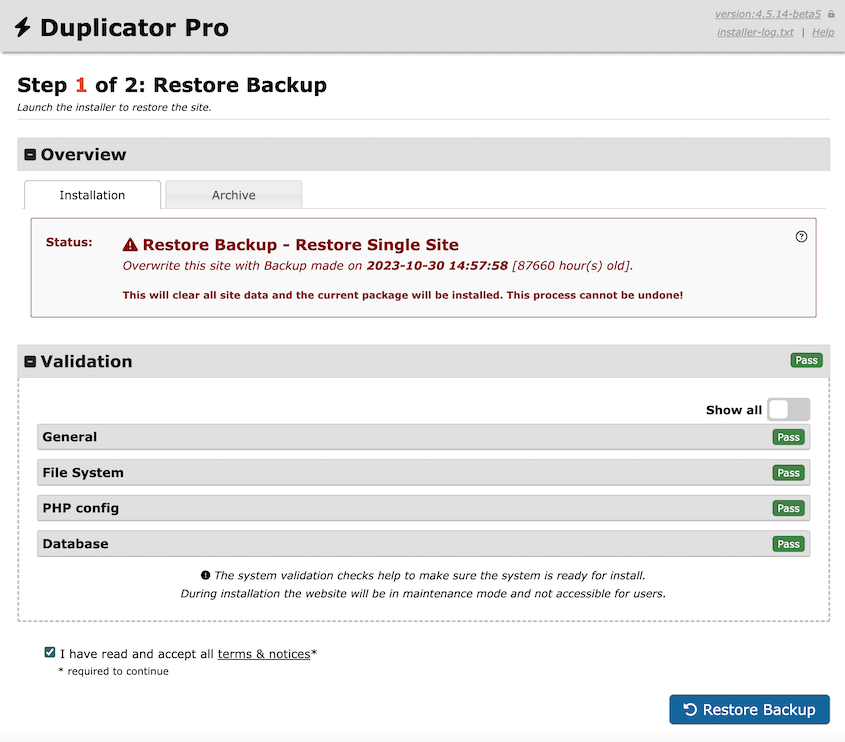
También puedes abrir el archivo lanzador. Iniciará inmediatamente el proceso de recuperación.
Acepta los términos y avisos y haz clic en Restaurar copia de seguridad. Tendrás que confirmar la instalación, ya que modificará tu sitio actual.
Duplicator tardará unos minutos en revertir a tu copia de seguridad. Cuando termine, ¡podrás acceder a tu sitio web restaurado! Para ello, simplemente haz clic en el botón de Inicio de sesión de administrador de WordPress.
Resumen rápido de cómo configurar un plan de recuperación ante desastres de WordPress:
- Crea una copia de seguridad completa con Duplicator Pro y guárdala en almacenamiento local.
- Establece la copia de seguridad como punto de recuperación ante desastres.
- Guarda el enlace de recuperación en un lugar seguro, alejado de tu panel de control.
- Pega el enlace de recuperación en una ventana del navegador para iniciar el asistente de recuperación.
- Sigue los pasos de recuperación e inicia sesión de nuevo en tu sitio restaurado.
Método 3: Restaurar manualmente WordPress desde una copia de seguridad
Si intentas limitar el uso de tus plugins, puedes restaurar manualmente tus archivos de copia de seguridad. Sin embargo, necesitarás tener algo de experiencia con tus archivos y base de datos de WordPress.
Antes de empezar, necesitarás hacer una copia de seguridad manual de tu base de datos y archivos del sitio. Una vez que tengas estos archivos en tu ordenador local, podrás volver a subirlos a WordPress.
Paso 1: Importar tu base de datos
Durante una restauración manual, tendrás que volver a subir tanto tu base de datos guardada como los archivos de WordPress. Empecemos importando una copia de la base de datos sin errores.
Normalmente, tu proveedor de alojamiento web te permitirá iniciar sesión en phpMyAdmin a través de tu panel de control. Alternativamente, puede proporcionar una forma más fácil de gestionar tus bases de datos.
Si usas cPanel, por ejemplo, busca el botón Bases de datos MySQL.
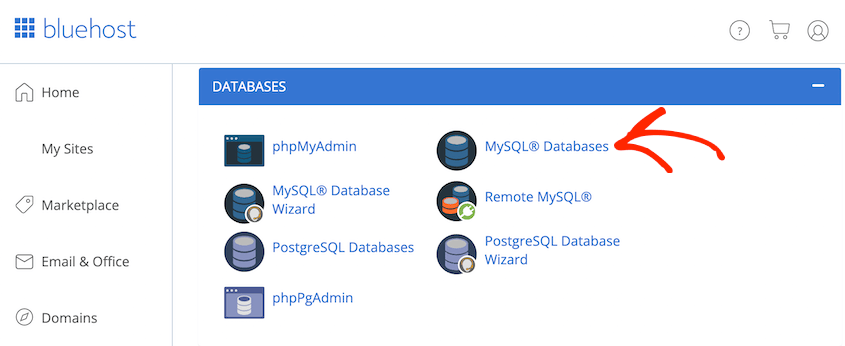
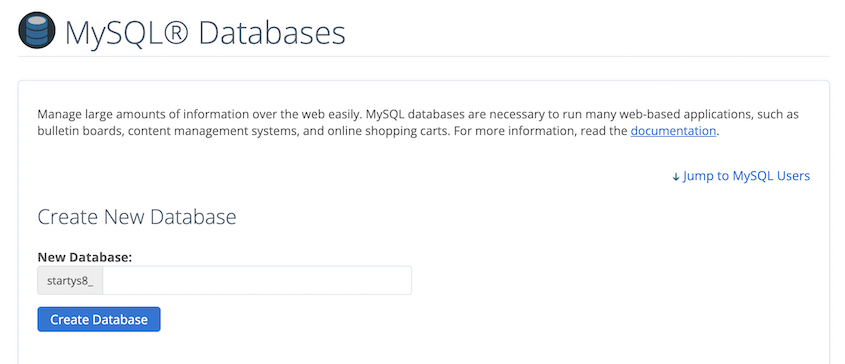
A continuación, crea una nueva base de datos. Esta será la ubicación donde subirás tu base de datos guardada.
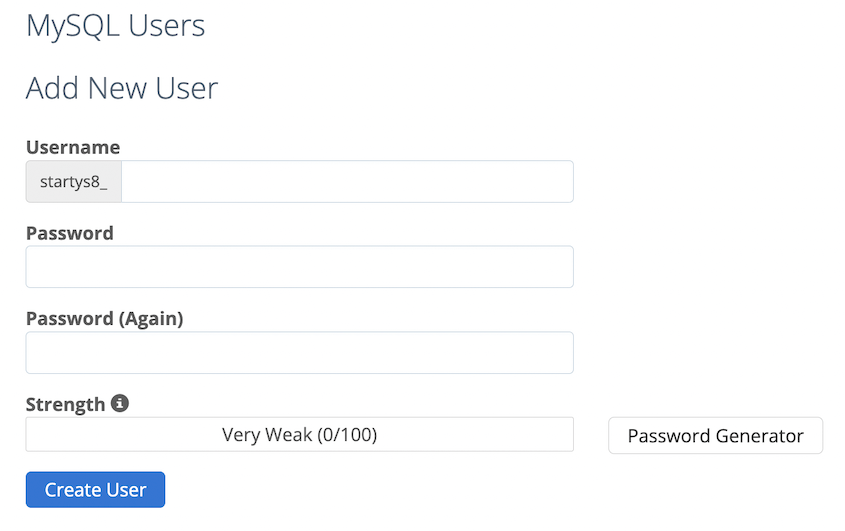
Después de esto, añade un nuevo usuario de MySQL. Asegúrate de elegir un nuevo nombre de usuario y contraseña, especialmente después de hackeos o ciberataques.
Ahora, busca Añadir usuario a la base de datos. Aquí, selecciona el usuario y la base de datos que acabas de crear.
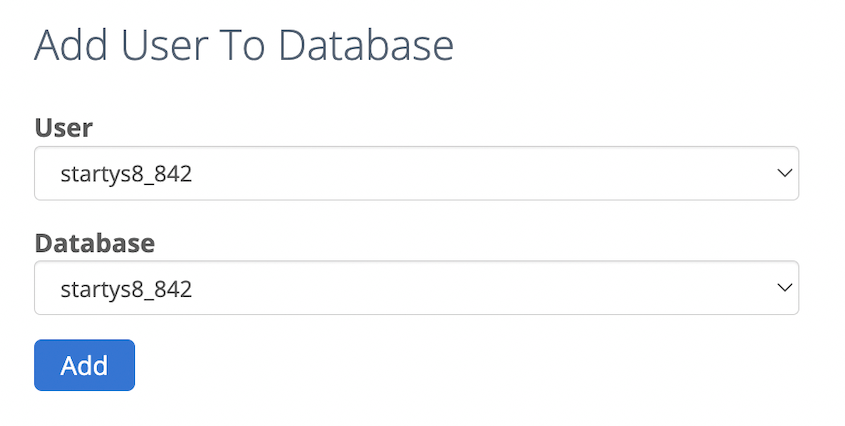
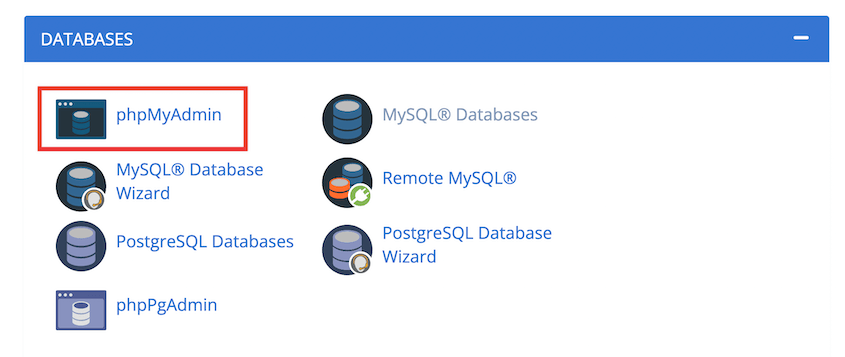
Una vez que tengas una nueva base de datos y usuario, vuelve a tu cuenta de hosting de WordPress. Necesitarás encontrar el botón de inicio de sesión de phpMyAdmin.
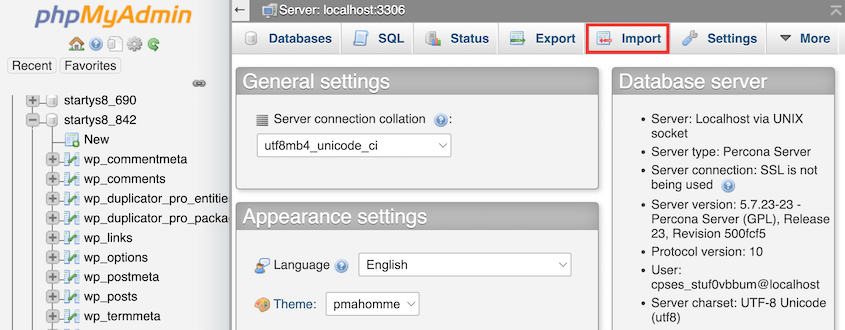
Esto abrirá tu gestor de bases de datos. Selecciona el nombre de tu nueva base de datos y haz clic en Importar.
En la sección Archivo a importar, haz clic en Elegir archivo y sube tu archivo de base de datos guardado. Debería ser un archivo SQL comprimido.
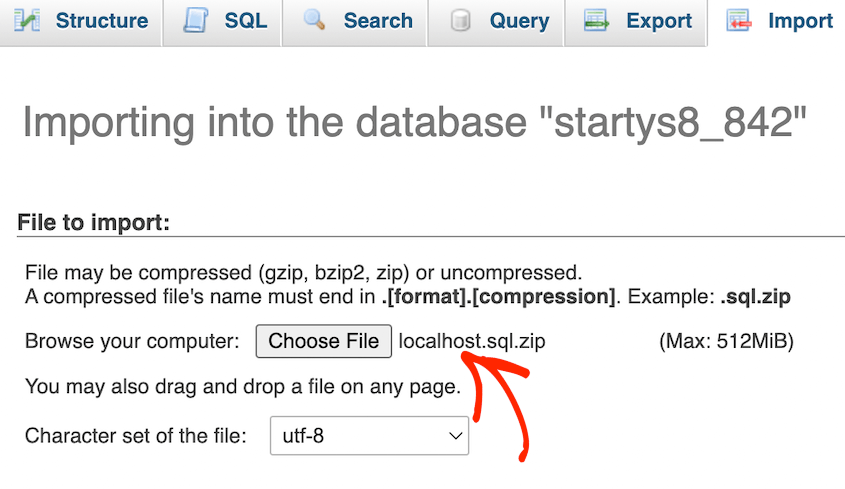
Una vez que pulses Ir, ¡tu base de datos se restaurará! Como último paso, abre tu archivo wp-config.php y busca la información de tu base de datos.
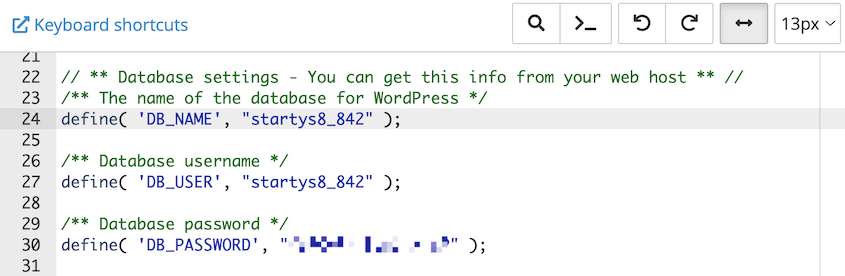
Necesitarás actualizar el nombre de la base de datos, el usuario y las credenciales de inicio de sesión para que apunten a la nueva base de datos. Descarga una copia de wp-config.php antes de editarlo, para que puedas deshacer un error tipográfico.
Paso 2: Sube tus archivos de copia de seguridad de WordPress
Para que tu sitio vuelva a funcionar, también necesitará archivos de WordPress funcionales.
Una vez que tengas una copia de seguridad guardada, abre un Gestor de Archivos o un cliente de Protocolo de Transferencia de Archivos (FTP). Normalmente, tu proveedor de hosting tendrá un método preferido para gestionar los archivos del sitio.
Para este tutorial, usaré FileZilla, que es un cliente SFTP/FTP gratuito. Primero, conéctate a tu sitio web usando el nombre, nombre de usuario, contraseña y puerto de tu proveedor de hosting.

Sabrás que tu sitio se conecta cuando veas datos en el cuadro de Sitio remoto. Aquí, abre la carpeta public_html. Antes de eliminar nada, asegúrate de que tus archivos de copia de seguridad estén completos y guardados en tu ordenador, porque esto no se puede deshacer. Luego selecciona todos los archivos, haz clic derecho sobre ellos y pulsa Eliminar.
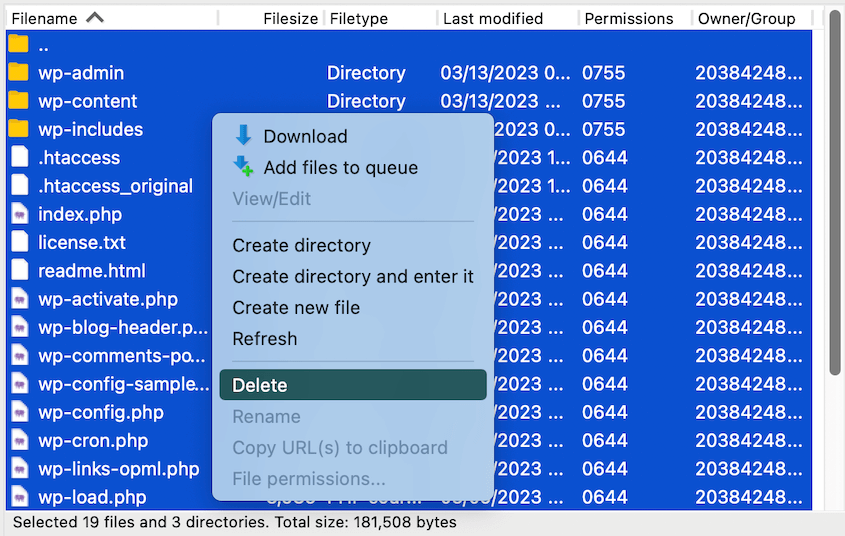
Ahora puedes simplemente arrastrar y soltar tus archivos de copia de seguridad guardados desde tu ordenador local a la carpeta public_html. Si se suben correctamente, FileZilla lo etiquetará como Transferencia exitosa.
Resumen rápido de cómo restaurar manualmente WordPress desde una copia de seguridad:
- Crea una nueva base de datos y un nuevo usuario de base de datos.
- Inicia sesión en phpMyAdmin e importa tu base de datos guardada en la nueva base de datos.
- Usa un cliente FTP o cPanel para eliminar los archivos de tu sitio existentes.
- Importa tus archivos de copia de seguridad guardados.
Método 4: Restaurar WordPress con cPanel
Si tu proveedor de hosting ofrece cPanel, este tiene una forma fácil de restaurar WordPress. Todo lo que necesitarás hacer es encontrar la sección Archivos y pulsar Copia de seguridad.
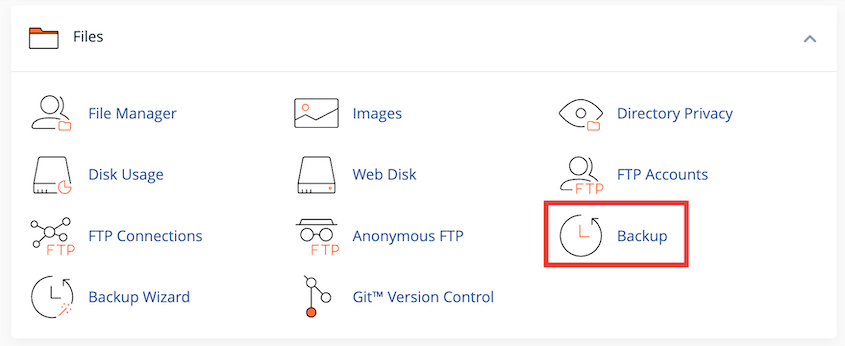
Si descargaste una copia de tu directorio principal con cPanel, puedes subir este archivo en Restaurar una copia de seguridad del directorio principal.
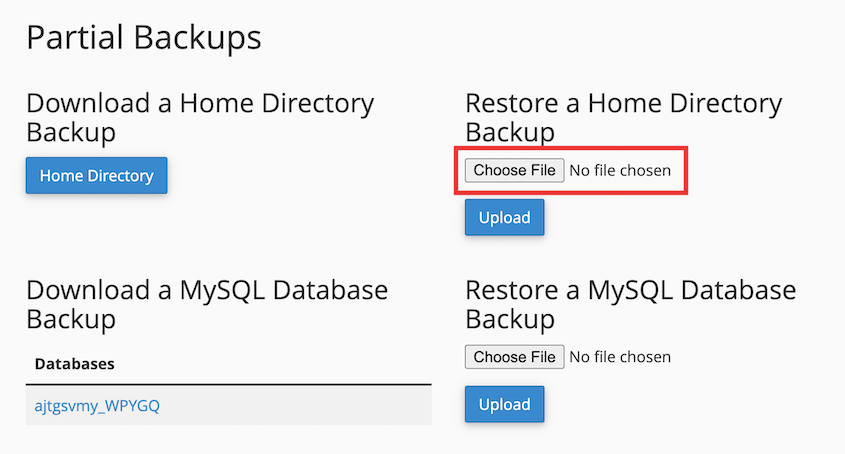
Para restaurar tu base de datos, sube una copia de seguridad a la opción Restaurar una copia de seguridad de la base de datos MySQL.
¡Una vez que subas ambos componentes del sitio, restaurarás completamente tu sitio web de WordPress!
Resumen rápido de cómo restaurar WordPress con cPanel:
- Accede a la sección de copias de seguridad de cPanel en tu cuenta de hosting.
- Restaura una copia de seguridad del directorio principal para recuperar tus archivos de WordPress.
- Sube una copia de seguridad de la base de datos MySQL para recuperar tu base de datos.
Qué Comprobar Después de Restaurar WordPress
Una restauración no ha terminado hasta que hayas confirmado que el sitio funciona. Realiza estas comprobaciones de inmediato:
- Inicia sesión en tu panel de control y visita tu página de inicio y algunas páginas clave.
- Si ves errores 404, ve a Ajustes » Enlaces permanentes y haz clic en Guardar cambios para reconstruir tus reglas de enlaces permanentes.
- Limpia tu plugin de caché, la caché de tu hosting y cualquier caché de CDN para que los visitantes no vean la versión rota.
- Busca cualquier cosa creada después de la fecha de la copia de seguridad, como nuevas publicaciones, comentarios, entradas de formularios o pedidos de WooCommerce. Necesitarás añadirlos de nuevo manualmente.
- Prueba tus formularios y el proceso de pago para asegurarte de que los correos electrónicos y los pagos sigan funcionando.
- Si una actualización fallida causó el problema, aplica las actualizaciones una a una para poder detectar la que rompió tu sitio.
- Si restauraste después de un hackeo, cambia todas las contraseñas de administrador y la contraseña de tu base de datos.
Consejos de copias de seguridad para restauraciones rápidas
Quizás esta vez te encontraste con problemas al restaurar tu sitio de WordPress. Si no pudiste encontrar una copia de seguridad, probablemente tuviste que recurrir a la Wayback Machine y regenerar tus archivos manualmente.
¡Aquí tienes mis mejores consejos para evitar problemas de restauración en el futuro!
Programa copias de seguridad automáticas
Si solo creas copias de seguridad manuales, olvidarás hacer copias de seguridad de tu sitio con regularidad. Hay muchas posibilidades de que no tengas la copia de seguridad correcta cuando la necesites.
Siempre debes configurar copias de seguridad programadas. Con un plugin como Duplicator Pro, puedes guardar automáticamente copias de tu sitio cada hora, día, semana o mes.
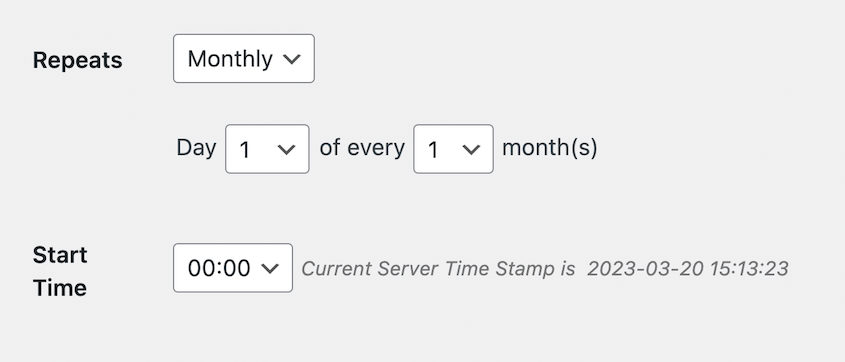
Siéntete libre de personalizar tus programas de copias de seguridad para diferentes partes de tu sitio.
Si tienes una tienda WooCommerce, te recomiendo hacer una copia de seguridad de tu base de datos diariamente. Esto evita que pierdas datos de nuevos clientes o pedidos.
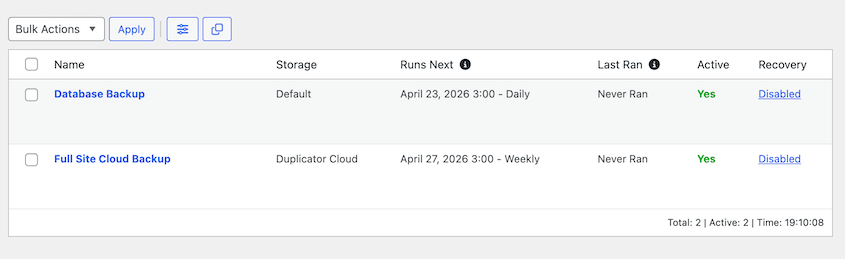
Almacena copias de seguridad en la nube
La mayoría de los plugins de copias de seguridad guardarán automáticamente tus copias en el servidor de tu sitio web. Si tu servidor falla o se cae por completo, es posible que no tengas copias de seguridad para restaurar.
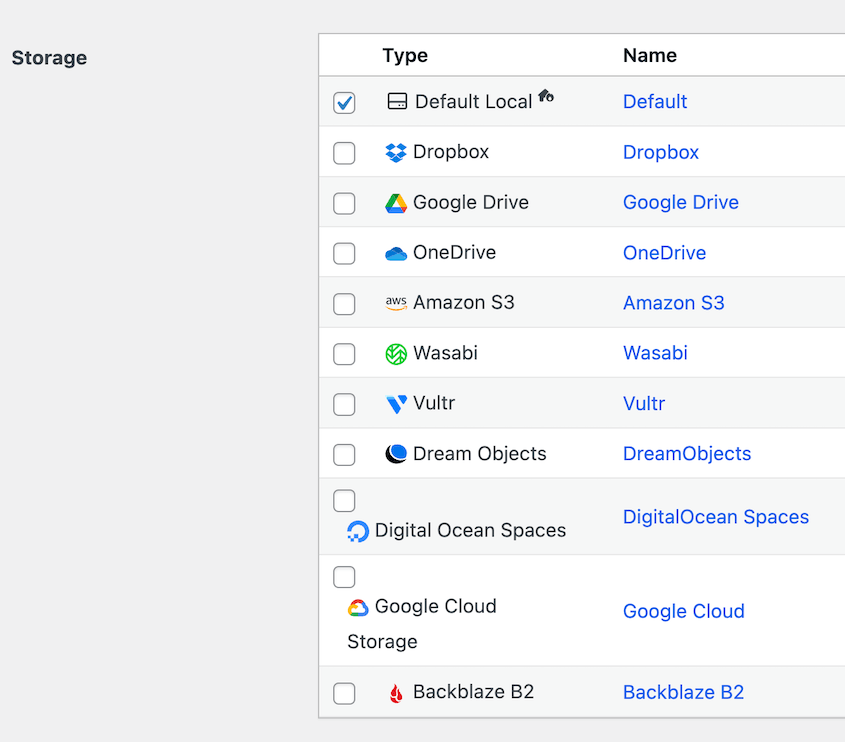
Siempre es una buena idea guardar las copias de seguridad de tu sitio en la nube. Tus datos estarán seguros y accesibles en servicios de almacenamiento como Google Drive o Amazon S3.
Duplicator tiene opciones muy flexibles en cuanto a copias de seguridad en la nube. Se conecta a más de 10 servicios de almacenamiento de terceros diferentes, además de su Duplicator Cloud interno, que también funciona en la versión gratuita.
A medida que creas copias de seguridad automáticas, puedes elegir dónde se guardan tus datos. Esto asegura que tus copias de seguridad estén seguras en la nube cada vez que las necesites.
Prueba tus herramientas de restauración
No querrás descubrir que tu plugin de copia de seguridad/restauración no funciona justo después de que tu sitio se caiga. Antes de que algo salga mal, es importante hacer una restauración de prueba.
Esto es fácil de hacer en un sitio de staging, y Duplicator Pro puede crear uno a partir de cualquier copia de seguridad con un solo clic. Migra tus datos a un servidor local. Aquí, prueba tus opciones de restauración.
Si usas Duplicator, siéntete libre de usar los botones de restauración de un clic. También puedes establecer una copia de seguridad como punto de recuperación ante desastres. Copia y pega la URL de recuperación para asegurarte de que inicia el asistente de recuperación.
Después de restaurar una copia de seguridad, asegúrate de poder iniciar sesión de nuevo en tu sitio. Todo debería volver a ser como era cuando se creó esa copia de seguridad.
Como principiante, puede ser útil repasar estos pasos antes de un desastre real. Aprende qué funciona y luego estarás preparado para lo peor.
Configura la recuperación ante desastres
Quedarse atascado con un sitio caído sin una copia de seguridad no es una buena sensación. Es crucial esperar lo peor, incluso si nunca sucede.
Duplicator te permite configurar la recuperación ante desastres. Esta es una forma de restaurar una copia de seguridad sin necesidad de abrir tu panel de control. Es muy útil para errores en todo el sitio o hackeos a gran escala. Y si tu servidor está completamente caído, puedes restaurar desde Duplicator Cloud con un plan de Duplicator Cloud.
Recomiendo encarecidamente habilitar la recuperación ante desastres tan pronto como sea posible. ¡Encuentra las instrucciones en el Método 2 de este tutorial!
Preguntas Frecuentes (FAQs)
¿Cómo restauro WordPress desde un archivo de copia de seguridad zip?
Si tienes un archivo zip de copia de seguridad de Duplicator, súbelo junto con su archivo installer.php a la carpeta raíz de tu sitio usando FTP. Luego visita https://tu-dominio/installer.php para iniciar el asistente de restauración. Esto funciona en la versión gratuita. Con Duplicator Pro, puedes arrastrar y soltar el zip en la página de Importar en su lugar.
¿Cómo restauro una copia de seguridad de WordPress en localhost?
Para restaurar una copia de seguridad de WordPress en localhost, crea tu sitio web alojado localmente. A continuación, instala Duplicator Pro y busca la página Importar. Sube tu copia de seguridad y utiliza el asistente de recuperación de Duplicator para importar todos tus datos al sitio local.
¿Dónde se almacenan mis copias de seguridad de WordPress?
Tus copias de seguridad de WordPress podrían almacenarse en tu servidor local o en una ubicación de almacenamiento en la nube de terceros. Con Duplicator, puedes elegir exactamente dónde quieres guardar las copias de seguridad. Te proporcionará muchas opciones de almacenamiento diferentes, incluyendo Google Drive, Dropbox, Microsoft OneDrive y más.
¿Cómo hago una copia de seguridad y migro mi sitio de WordPress?
Puedes hacer una copia de seguridad y migrar tu sitio de WordPress instalando el plugin Duplicator Pro. Esta herramienta te permite comprimir todo tu sitio en un único archivo comprimido. Luego, puedes guardarlo como copia de seguridad o transferirlo fácilmente a un nuevo host, servidor o nombre de dominio.
Alternativas: Otros plugins de copia de seguridad/restauración y migración incluyen UpdraftPlus, All-in-One WP Migration y Jetpack.
¿Cómo restauro mi sitio de WordPress sin la base de datos?
Para restaurar tu sitio de WordPress sin la base de datos, crea una copia de seguridad con Duplicator que solo incluya tus archivos de WordPress. En la sección Copia de seguridad, haz clic en Personalizada y desmarca la opción de la base de datos.
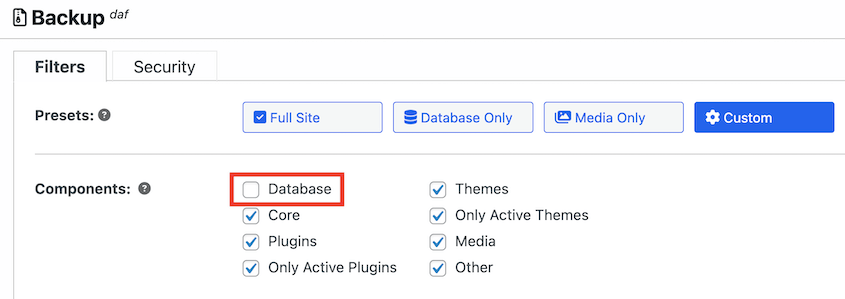
Continúa creando la copia de seguridad. Si alguna vez necesitas restaurar estos datos, haz clic en el botón Restaurar junto a ella.
Una vez que continúes con la restauración, Duplicator solo sobrescribirá tus archivos. No realizará ninguna acción en la base de datos.
¿Cómo descargo una copia de seguridad de WordPress?
En Duplicator, ve a Duplicator » Copias de seguridad y haz clic en Descargar junto a una copia de seguridad para guardar sus archivos de archivo e instalador en tu ordenador. Esto funciona en la versión gratuita. Muchos hostings también te permiten descargar copias de seguridad desde su panel de control, como la página Copia de seguridad de cPanel.
¿Cómo puedo reparar mi base de datos de WordPress?
Primero haz una copia de seguridad de tu base de datos. Luego, añade define( 'WP_ALLOW_REPAIR', true ); a tu archivo wp-config.php y visita https://tu-dominio/wp-admin/maint/repair.php. Elimina la línea cuando hayas terminado, ya que esa página no requiere inicio de sesión. Aquí tienes nuestra guía completa para reparar una base de datos de WordPress.
La red de seguridad de 5 minutos que podría salvar tu sitio de WordPress
¡Siguiendo estos pasos, podrás restaurar WordPress desde una copia de seguridad en menos de 5 minutos!
Piensa en cuánto tiempo, esfuerzo y dinero has invertido en tu sitio de WordPress. Ahora imagina perderlo todo por un conflicto de plugins, una actualización fallida o un hackeo.
Con la estrategia de copia de seguridad y restauración adecuada, nunca estarás a más de unos pocos clics de recuperar todo.
Configurar tu red de seguridad no lleva mucho tiempo. Instala Duplicator Pro, crea tu primera copia de seguridad y configura la recuperación ante desastres. Tendrás el poder de restaurar todo tu sitio con un solo clic, incluso si estás completamente bloqueado de tu panel de administración.
El peor momento para aprender sobre copias de seguridad es cuando desesperadamente necesitas una.
Empieza hoy mismo programando copias de seguridad automáticas, almacenándolas en la nube y probando tu proceso de restauración una vez. Esta pequeña inversión de tiempo podría salvar tu negocio, tu contenido y incontables horas de trabajo más adelante.
Aquí tienes algunas guías relacionadas que te ayudarán a gestionar tu sitio de WordPress de forma más eficaz:
- Explicación de las extensiones de archivo de copia de seguridad de WordPress
- Los mejores plugins gratuitos de copia de seguridad para WordPress
- Cómo restaurar un sitio de WordPress a una fecha anterior sin copia de seguridad
- La guía definitiva para copias de seguridad de WooCommerce
- Cómo restaurar su sitio de WordPress a partir de una copia de seguridad de Google Cloud
- Cómo restaurar un sitio web con solo una copia de seguridad de la base de datos




